

Let's do it together!
Step 1: Access Property Overview
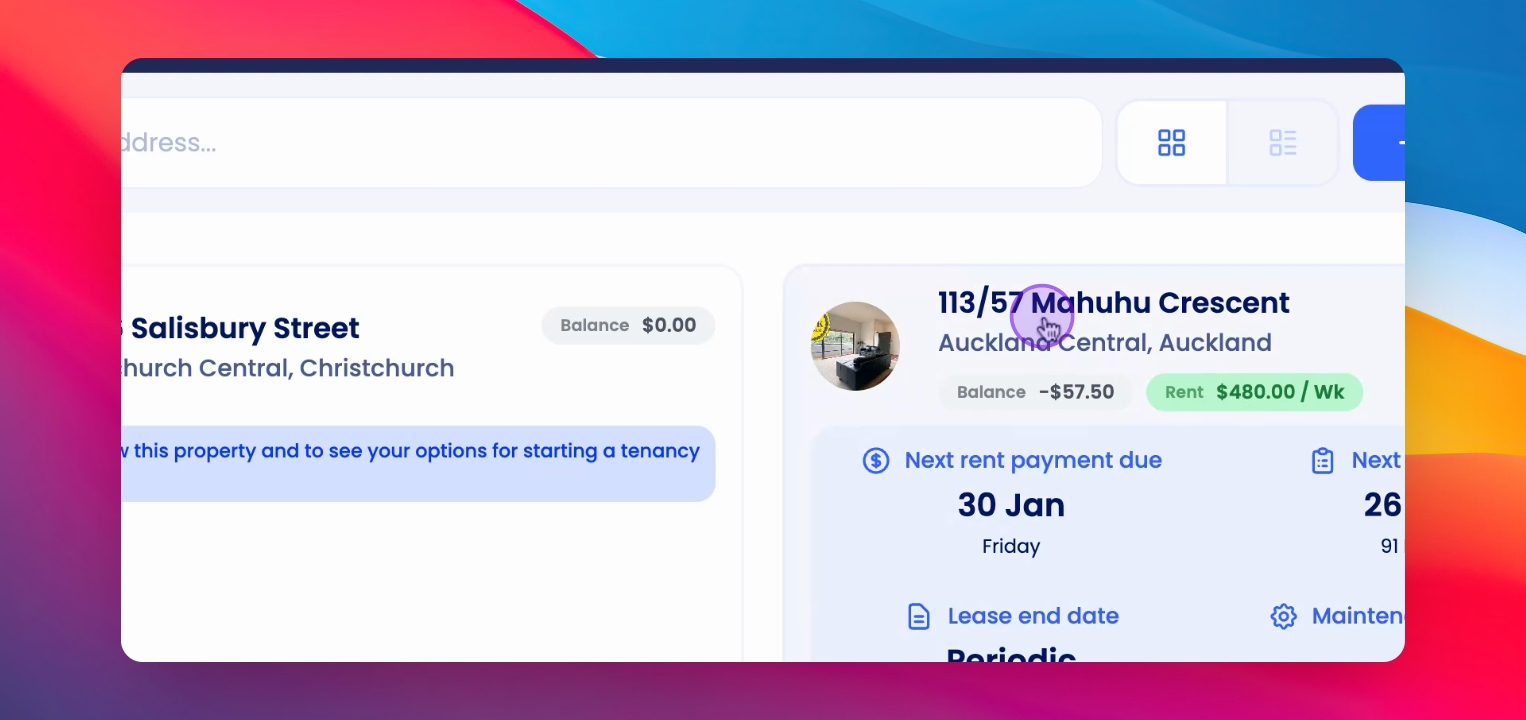
Open Keyhook and navigate to the Property Overview page to start managing your property.
Step 2: Use Quick Links
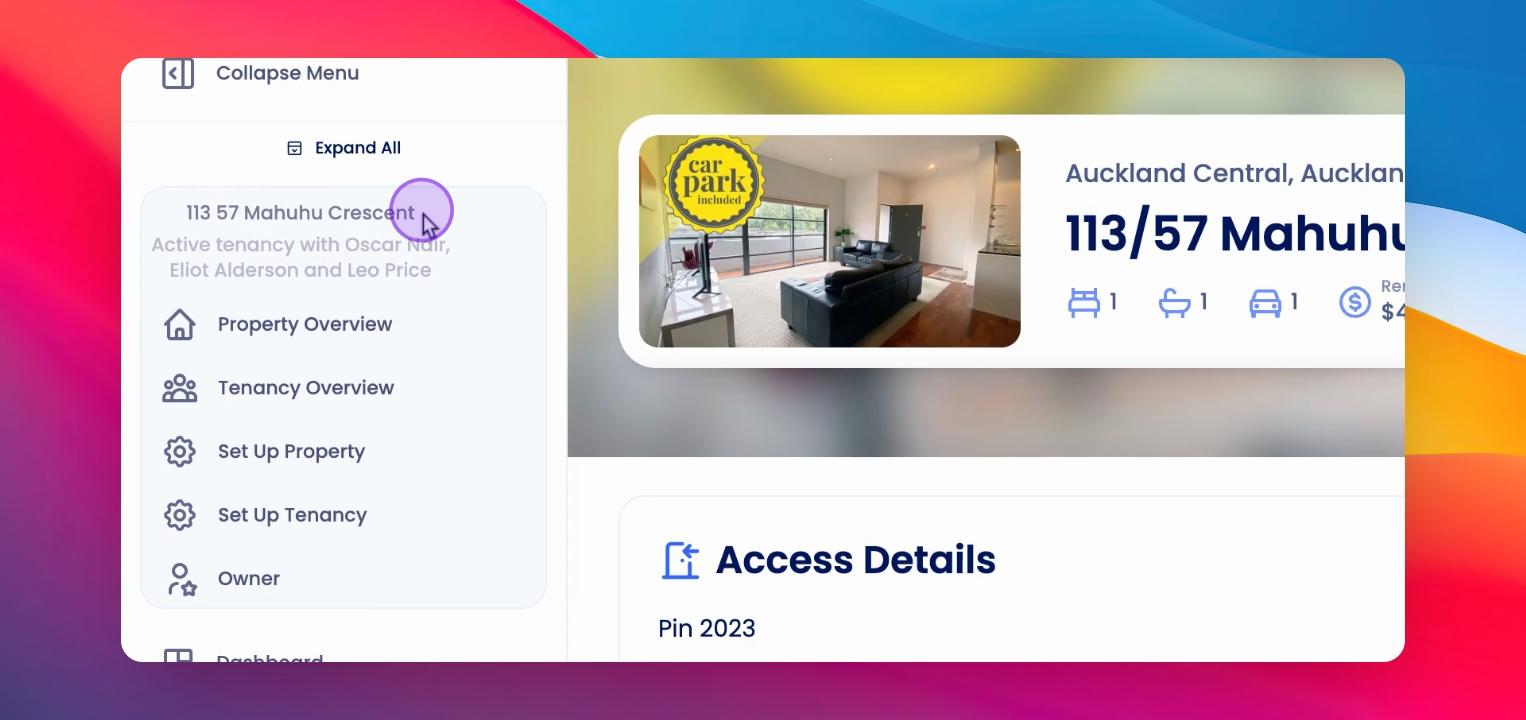
Utilize the Quick Links panel on the left to access Tenancy Overview, Property Setup, Tenancy Setup, Owner Profile, and return to Property Overview.
Step 3: Review Property Summary
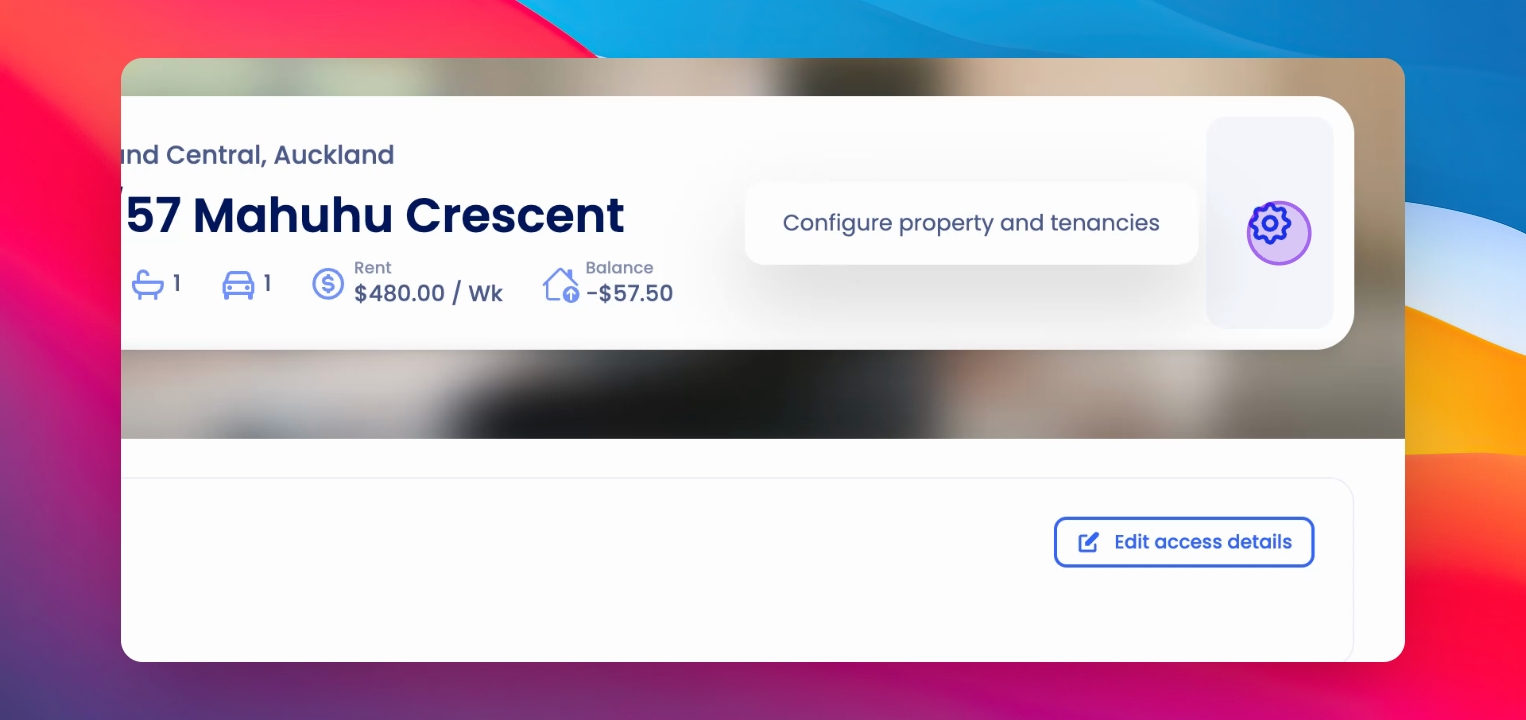
Check the Property Summary at the top of the page for key details like address, bedrooms, bathrooms, garages, rent amount, and balances.
Step 4: Change Main Image
Change the main property image by clicking the Change button on the left side.
Step 5: Navigate to Property Setup
Click the Gear icon on the right side to go directly to the Property Setup page.
Step 6: Edit Access Details
If Access details were added, view them in the Access Details section and click Edit to make changes.
Step 7: Save Changes
After editing, click Save to apply the changes to Access details.
Step 8: Manage Notes
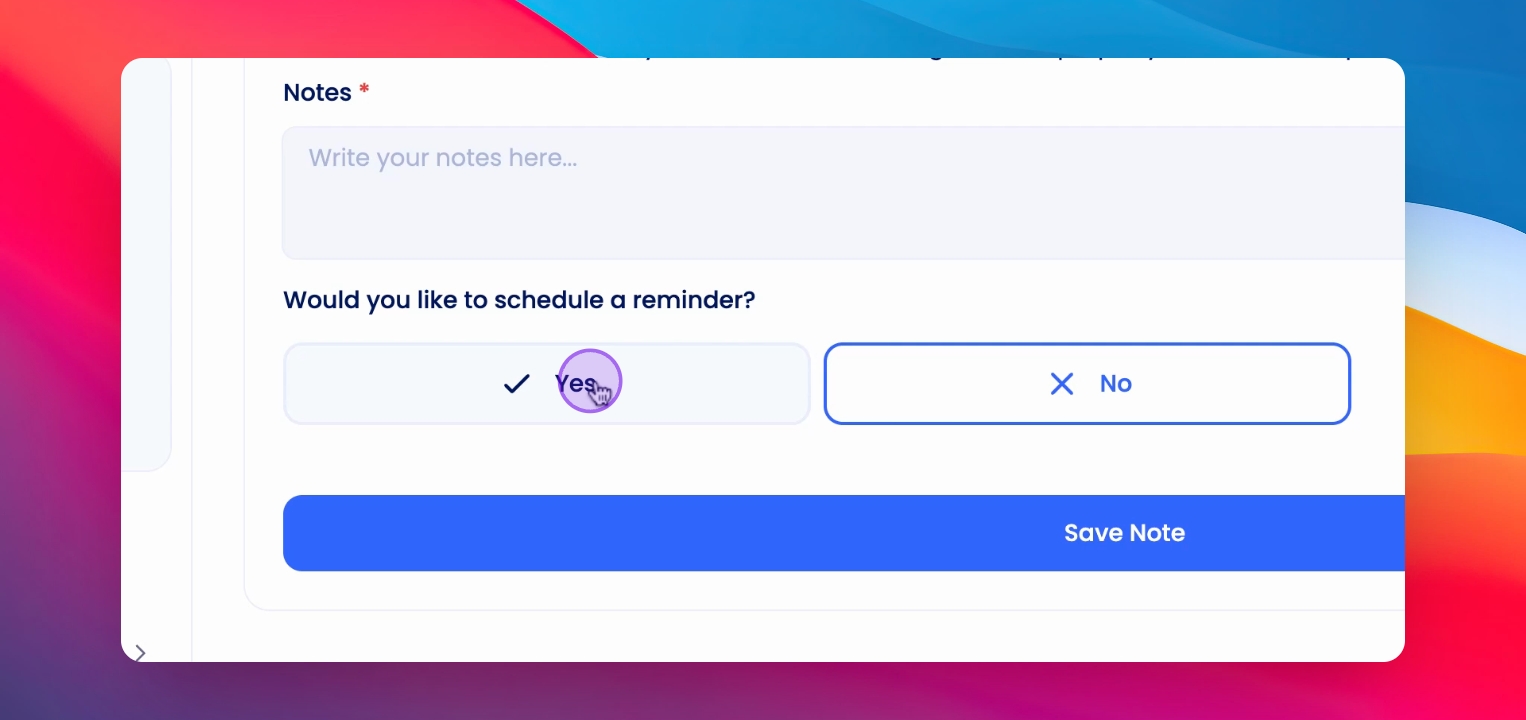
Add internal notes and reminders for property managers in the Notes section.
Step 9: Set Reminders
Click to set a one-time or recurring reminder by filling out the details in the Notes section.
Step 10: View Inspections
Check completed and upcoming inspections, and click on any inspection row to view details.
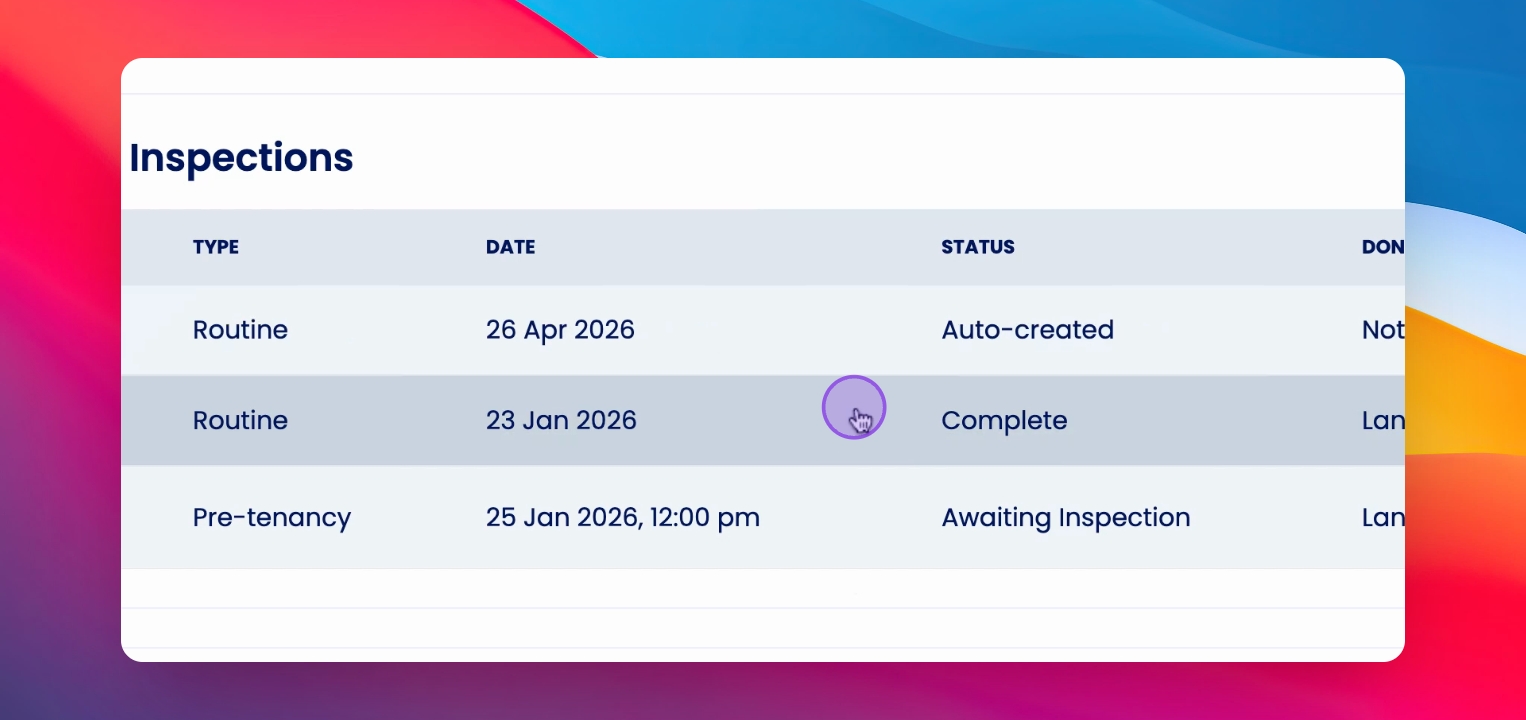
Step 11: Create Inspections
Create new inspections by clicking the button on the right side.
Step 12: Manage Maintenance Requests
View requests from property managers and tenants in the Maintenance Requests section.
Step 13: Create Maintenance Request
Click the button on the right side to create a new Maintenance Request.
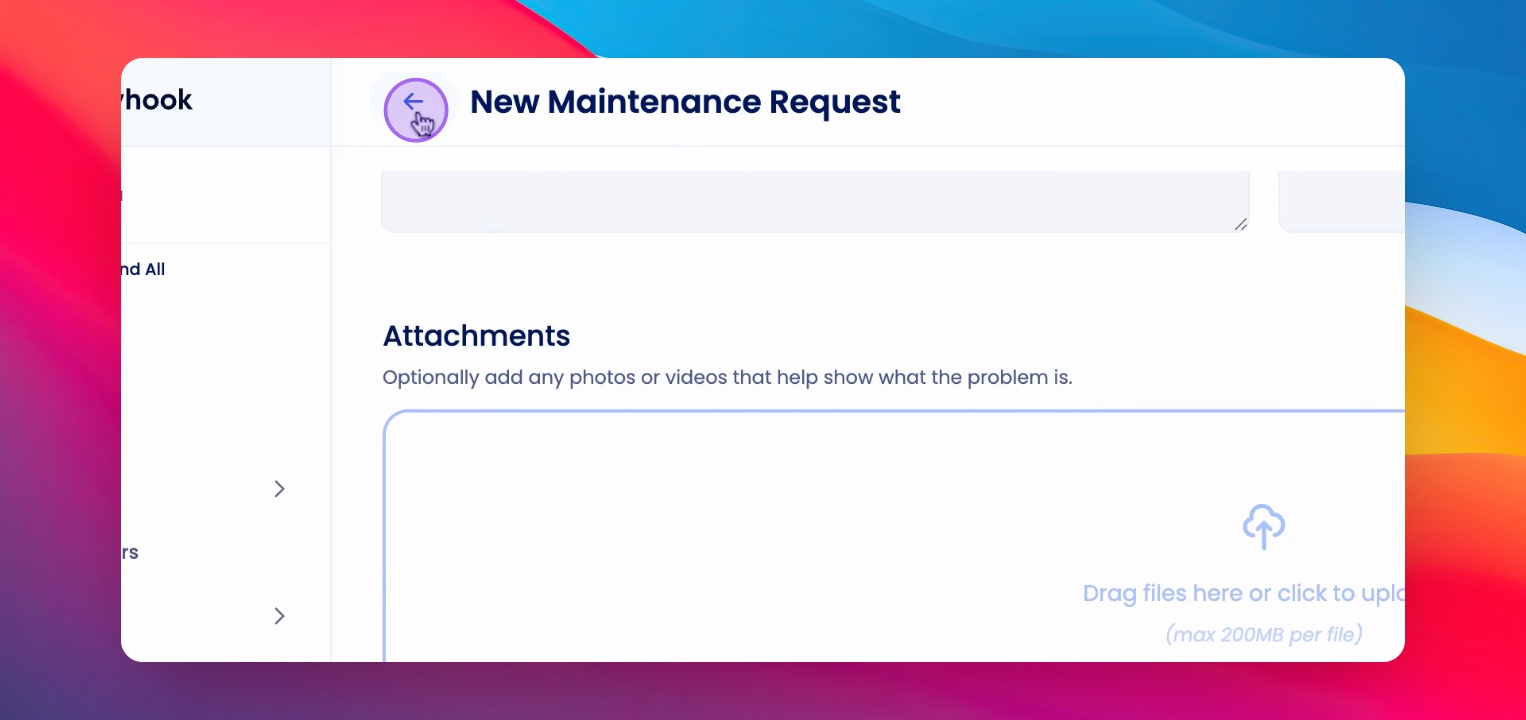
Step 14: Review Open Invoices
Check the Open Invoices section for all outstanding invoices related to the property.
Step 15: Access Documents
Find all documents attached to the property in the Documents section and upload new ones using the Actions button.
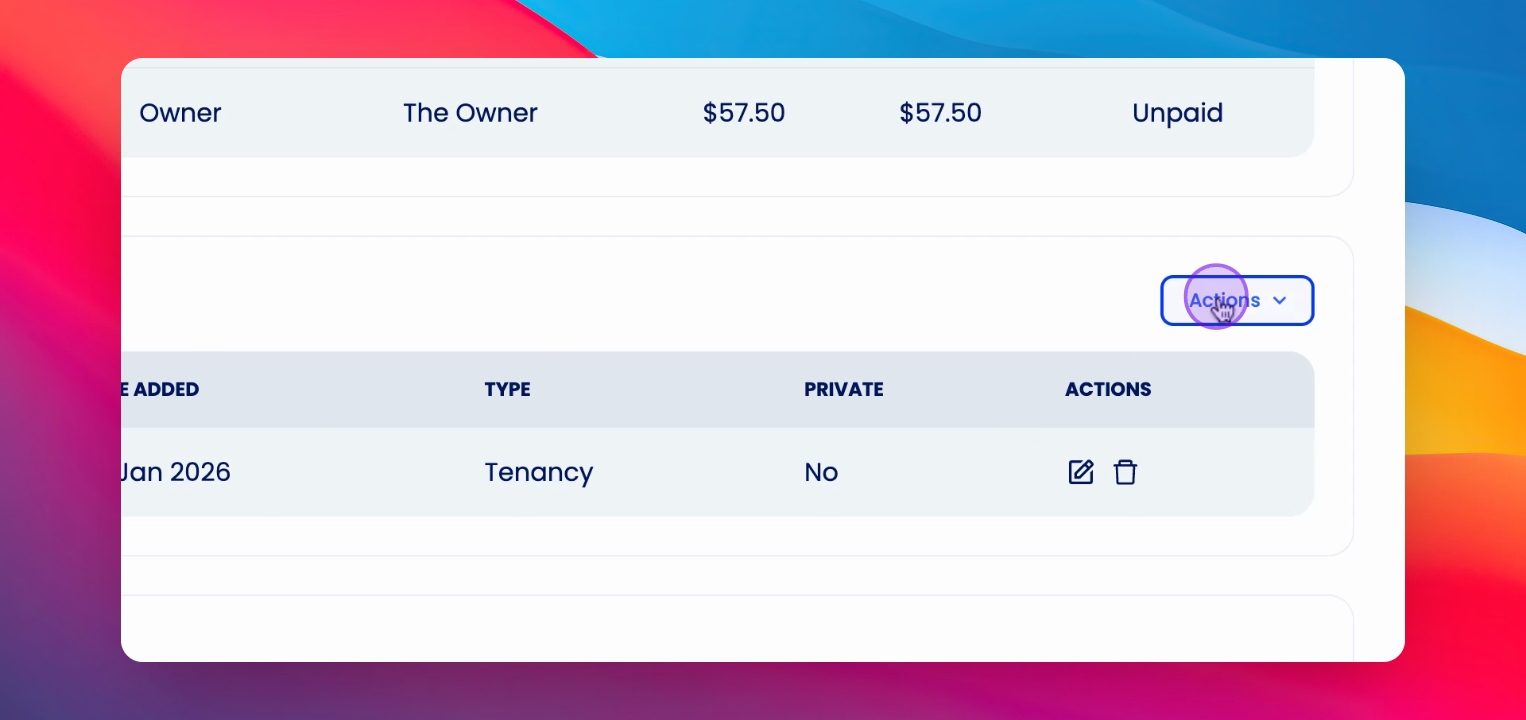
Step 16: Review Tenants
View all tenants linked to the current tenancy by checking the Tenants section.
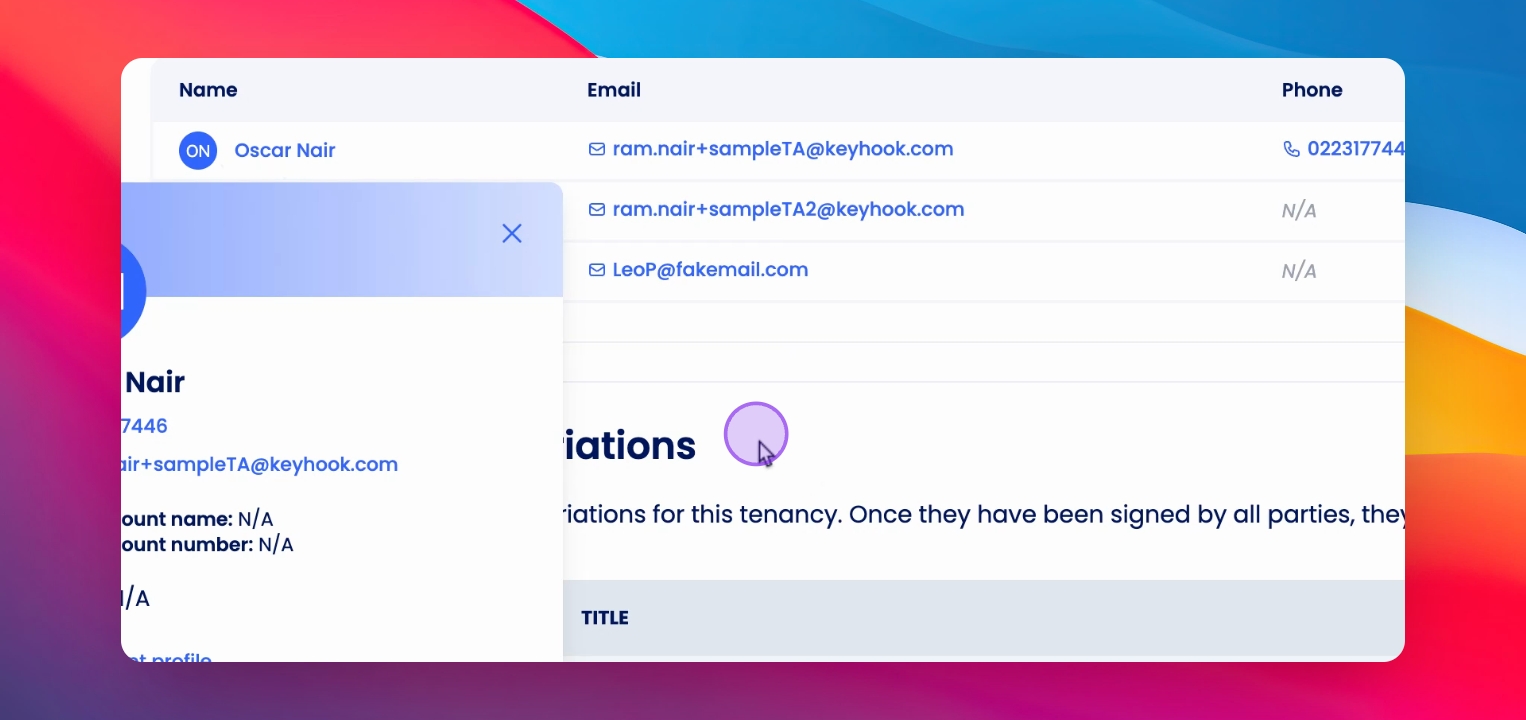
Step 17: Check Tenancy Variations
View pending Tenancy Variations when processed, and click the View button to see the notice.
Step 18: Use Property Tabs
Utilize the tabs at the top of the page to view inspections, maintenance requests, listings, transactions, and timeline.
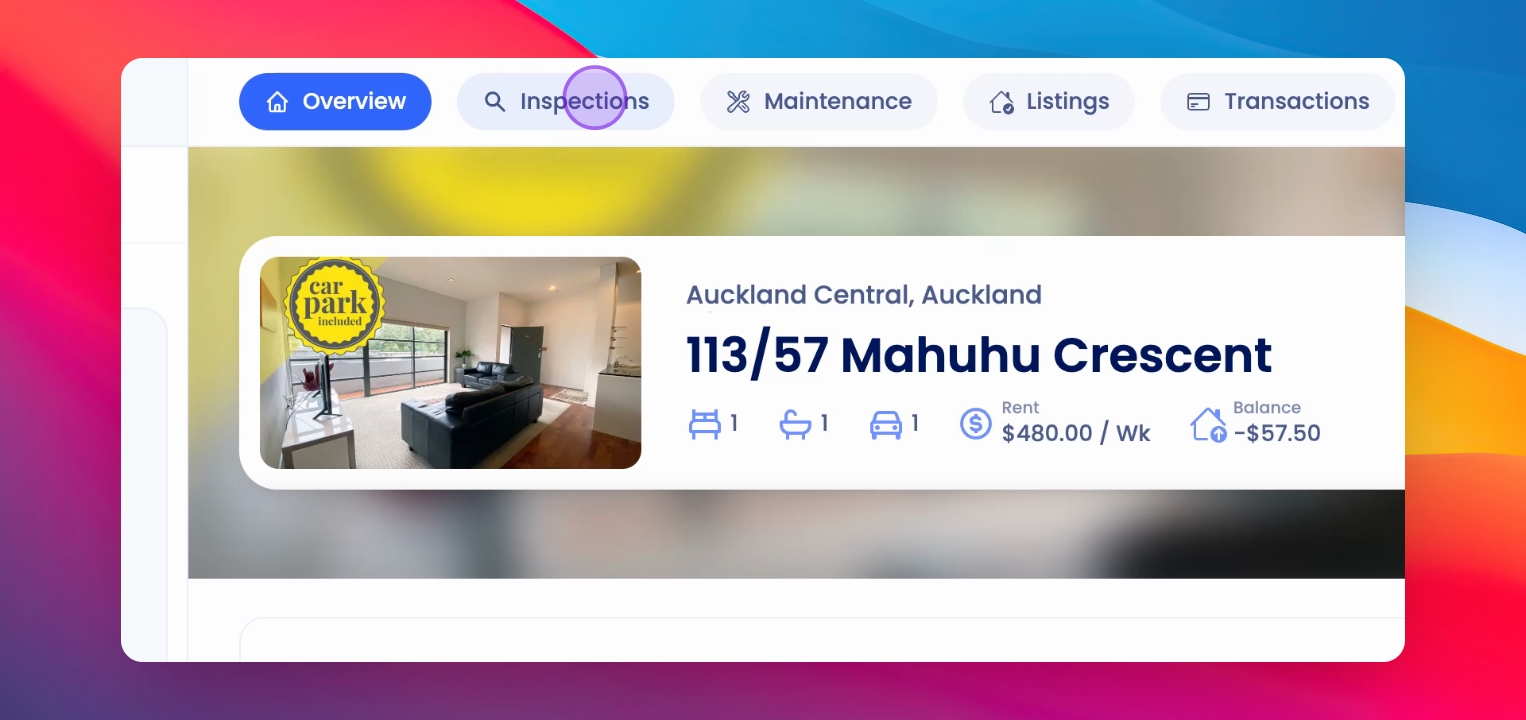
Step 19: Access Actions Menu
Click the Actions menu at the top right corner for property management tasks like changing rent and issuing notices.
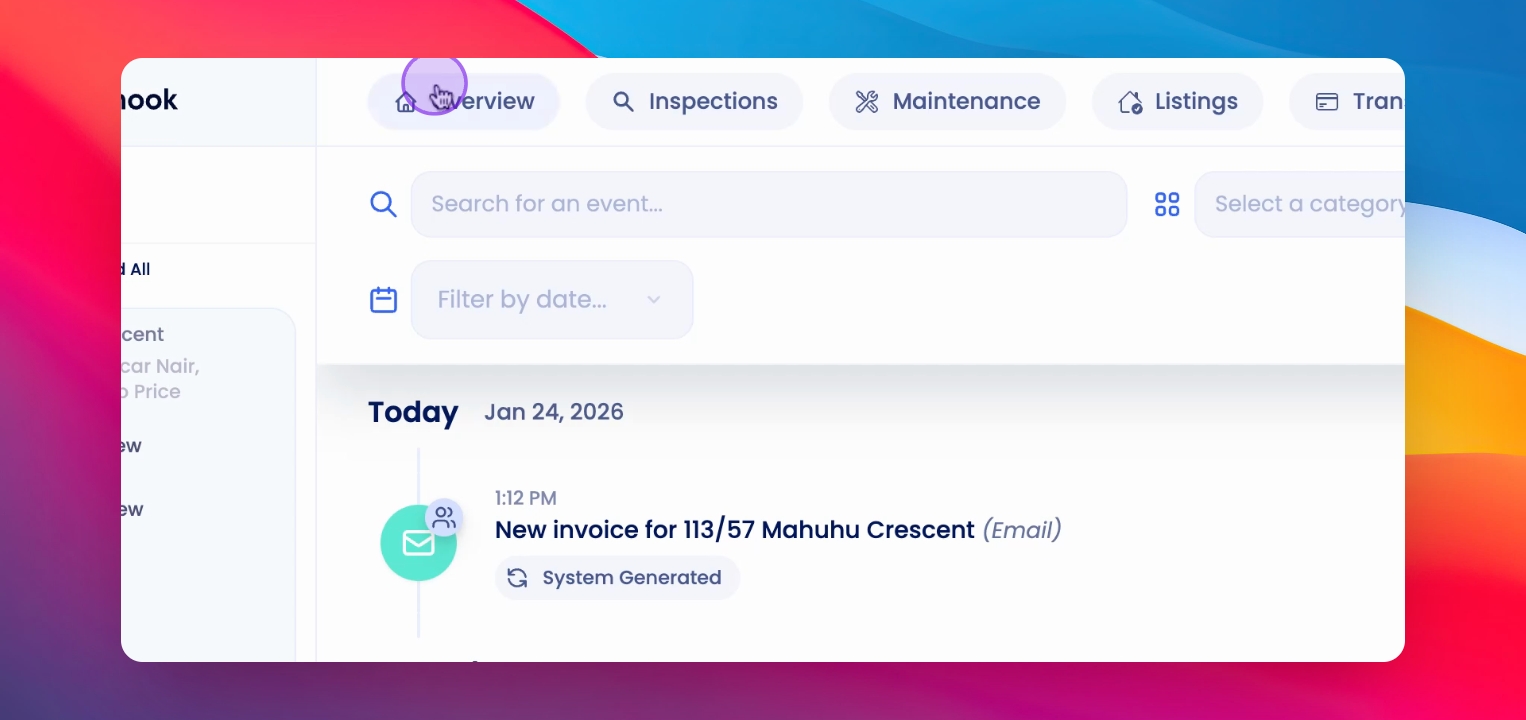
Step 20: Manage Your Property
Use the Property Overview page as your central hub for managing the property efficiently.
If you need more help or have any questions, just reach out to us at support@keyhook.com — we're always here to help!
Click on this link to give a feedback: Support Article Feedback Form