

TL;DR
Click on Agency Configuration to find this
This can be found in the configuration section
Follow the instruction in the app to set up your Authy account
Use the scanner on the phone to scan the QR on the screen.
Confirm to finalize 2FA in your Keyhook account
Let's Do it Together
Step 1: Access Agency Configuration
Start by heading to Agency Configuration.
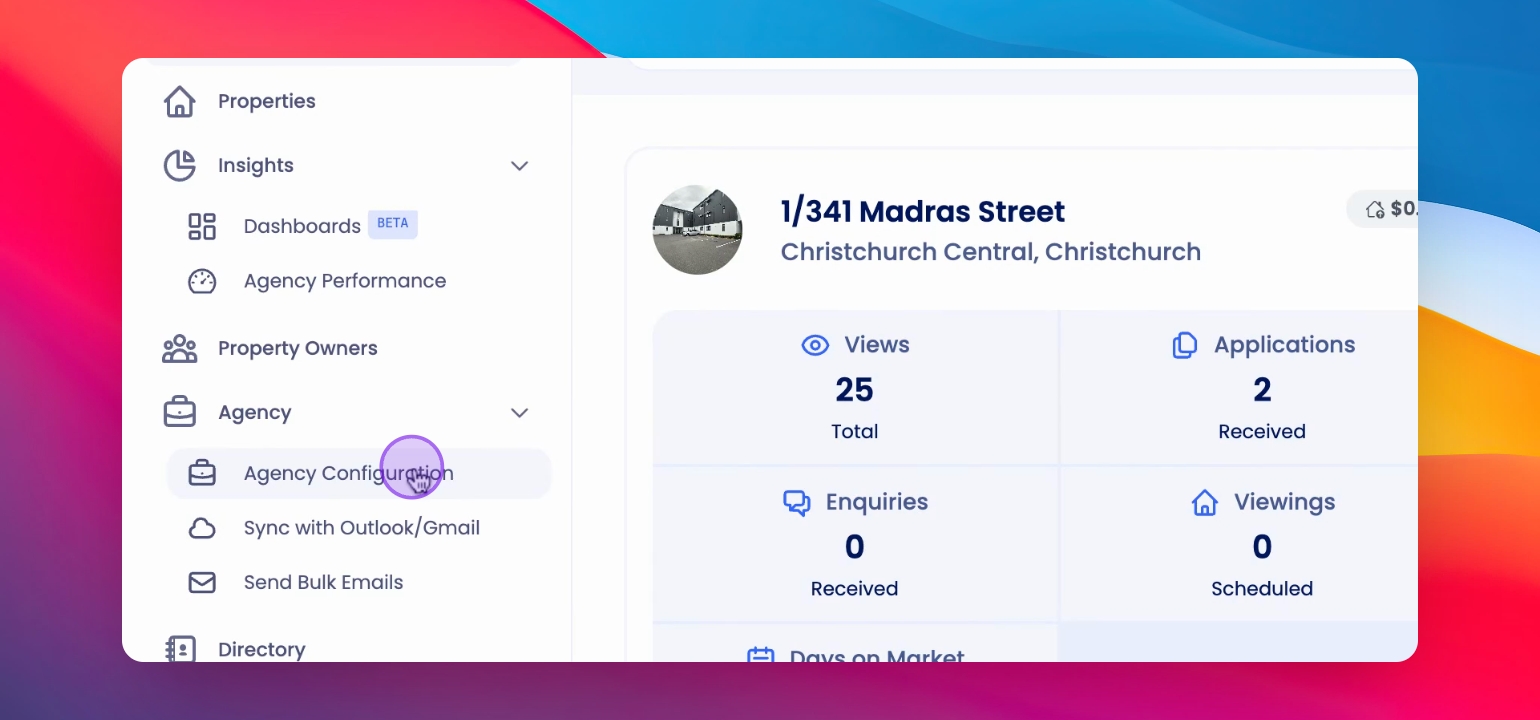
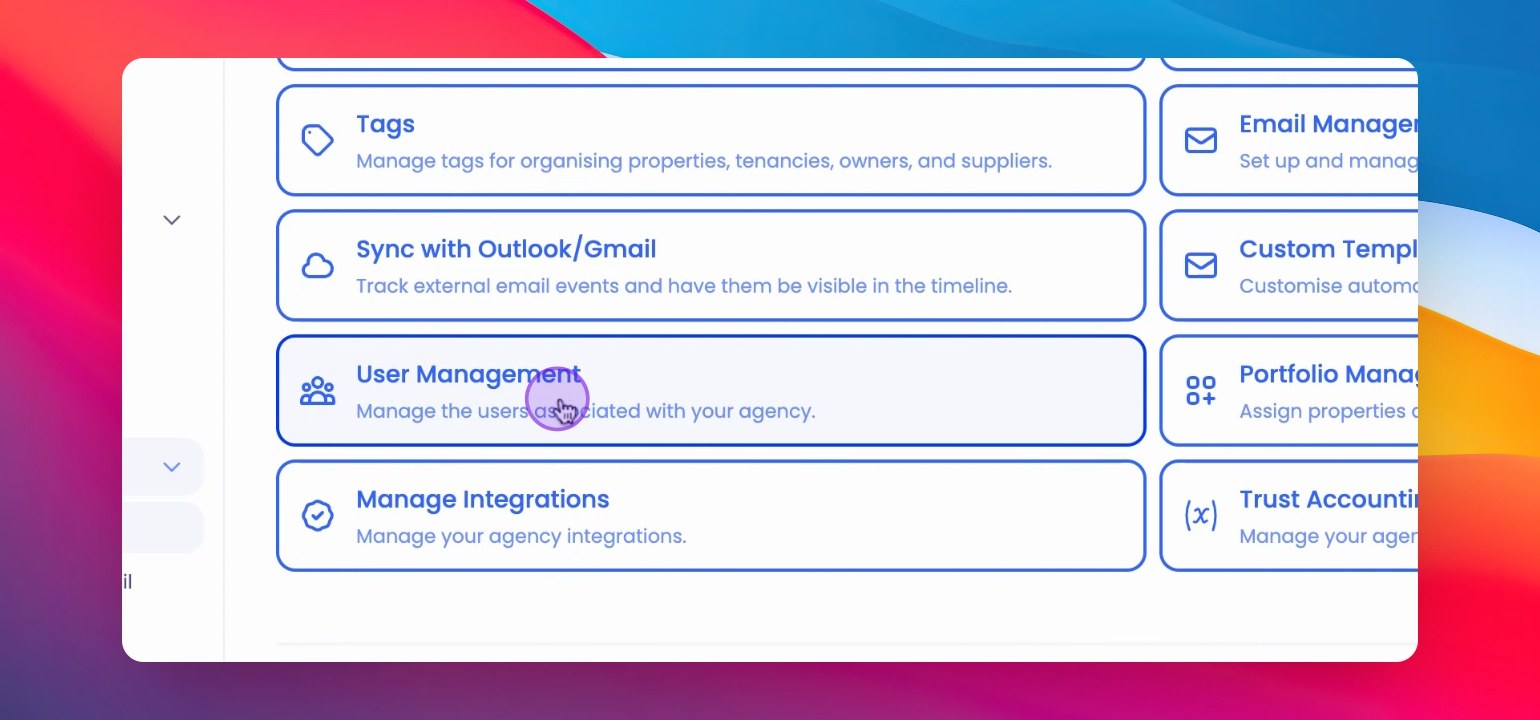
Step 2: Click User Management
Scroll down and select User Management.
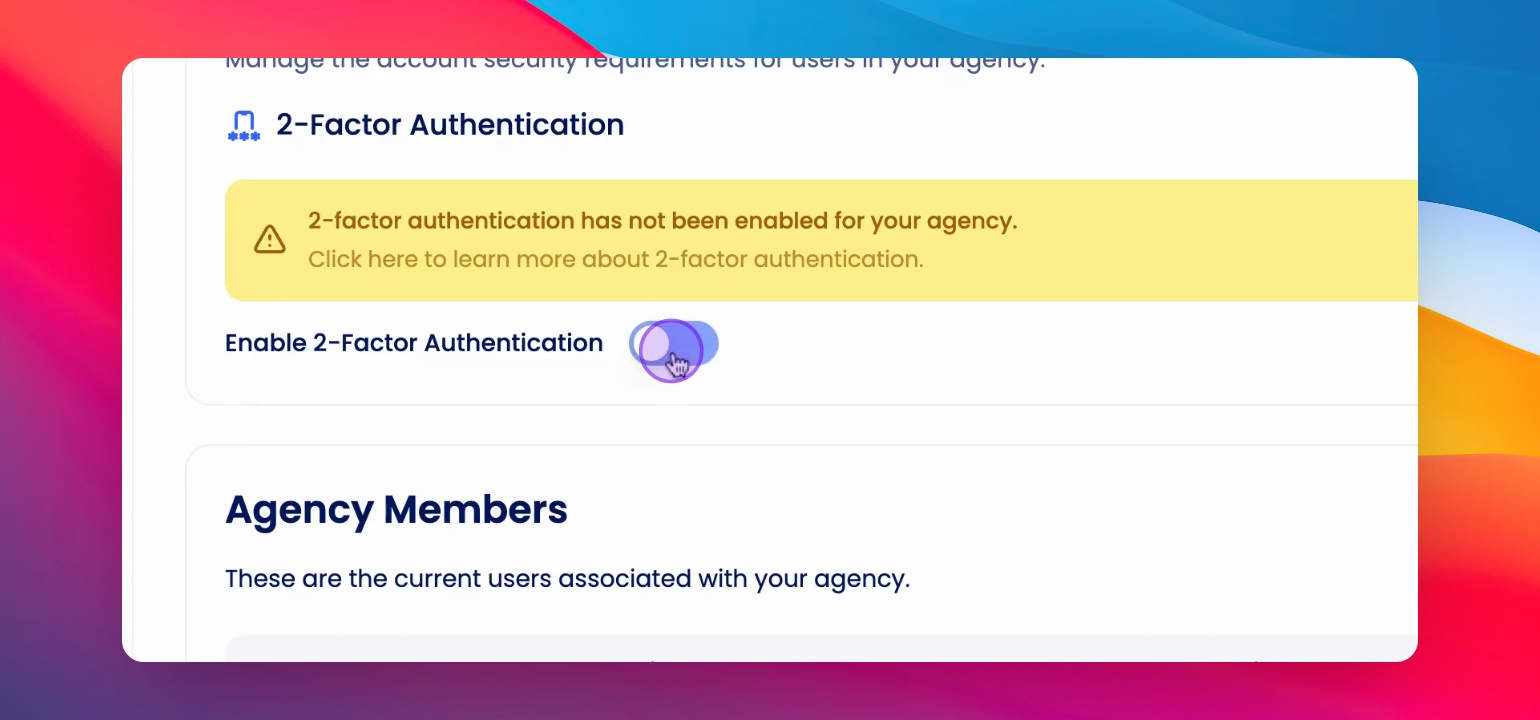
Step 3: Enable Two Factor Authentication
Click on the Enable Two Factor Authentication option.
A prompt appears for confirmation.
Step 4: Confirm to Proceed
Click Yes in the confirmation prompt.
You are redirected to the instruction page.
Step 5: Download Authy App on your phone
Download the Authy app and sign in.
Welcome message appears in Authy.
Step 6: Click Plus Sign
The QR code scanner opens.
Step 7: Scan QR Code
Use your phone to scan the QR code displayed on the screen.
Your Keyhook account appears in Authy.
Step 8: Save Configuration
Click Save in the Authy app.
Two Factor Authentication is set up.
Step 9: Backup Codes
Click on Download to get your backup codes.
Backup codes are ready to be saved.
Step 10: Save Backup Codes
Click Save and store your backup codes securely.
Backup codes are securely saved.
Step 11: Confirm Setup
Click Confirm to complete the setup.
Two Factor Authentication is fully set up.
If you need more help or have any questions, just reach out to us at support@keyhook.com — we're always here to help!
Click on this link to give a feedback: Support Article Feedback Form