

Let's do it together!
Step 1: Start Adding
Click on the Add Property button to begin the process of adding a property.
Step 2: Address Selection
You will be taken to the address selection screen where you can choose how to enter the property address.
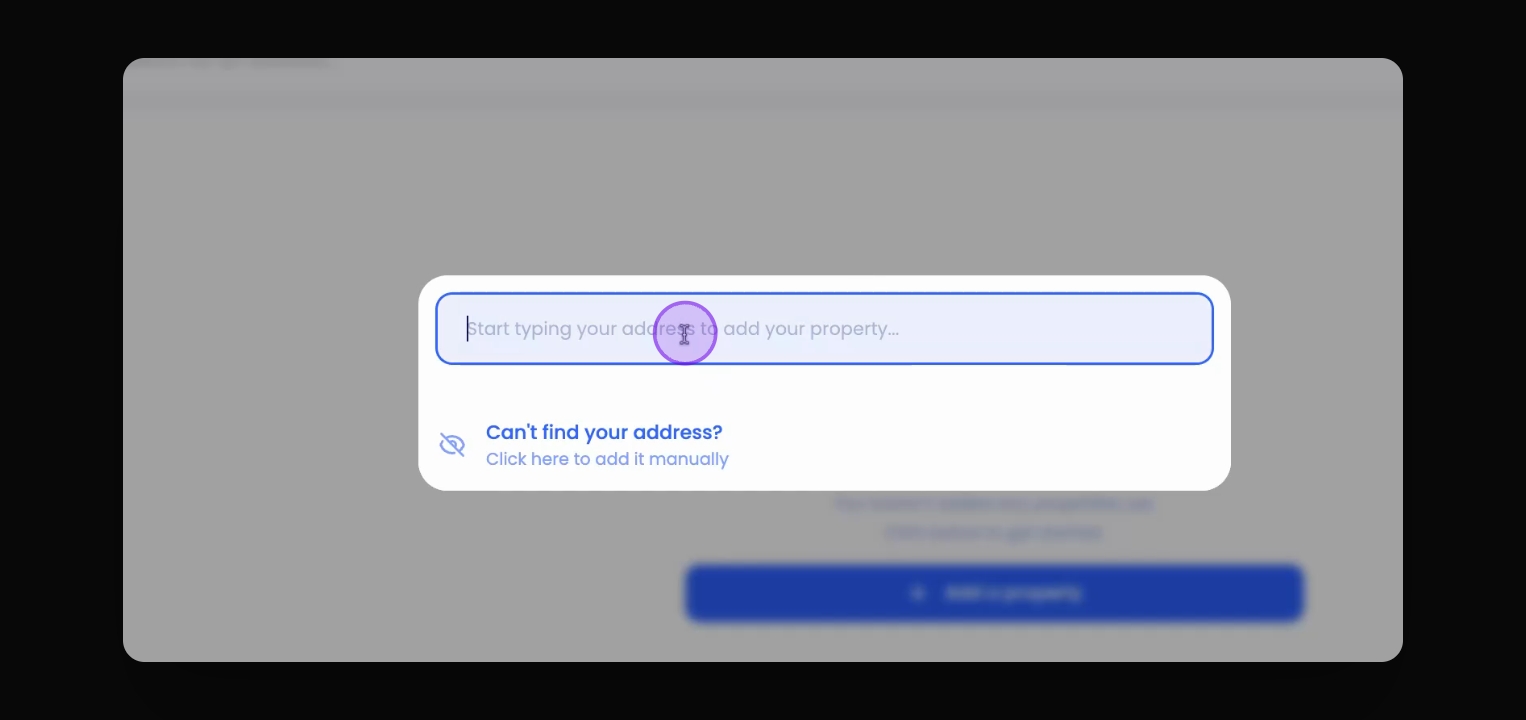
Step 3: Use Search Bar
Click on the Address search bar and start typing the property address. The system will suggest matching addresses.
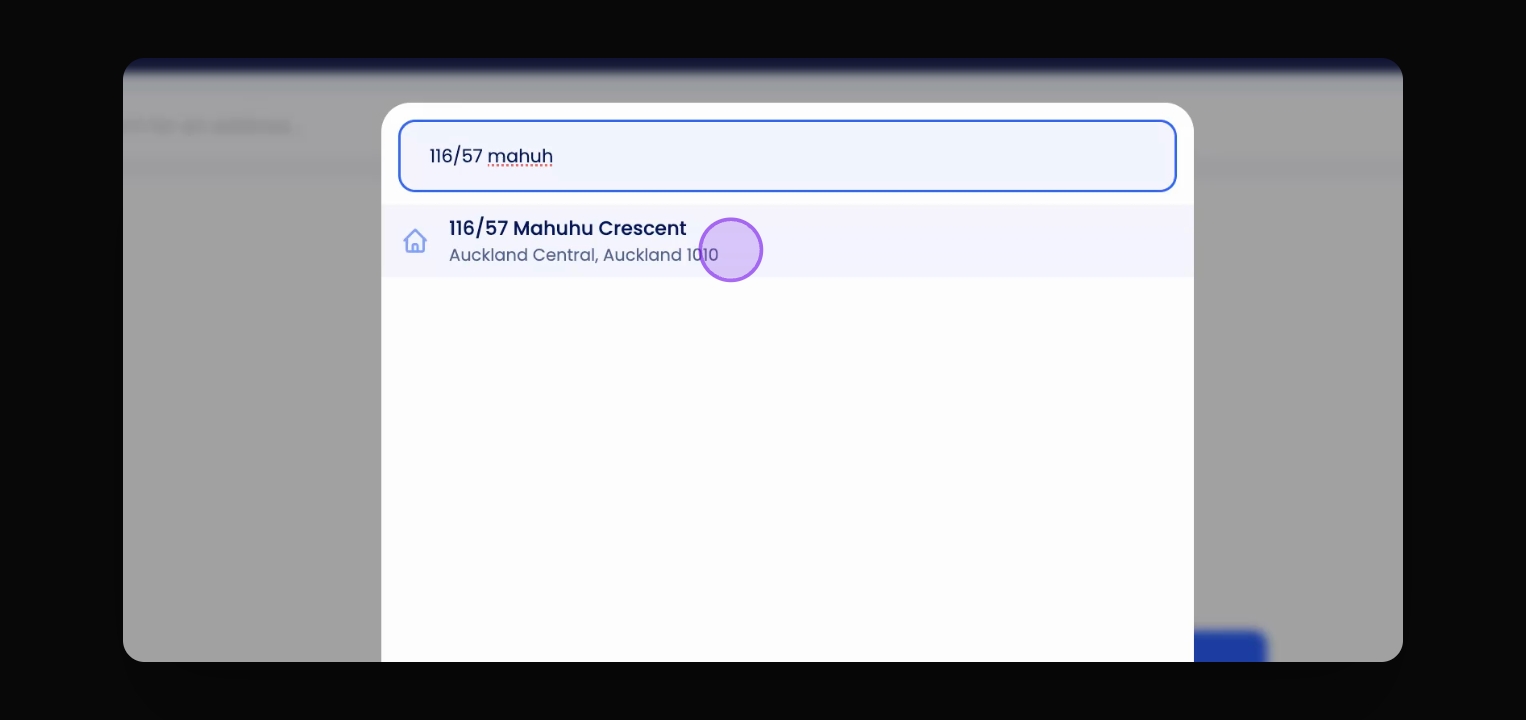
Step 4: Add Address
When the correct address appears, click on it to add the property. A green tick indicates successful addition.
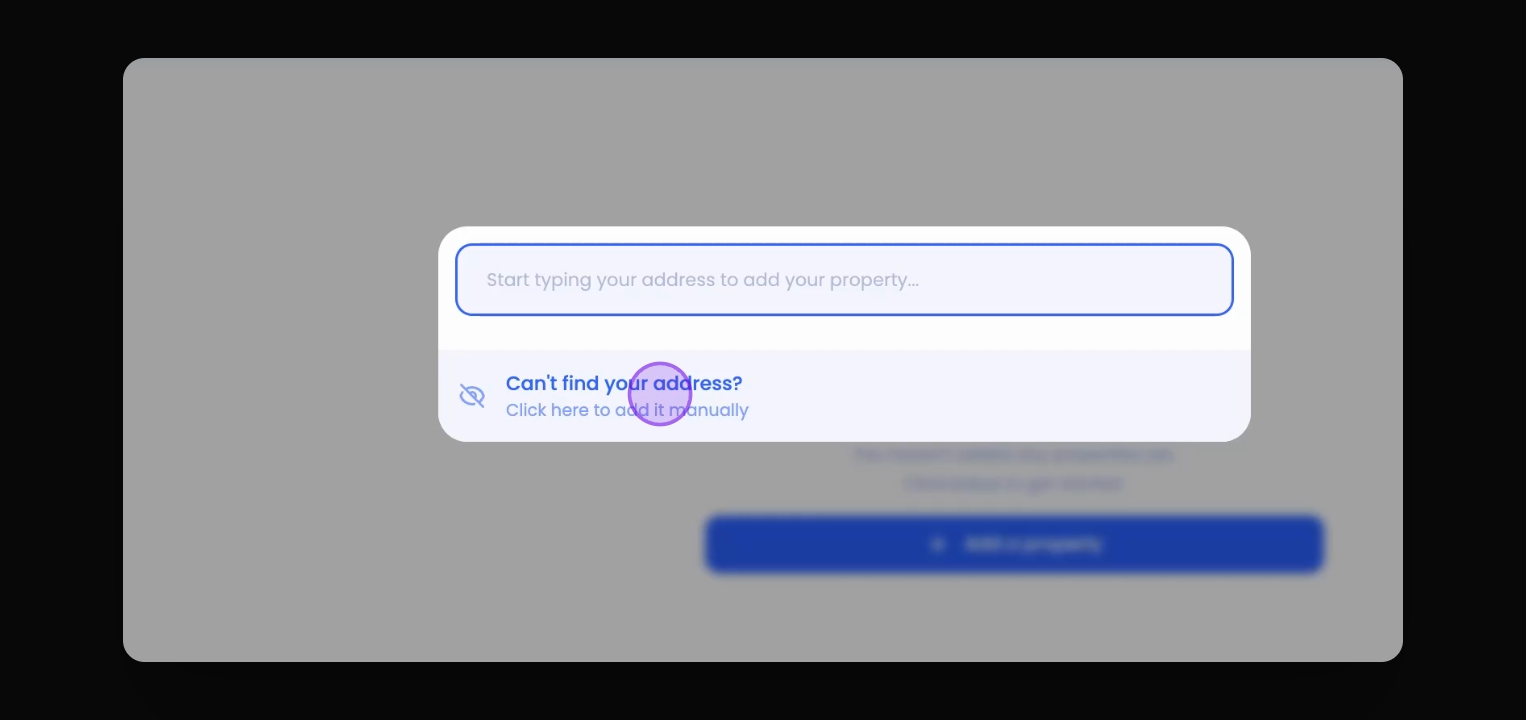
Alternatively.
Step 5: Manual Entry
If the address does not appear, click on the manual address entry option and enter the property details manually.
Step 6: Confirm details and click save
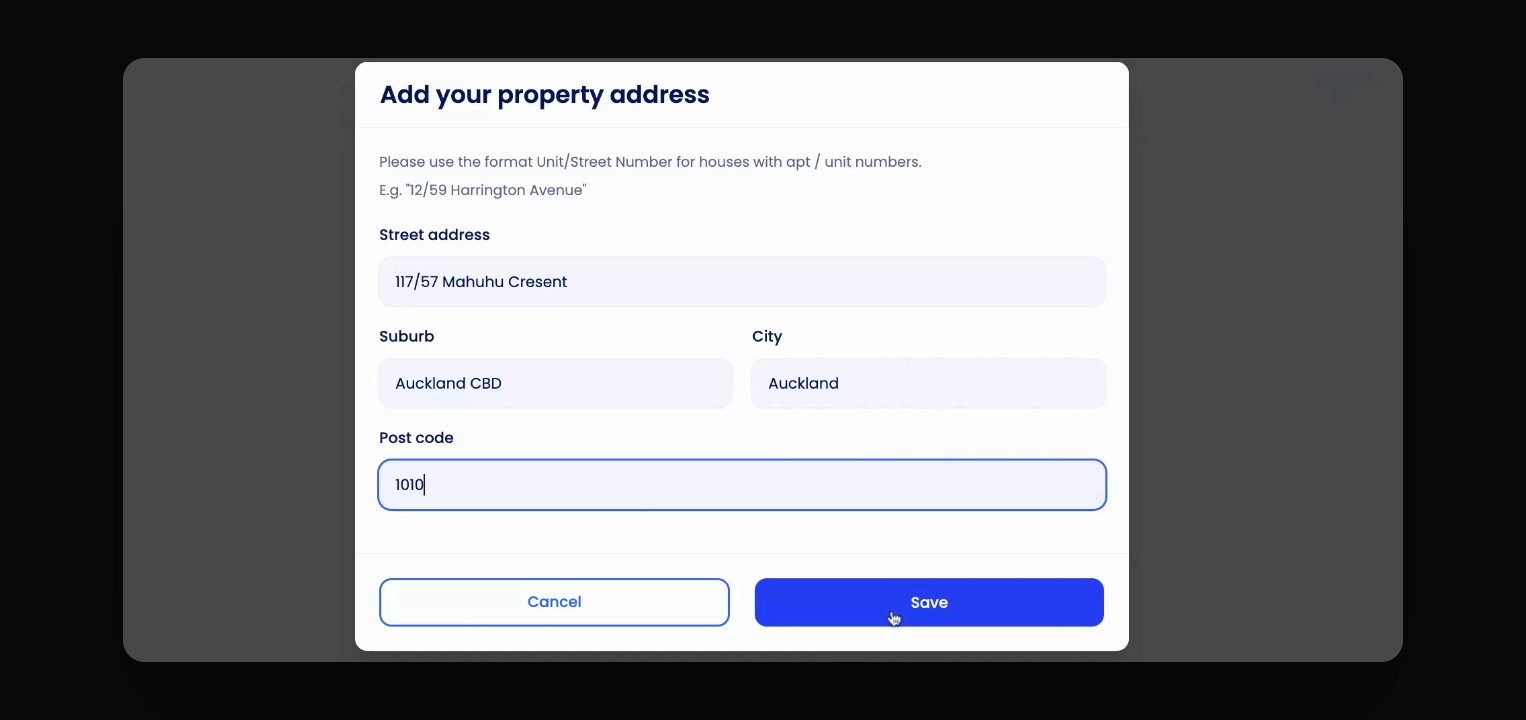
You have successfully added the property address manually in the system.
Troubleshooting
Address not found
Ensure the address is correctly typed and try again.
Manual entry fails
Check for any required fields that may be missing.
FAQ
Can I add multiple addresses?
No, you need to add each addresses individually using the same methods.
What if my address is not found?
You can manually enter the address if it's not found in the search.