

Let's do it together!
Step 1: Add Property
From the Dashboard, click on Add Property button to begin the property setup.
Step 2: Enter Address
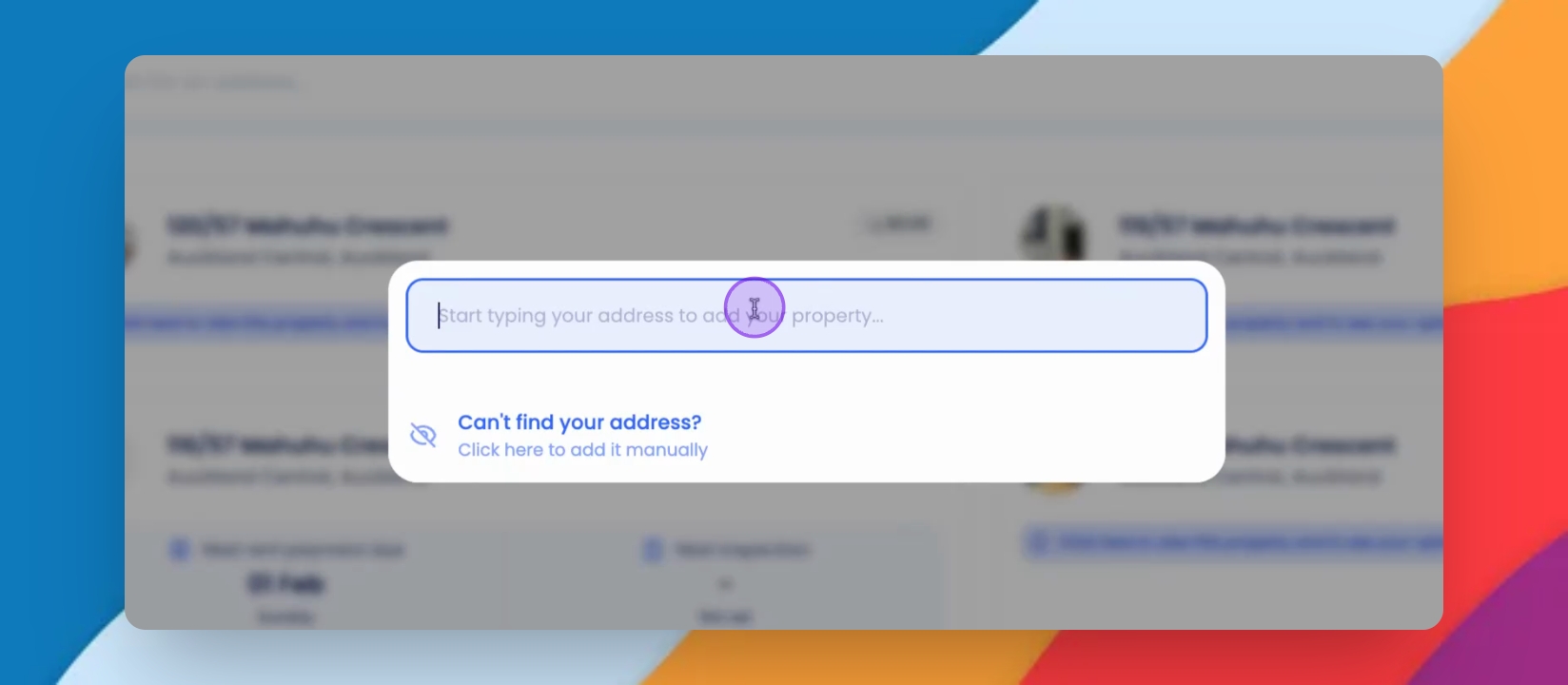
Use the search bar to enter the property address. The system will load the property into Keyhook.
Step 3: Access Setup
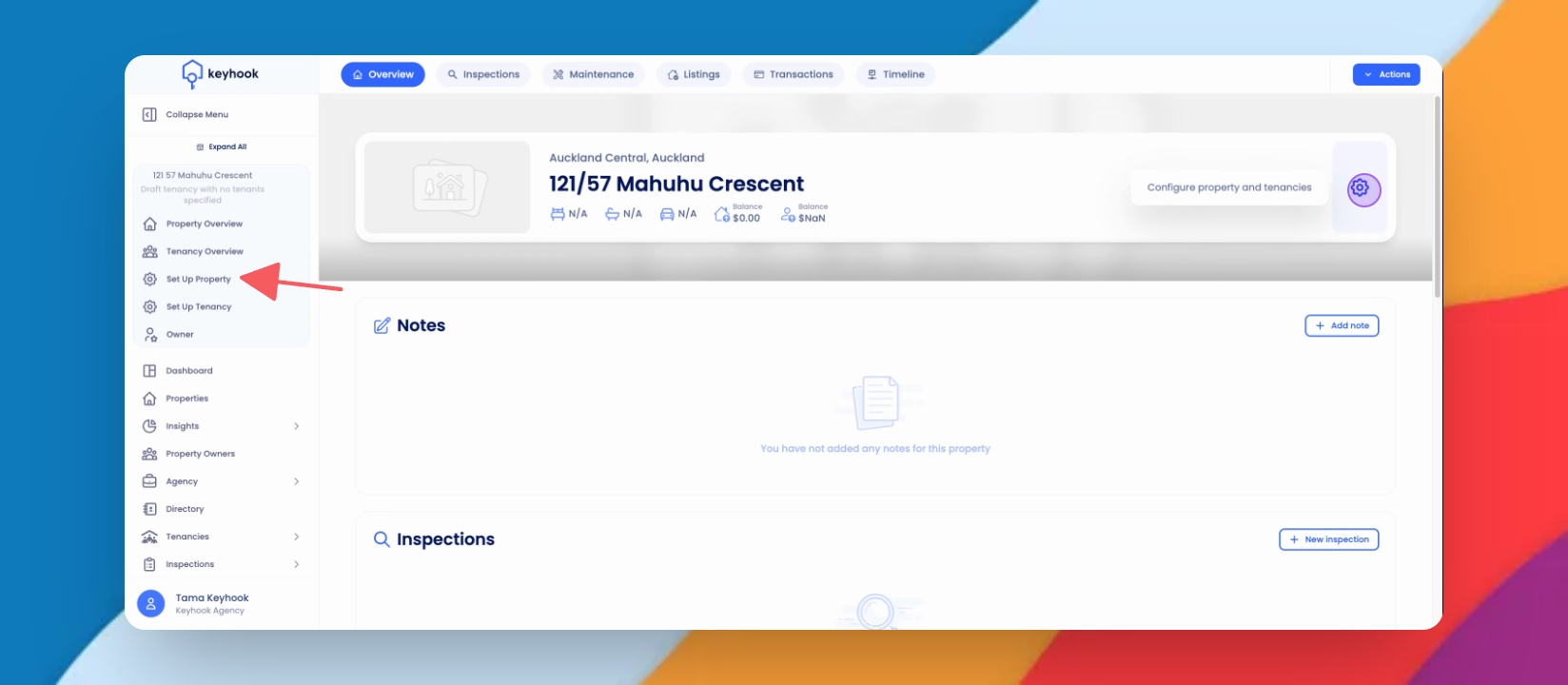
From the left side menu, click on Setup Property or click on the Gear icon on the right side.
Step 4: Review Sections
The Setup page is divided into three sections: Property, Tenancies, and Owners. Focus on the Property section.
Step 5: General Property Details
Review and confirm the property address. You can assign tags and verify the main photo if suitable.
Step 6: Property Type
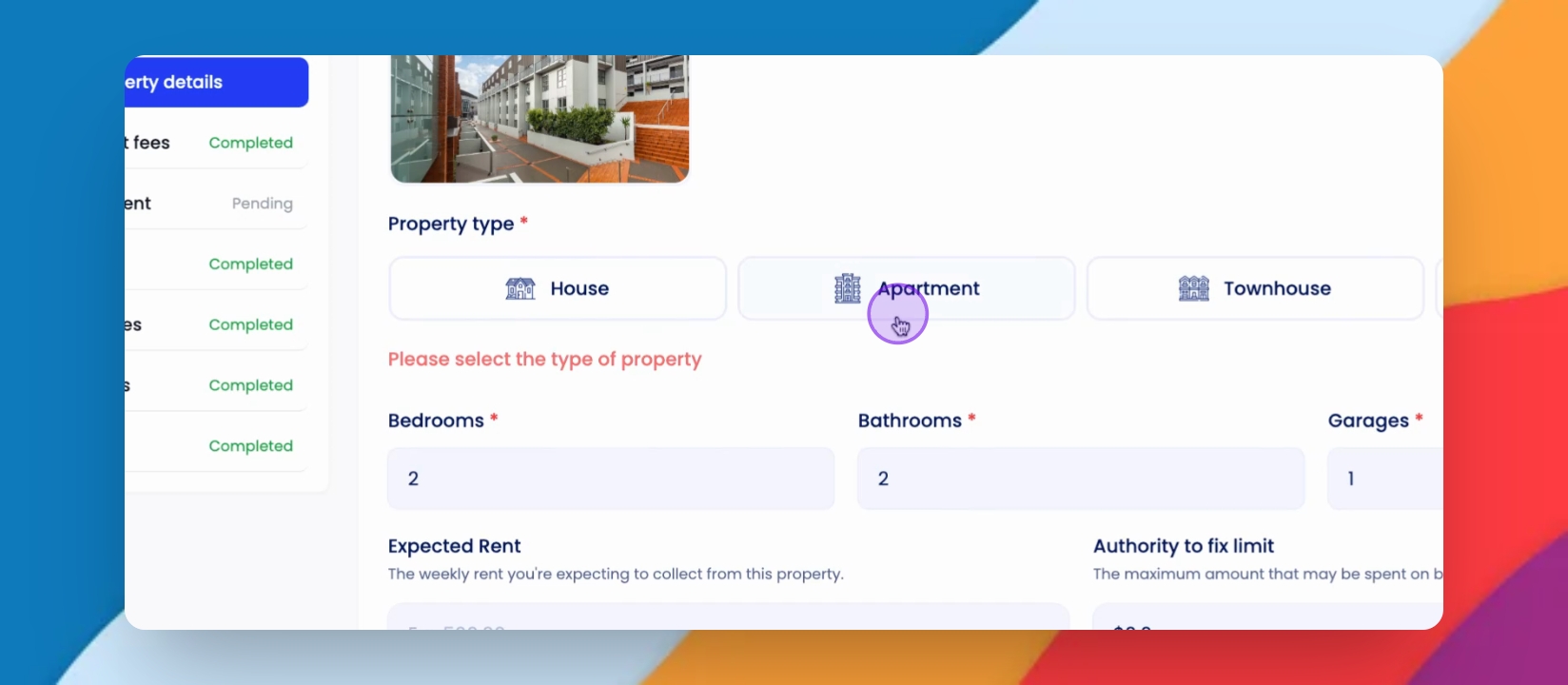
Select the property type, for example, apartment. Enter bedroom, bathroom, and garage details.
Step 7: Additional Details
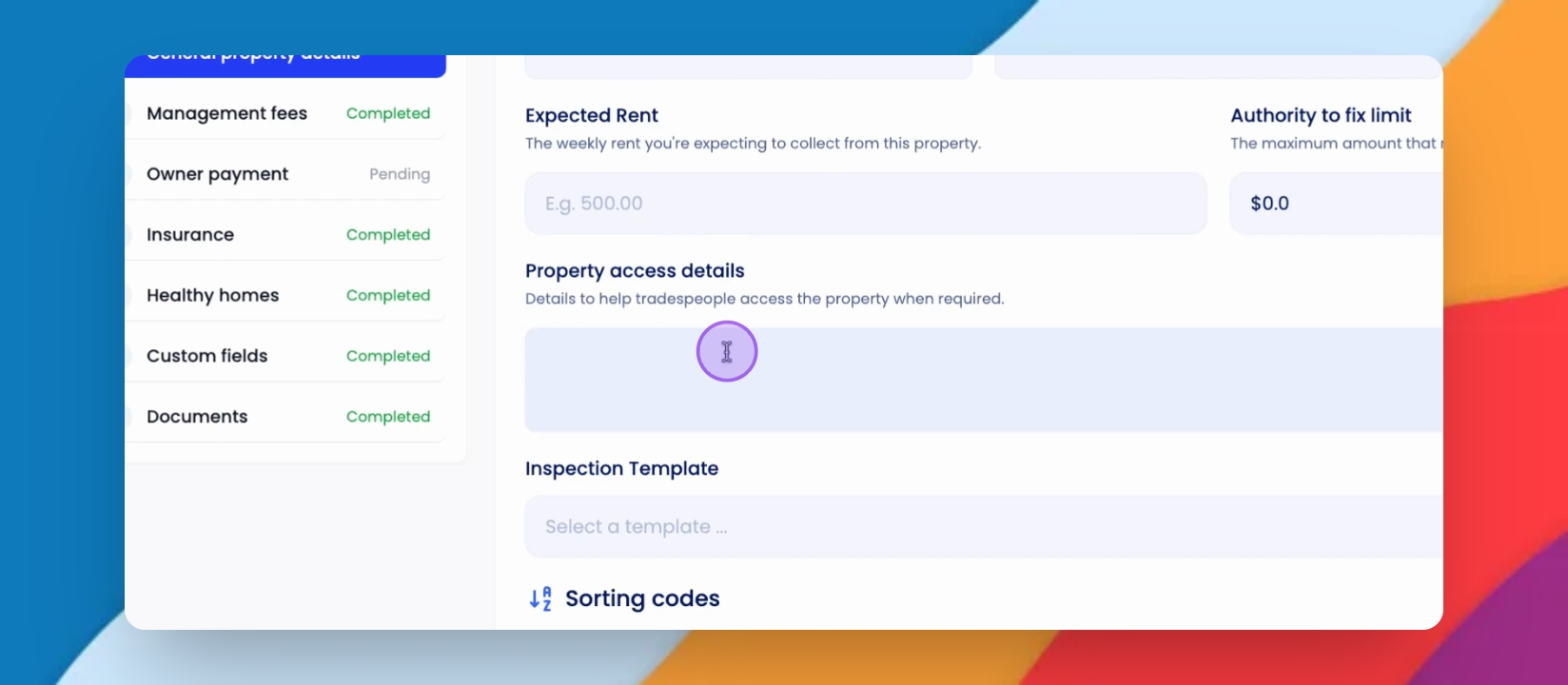
Add expected rent, property access details, select Inspection Templates, and assign a sorting code to help organize properties.
Step 8: Save Property Details
Once all relevant details are entered, click on Save and Continue to proceed.
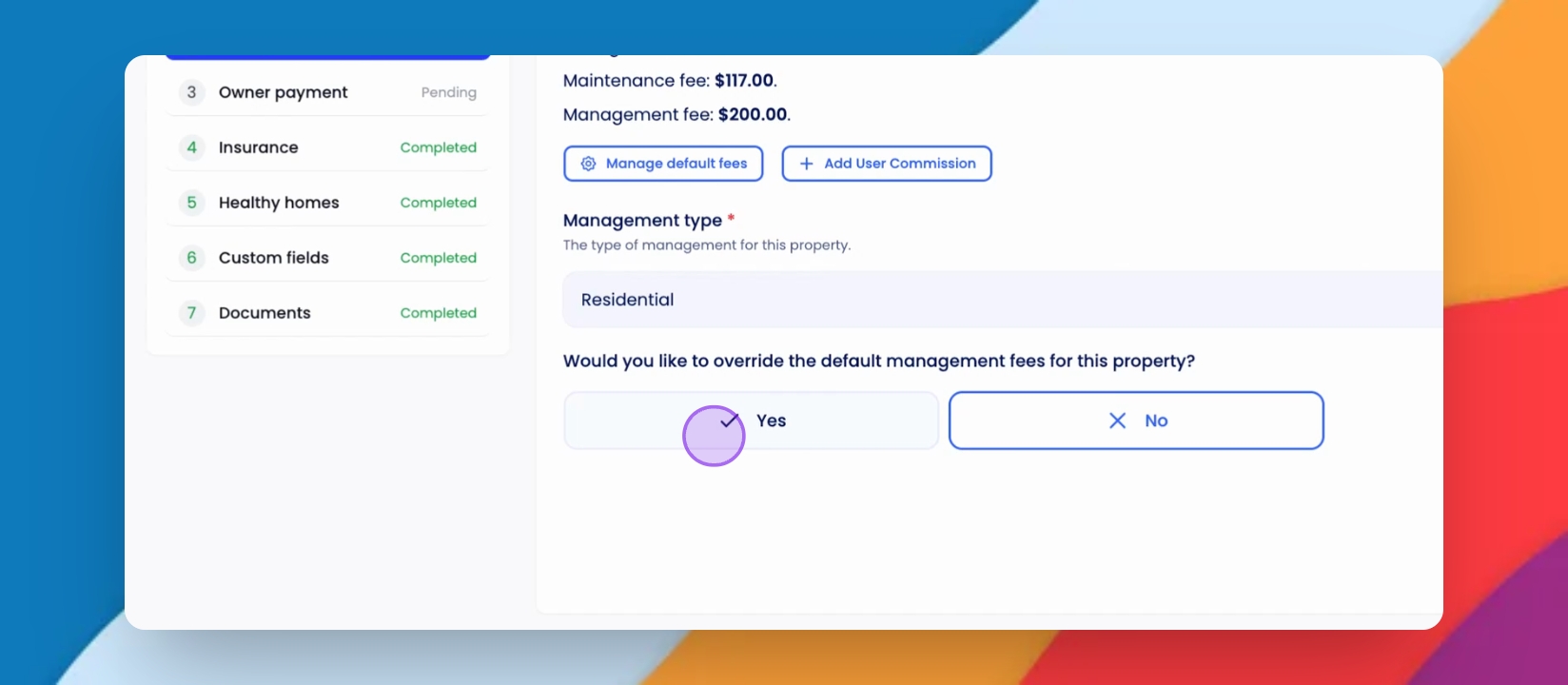
Step 9: Management Fees
Review the default management fees. If different fees are needed, select yes and enter specific fee details.
Step 10: Save Fees
Click Save and continue to the next step.
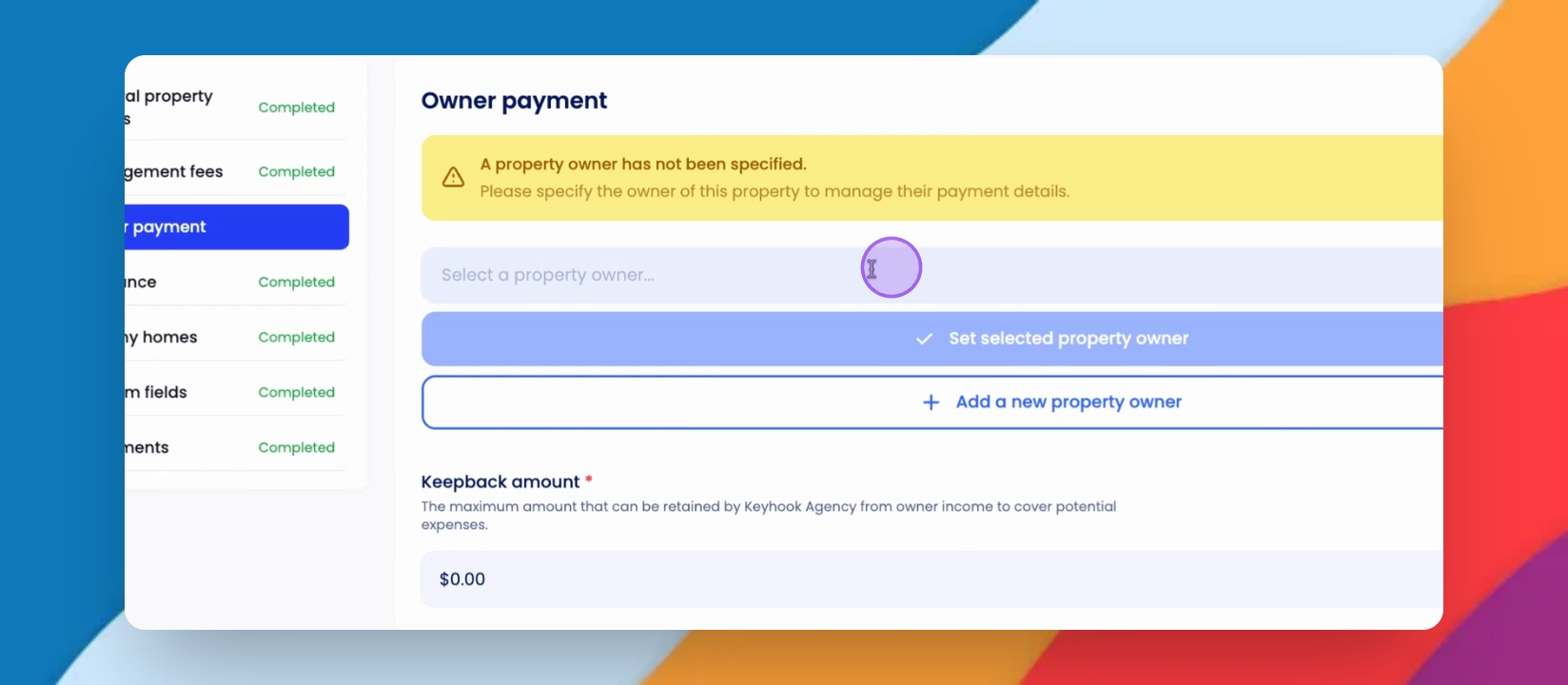
Step 11: Owner Payments
Add new property owner or select an existing one. Set the retained amount and place payments on hold if required.
Step 12: Save Payments
Click Save to continue.
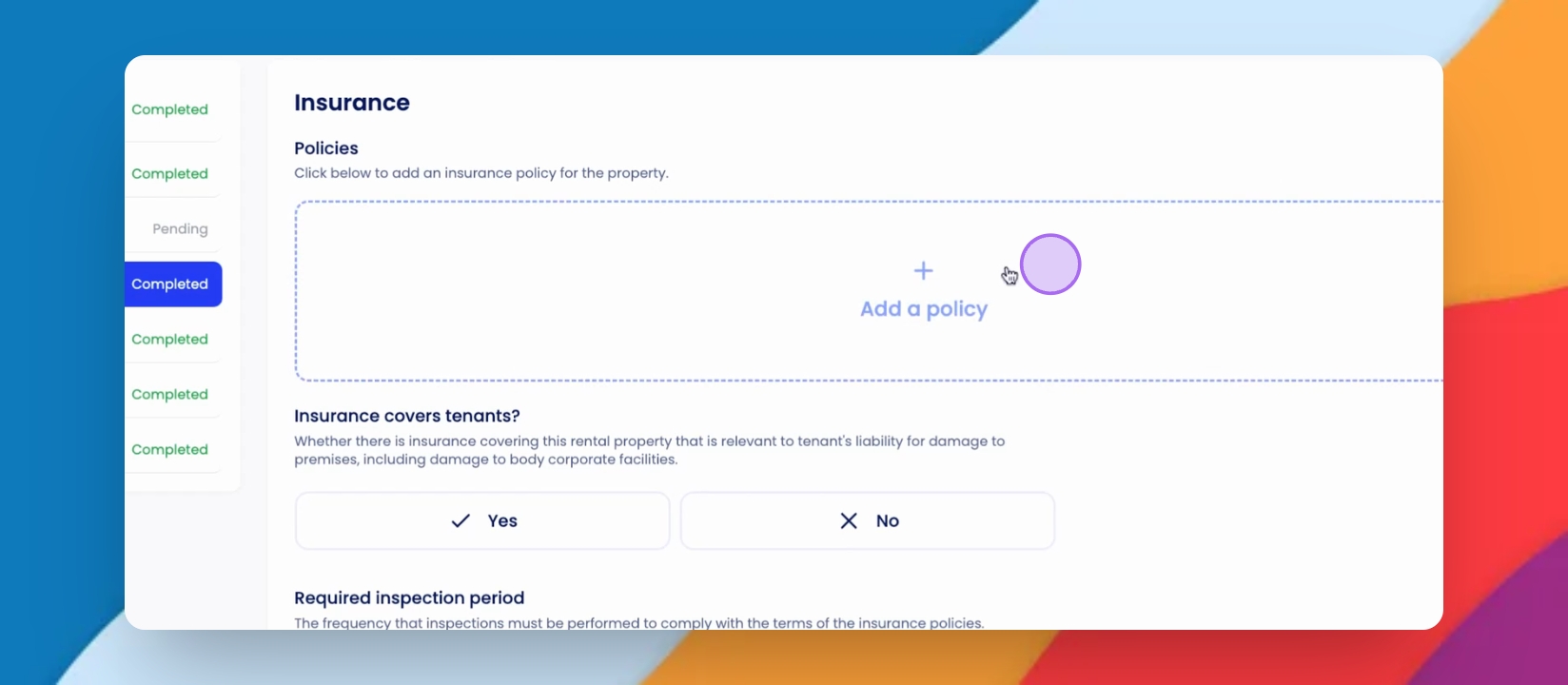
Step 13: Insurance Upload
Confirm insurance policies for the property and whether tenant liability is covered. Set the inspection frequency.
Step 14: Save Insurance
Select the appropriate frequency and click Save to continue.
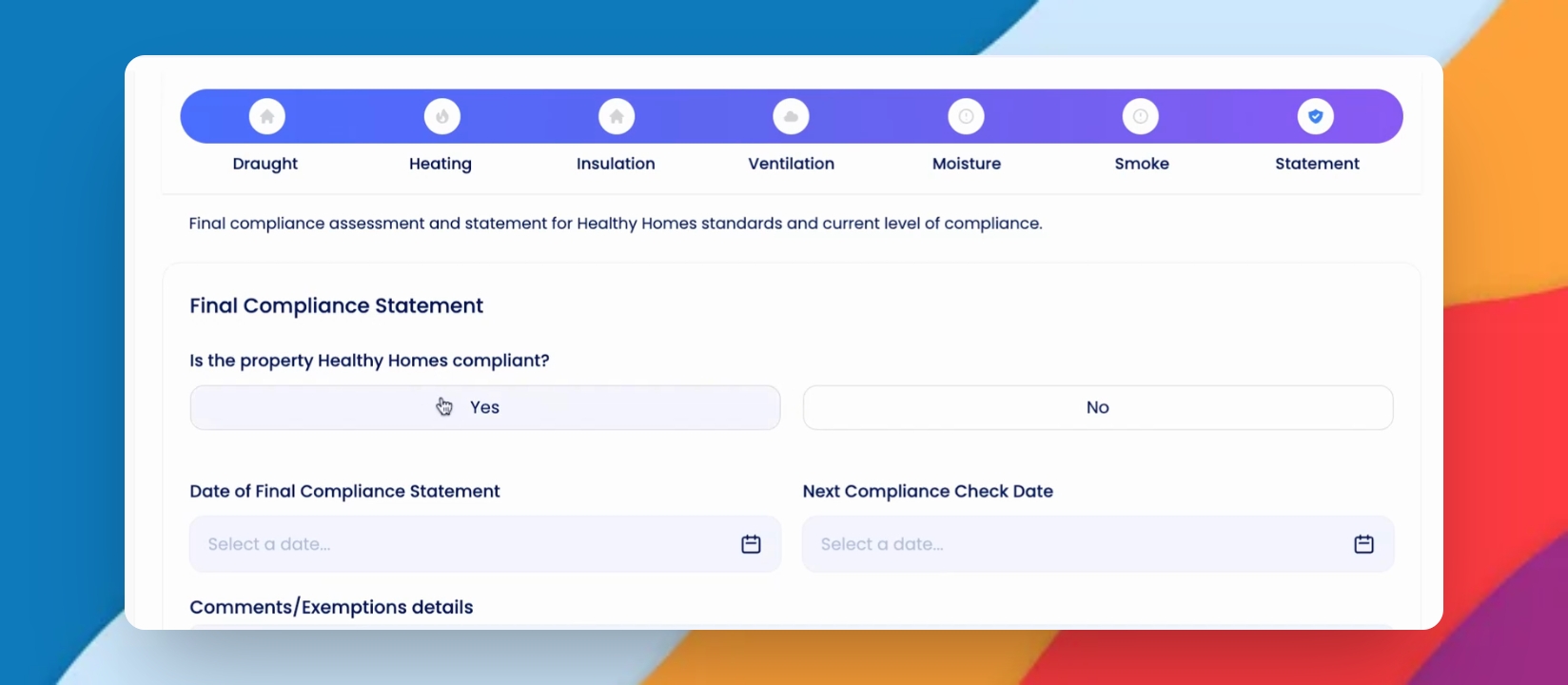
Step 15: Compliance Details
Enter compliance details for Healthy Home standards and confirm compliance. Select the next compliance check date.
Step 16: Save Compliance
Add comments and upload compliance reports, then click Save to continue.
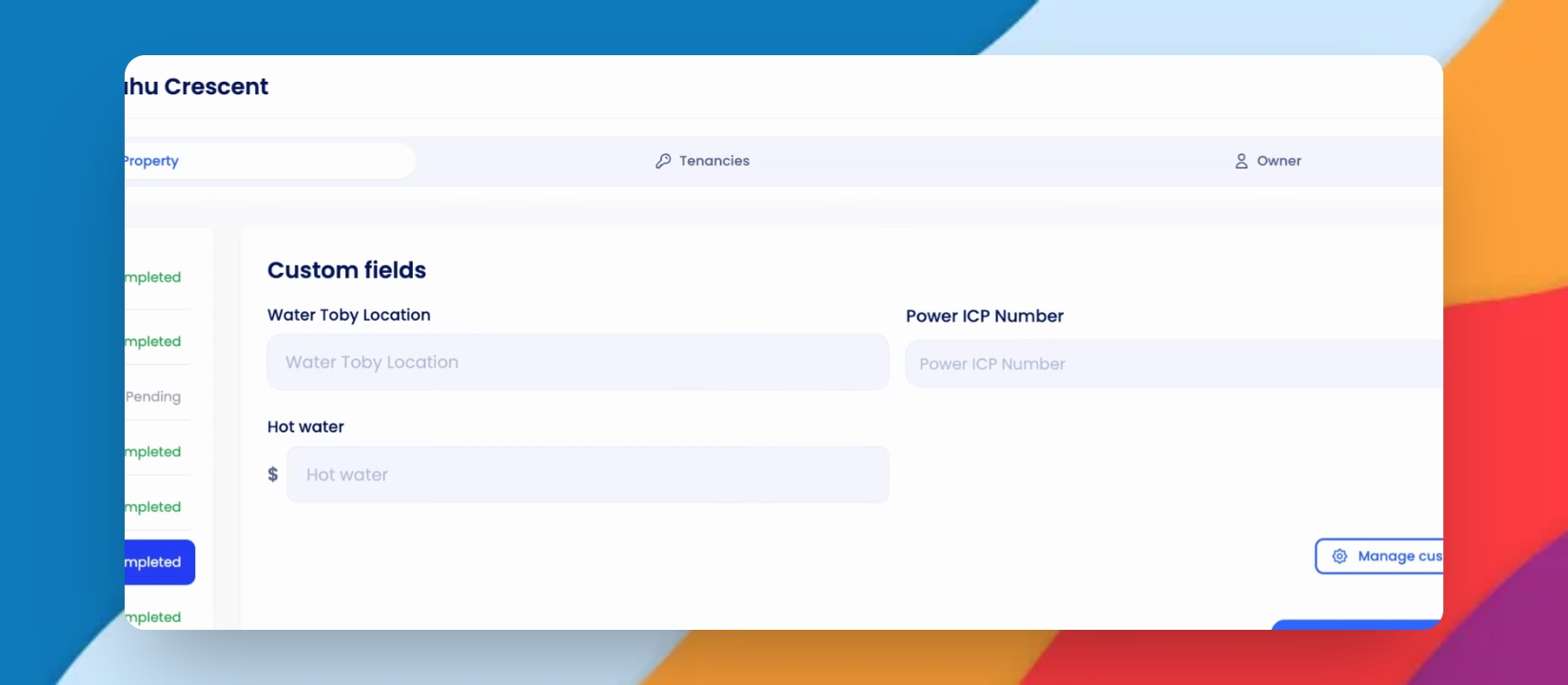
Step 17: Custom Fields
Enter or update information in the custom fields created by your agency. Click Save to continue.
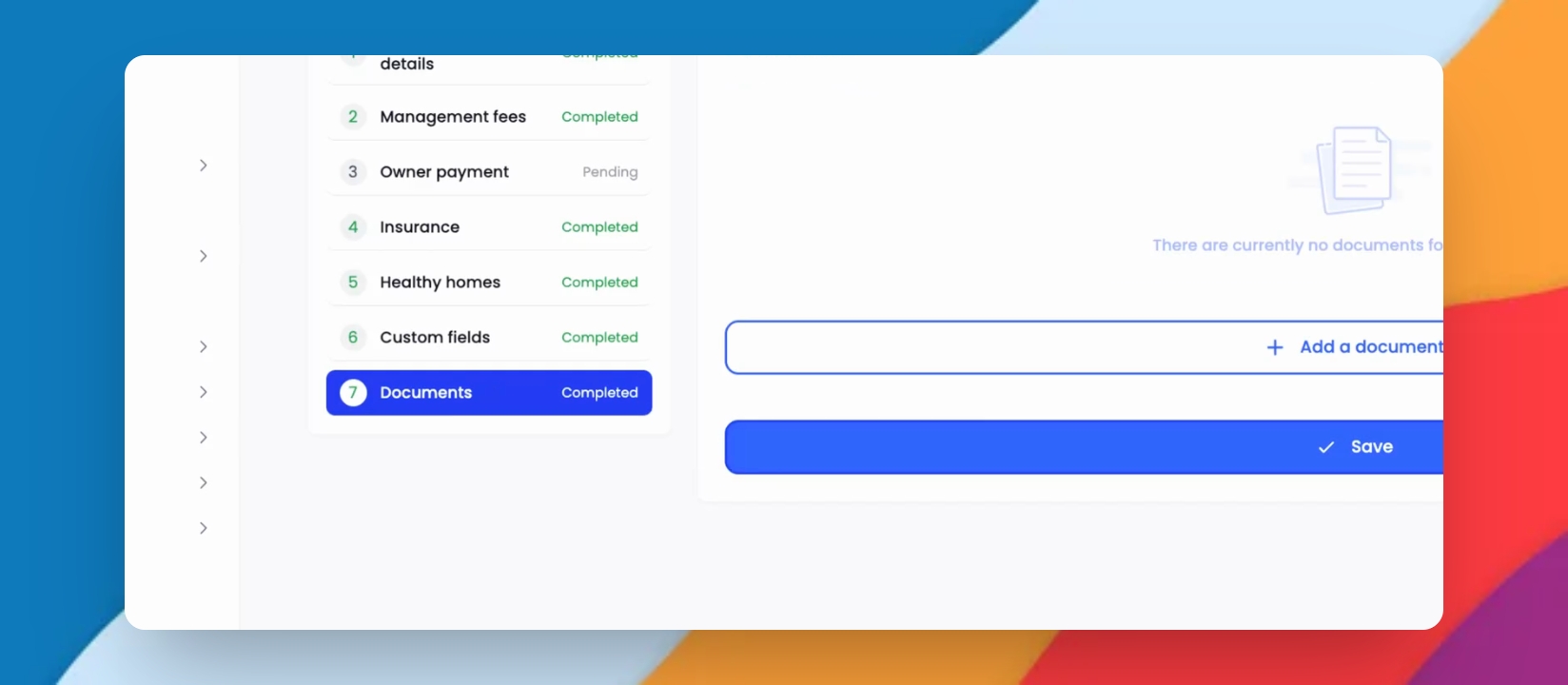
Step 18: Upload Documents
Upload any additional documents related to the property. Once all documents are added, click Save.
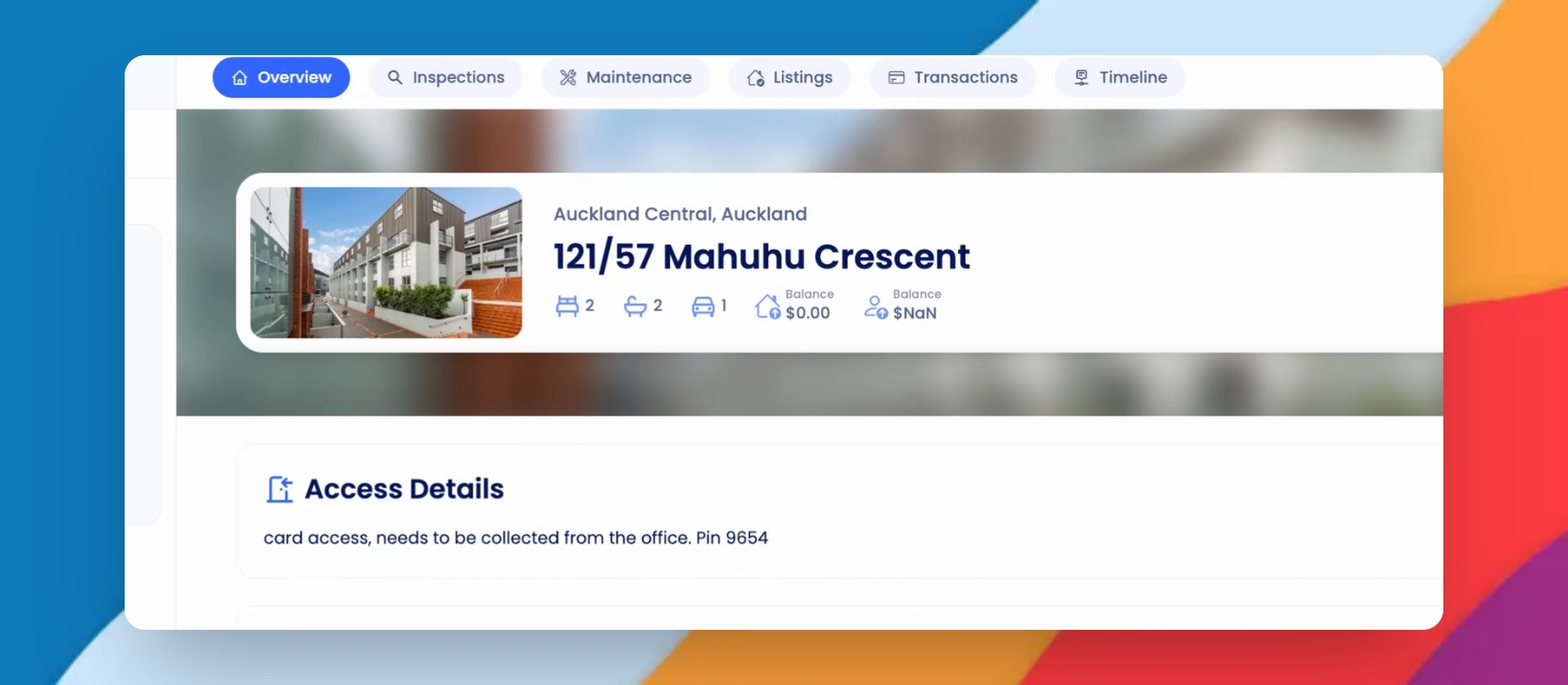
Step 19: Complete Setup
Your property setup is now complete. All details will be visible in the Property Overview page.
If you need more help or have any questions, just reach out to us at support@keyhook.com — we're always here to help!