

TL;DR
Navigate to a property overview and scroll down to the Maintenance section.
Click the button to create a new maintenance request.
Fill in all the required fields for the maintenance form and save.
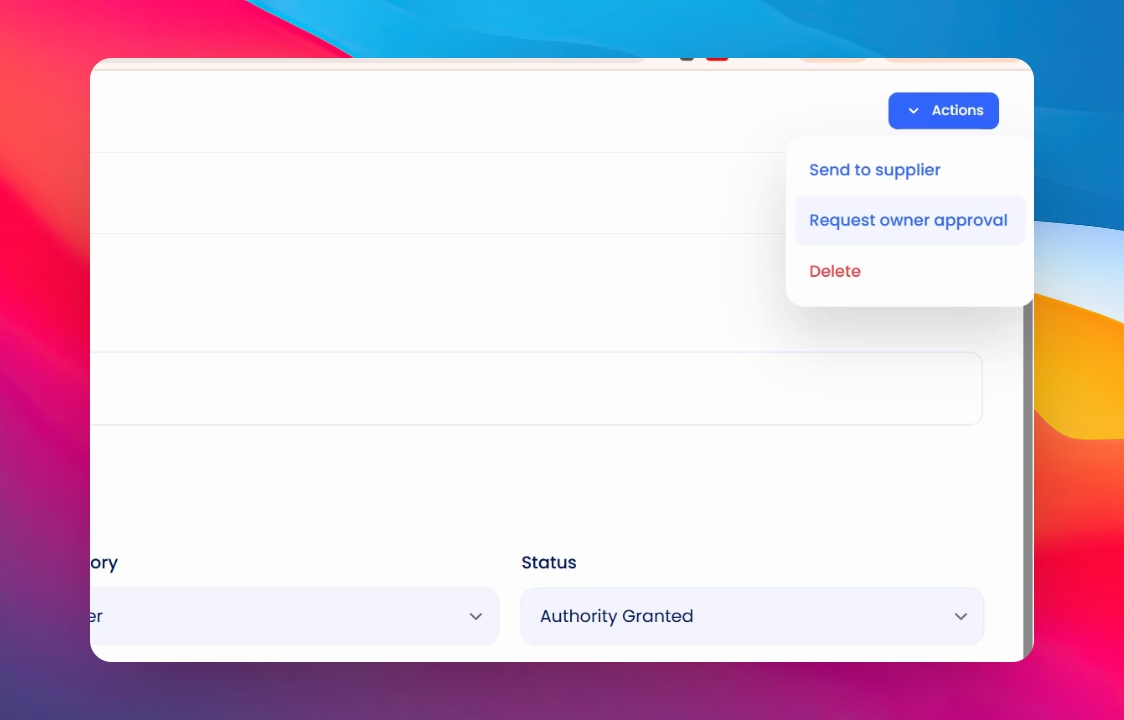
Use the Actions button on the top right to send the request to the owner for approval, or send the supplier a work order.
Lets Do It Together!
Step 1: Select Property
Click on the property that you want to do the maintenance for.
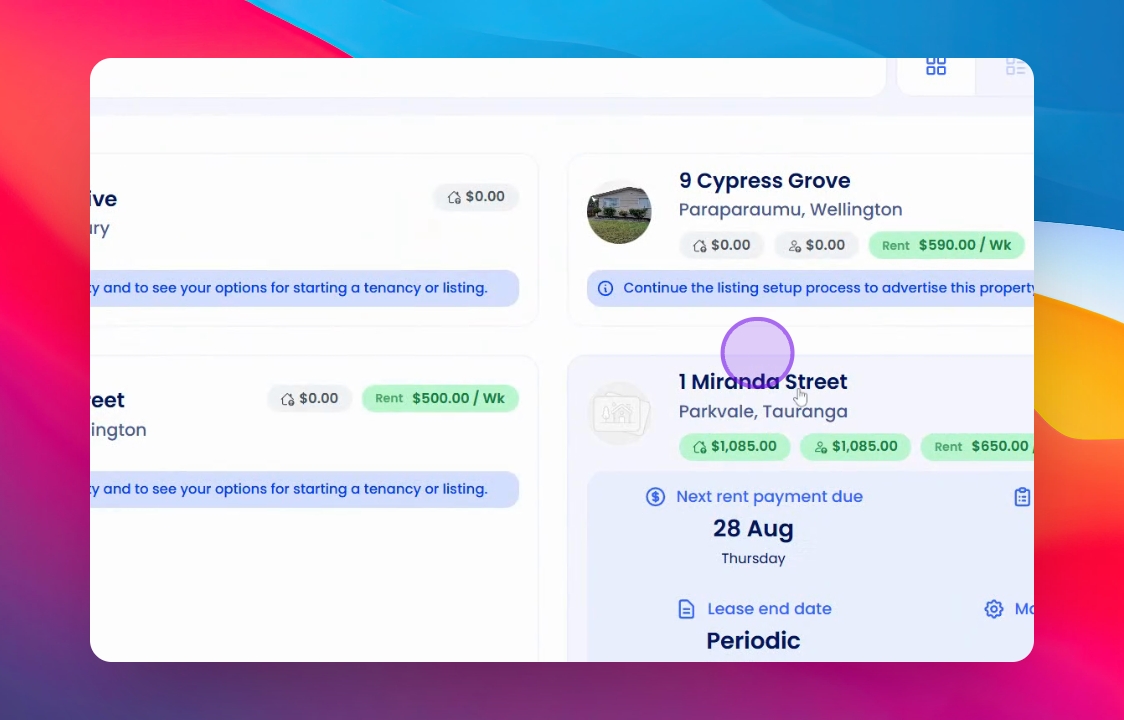
Step 2: Access Maintenance Area
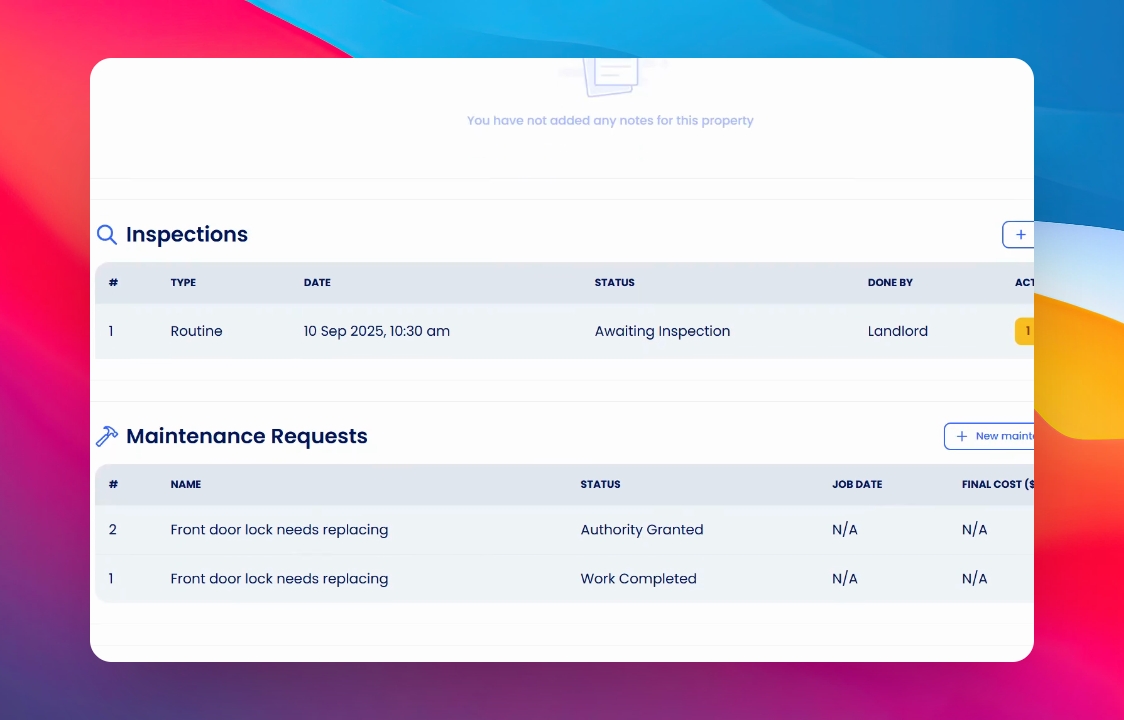
Scroll down on the screen to the maintenance area.
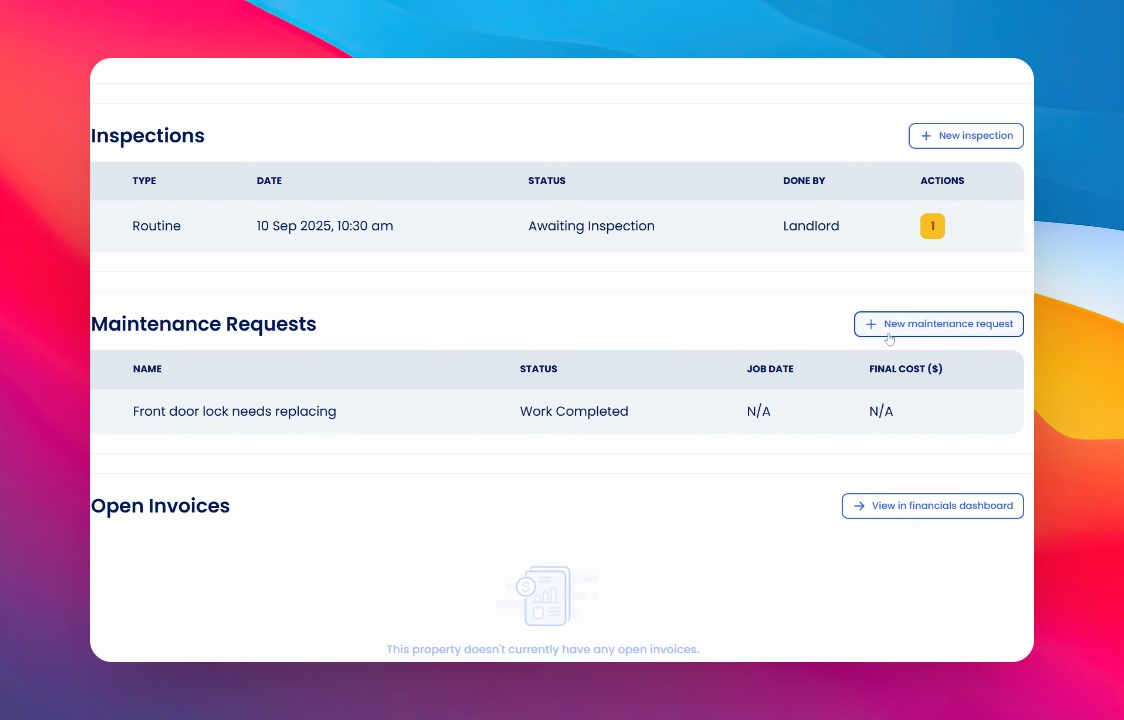
Step 3: Review Previous Requests
Any previous maintenance requests will be shown here, along with any new requests from tenants.
Step 4: Create New Request
If you want to create a new request, click on New Maintenance Request.
Step 5: Fill in the Form
Enter as much information as you can into the form.
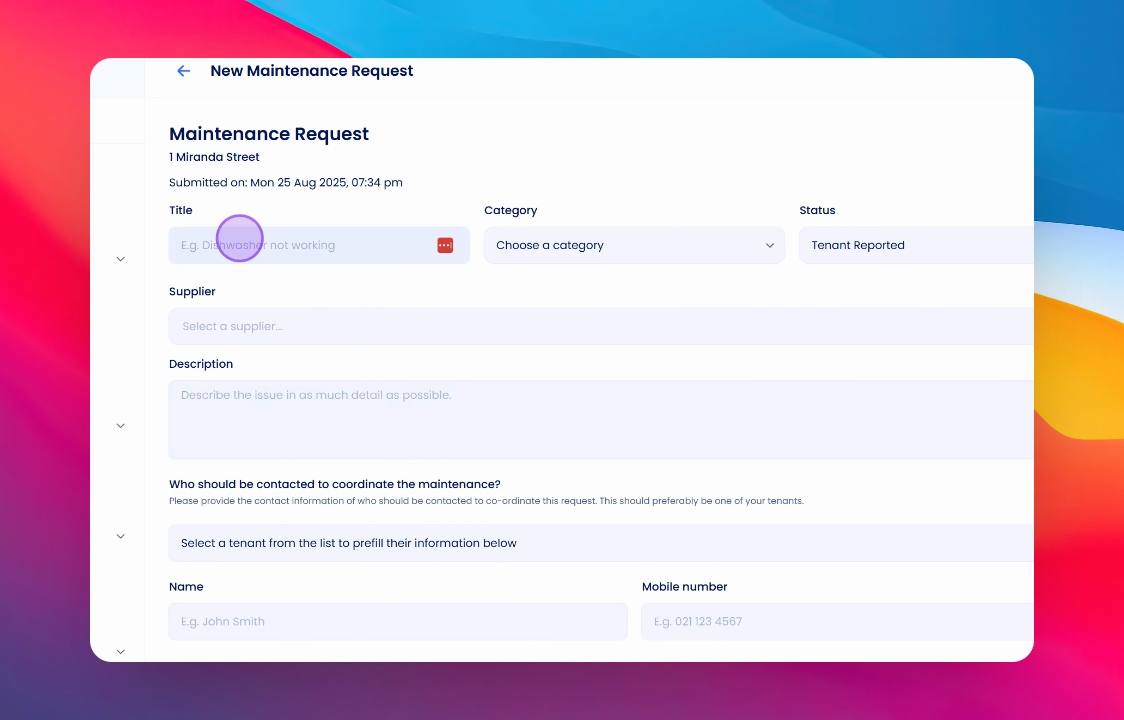
Step 6: Choose Category and Status
Select a category that the request belongs to, followed by your status.
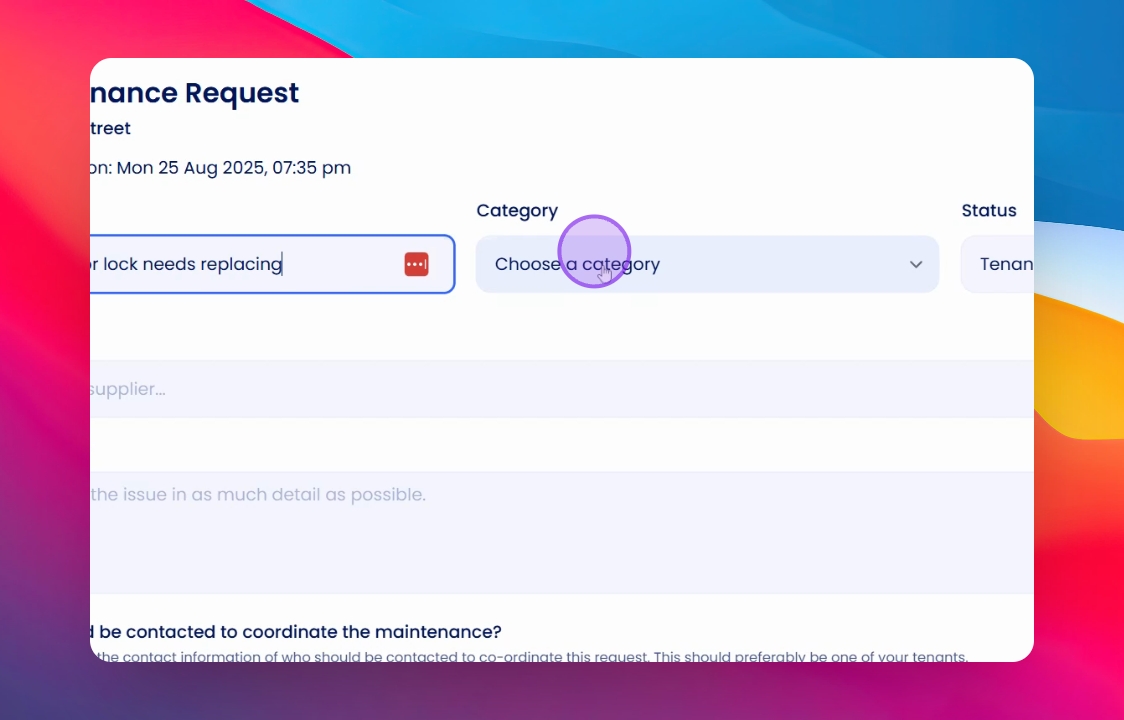
Step 7: Select Status Type
Click on the drop-down arrow to see the available types of statuses.
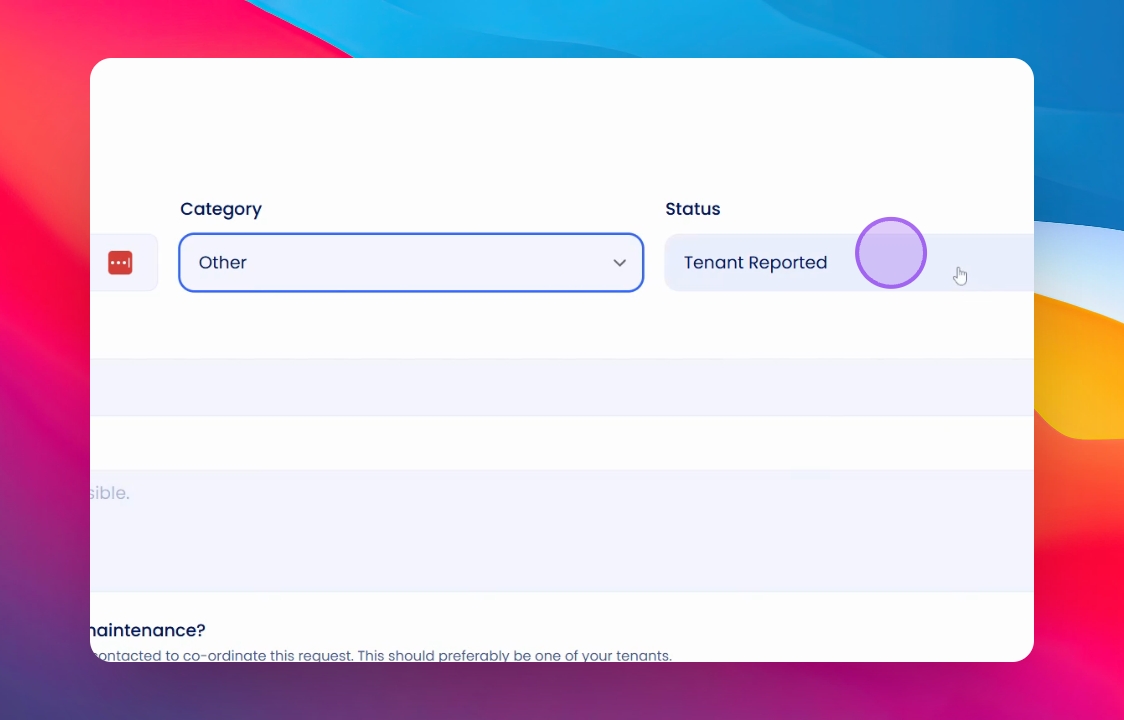
Step 8: Specify Status
If you're sending this straight away and it's almost done, you can select options like authority granted or any other relevant status.
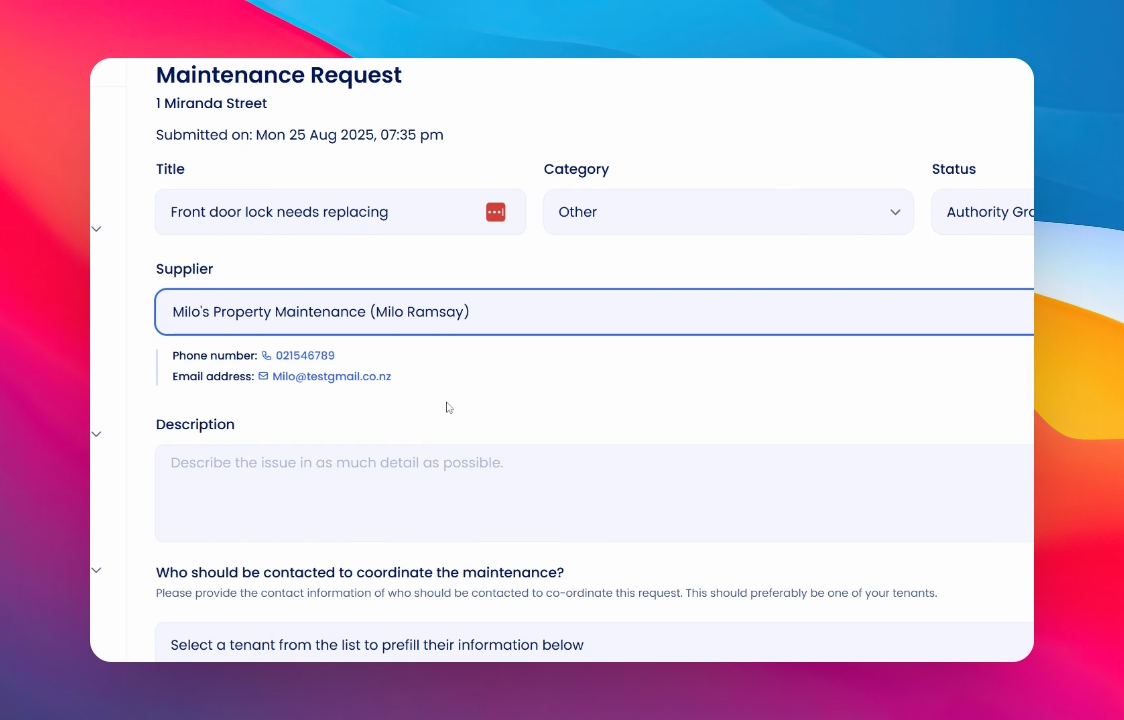
Step 9: Select Supplier
Select your supplier for the maintenance task.
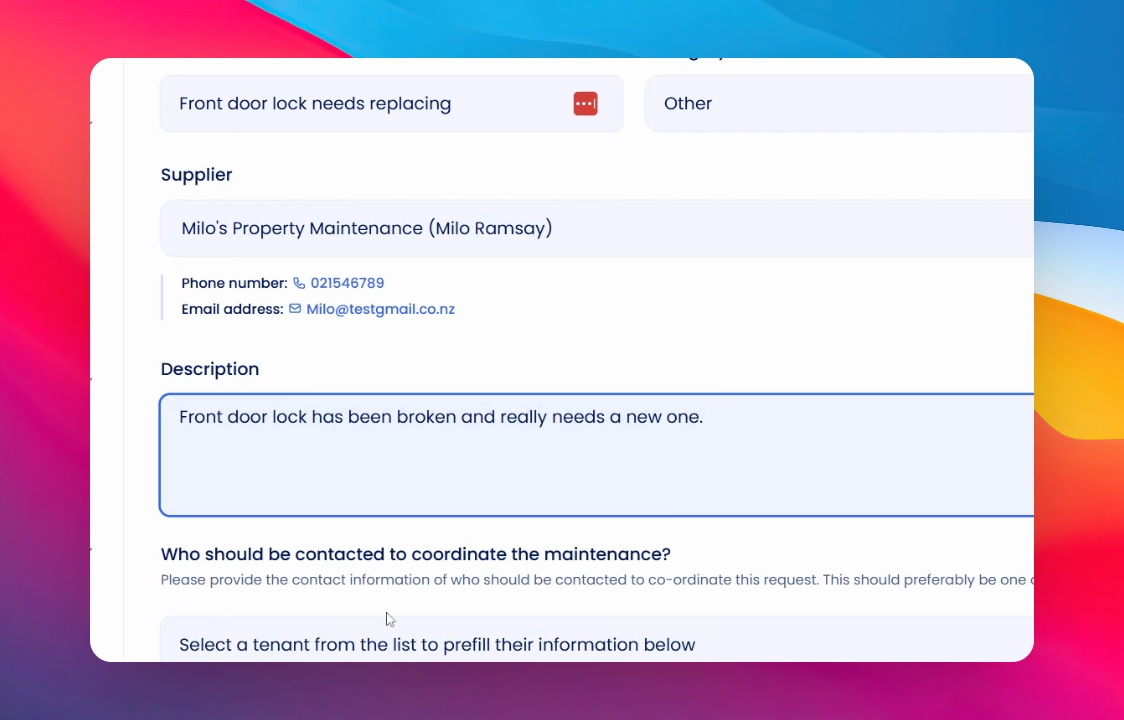
Step 10: Describe the Job
Provide a detailed description of the job.
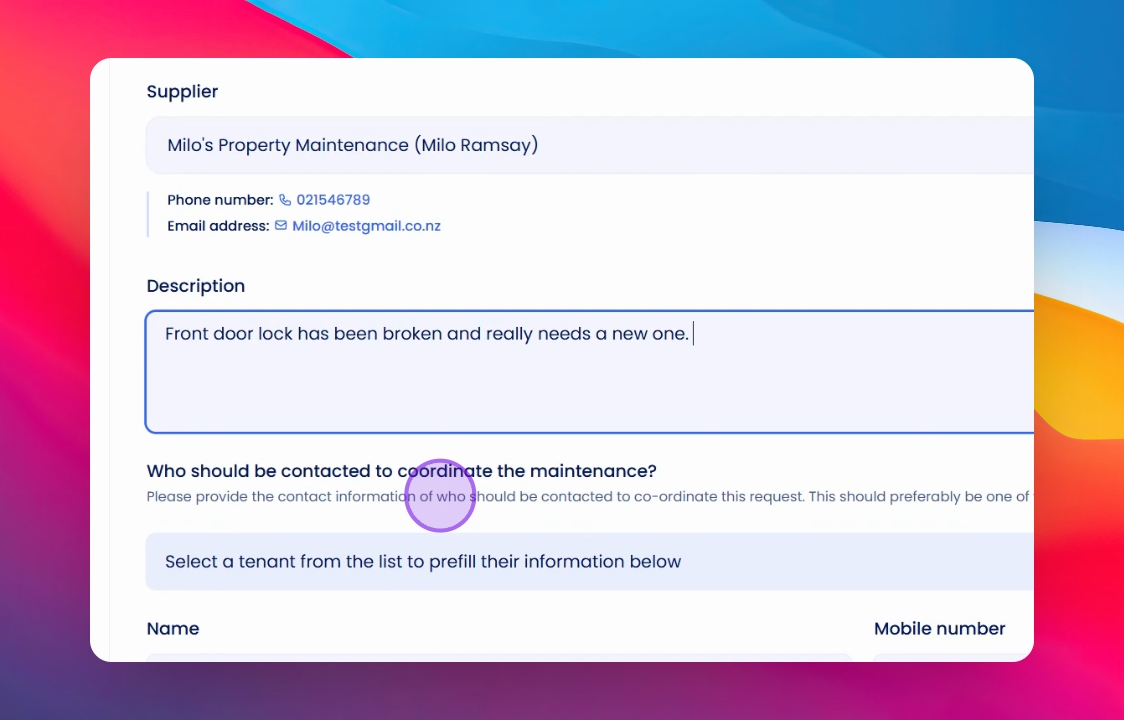
Step 11: Select Tenant Contact
Select who the tenant will be that needs to be contacted.
Step 12: Add Notes
You can add notes for your reference or for the supplier to keep track of the job.
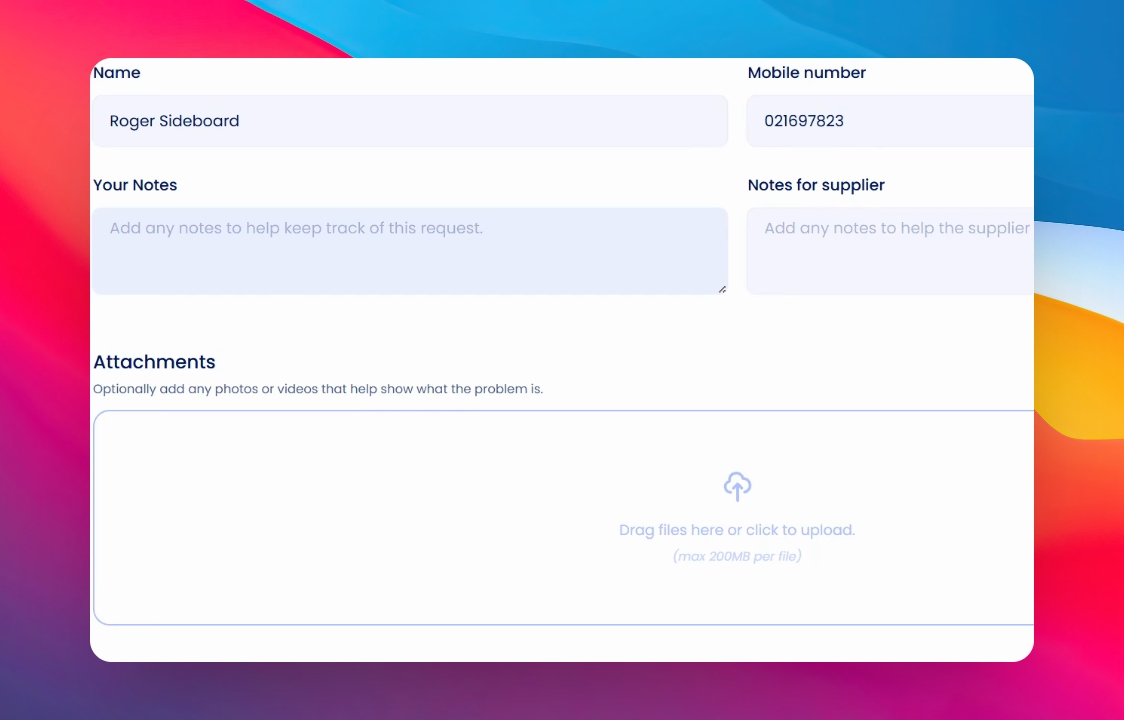
Step 13: Upload Media (if necessary)
If a tenant or another party has submitted the job, they may be required to upload a video or photo. If available, you can also provide these.
Step 14: Save Request
Once you have filled out all necessary information, click on Save.
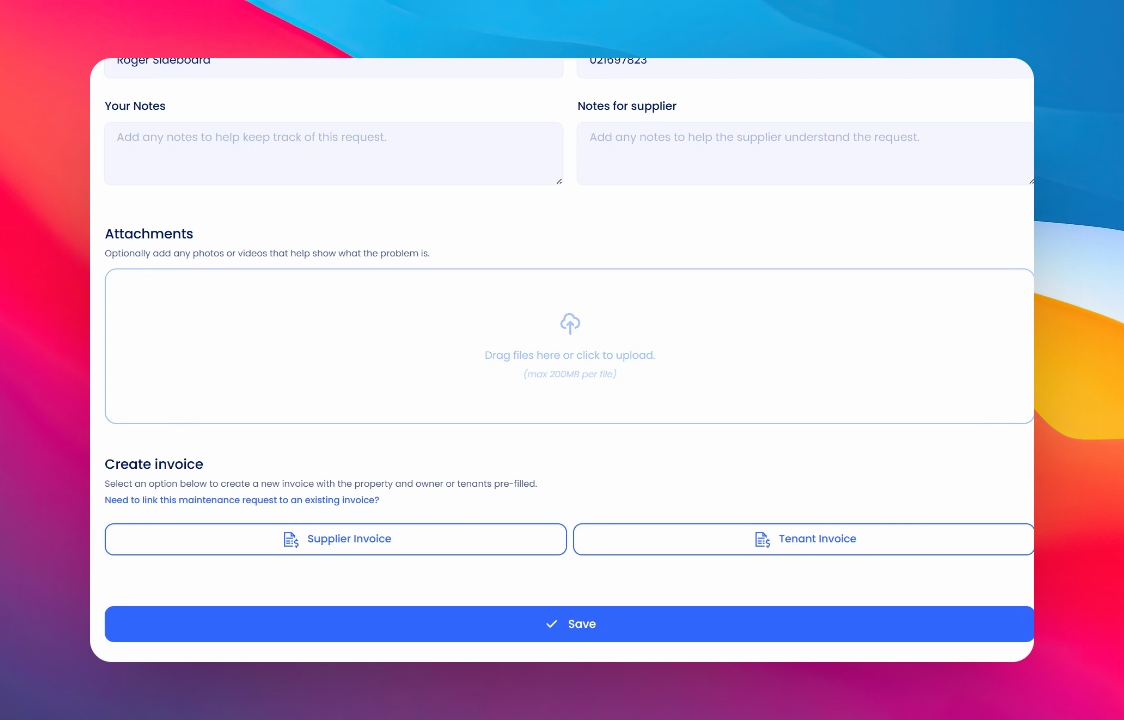
Step 15: Send Request
At the top under actions, you will see options to send to supplier or request owner's approval, depending on your needs.
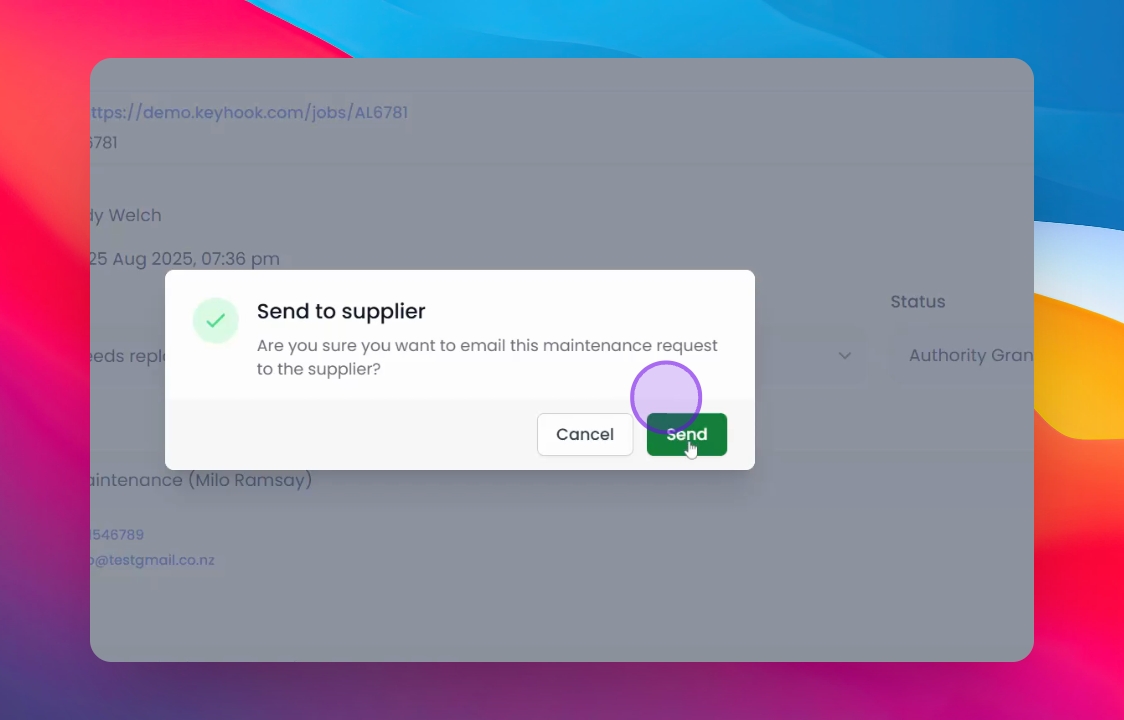
Step 16: Confirm Sending
As soon as you click on send to supplier, the request is submitted.
Step 17: Check Job Status
Back on the main screen, the job will now be visible, waiting for an update.
By following these steps, you will efficiently enter a maintenance request into Keyhook, ensuring that all necessary details are communicated to the relevant parties.
If you need more help or have any questions, just reach out to us at support@keyhook.com — we're always here to help!