

TL;DR
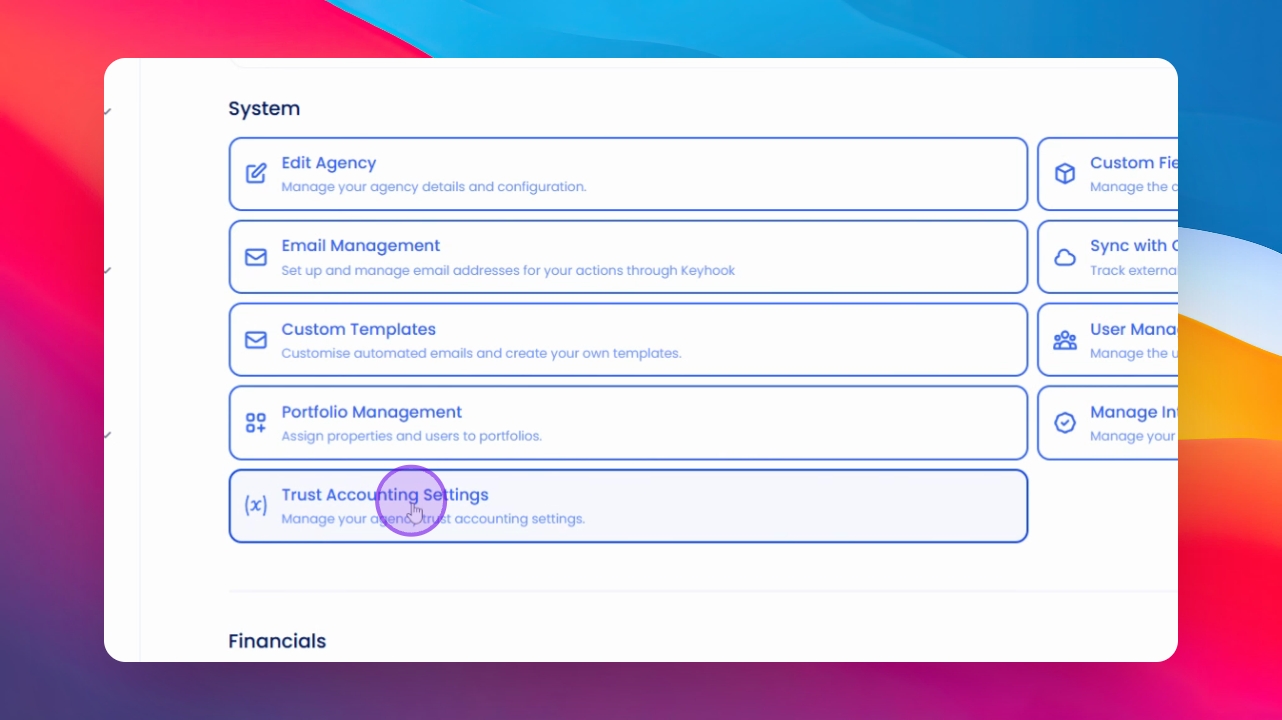
Click on Agency Configuration > Trust account settings.
Decide whether recurring charges require approval or remain completely automated.
Let's Do It Together!
Step 1: Access Trust Account Settings
Click on Agency, then Agency Configuration.
Select Trust account settings to begin configuration.
Step 2: Set Strict Accounting Mode
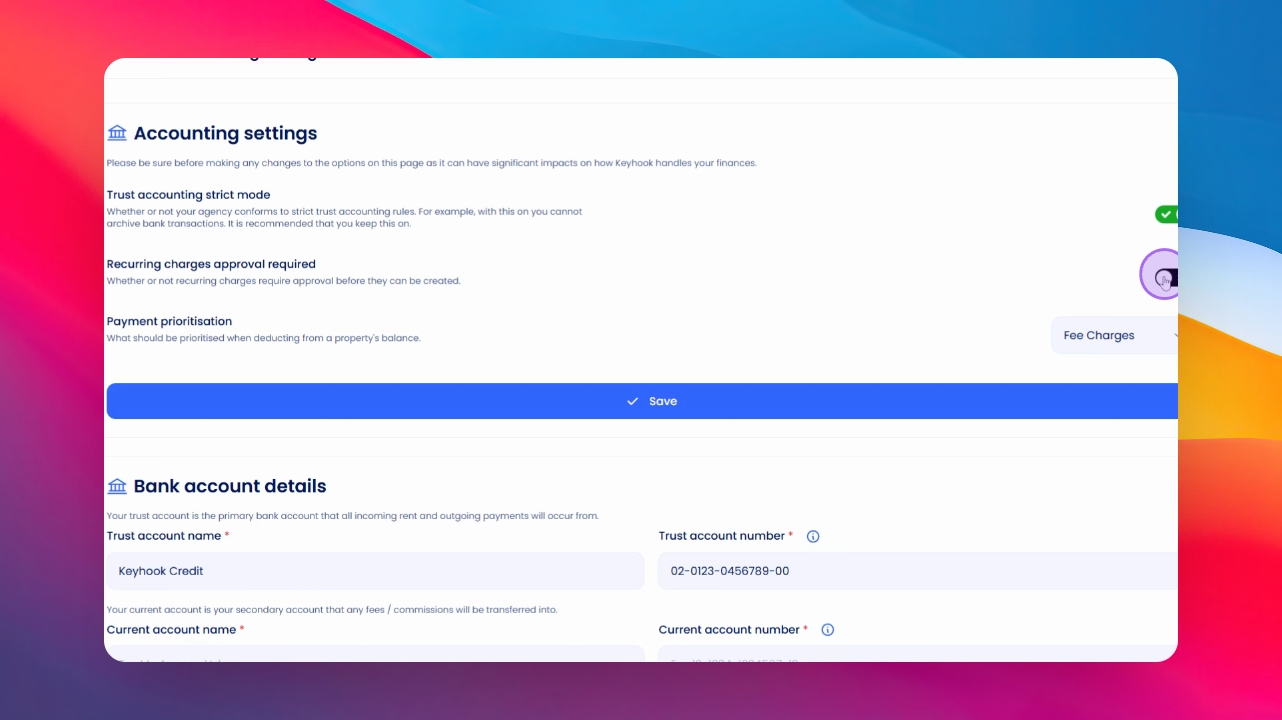
Decide whether to enable strict accounting mode.
This prevents overdrawing the trust account.
It is recommended to keep it on, especially for recurring charges.
Enable strict accounting mode to ensure proper management of trust funds.
Step 3: Manage Recurring Charges
Review your admin fees for the month.
Set up automated charges (e.g., $50 on the 25th of each month).
Keyhook will handle these charges automatically.
If needed, you can control individual charges by turning off the automated setting.
Your monthly charges will be automated unless you choose to manage them manually.
Step 4: Define Charge Priorities
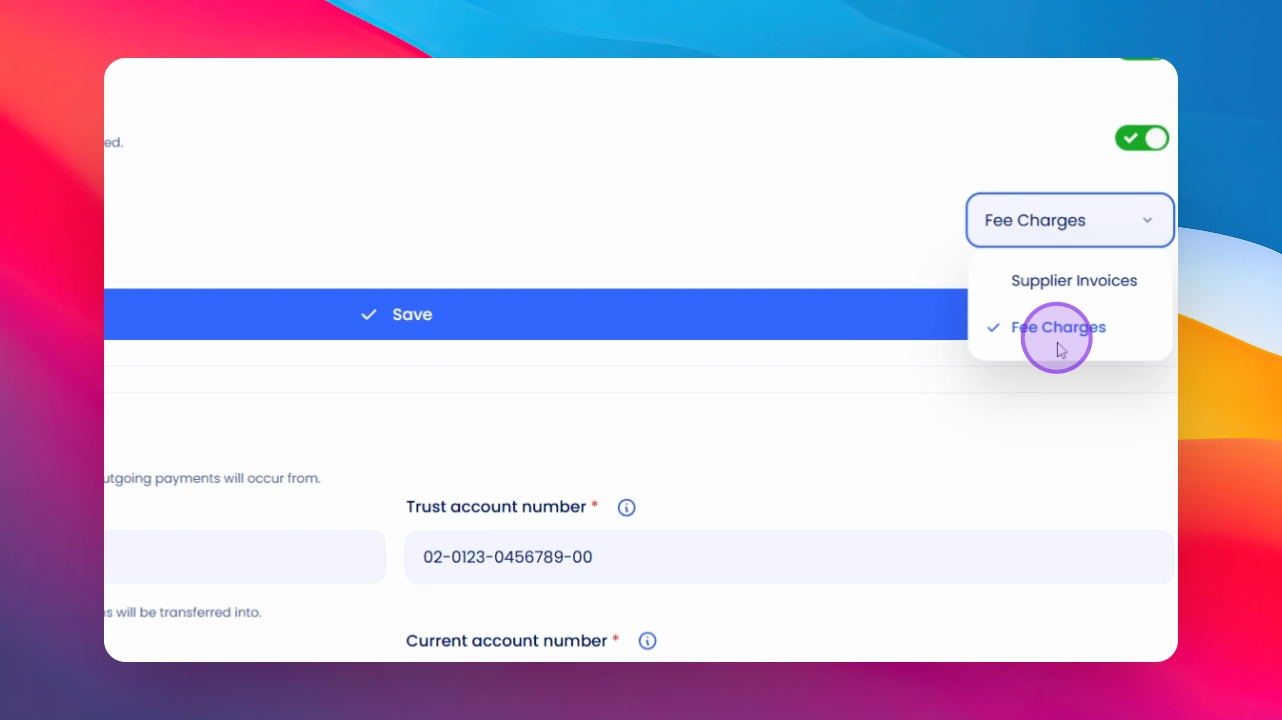
Decide the priority of charges when funds are limited.
Choose whether to prioritise your own charges or supplier invoices.
Step 5: Enter Bank Account Details
Input the details for your trust account.
If not using a trust account, you can enter your owner dedicated account instead.
Provide the name and number for both your trust and current working accounts.
Ensure all bank account details are correctly saved for accurate financial management.
Your current account should be the account you transfer fees into.
Step 6: Save Your Settings
Don't forget to save both areas of your configuration.
If you need more help or have any questions, just reach out to us at support@keyhook.com — we're always here to help!
Click on this link to give a feedback: Support Article Feedback Form