

TL;DR
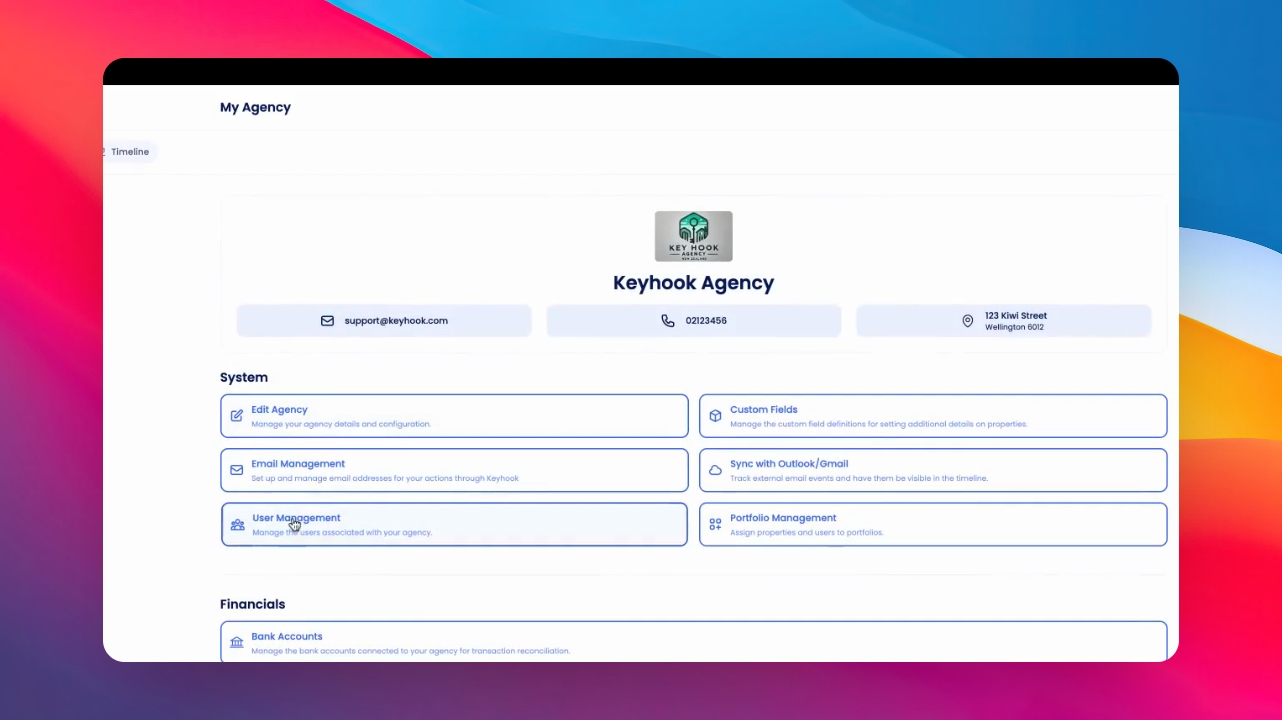
Navigate to Agency Configuration > User Management to view agency members.
Let's Do It Together!
Step 1: Access User Management
Navigate to the Agency and User Management section.
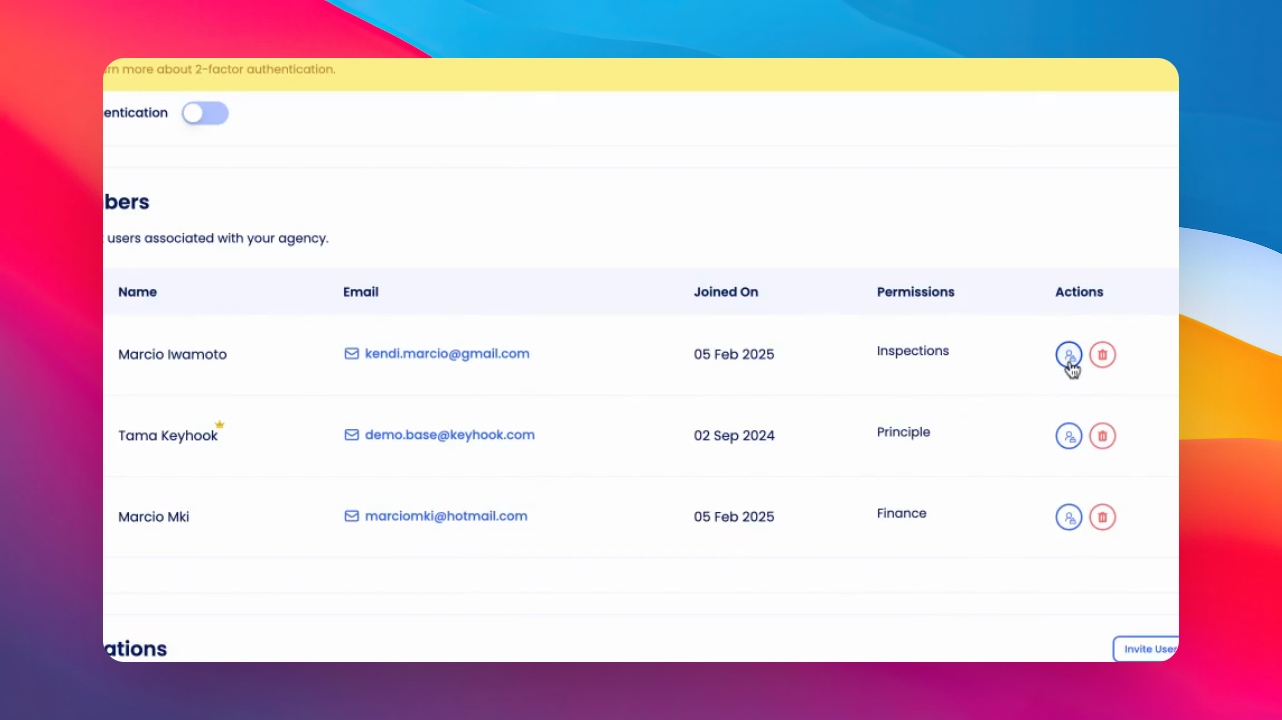
View the list of all your agency members.
Step 2: Set User Permissions
Click the icon next to the trash can to set user permissions.
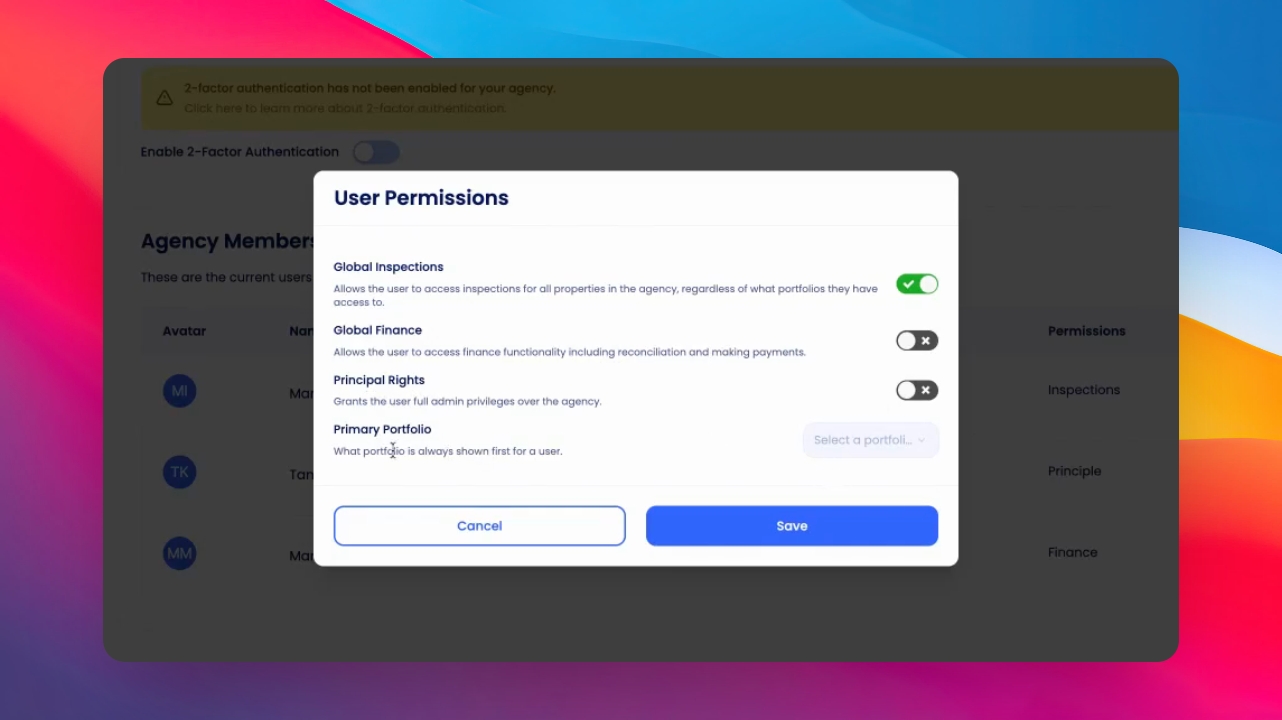
Select relevant permissions: Global Inspections, Finance, or Full Access.
The selected permissions will define what actions the user can perform.
Step 3: Select Primary Portfolio
After setting up portfolios, choose a Primary Portfolio for the user.
This portfolio will be the default when the user logs in.
Users will see their primary portfolio by default and can switch if they have access to others.
If you need more help or have any questions, just reach out to us at support@keyhook.com — we're always here to help!
Click on this link to give a feedback: Support Article Feedback Form