

TL;DR
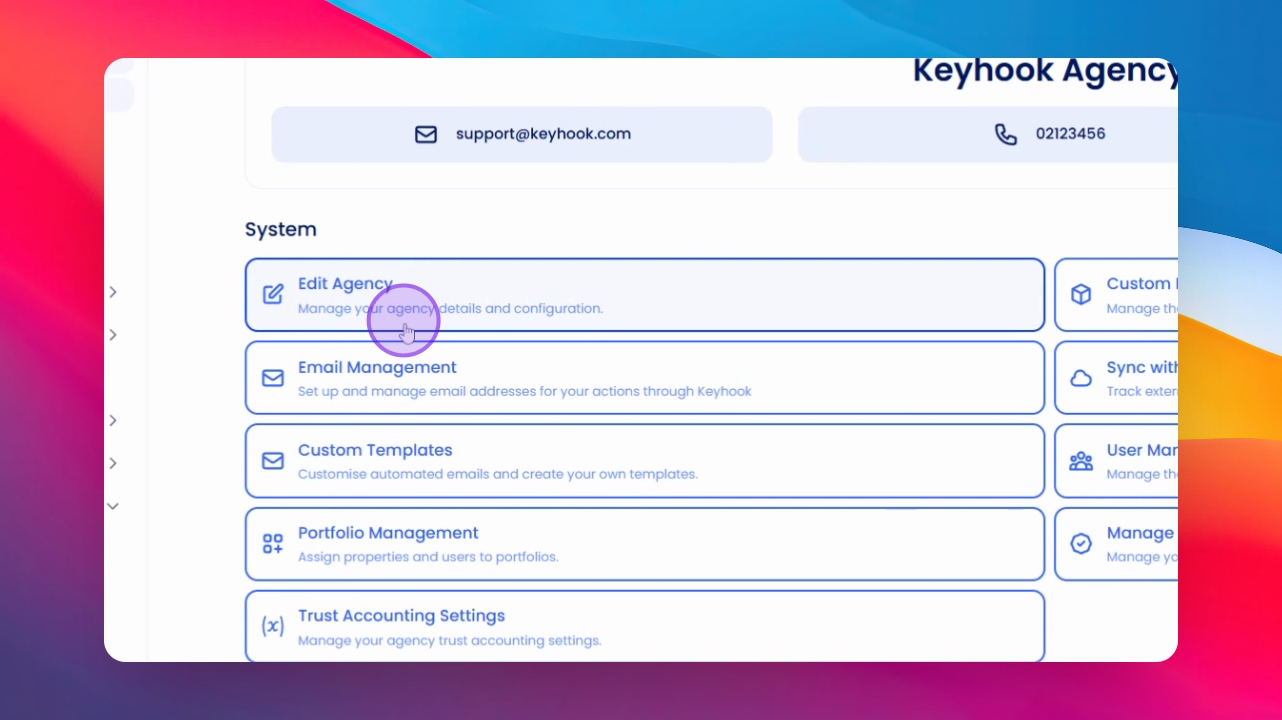
Navigate to Agency Configuration > Edit Agency
Let's Do It Together!
Step 1: Access Agency Configuration
Navigate to Agency in your dashboard.
Click on Agency Configuration and then select Edit Agency.
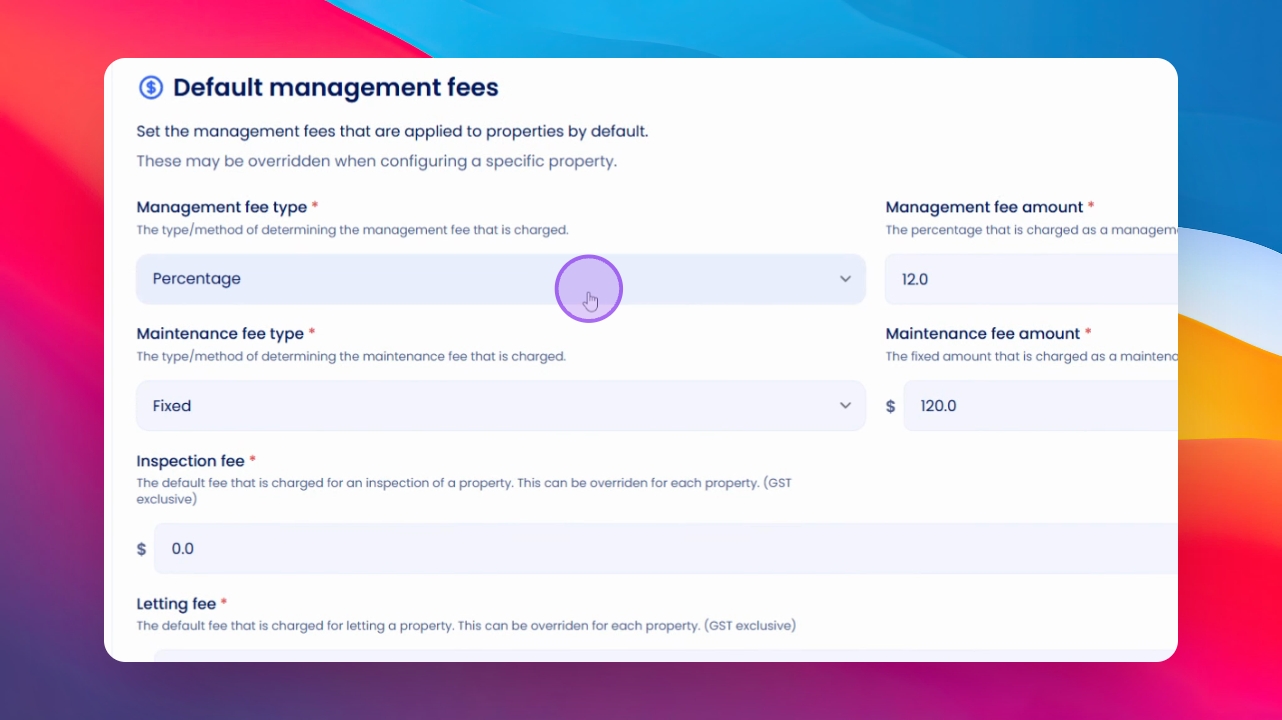
Scroll down to find Default Management Fees.
Step 2: Set Management Fees
Choose between a fixed management fee or a percentage management fee.
Note that these fees are exclusive of GST, so set your percentage accordingly.
Step 3: Add Other Fees
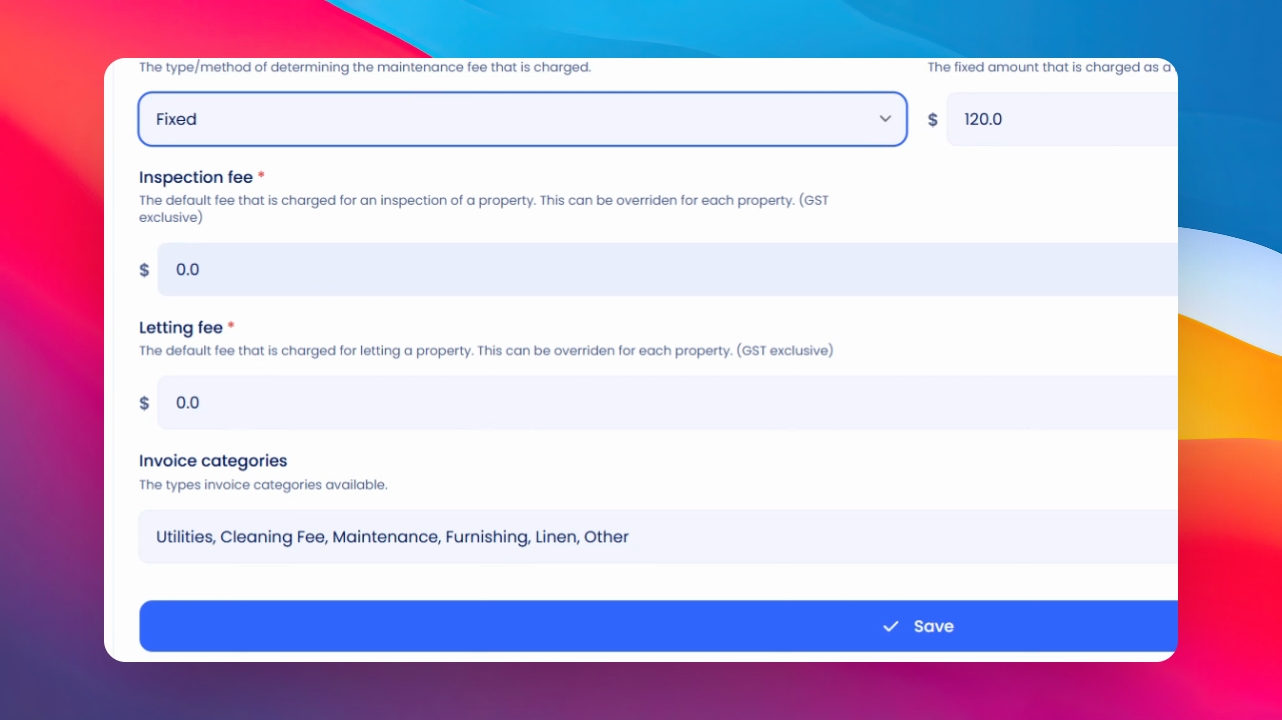
Set up maintenance fees as either fixed or percentage fees.
Add a letting fee in the Invoice categories for convenience. You can save frequently used fees to avoid entering them each time.
Step 4: Override Default Fees
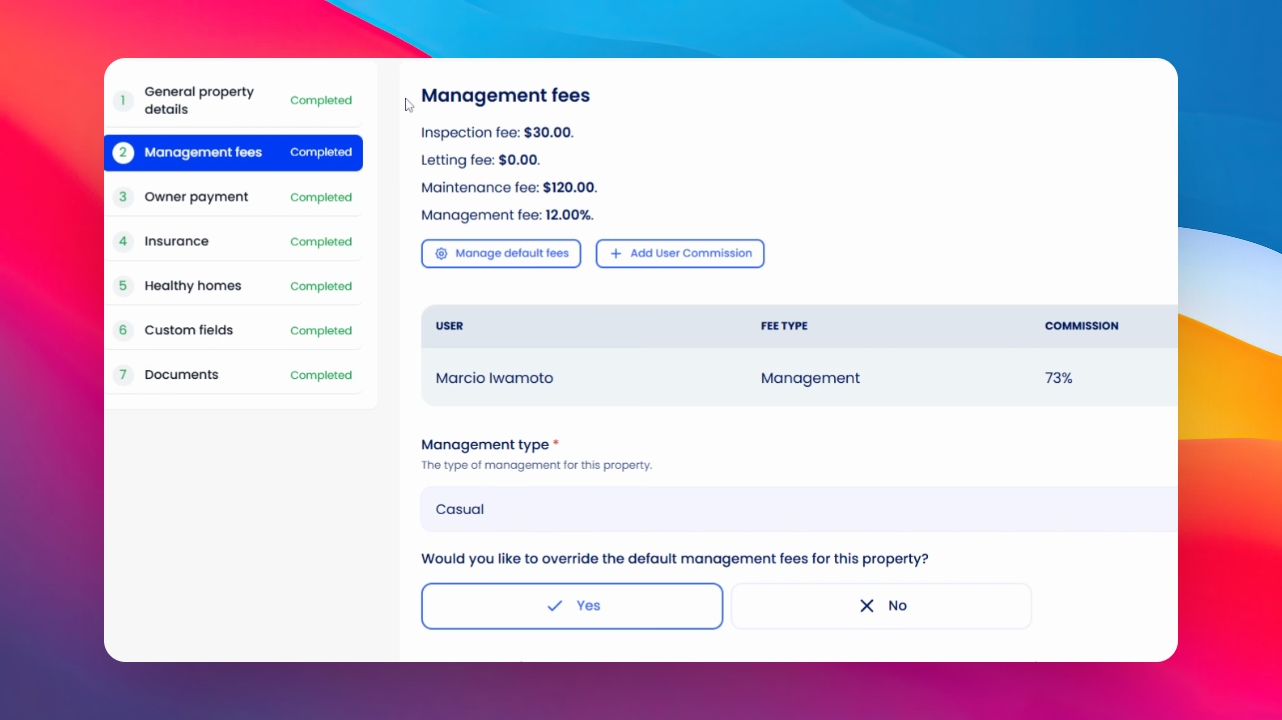
Go to any property > property setup and select the Management Fees section.
View the default fee at the top of the page.
If needed, click the button to override the default management fees for this property. Enter your desired management fees in the fields that appear.
If you need more help or have any questions, just reach out to us at support@keyhook.com — we're always here to help!
Click on this link to give a feedback: Support Article Feedback Form