

TL;DR
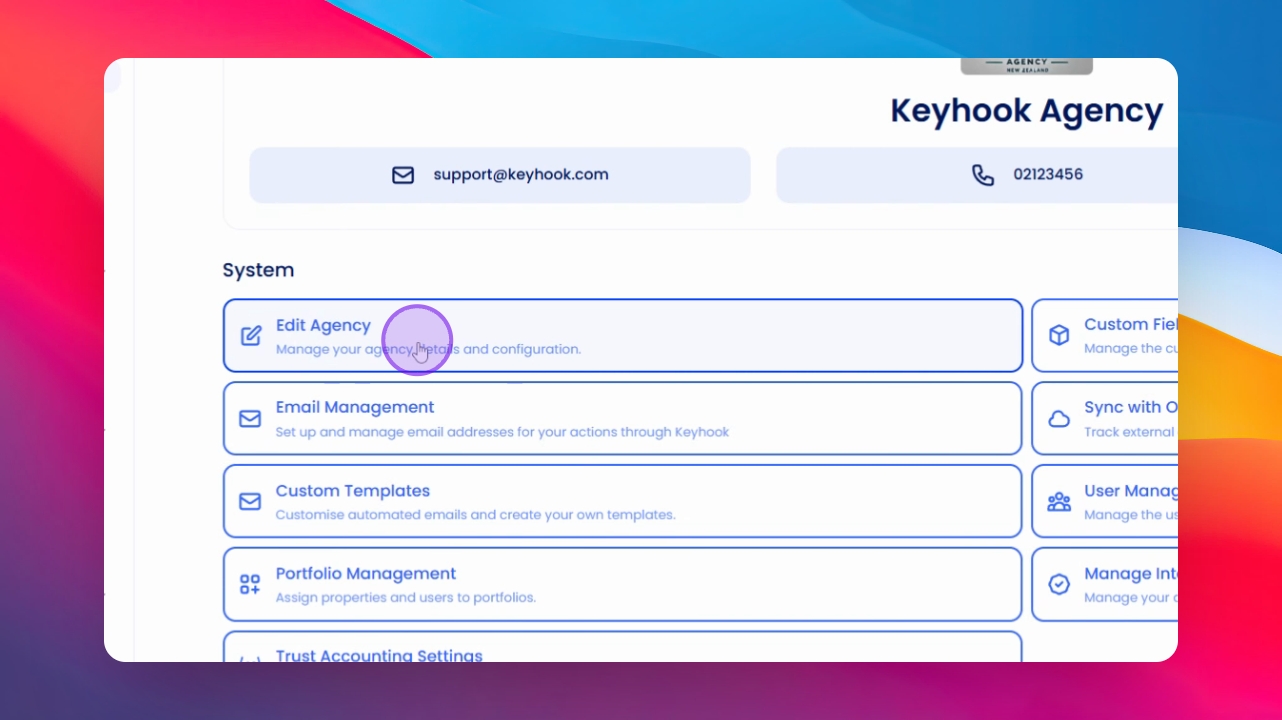
Go to Agency Configuration > Edit Agency and fill in your details.
Let's Do It Together!
Step 1: Edit Agency Information
Go to Agency > Agency Configuration > Edit Agency. Fill in your general information and Landlord ID number.
If you're unsure about your landlord ID, contact support.
Click Save after filling in the information in each section.
Step 2: Configure Tenant Experience
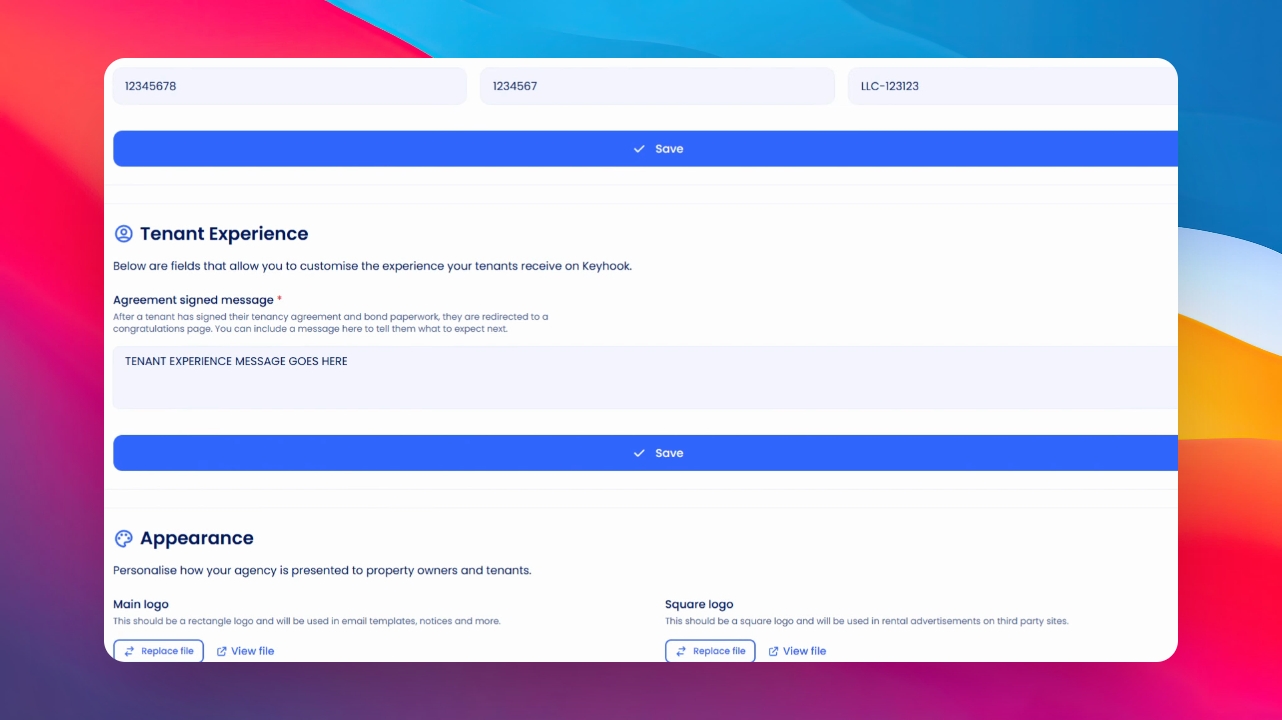
Set up the message for the congratulations page after signing the tenancy agreement.
Consider messages like 'Welcome to our agency' or 'We will be in touch soon.'
Click Save once you've added your message.
Step 3: Customize Appearance
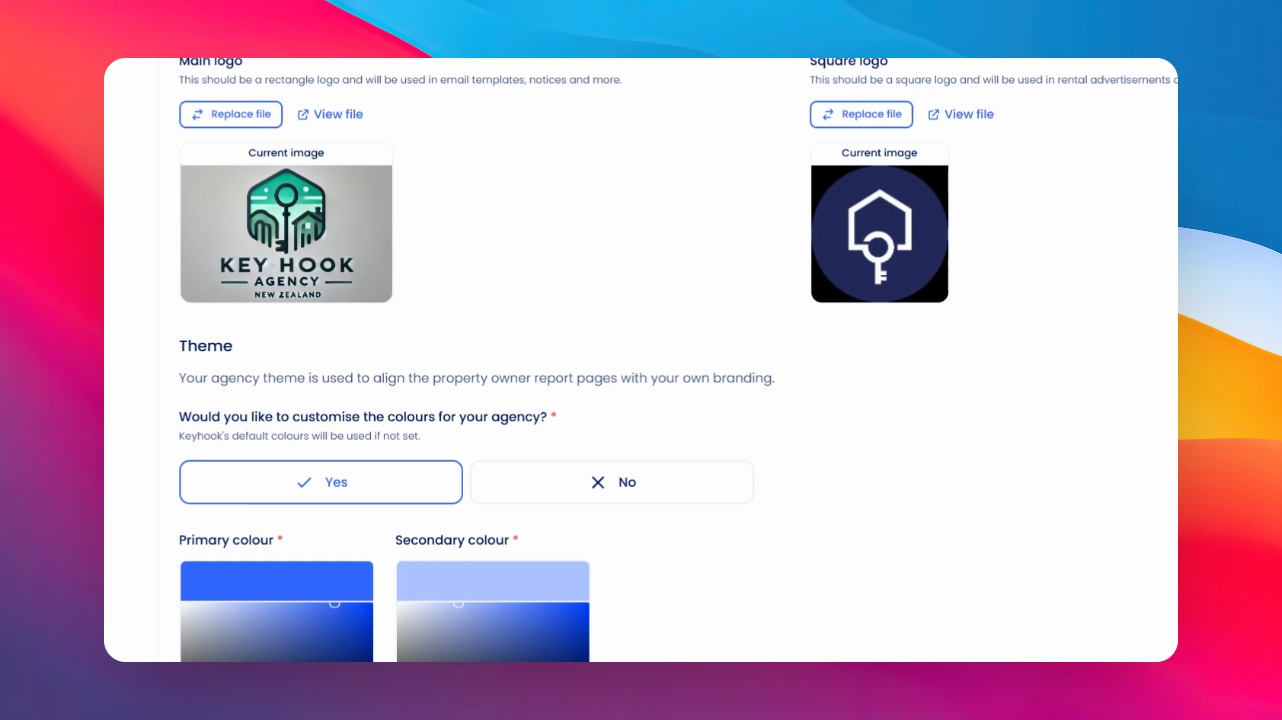
Upload your logos and choose colors for your statements.
Use default colors or input your hex color codes for precision. Preview the owner statement to see how colors appear.
Ensure text color contrasts with the background.
Click Save after making changes.
Step 4: Set Default Management Fees
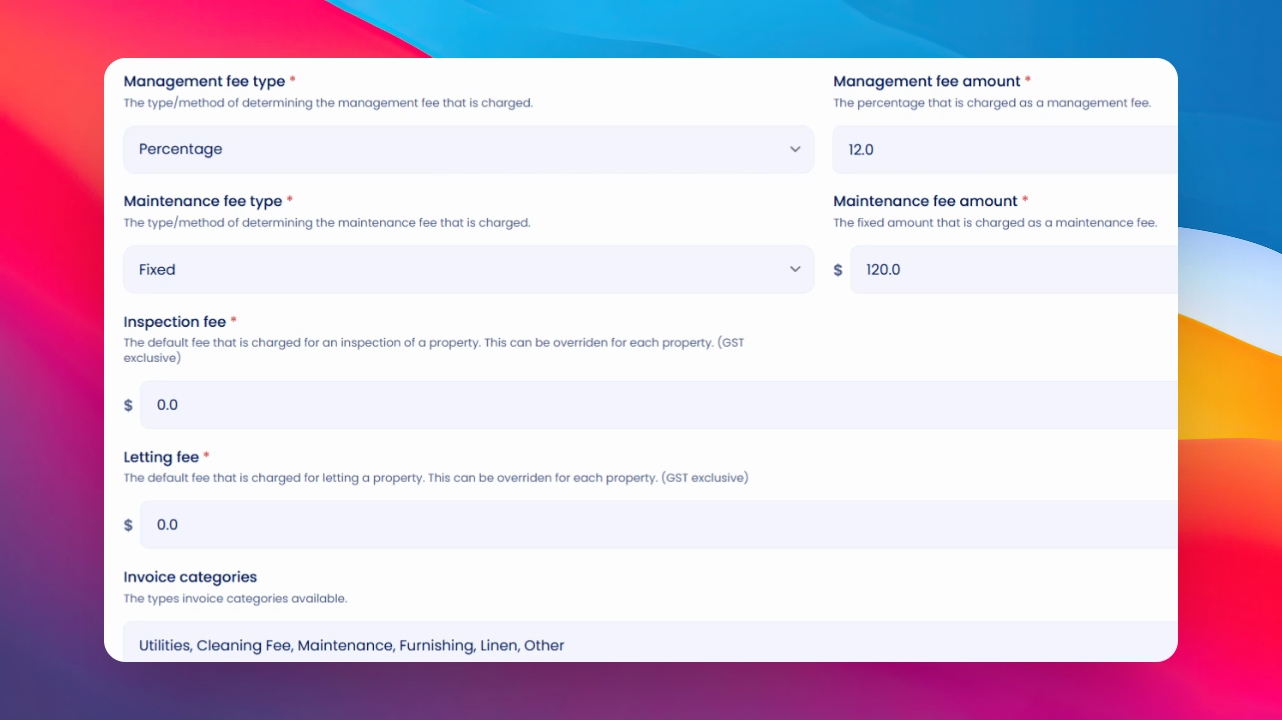
Fill in your default management fees, inspection fees, and letting fees. Note that these fees are GST exclusive.
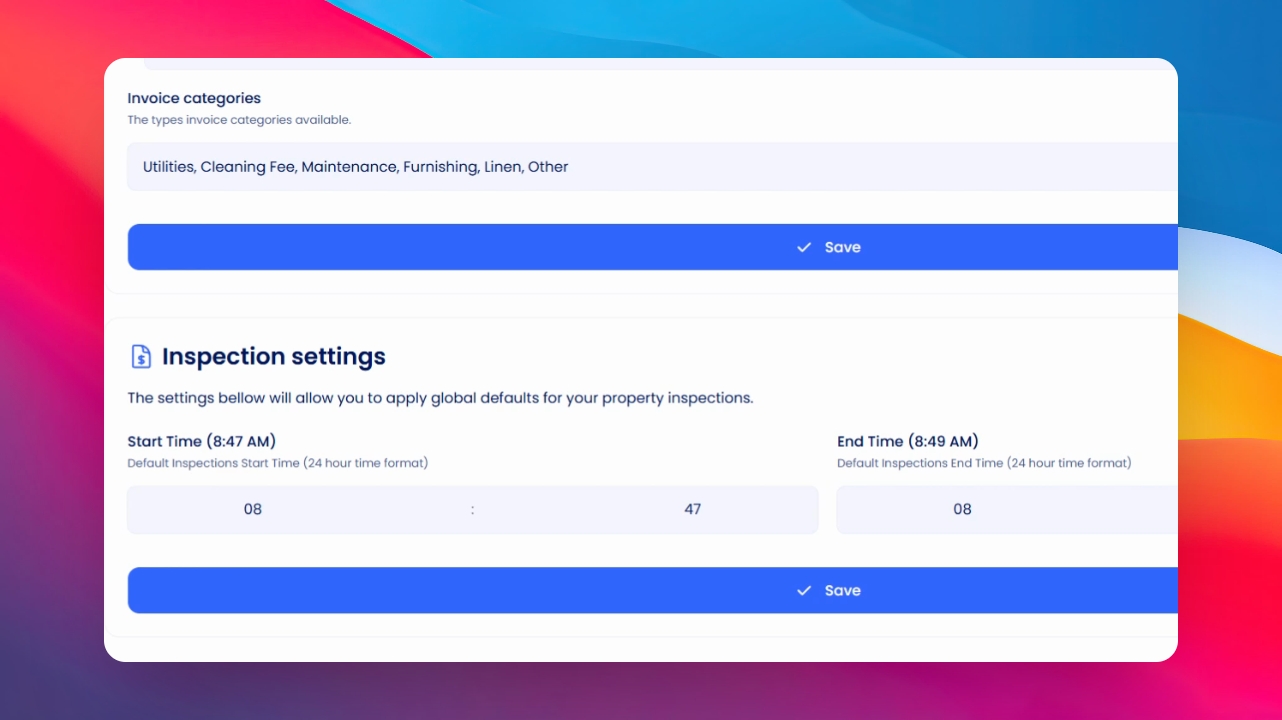
Add new invoice categories as needed, like 'letting fee less break fee'.
Click Save after each category.
Step 5: Configure Inspection Settings
Set default inspection timings for properties.
Override timings for specific properties if needed.
Click Save to apply your settings.
If you need more help or have any questions, just reach out to us at support@keyhook.com — we're always here to help!
Click on this link to give a feedback: Support Article Feedback Form