

TL;DR
Click the username on the bottom left, then use the Portfolio button to select a portfolio you have access to.
Let's Do It Together!
Step 1: Access Your Portfolios
Click the Portfolio button to see available portfolios.
Select the portfolio you wish to view.
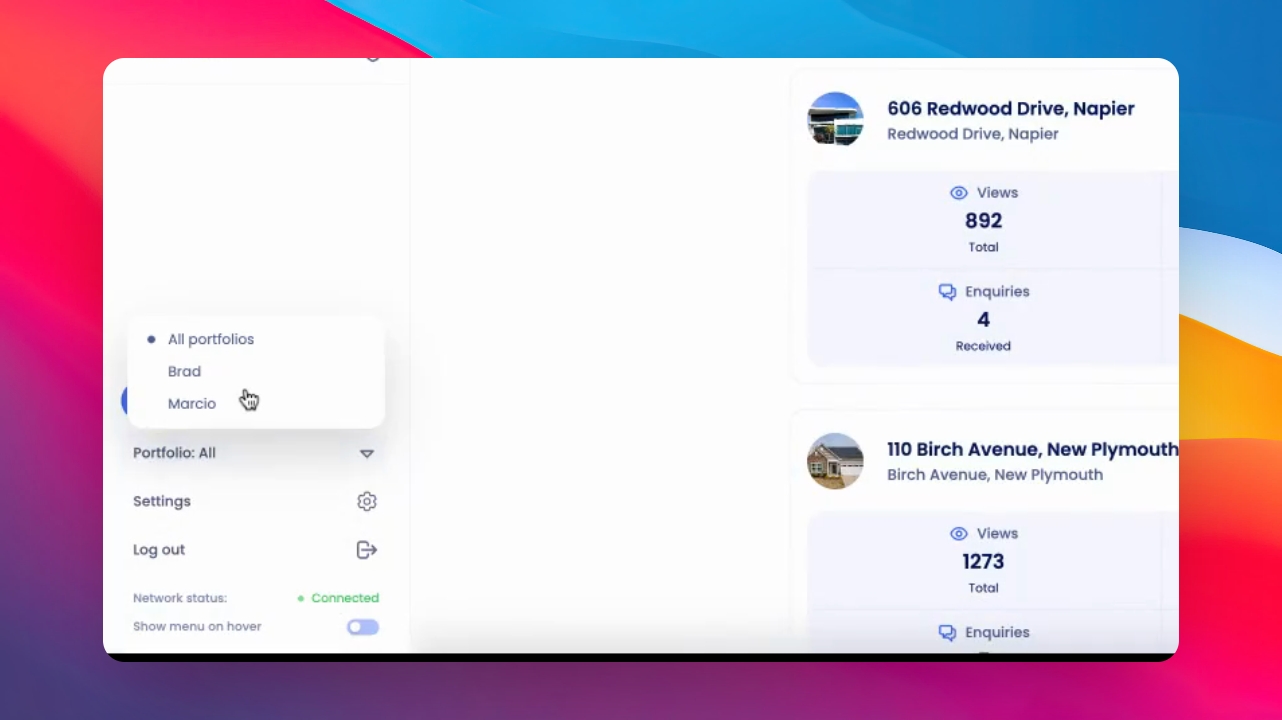
Step 2: View Portfolio Details
Navigate to Agency Configuration > Portfolio Management
Drop down the portfolio to view its contents.
Check the properties and users associated with the selected portfolio.
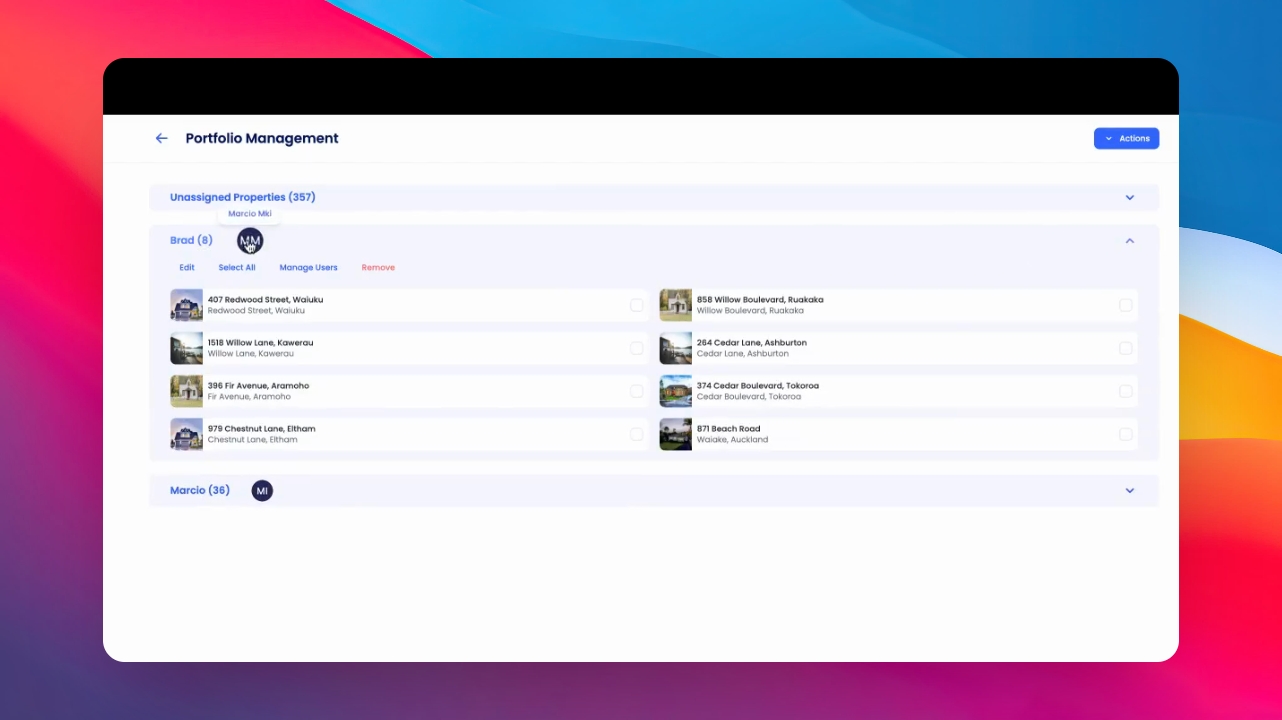
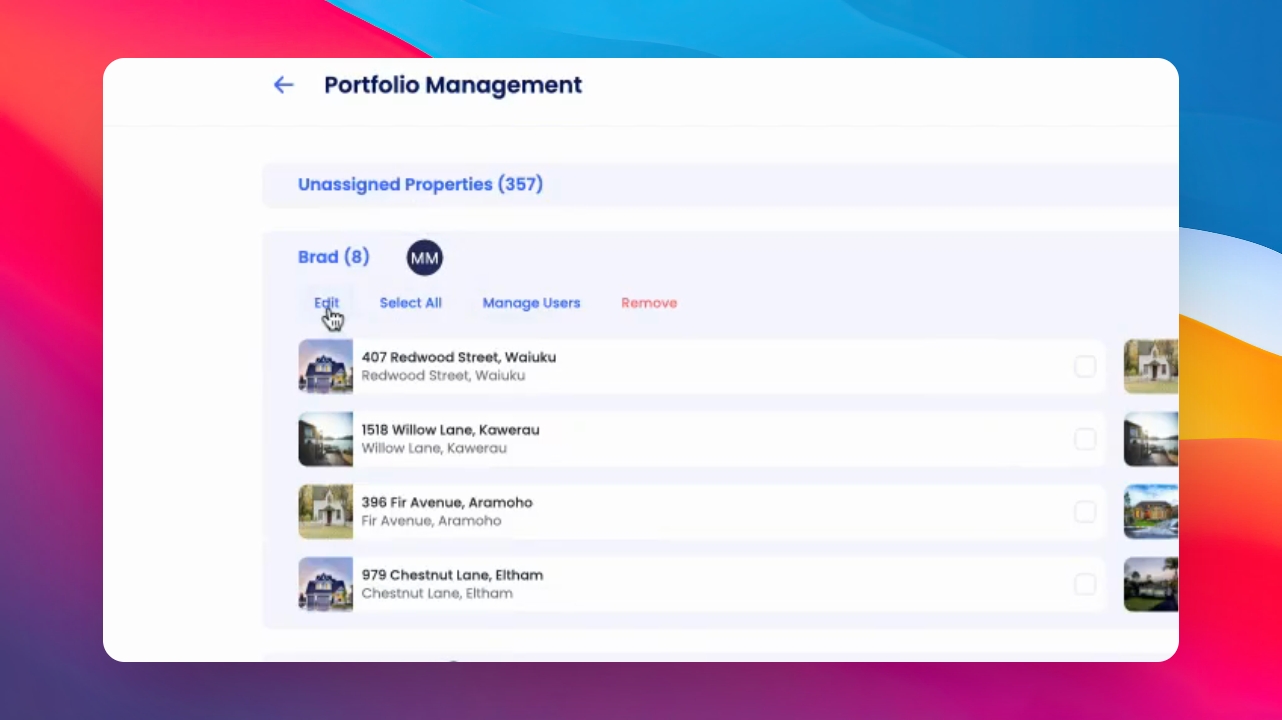
Step 3: Edit and Manage Portfolios
Edit the portfolio name or select properties within it.
Manage users and their access to the portfolio. Remove a portfolio if necessary.
Step 4: Move Properties Between Portfolios
Select a portfolio and then a property.
Click Actions to assign the property to another portfolio, like Marcio.
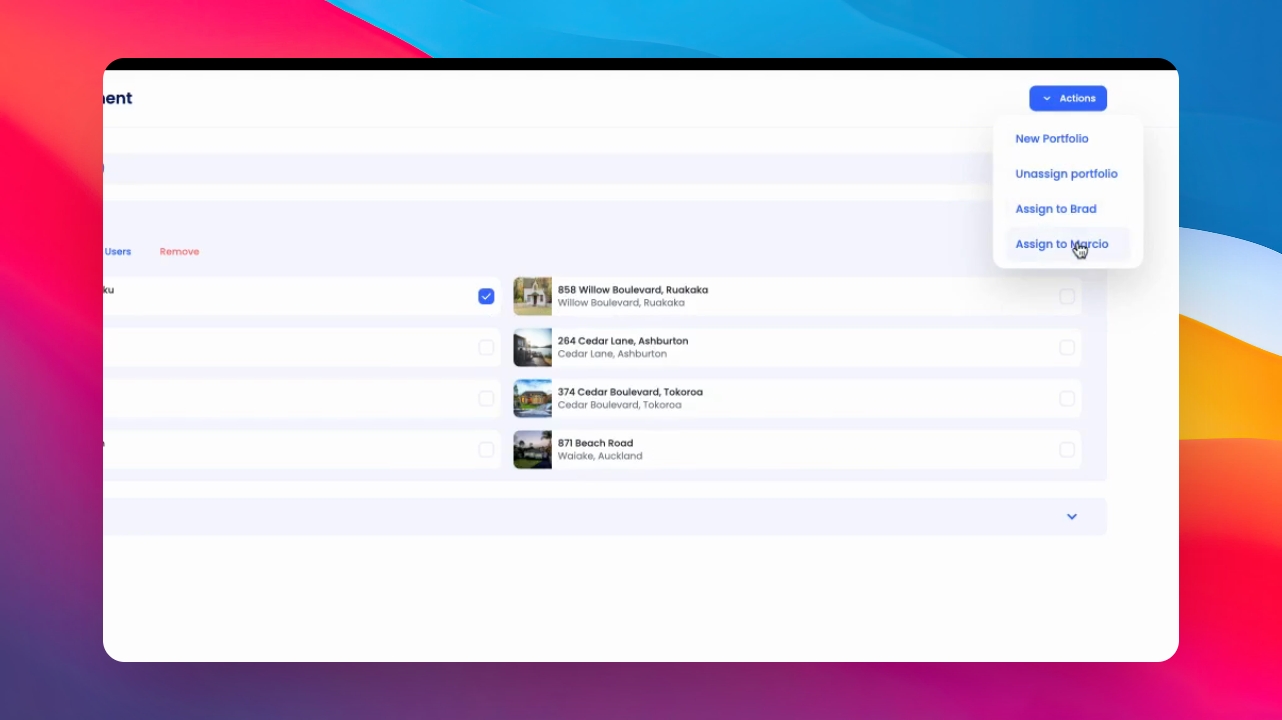
Step 5: Create New Portfolios
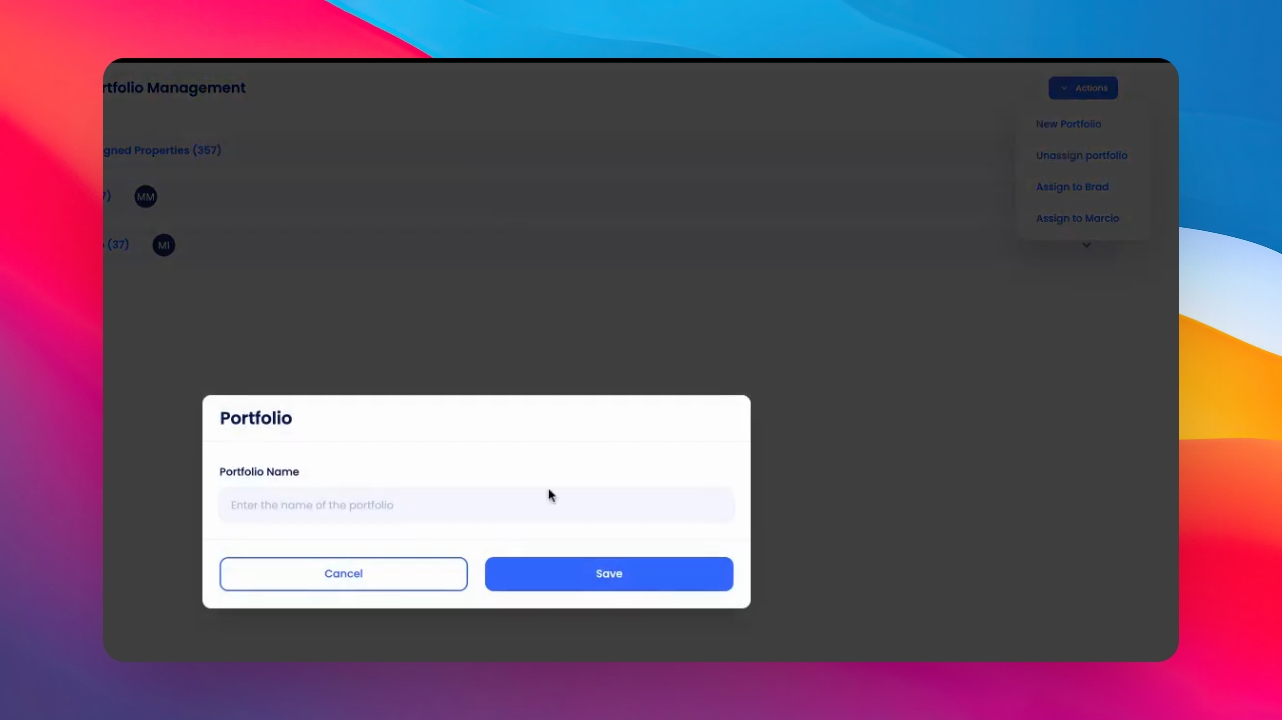
Click Actions to create a new portfolio.
Save the new portfolio to manage properties effectively.
Step 6: Manage Unassigned Properties
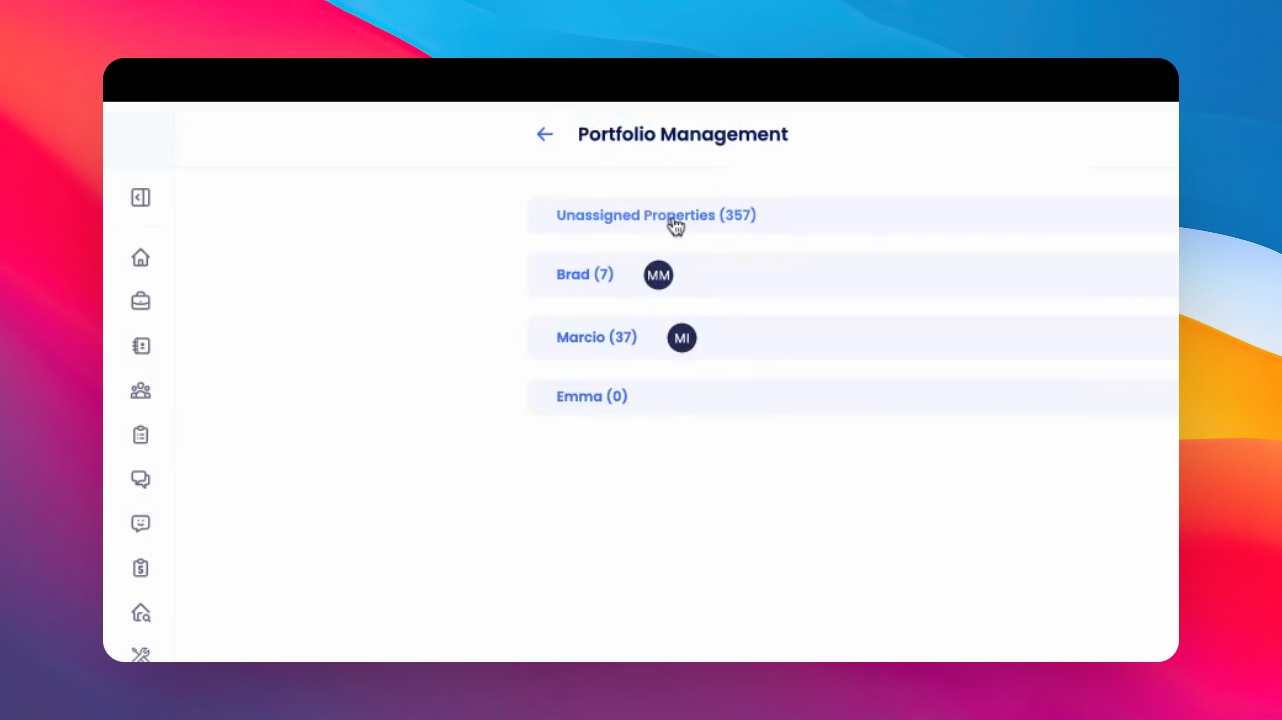
View properties in the unassigned properties portfolio - unassigned always remains at the top of the list.
Note that deactivated properties are archived here.
If you need more help or have any questions, just reach out to us at support@keyhook.com — we're always here to help!
Click on this link to give a feedback: Support Article Feedback Form