

Let's do it together!
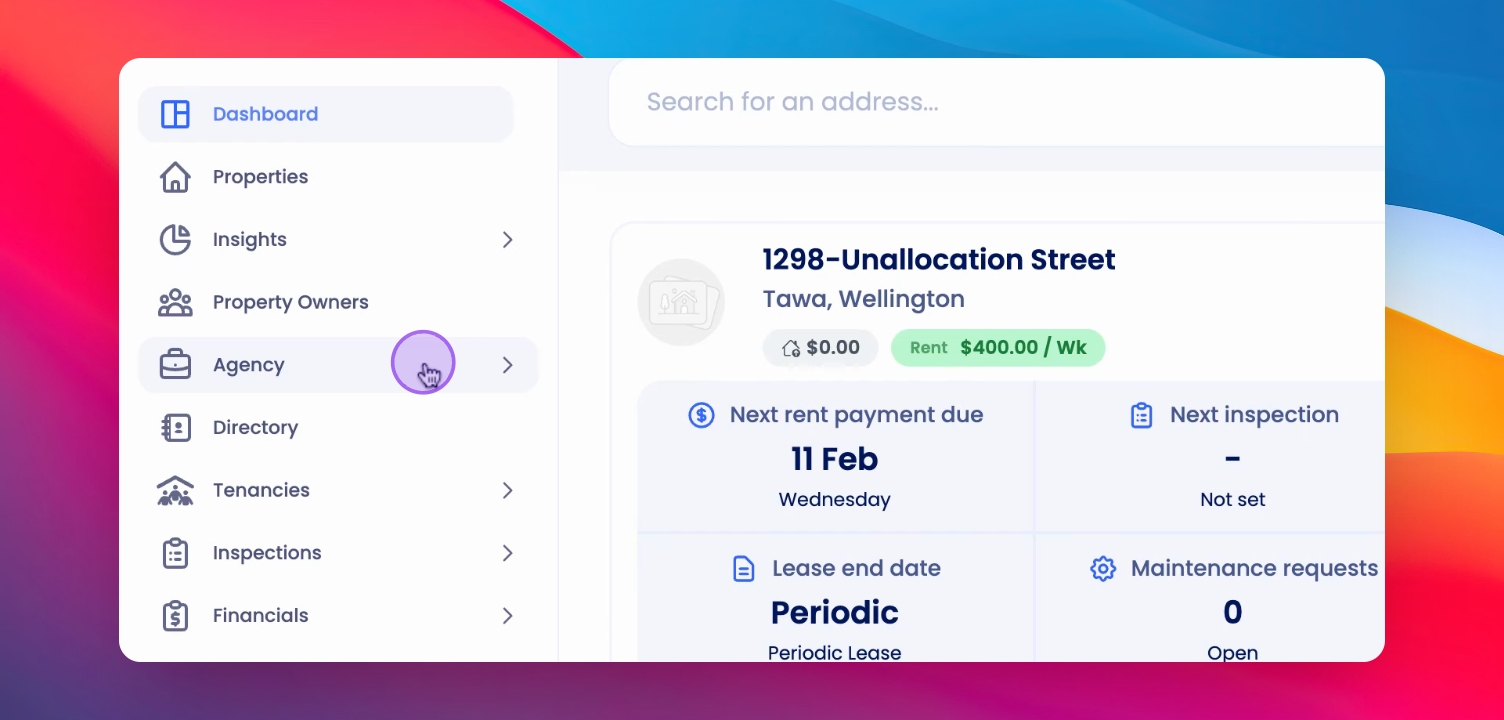
Step 1: Open Configuration
Click on Agency and select Agency Configuration to access email settings.
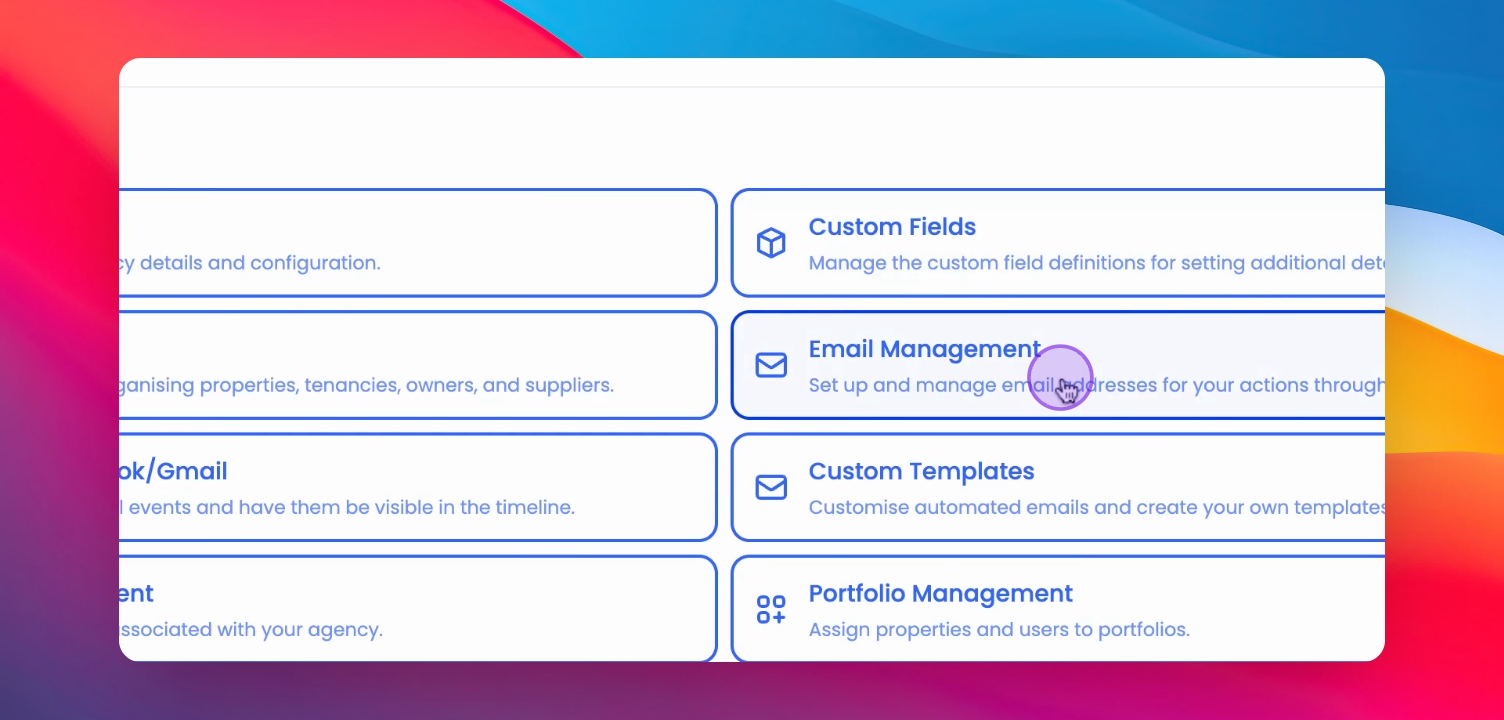
Step 2: Access Email Management
Select Email Management to manage your email connections.
Step 3: Add Email Address
Scroll down to your name and click Add Email Address to start adding your email.
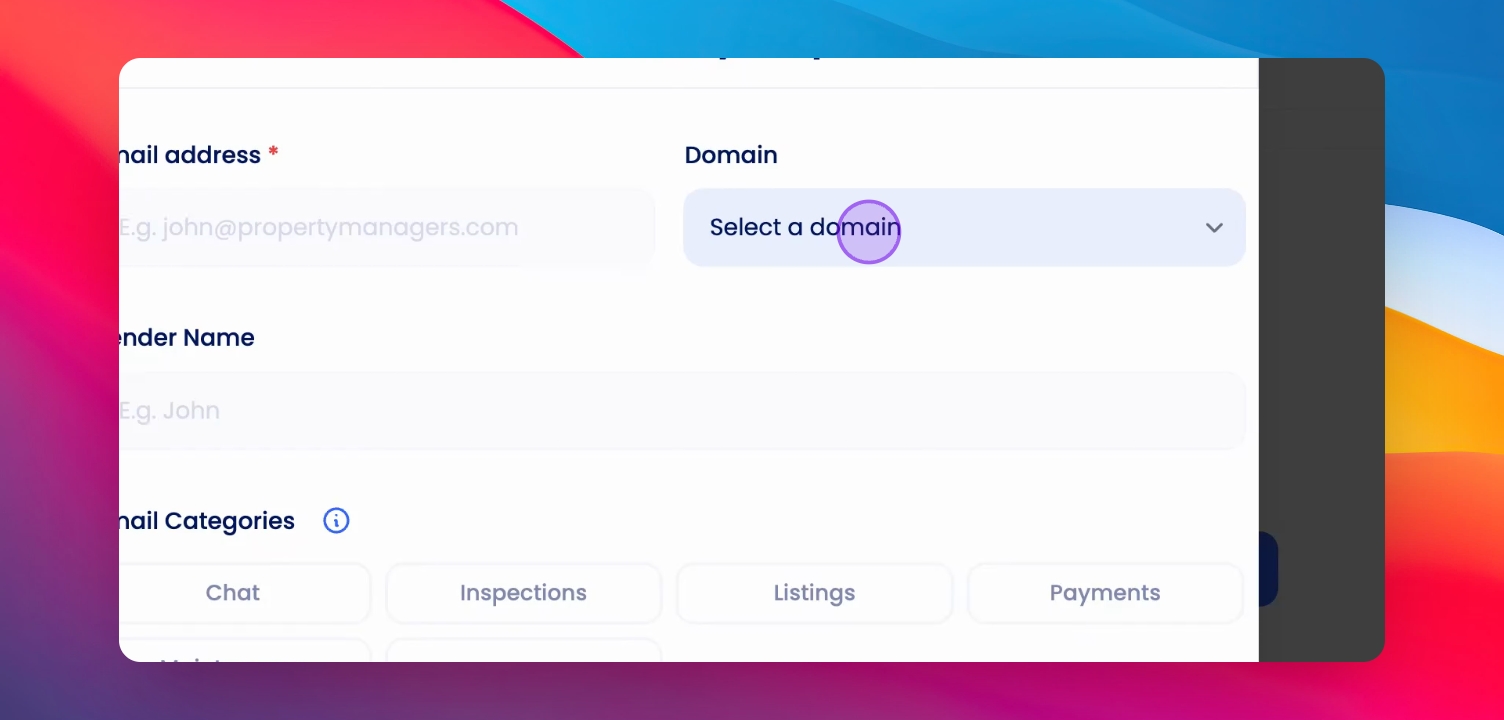
Step 4: Enter Email Details
Select the domain, type your email address, and add the sender's name.
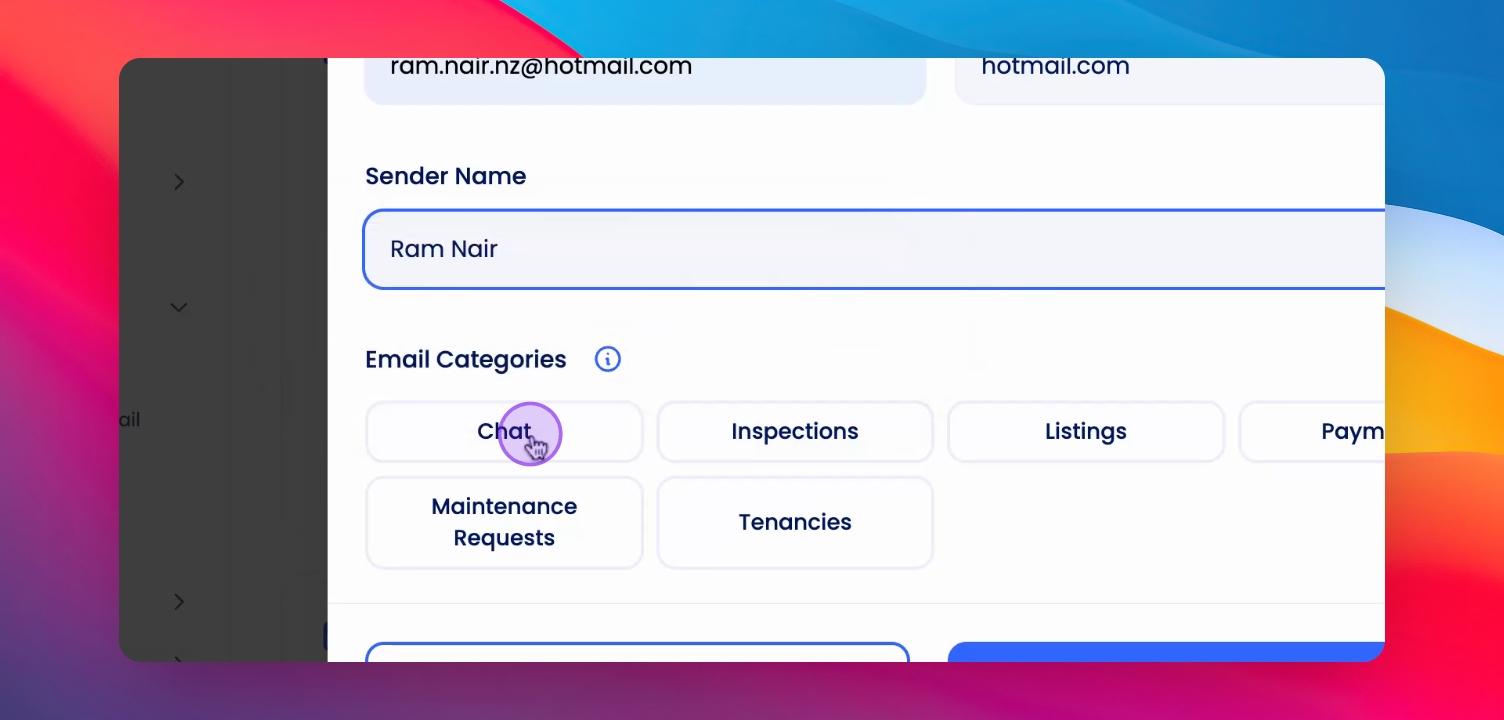
Step 5: Choose Email Categories
Select all categories for automated emails and click Save.
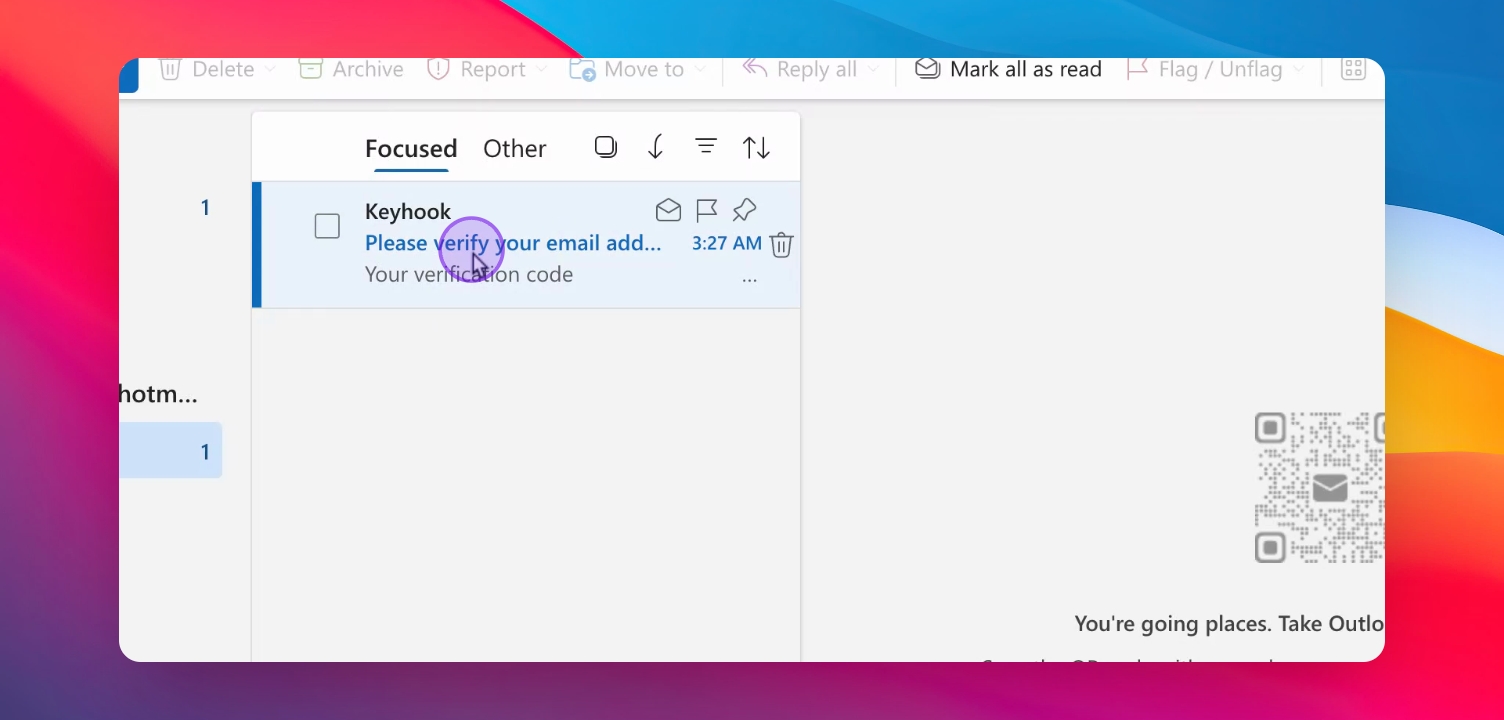
Step 6: Verify Email
Check your email for a four-digit verification code, copy it, and paste it to verify your email.
Step 7: Confirmation
Your email address is now successfully connected.
If you need more help or have any questions, just reach out to us at support@keyhook.com — we're always here to help!
Help us improve this article. Your opinion means the world to us!
Click on this link to give a feedback: Support Article Feedback Form
Troubleshooting
Verification code not received
Check your spam folder or ensure the email address is correct.
FAQ
What if I change my email?
You can add a new email address by following the same steps.
Can I use multiple email addresses?
Yes, you can add multiple email addresses for your agency.