

Adding a new user or employee in Keyhook can only be done by the principal user. Let's look at the steps:
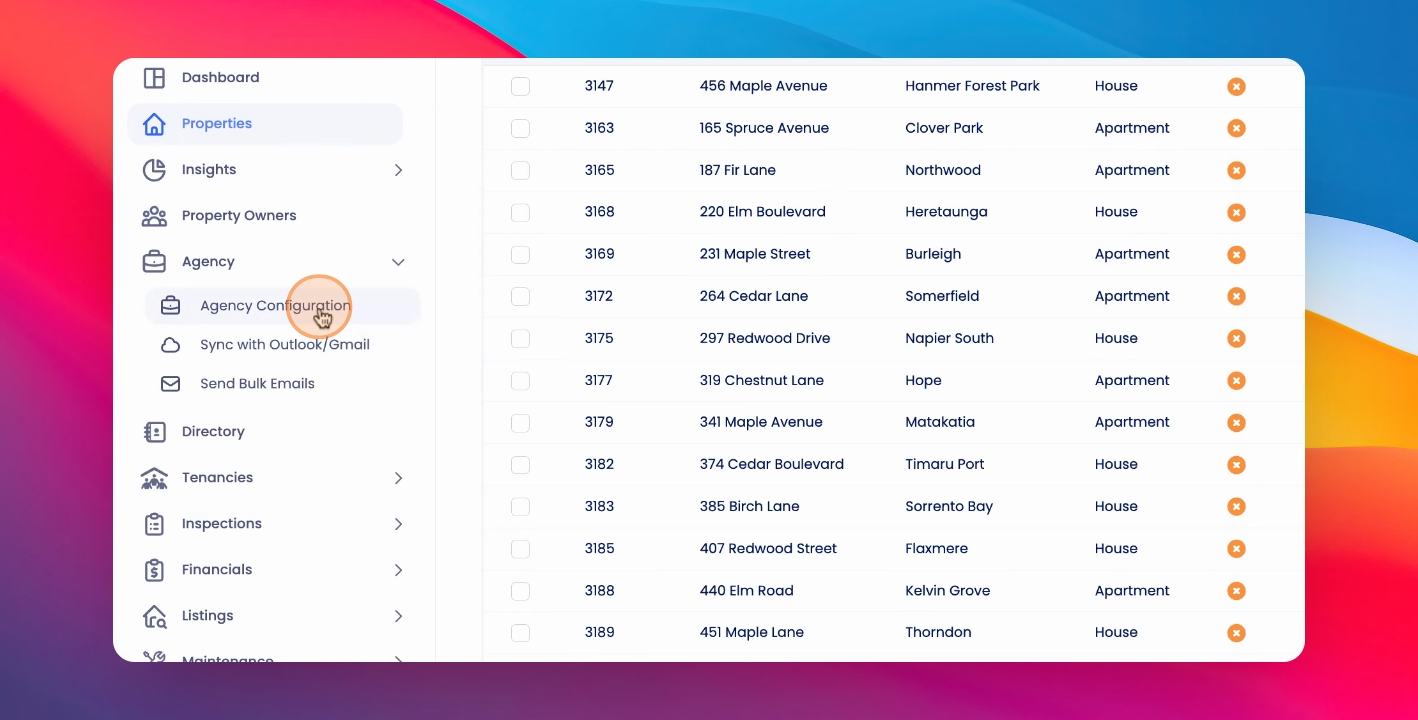
Step 1: Open Agency Configuration
Click on Agency Configuration.
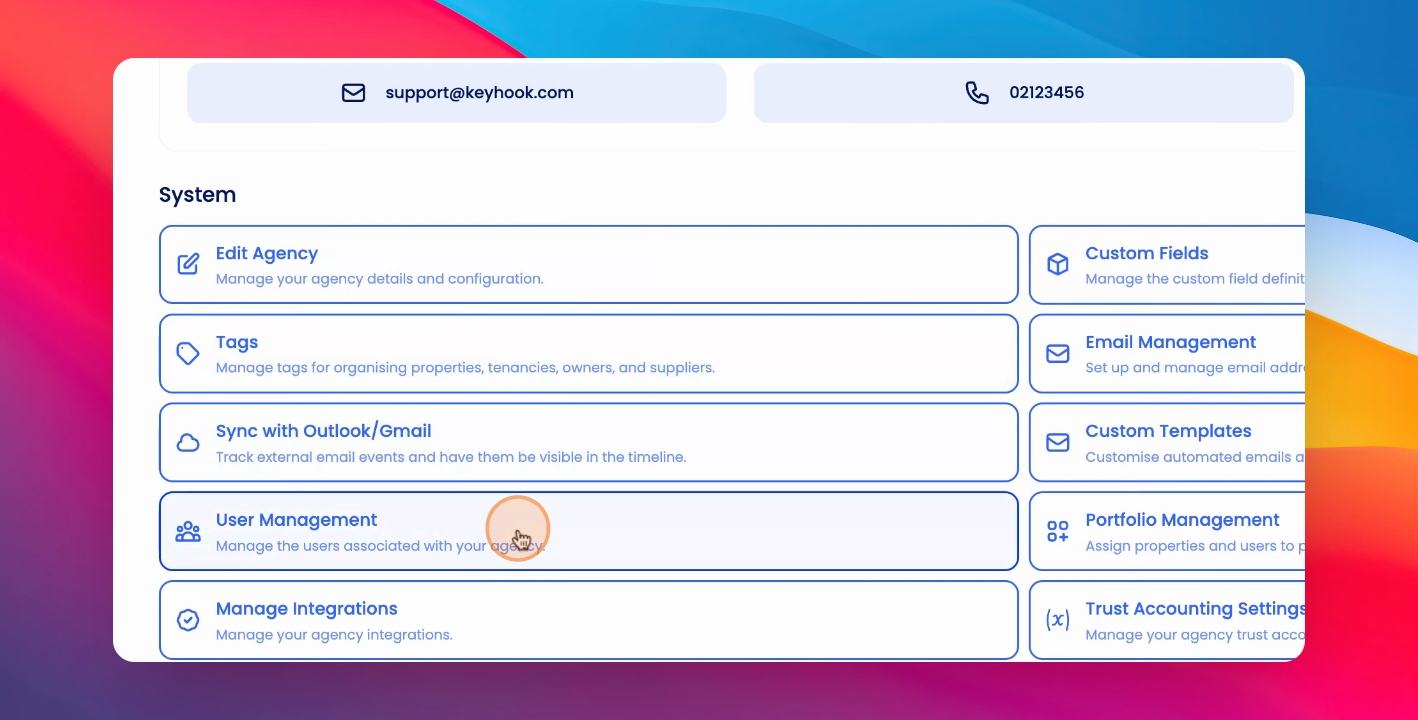
Step 2: Access User Management
Click on User Management.
Step 3: Invite User
In the Pending Invitations section, click on Invite User.
Step 4: Enter User Details
Add in the user's name and email address.
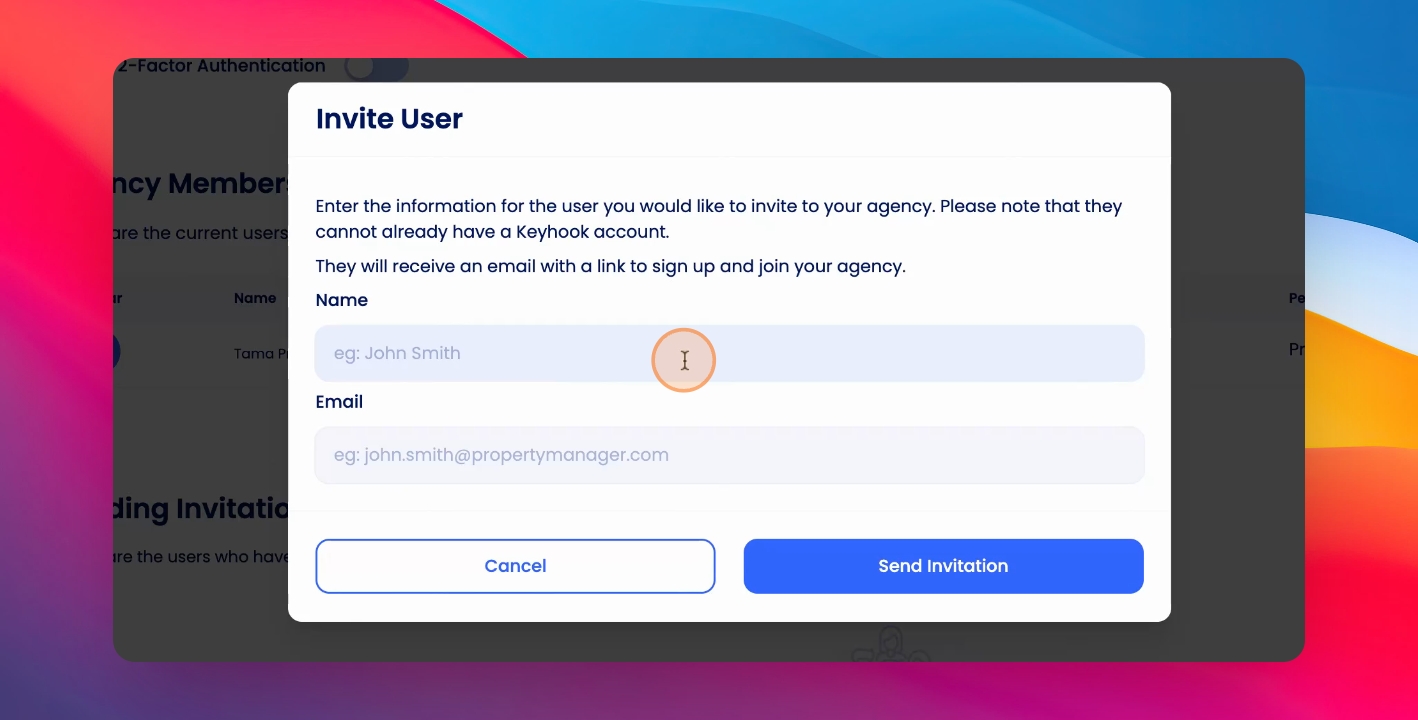
Step 5: Send Invitation
Click send invitation.
The user will receive a notification email inviting them to join the Agency.
Once they accept the invitation, you can set permissions under the Agency Members section.
Step 6: Manage Permissions
In the Permissions button, click the Edit button to edit any pending invitations. To remove any pending invitations, click the Trash can icon and then click Delete.