

To configure send from user emails for your agency, follow these steps. Let's look at the steps:
Step 1: Open Agency Section
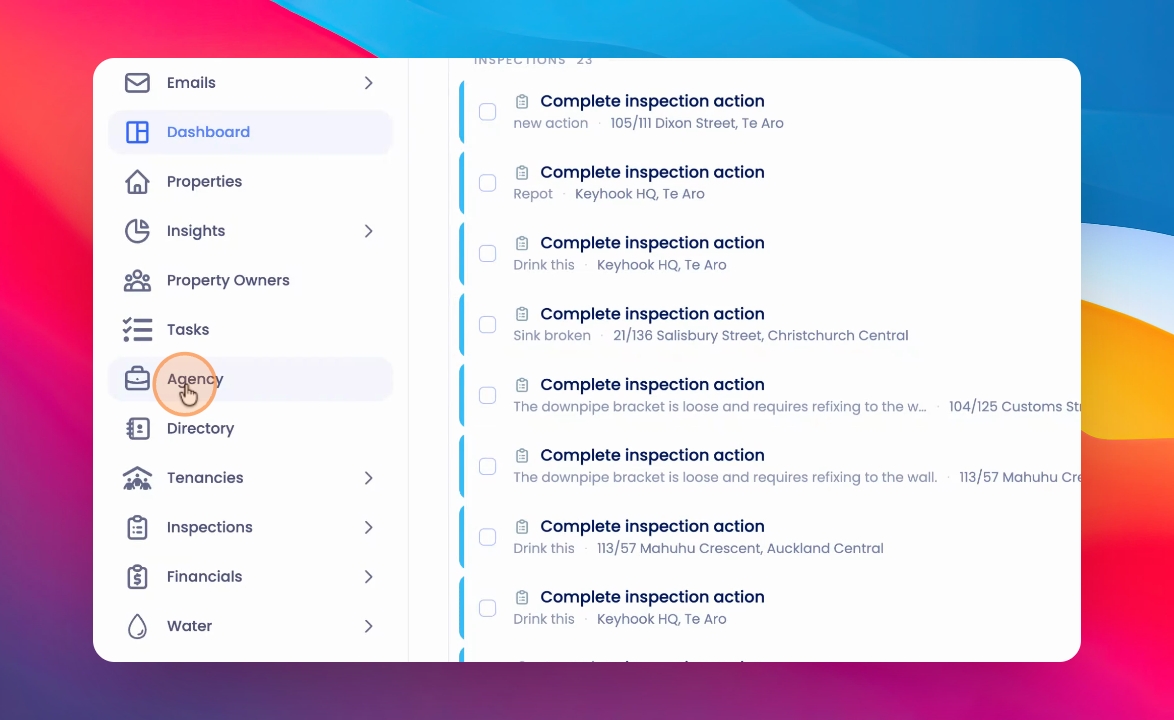
Click on Agency in the main menu.
Step 2: Go to Email Management
Click on Email Management.
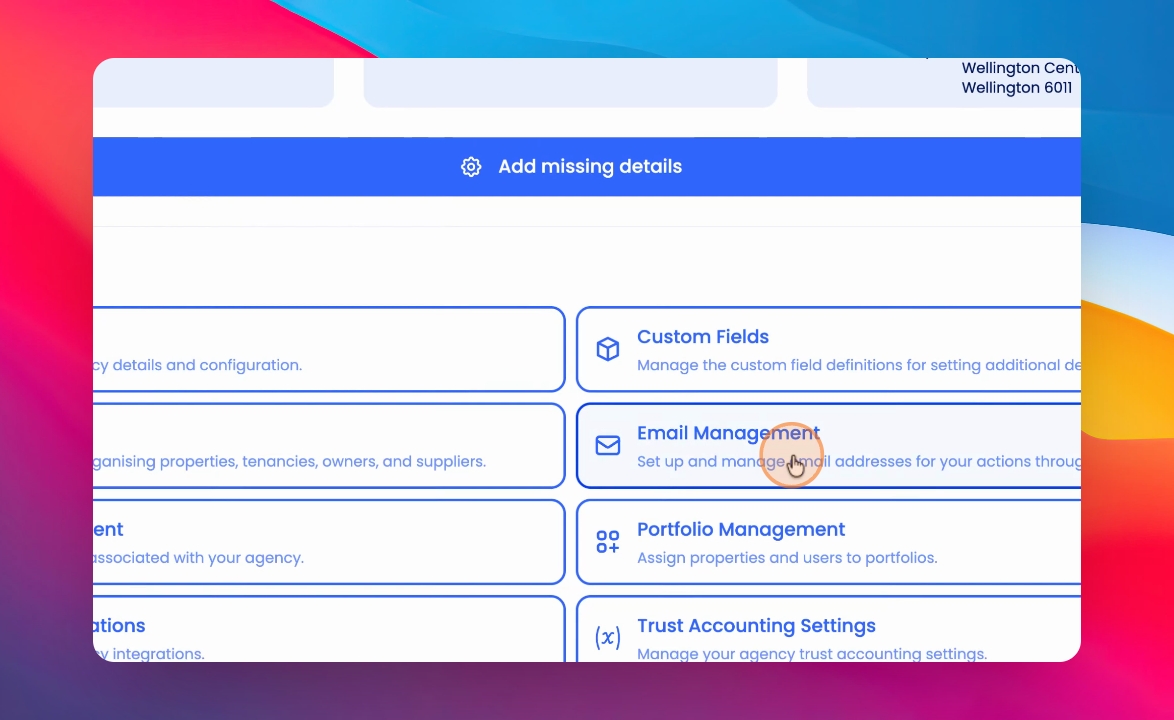
You must have a domain that has been verified and connected before proceeding.
Step 3: Find the Relevant Portfolio
Scroll down to the relevant portfolio where you want to add the email address.
Step 4: Add a New Email Address
Click Add an email address.
Step 5: Enter Email Details
Select your domain from the list of verified domains. Then, type in your email address (for example, SAM@).
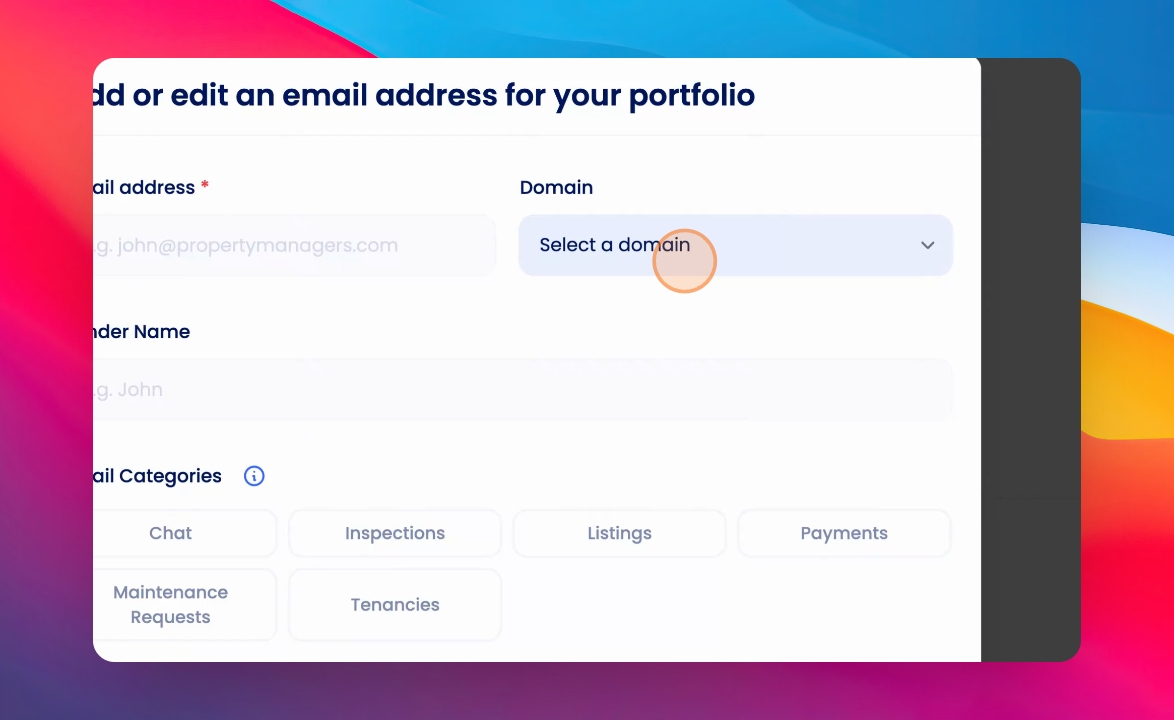
The system will automatically populate the domain part of your email address.
Confirm your full email address is correct.
Step 6: Set Sender Name and Categories
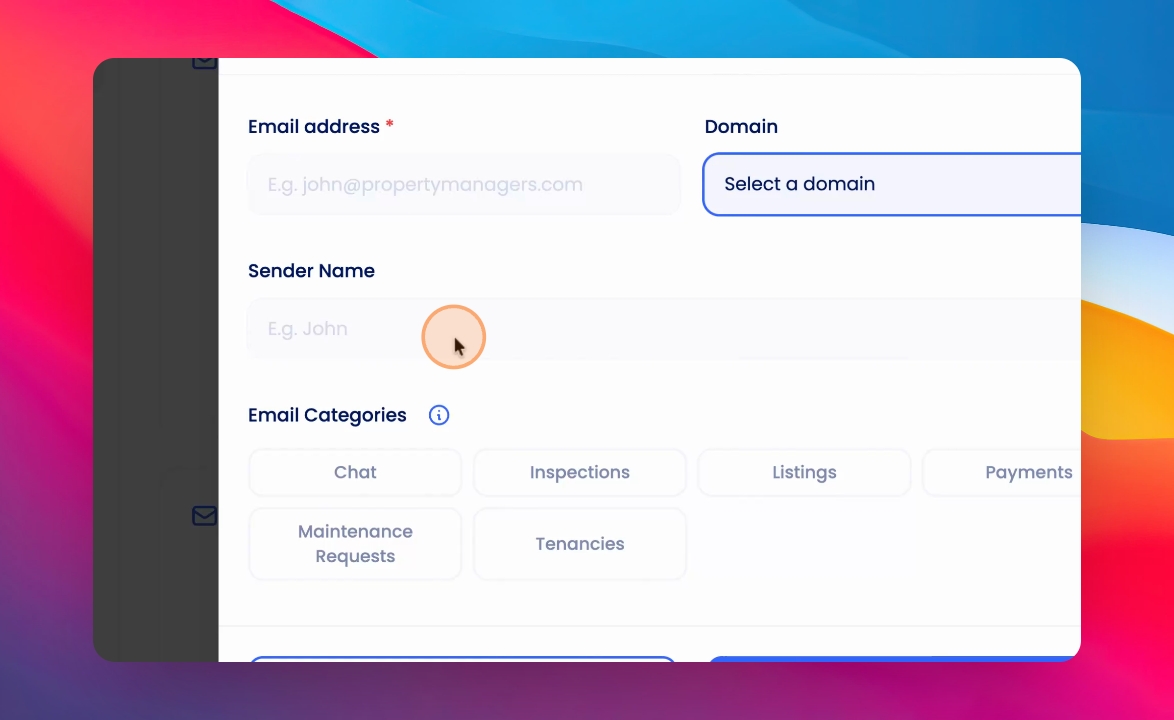
Type in the sender name and select the relevant email categories below.
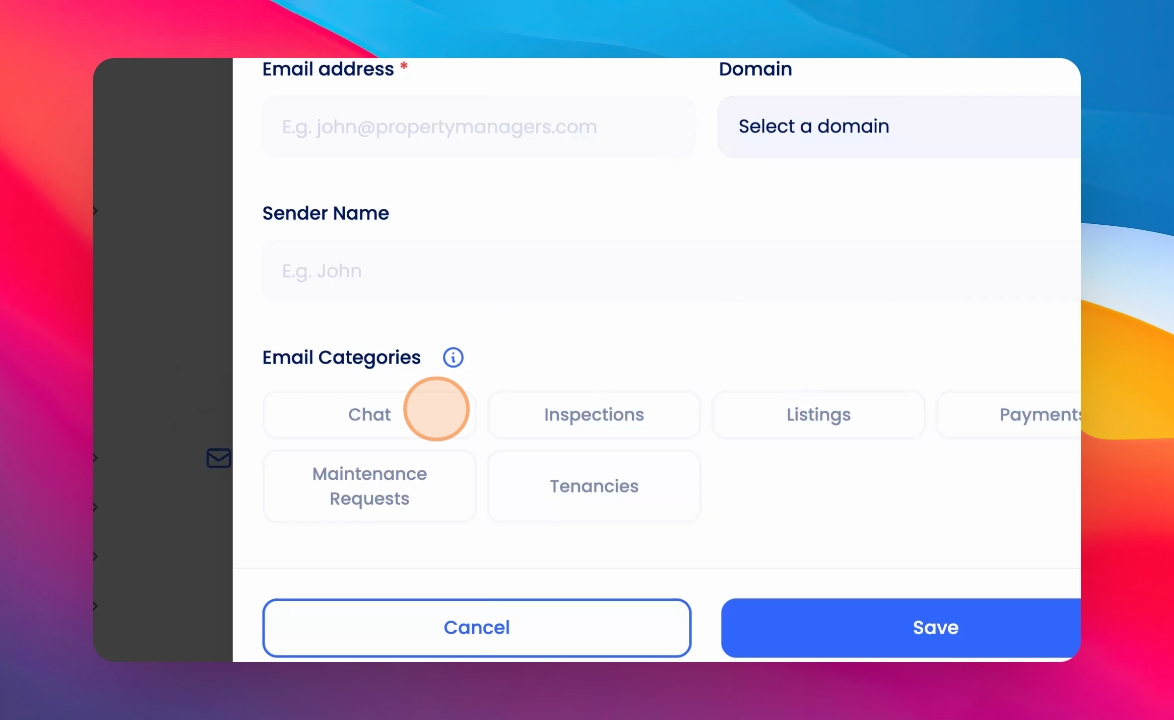
Step 7: Select Categories and Save
It is recommended to select all email categories. Then, click Save to finish adding the email address.
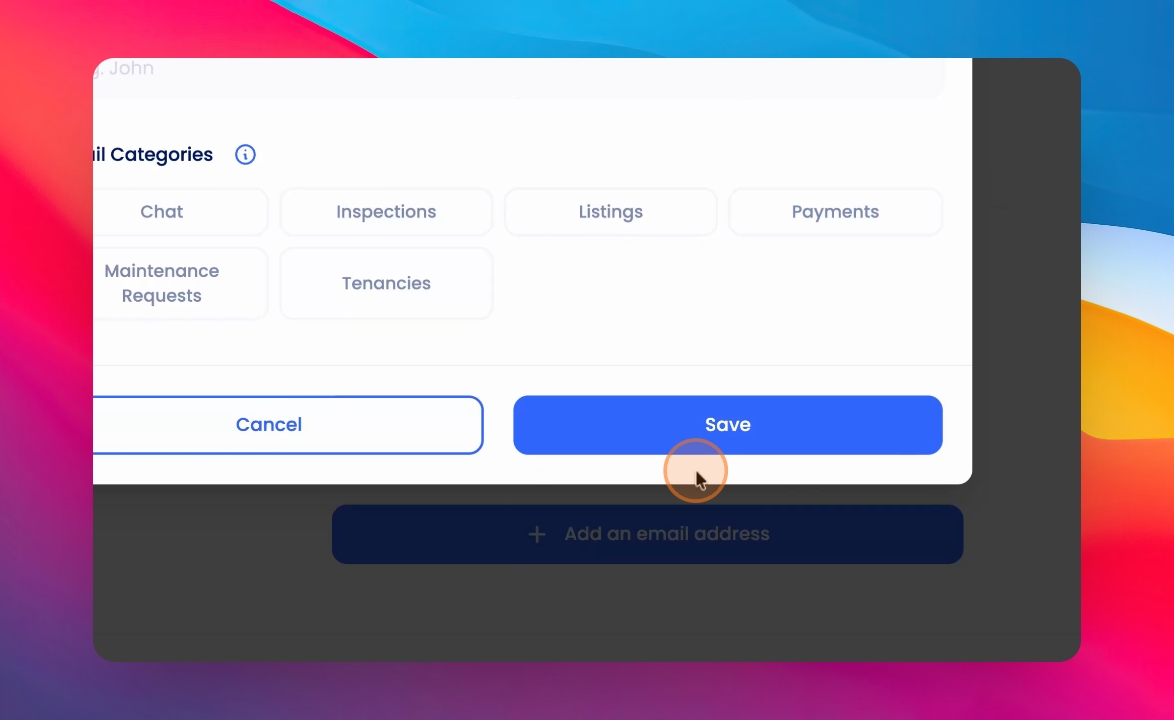
You should have an email address set against all properties as well.