To request quotes from suppliers, start by navigating to Maintenance Requests. Let's look at the steps:
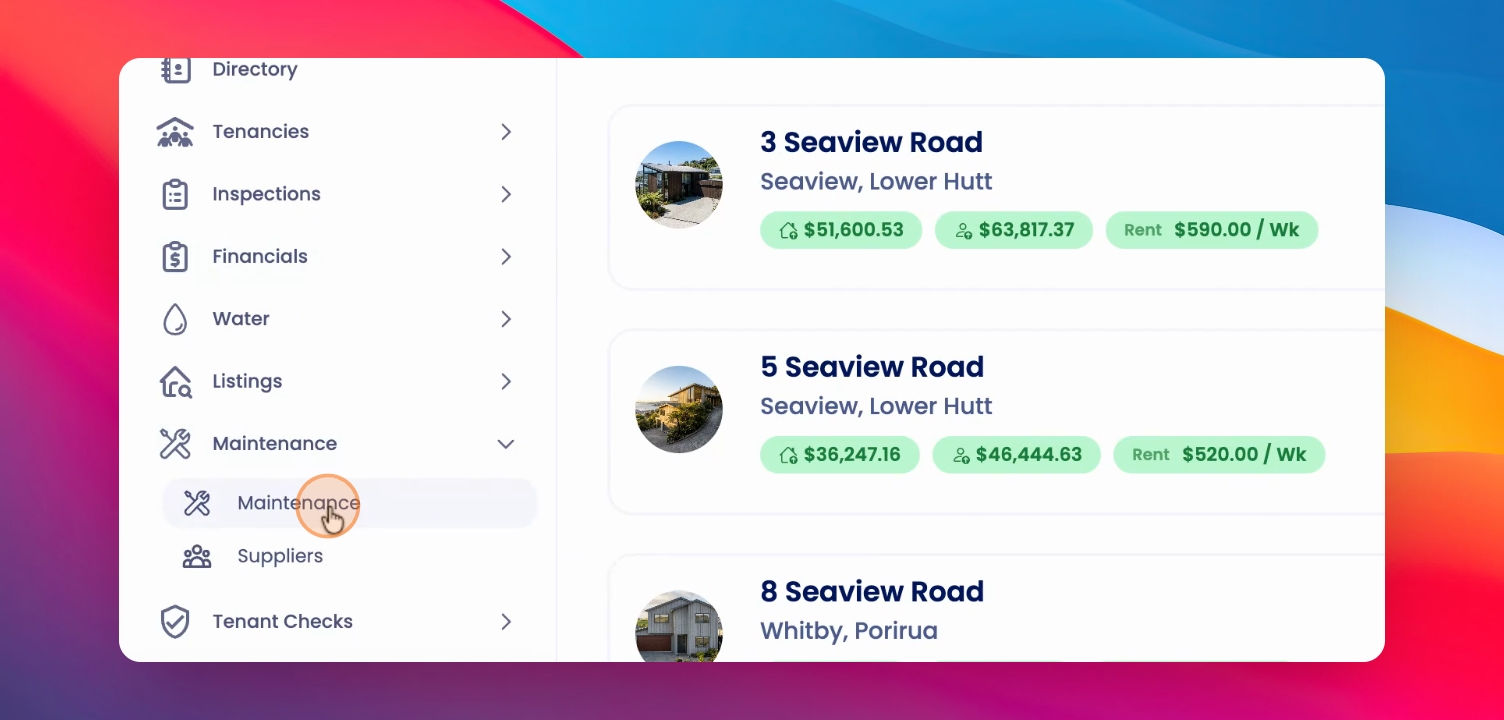
Step 1: Open Maintenance Request
Click on your maintenance request, then click on Actions and select Request Quotes.
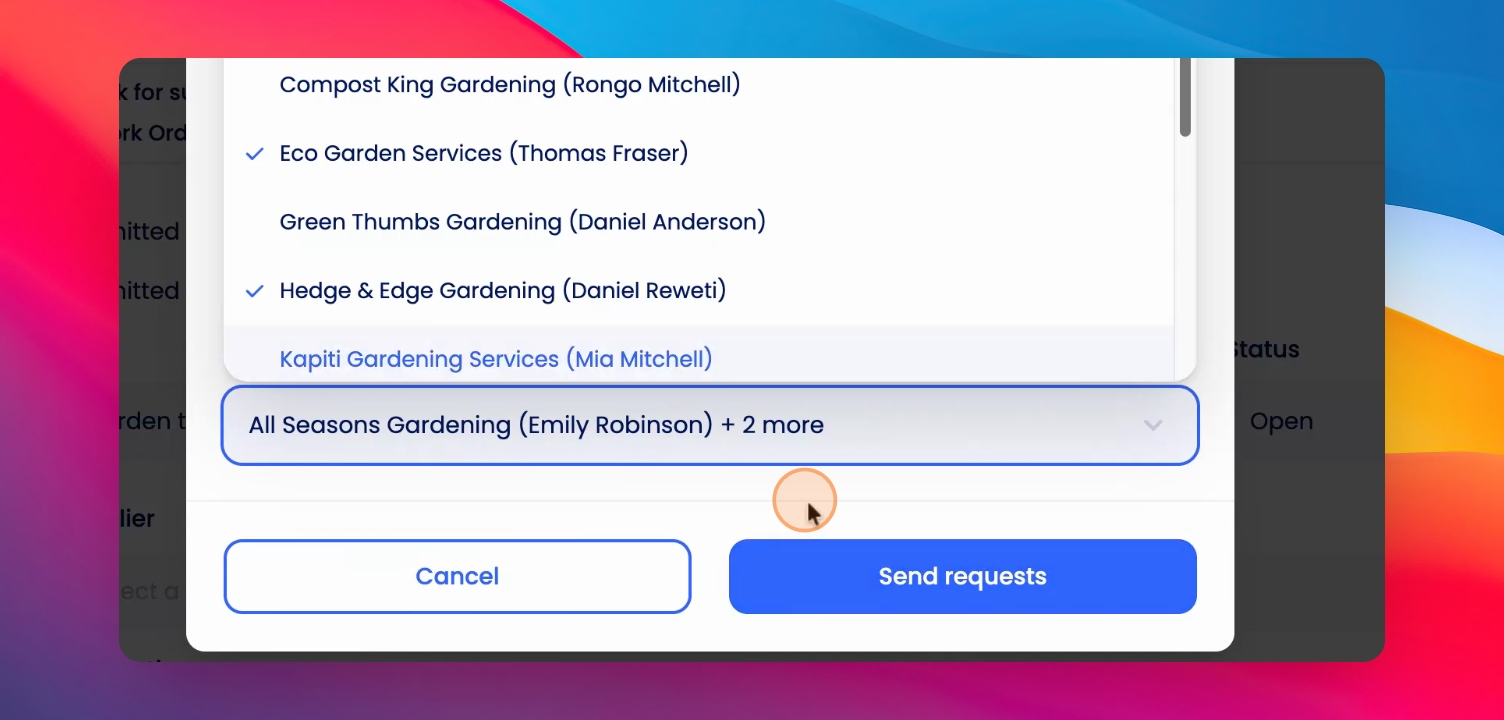
Step 2: Select Suppliers
Select one or multiple suppliers to request quotes from. You can filter suppliers by category. If you change the category, only suppliers from that category will be shown.
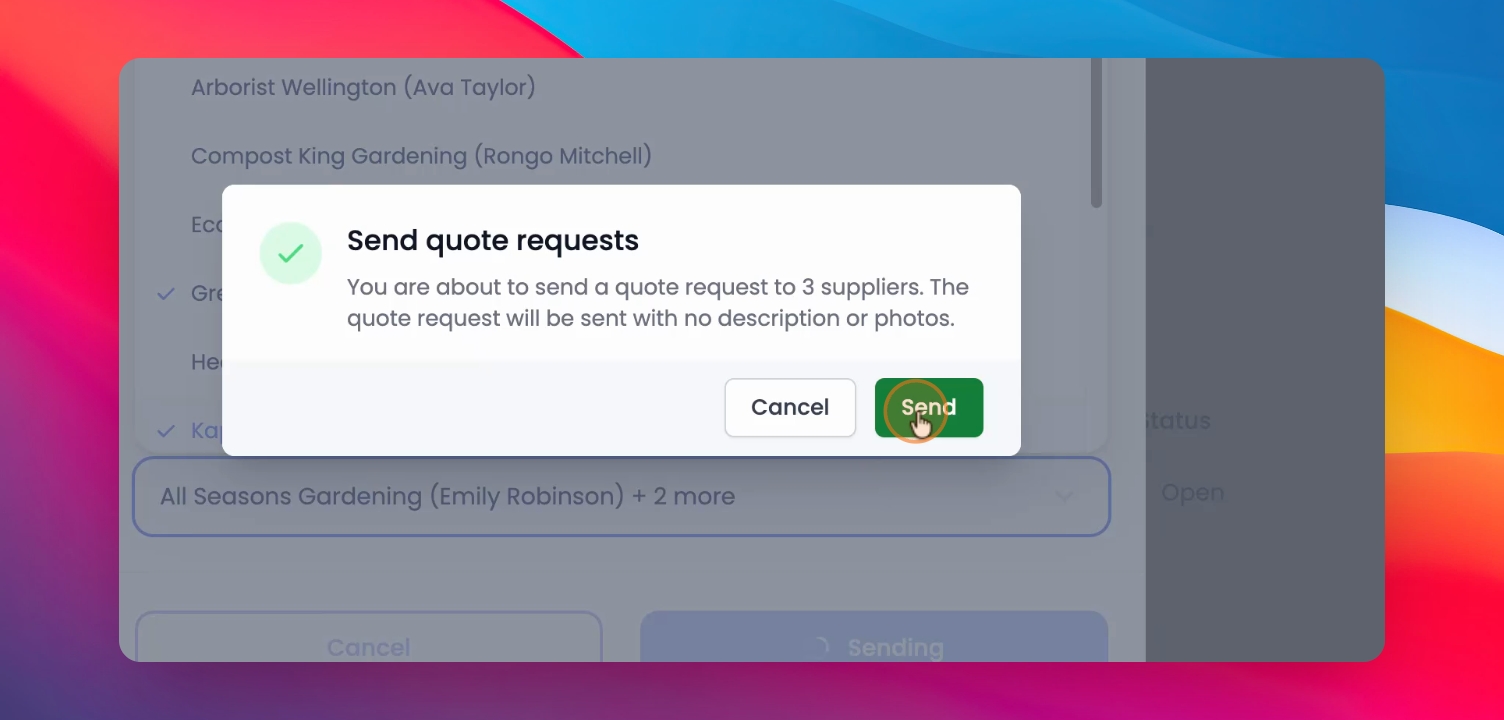
Step 3: Send Quote Requests
After selecting suppliers, send your requests and confirm the action.
Step 4: View Pending Requests
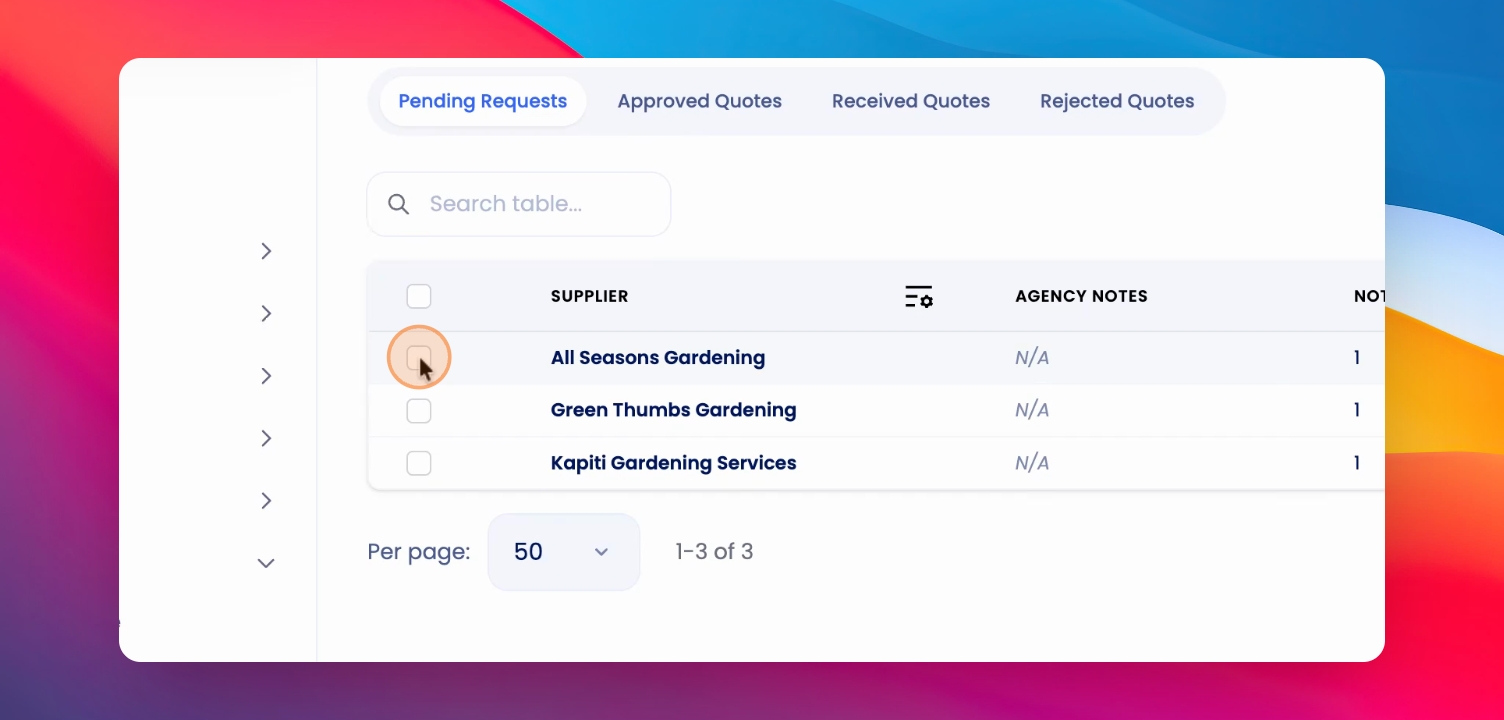
Go to the Quotes section to see your pending requests. Here, you can also view approved, received, and rejected quotes.
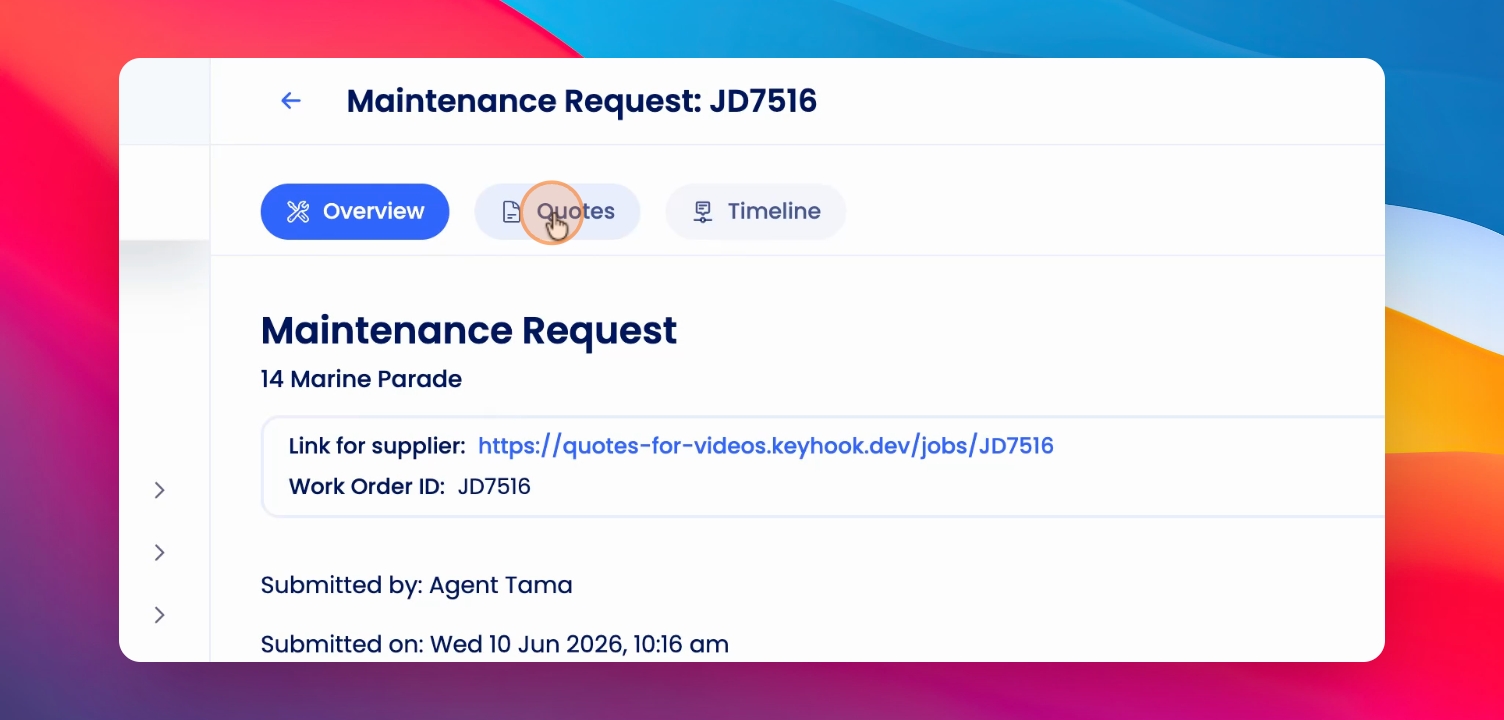
Step 5: Reject a Quote
If you want to reject a quote, select it and perform the reject action.
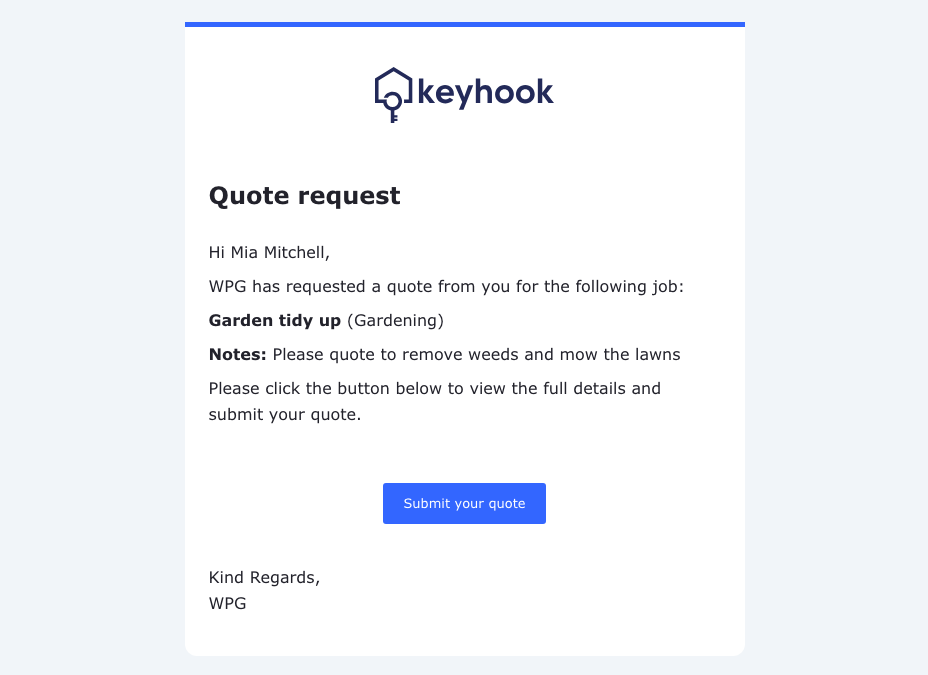
View from the Supplier
Step 1: Submit quote
The supplier can click on the option to submit their quote.
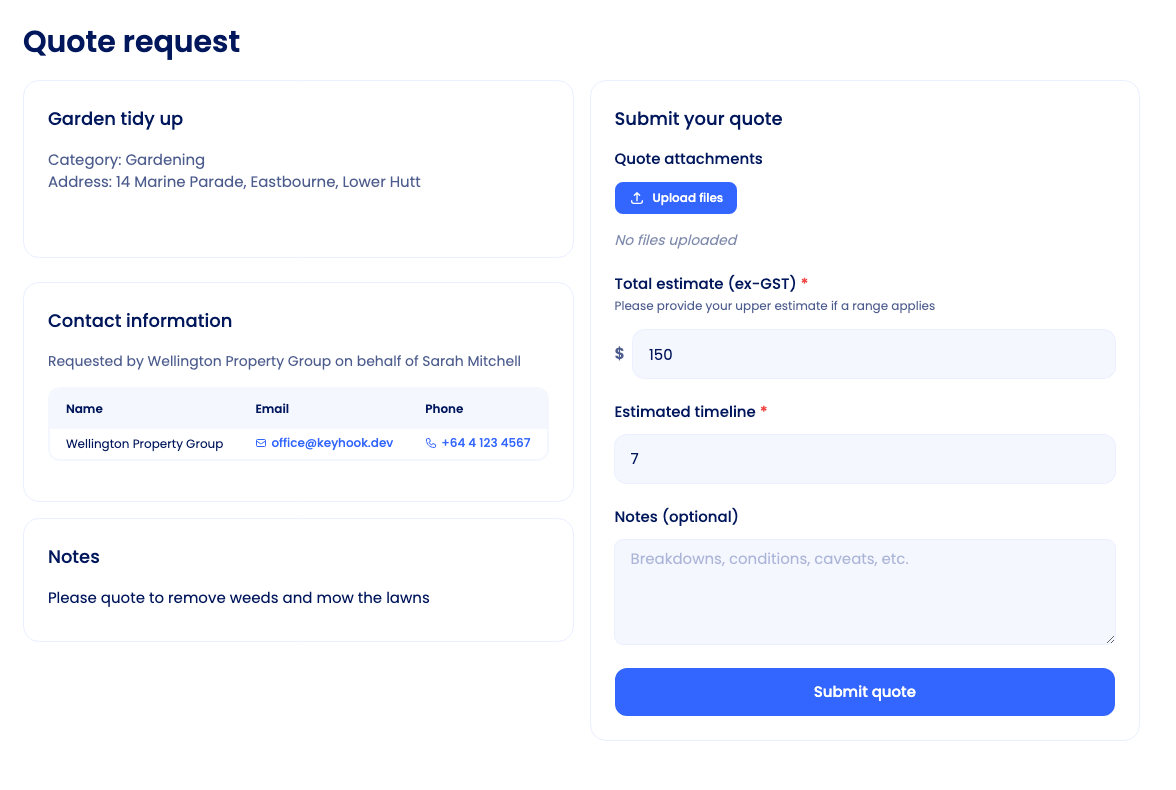
This will open and allow them to see the request and either upload a quote or add the details manually. If no attachment is given, the amount and timeline are required fields.
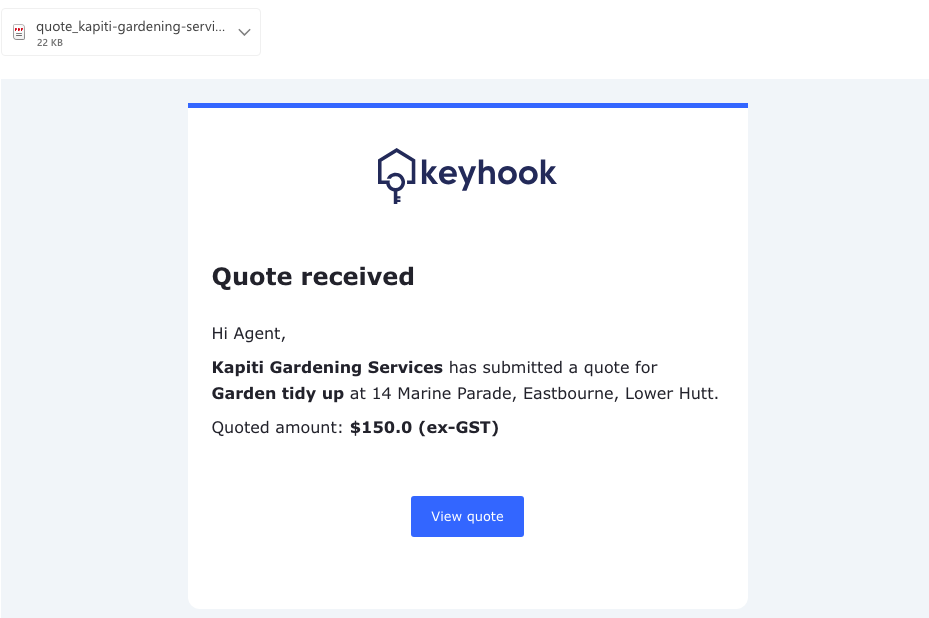
This will then send to the property manager's email.
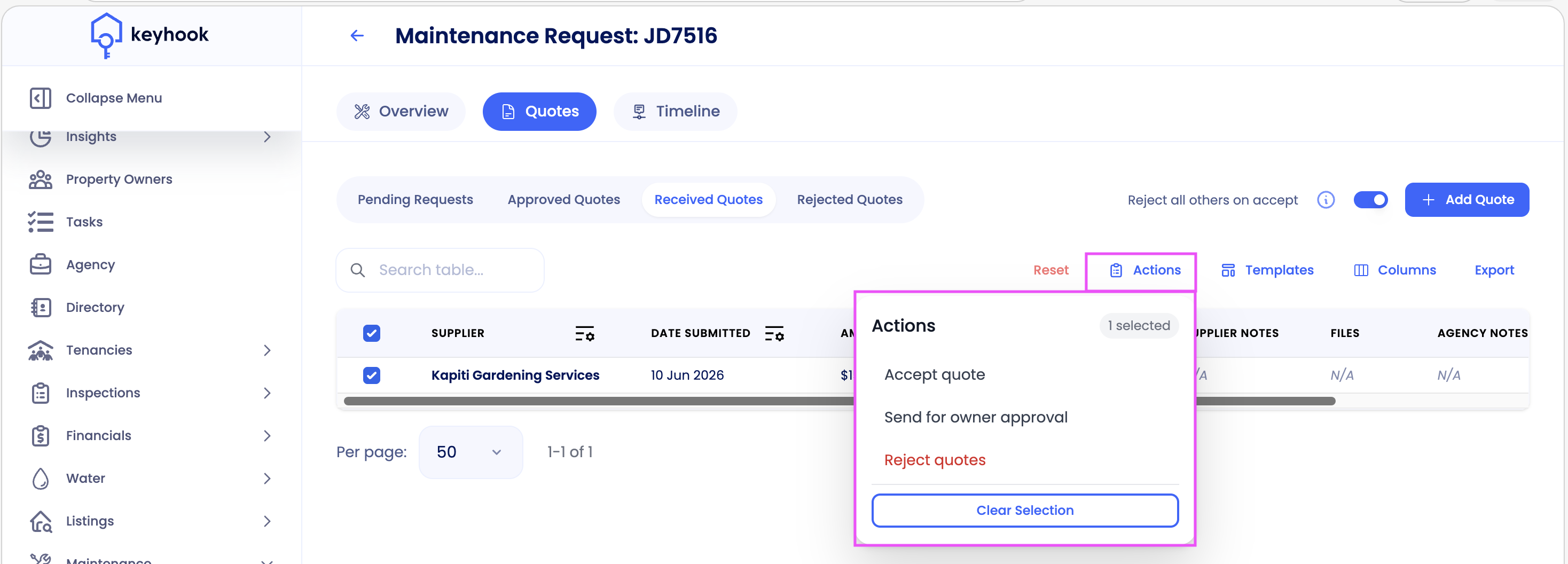
Received quotes can be accepted, rejected or sent to the owner for approval.
Owner View:
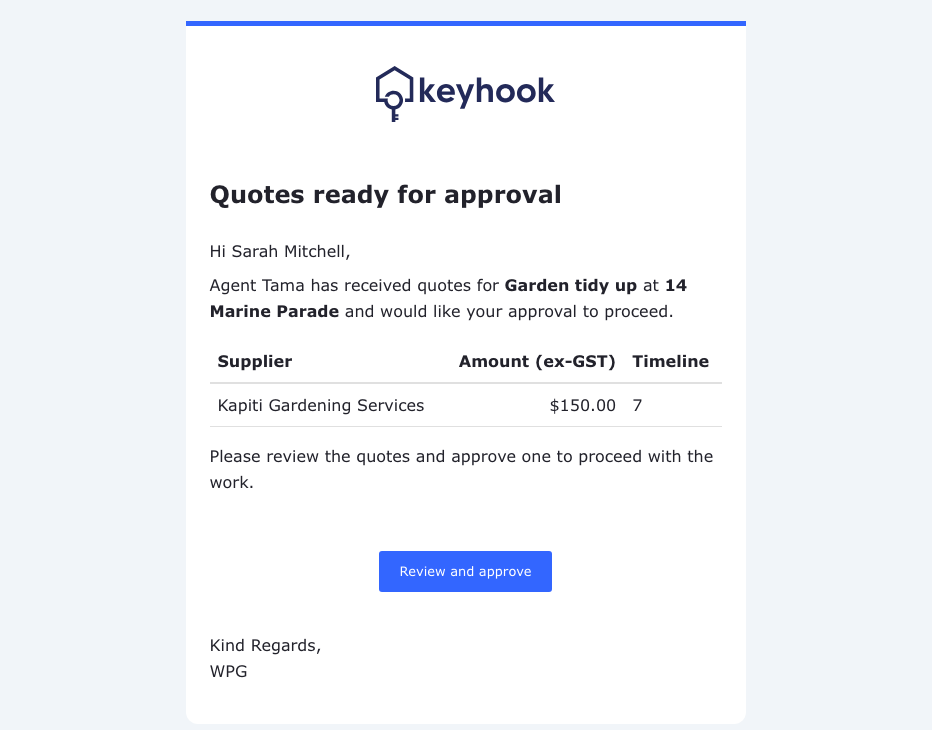
The owner will get an email if they are sent a quote for approval
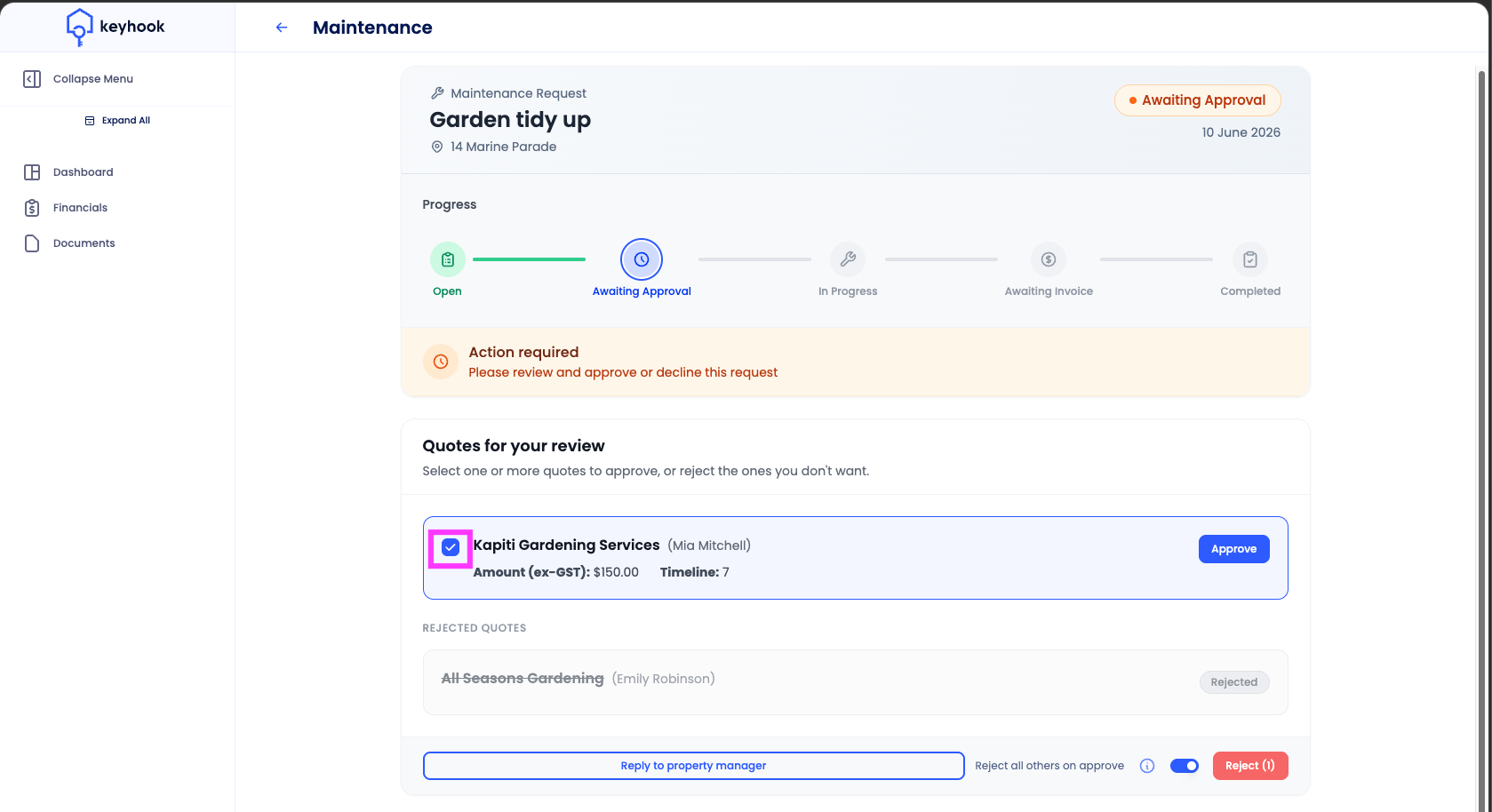
This should take them directly to the below screen where they can tick the quote and approve or reject
To get to this page from the Owner Portal dashboard, they can click on the property, on the left under Maintenance, they will see their 'Awaiting Approval' quote which can be selected to take them to the below
If any options are greyed out, they will need to click the quote