

TL;DR
Look for AI generated matches with a green line on the left of the transaction and the AI match description.
Click Reconcile All Suggestions to reconcile confident matches.
Use the reconciled tab to view transactions and their reconciliation details.
View your bank account balance and your held in trust balance. Held in trust is what's account for in Keyhook.
Let's Do It Together!
Step 1: Access Bank Fees
On the left-hand menu, click on Financials and then select Bank Feeds.
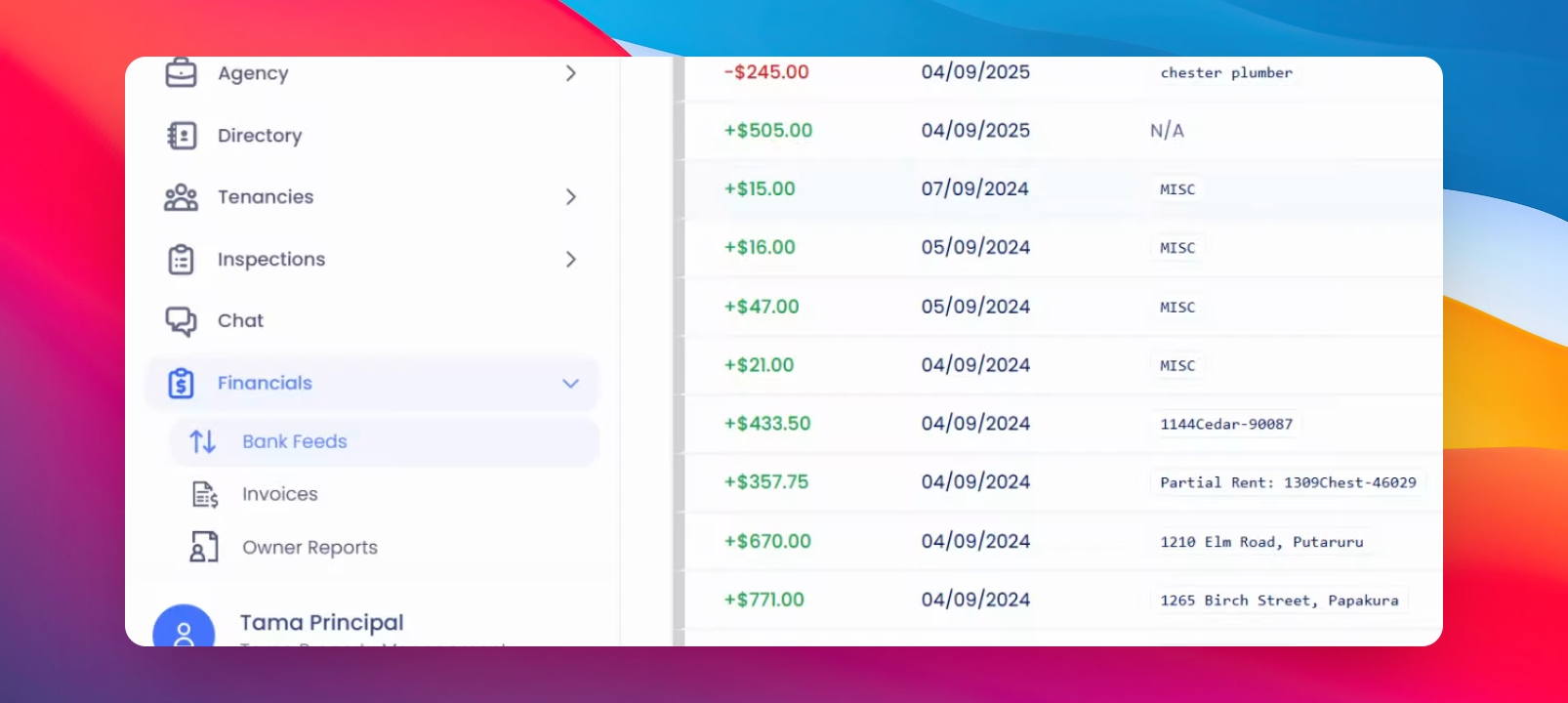
This area displays all incoming and outgoing transactions from the bank.
Step 2: Identify Transactions
If the transaction is green, it indicates a receipt - money coming in.
If it’s red, it indicates a payment - money going out.
Step 3: Review AI Matches
The AI will automatically find matches for all receipts and payments.
If confident in a match, it will display a green line and indicate the AI generated match.
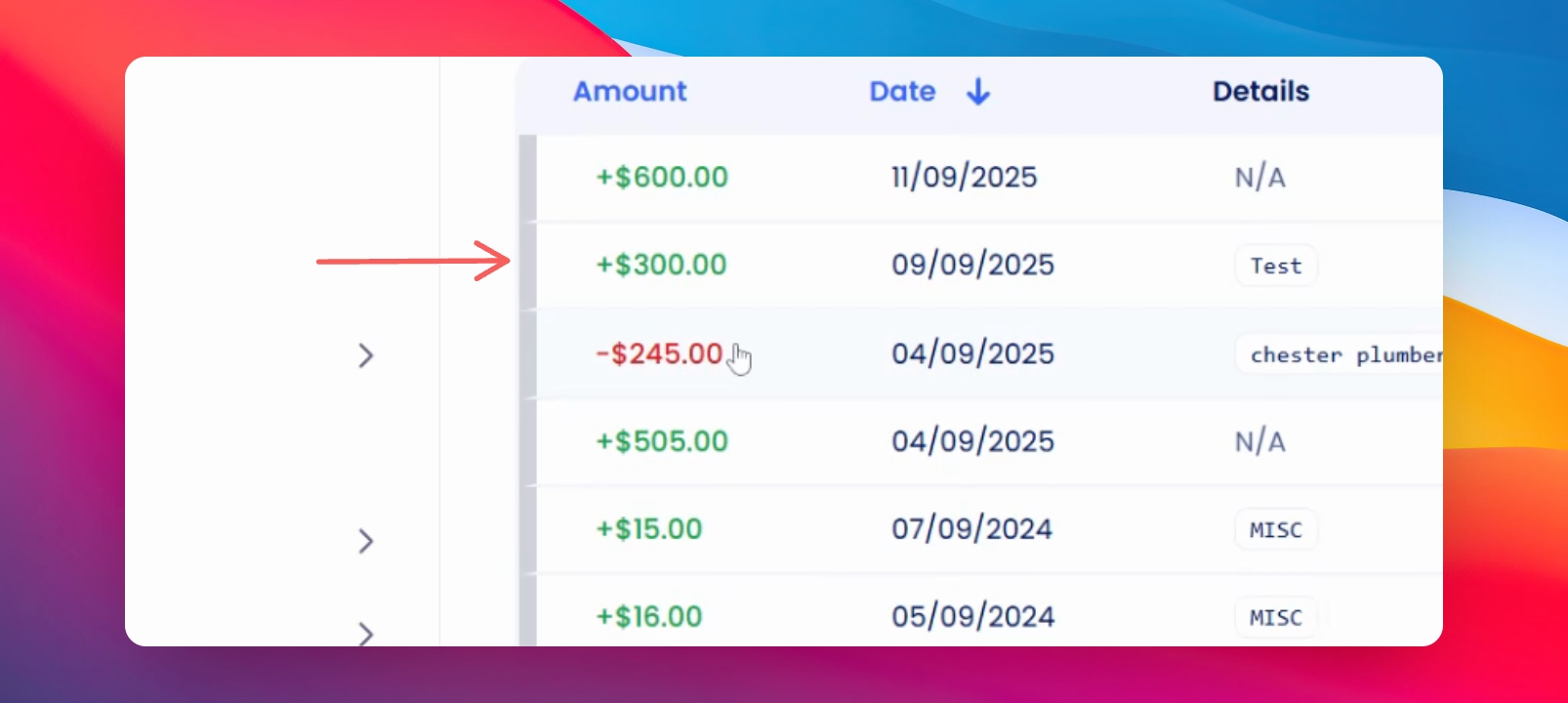
Step 4: Reconcile Suggestions
Click on Reconcile All Suggestions to quickly reconcile all confident matches.
Step 5: Reconcile Receipts
For receipts, click into the transaction and select the appropriate category such as Rent, Bond or Tenant Invoice.
Make the required selections from property, tenancy, and the keyhook transaction that it matches, then reconcile.
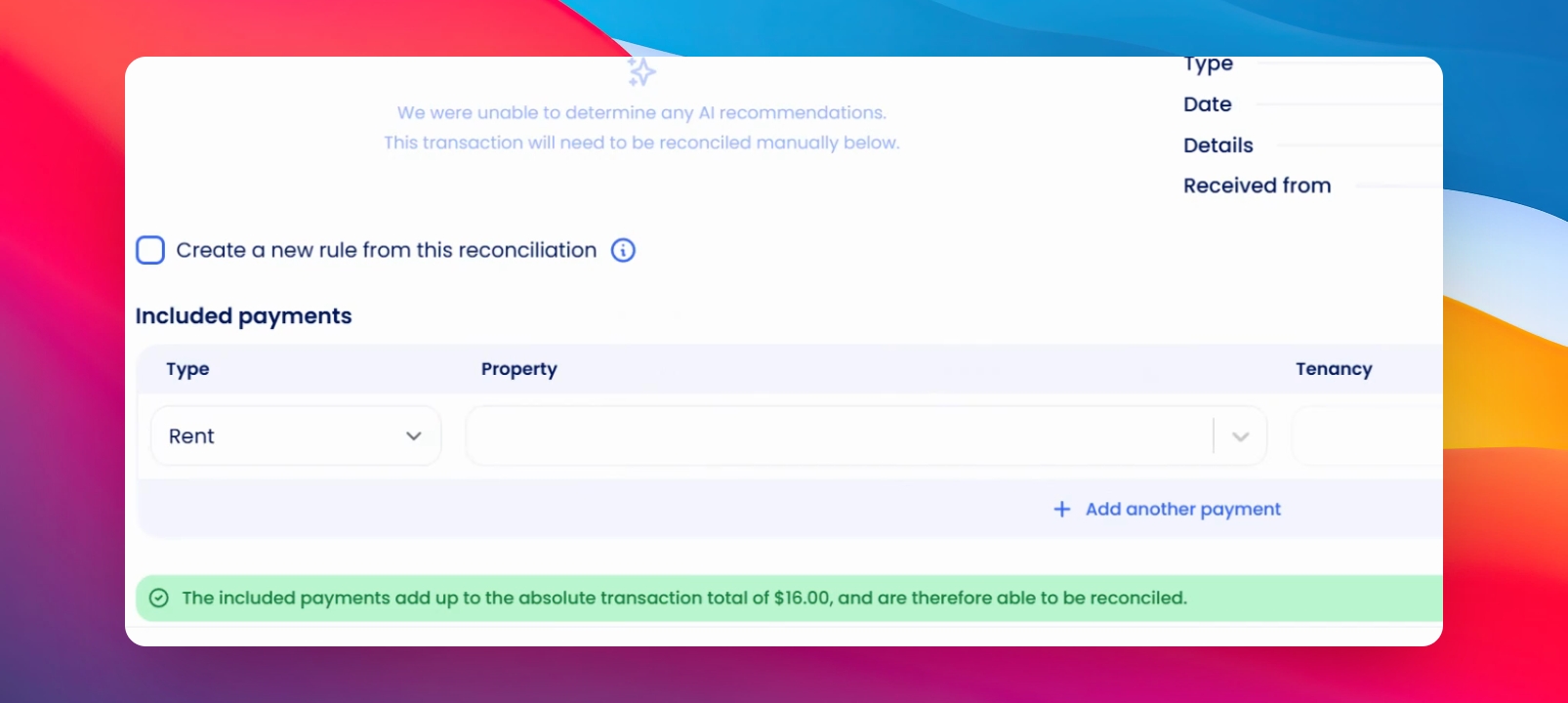
Step 6: Split Payments if necessary
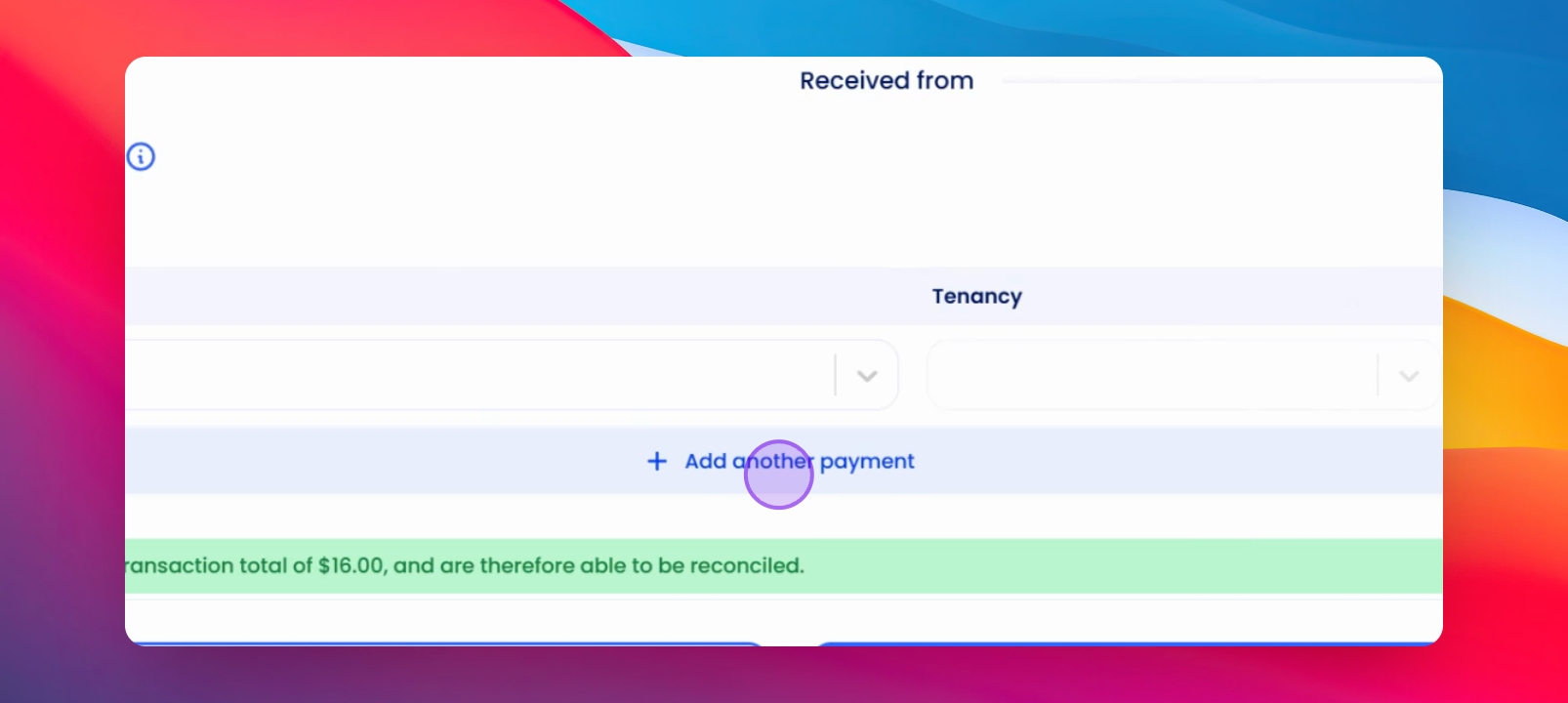
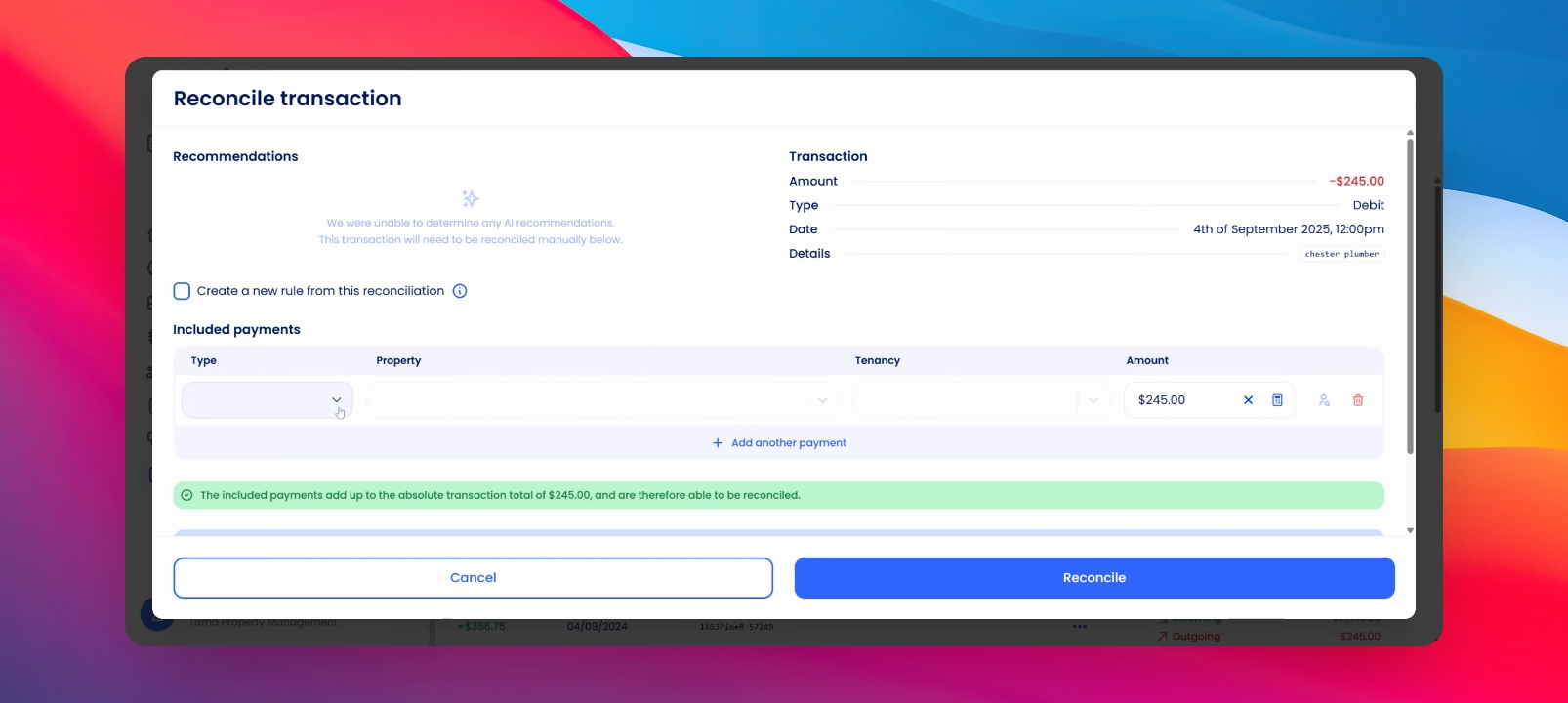
If you need to split the money or have received a bulk payment, click Add Another Payment and select the details.
The system will auto-calculate or you can manually adjust the amount.
Step 7: Reconcile Payments (Money going out)
For payments, click into the payment and your options will change.
Select from transaction options like Owner Payment, Bond or Supplier Payment to reconcile.
Step 8: Balances
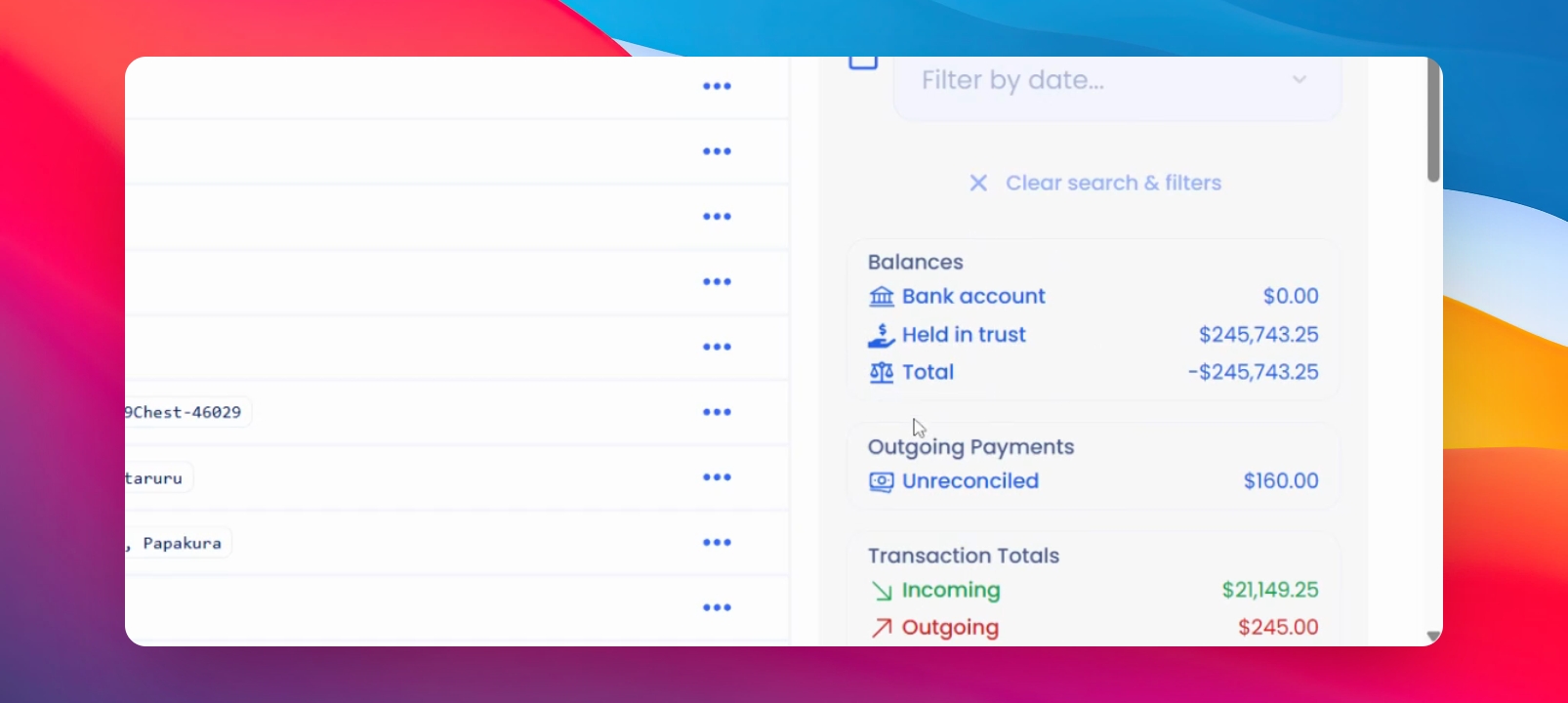
Once all transactions are cleared, review the Balances section on the To Review tab.
Here, you will see your bank account amount and Held in trust amounts.
The bank account line is your actual balance. Held in trust is what's accounted for on Keyhook.
If you need more help or have any questions, just reach out to us at support@keyhook.com — we're always here to help!