

TL;DR
1
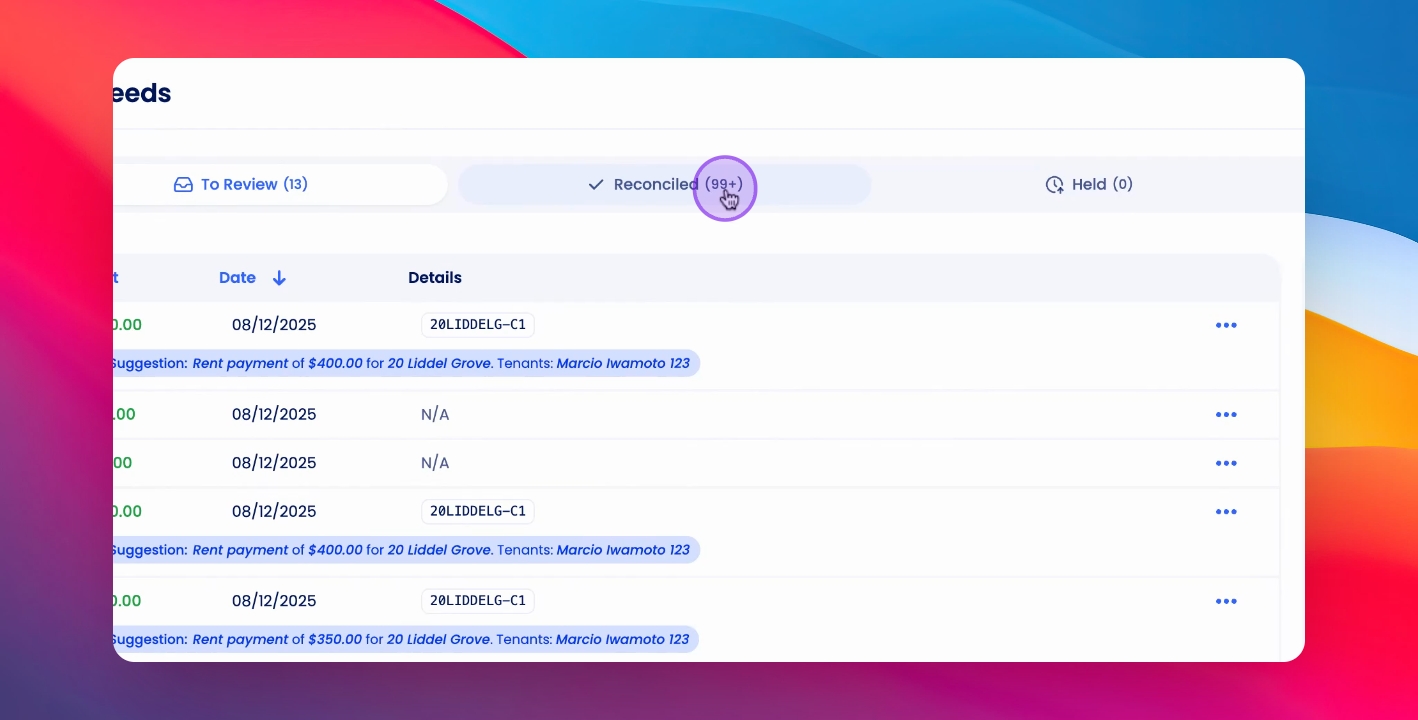
Locate the transaction
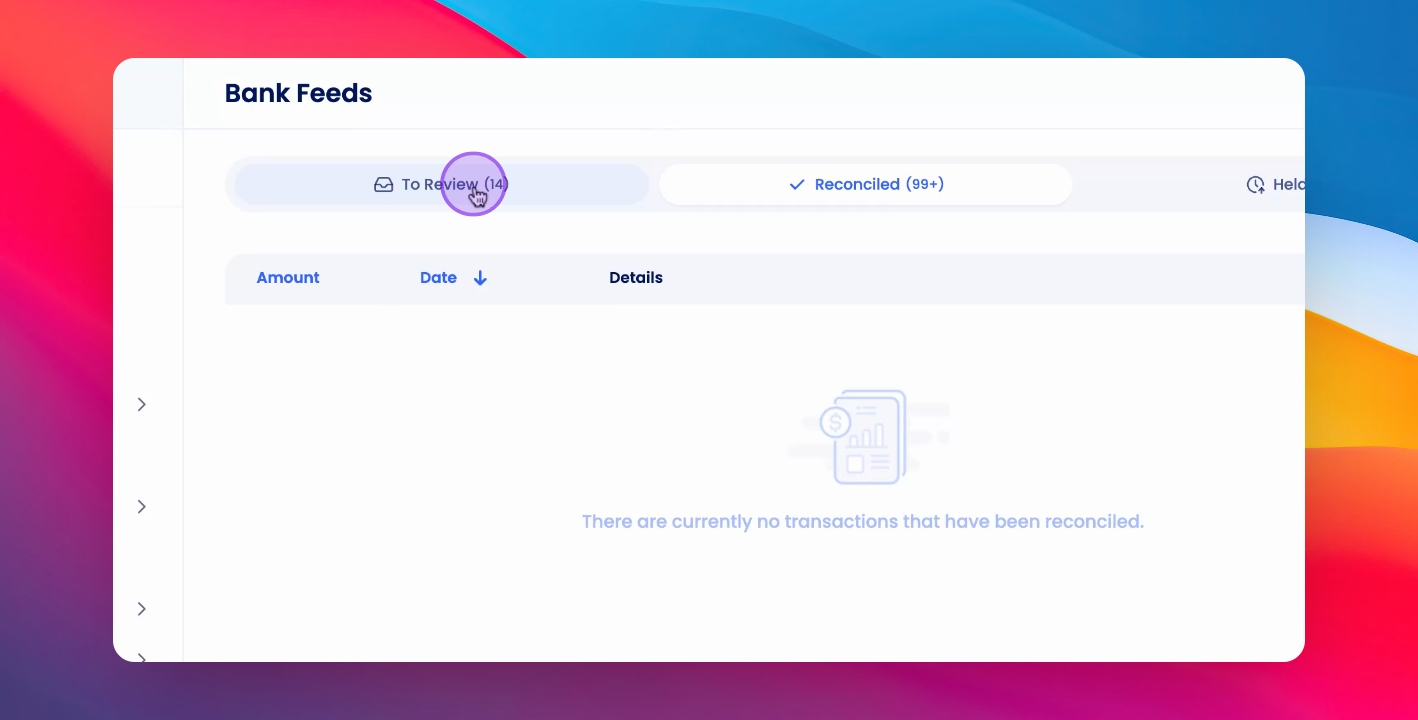
Find it on the Reconcile tab.
2
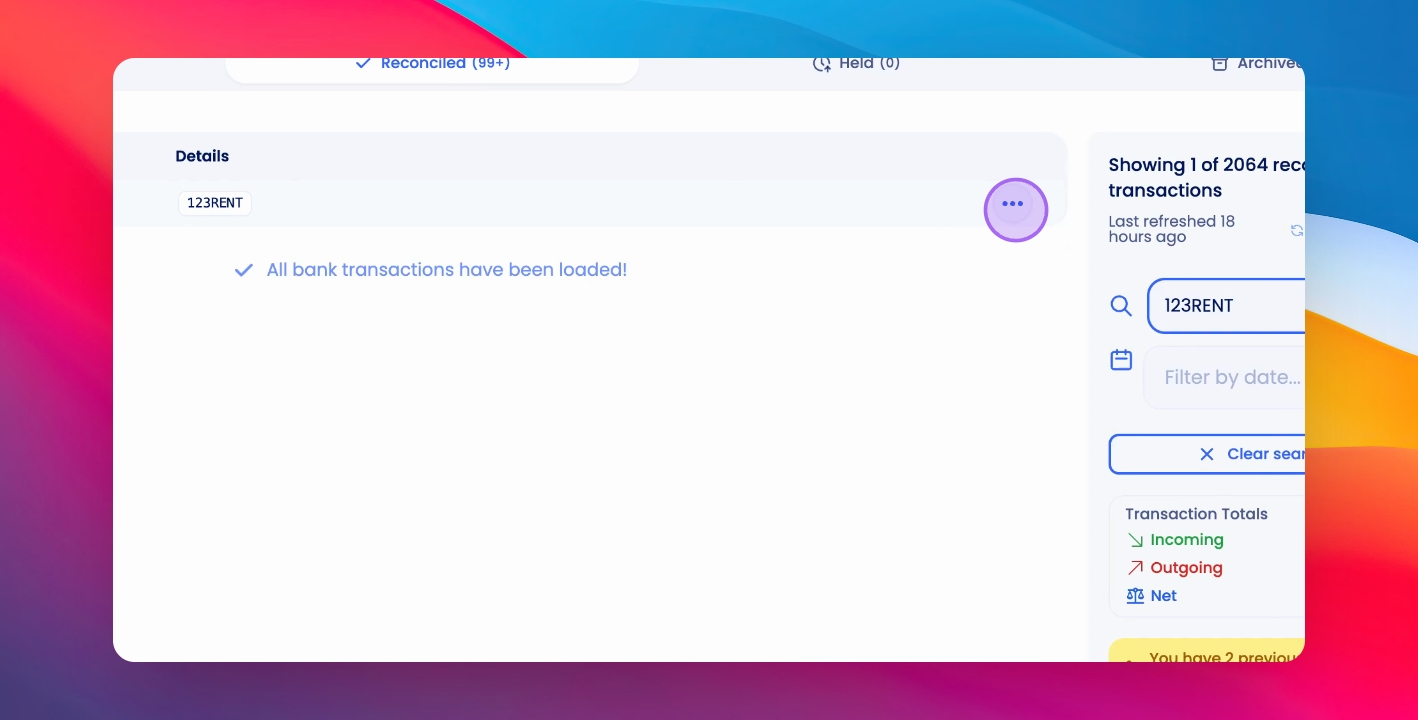
Access options
Click the three buttons beside the transaction.
3
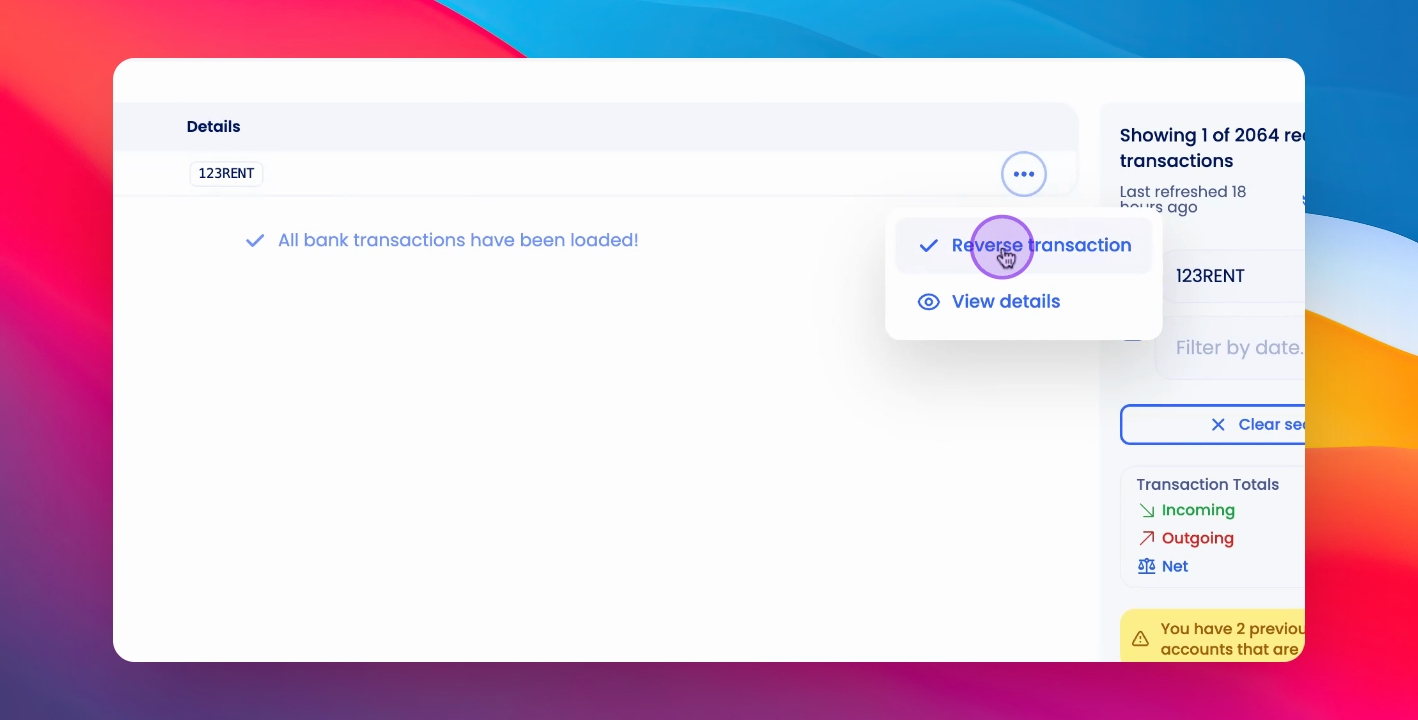
Reverse the transaction
Select Reverse Transaction from the menu.
4
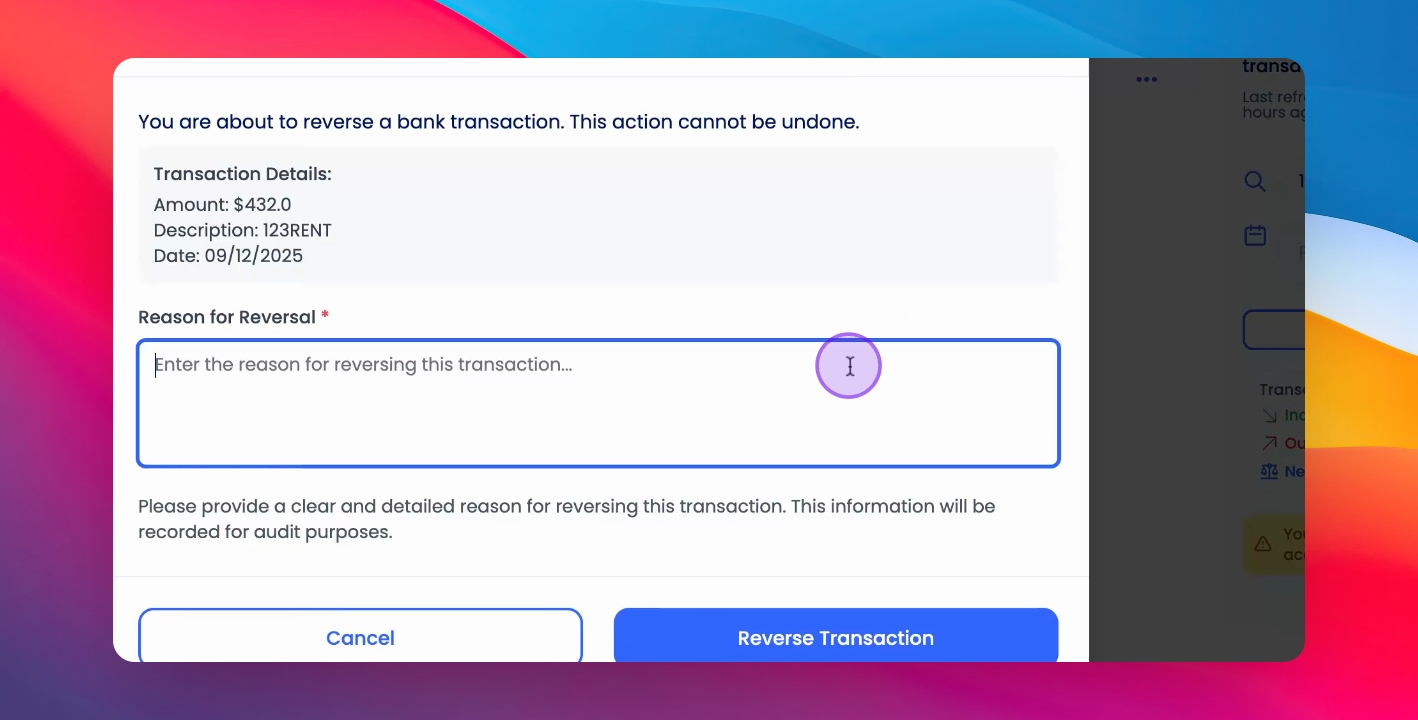
Provide a reason
Enter a reason for the reversal.
5
Confirm reversal
Click Reverse Transaction again to complete.
Let's Do It Together!
Step 1: Locate the Transaction
Find the transaction on the Reconcile tab.
You can search by amount, reference, or date.
Step 2: Access Transaction Options
Once found, click the three buttons on the side of the transaction table.
Step 3: Reverse the Transaction
Click Reverse Transaction.
Step 4: Provide Reversal Reason
Enter a reason for the reversal.
Step 5: Confirm Reversal
Click Reverse Transaction again to finalize.
Ensure you meet all conditions for reversal.
If you need more help or have any questions, just reach out to us at support@keyhook.com — we're always here to help!
Troubleshooting
Reversal action blocked
Check if the money has already been paid out.
Insufficient funds
Ensure there are sufficient funds in the account for reversal.
FAQ
What if I can't find the transaction?
Try searching by different criteria like date or reference.
Can I reverse any transaction?
Only if it hasn't been paid out or lacks sufficient funds.