TL;DR
1
Access Bank Feeds
Navigate to Financials and Bank Feeds to see receipts.
2
Select and Identify
Click on receipts that are not auto-matched.
3
Specify Receipt Type
Choose between rent or invoice for the receipt.
4
Input Details
Enter property and tenant information.
5
Reconcile Receipts
Finalize by clicking on reconciliation.
Let's Do It Together!
Step 1: Access Bank Feeds
Go to Financials and then Bank Feeds to view transactions.
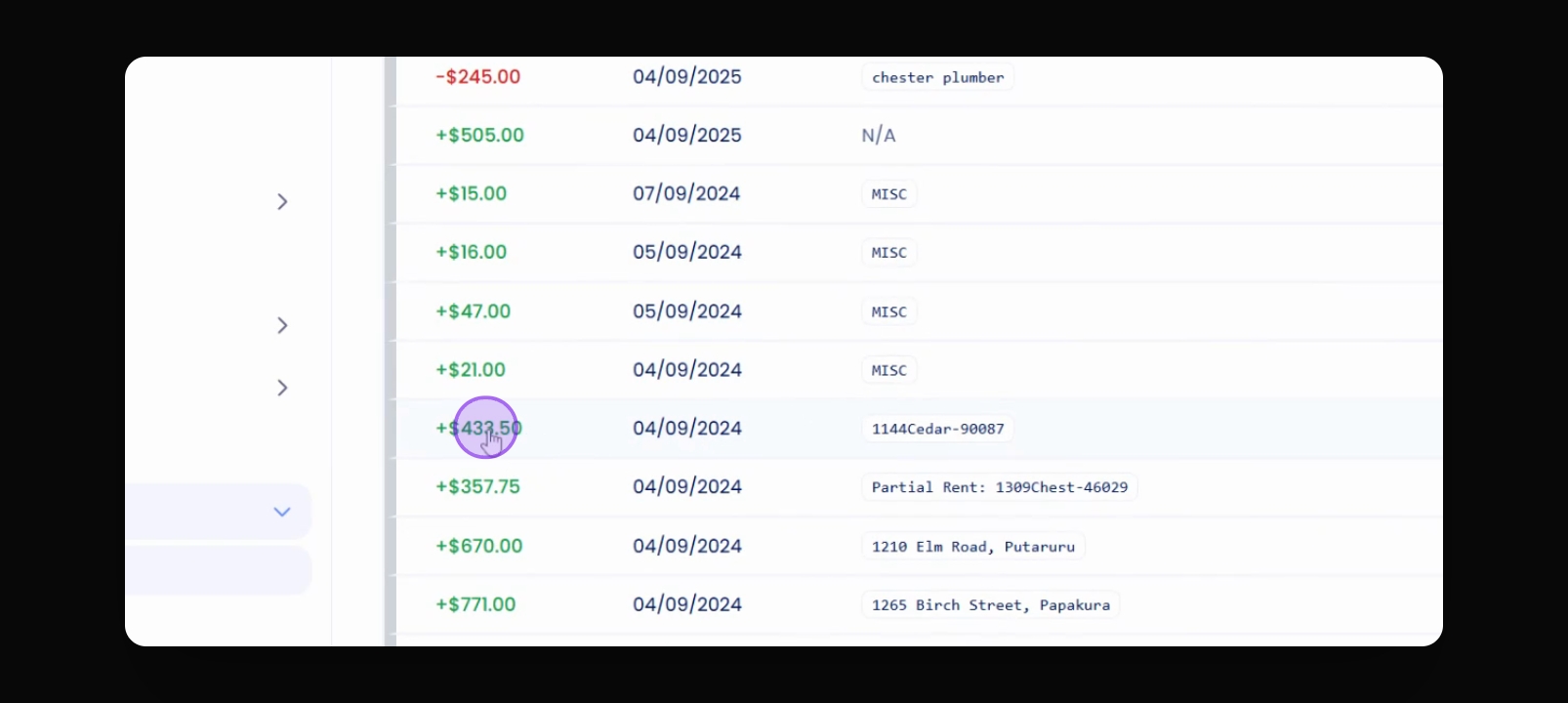
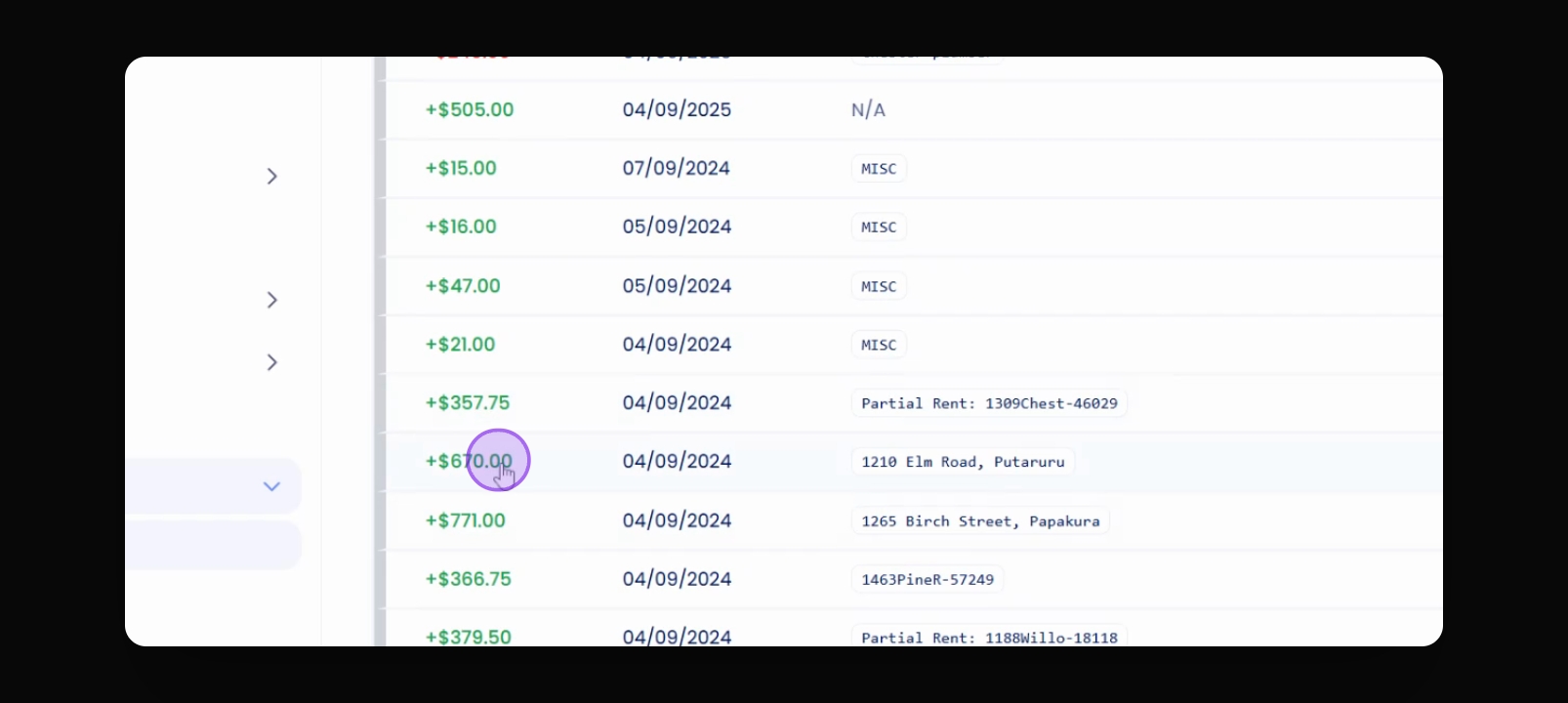
Step 2: Identify Receipts
Look for green transactions which represent receipts.
Step 3: Click on a Receipt
Click on a receipt that isn't auto-matched.
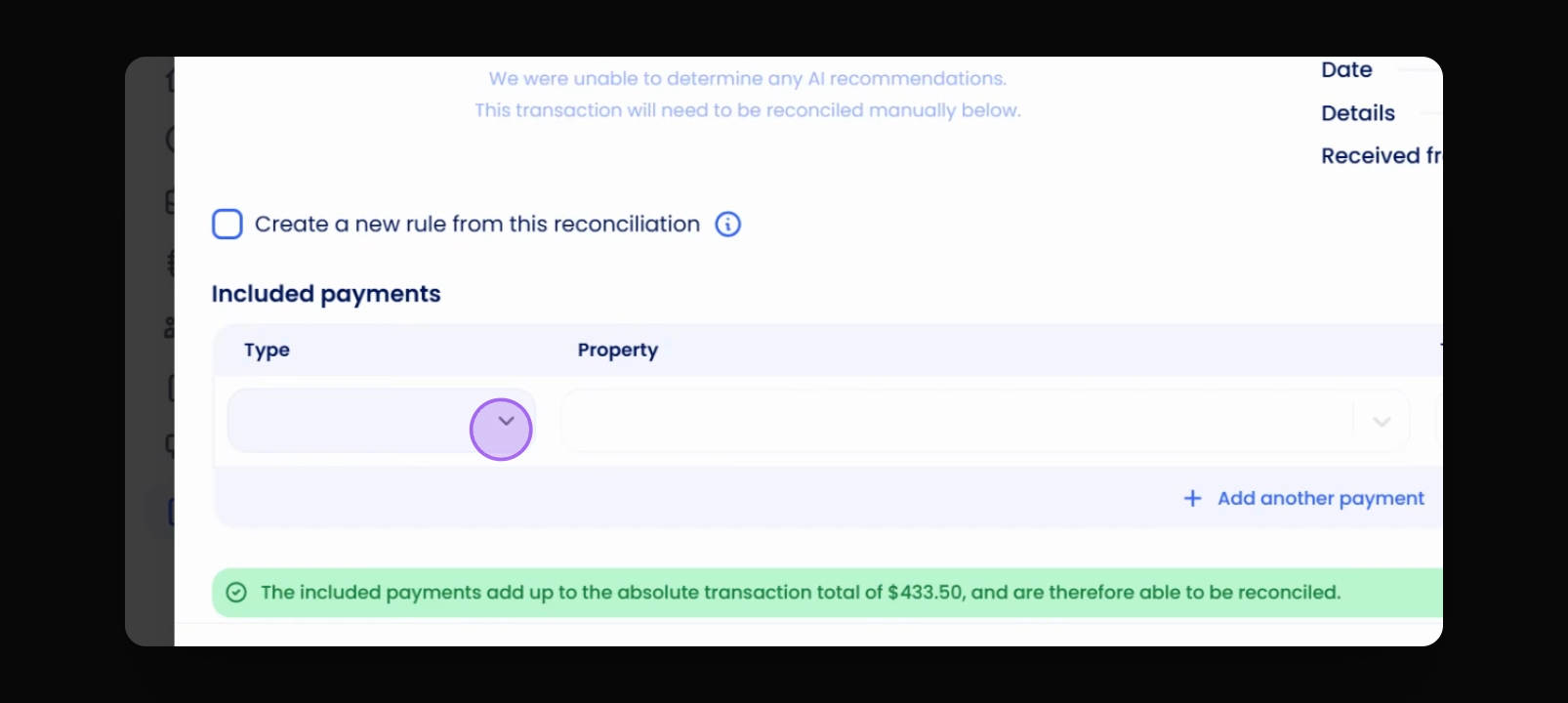
Step 4: Select Receipt Type
Choose the type of receipt such as rent or invoice.
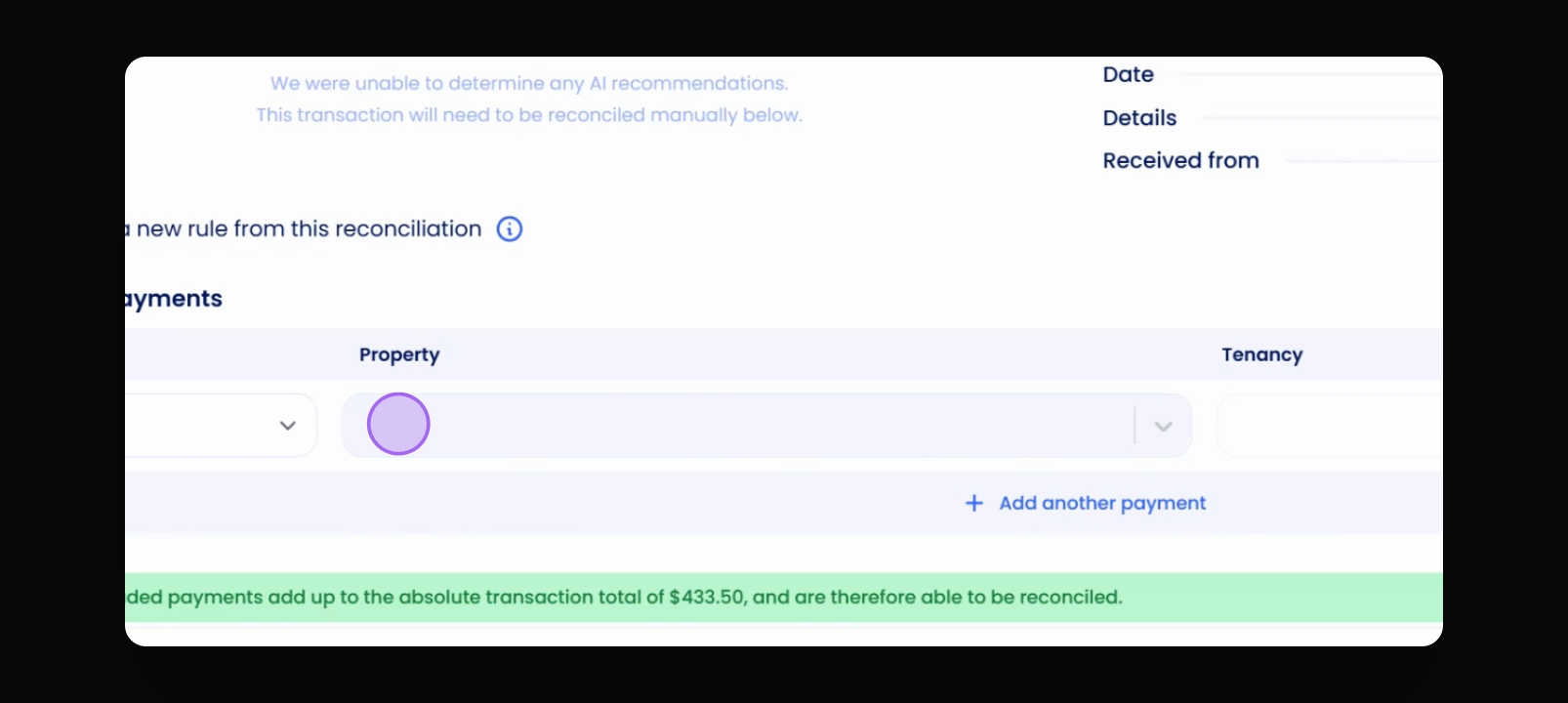
Step 5: Enter Property Details
Enter the property and select the tenancy.
Step 6: Confirm Amount
Verify the amount is correct; leave it as is if it's full rent.
Step 7: Adjust Payment Allocation
If splitting the payment, change the amount for the invoice.
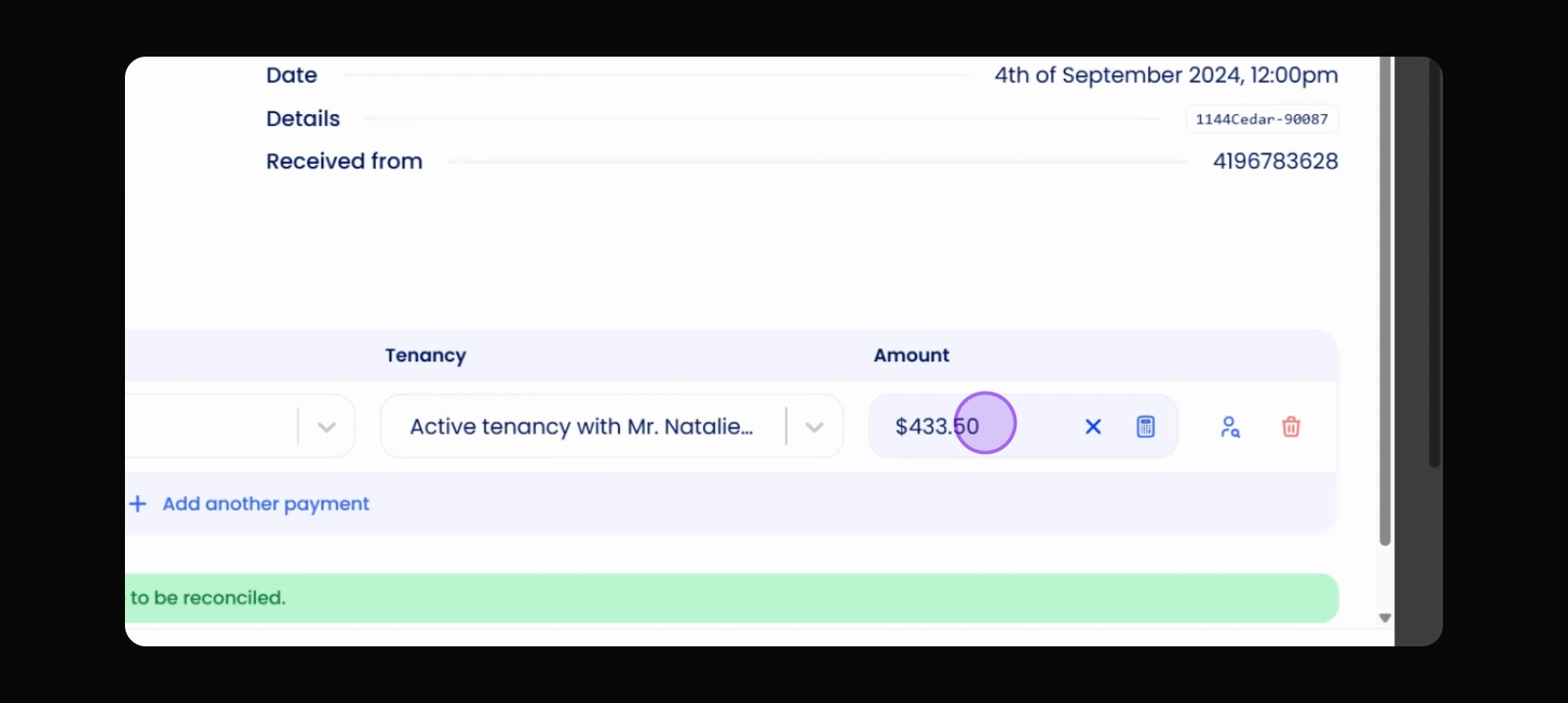
Step 8: Set as Credit if No Invoice
If there's no invoice, change the receipt to a credit.
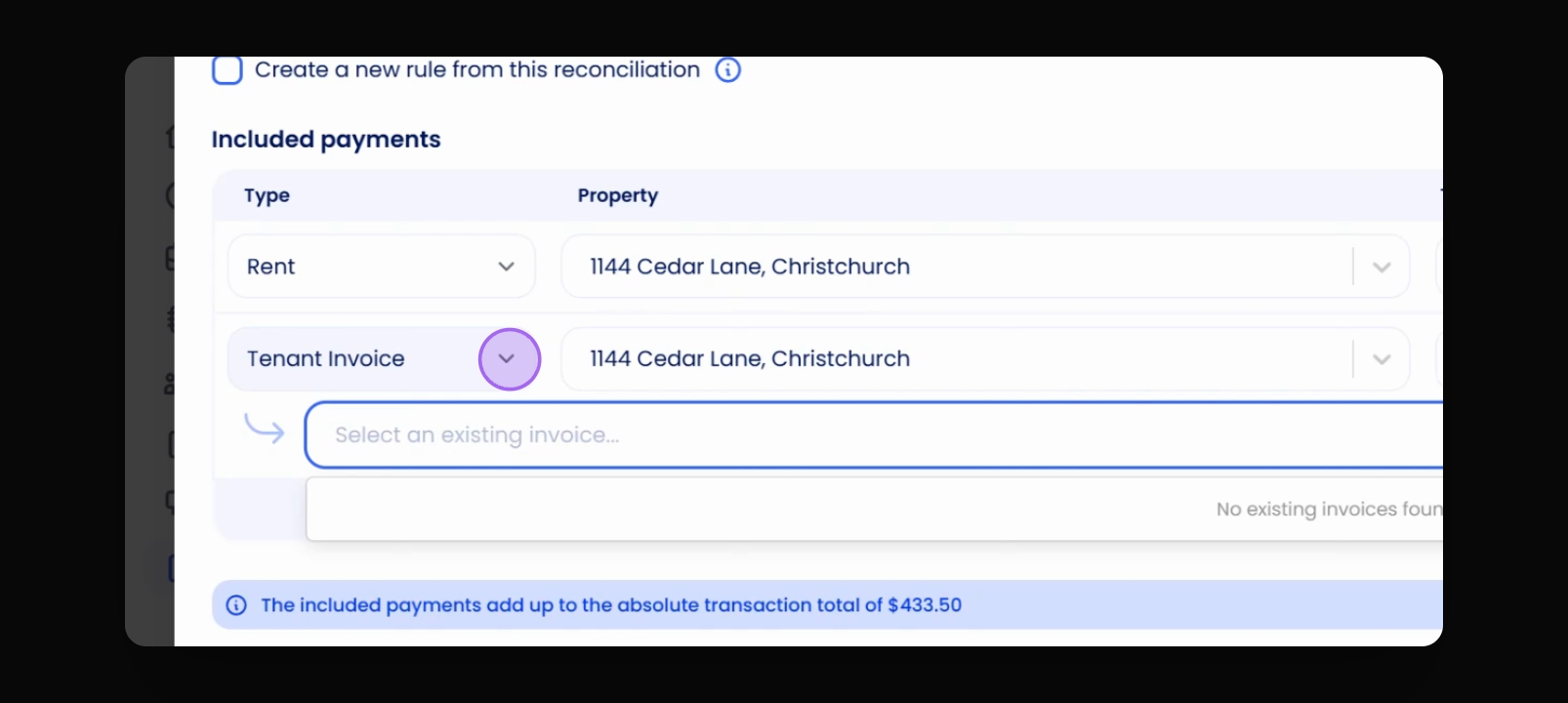
Step 9: Enter Credit Amount
Input the credit amount, e.g., $33.50.
Step 10: Reconcile Transactions
Click on reconciliation to finalize the process.
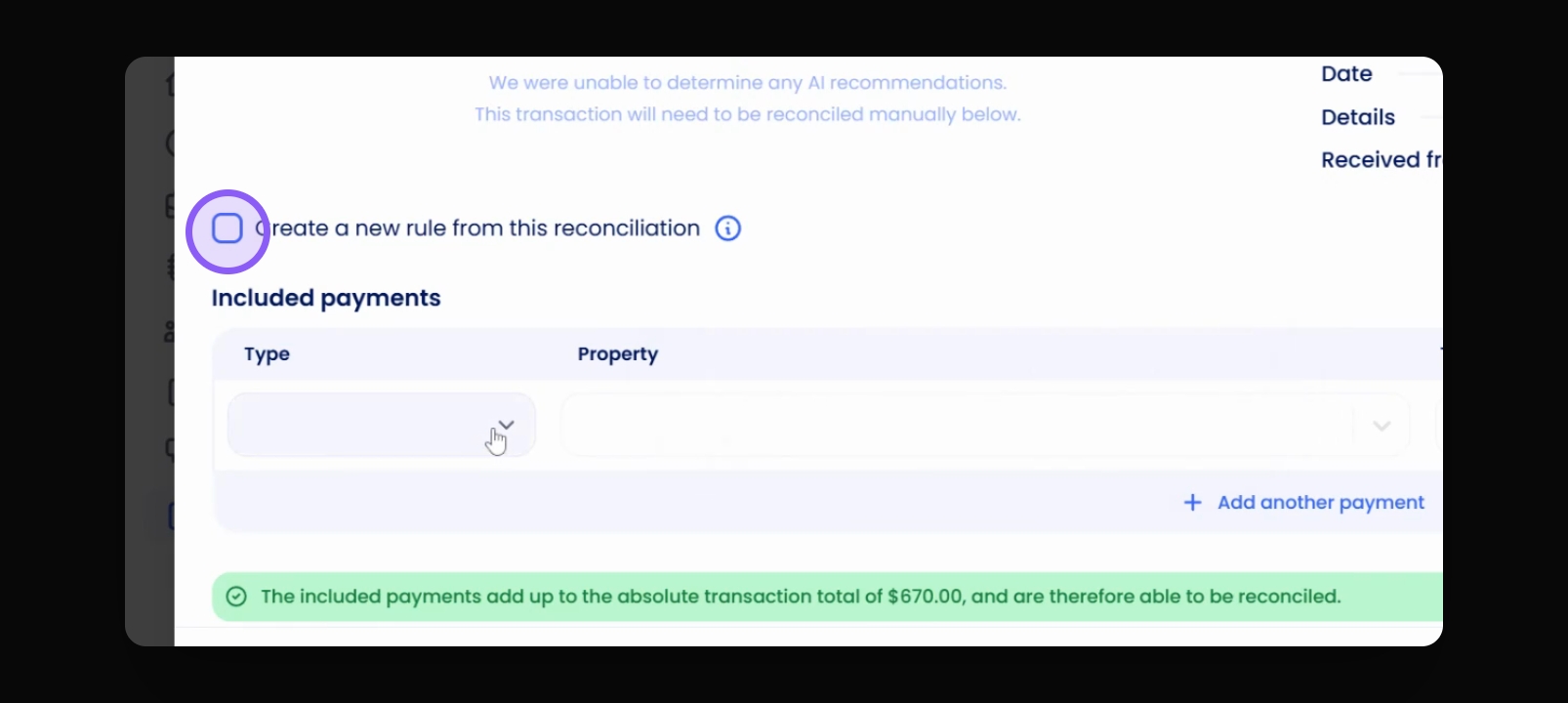
Step 11: Create New Rule
If needed, select create a new rule from this reconciliation.
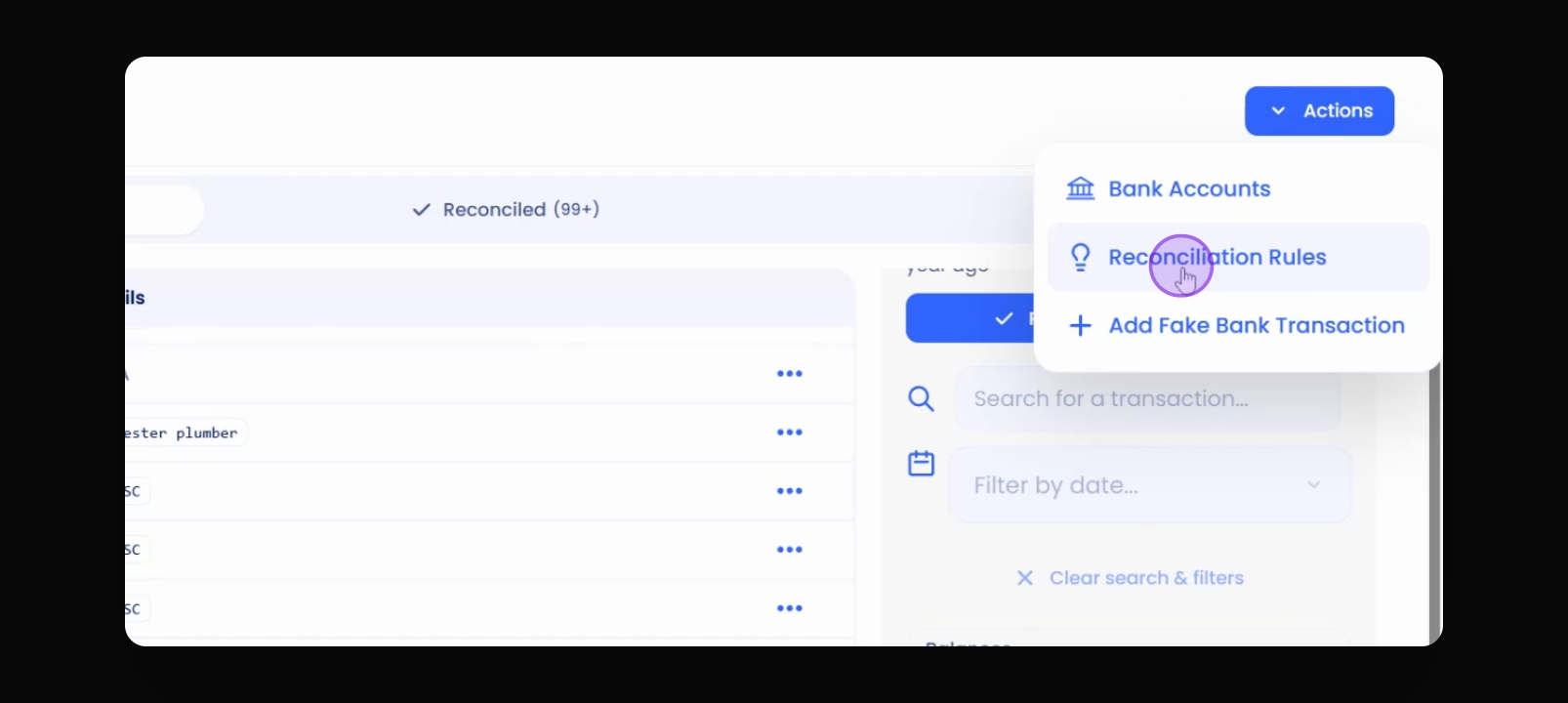
Step 12: View Reconciliation Rules
Go to Actions and then Reconciliation Rules to see existing rules.