

TL;DR
Open the property where you want to override management fees.
Click Setup Property from the left-hand menu.
Navigate to the Management Fees section.
Adjust the fees based on the property’s requirements.
Let's Do this Together!
Step 1: Access Property
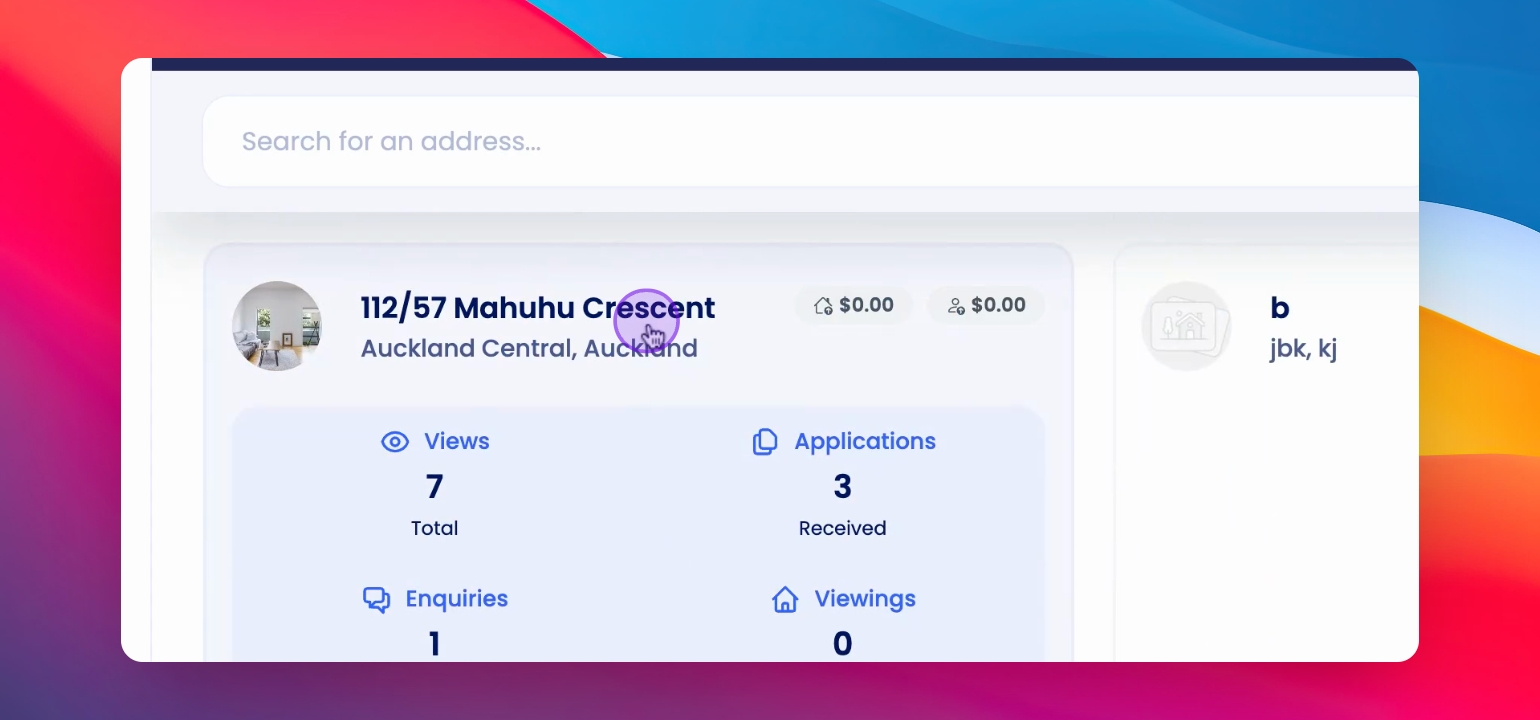
Head to the respective property for which you want to override the default management fees.
Step 2: Click Setup Property
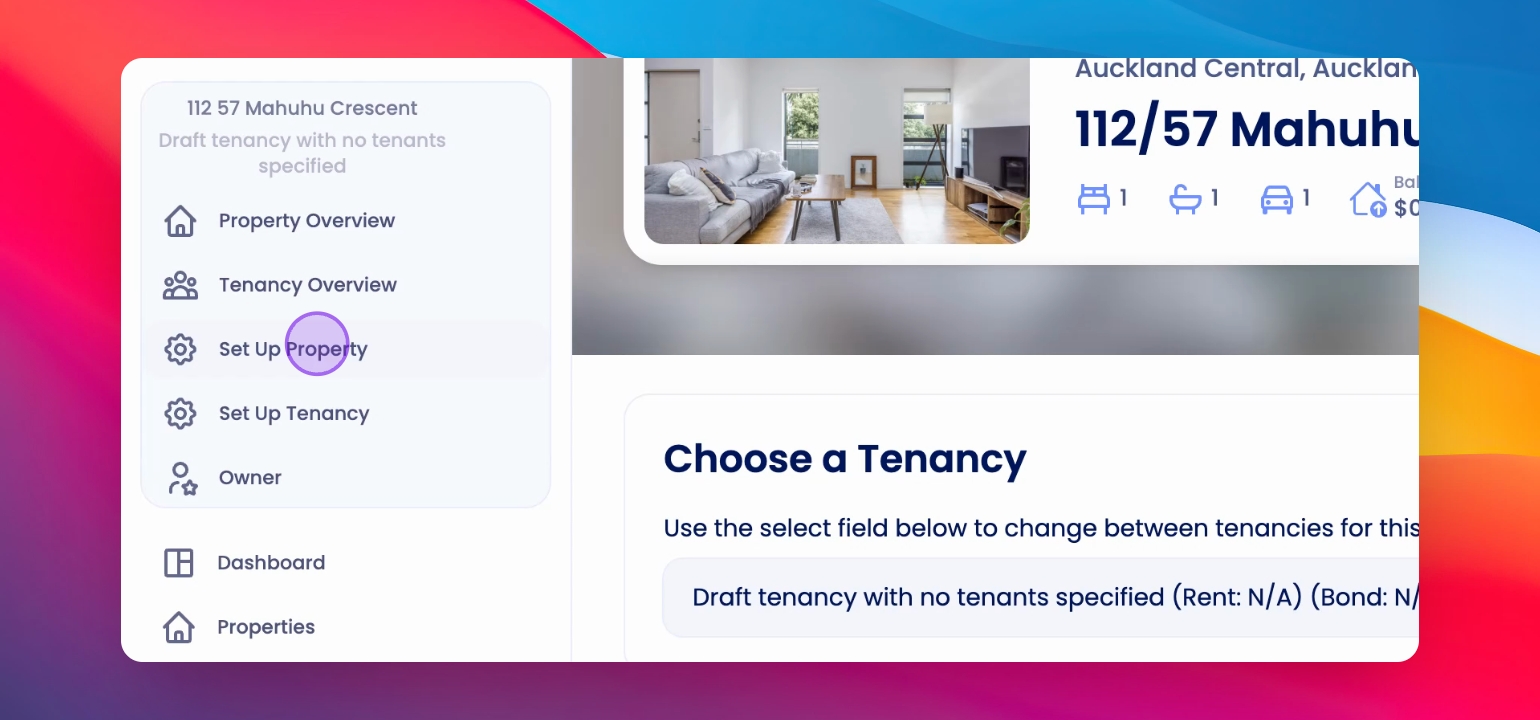
Click on Setup Property option on the left-hand side of the screen.
Step 3: Open Management Fees
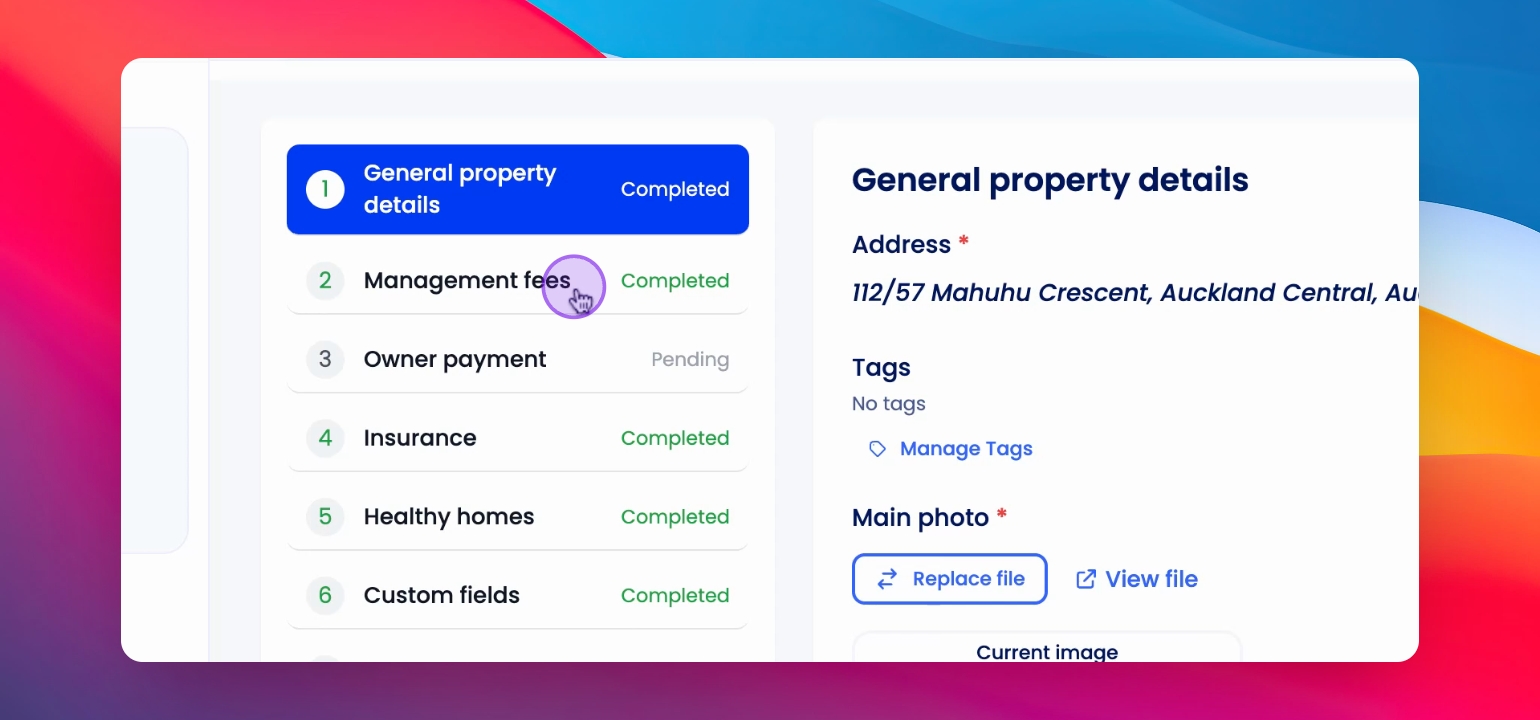
Click on Management Fees.
Step 4: Override Default Fees
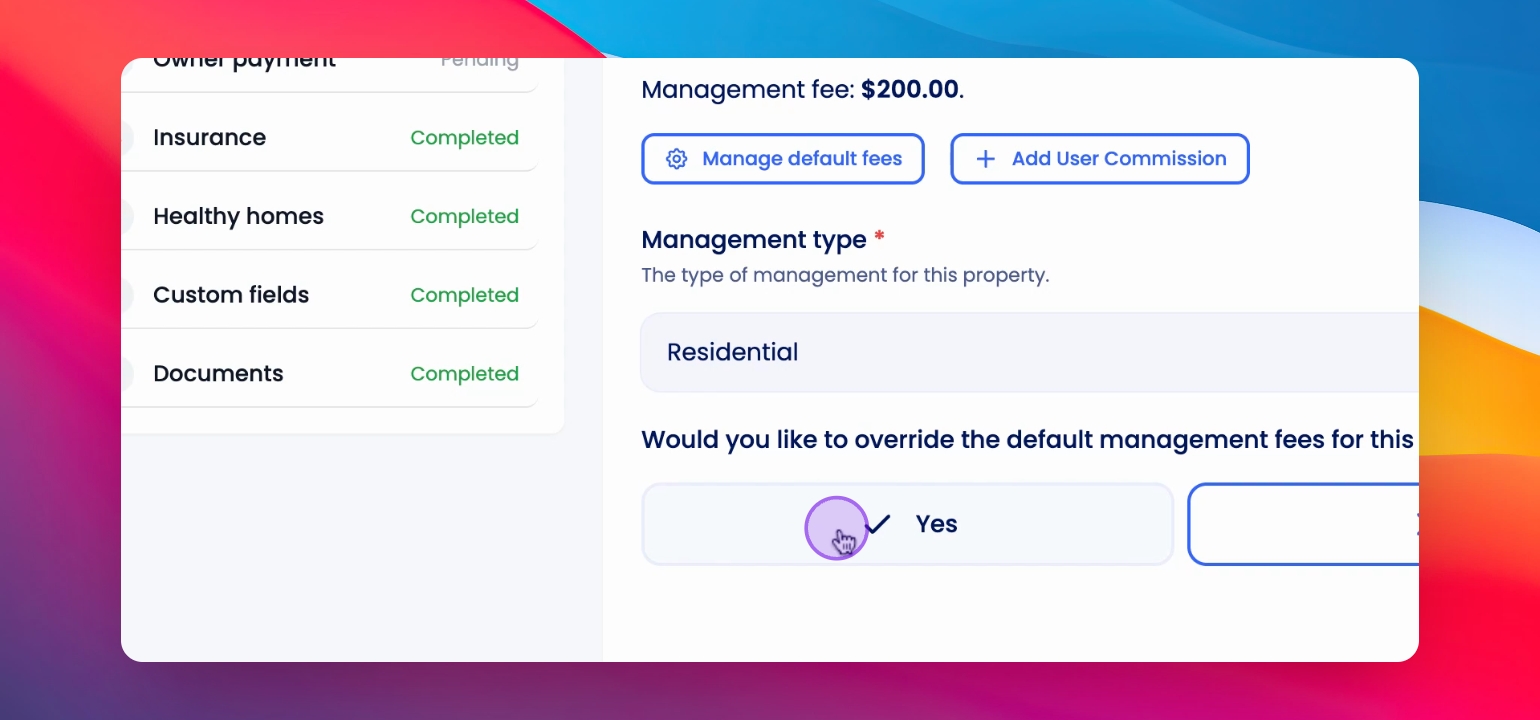
Click yes to override the default management fees for this property.
Step 5: Configure New Options
Make changes based on the criteria or conditions for the specific property.
Step 6: Save Changes
Click Save and continue.
The changes have been saved and the default management fees have been overridden.
Step 7: Verify Settings
Check to see the settings have been applied.
NOTE: The default management fees will still be visible at the top in bold. But the system will pick the configured option from the bottom.
If you need more help or have any questions, just reach out to us at support@keyhook.com — we're always here to help!
Click on this link to give a feedback: Support Article Feedback Form