

Let's do it together!
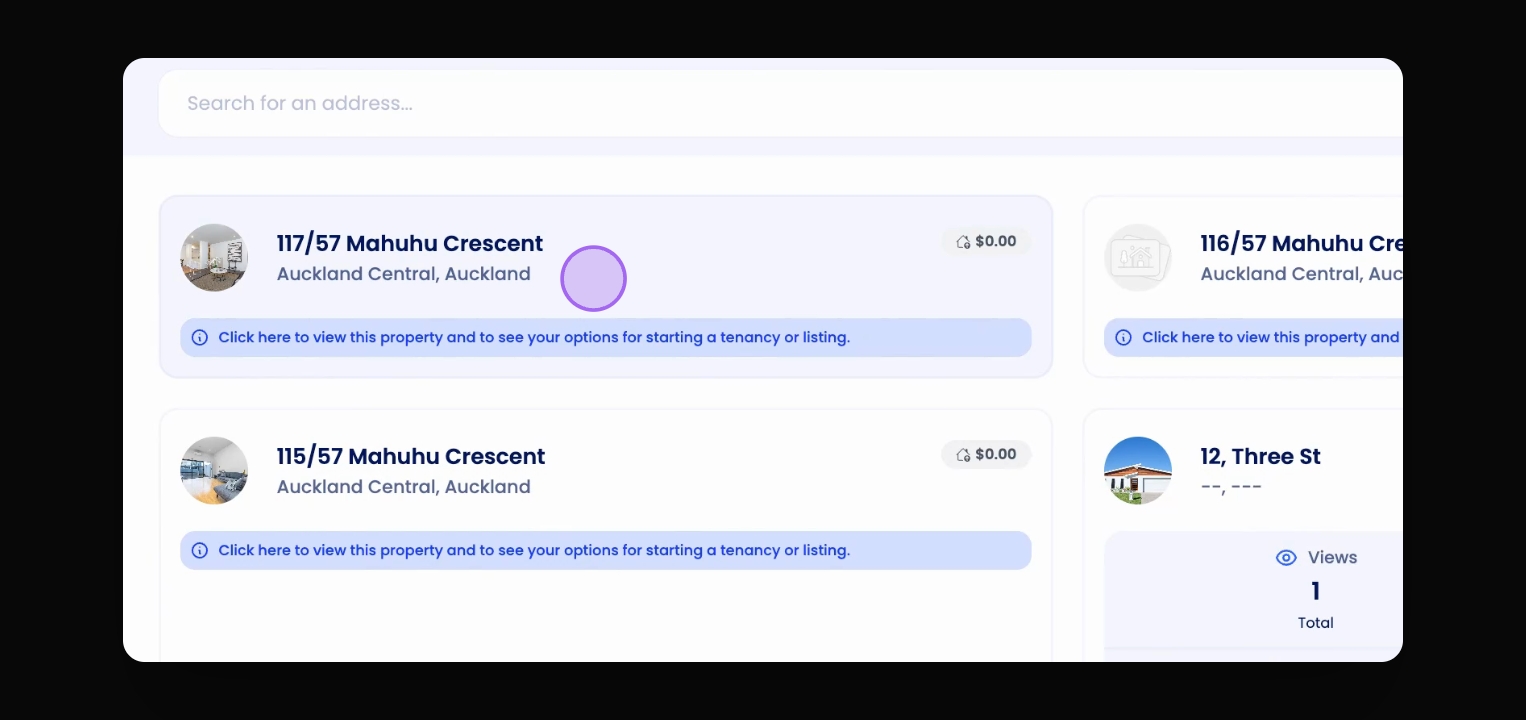
Step 1: Open Overview
Open the Property Overview page for the property you wish to delete.
Step 2: Access Actions
Click on the Actions button located at the top right corner of the screen.
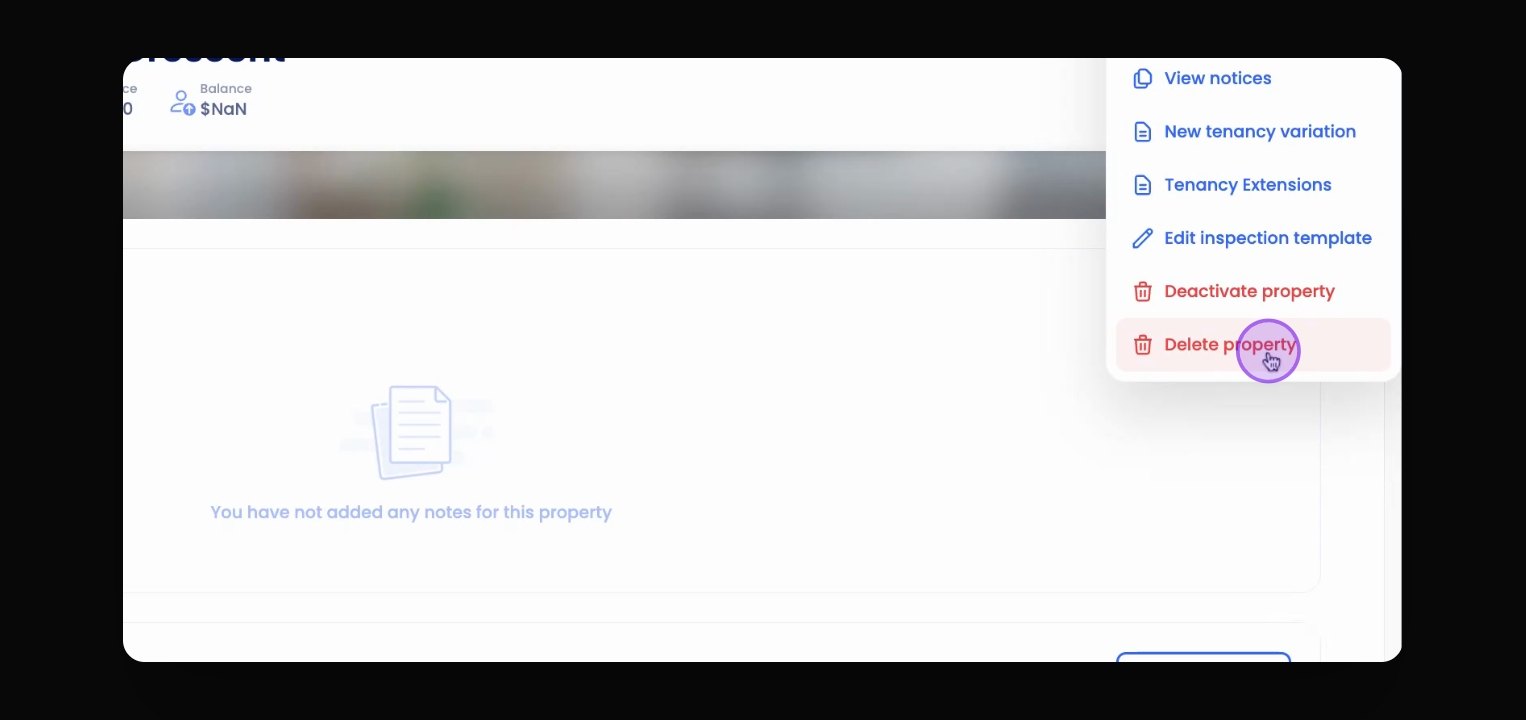
Step 3: Select Delete
Select Delete Property from the dropdown menu.
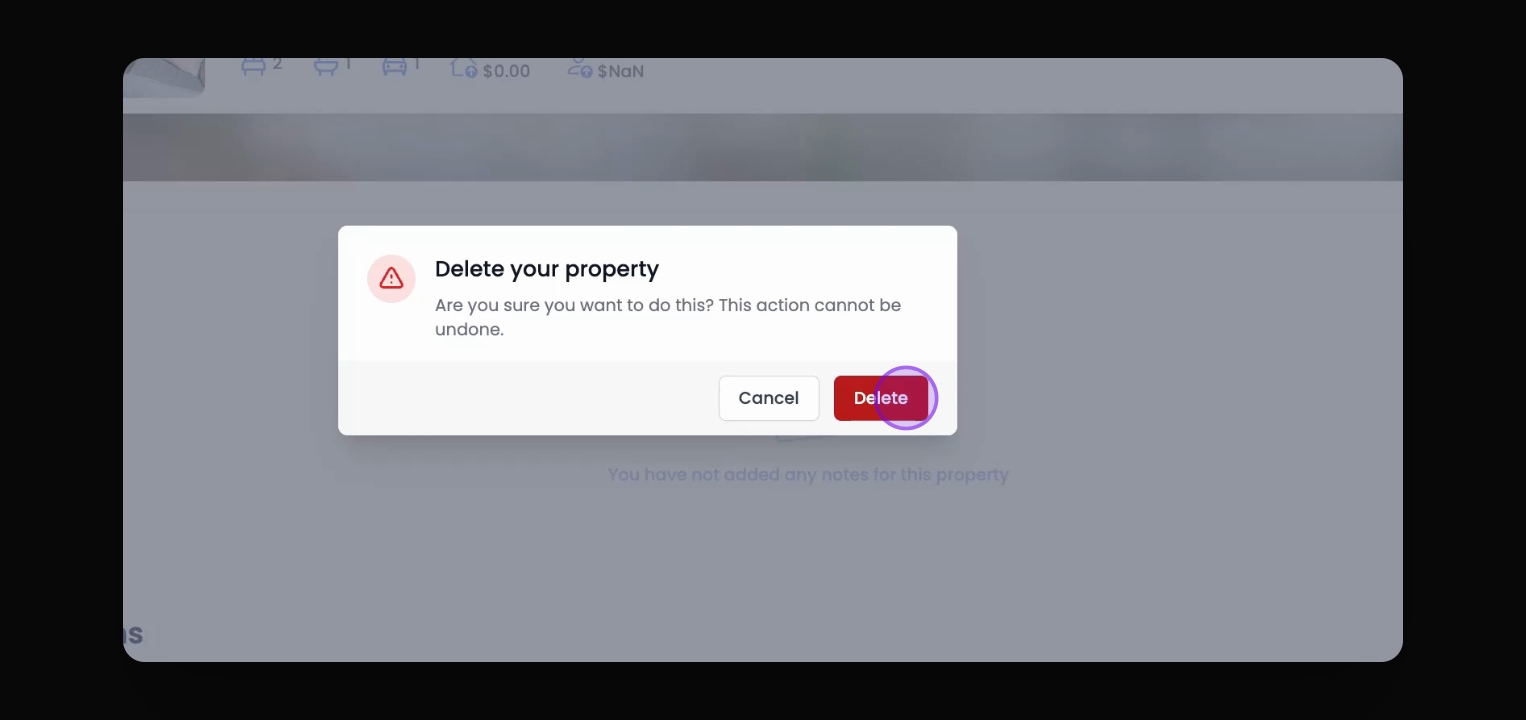
Step 4: Confirm Deletion
You will be asked to confirm this action. Click on Delete to proceed.
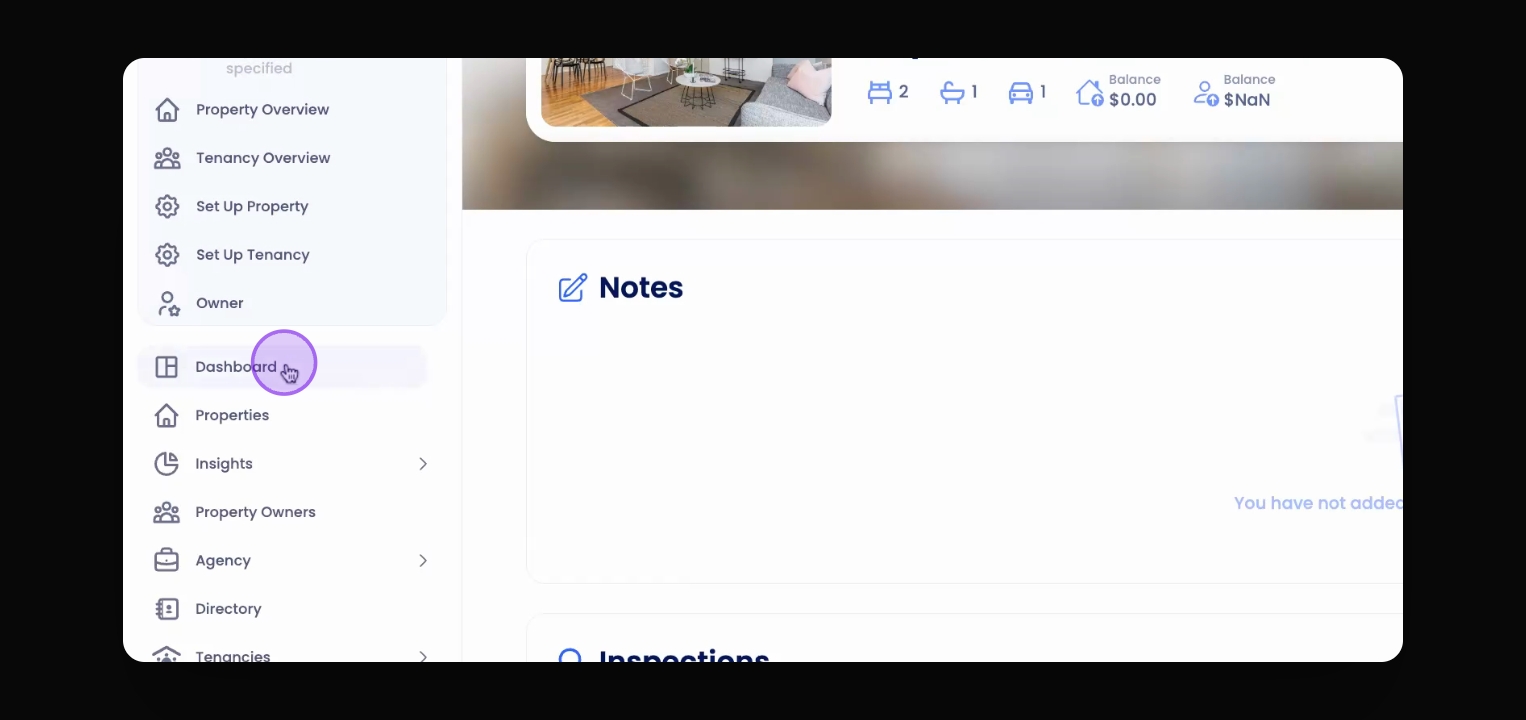
Step 5: Return to Dashboard
Return to the Dashboard by clicking the appropriate option.
Step 6: Refresh
Click Refresh to ensure the property has been successfully deleted.
Step 7: Deletion Complete
The property has now been successfully deleted from Keyhook.
Troubleshooting
Property has history
Deactivate and archive the property instead of deleting.