

TL:DR
Navigate to the property you wish to edit
Set Up Property option can be found from the menu on the left side
Jump on to the section you wish to make the change on
Click Save to finalise the updates
Let's do it together!
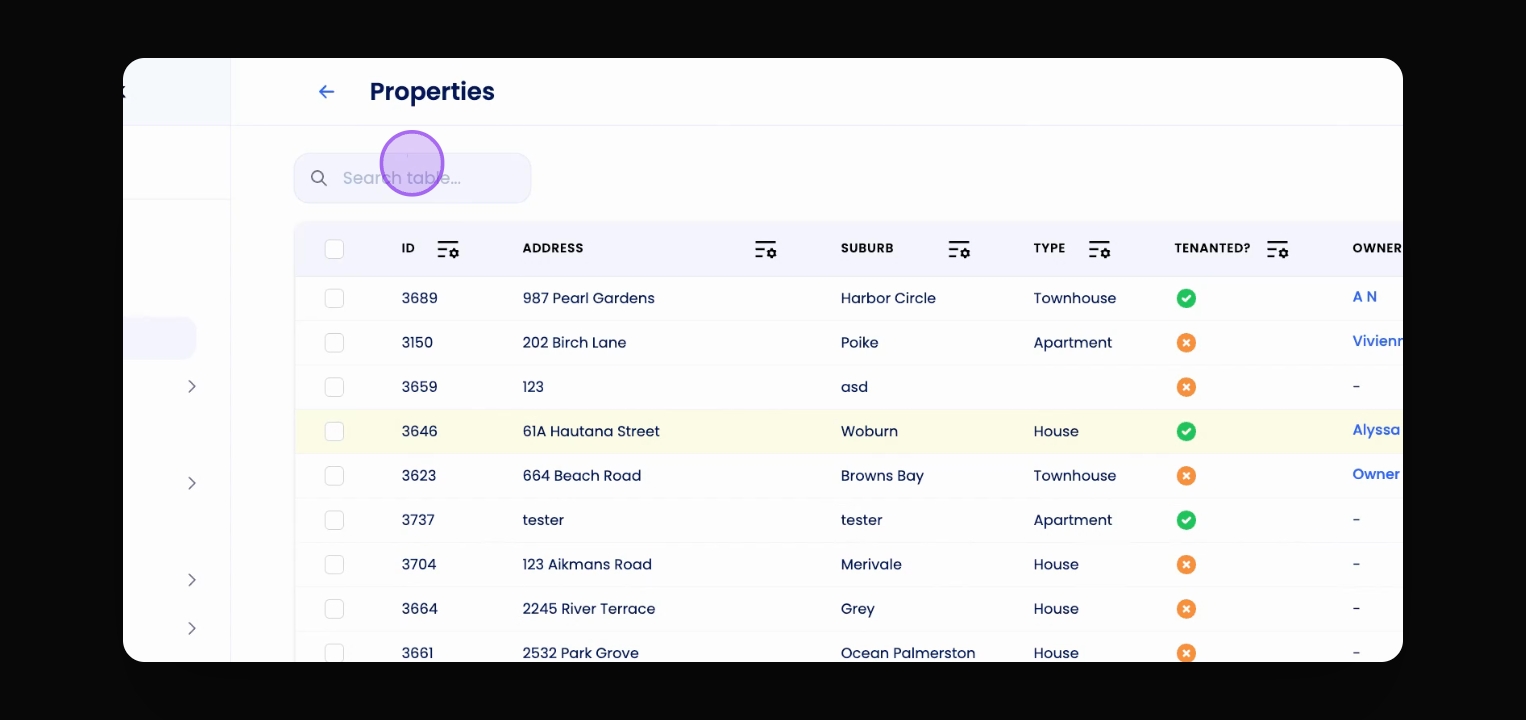
Step 1: Select Property
Use the search bar to find the property you want to edit.
Step 2: Navigate to Property Overview
Click on the property you wish to edit to access the Property Overview page.
Step 3: Open Setup Property
In the left menu, click on Setup Property to go to the Property Setup page.
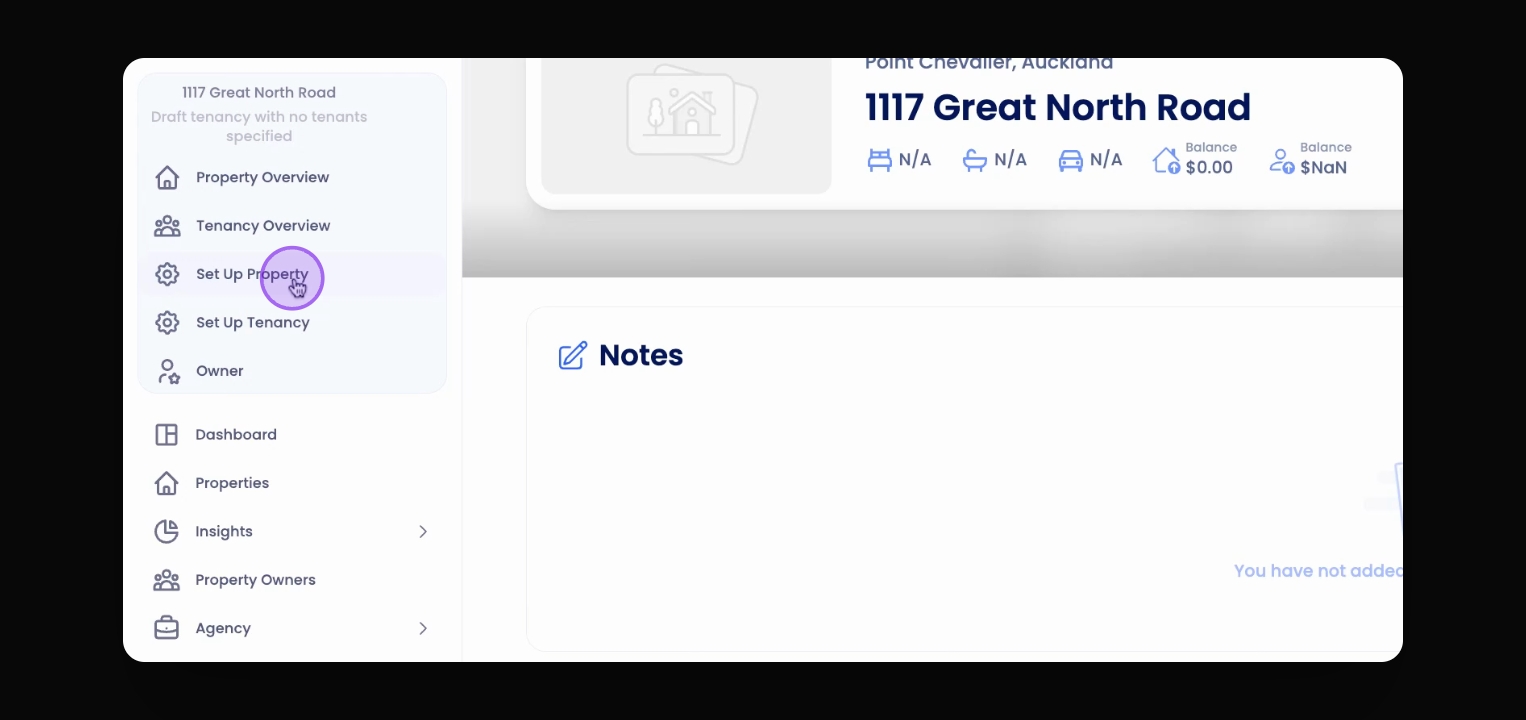
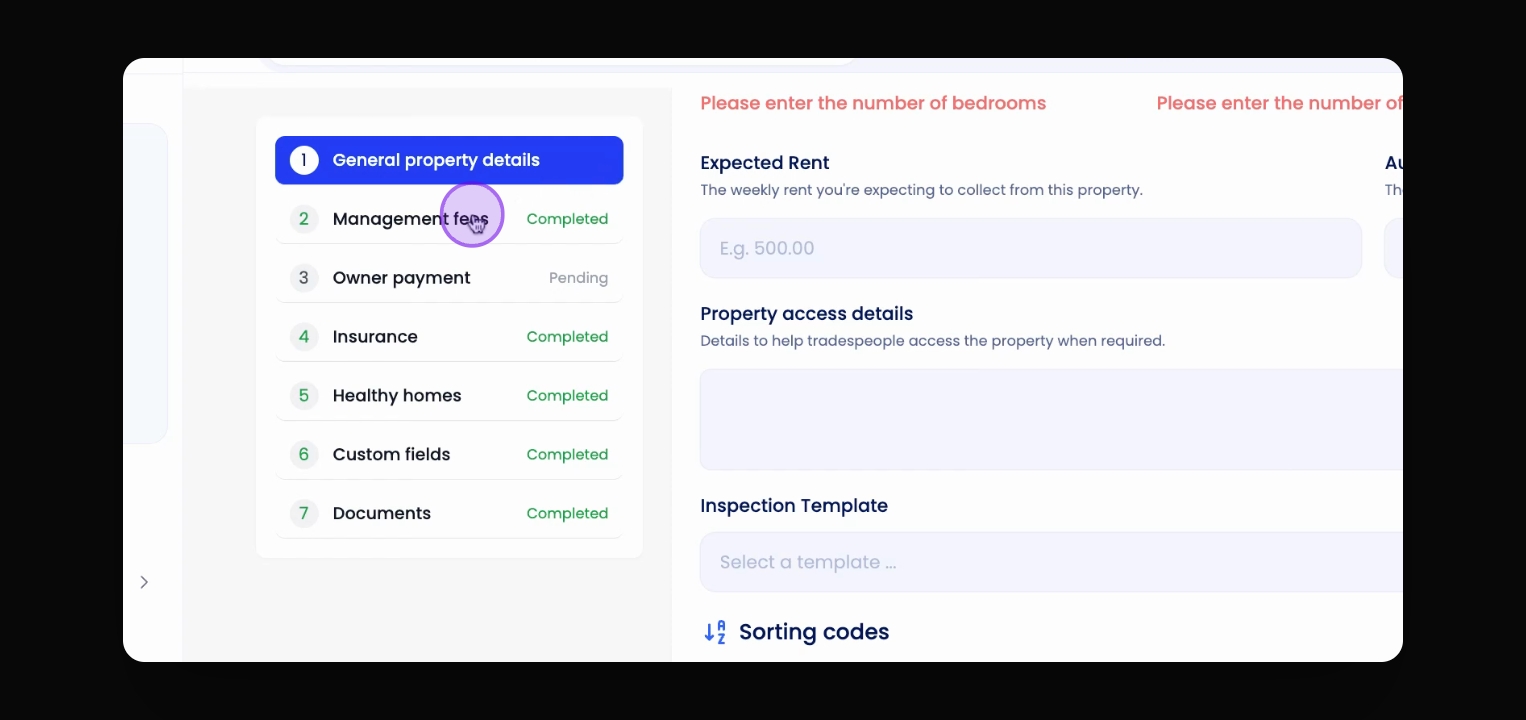
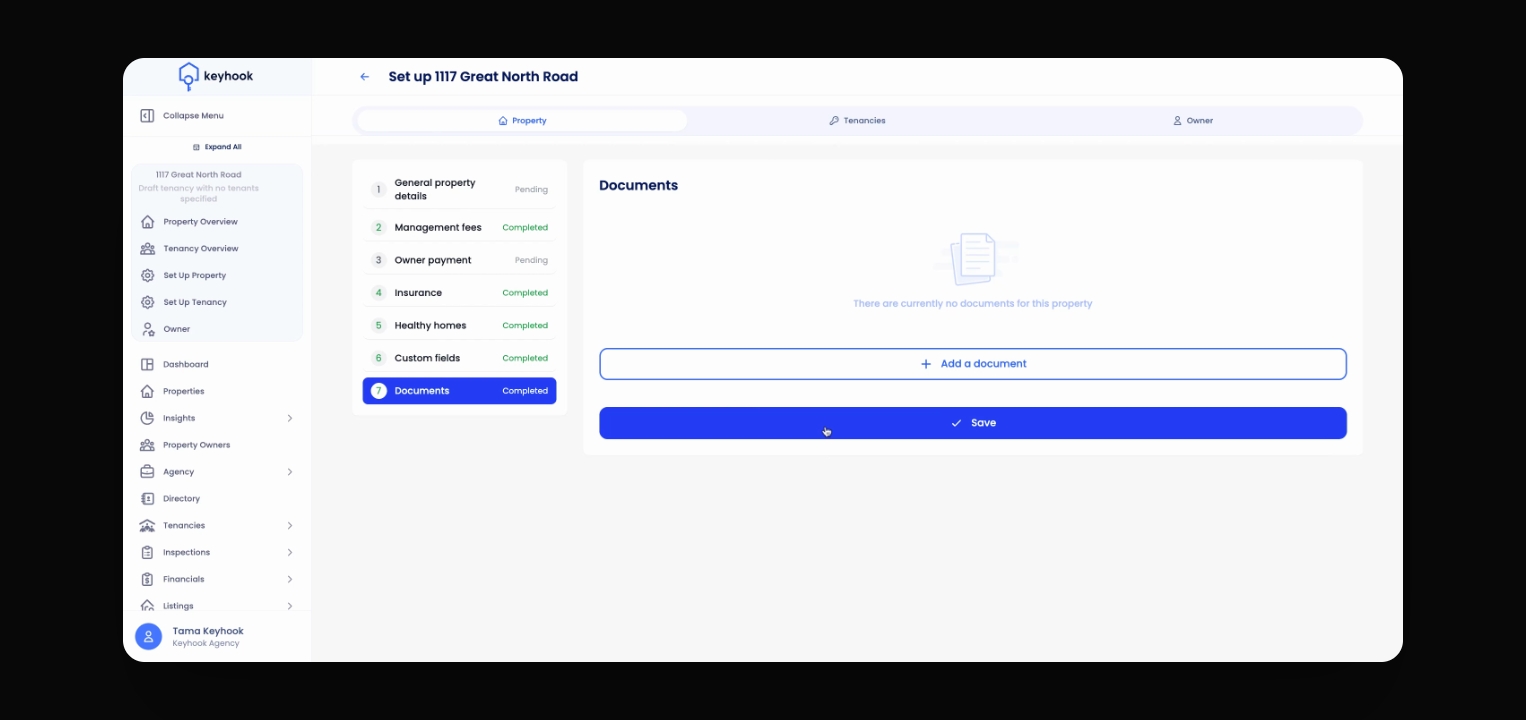
From this page, you can make all required changes to the property. The setup is divided into
7 steps, allowing you to jump directly to the section you want to update. Once you’ve made your changes, click Save to finalise them.
Step 4: Edit Property Details
Update general property details such as addresses, property type, bedrooms, bathrooms, and rent fees etc.
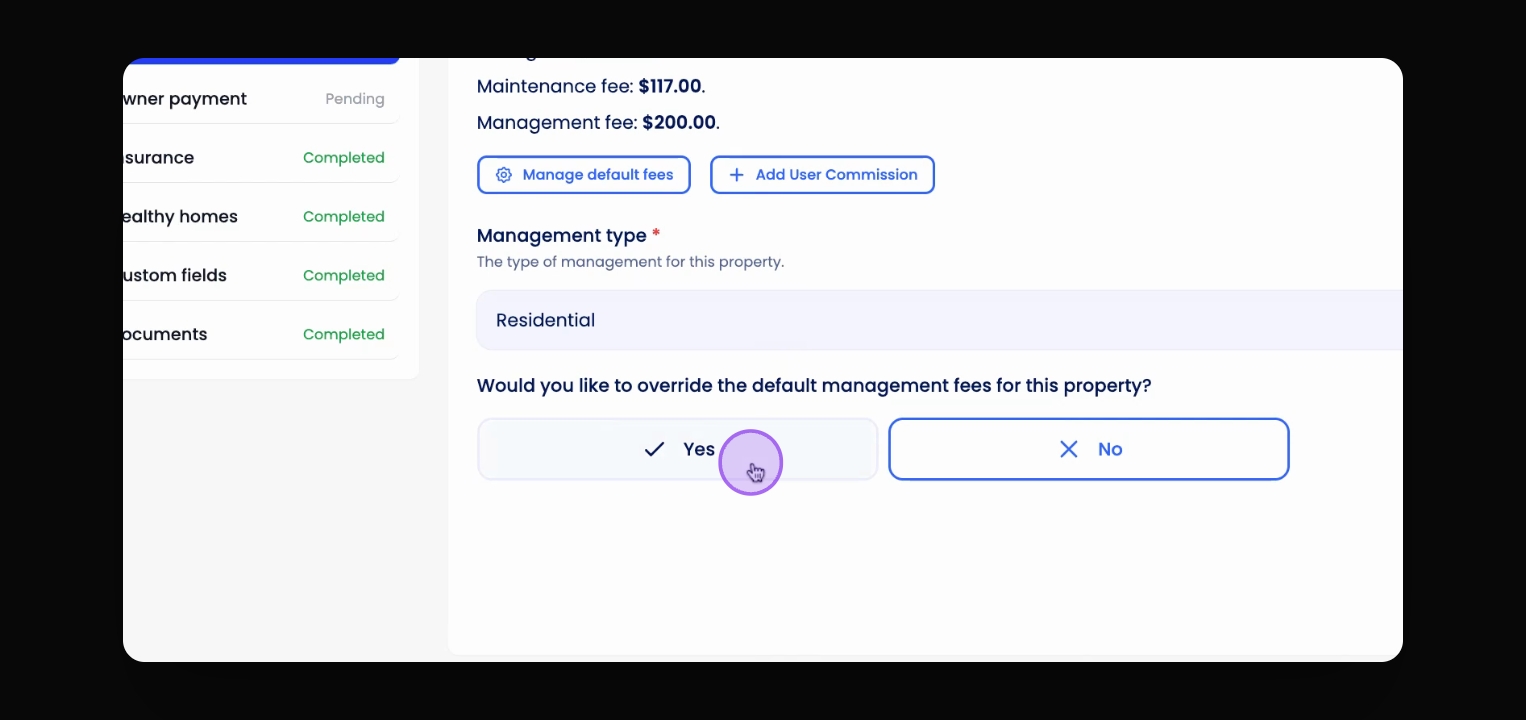
Step 5: Override Management Fees
If needed, click yes to override default management fees and input the relevant fee information.
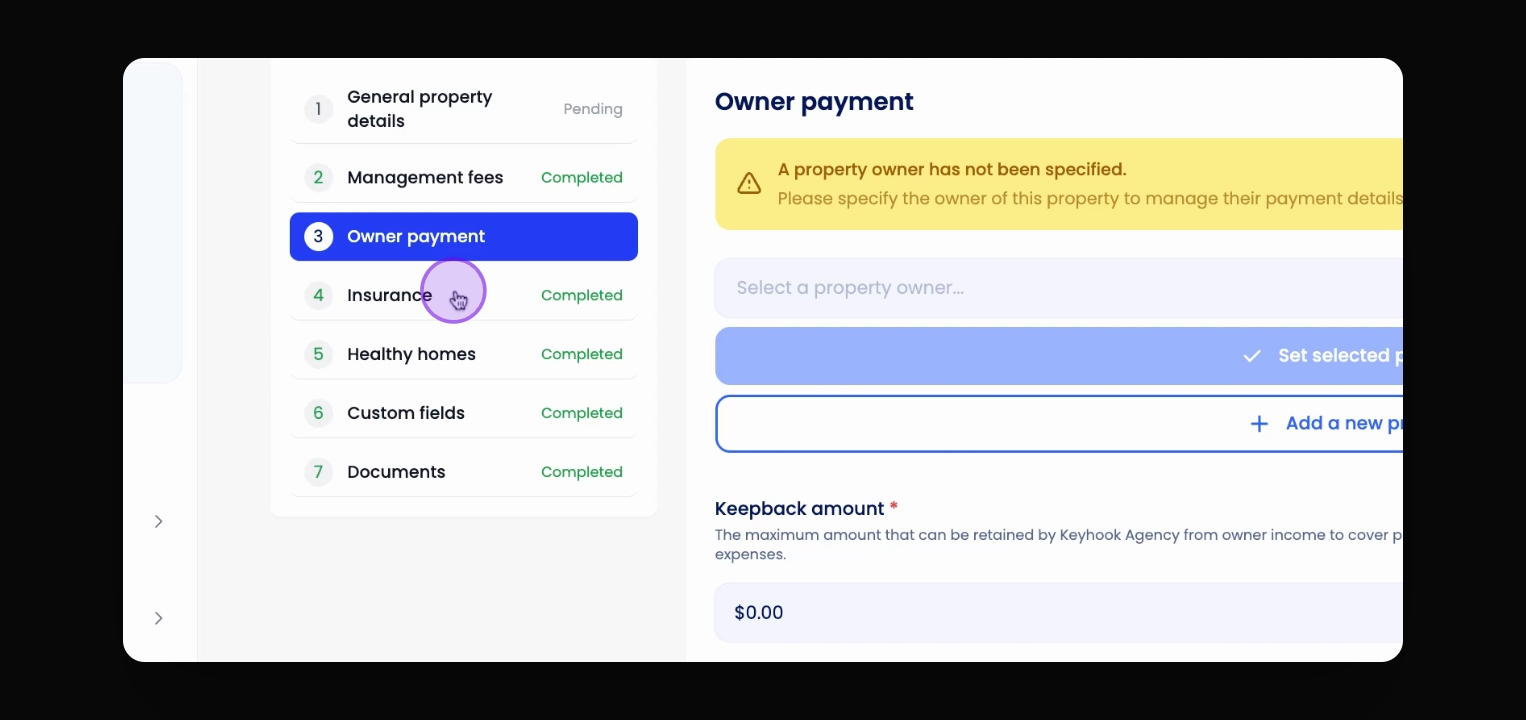
Step 6: Add or Edit Owner Details
Edit owner details and payments information.
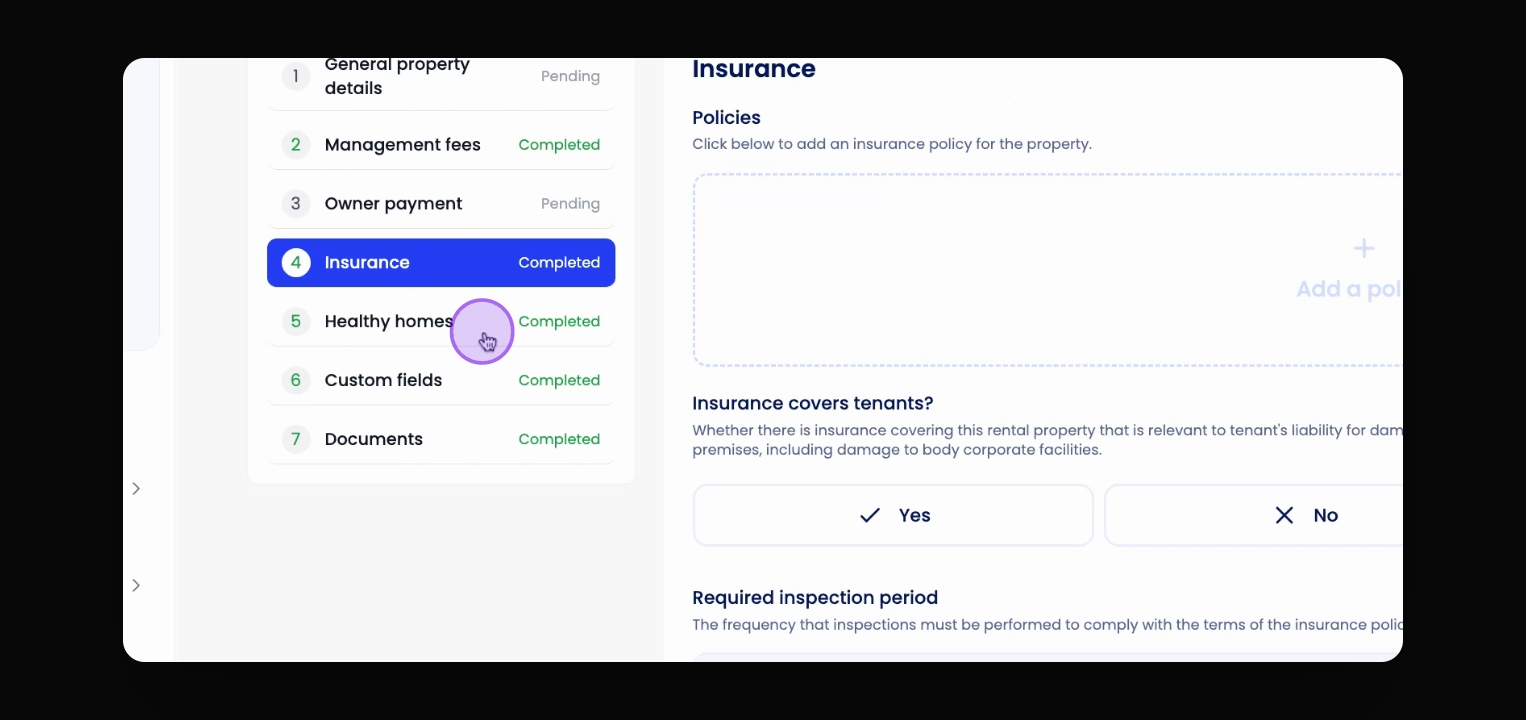
Step 7: Add Insurance Policies
Add insurance policies and tenant-related cover details.
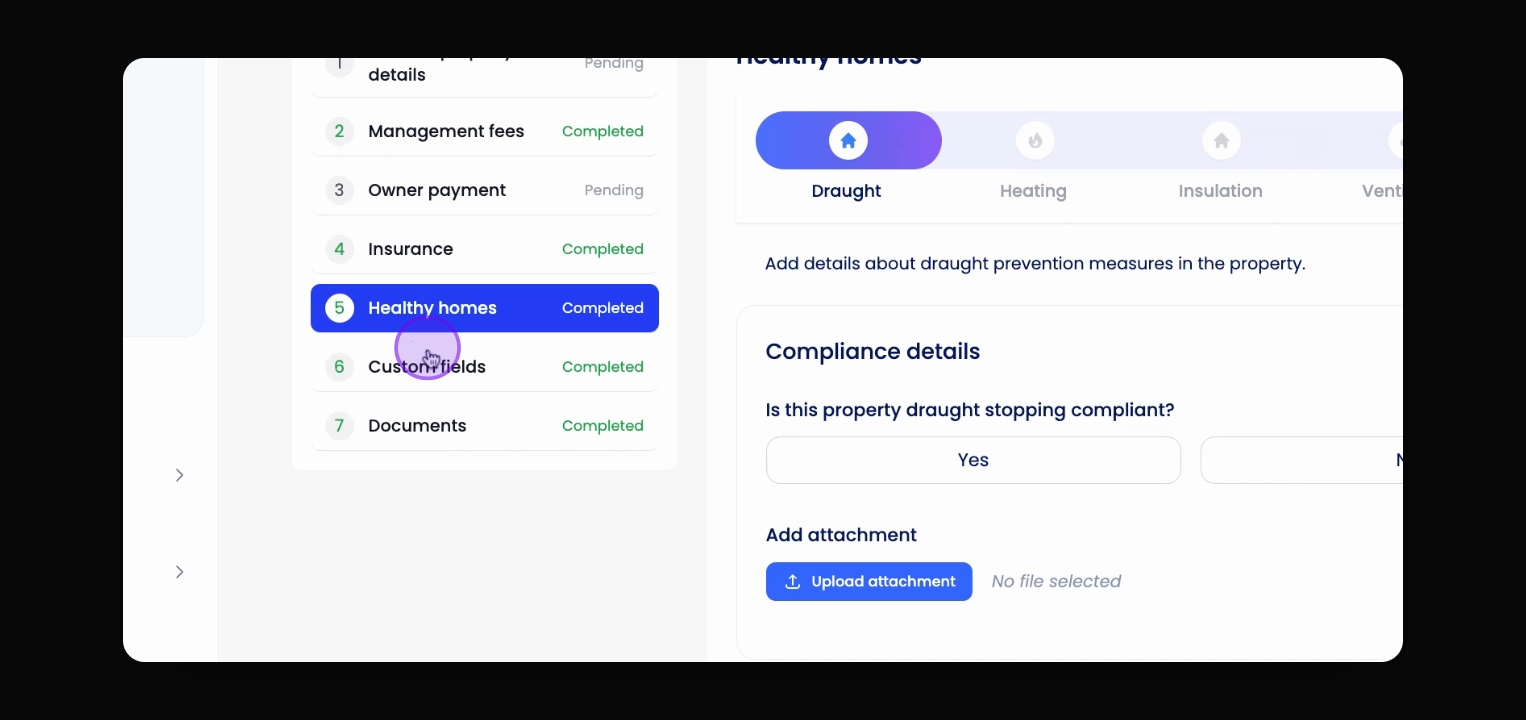
Step 8: Fill Healthy Home Details
When necessary update healthy home compliance details and upload related documents.
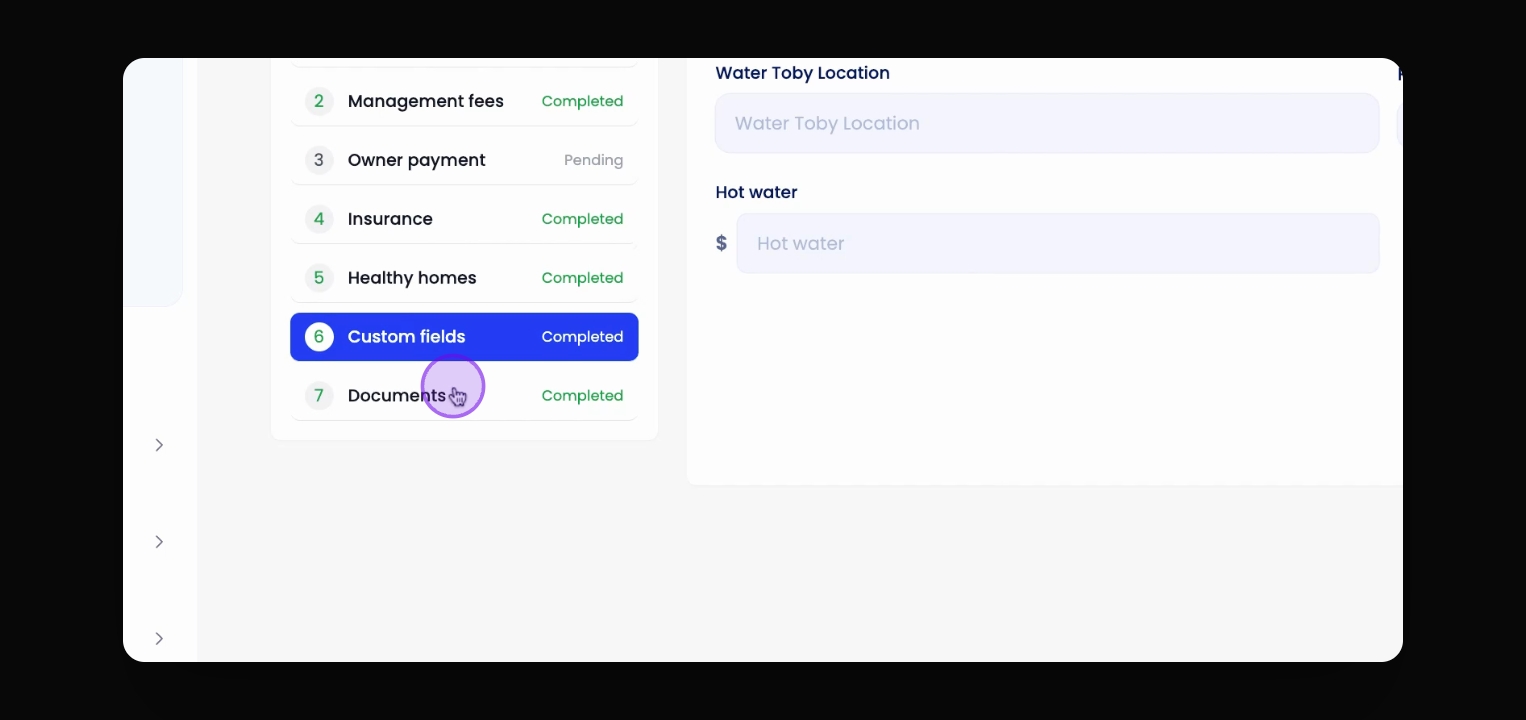
Step 9: Add Custom Fields
If applicable, use any custom fields created by your agency.
Step 10: Attach Additional Documents
Attach any additional documents related to the specific property.
Step 11: Save Changes
After making the required changes, click on Save to apply your updates to the property.
If you cannot find what you are looking for or have any further questions, please feel free to contact us on support@keyhook.com