

TL;DR
Let's Do It Together!
Step 1: Click Create
Click on Create to start a new tenant invoice.
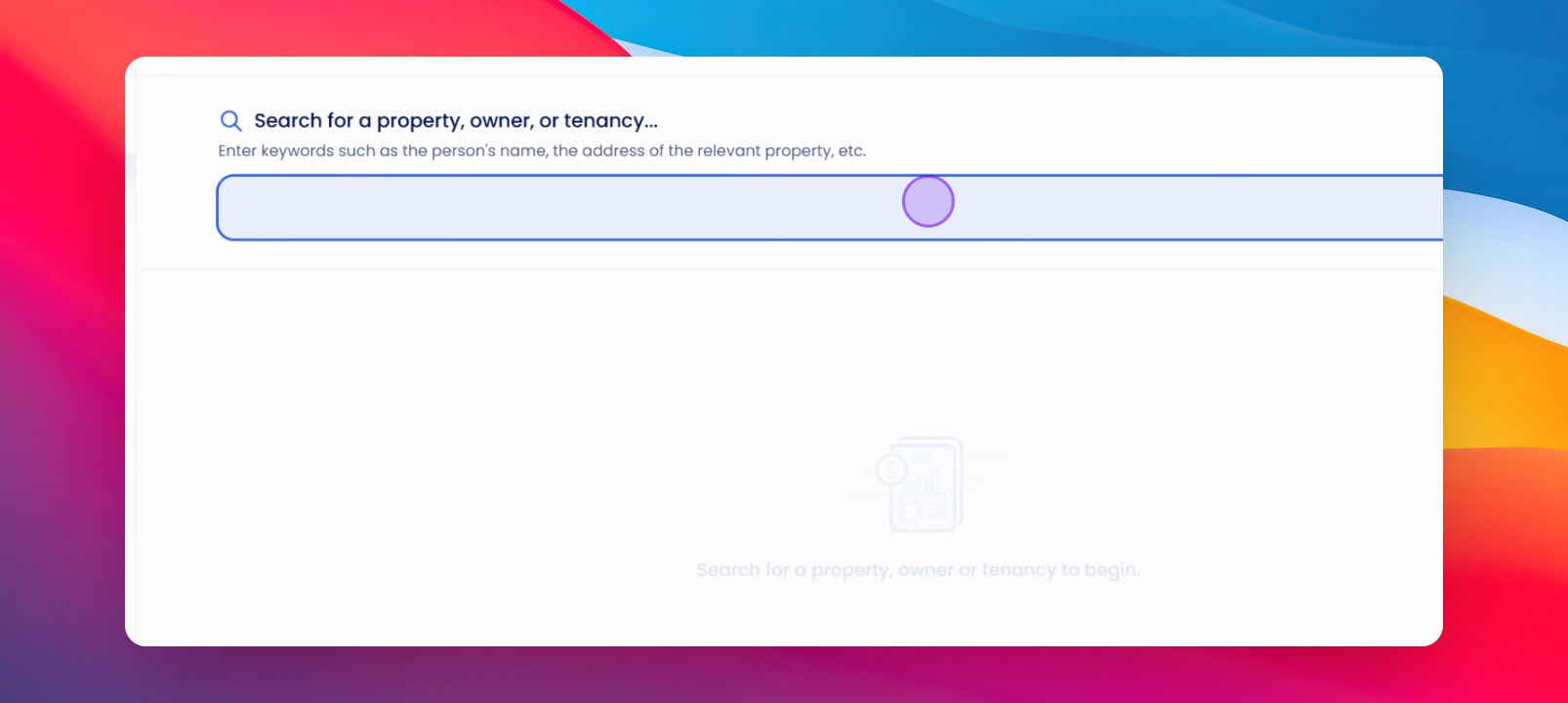
Step 2: Enter Property Address
Input the property address for the invoice.
Step 3: Select Tenant Invoice
Choose Tenant Invoice from the options.
Step 4: Select Tenancy
Select the tenancy associated with this invoice.
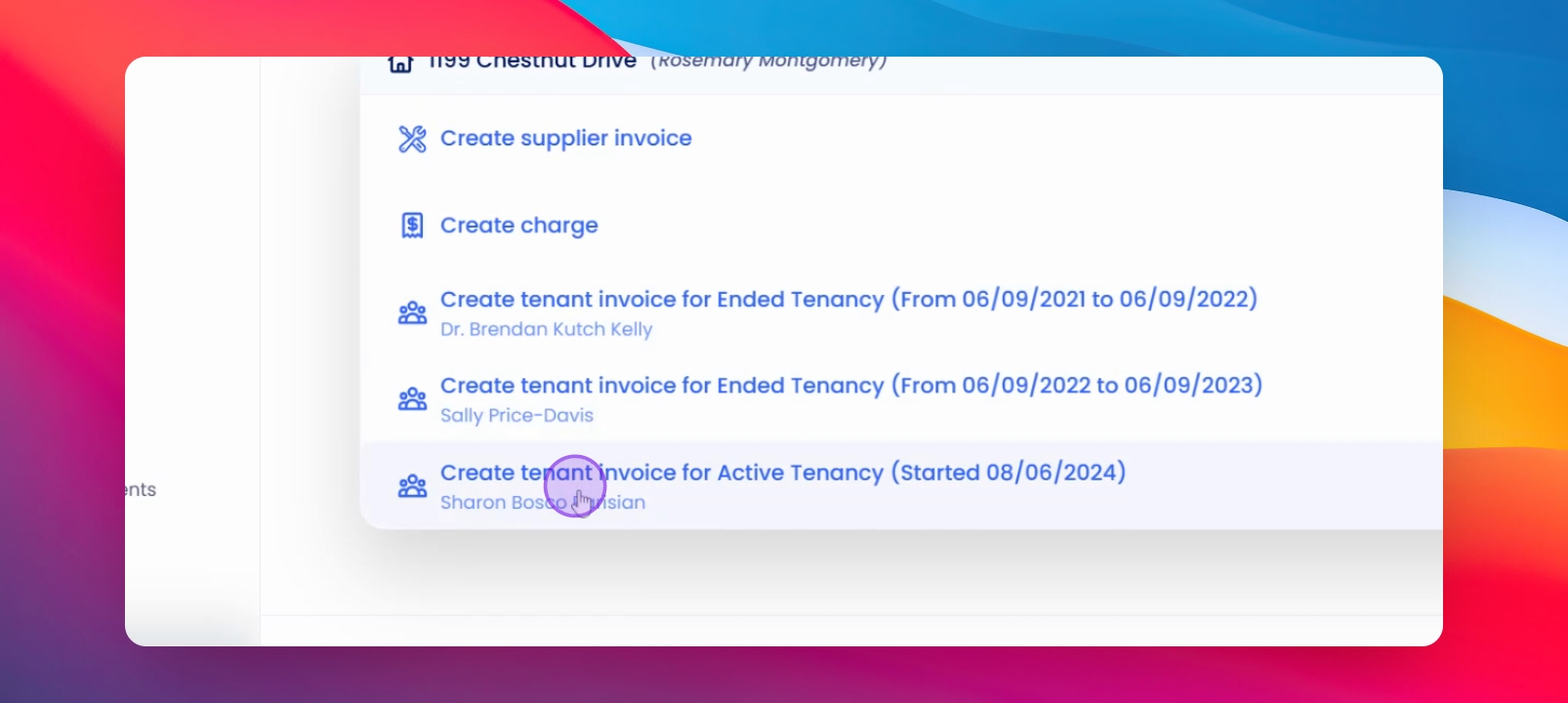
Step 5: Review Tenant Information
Check the tenant's financial status, including any arrears or credits.
Step 6: Attach Documents
If necessary, drag your attachments into the designated area.
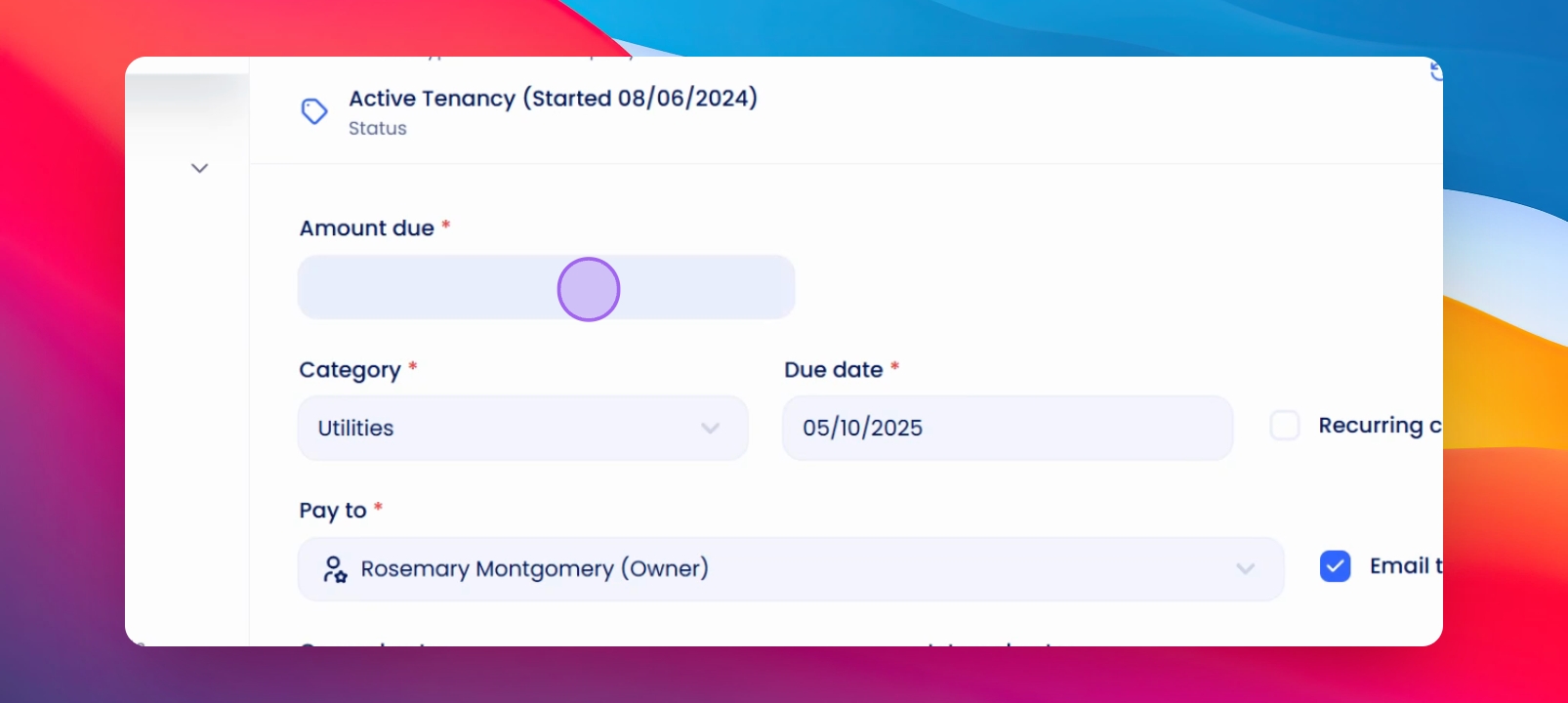
Step 7: Enter Amount
Input the amount the tenant will pay.
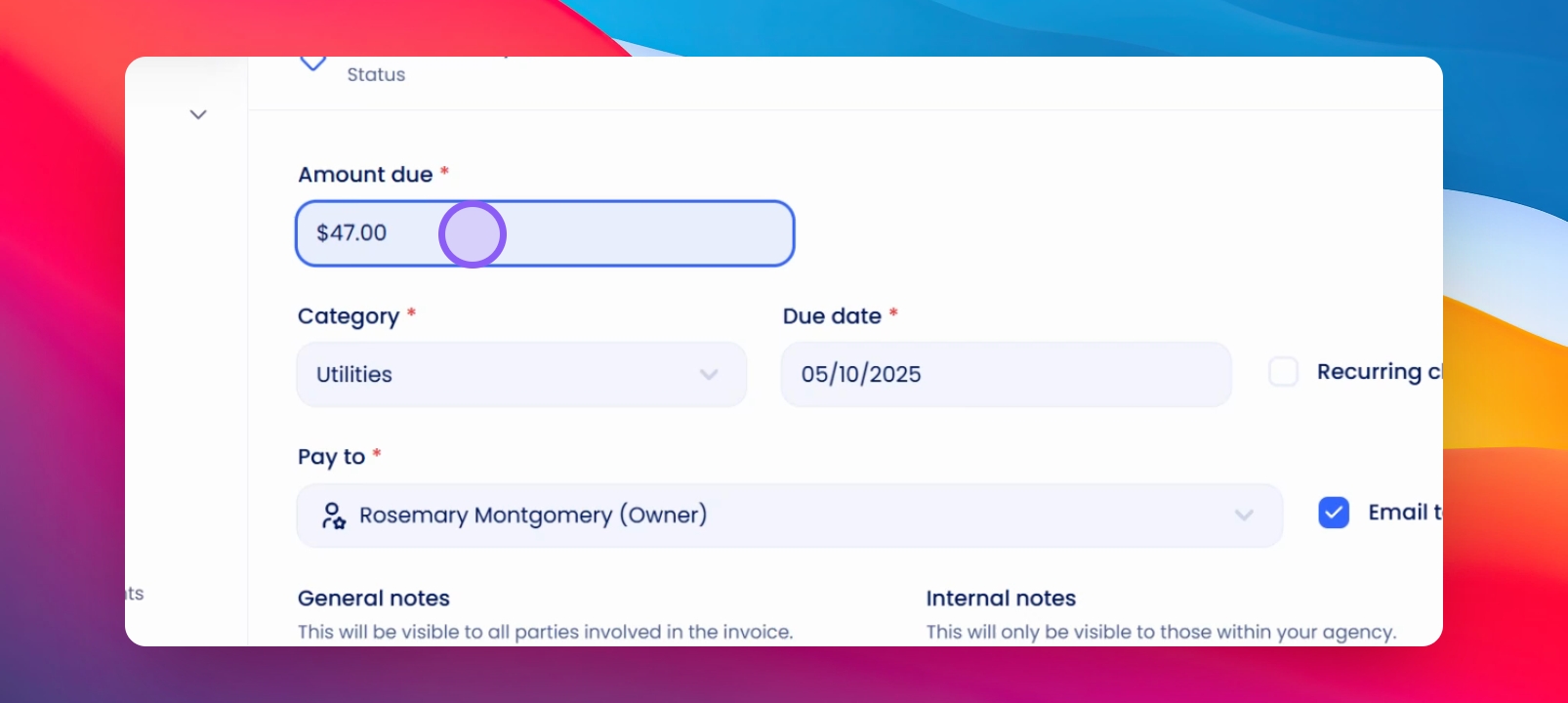
Step 8: Specify Payment Reason
Indicate what the payment is for, e.g., Other.
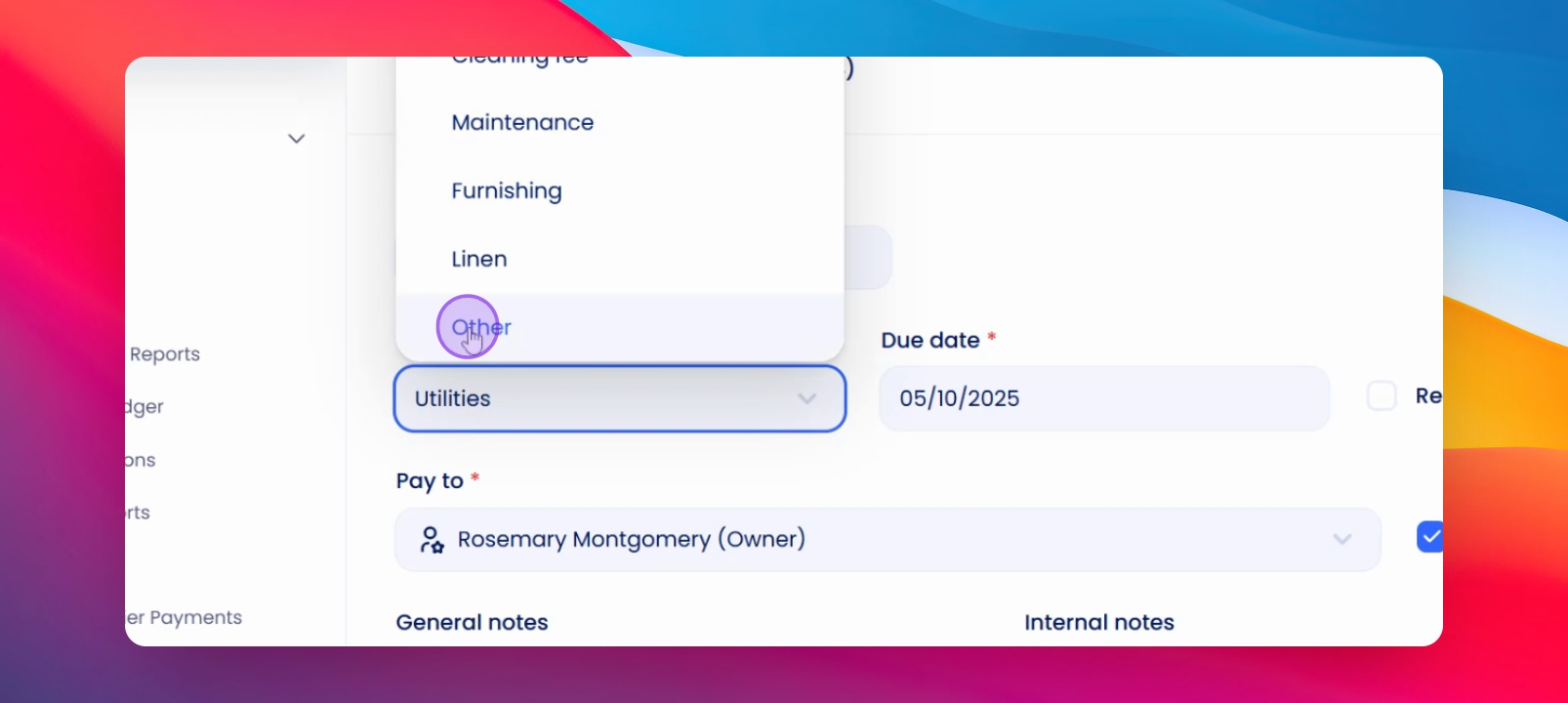
Step 9: Set Due Date
Specify that the payment is due.
Step 10: Indicate Recurrence
State whether this is a recurring charge.
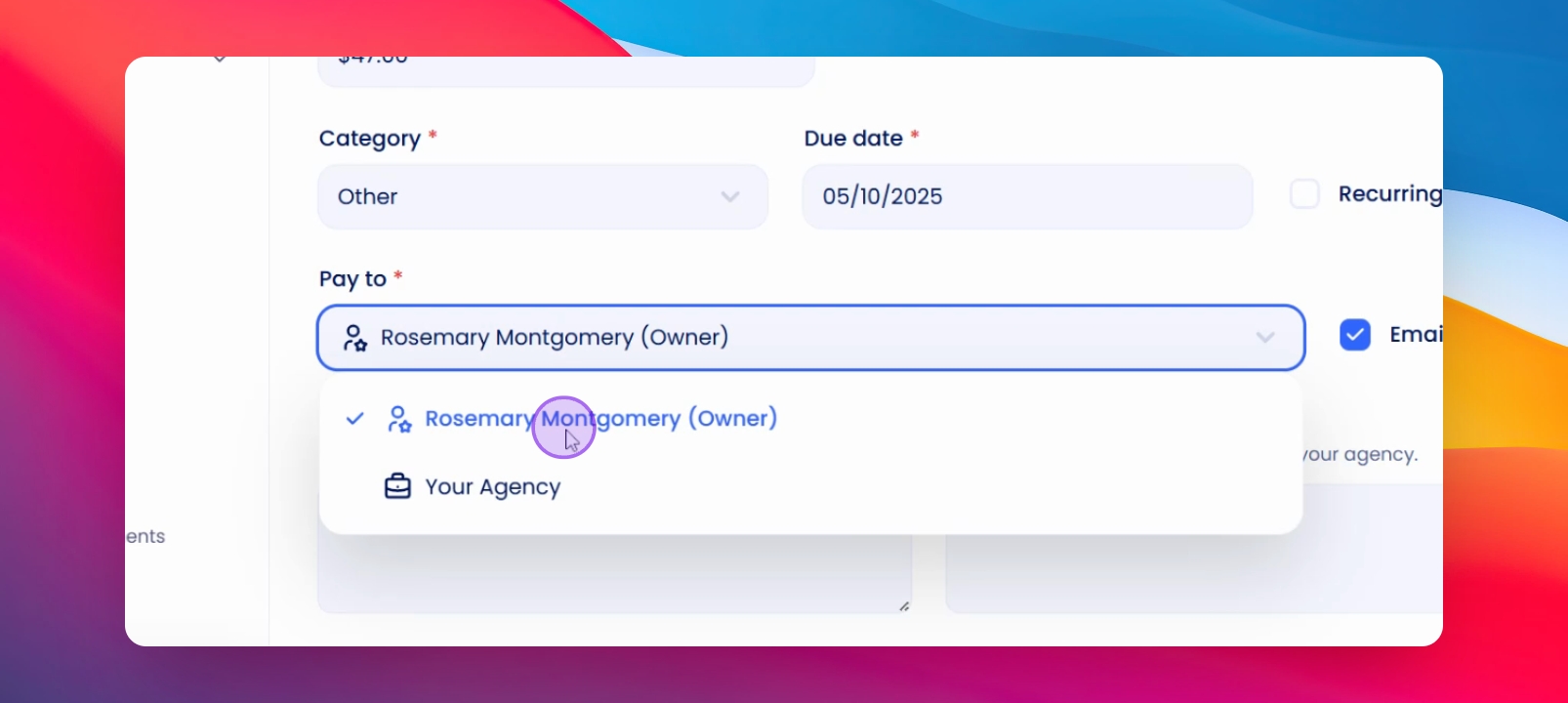
Step 11: Determine Payment Recipient
Decide if the payment goes to the owner or the agency.
Step 12: Specify Payment Purpose
State that this payment is for the tenant's share of the Internet.
Step 13: Save Invoice
Click Save to finalize the invoice.
The invoice is now saved and added to the invoice list.
Step 14: Check Invoice Status
Review the invoice status; it will show as unpaid until payment is received.
Invoice status updates to Paid upon payment receipt.
If you need more help or have any questions, just reach out to us at support@keyhook.com — we're always here to help!