TL;DR
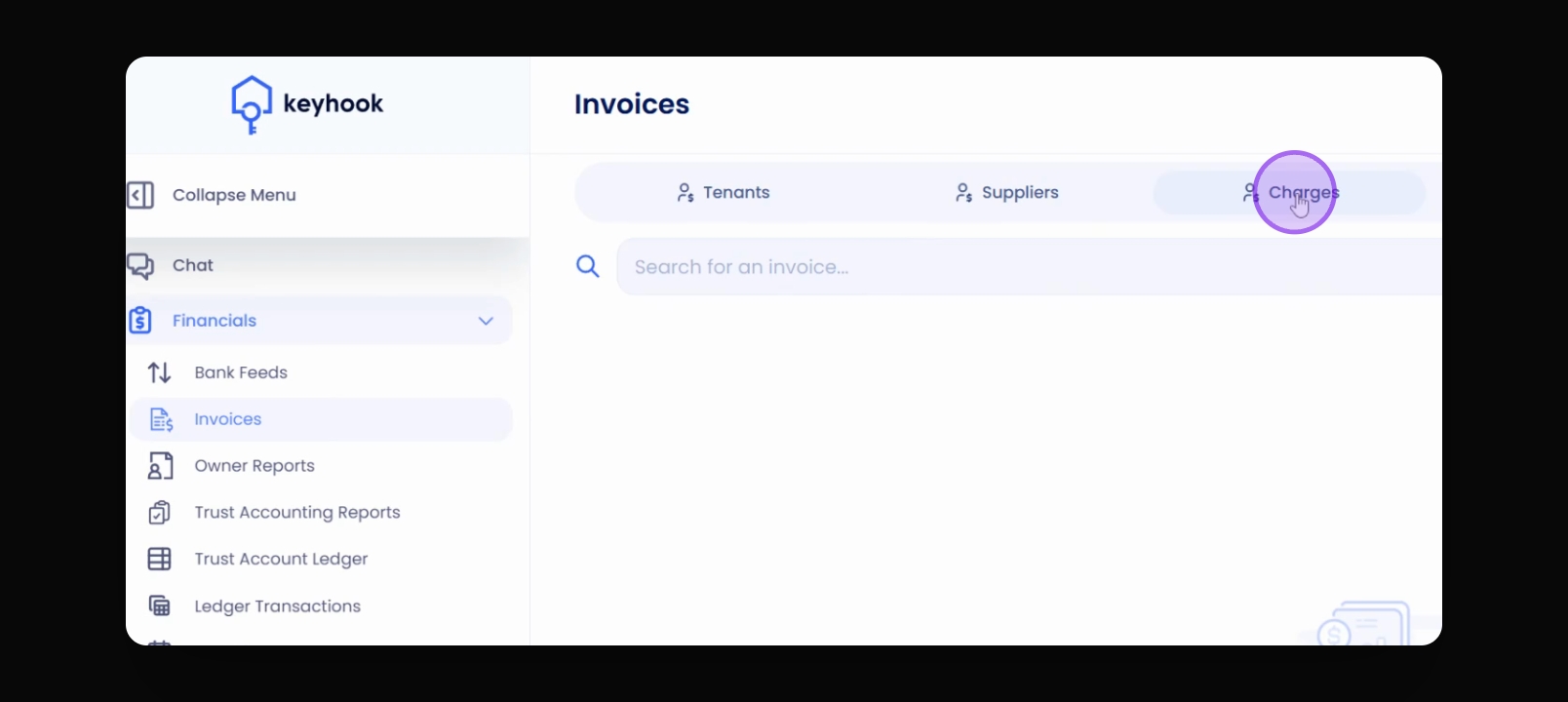
Financials > Invoices > Charges > Create
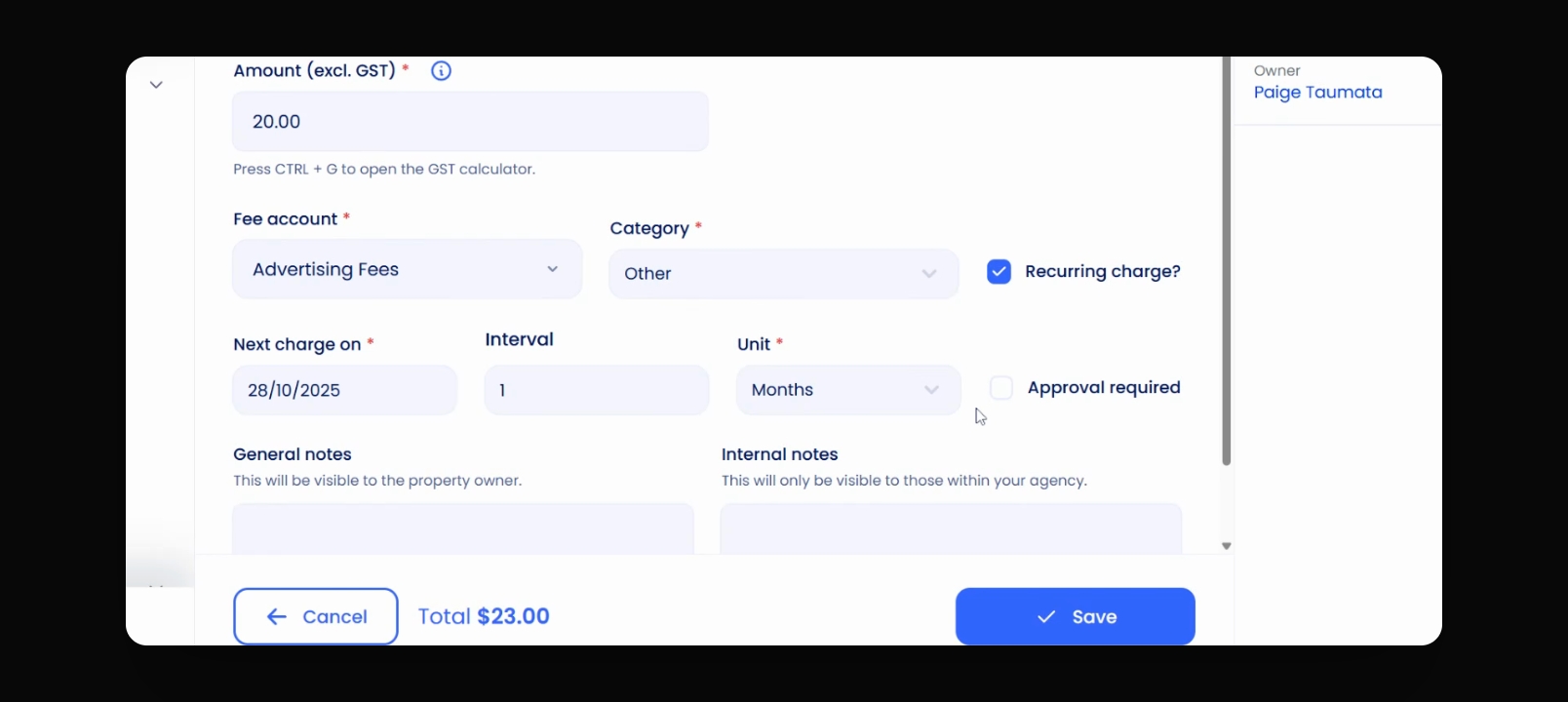
Enter the details for the charge, including the amount (GST exclusive), the fee account, and the category.
Tick the recurring charge box, set the first charge date and the charge frequency.
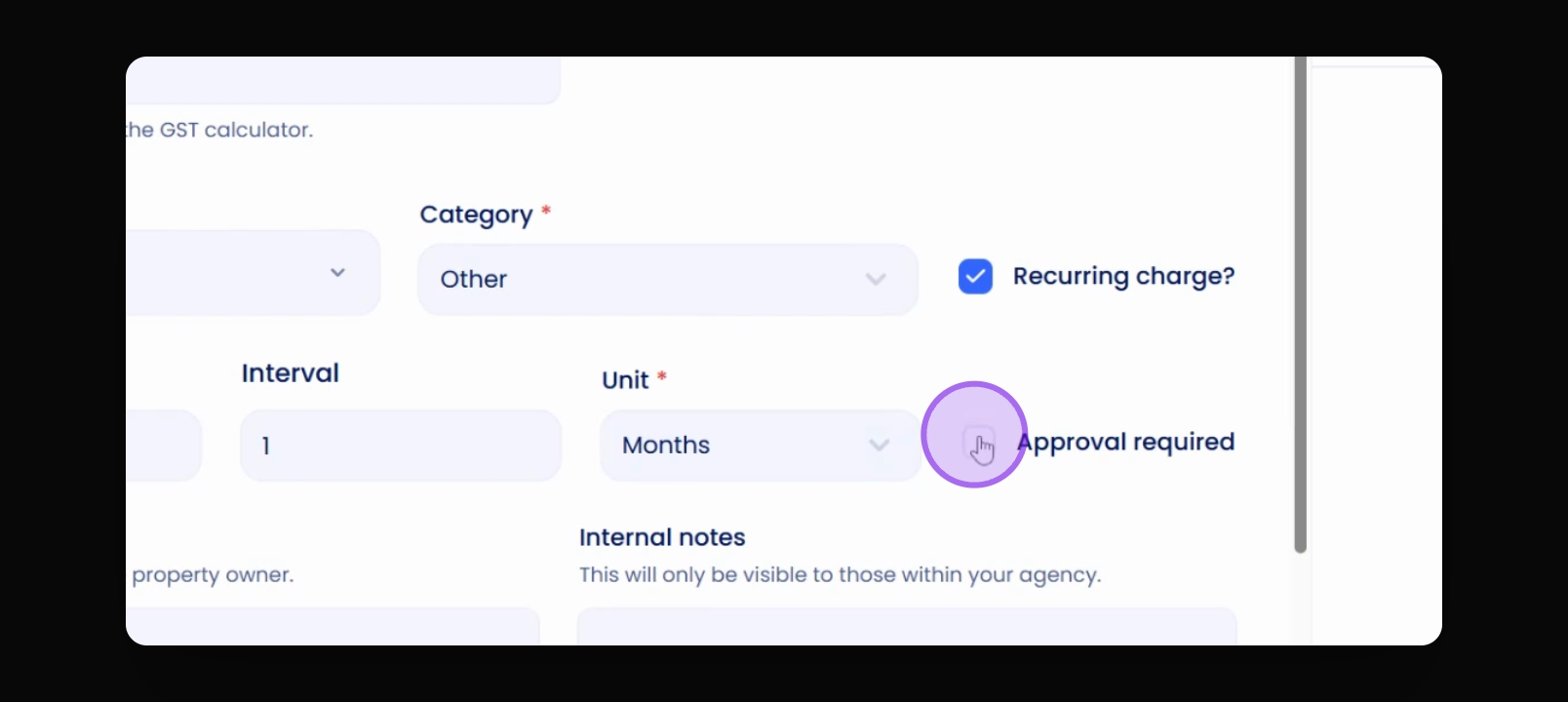
Tick the box for the recurring charge to require approval before transferring funds from the property to the fee ledger.
View automated/approved charges and their status by navigating back to the Charges tab.
Let's Do It Together!
Step 1: Create a Charge
Go to Charges and click the Create button.
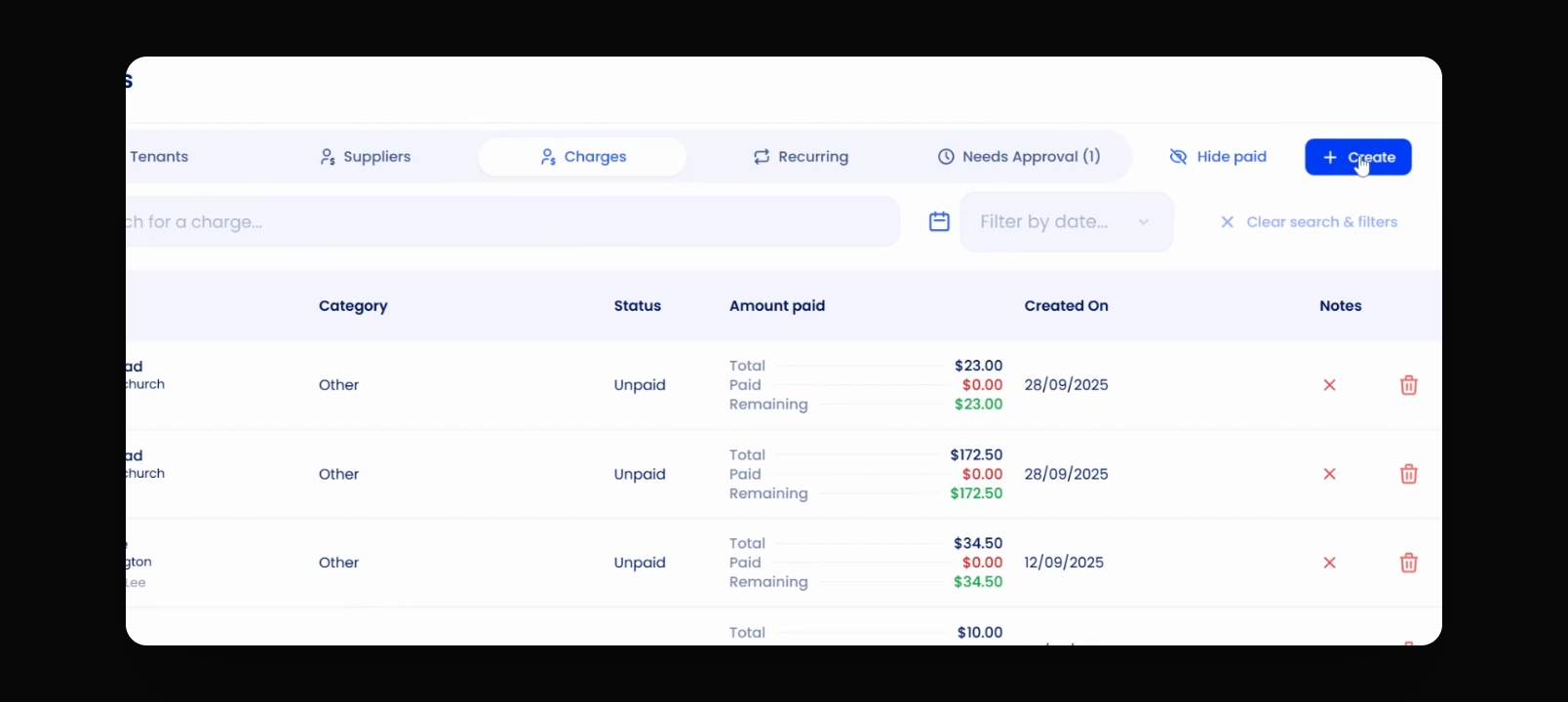
Enter the amount, exclusive of GST.
Select the account for the charge.
Choose the category for the charge.
Do you want to make it recurring? Tick the box to confirm.
Set the first charge date
Specify the charge to repeat every month/week.
Step 2: Approval Settings
Decide if approval is required for the charge.
If yes, tick the approval box.
Add a brief note for the owner statement.
Click Save.
Step 3: Manage Charges
Navigate to Needs Approval to view pending invoices.
Click into the charge to view the details.
Confirm by clicking Approve.
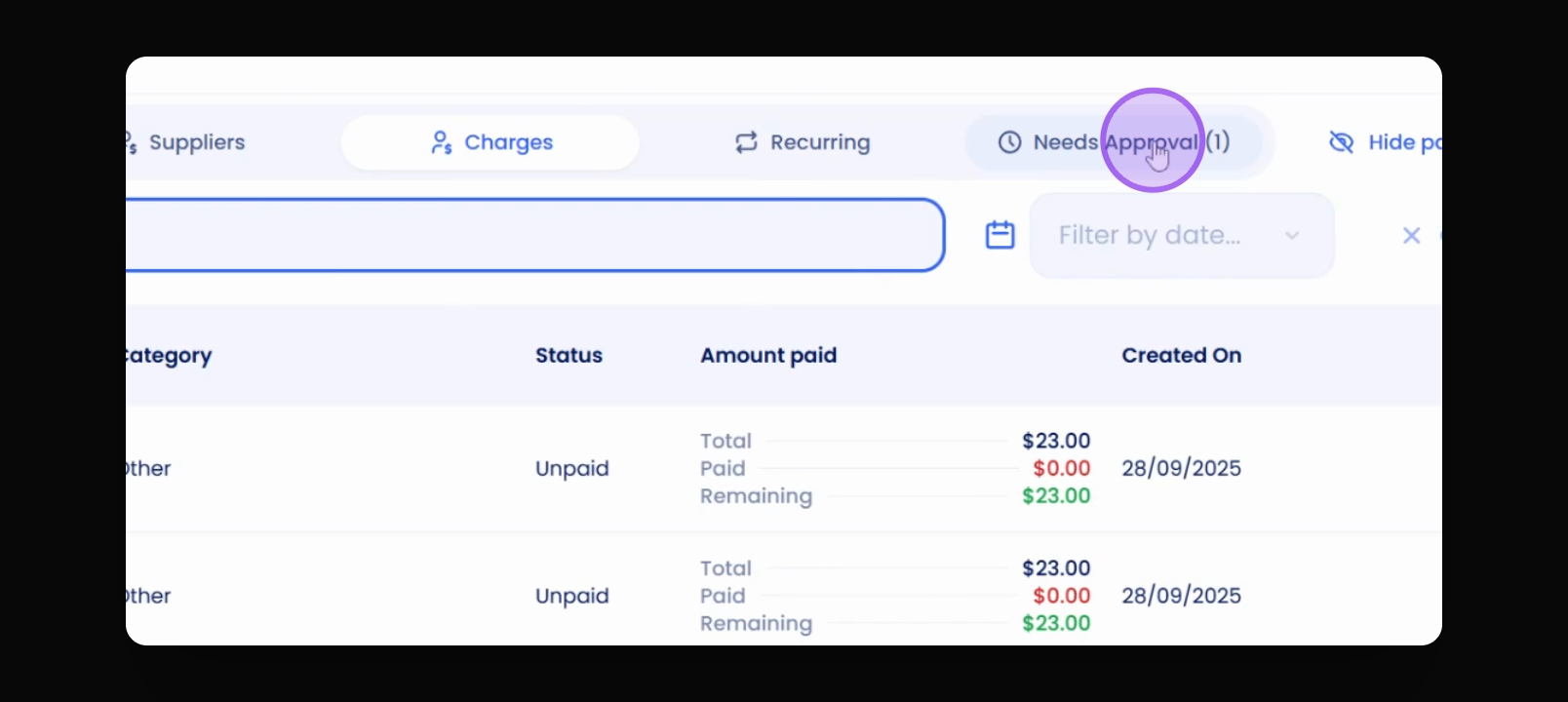
Step 4: Monitor Payments
Check Charges for unpaid charges if funds are insufficient.
Once paid, the status will change to reflect this.