TL;DR
1
Open Financials
Navigate to Financials and select Ledger Transactions.
2
Filter Ledger Transactions
Choose ledger type and date range to filter transactions.
3
Export the Report
Click actions and select Export PDF to download.
4
View Supplier Transactions
Access Supplier and click on Transactions tab.
5
Check Property Transactions
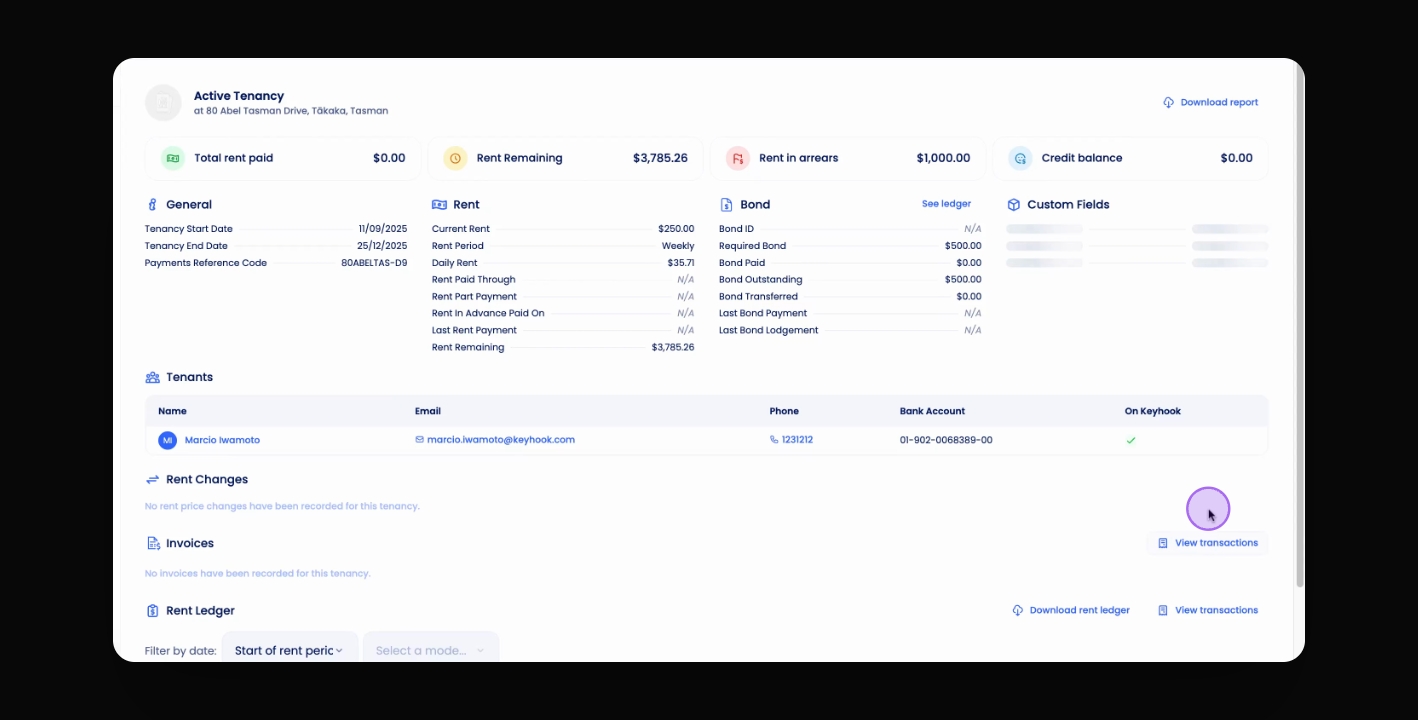
In Tenancies Overview, select property and view Transactions.
Let's Do It Together!
Step 1: Access Ledger Transactions
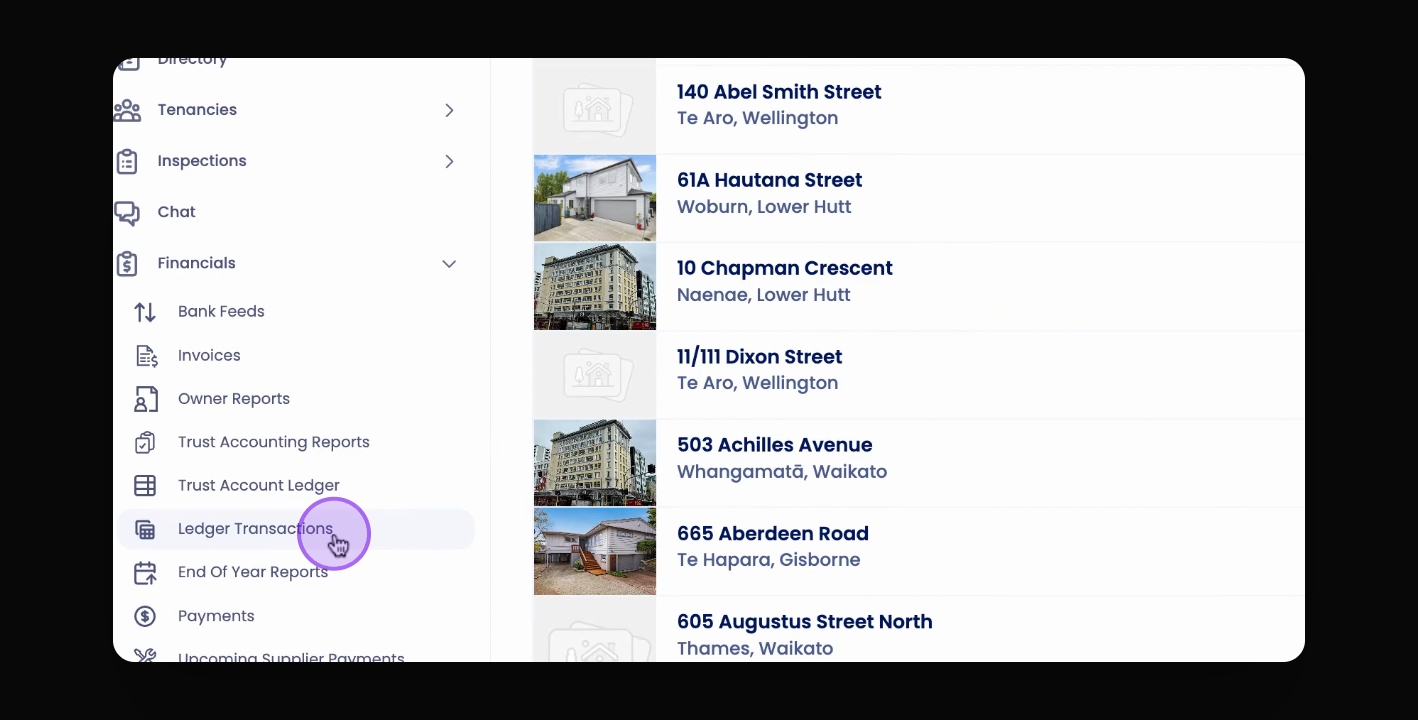
Click on Financials in Keyhook.
Select Ledger Transactions.
Step 2: Filter Transactions
Select the ledger type you want from the navigation bar.
Choose a date range to filter your transactions.
This will display all transactions for the selected ledger within the chosen date range.
Step 3: Export Ledger Report
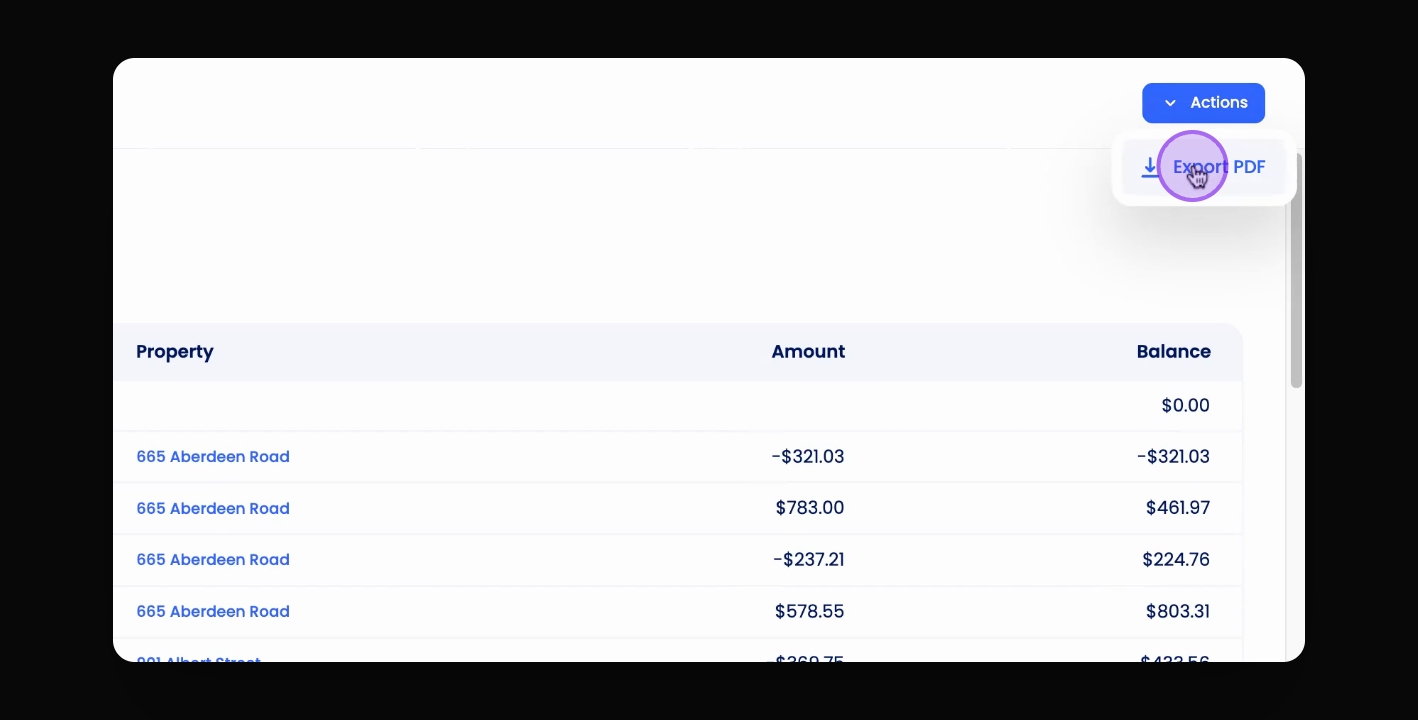
Click the actions button at the top right of the page.
Select Export PDF to download or print the ledger report.
Step 4: View Supplier Transactions
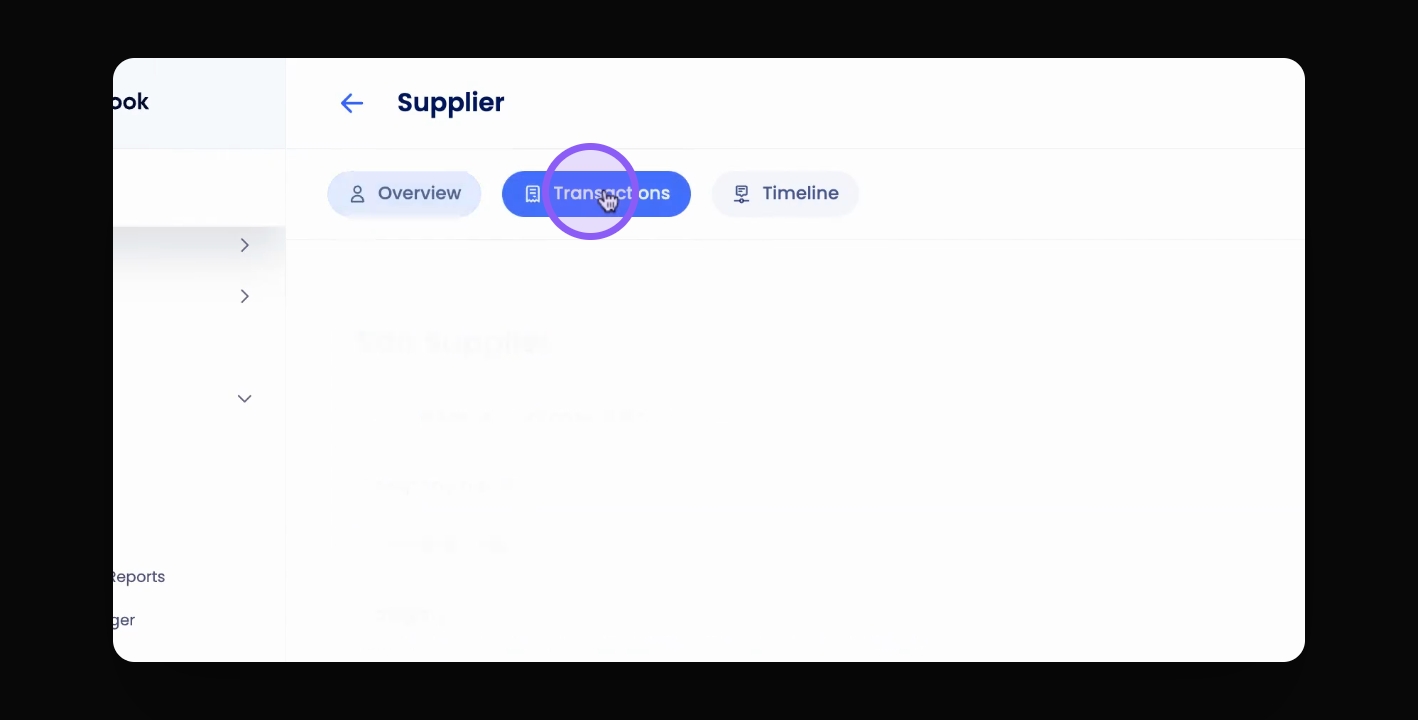
Click on Supplier from the menu.
Click the Transactions tab to view reports.
Step 5: Access Transactions for Properties and Tenancies
In the Tenancies Overview table, find the relevant property or tenancy.
Click on the Transactions tab to view corresponding reports.