TL:DR
1
Select to the Owner you wish to see past reports
2
Navigate to Reports section
3
Click on the reports to preview
4
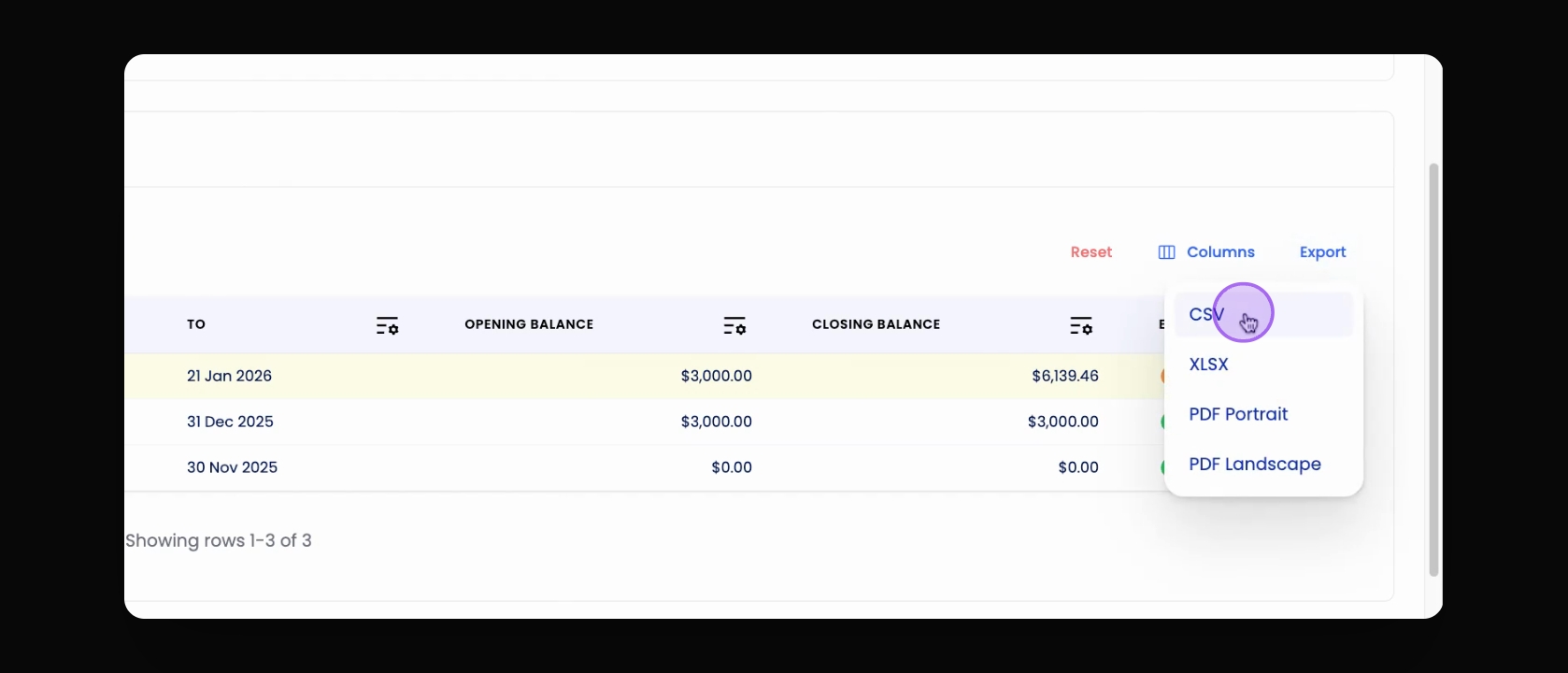
Export the list (Optional)
Let's do it together!
Step 1: Navigate to Owners
Start by going to the property owners whose past reports you want to view.
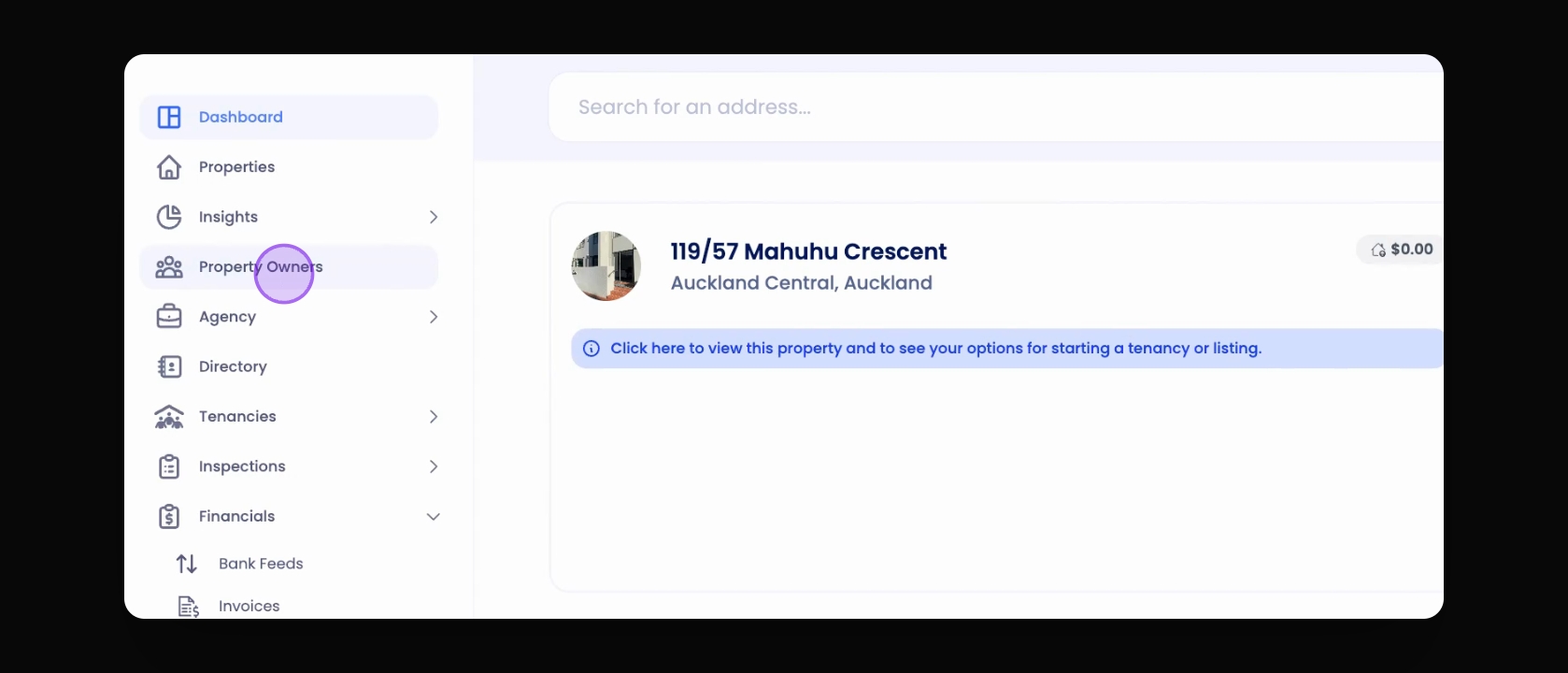
Step 2: Access Property Owners
Click on Property Owners from the menu on the left-hand side.
Step 3: Search for Owner
Search for the property owner you want to view reports for.
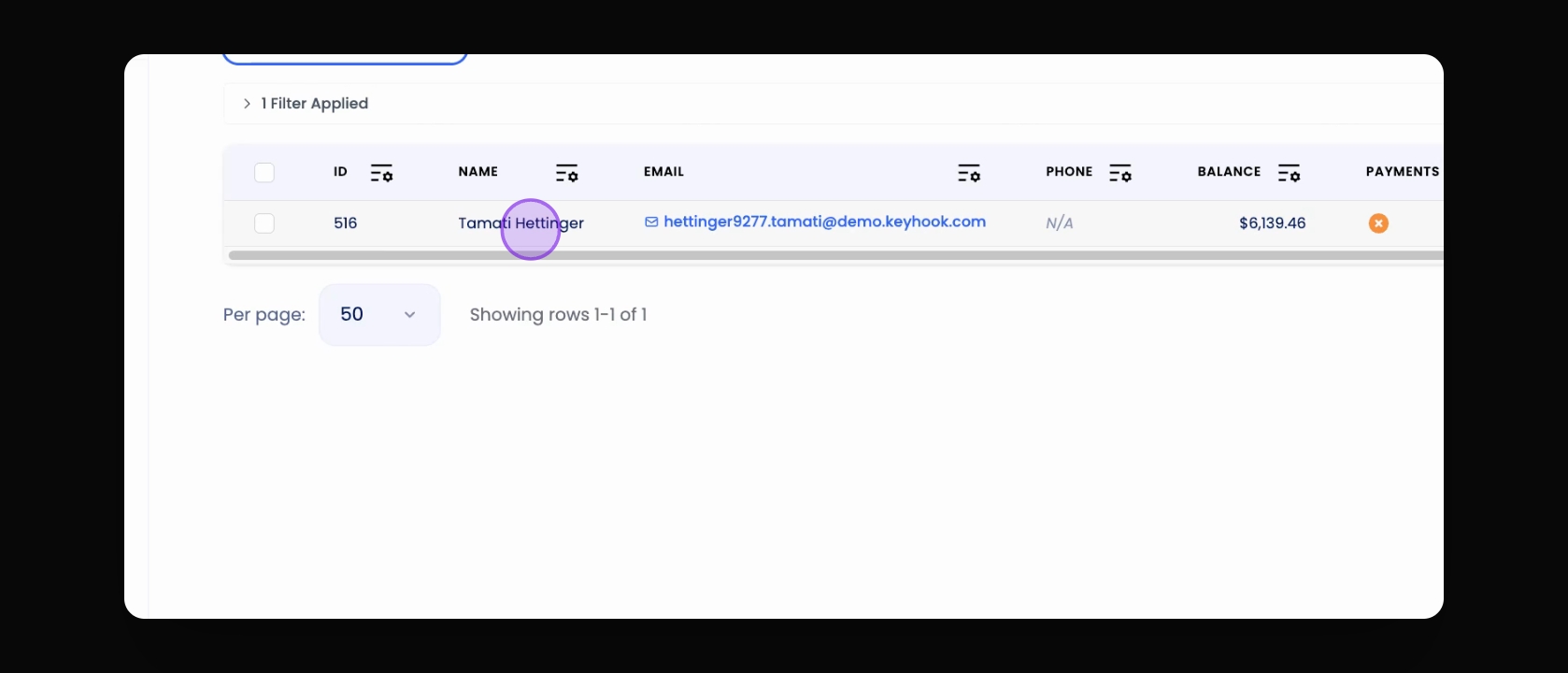
Step 4: Open Owner Profile
Click on the property owner to open their profile, known as the Property Owner Details page.
Step 5: View Reports Section
On the right-hand side of the owner's details page, find the section called Reports.
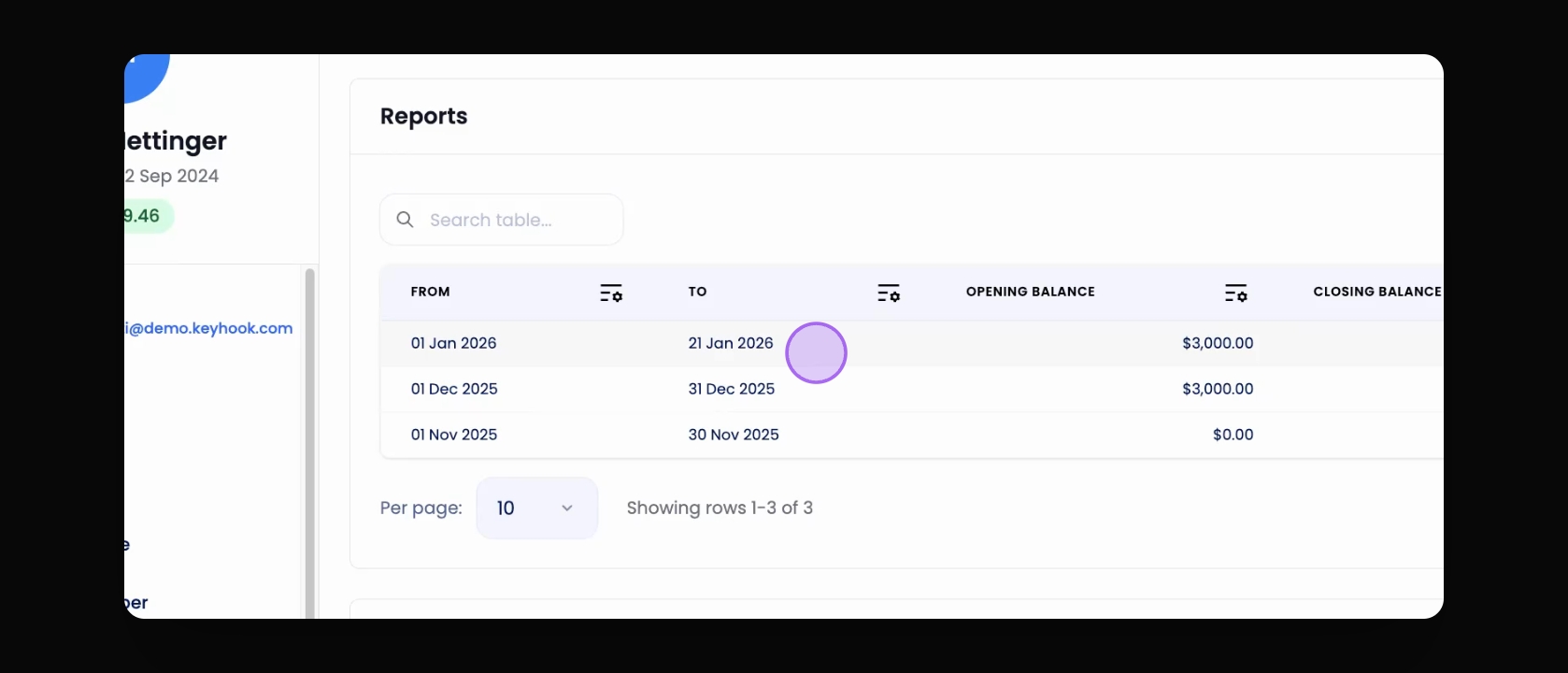
Step 6: Preview Reports
Click on any report in the list to preview its details as they were sent.
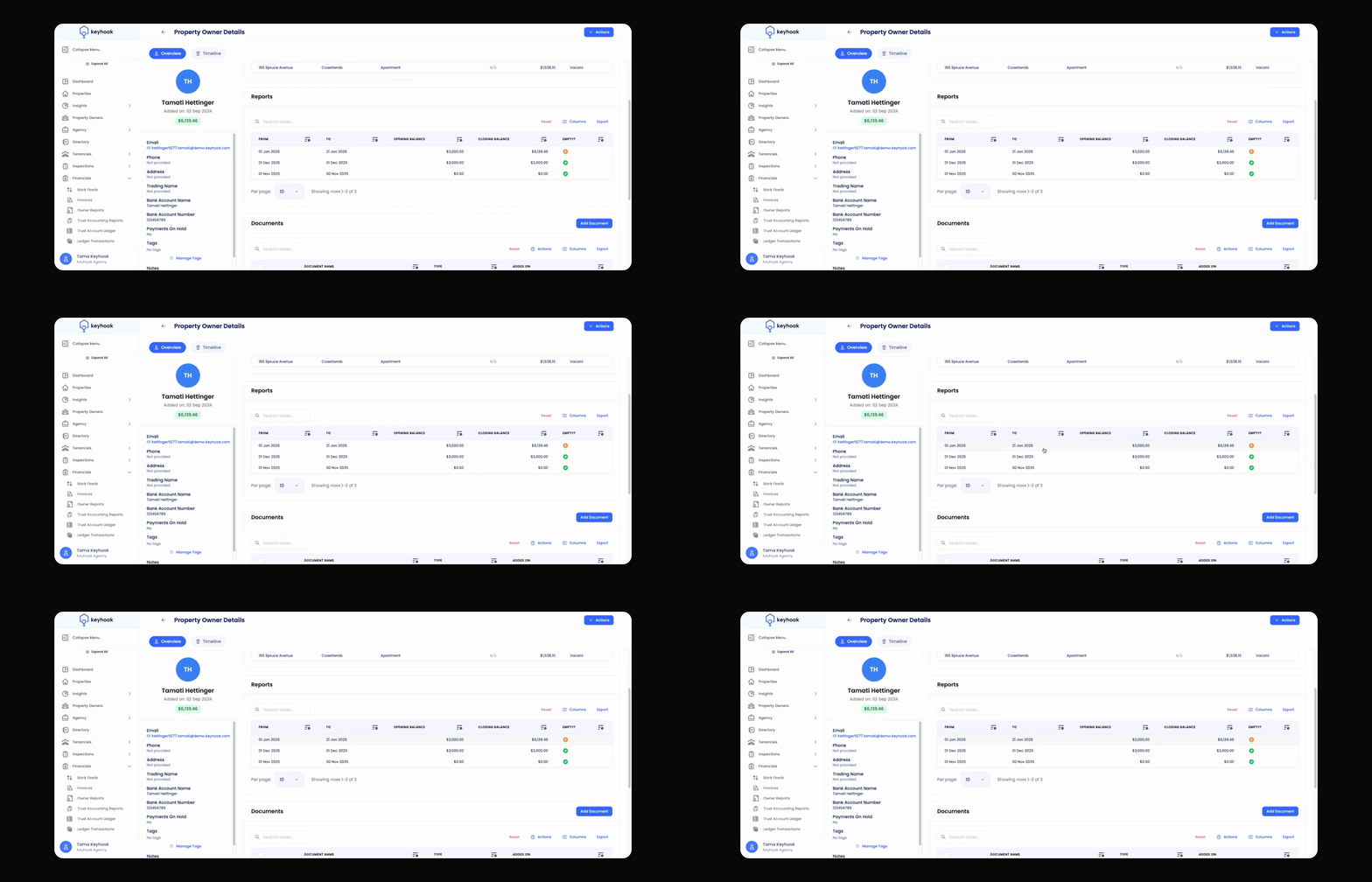
Step 7: Export Reports
You can also export the list of past owner reports for records, audits, or compliance purposes.