

Step by step guide
Step 1: Open Financials Menu
The Financials section opens.
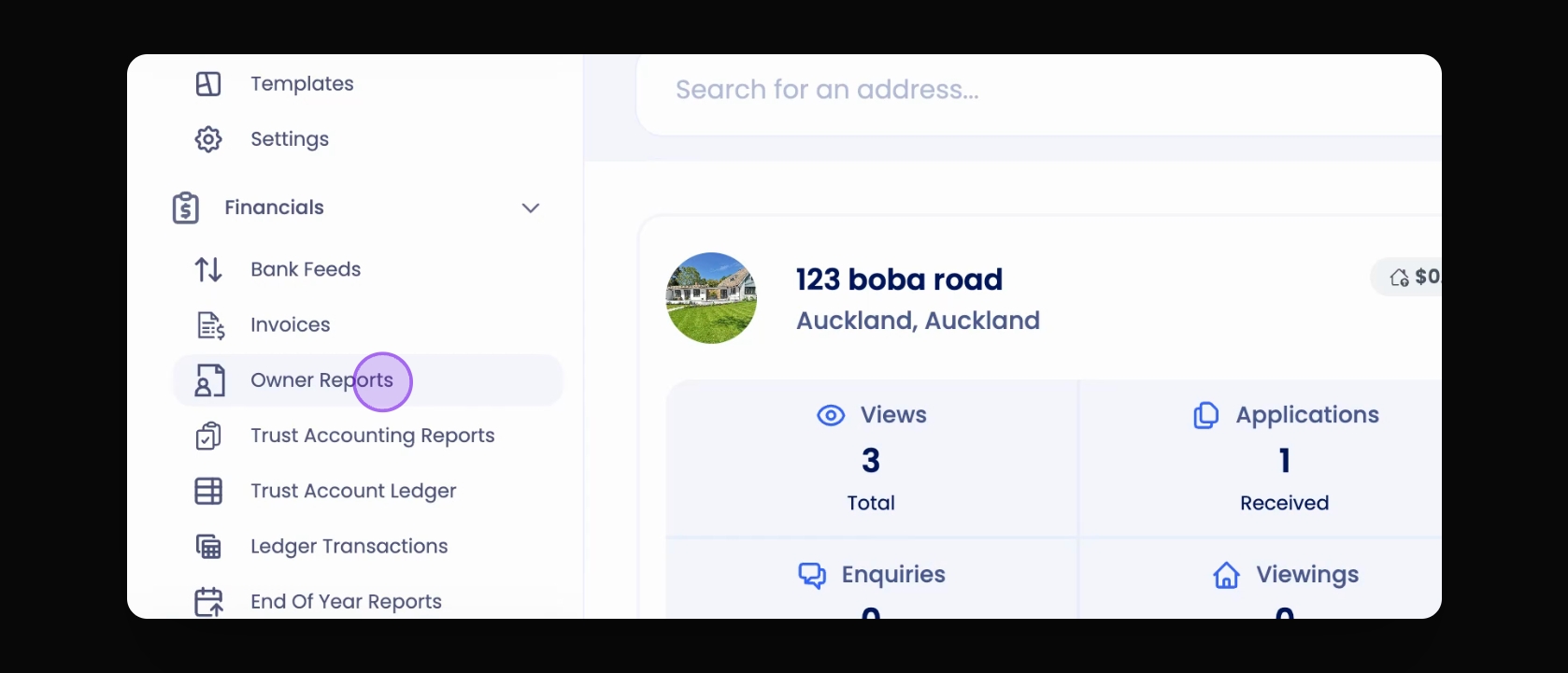
Step 2: Click Owner Reports
The owner reports options appear.
Step 3: Access Report Options
Click the Action button to see report options.
Four report options are displayed.
Step 4: Generate All Report
This generates reports for all owners across your agency.
Step 6: Generate Portfolio Reports
This generates reports for specific portfolios within your agency.
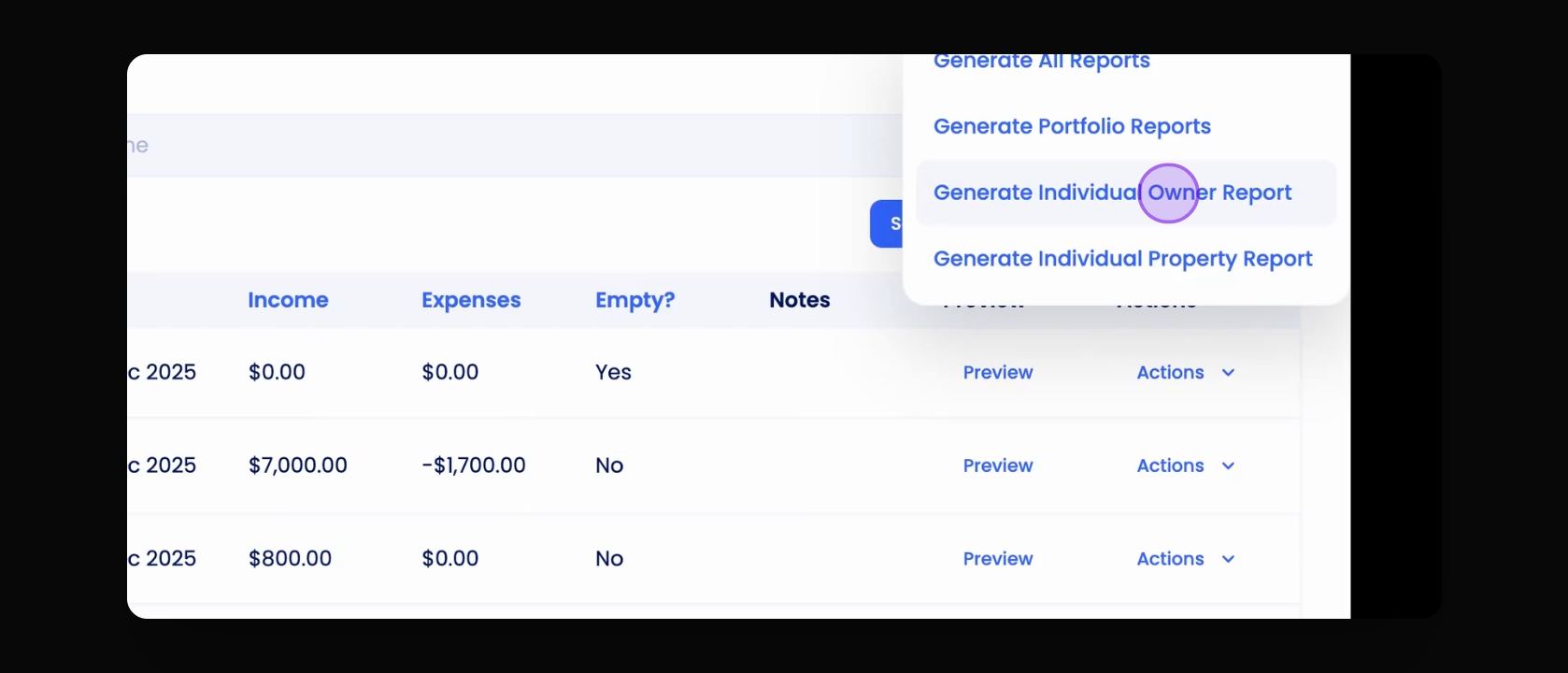
Step 7: Generate Individual Owner Report
This generates a report for an individual owner's properties.
Step 8: Generate Individual Property Report
This generates a report for a specific property only.
Step 9: Example: Lookup Individual Owner
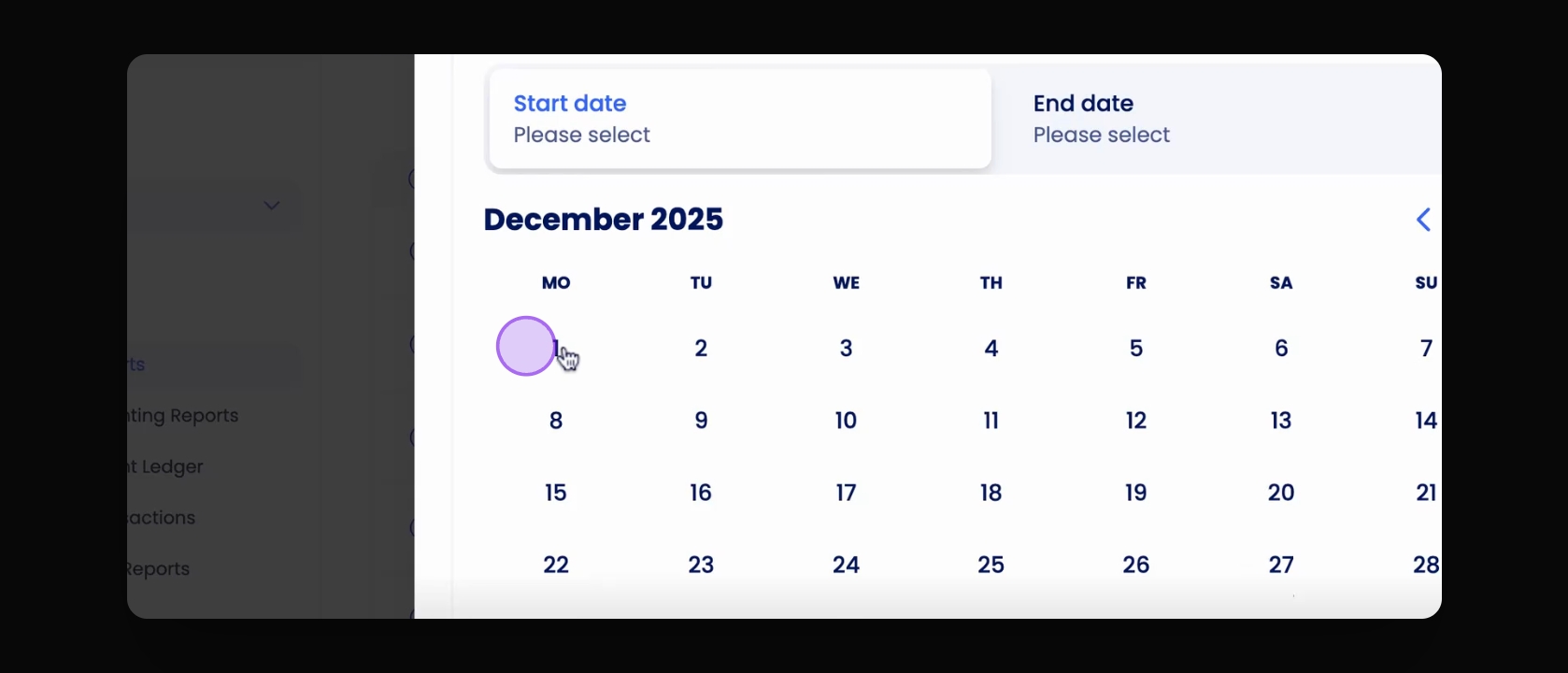
Step 10: Select Date Range
Select the start and end date for the report.
This defines the reporting period.
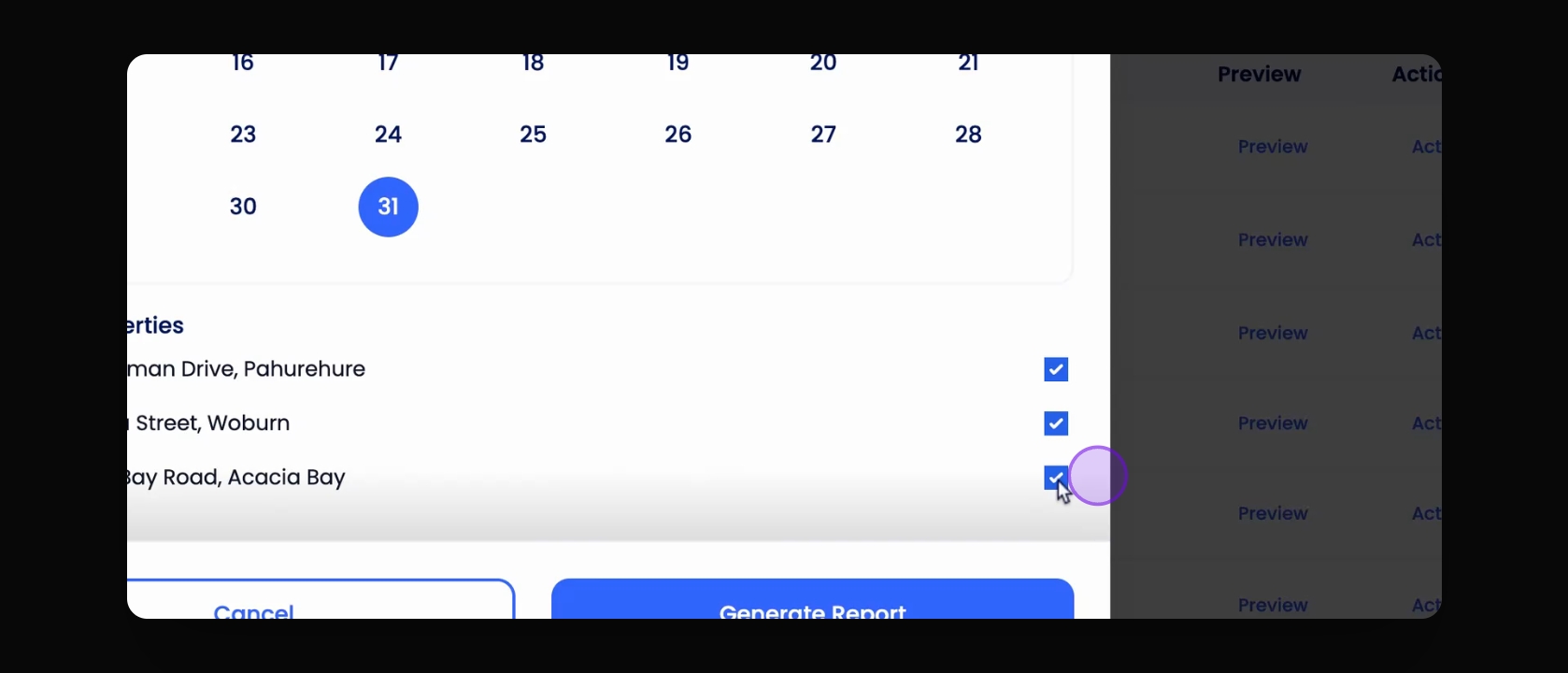
Step 11: Select the relevant Property
If applicable, choose the specific property from the list.
The selected property is now associated with the report.
Step 12: Generate the Report
Click on Generate Report.
The report is now generated successfully.
Step 13: Access Generated Report Actions
You will see actions available for the report.
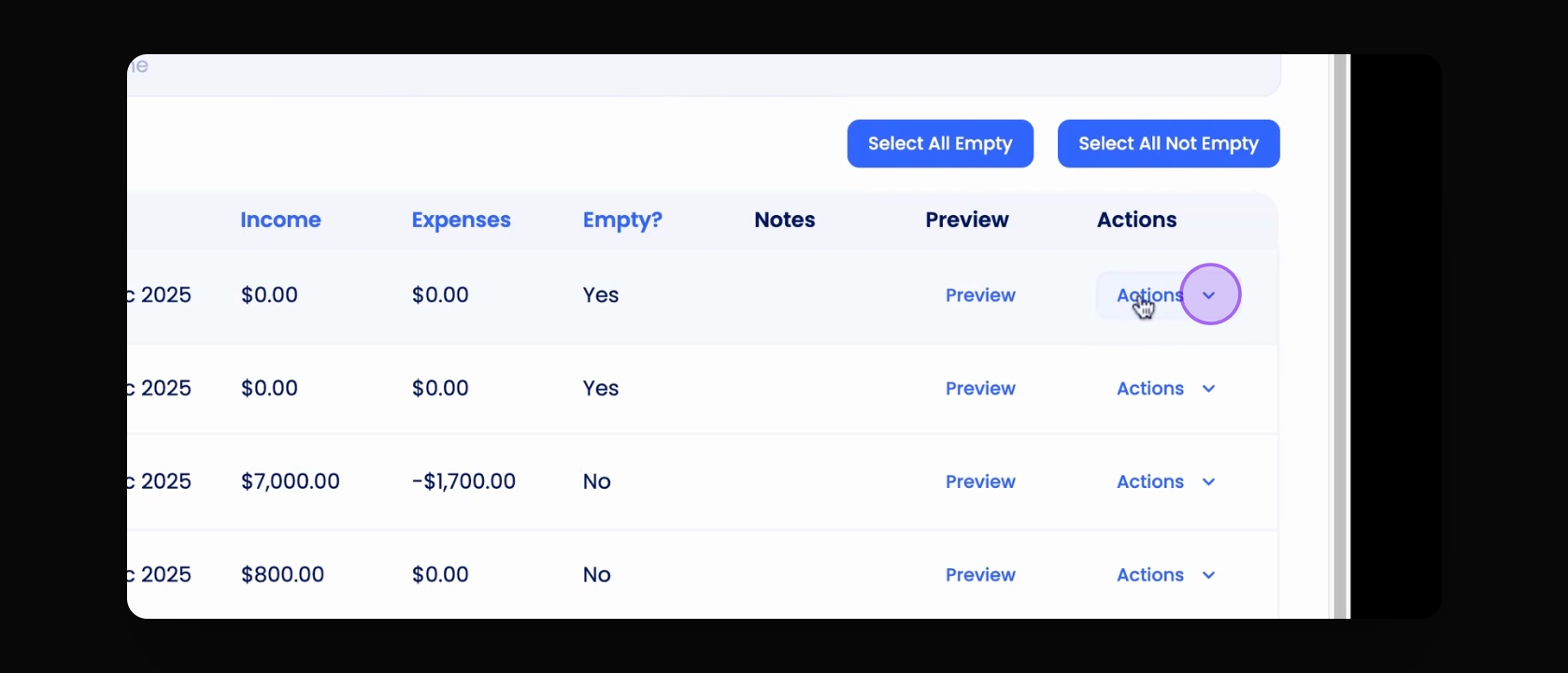
Step 14: View Property Breakdown
Click to see all properties linked to the owner.
Step 15: Add Notes to the Report
You can add relevant notes to the report.
Step 16: Archive the Report
You can archive the report if no longer needed.
Step 17: Send Report to Owner
Send the report directly to the owner.
Step 18: Delete the Report
Delete the report if it is no longer necessary.
Step 19: Multi-select Reports
Use the dot button next to the report name to select multiple reports.
You can perform bulk actions on selected reports.
Step 20: Quick Select Reports using Select all empty and not empty button
Select all or specific reports quickly using the options at the top right.
This simplifies the process of selecting multiple reports.
Step 21: Preview the Reports
Click the Preview button to view the report layout.
This shows how the report will appear.
Step 22: Download the Report
Download the report in PDF format for your records.