

TL;DR
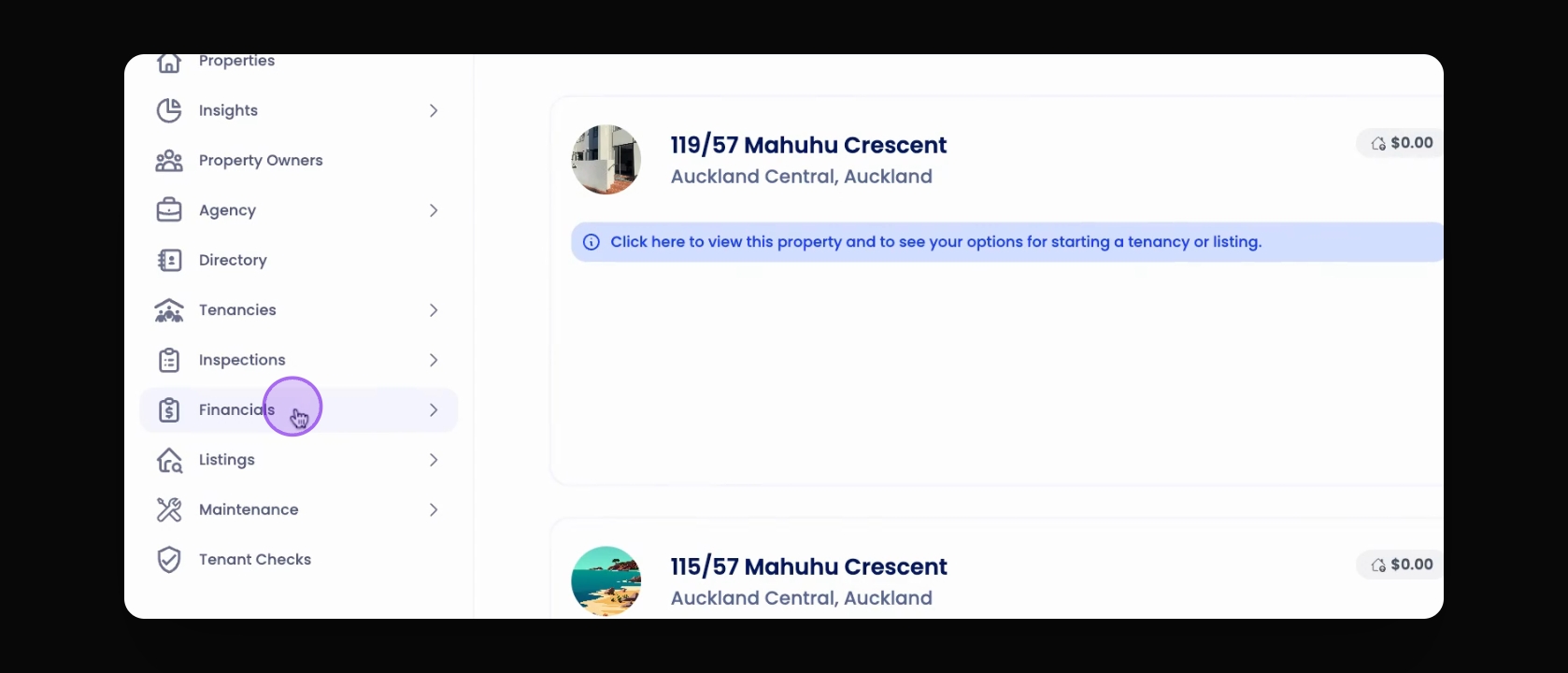
This can be found under Financials section on left side
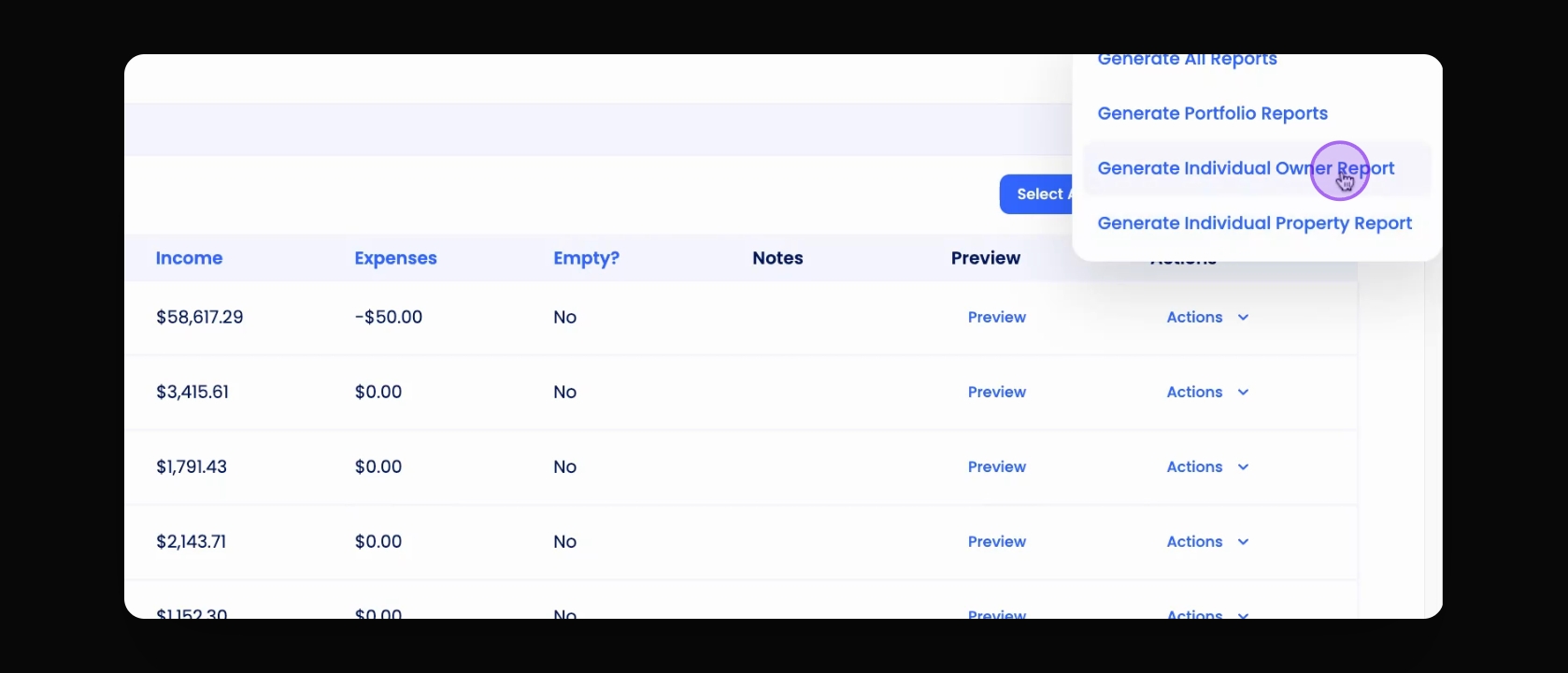
Depending on you needs select the appropriate option
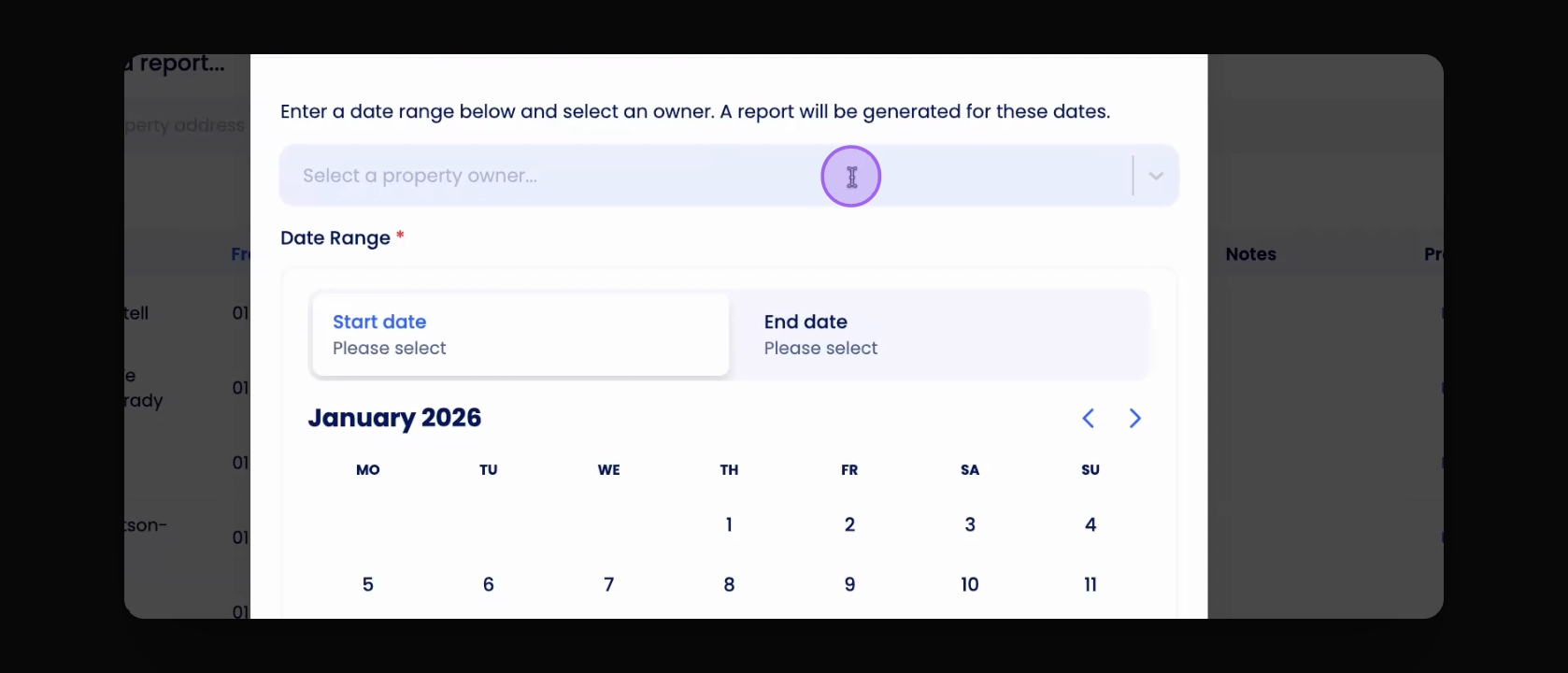
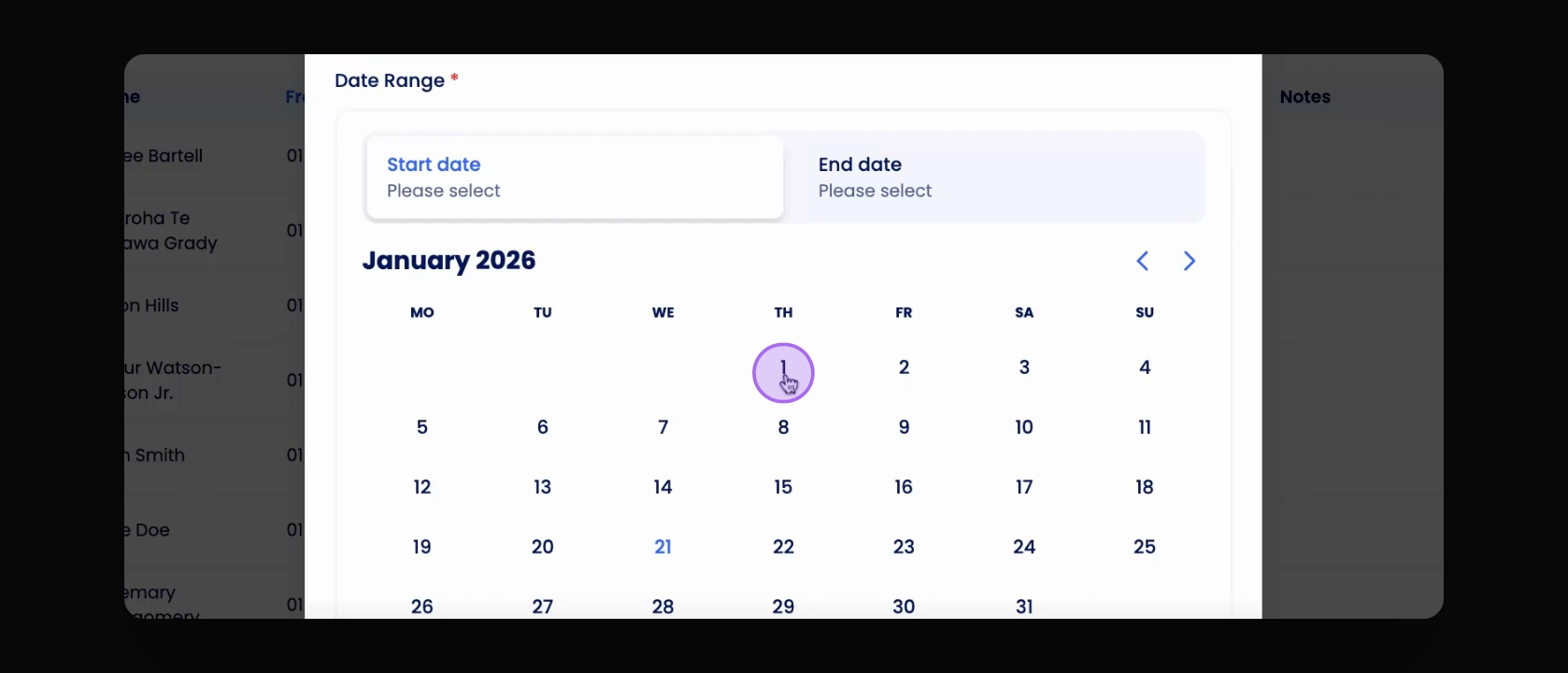
Provide the owner name and select the date range
This will create a report which can be previewed for confirmation before sending out to the owner
Let's do it together!
Step 1: Navigate to Reports
Navigate to Owner Reports from the left hand side menu.
Step 2: Access Financial Section
Scroll down to the Financial section and click on Owner Reports.
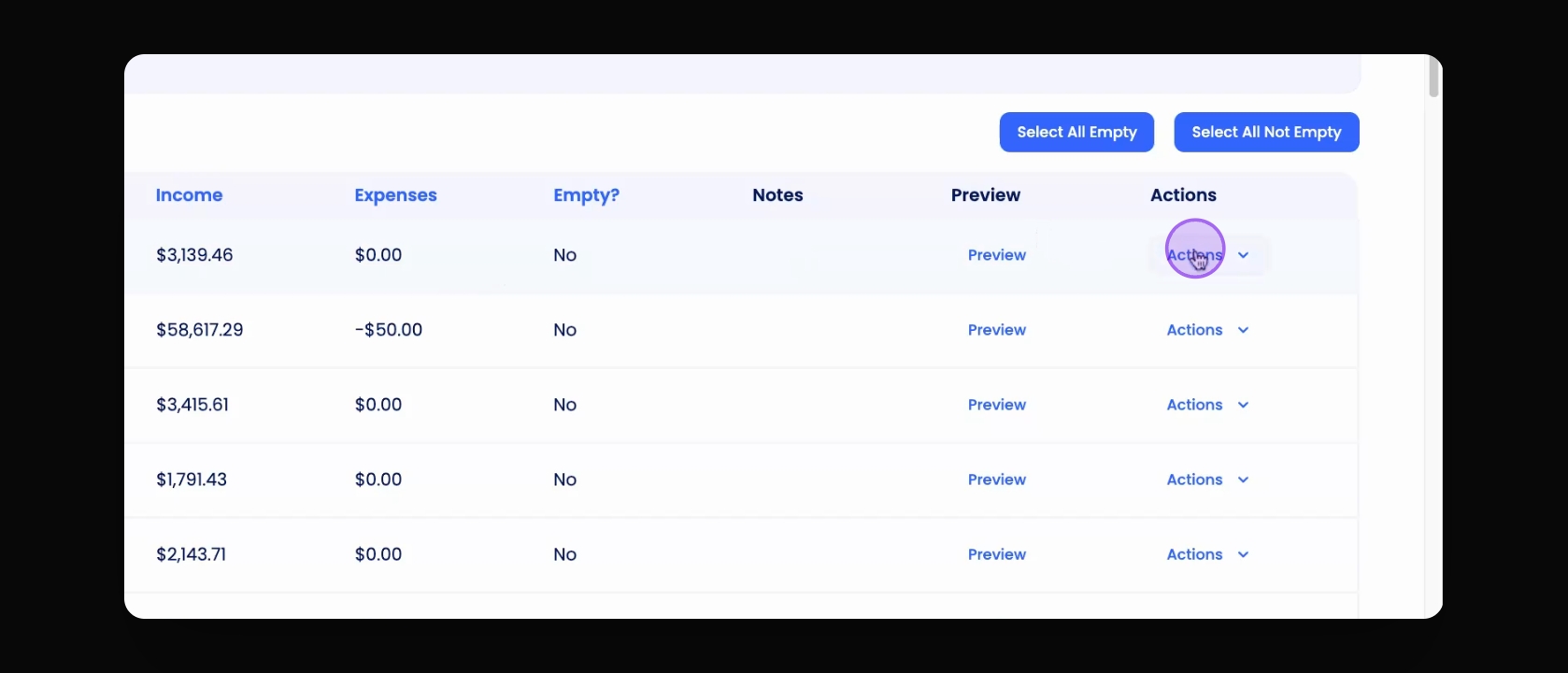
Step 3: Open Actions Menu
Click on the Actions button found on the right hand side.
Step 4: Choose Report Type
Select the type of report you want to generate: Generate All Reports, Generate Portfolio Reports, Generate Individual Owner Report, or Generate Individual Property Report.
Step 5: Select Owner
Select the property owner by typing the name or choosing from the drop down list.
Step 6: Set Dates
Select Start date and End date for the report.
Step 7: Choose Properties
Scroll down to view all properties associated with this owner. You can select a specific property or leave all selected.
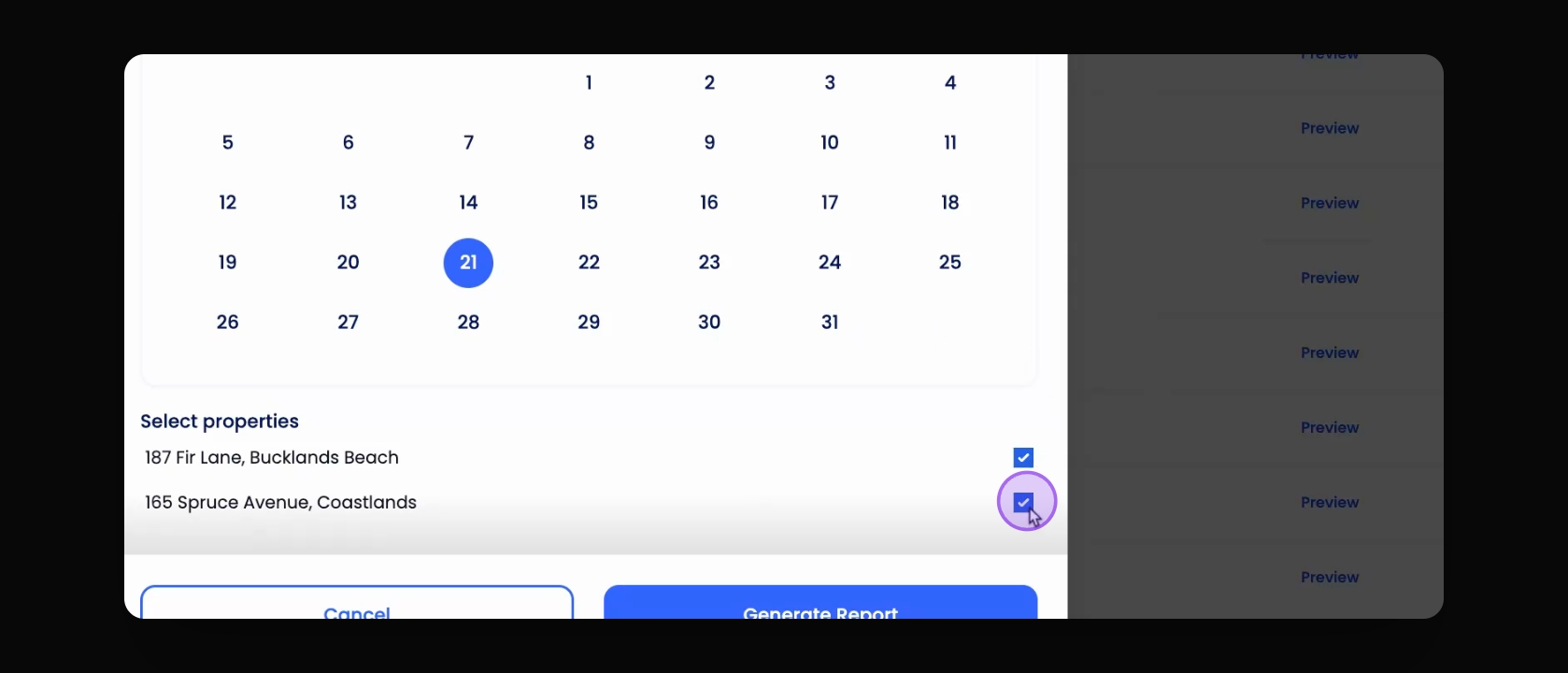
Step 8: Generate Report
Click Generate Report. The report will appear in the table below.
Step 9: Preview and Download
Preview the report or download it as a PDF. The preview will show either a single property or multiple properties based on your selection.
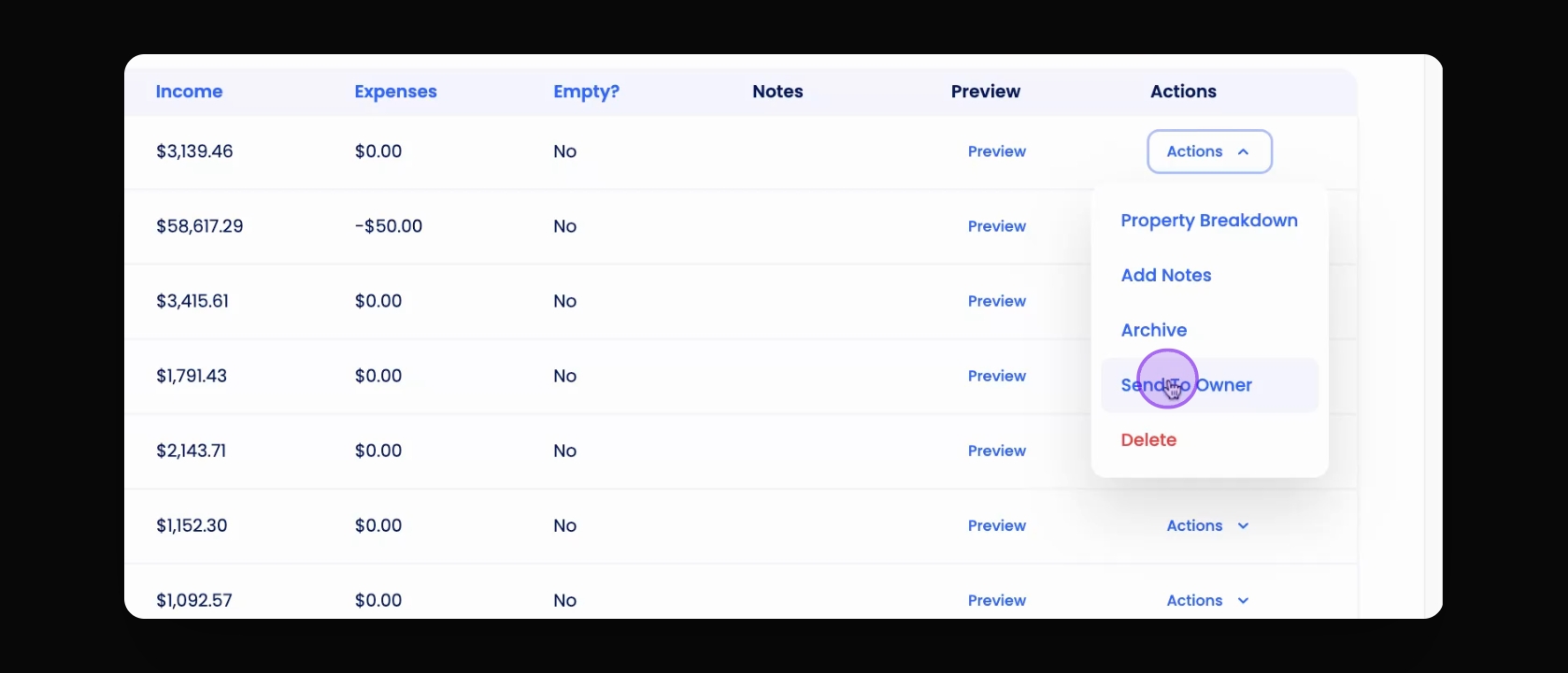
Step 10: Manage Report
Click on the Actions button next to the report to view breakdown, add notes, archive, or send it to the report owner.
Step 11: Regenerate if Needed
If you are not satisfied with the report, delete it and regenerate with updated selections.
Step 12: Send to Owner
If the report looks correct, click Send to Owner to share it.
If you cannot find what you are looking for or have any further questions, please feel free to contact us on support@keyhook.com.