TL;DR
Let's Do It Together!
Step 1: Access the Timeline
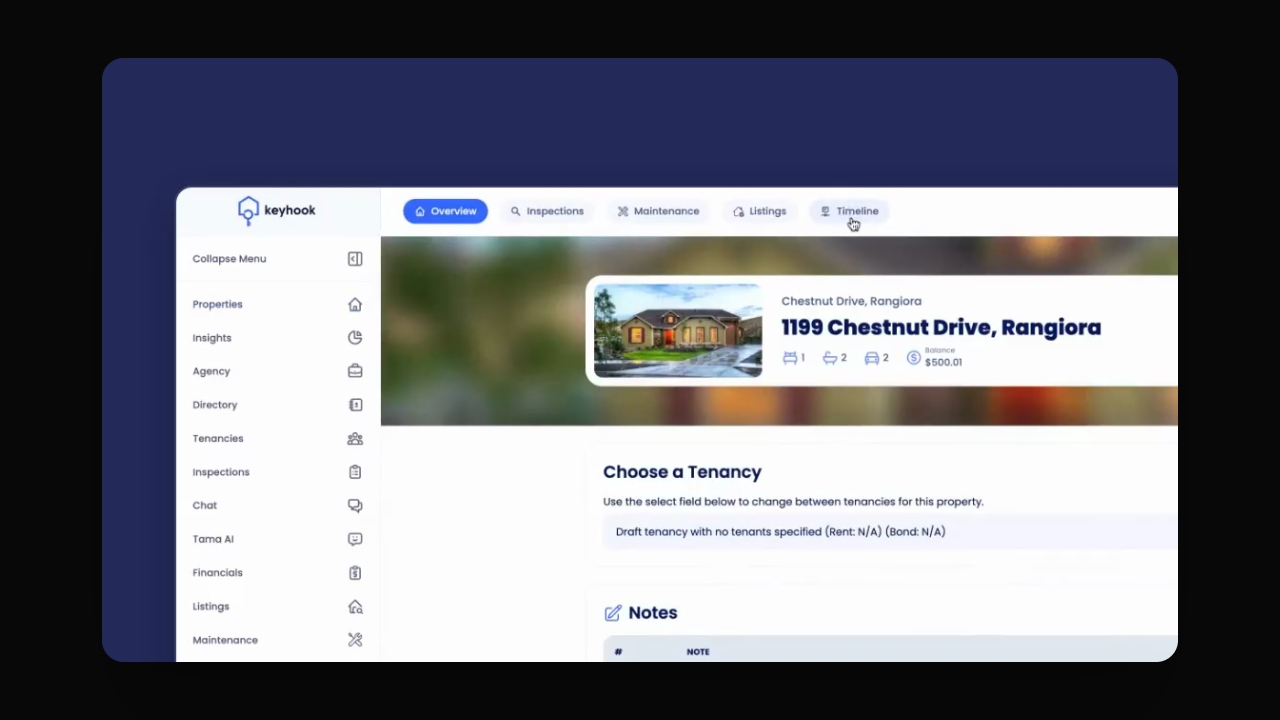
Click into the property you want to print events for.
Navigate to the timeline.
You will see the events listed in your timeline.
Step 2: Print an Individual Event
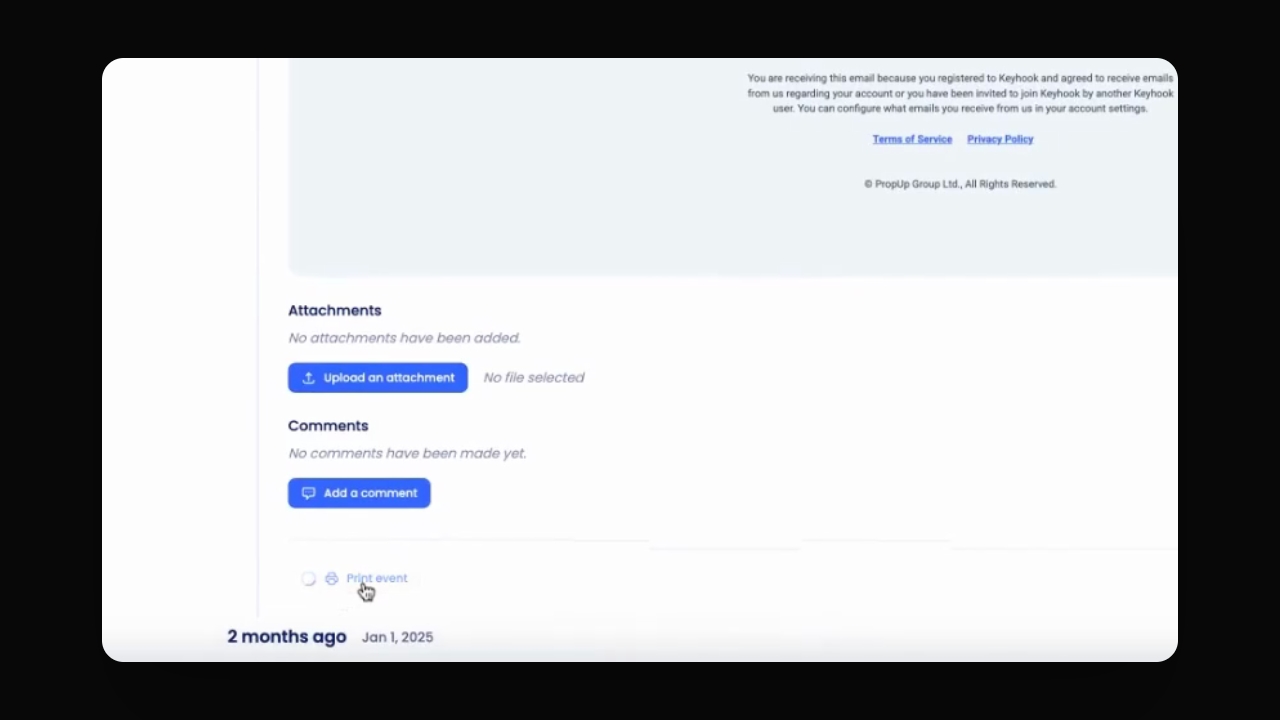
Click on an individual event you wish to print.
Scroll down to the bottom and click the Print event option.
The print dialog will display for that event.
Step 3: Print Multiple Events
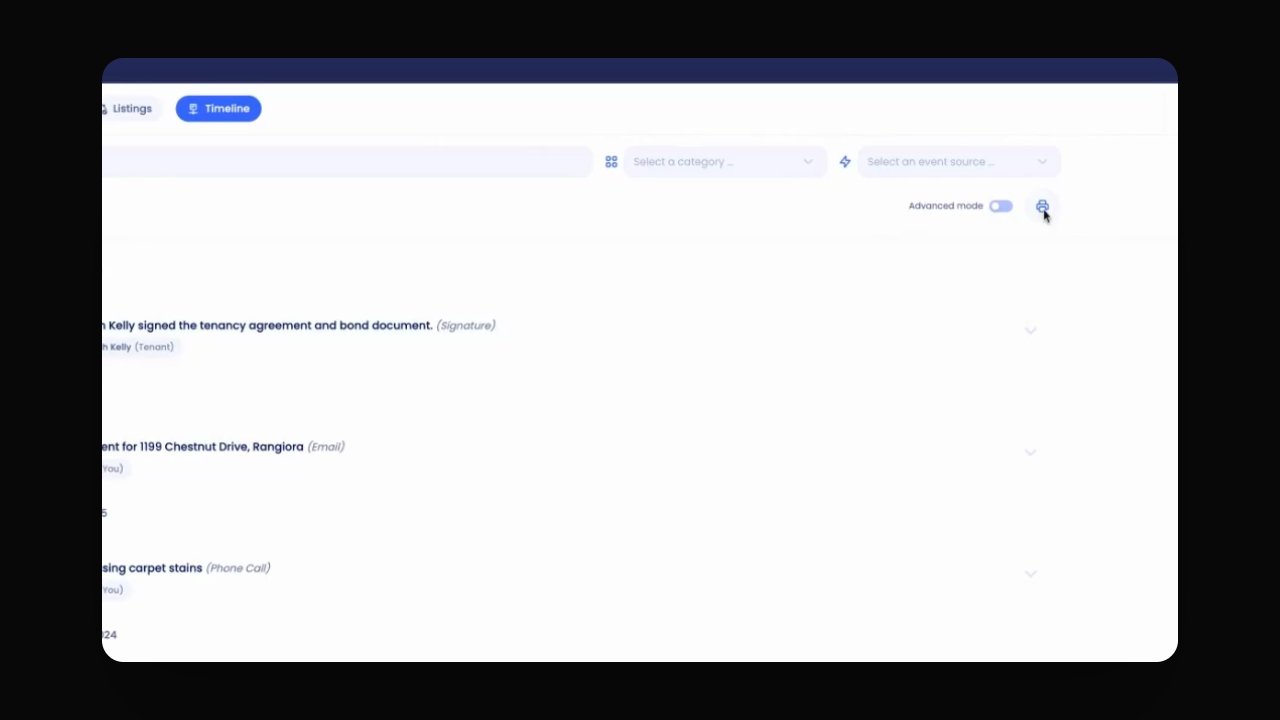
Click the Print icon at the top of the timeline.
Select or deselect the events you wish to print.
Then click Continue to print.
You can choose which events from the timeline to print.
Step 4: Filter Events to Print
Filter timeline events by date or categories.
Select the filters and press Print.
Choose to select all events from the filtered scope.
You will see the filtered events ready for printing.
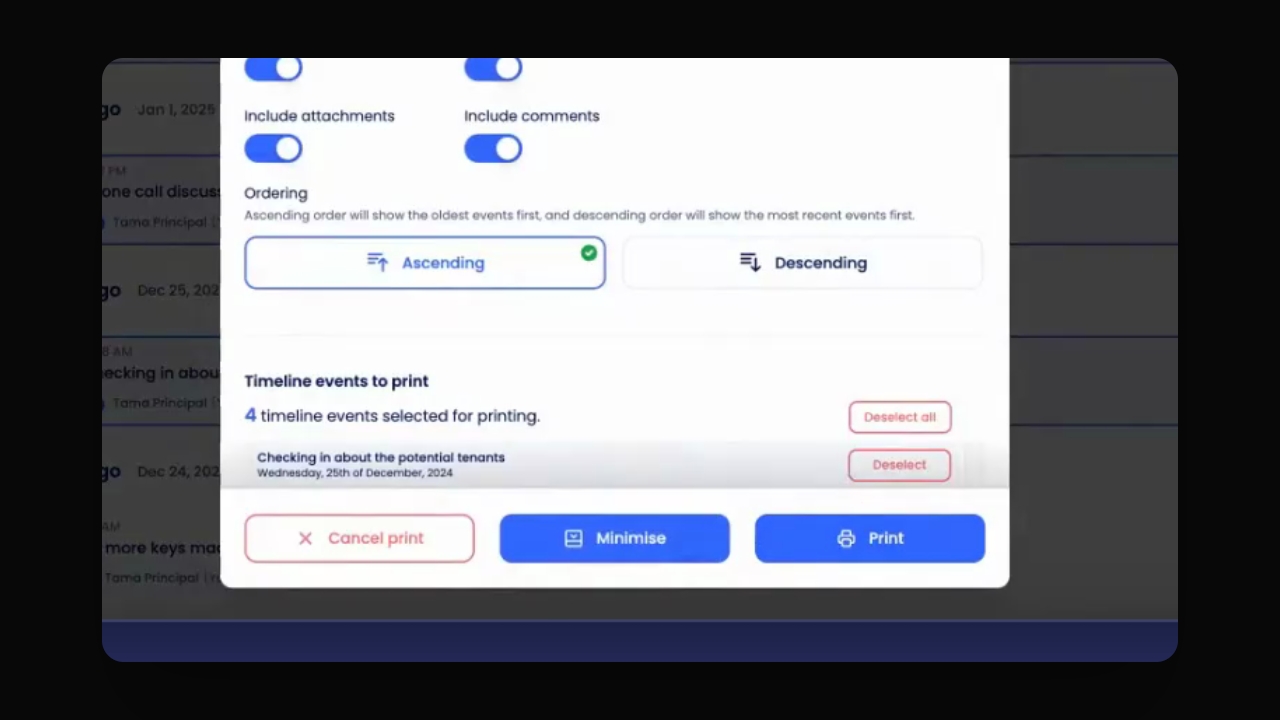
Step 5: Review Print Options
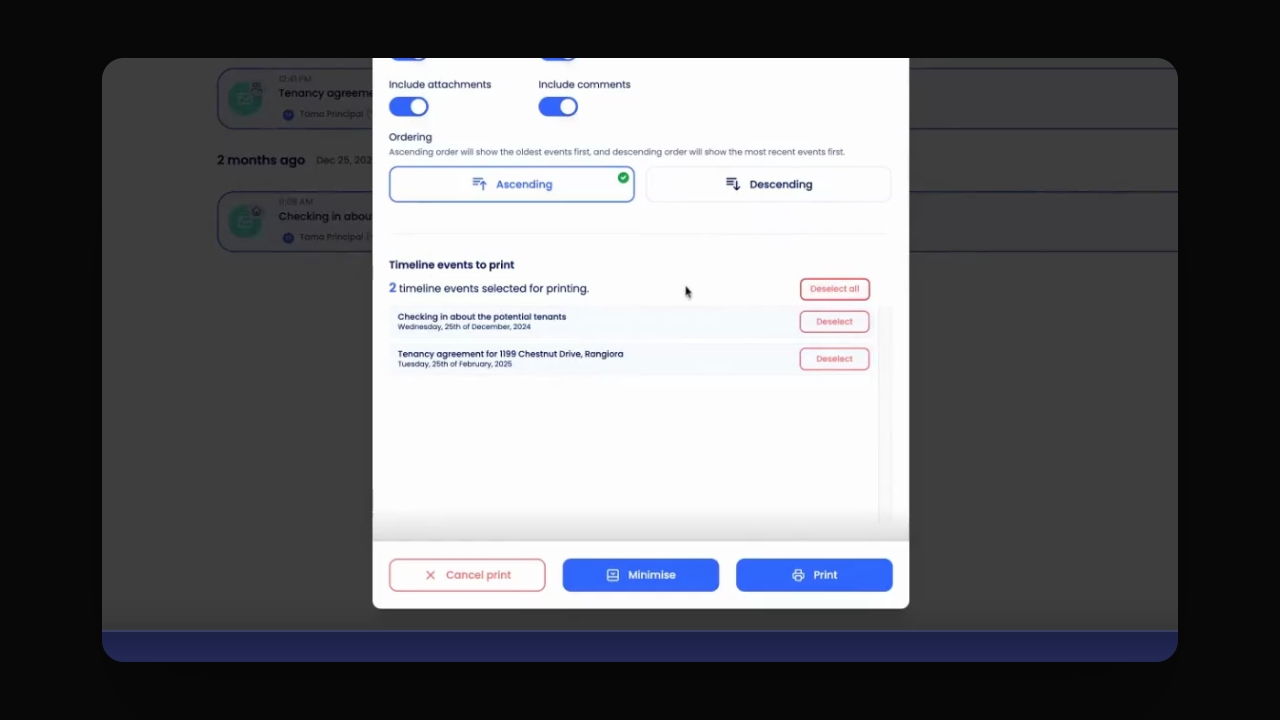
Review the overview of selected events for printing.
Deselect any events or select all as needed.
Choose options for print order and included details.
Your print settings are now configured.