

TL;DR
1
Visit the current listing
Go to the listing connected to the application.
2
Select the application
Click on Applications and choose the application to transfer.
3
Initiate transfer
Click Actions on the top right of the page and select Transfer Application.
4
Choose new listing
Select the listing to transfer the application to.
5
Confirm transfer
Click Transfer to complete the process.
Let's Do It Together!
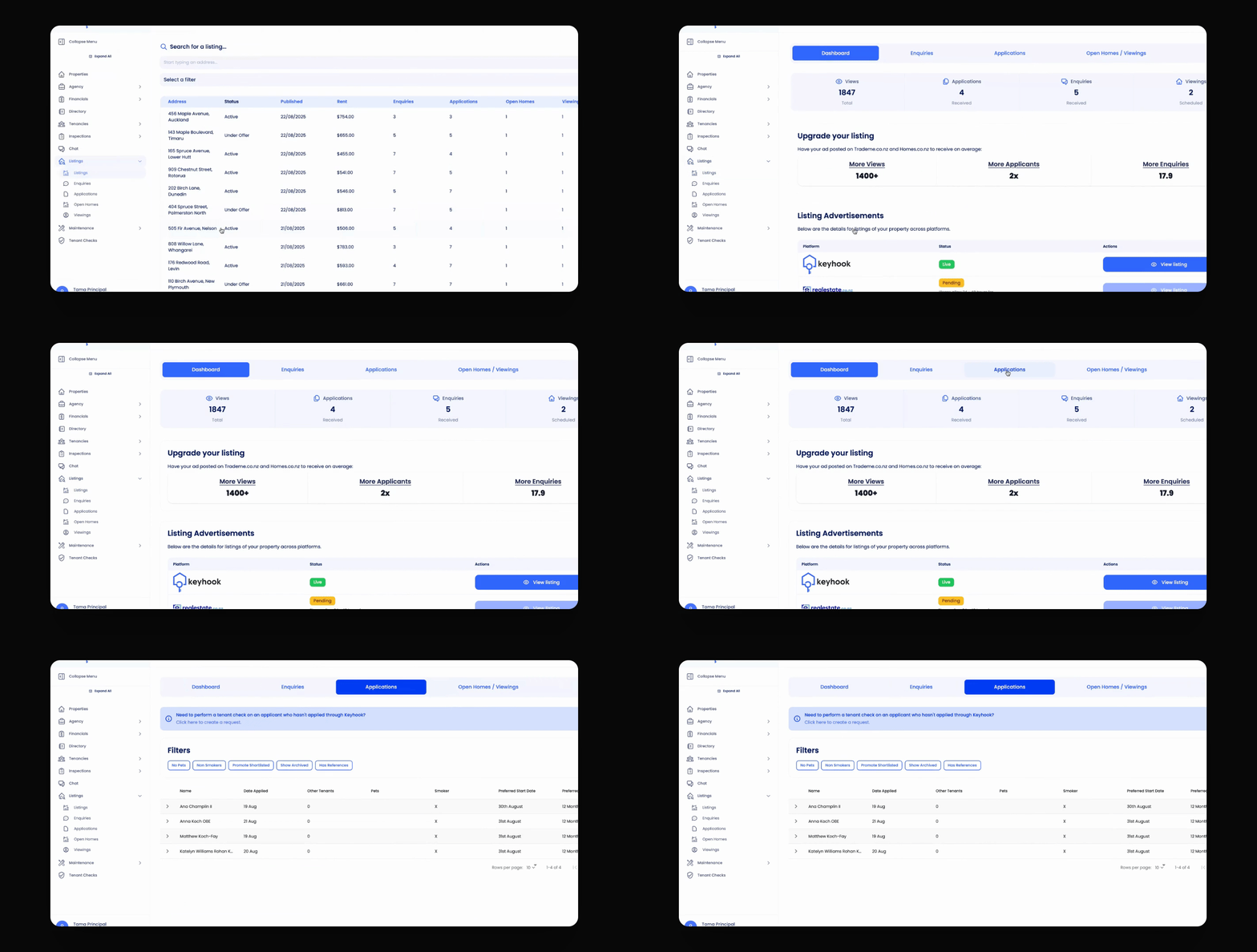
Step 1: Select the Application
Visit the listing that the application is currently connected to.
Click on Applications to view the list of applications.
Select the desired application you want to transfer.
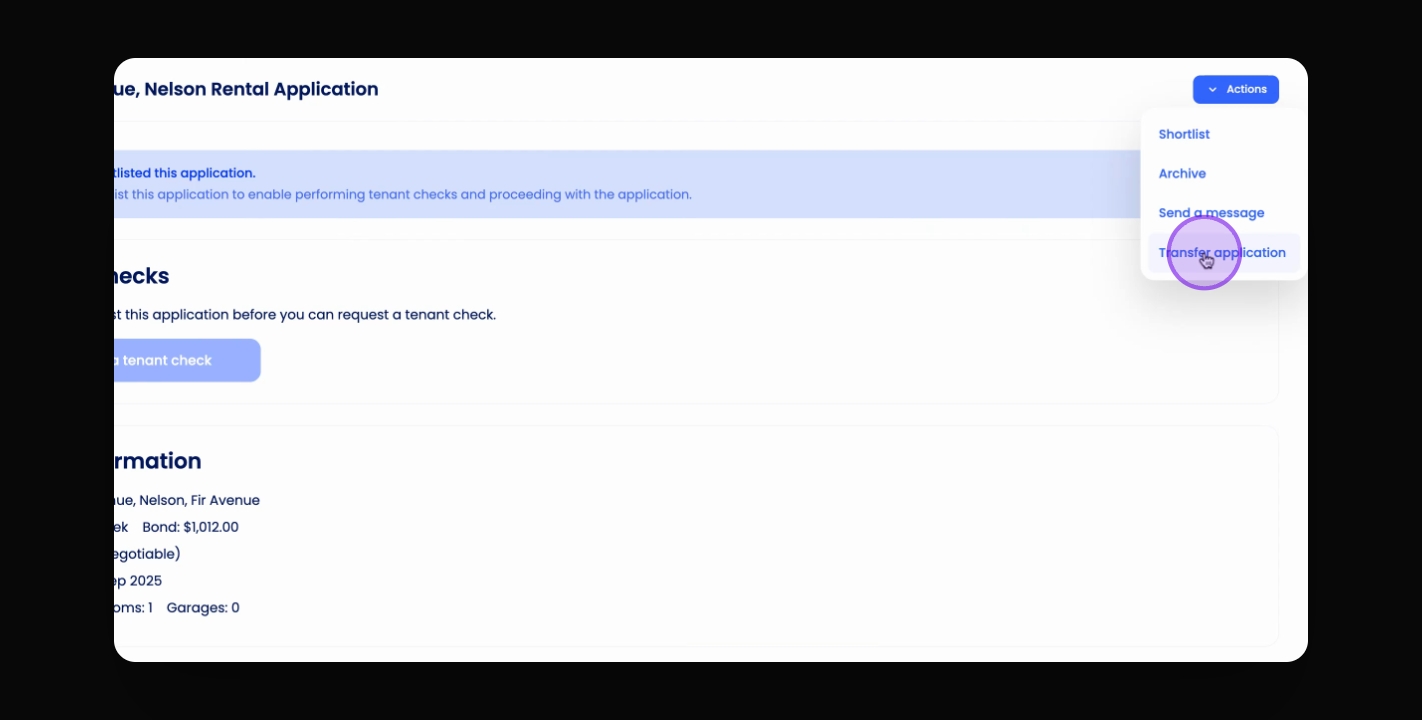
Step 2: Initiate Transfer
Click on Actions at the top right corner.
Select Transfer Application from the dropdown.
Step 3: Choose New Listing
Select the listing where you want to move the application.
You can choose from the dropdown or begin typing to Search.
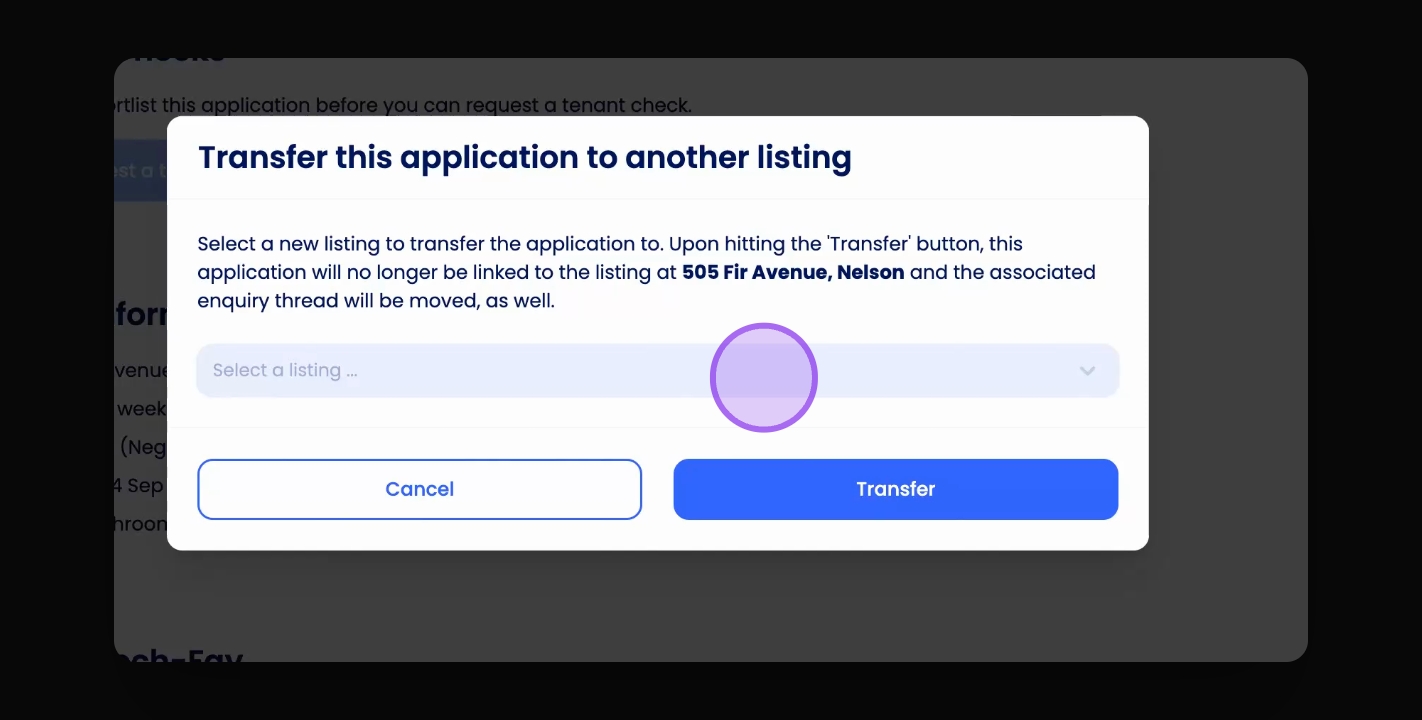
Step 4: Complete the Transfer
Once the new listing is selected, click Transfer.
The application will be transferred along with any inquiry thread attached to it.
Your application has now been successfully transferred to the new listing.
Troubleshooting
Unable to find the application
Ensure you are in the correct listing and check for any filters.
Transfer option not visible
Verify your permissions to ensure you can transfer applications.
FAQ
Can I transfer multiple applications at once?
No, transfers must be done one application at a time.
What happens to the inquiry thread?
The inquiry thread is transferred along with the application.