

To set up your Send from email for each portfolio, click into Agency and Email Management. Let's look at the steps:
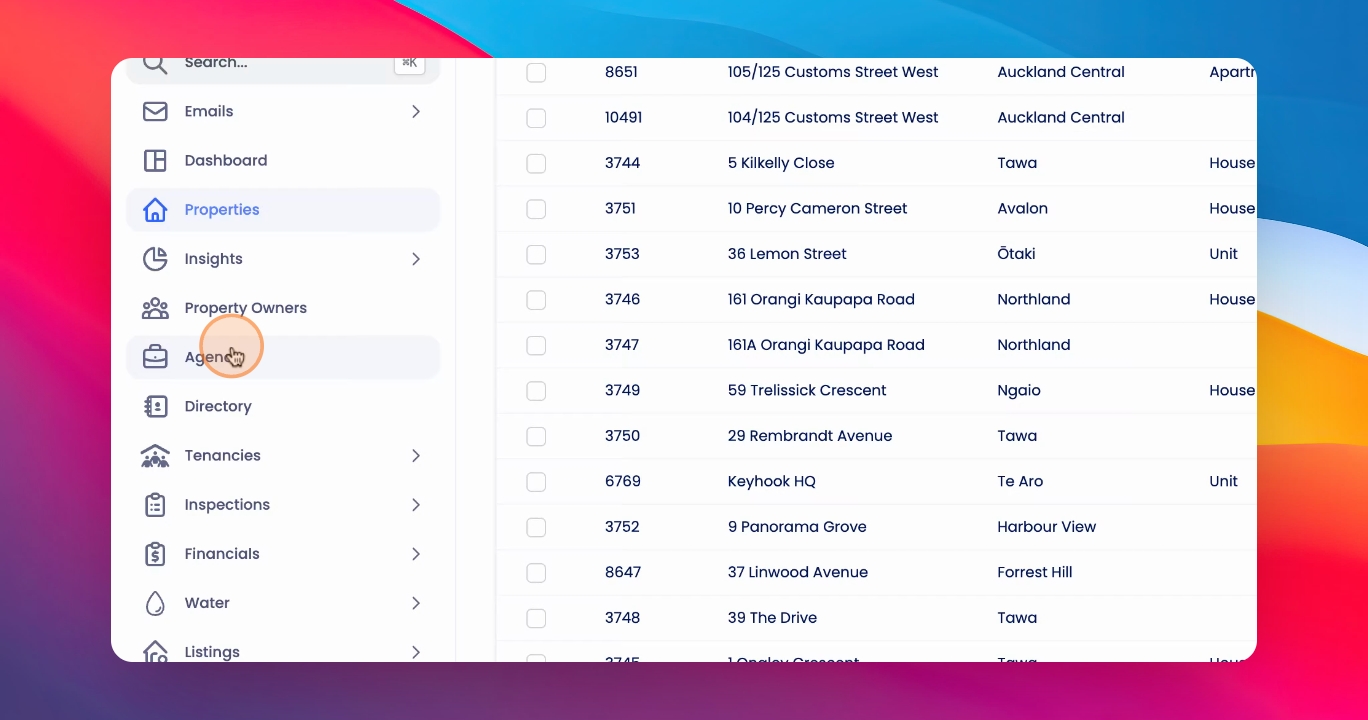
Step 1: View Default Emails
You'll see the default send from email addresses for each portfolio.
Step 2: Add Email Address
If you add an address for James Portfolio, select the domain that you've connected.
Step 3: Enter Email Prefix
Type in the beginning of your email address, for example Sam.
Step 4: Autofill Domain
Once you've selected the domain, it will automatically autofill with this relevant domain.
Step 5: Specify Sender Name
Specify the sender name and the email categories from which you'd like to send using this email.
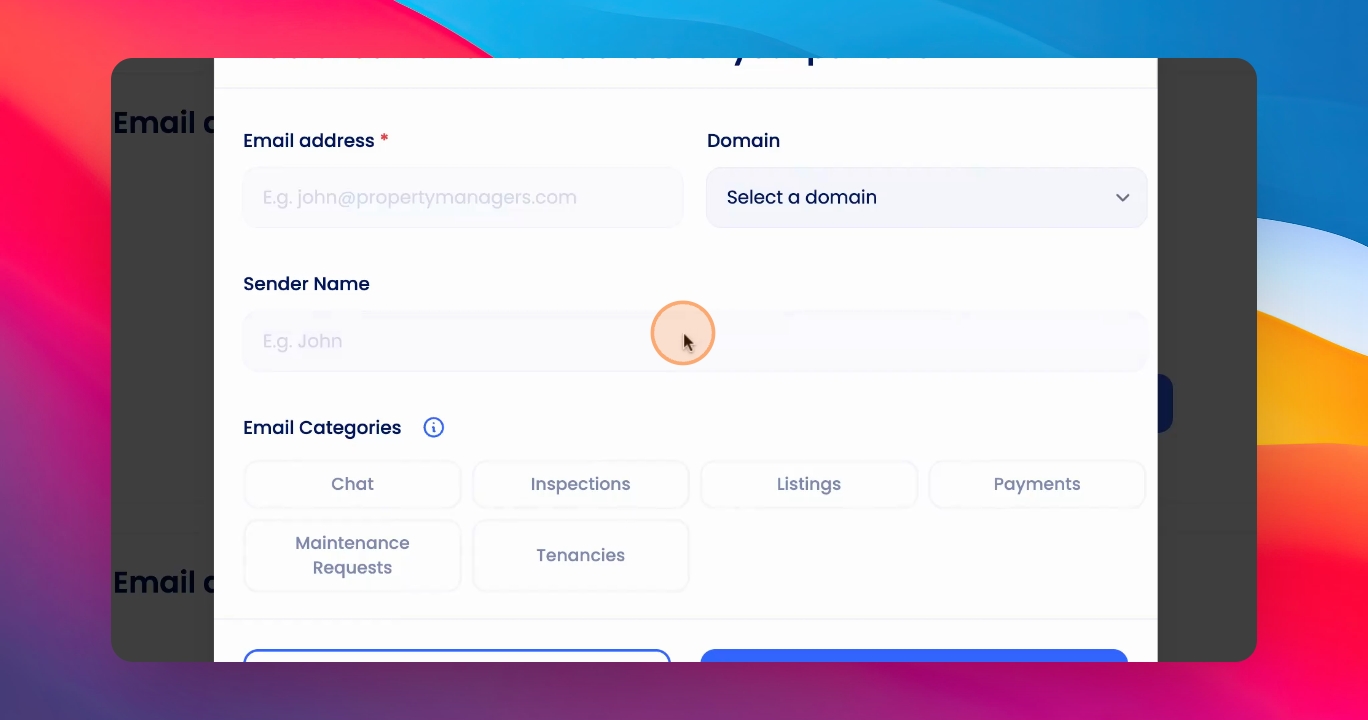
Step 6: Save Changes
Click Save and that will set the send from email for that portfolio.