

TL;DR
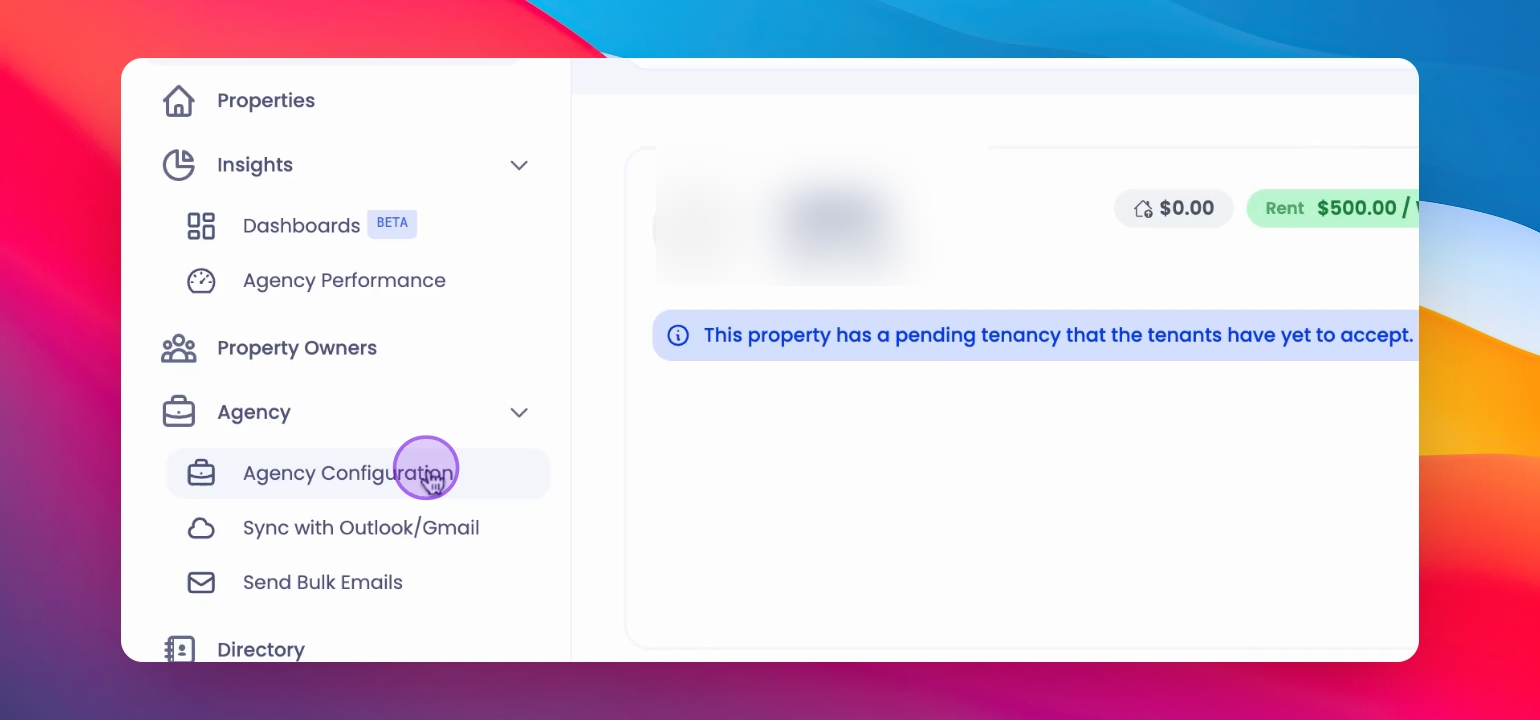
From the left hand side menu under Agency
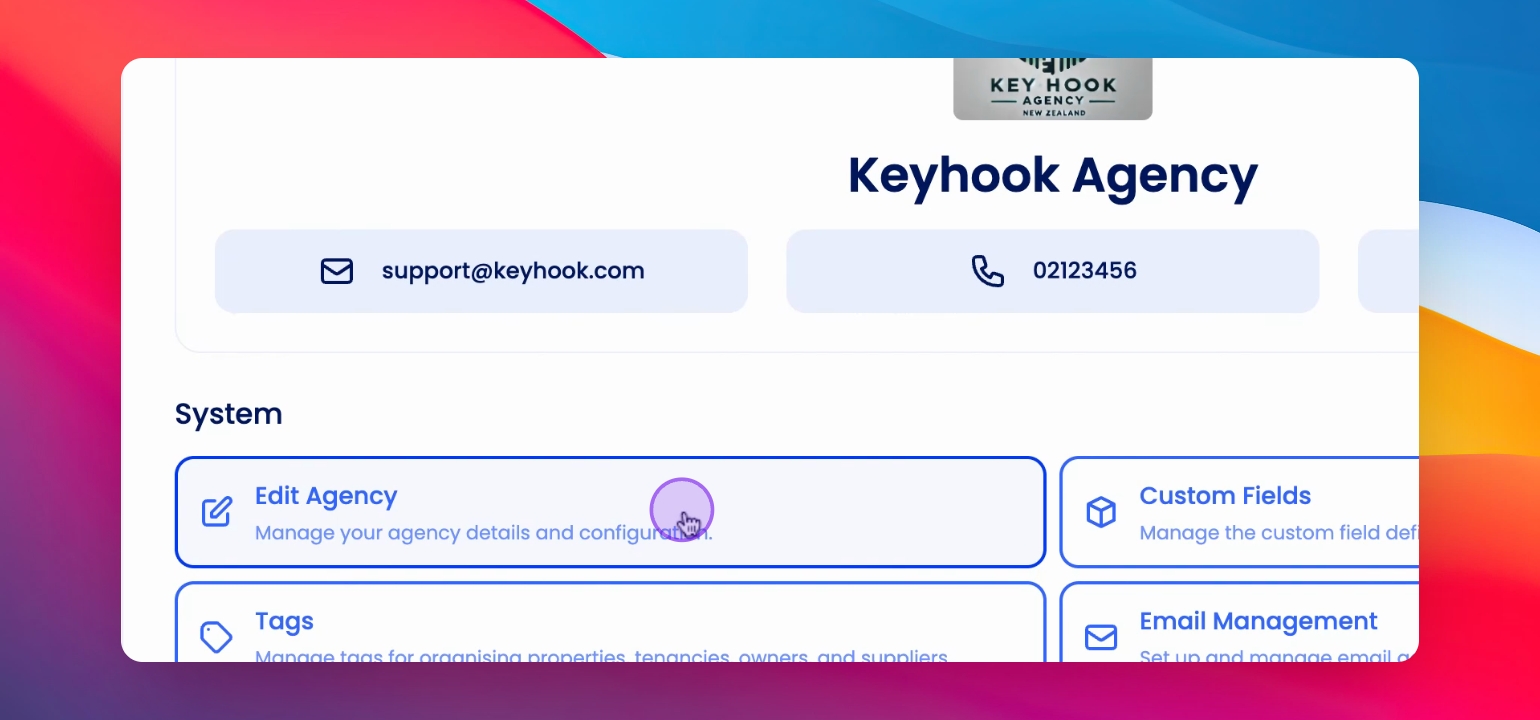
This can be found in the System Section
In this section you can define the rules
Make the edit based on how the Agency operates
The Inspection Charge Behaviour has been set across the agency
Let's Do it together!
Step 1: Access Agency Configuration
You are now in the Agency Configuration section.
Step 2: Edit Agency Details
Your agency details can now be modified from this page.
Step 3: Navigate to Inspection Settings
Scroll down to the bottom, to see the inspection settings section.
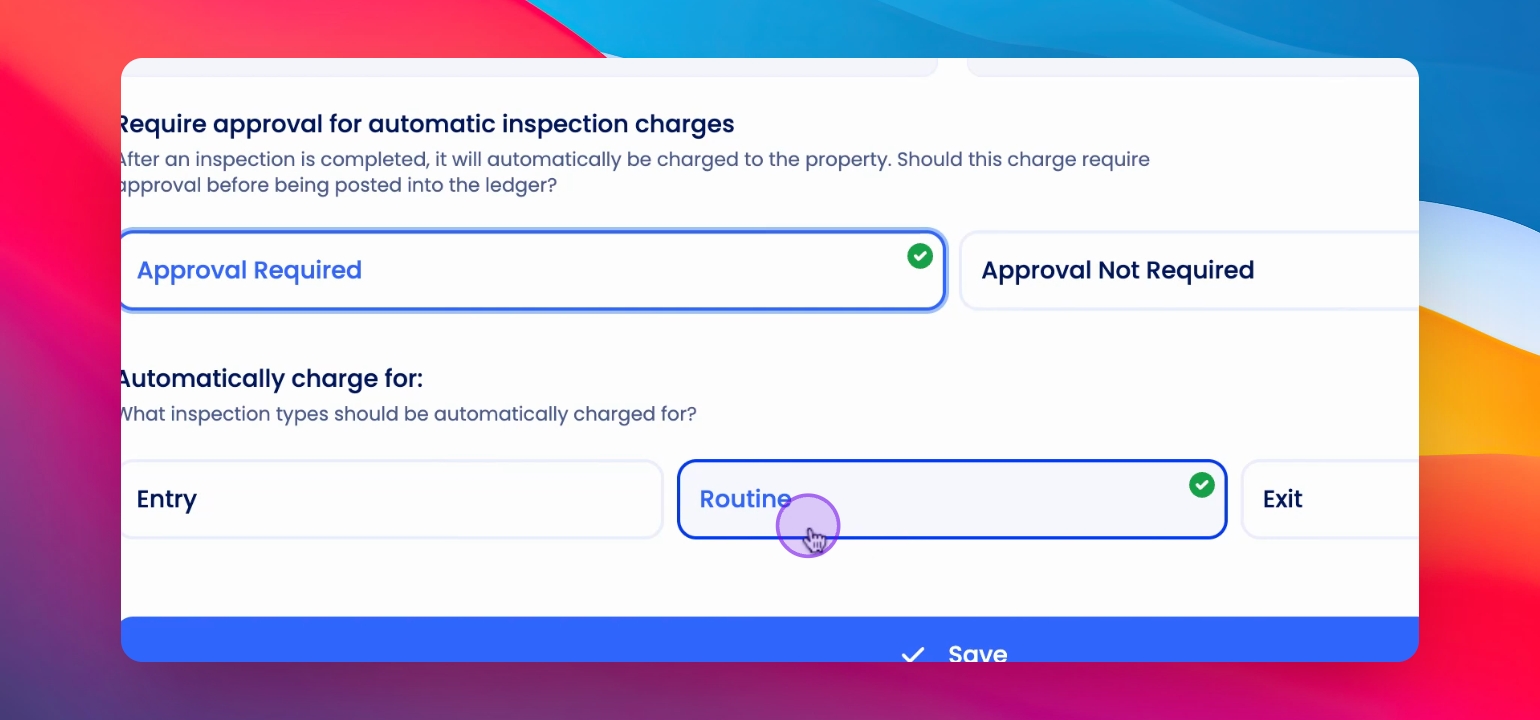
Step 4: Set Approval Requirement based on the conditions
For Example, If approval is not required, select Approval Not Required.
Approval requirement is updated accordingly.
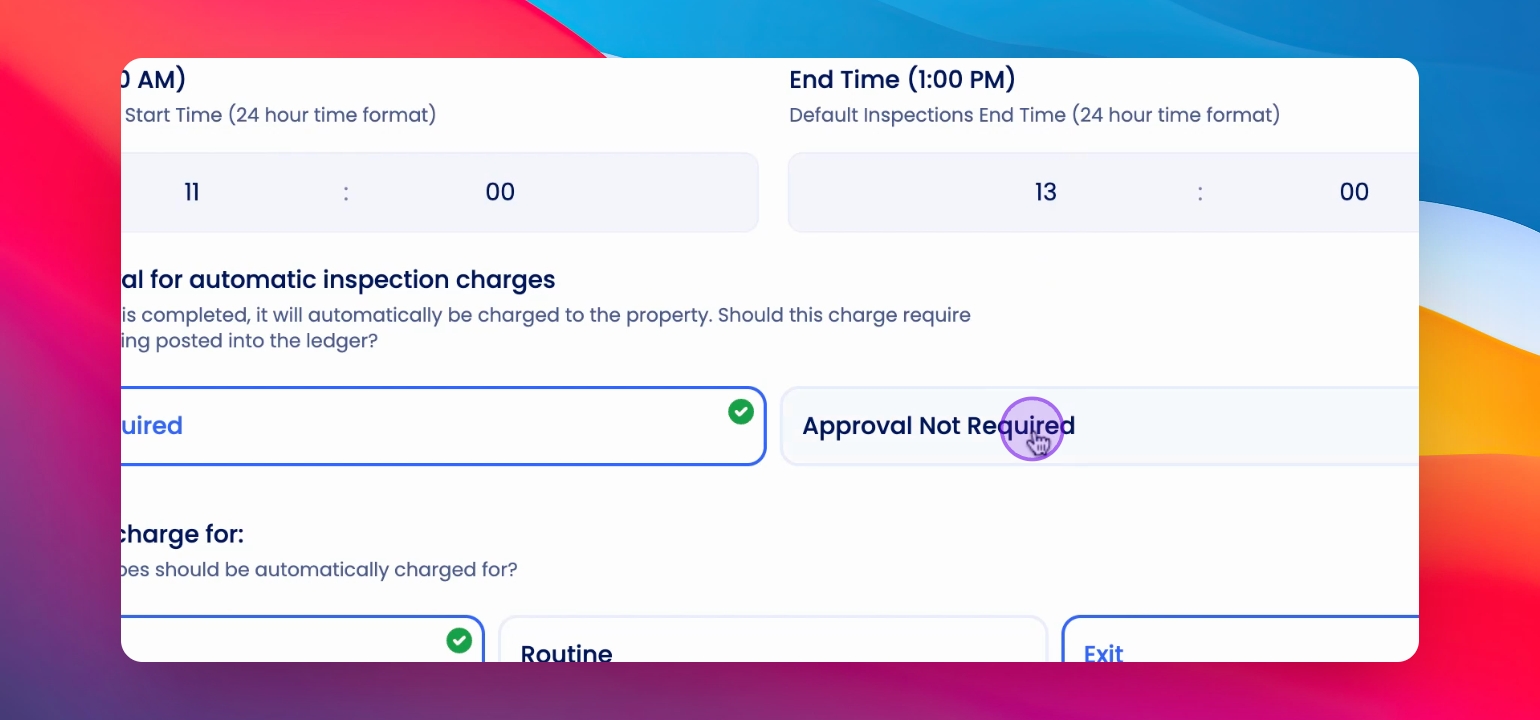
Step 5: Choose Inspection Type
In this example, Select Routine to apply the above approval condition to routine inspections.
Inspection type is set.
Step 6: Save Changes
Click Save to apply your settings.
Your changes are saved successfully.
Step 7: Set Approval for Inspections
If approval is required, select Approval Required.
Approval requirement is set for inspections.
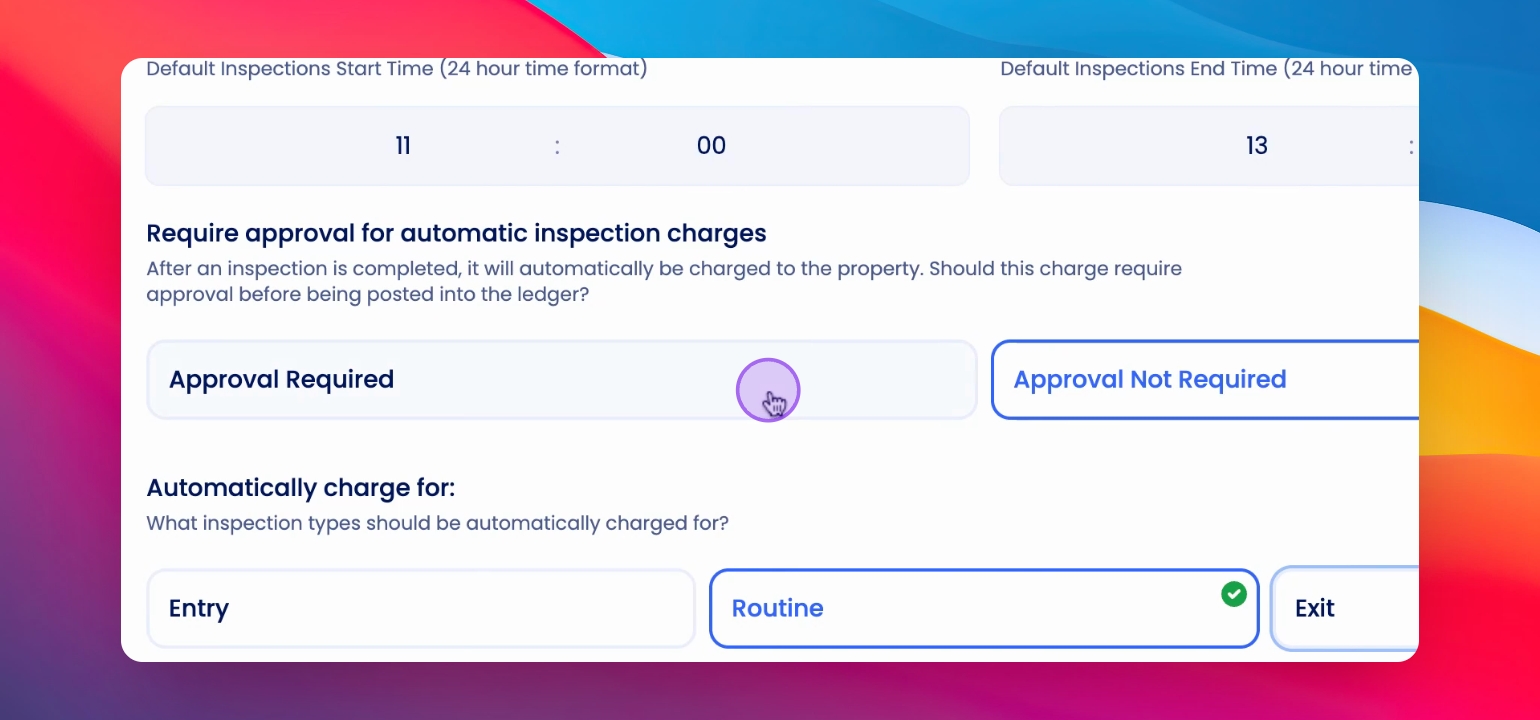
Step 8: Choose Inspection Type for Approval
Select the inspection type that needs approval.
Inspection type requiring approval is selected.
Step 9: Save Approval Settings
Click Save to finalize approval settings.
Approval settings are saved successfully.
Step 10: Confirmation of Updates
Your agency's inspection charging rules are now updated.
If you need more help or have any questions, just reach out to us at support@keyhook.com — we're always here to help!