

TL;DR
Select the Property where you have conducted the Inspection
Navigate to the inspection that was done
Go through each section and verify if everything is satisfactory
This will confirm the details
This will change the status of inspection to Completed
Let's do it together!
Step 1: Log in
Login to your Keyhook account from the desktop platform.
Step 2: Navigate to property
Navigate to the property where the inspection was conducted.
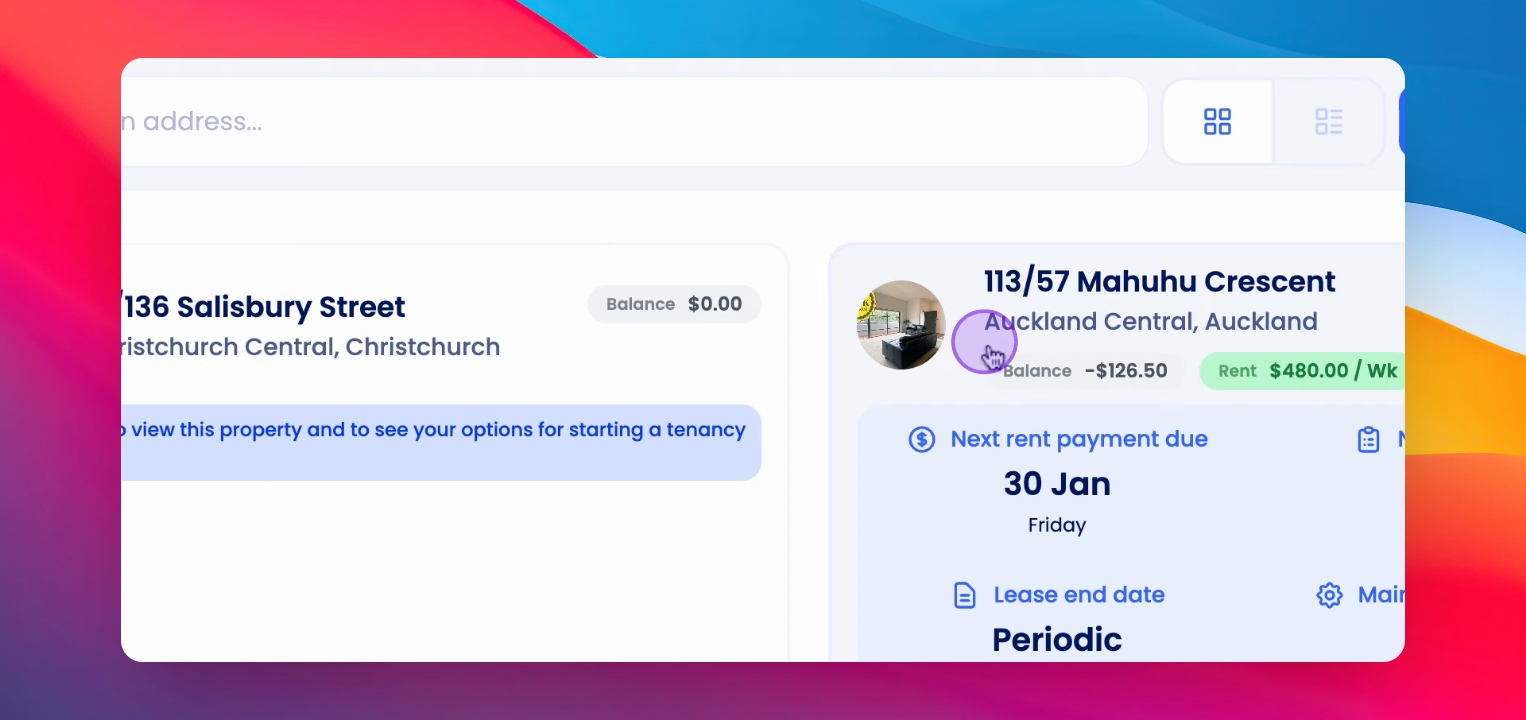
Step 3: Locate inspection
Locate the inspection that needs review.
Step 4: Open review page
Click on the inspection to open the inspection review page.
Step 5: Check status
Ensure the inspection status is 'awaiting sign off' before proceeding.
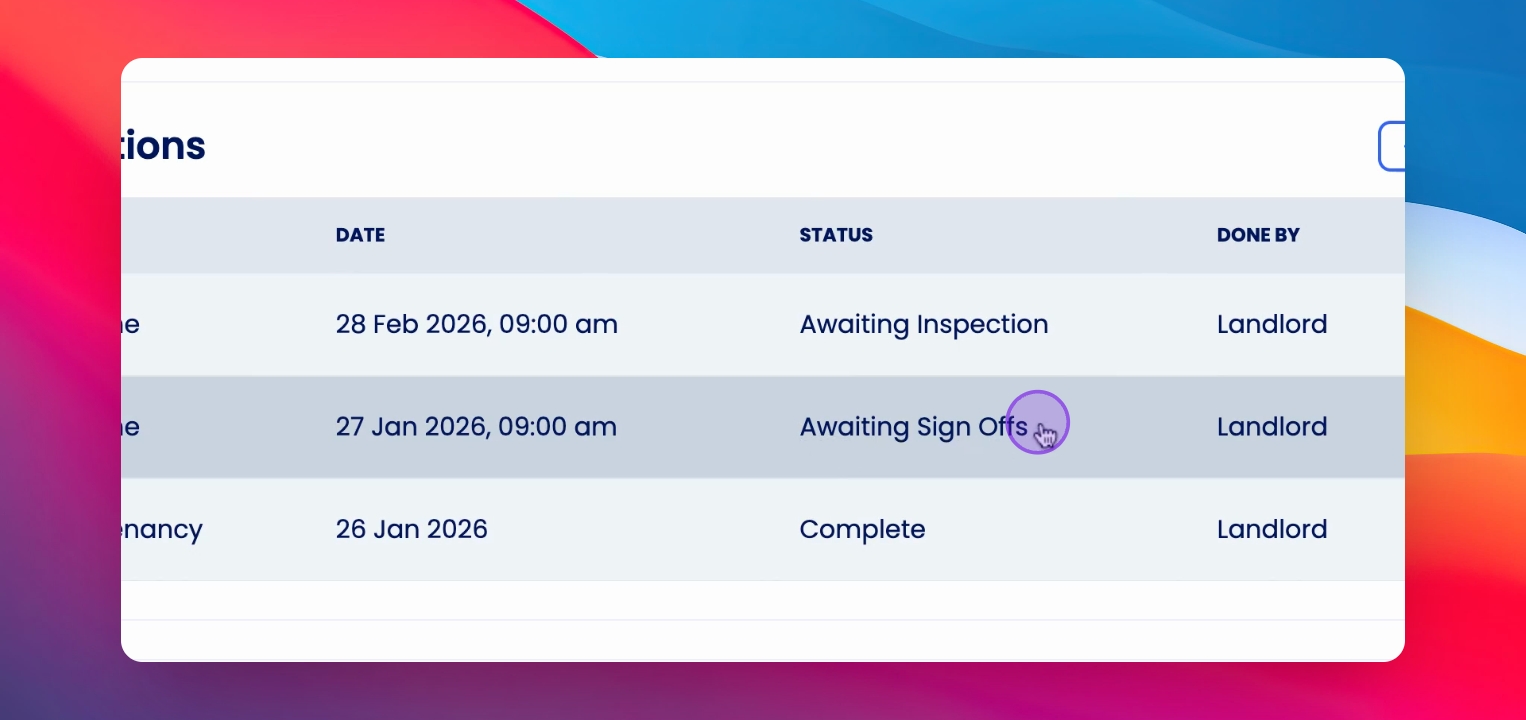
Step 6: Review details
At the top of the page, review the inspection details thoroughly.
Step 7: Review areas
Scroll down and go through each inspection area, reviewing photos, notes, and actions.
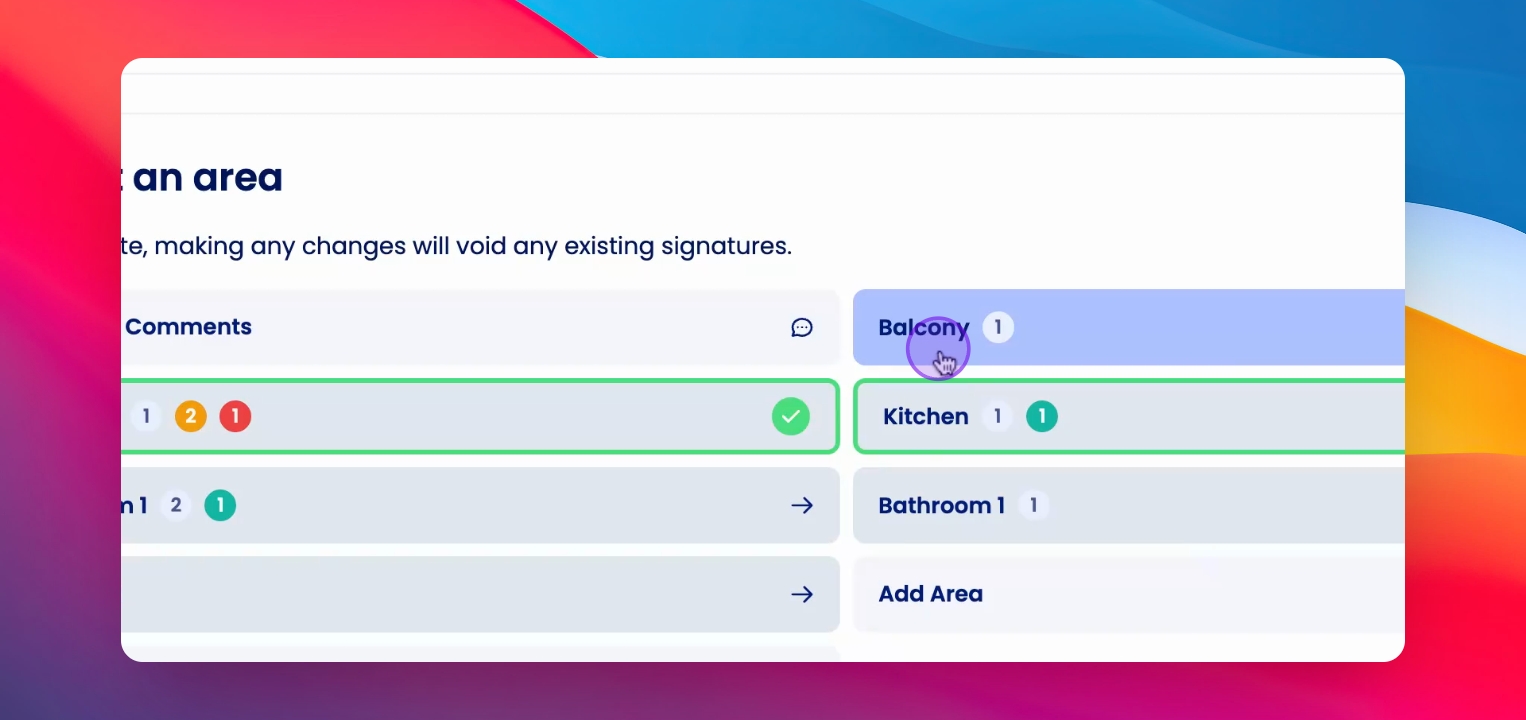
Step 8: Confirm information
Confirm that the information is correct for each area.
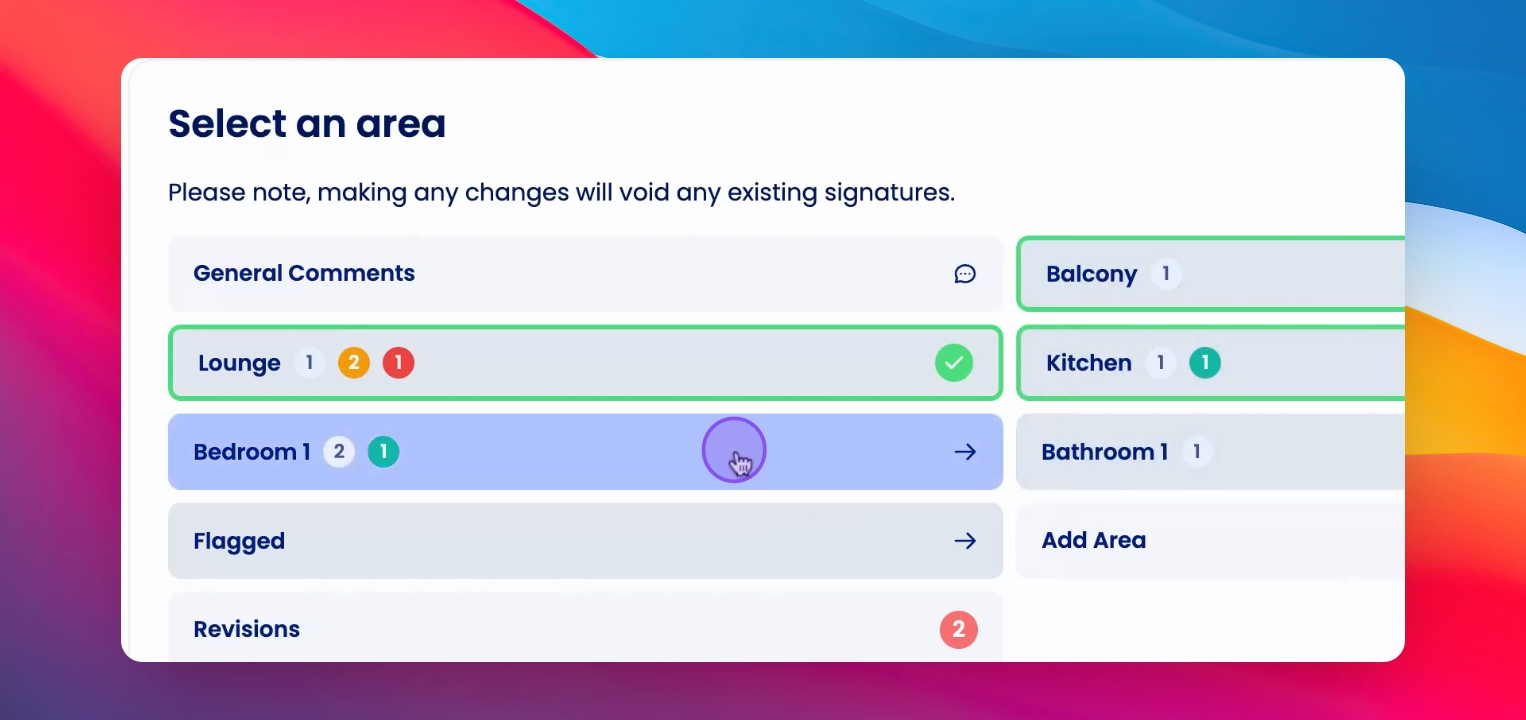
Step 9: Finish area
Once satisfied, scroll down and click Finish Area to finalize it.
Step 10: Highlight completed areas
The completed area will be highlighted with a green border and tick.
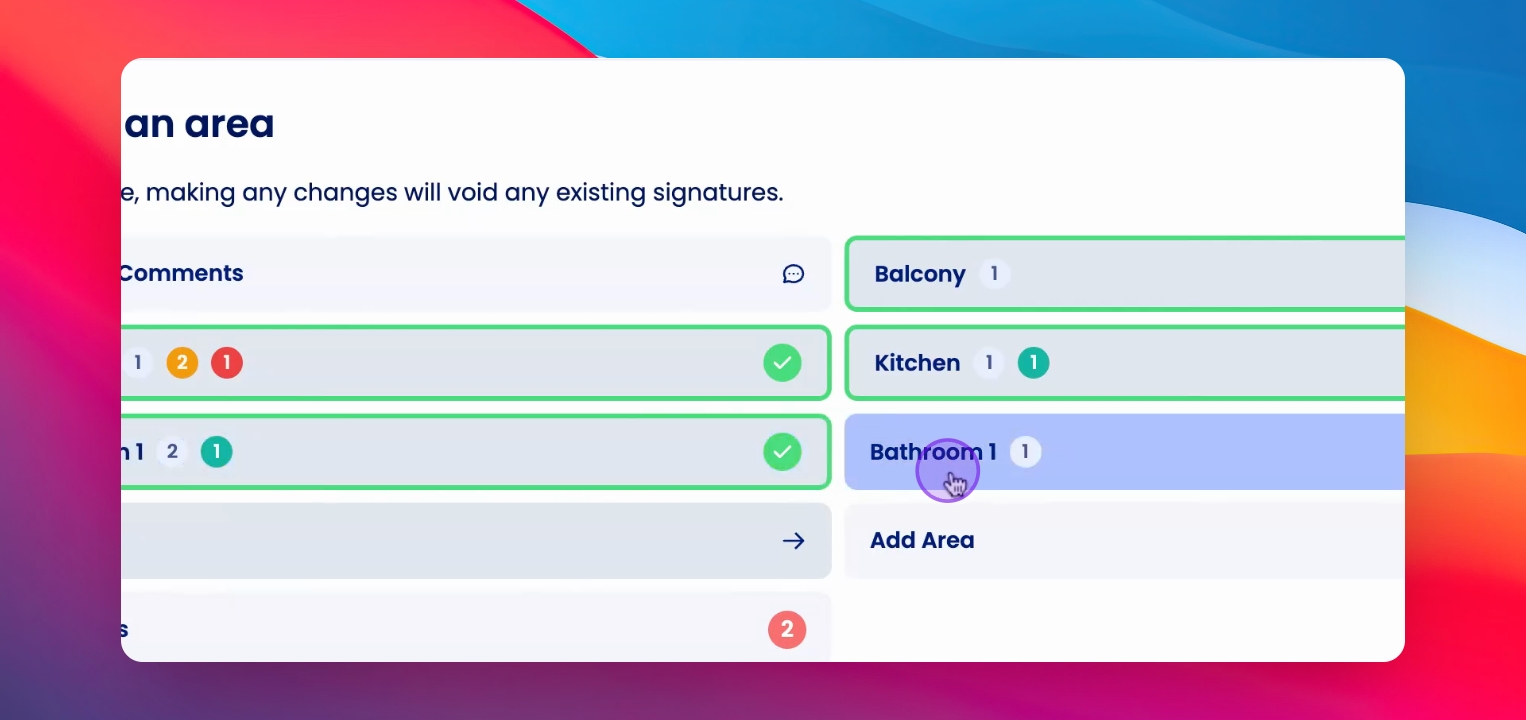
Step 11: Final review
After completing all areas, review the inspection one final time.
Step 12: Add notes
If needed, you can add any missed notes or actions.
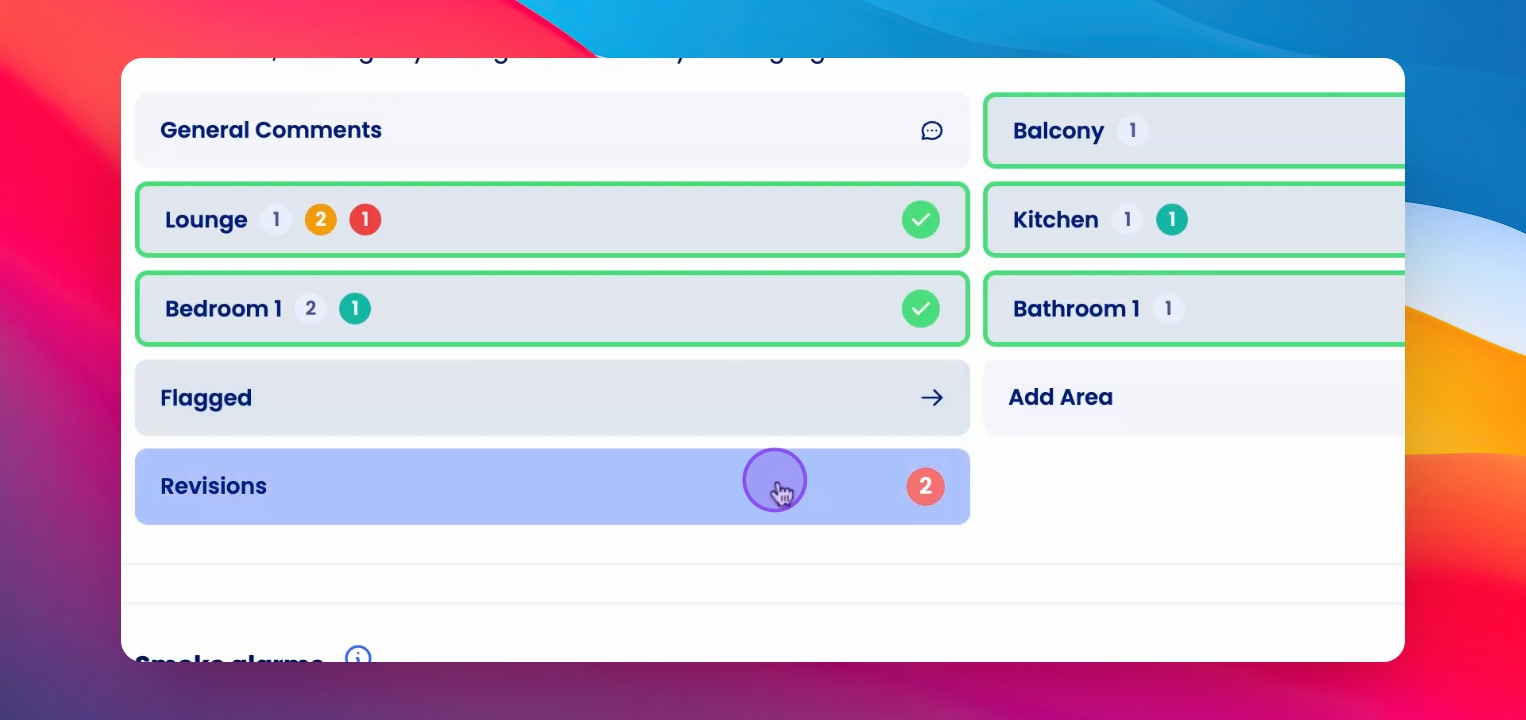
Step 13: Add comments
You can add general comments to appear at the top of the inspection report.
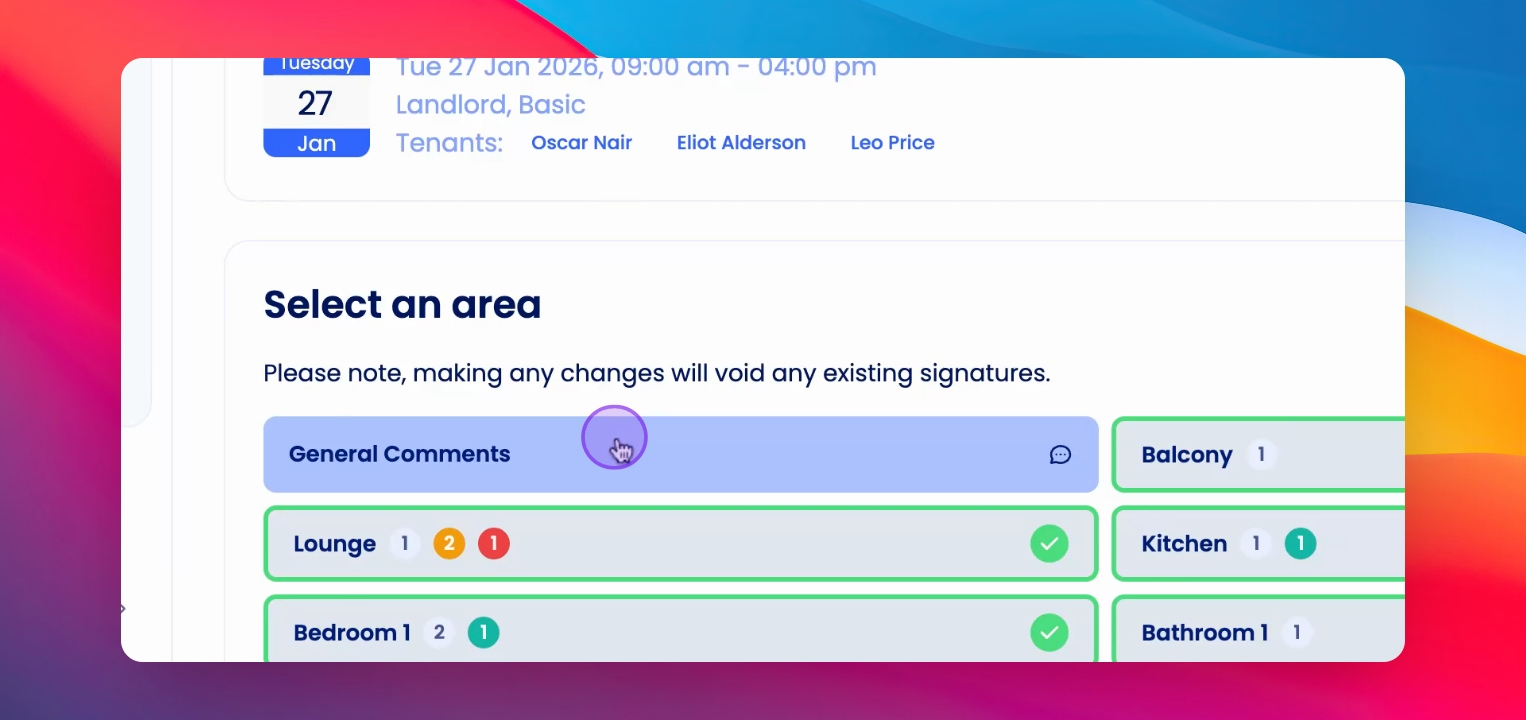
Step 14: Save comments
Click Save to add the general comment to the report.
Step 15: Preview report
Click the Actions button and select Preview Report to view the inspection report.
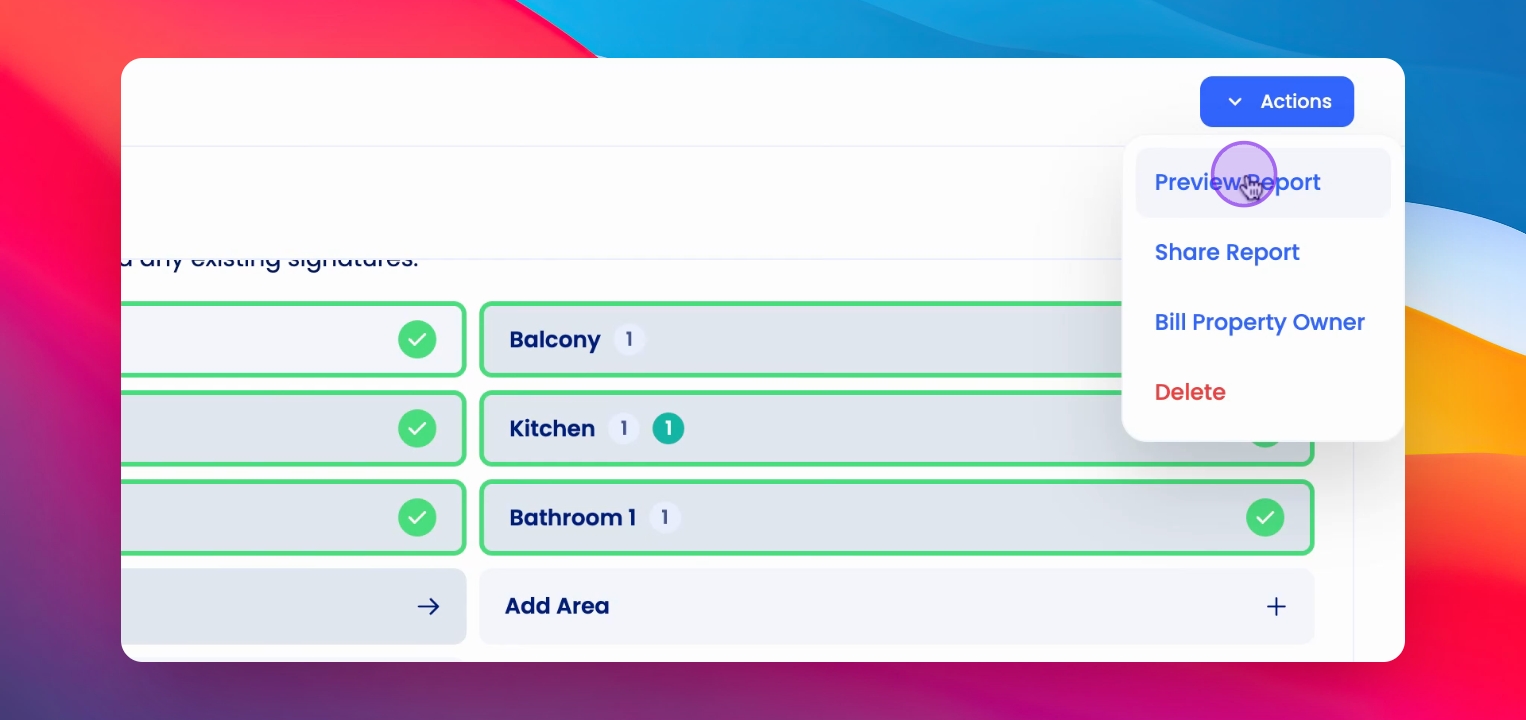
Step 16: Review report
Review the report, including comments, images, and actions.
Step 17: Print or download
You can print the report or download it using the provided button.
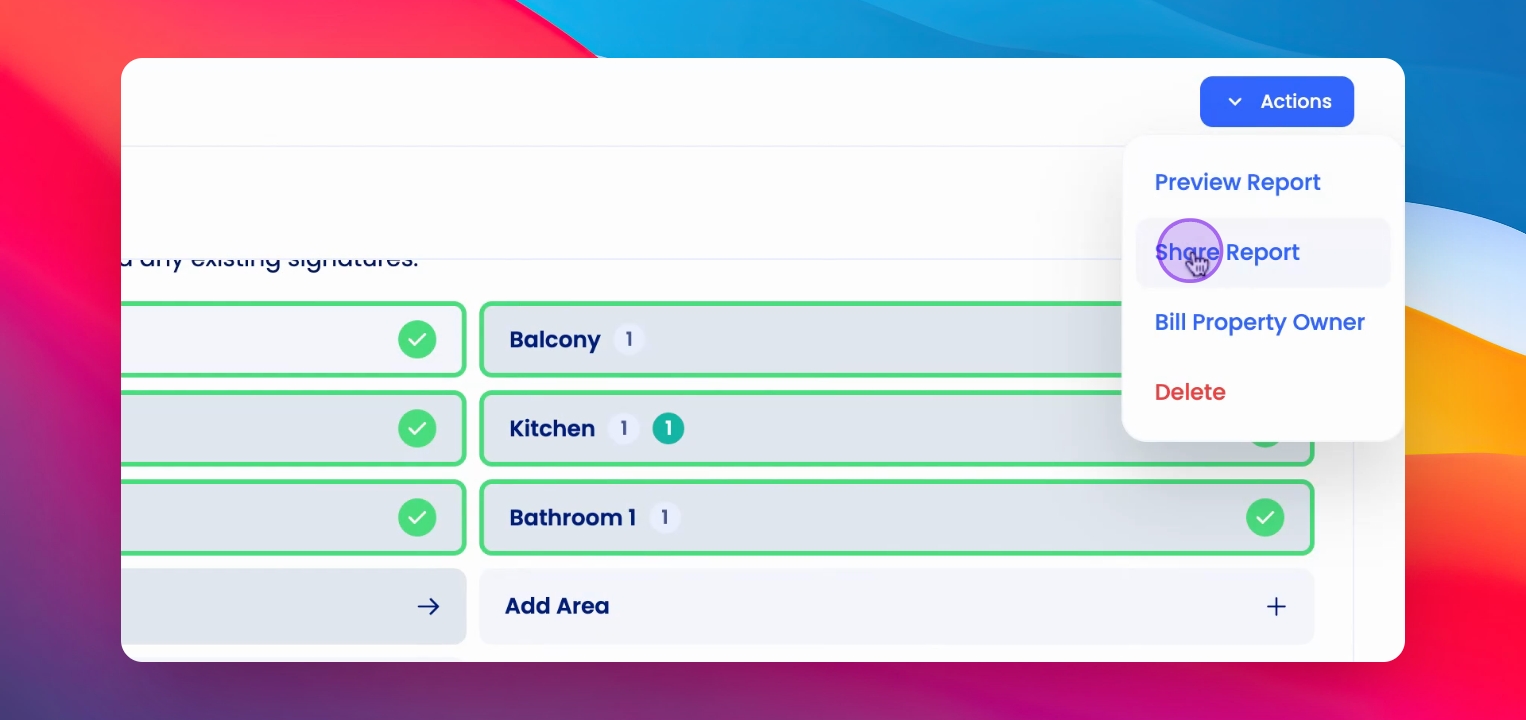
Step 18: Share report
Generate a shareable link to provide access to others if required.
Step 19: Send report
Send the inspection report to the property owner.
Step 20: Charge owner
From the Actions menu, charge the property owner for the inspection if applicable.
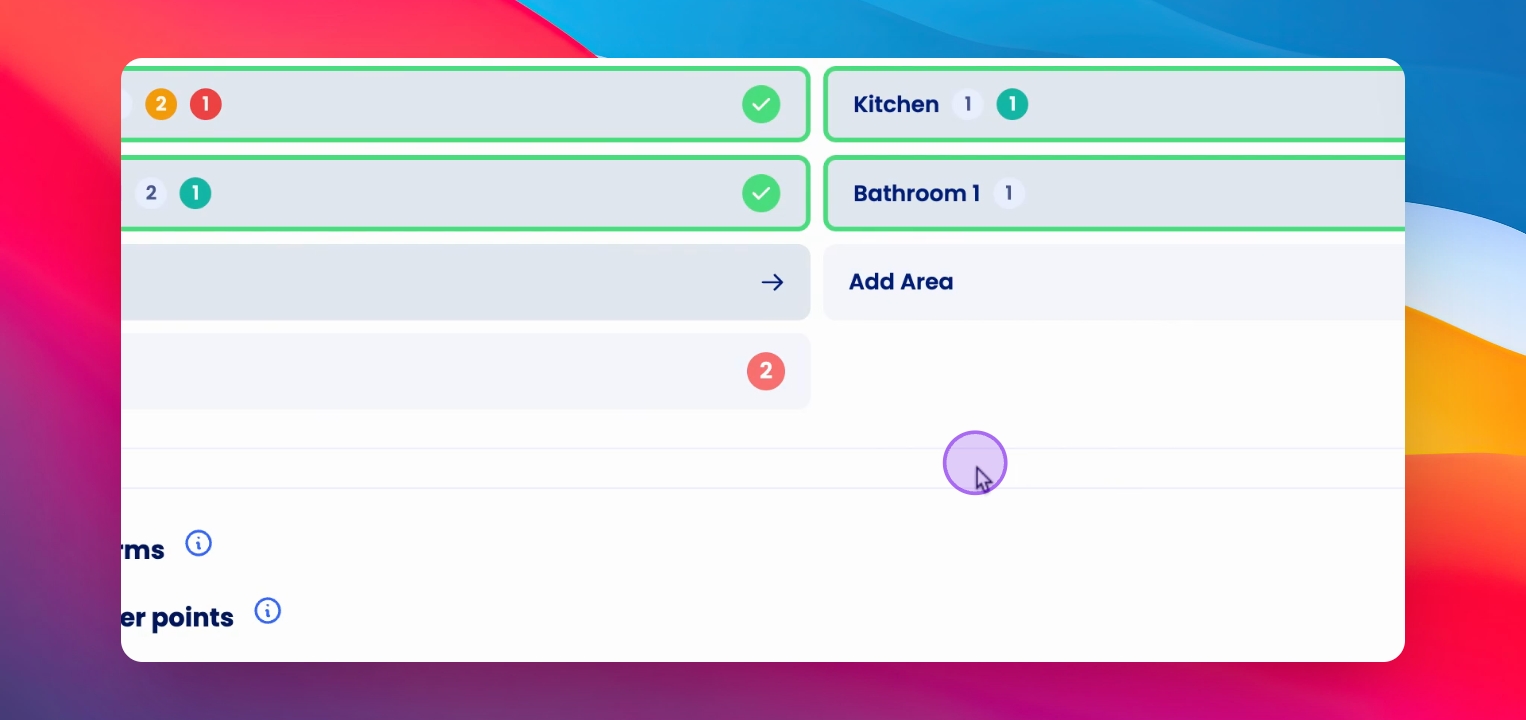
Step 21: Sign off
Click on the E Sign button and add your signature to finalize the report.
Step 22: Finalize report
Click Finalize to complete the sign-off process for the inspection report.
If you need more help or have any questions, just reach out to us at support@keyhook.com — we're always here to help!
Click on the this link to give a feedback: Support Article Feedback Form