

To copy an inspection from one property to another, you need to go to the property that you would like the inspection to have been on. Let's look at the steps:
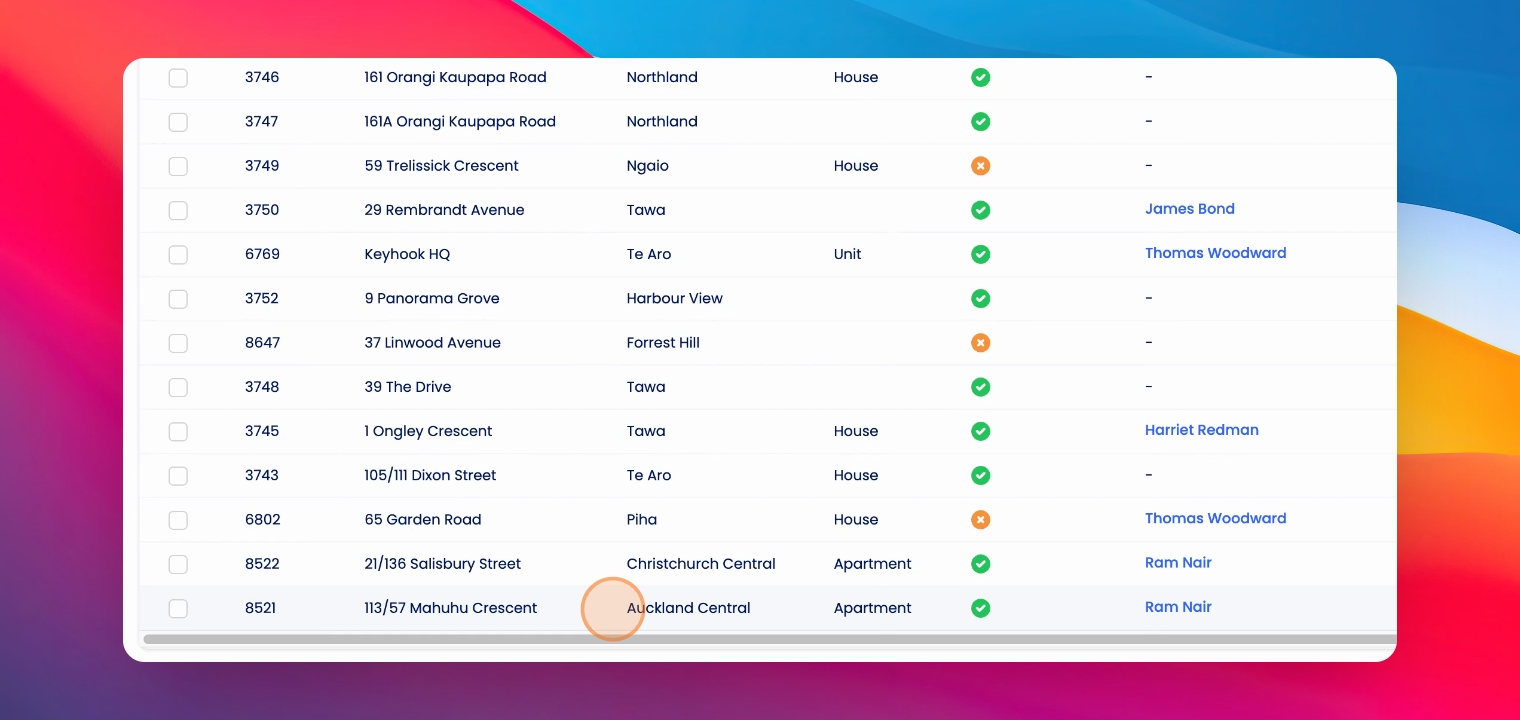
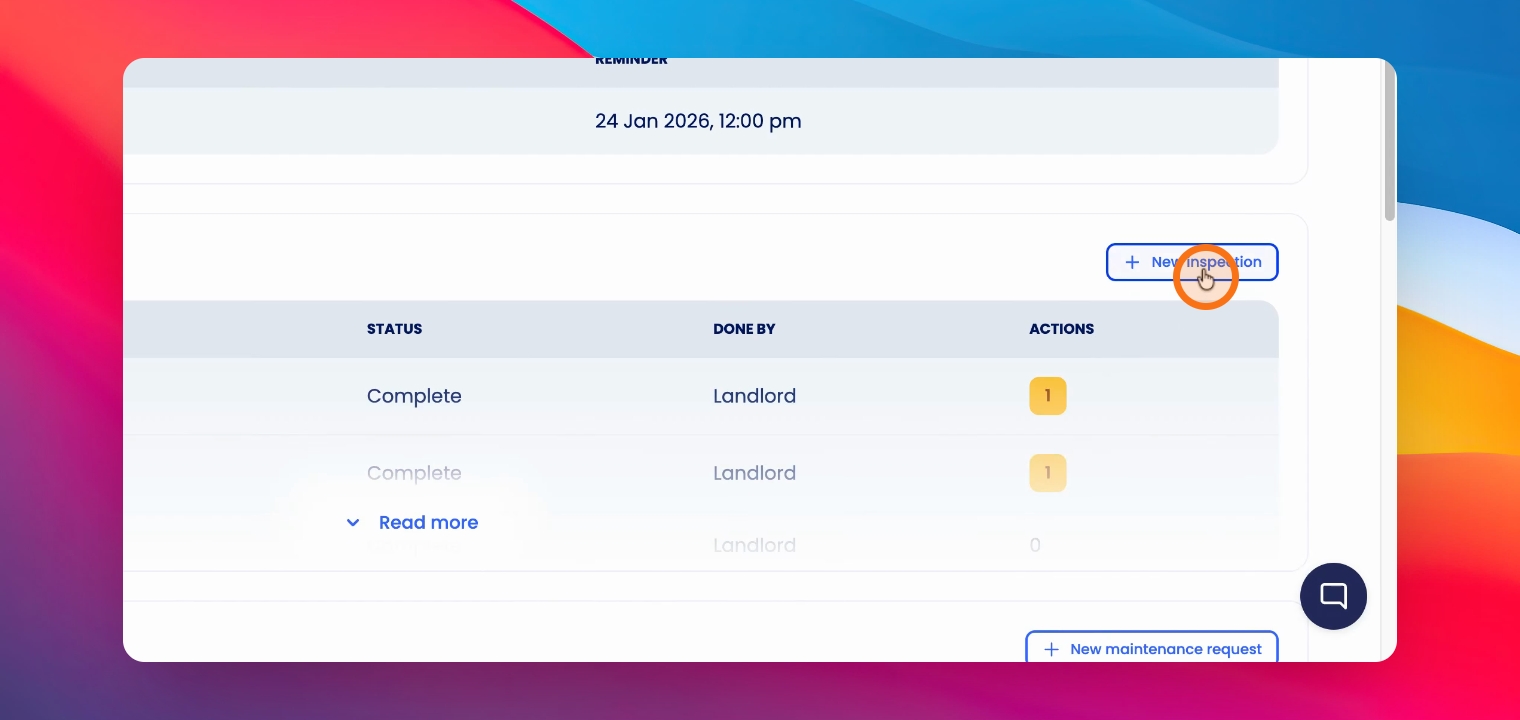
Step 1: Create New Inspection
Create a new Inspection.
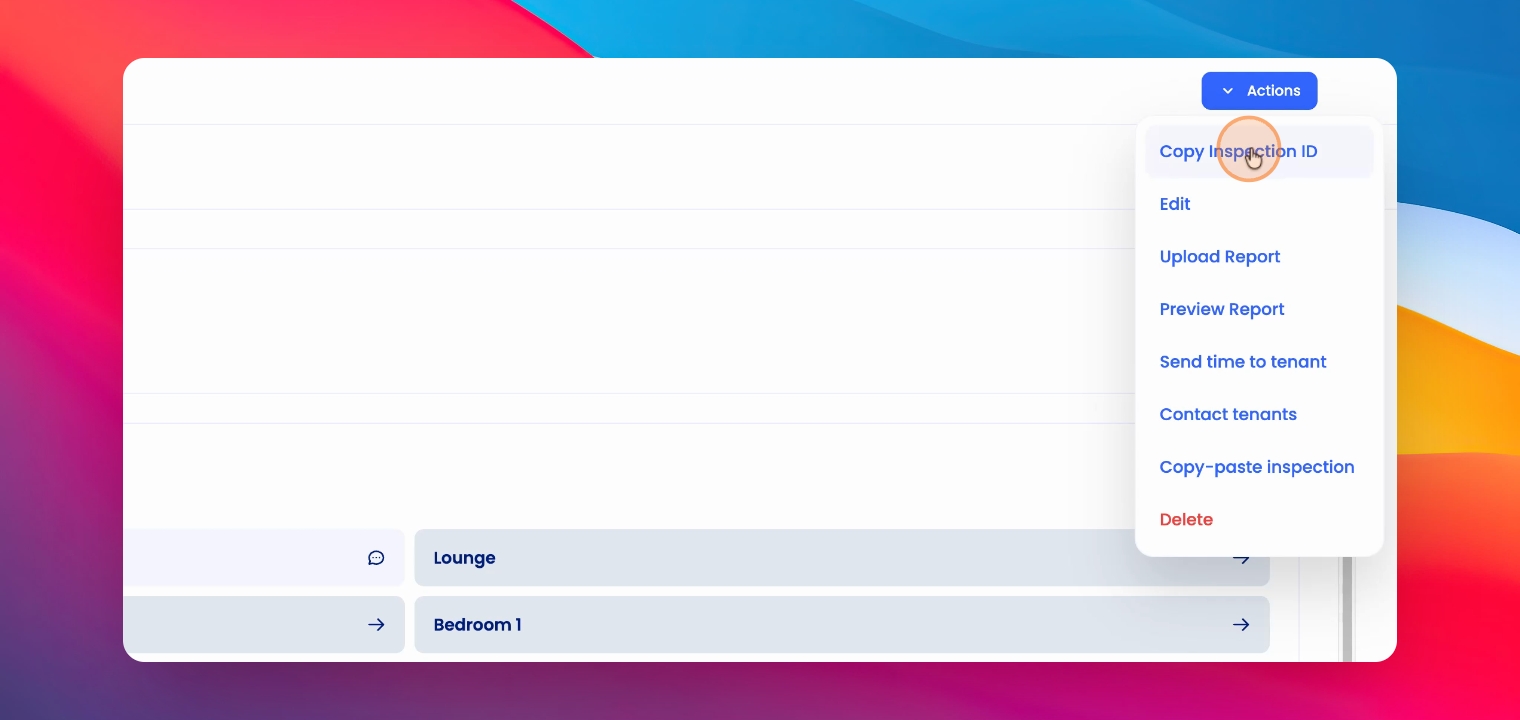
Step 2: Copy Inspection ID
Once you have created a new inspection, click on Actions and copy Inspection id.
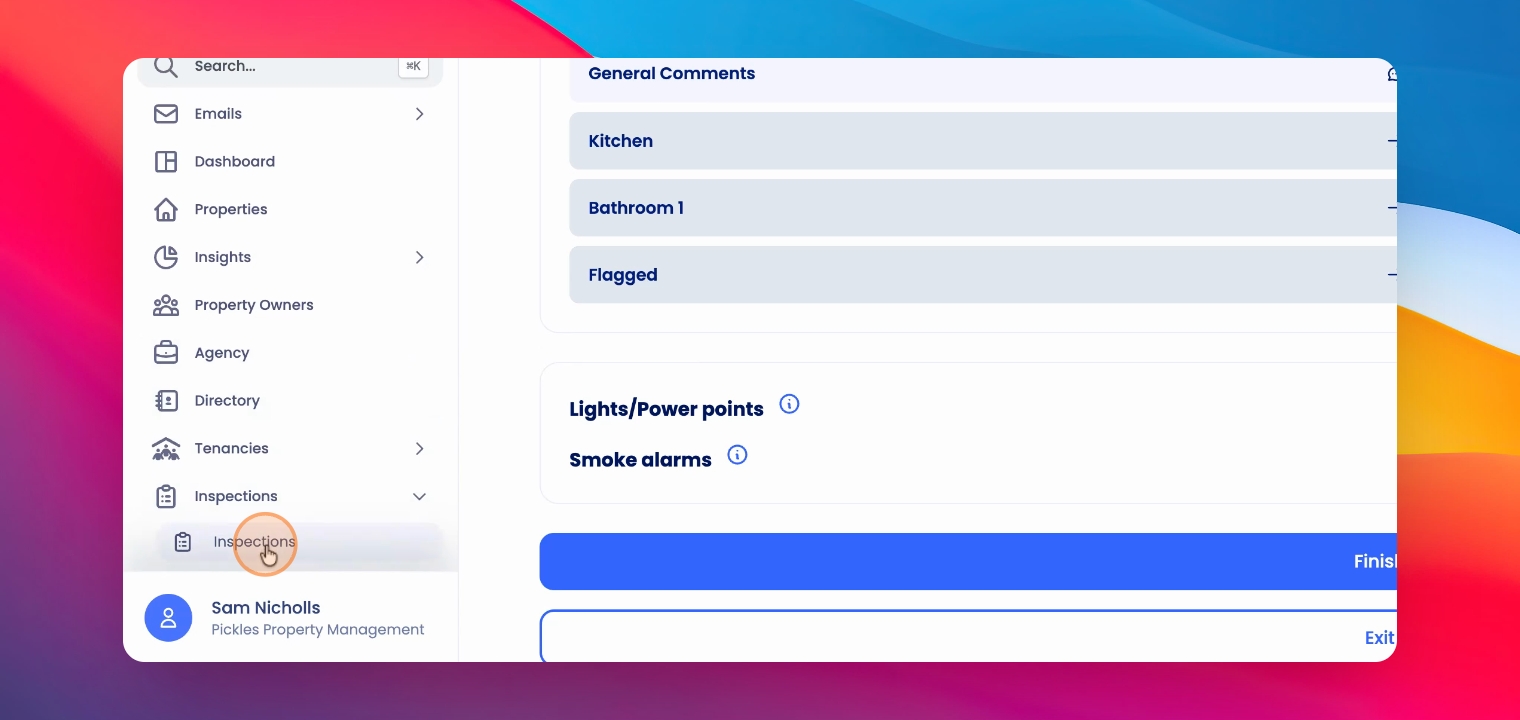
Step 3: Move to Destination Inspection
Next, go to the inspection you would like to move to this inspection.
Step 4: Paste Inspection ID
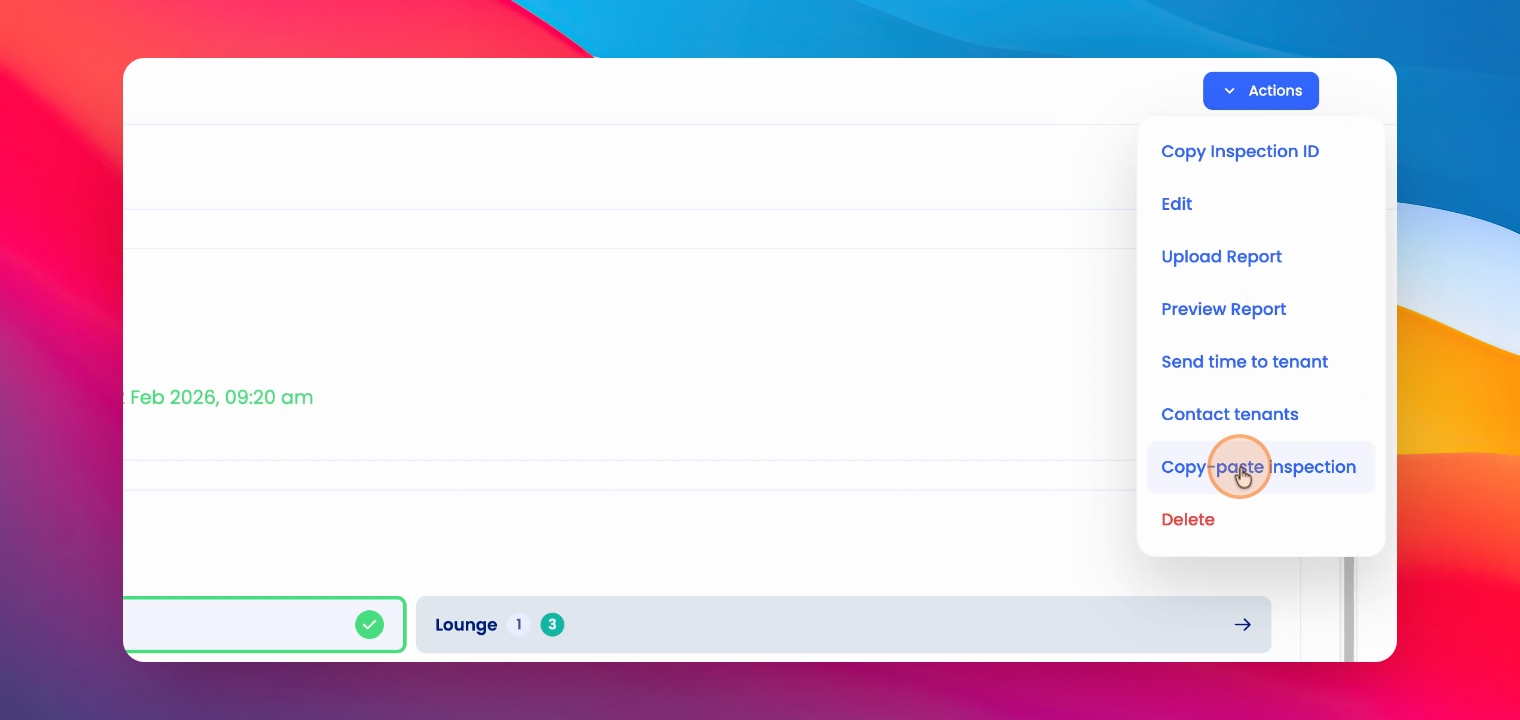
Now to copy and paste this inspection into the new inspection that we've just created, click on Actions, click on Copy, Paste Inspection and paste the destination Inspection id.
Step 5: Confirm Action
Click Confirm.
Step 6: View New Inspection
This will bring you to the newly copied inspection.
Please note: This is copy and paste only.
The old inspection will still exist in place until you go and delete it or edit it.