

TL;DR
1
Access the property
Navigate to the relevant property to manage tenancies.
2
Select pending tenancy
Choose the pending tenancy from the dropdown menu.
3
Check tenant status
View the status of invited tenants.
4
Delete pending tenancy
Remove the pending tenancy agreement from the section.
5
Confirm tenant deletion
Delete the tenant and save changes.
6
Review tenancy status
Check if the tenancy has updated based on tenant actions.
Let's Do It Together!
Step 1: Access Property
Go to the relevant property to manage tenancies.
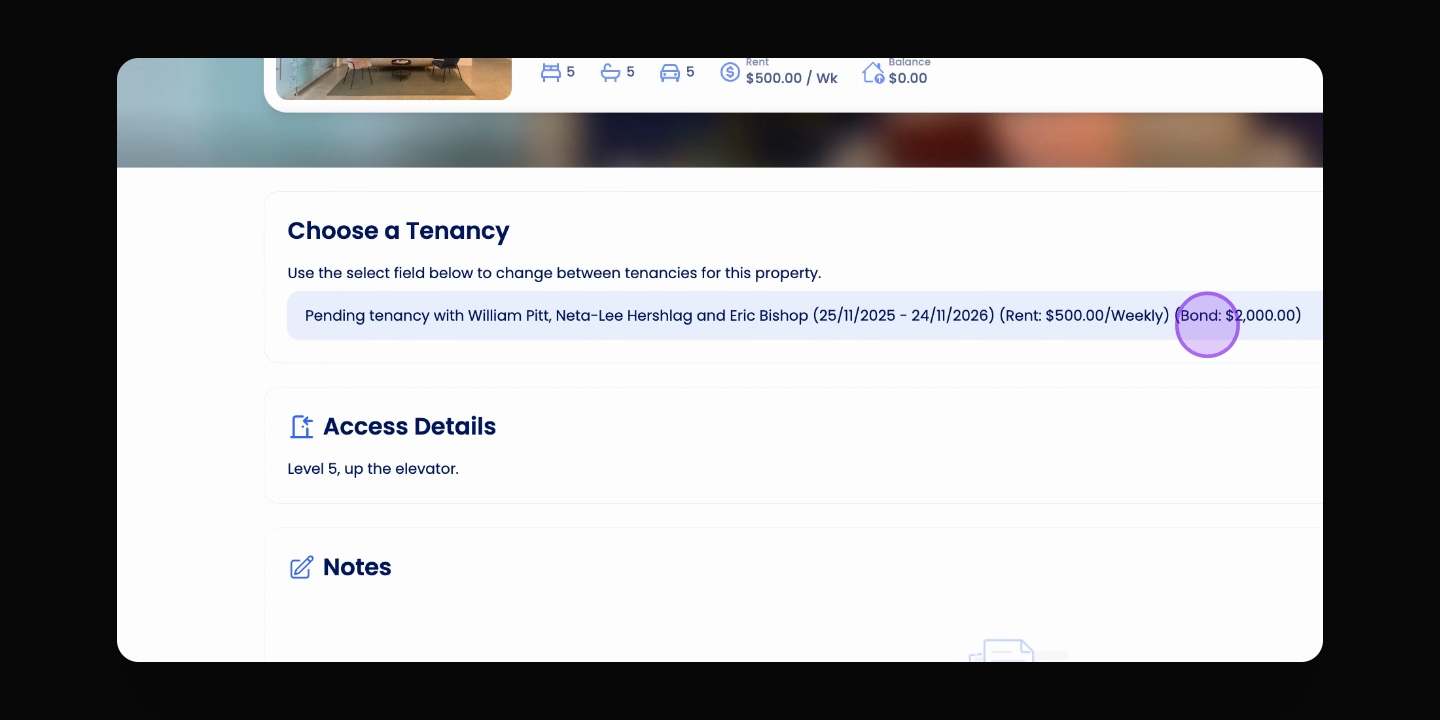
Step 2: Select Pending Tenancy
Ensure the pending tenancy is selected in the Choose a Tenancy dropdown.
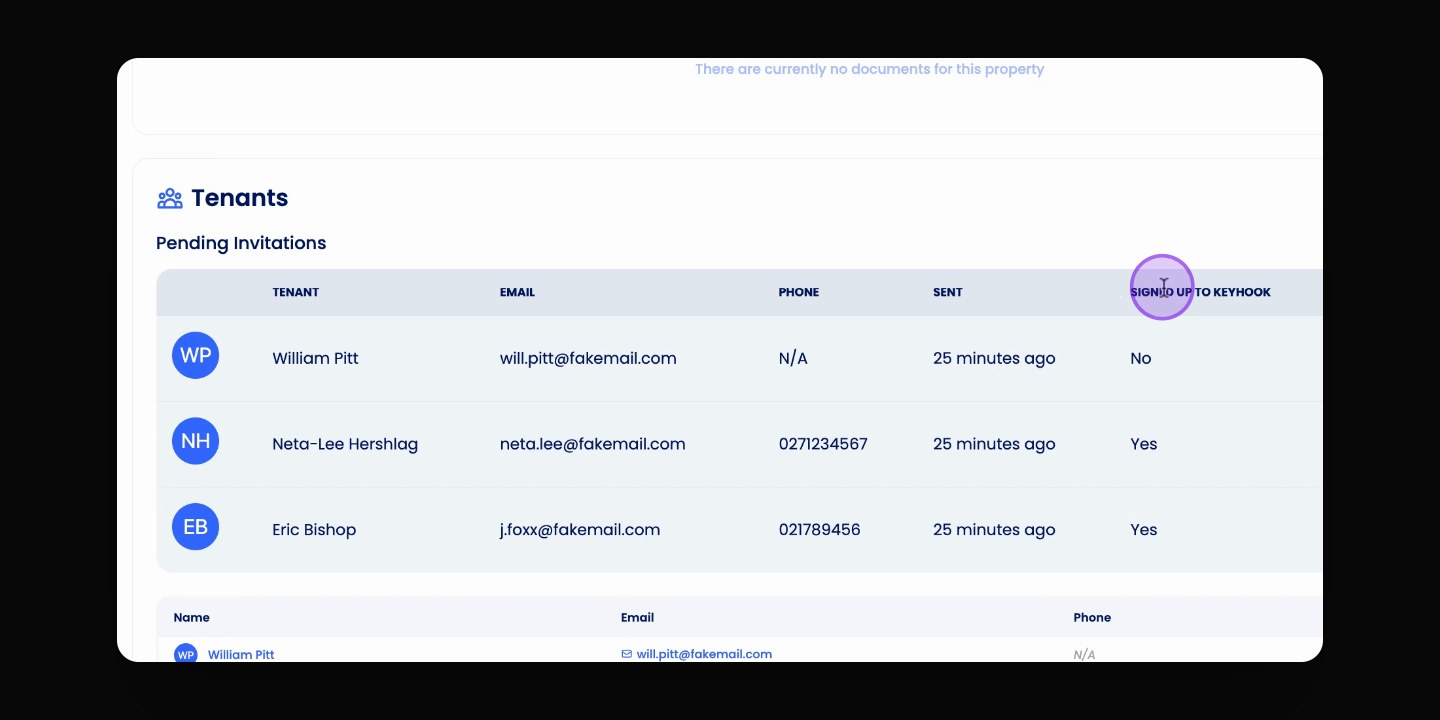
Step 3: Check Tenant Status
Scroll down to view the current status of invited tenants and their actions.
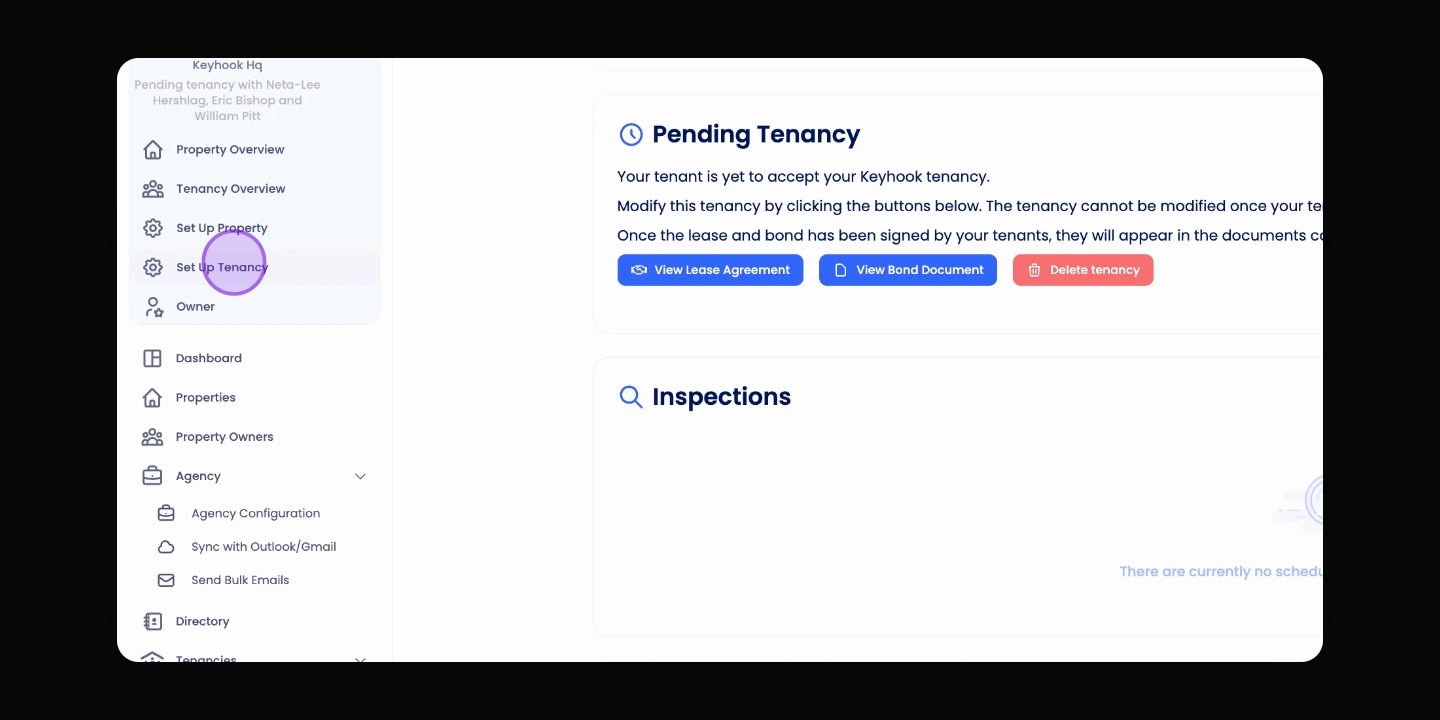
Step 5: Navigate to Set Up Tenancy
To remove a tenant that hasn't signed the tenancy agreement, go to Set Up Tenancy.
Step 6: Select Pending Tenancy
In the navigation bar, select the pending tenancy from the dropdown.
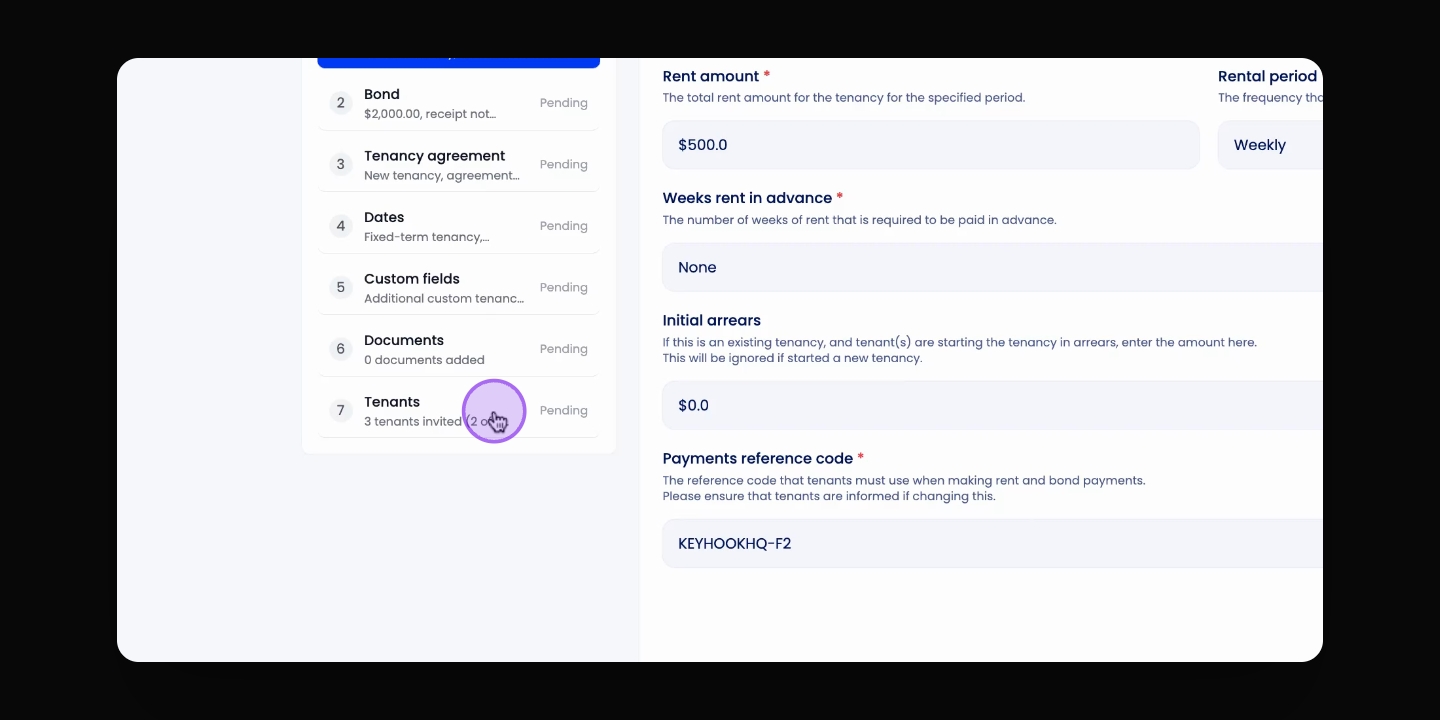
Step 7: Delete Tenant
Click on the Tenant section, find the tenant you wish to delete, and click the Delete Tenant button.
Step 8: Save Changes
Scroll down and click Save to confirm the deletion.
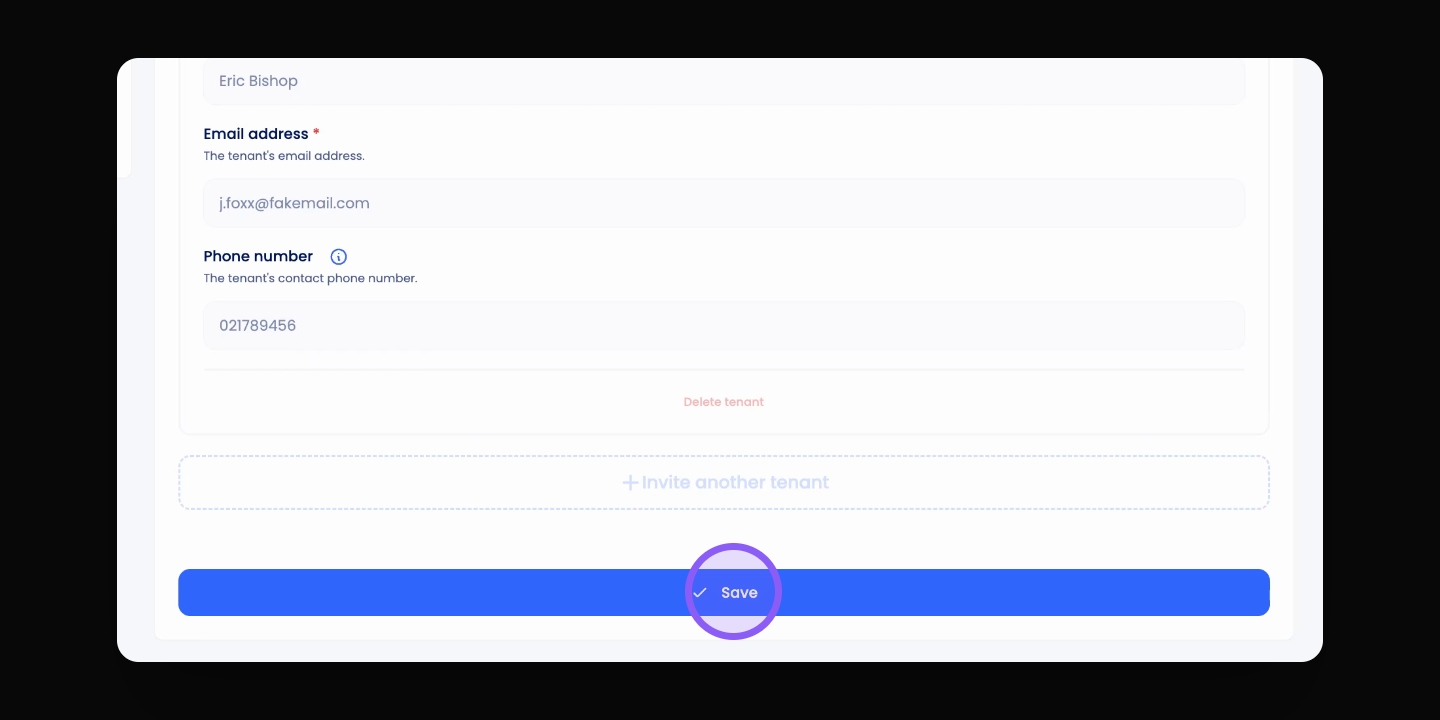
Step 9: Final Save
Scroll down again and click Save to finalise the changes.
Step 10: Return to Property Overview
Go back to the property overview to check the tenancy status.
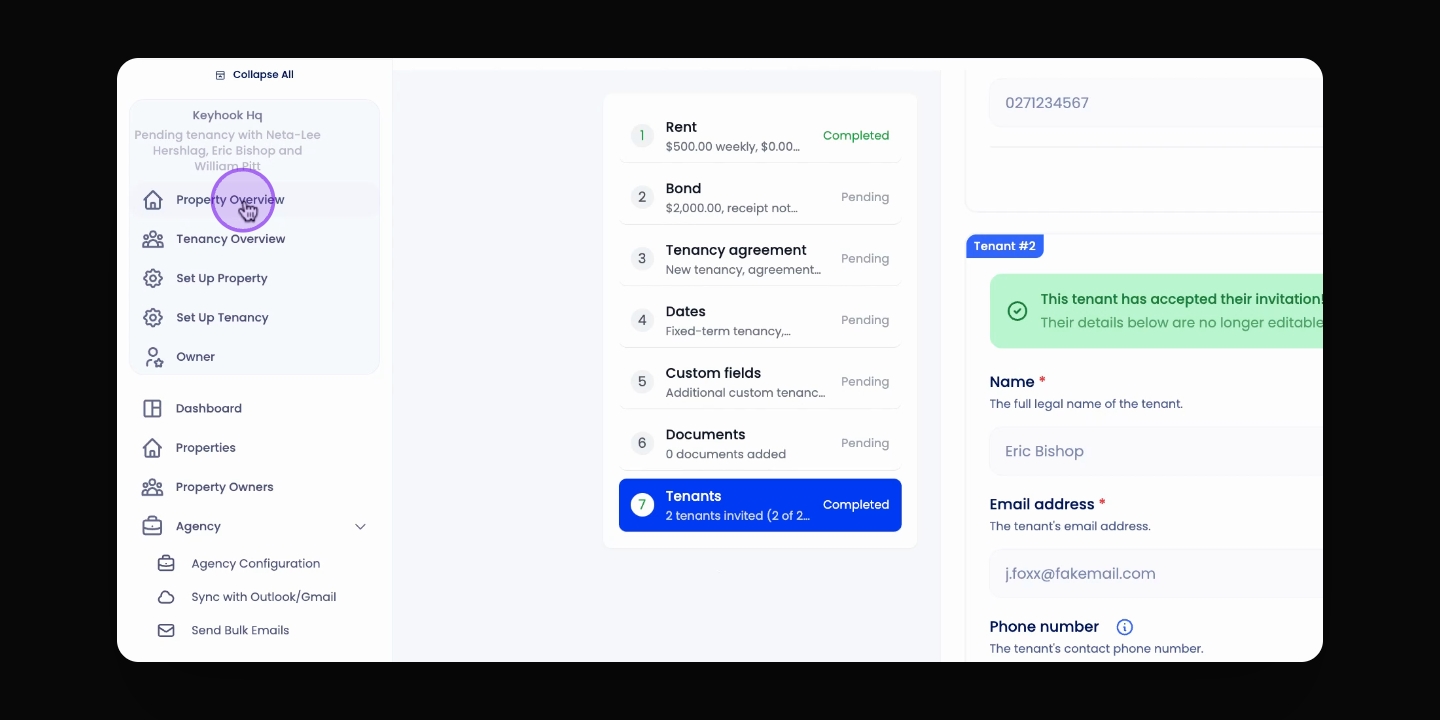
Step 11: Review Tenancy Status
Check if the tenancy has updated to upcoming or active based on tenant actions.