

TL;DR
1
Locate Payments
Find payments in your bank feed area.
2
Check Auto Matches
Verify if transactions auto match in Keyhook.
3
Handle Unmatched Payments
Perform and match any unmatched bank transactions.
4
Select and Reconcile
Select transaction type, supplier, and reconcile it.
5
Verify Reconciliation
Ensure all transactions are reconciled in the bank.
Let's Do It Together!
Step 1: Present Payments
Locate the payment in your bank feed area.
Payments will show as red Transactions going out.
Step 2: Check for Auto Matches
Review if transactions auto match in Keyhook.
All matched transactions can be reconciled.
Step 3: Handle Unmatched Transactions
Perform the bank transaction for unmatched payments.
Now you can match it in the bank feed.
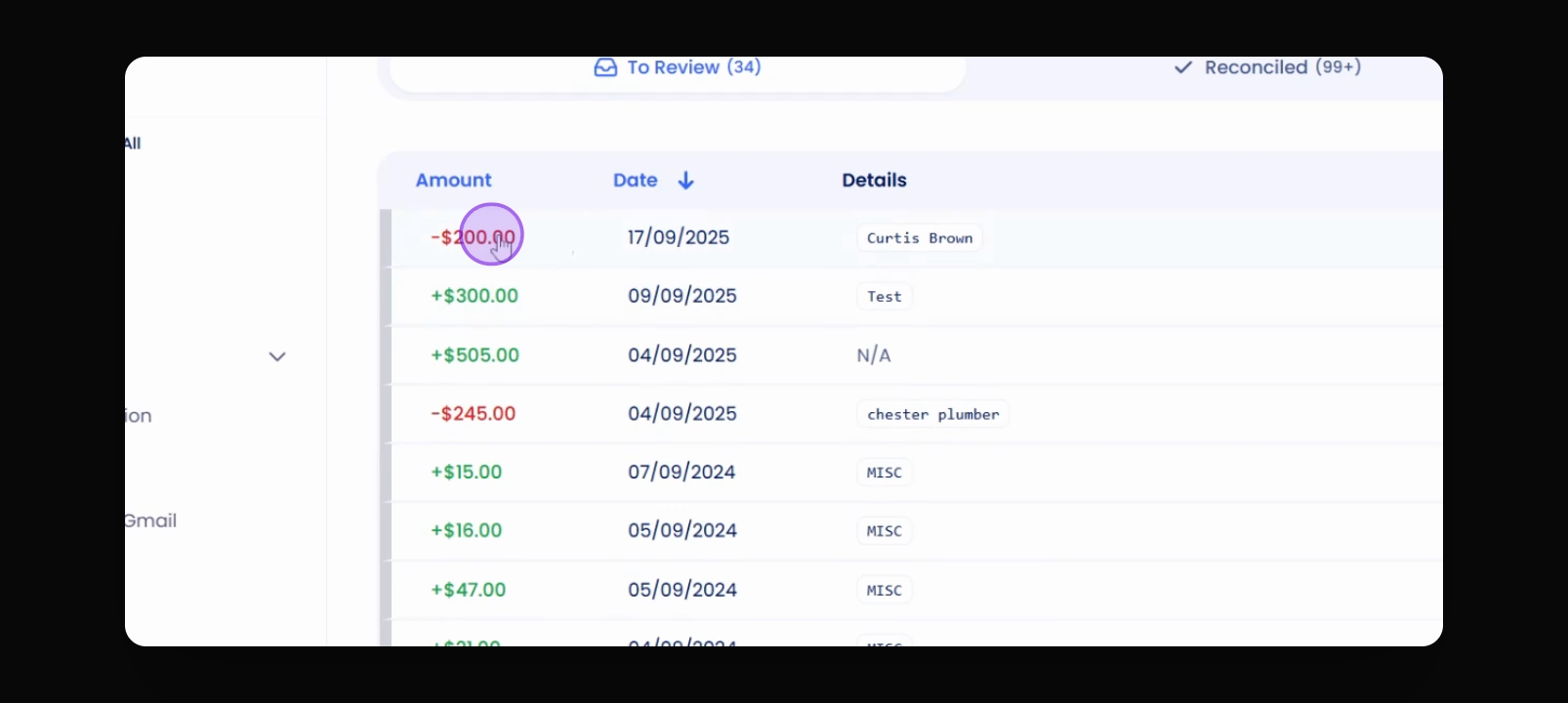
Step 4: Select the Transaction
Click into the transaction you need to match.
Step 5: Choose Transaction Type
Select the type of transaction, such as supplier payment.
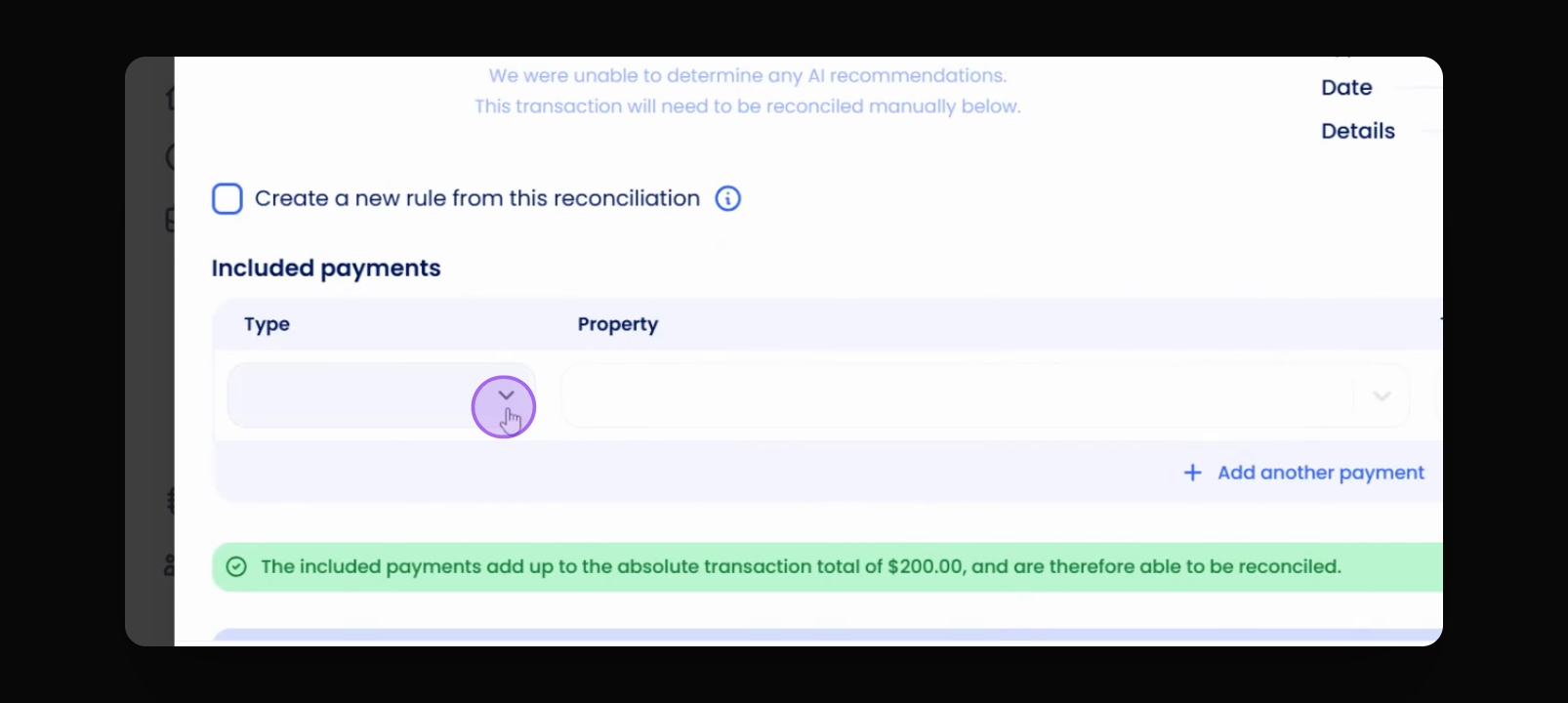
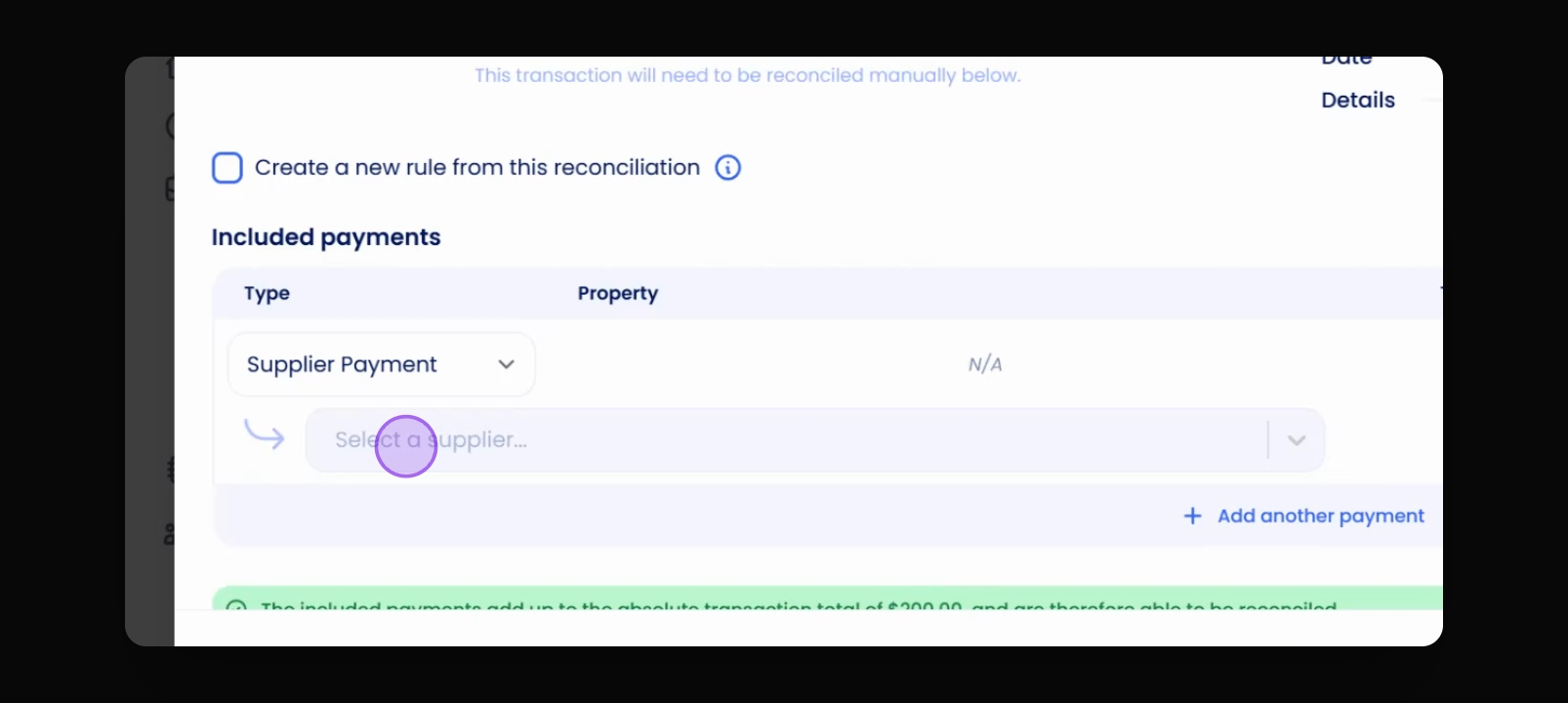
Step 6: Pick the Supplier
Select the appropriate supplier for the payment.
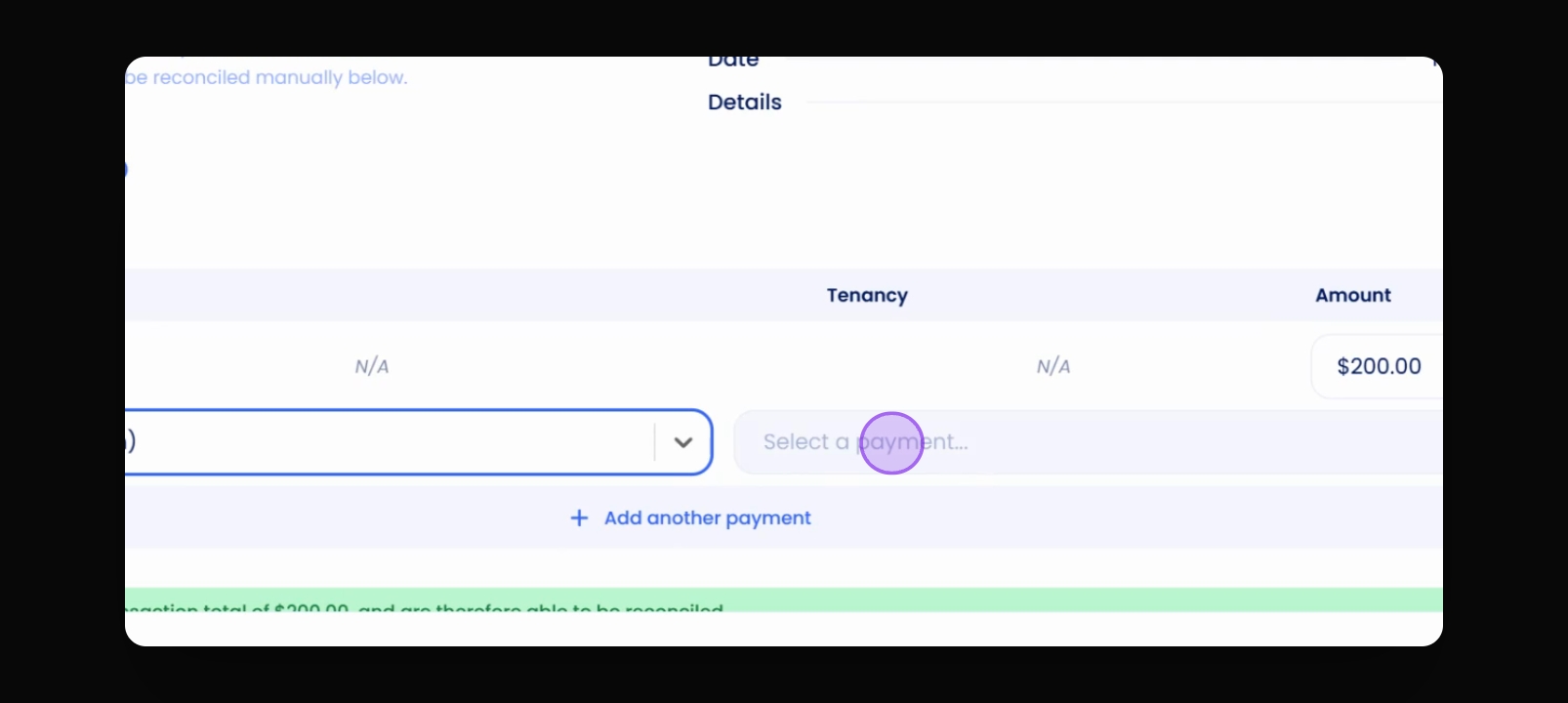
Step 7: Select the Payment
Choose the payment amount that auto matches.
You will see the payment matched successfully.
Step 8: Reconcile the Transaction
Click to reconcile the matched transaction.
The transaction moves over to your reconciled section.
Step 9: Verify Reconciliation
Double check that all transactions are reconciled in the bank.