

Let's do it together!
Step 1: Access Owners
From the left-hand side menu, click on Property Owners to open the Property Owners list.
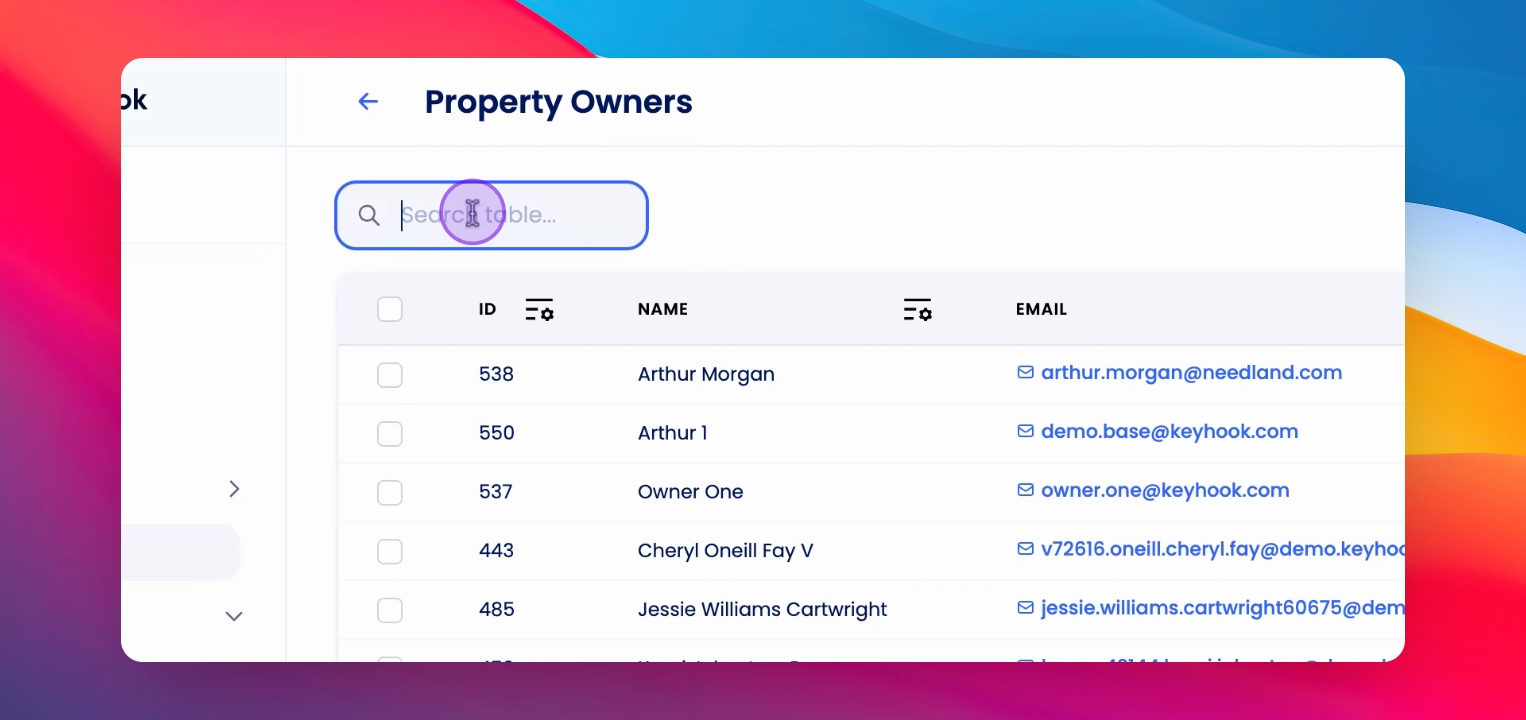
Step 2: Search Owner
Use the search bar to find the property owner you wish to place payments on hold.
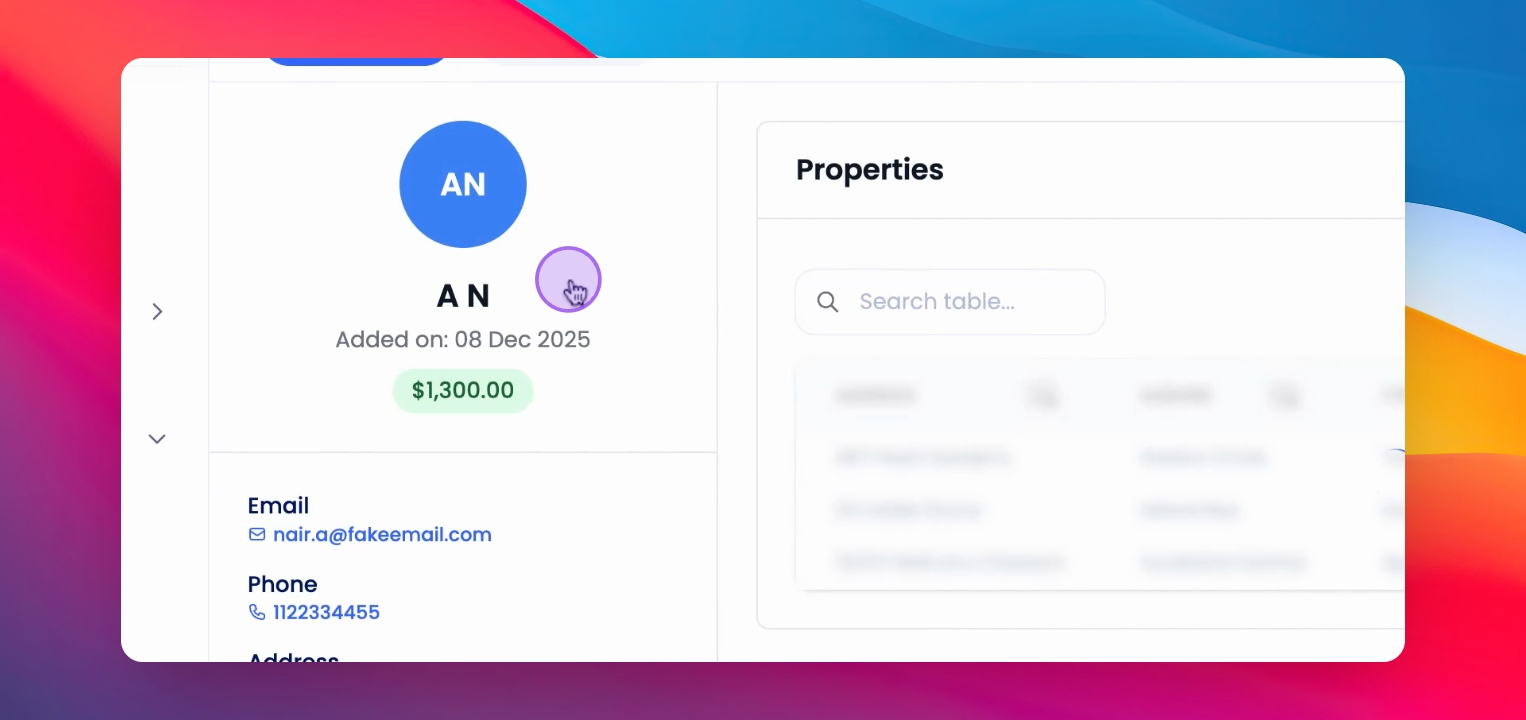
Step 3: Open Profile
Click on the Property Owner to open their profile.
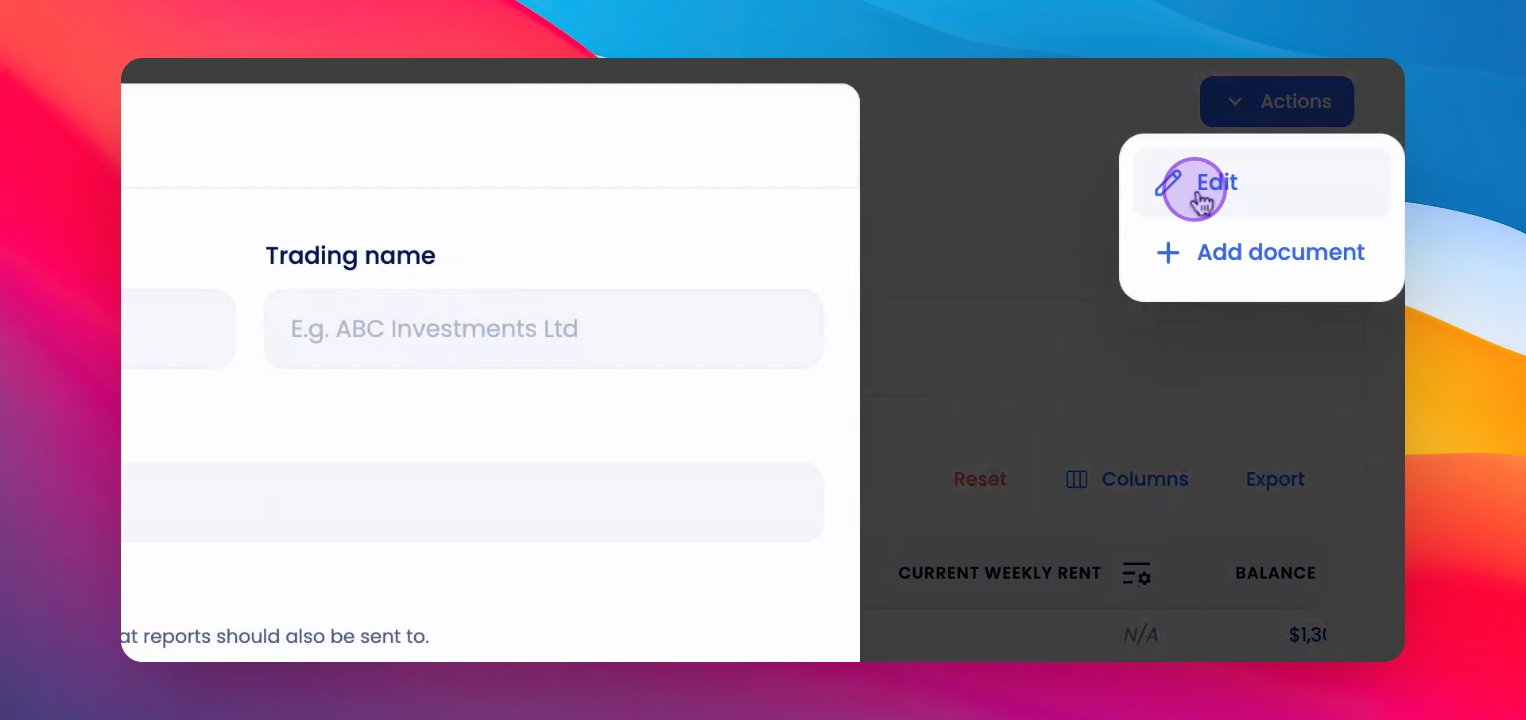
Step 4: Access Actions
From the top right corner of the profile, click on the Actions button and select Edit.
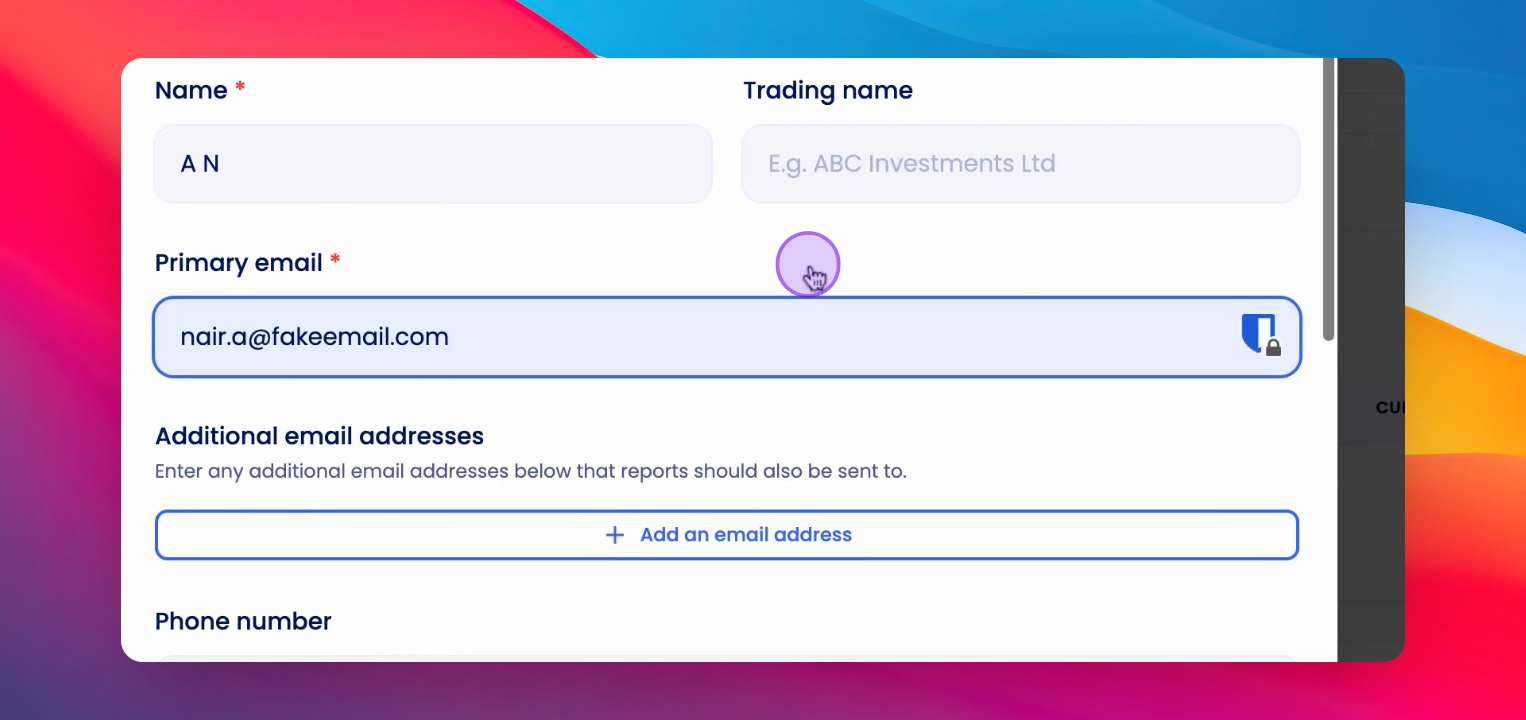
Step 5: Edit Details
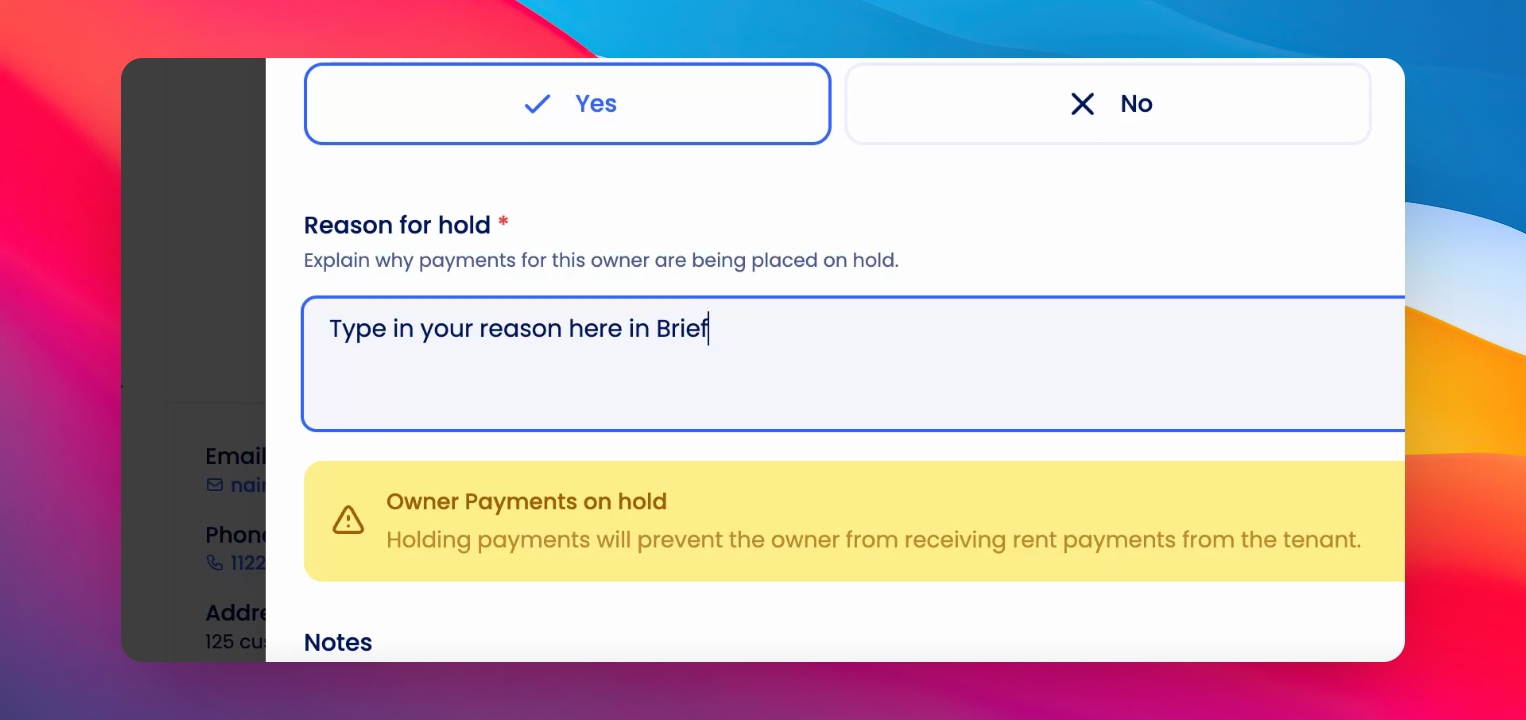
Scroll down to find the option to put payments on hold. Select Yes.
Step 6: Add Reason
Enter the reason for placing payments on hold in the mandatory field that appears.
Step 7: Save Changes
Click Save to apply the changes. The profile will update accordingly.
Step 8: Confirmation
Check the owner's profile for an indicator confirming that payments are on hold.
If you need more help or have any questions, just reach out to us at support@keyhook.com — we're always here to help!