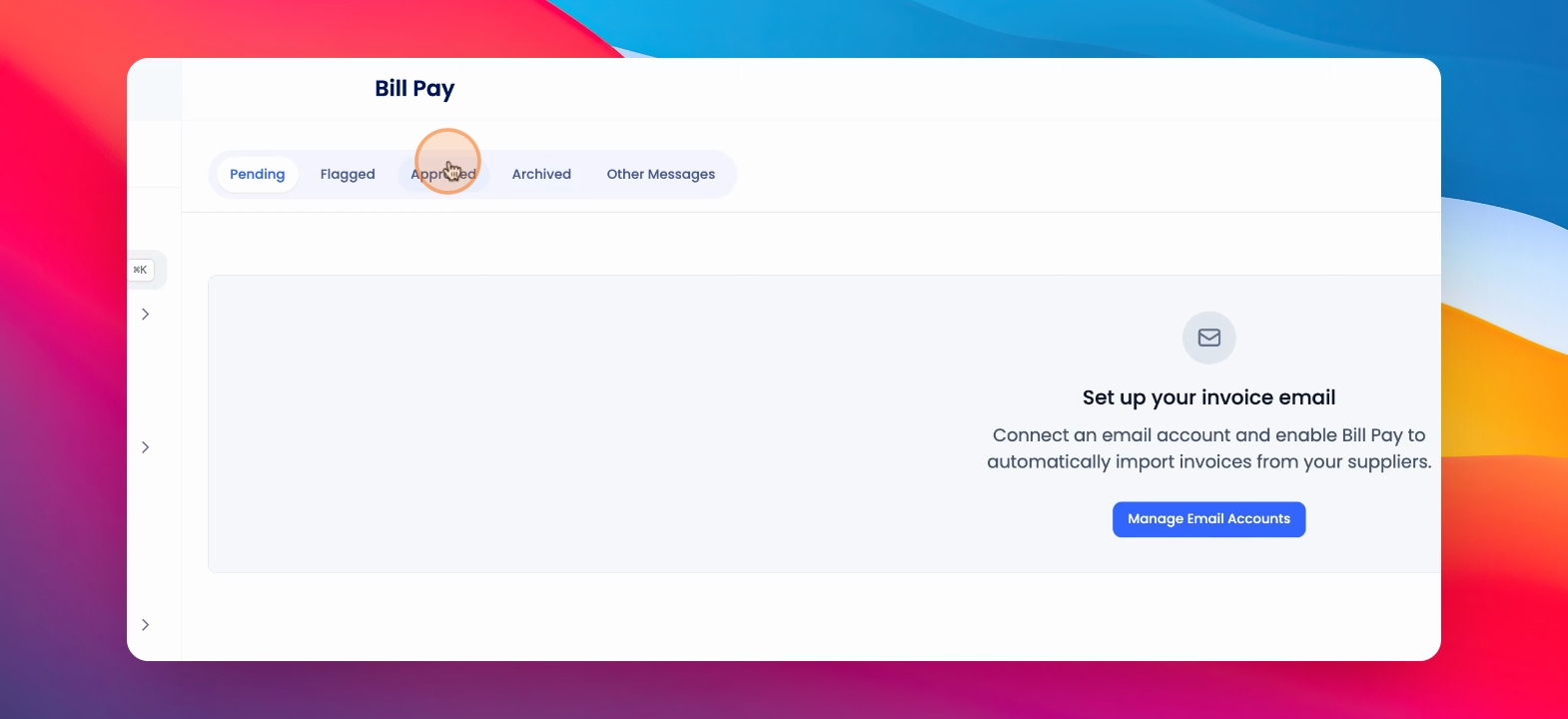
In this tutorial, you will learn how to process supplier invoices from your connected invoice email account in Financials. Let's look at the steps:
Note: Your bill/invoice dedicated email must be set up in order to use this feature
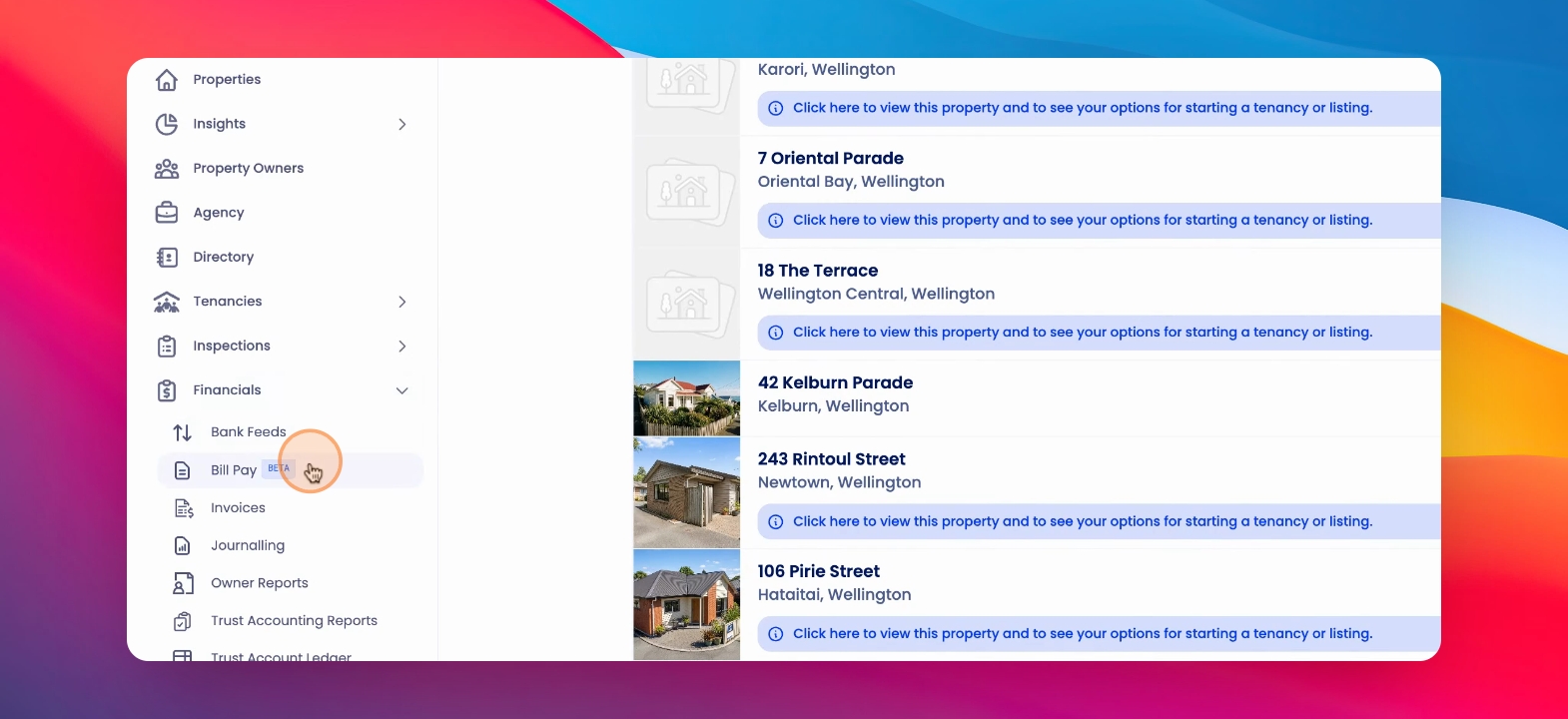
Step 1: Click Bill Pay
Under Financials, click Bill Pay.
Step 2: Check for New Invoices
To check for new invoices, click the button at the top right hand corner of the screen.
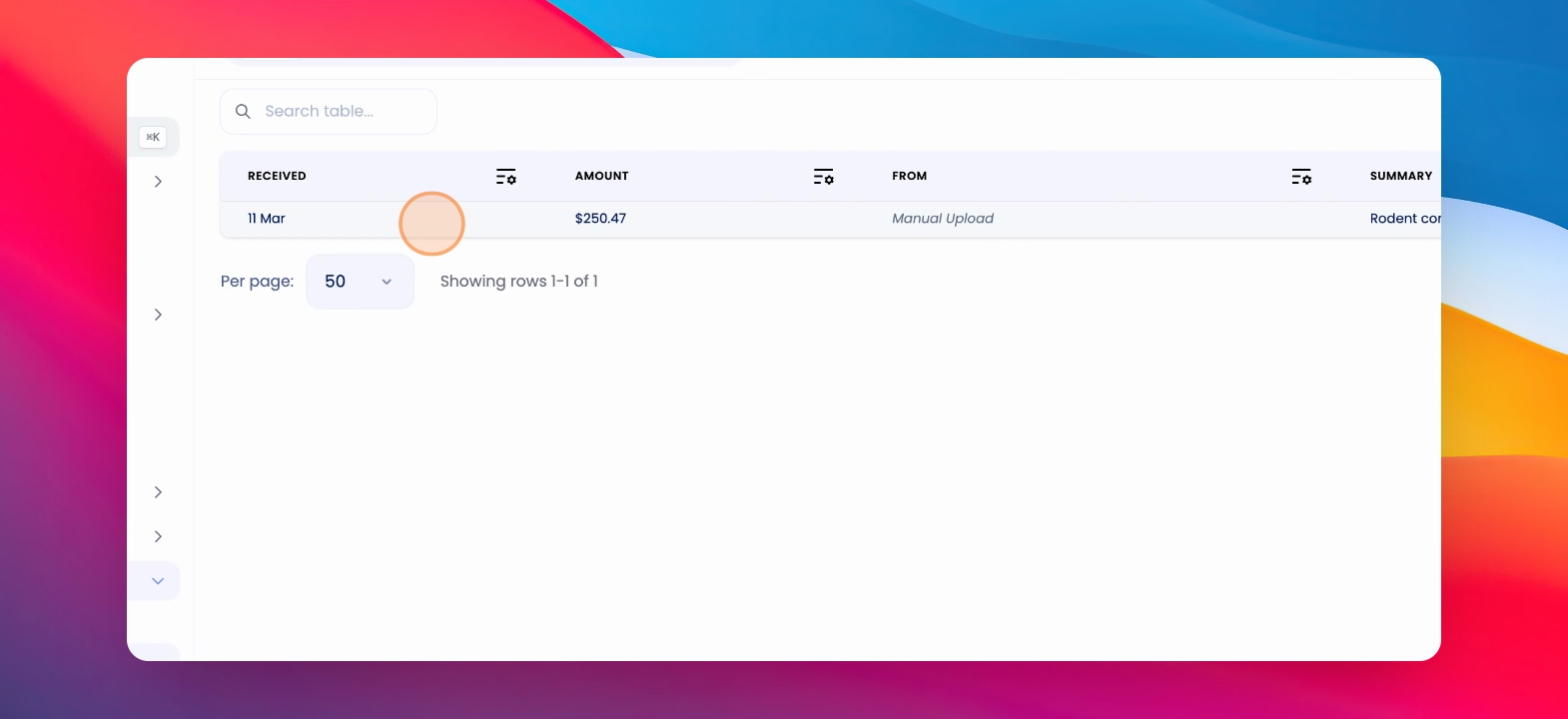
Step 3: Review an Invoice
To review an invoice that has come into your email, click on the line item.
Step 4: Approve Invoice
Review the details, assign a supplier in a property, then click Approve.
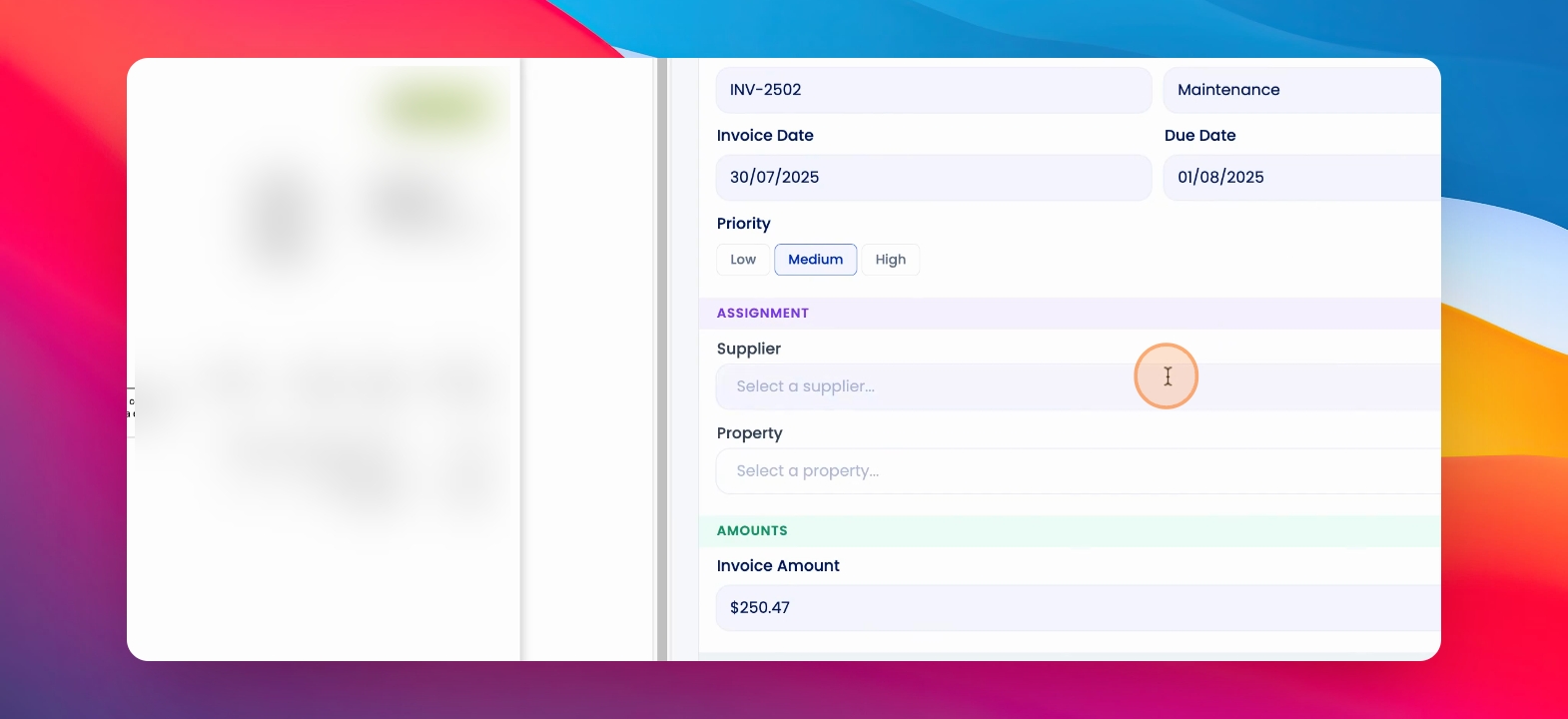
After approving, the invoice will be in your approved tab as well as in the invoices table.