

TL;DR
1
Open Profile Menu
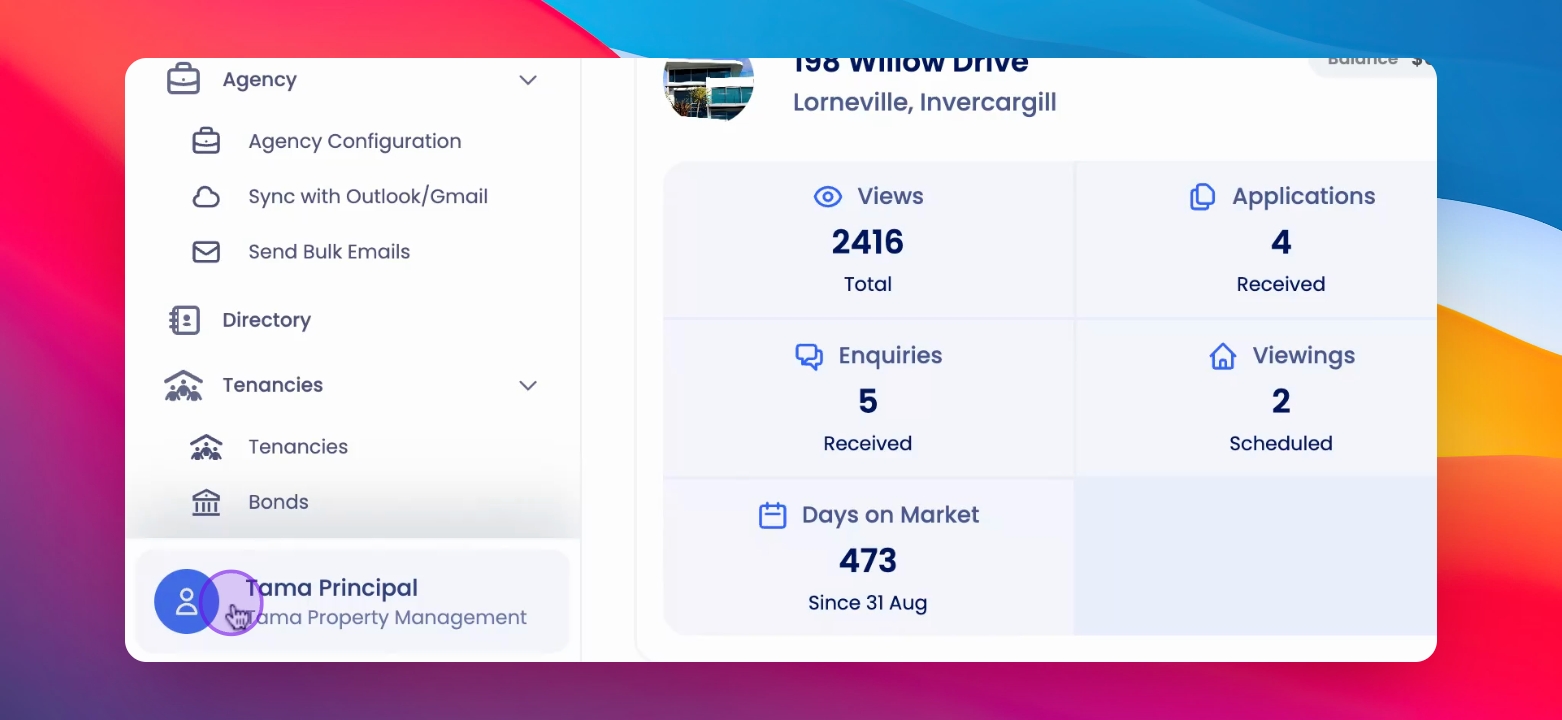
Navigate to the Profile menu at the bottom left.
2
Select All Portfolios
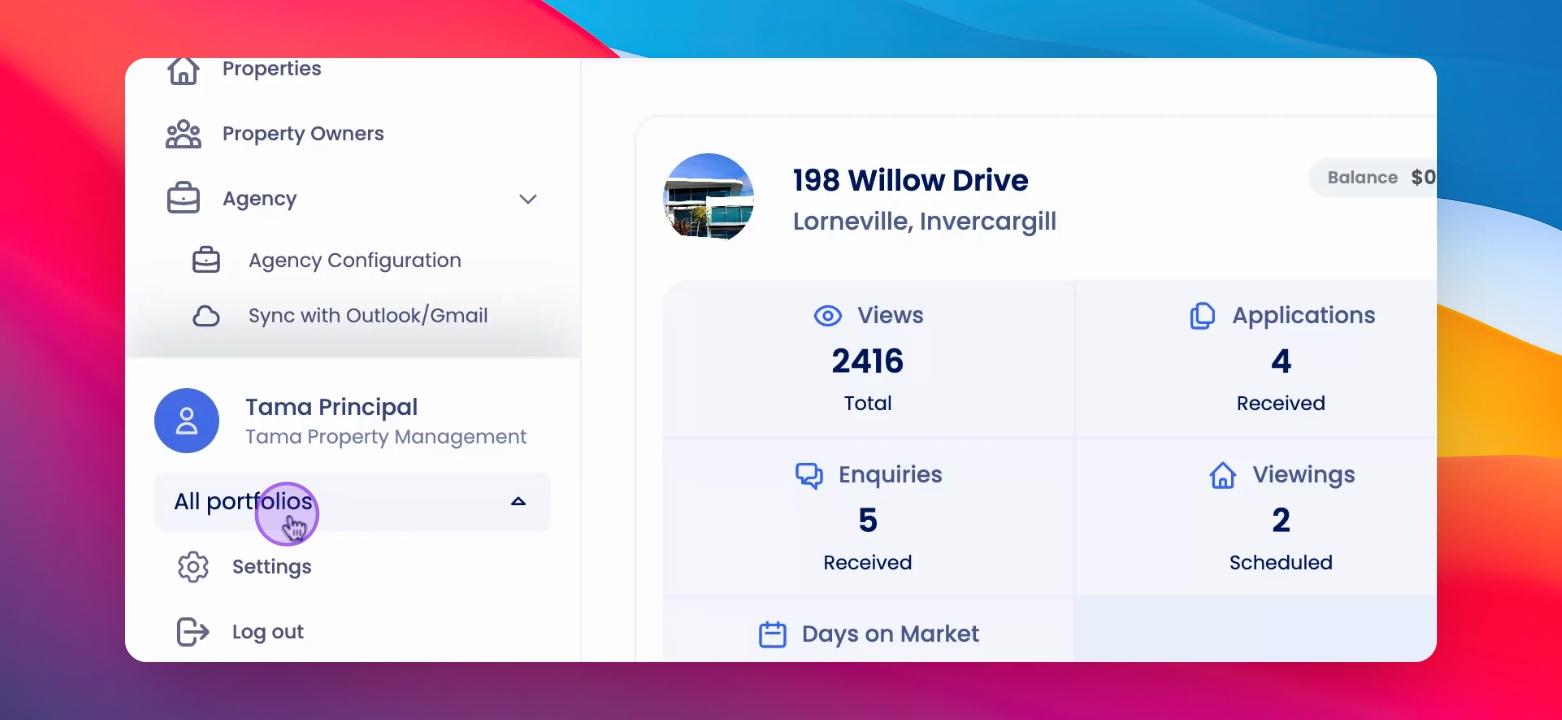
Choose All Portfolios to display multiple options.
3
Select Portfolios
Click to select the portfolios you want to view.
Let's Do It Together!
Step 1: Open Profile Menu
Navigate to the Profile menu located at the bottom left corner of the screen.
The Profile menu opens.
Step 2: Select All Portfolios
Select All Portfolios from the menu.
Step 3: Choose Portfolios to View
Click and select the portfolios you wish to view.
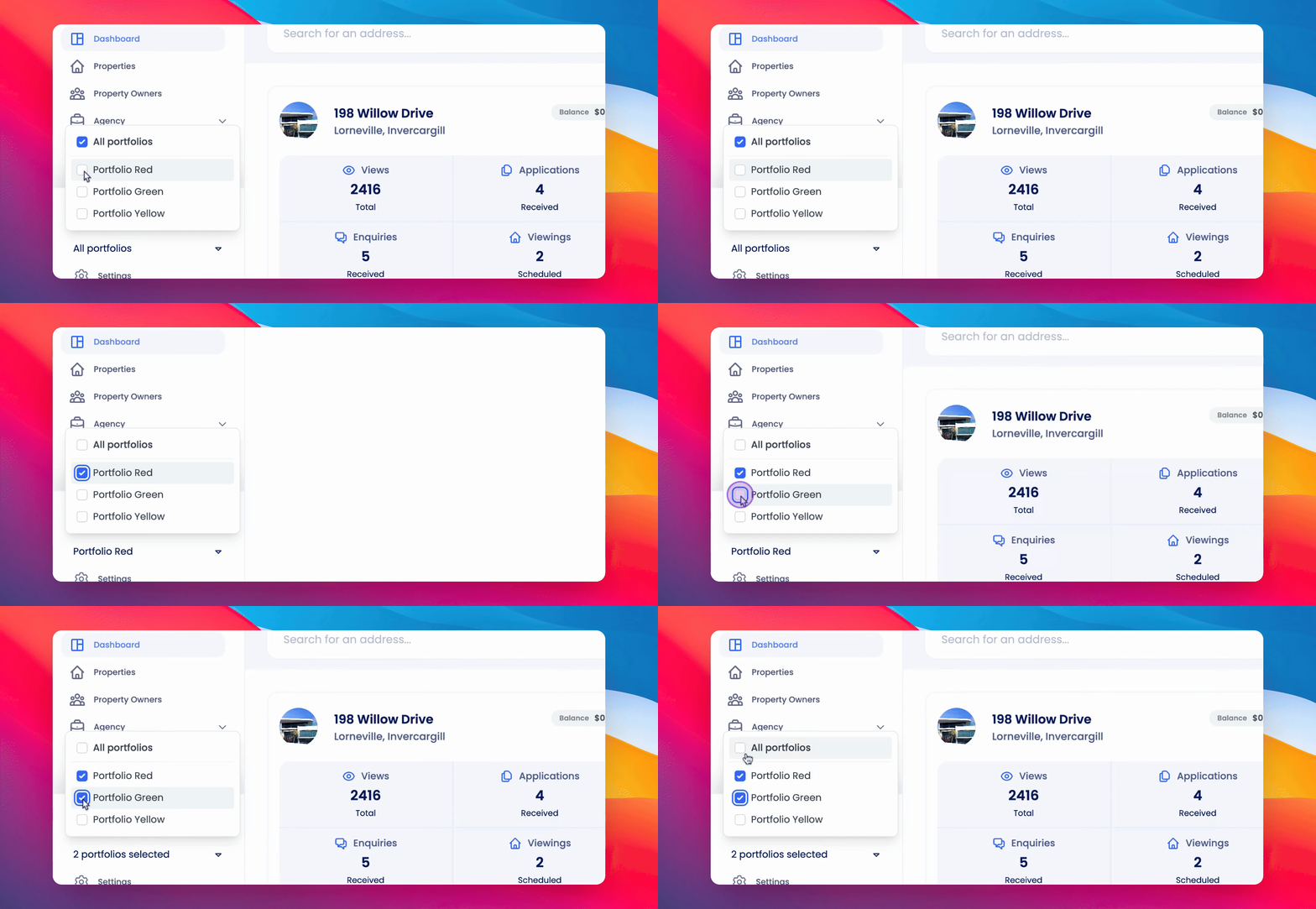
You can now view and manage multiple portfolios at once.
If you cannot find what you are looking for or have any further questions, please feel free to contact us on support@keyhook.com
Help us improve this article. Your opinion means the world to us!
Click on this link to give a feedback: Support Article Feedback Form