

TL;DR
Let's Do It Together!
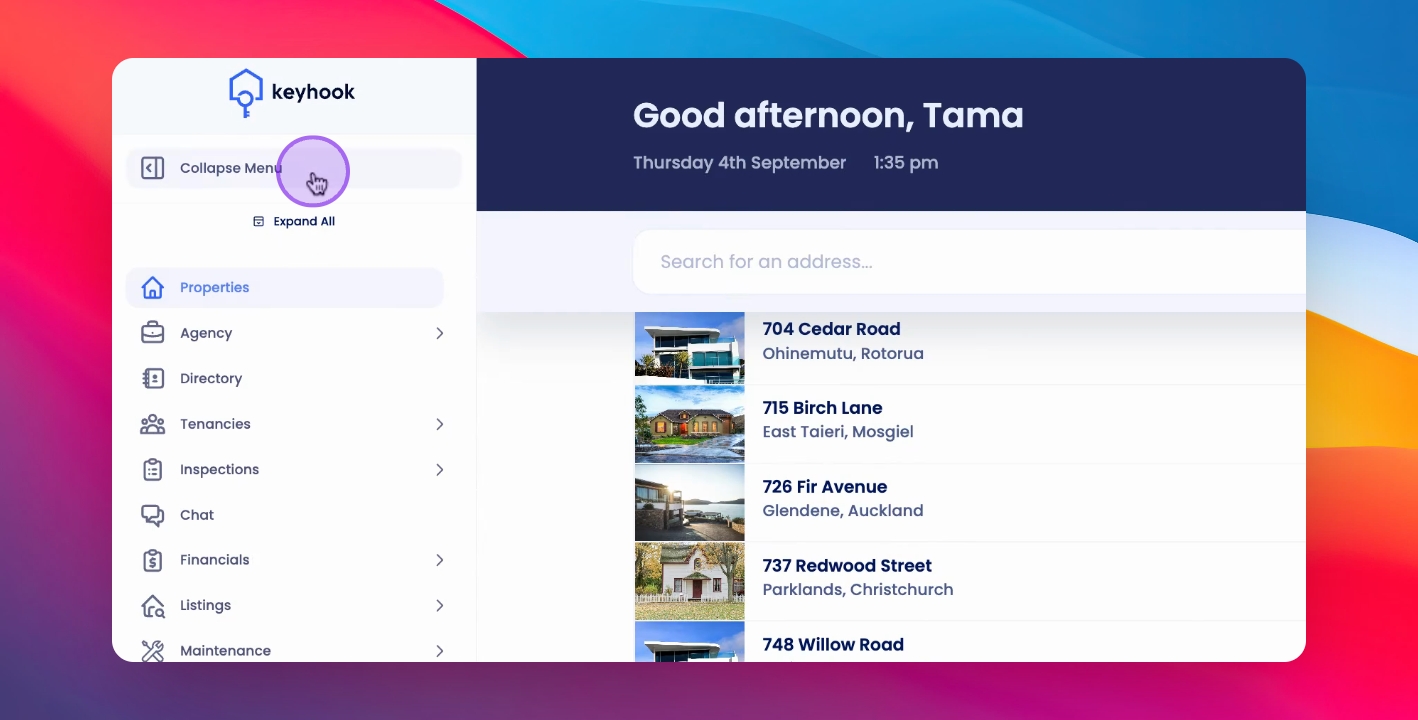
Step 1: Collapse the Menu
Hover over the navigation bar to access the menu.
Collapse the menu to increase screen information availability.
Step 2: Expand or Collapse Tabs
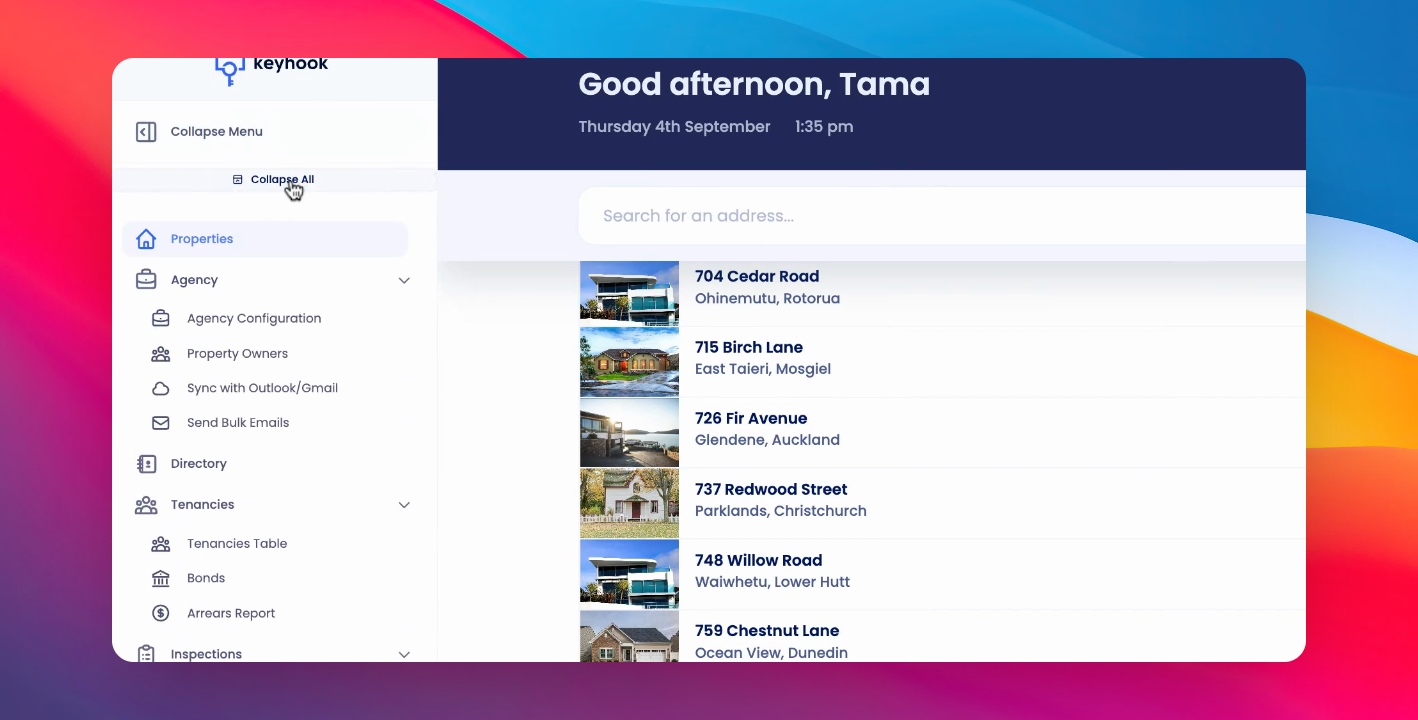
Use the options to expand all or collapse all tabs.
This will adjust the view of the navigation bar.
Step 3: Access Property Information
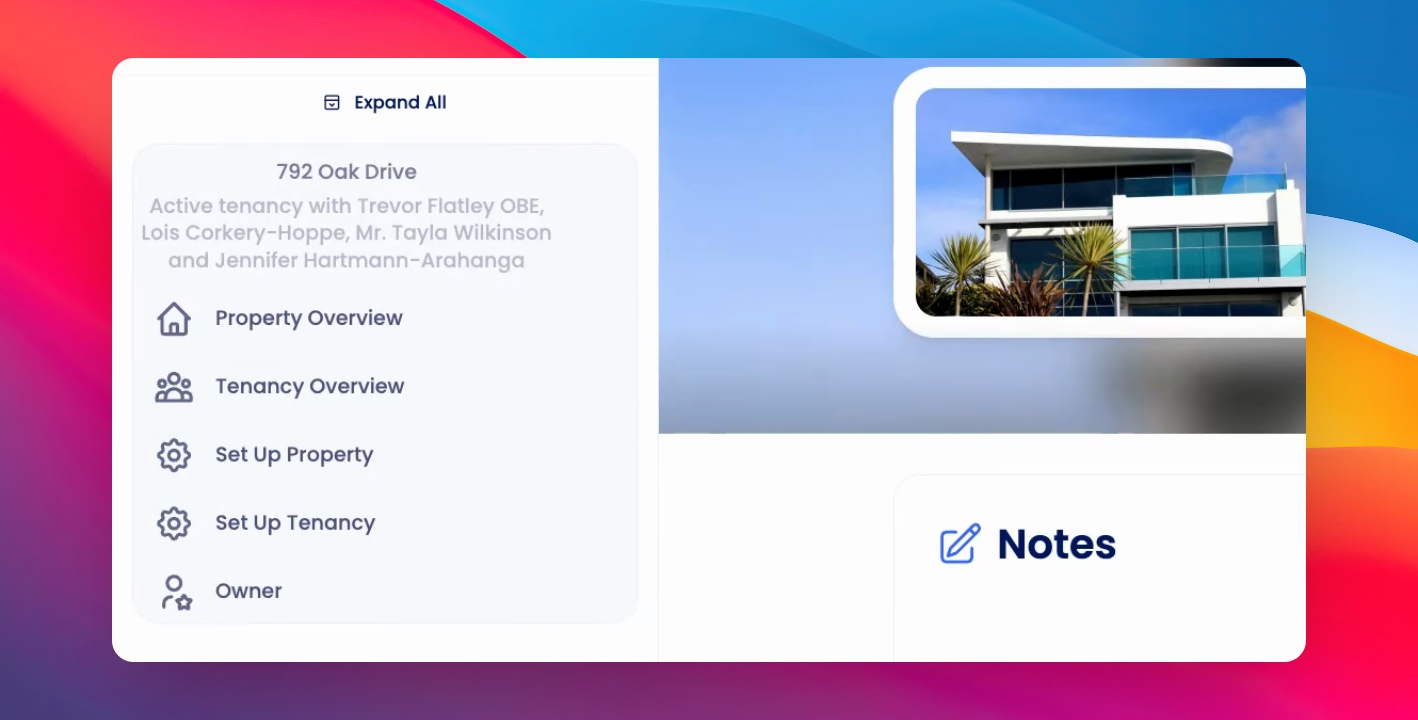
When you are in a Property Overview, more information is added
View property and tenancy information in the navigation bar.
Check active tenancies and tenant names.
Use quick links to navigate to Property Overview, Tenancy Overview, and Setup and Owner Overview.
Step 4: Open New Tabs
Click and drag links from the navigation bar to your browser window to open new tabs.
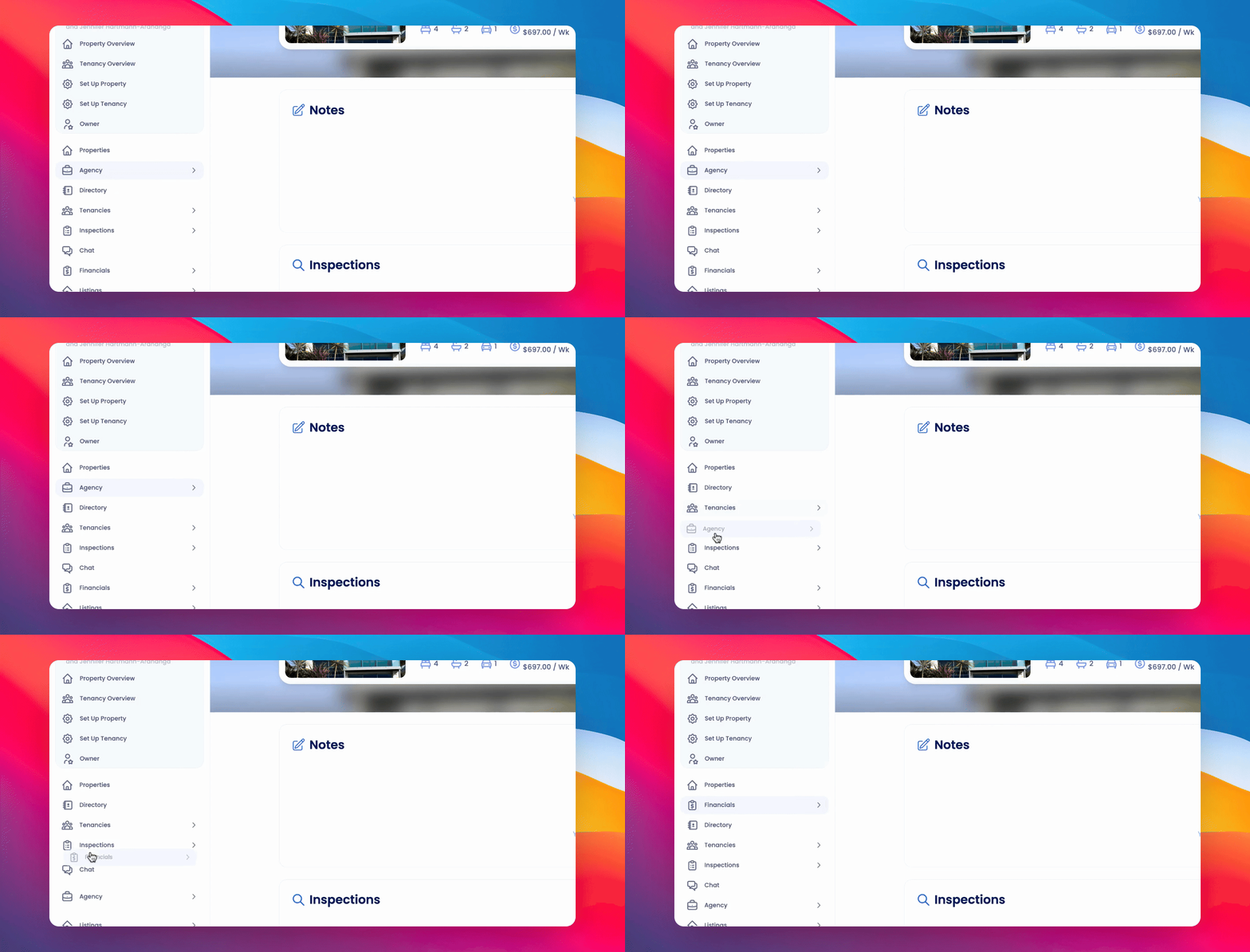
Step 5: Reorder Navigation Items
Click and hold top-level navigation items.
Drag them to reorder within the navigation bar.
If you need more help or have any questions, just reach out to us at support@keyhook.com — we're always here to help!
Click on this link to give a feedback: Support Article Feedback Form