

TL;DR
1
Navigate to Property Page
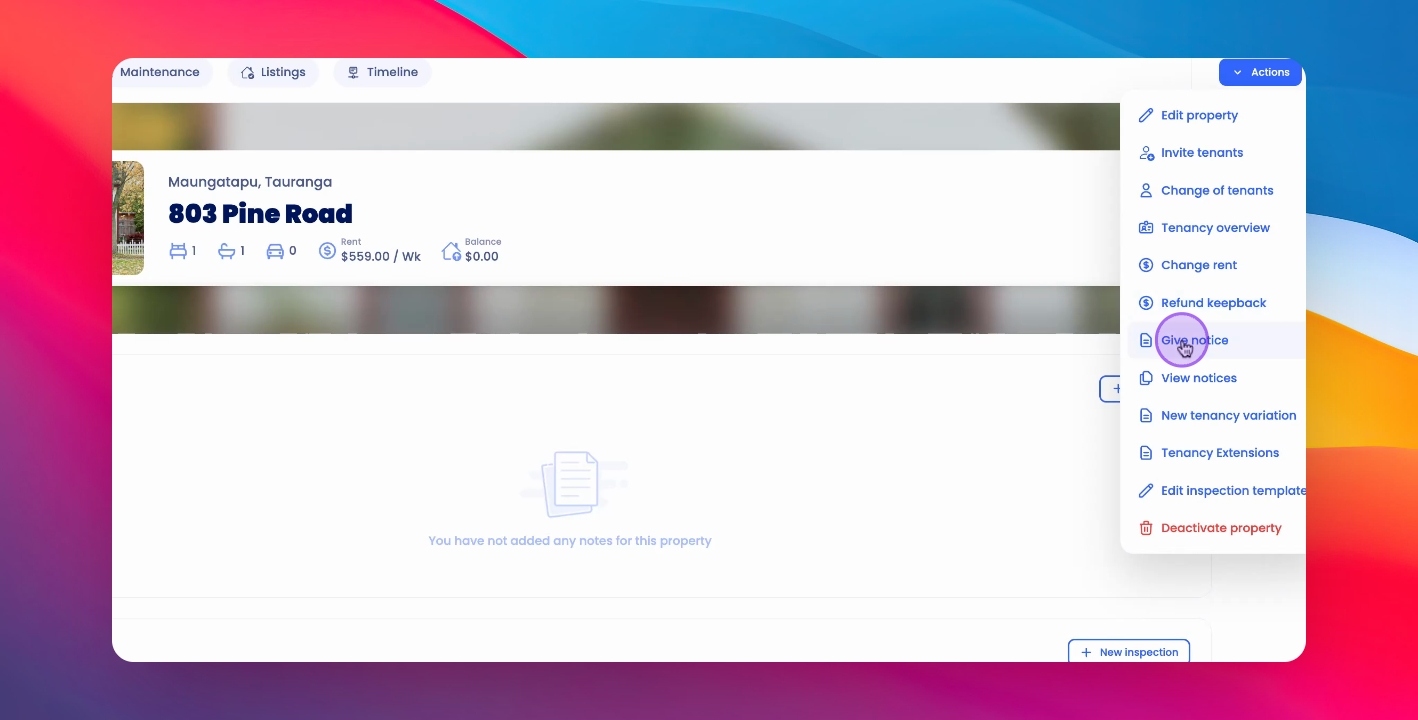
Go to the property overview and click Actions on the top right of the page
2
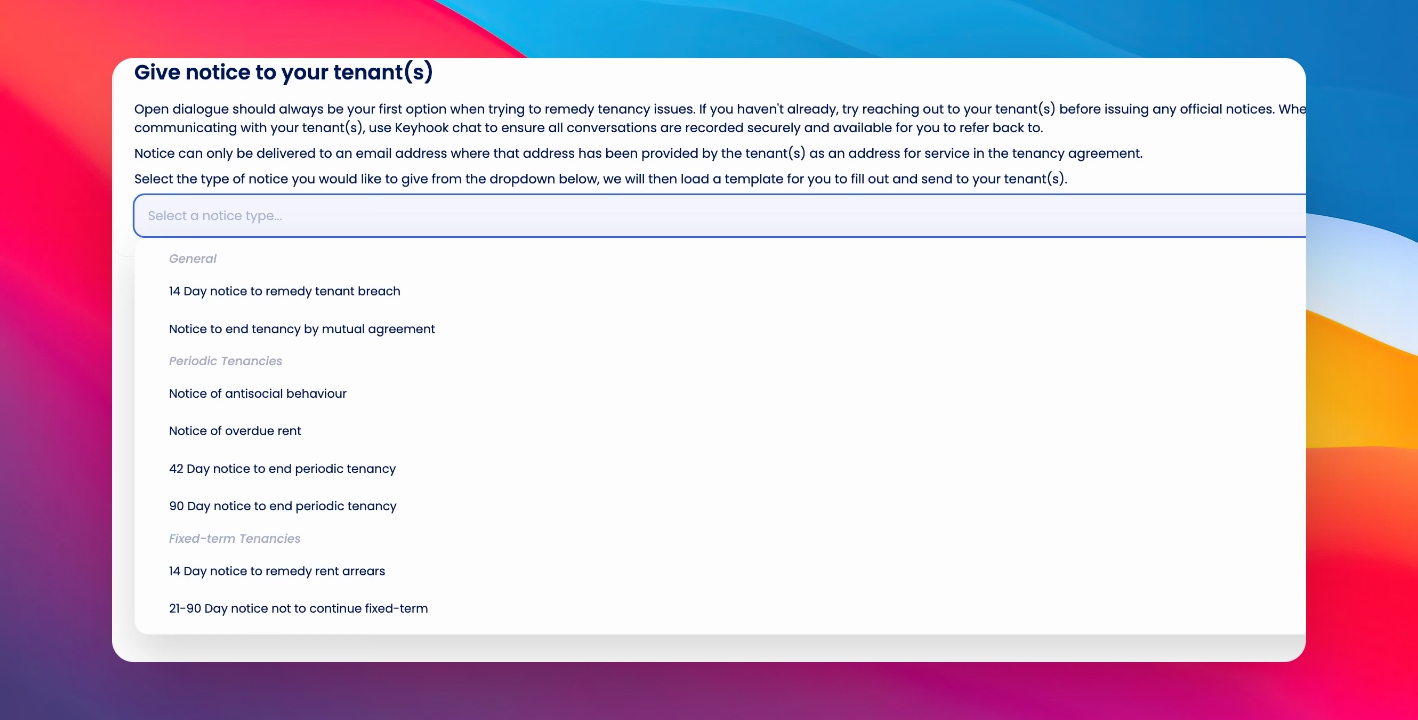
Select Notice Template
Select Give Notice, then choose a template from the drop-down list.
3
Fill Out Notice
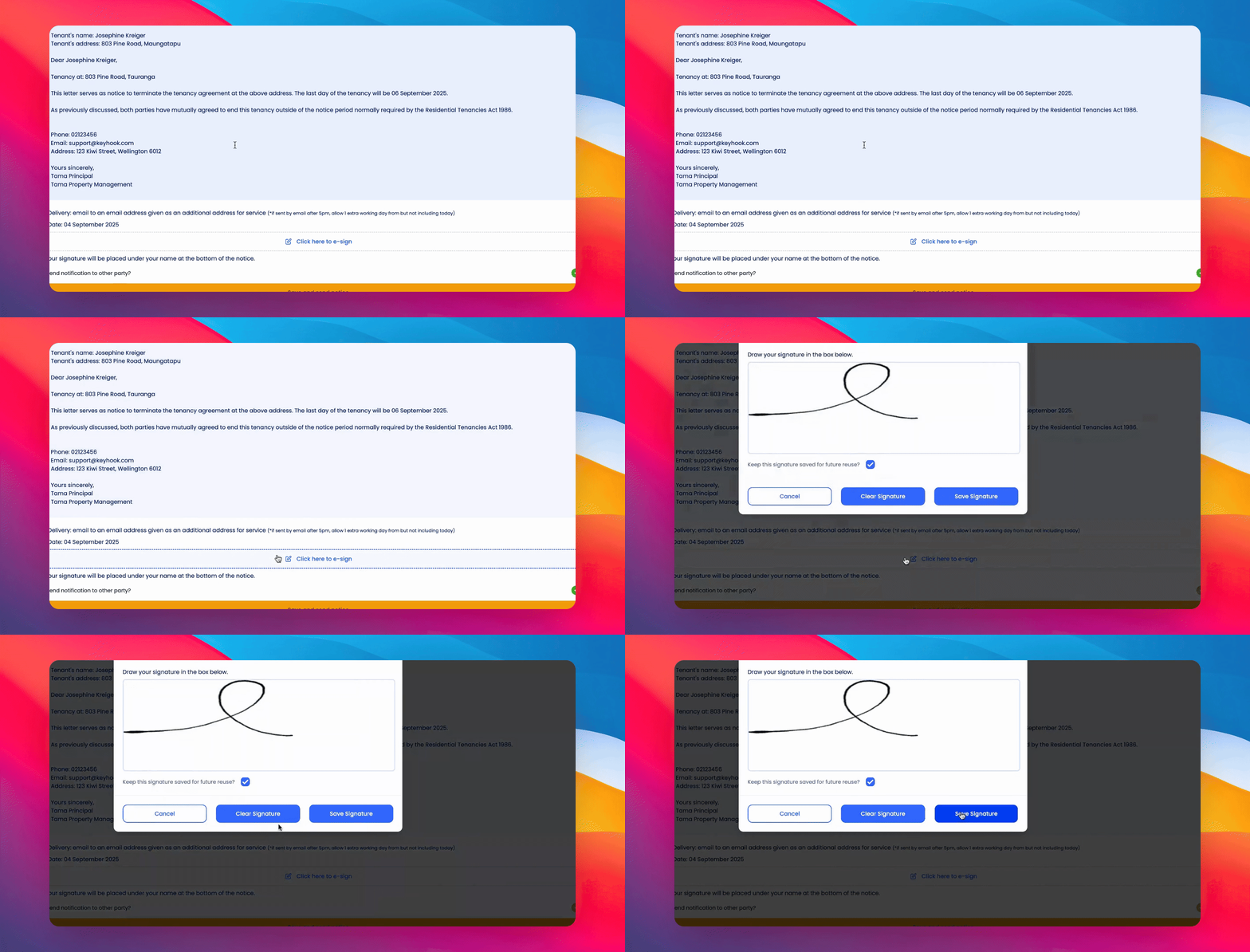
Choose a date, edit as needed, and e-sign the template.
4
Send Notice
Click Save and Send to deliver the notice.
5
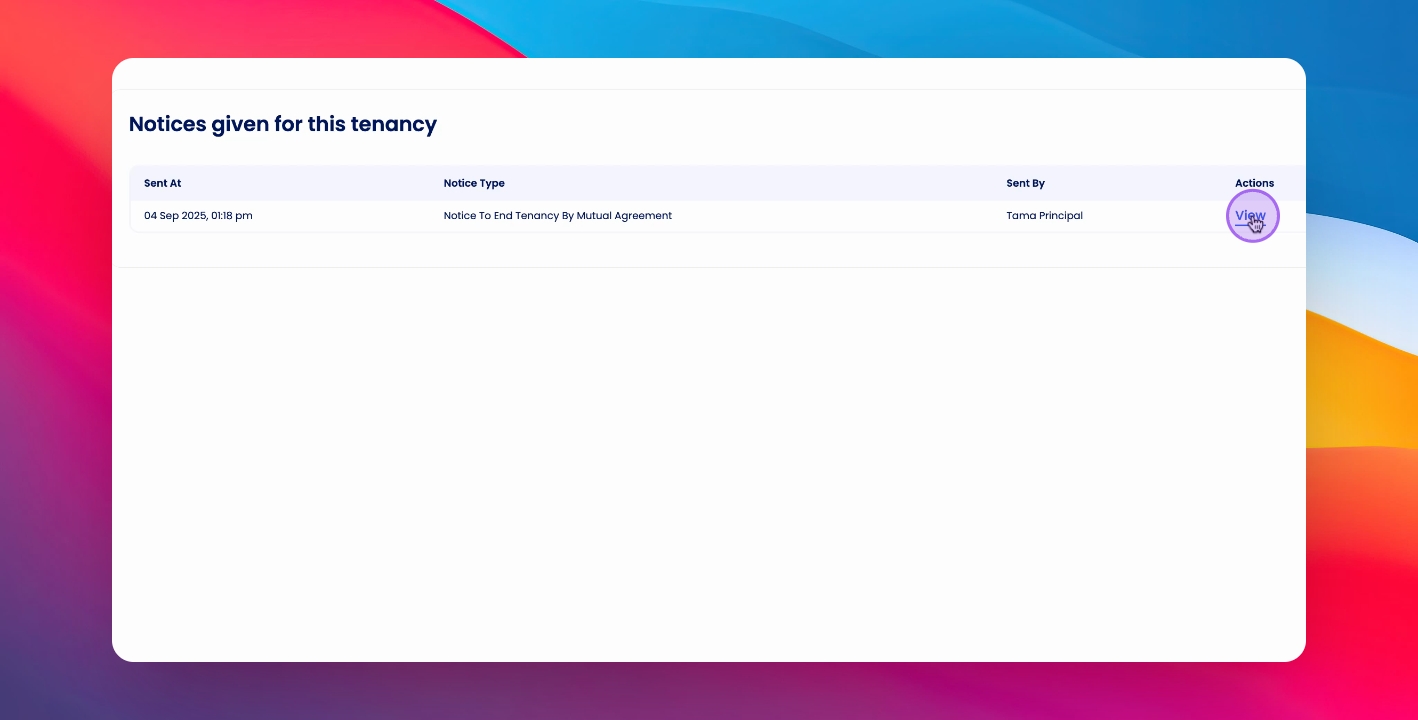
View Notice
Click to view the notice sent to your tenant.
Let's Do It Together!
Step 1: Access Property Page
Navigate to the desired property page.
Click Actions on the top right, find the option to give notice.
Step 2: Select Notice Template
Select from the available notice templates.
Choose the specific notice template you want to use.
Step 3: Fill Out Notice Details
Choose a date for the notice.
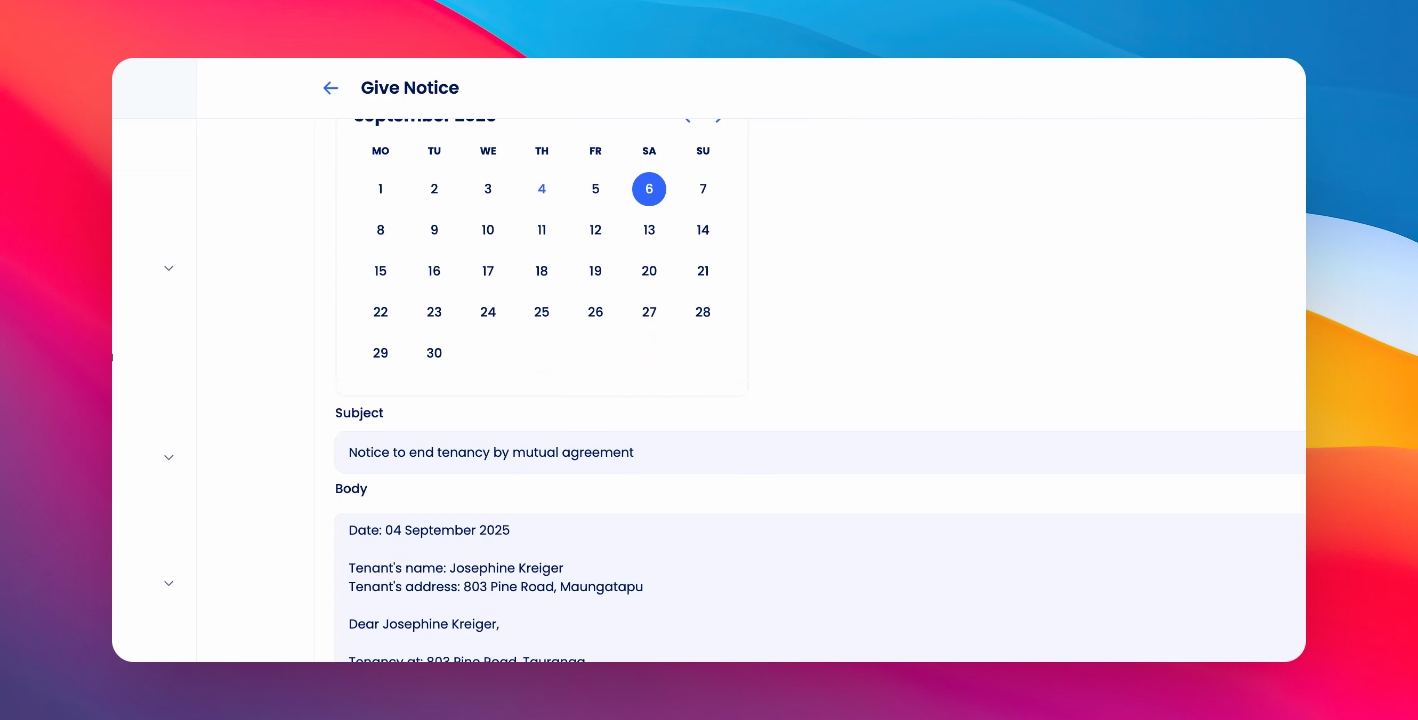
Edit or change any details in the template as needed.
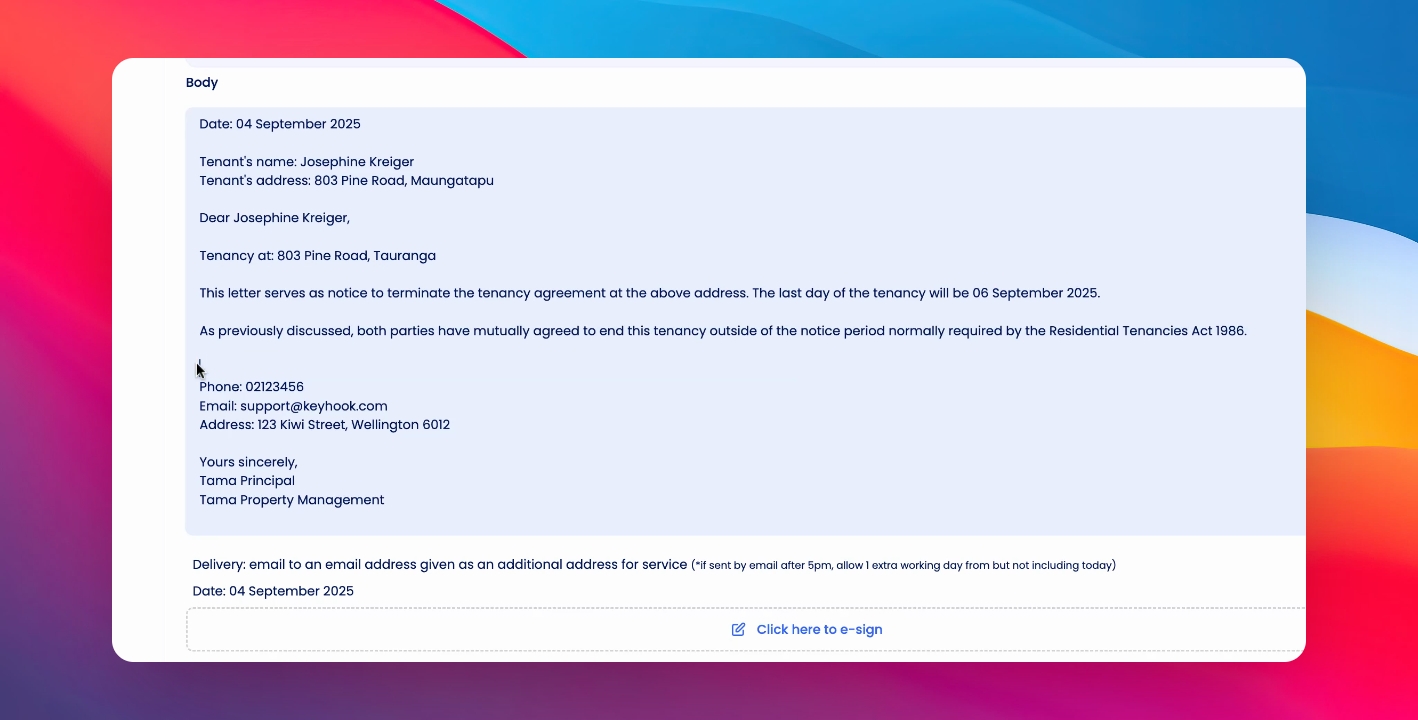
E-Sign the template to validate it.
Step 4: Send Notice
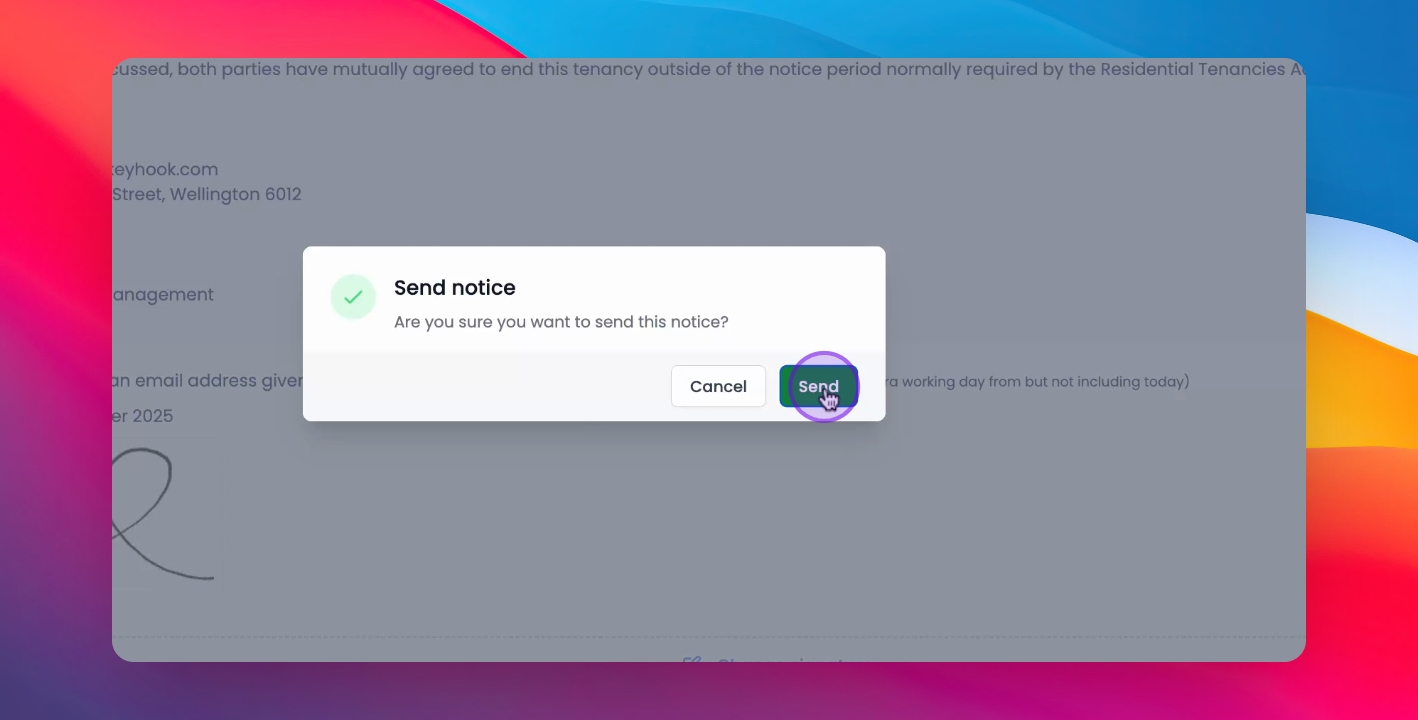
Decide whether to send the notice to your tenant. Click Save and Send
Press Send to confirm sending the notice. The notice has been successfully sent to your tenant.
Step 5: View Sent Notice
Click to view the notice you just sent to your tenant.
If you need more help or have any questions, just reach out to us at support@keyhook.com — we're always here to help!