

Introduction
In this tutorial, we will guide you through the troubleshooting steps to ensure that you are logged into the correct account and that your email settings are correctly configured. By following these instructions, you will be able to resolve common issues and access the information you need.
How to Instructions
1. Verify Account Login
The first thing to do is to check that you are logged into the correct account.
2. Check for Multiple Users
If you are using the same device as another Keyhook user, the device will automatically sign you in to the most recent account.
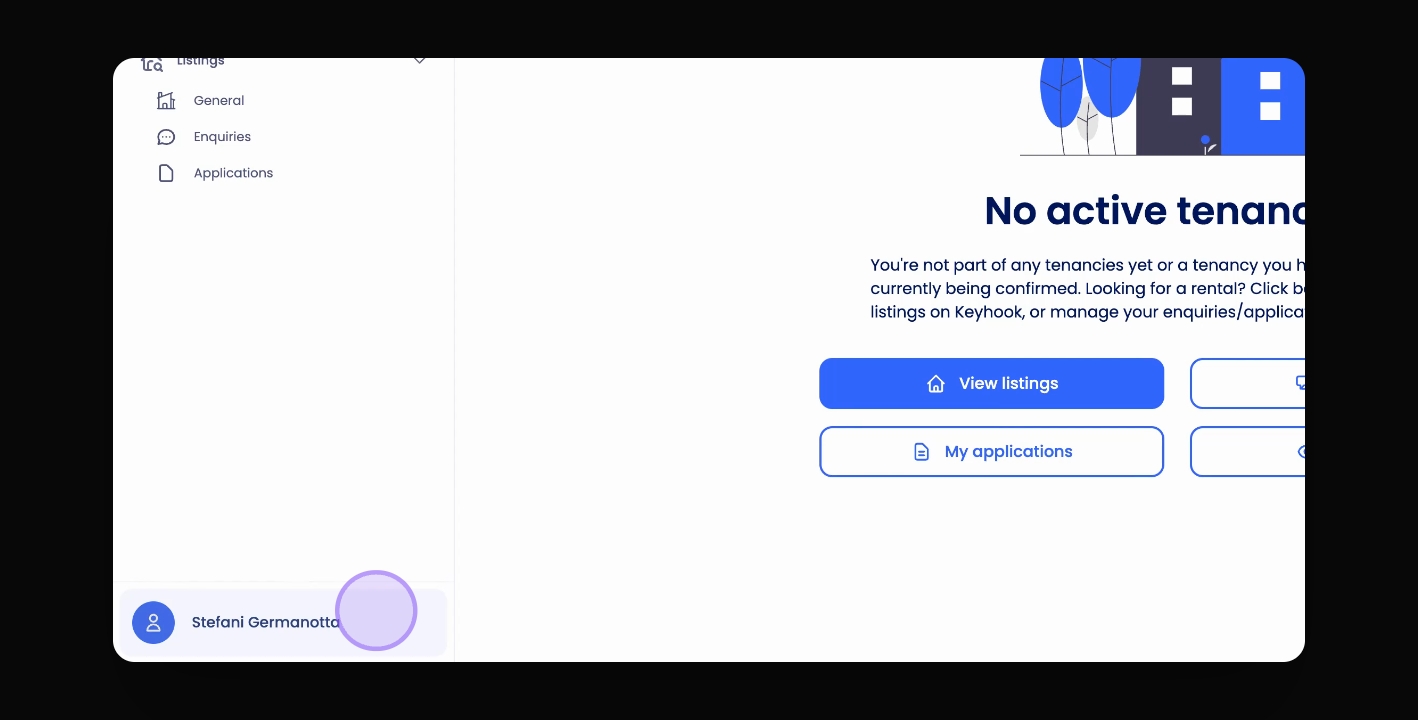
To verify the account you are logged into, go to the bottom left-hand corner of the screen and check the displayed name.
3. Logout if Necessary
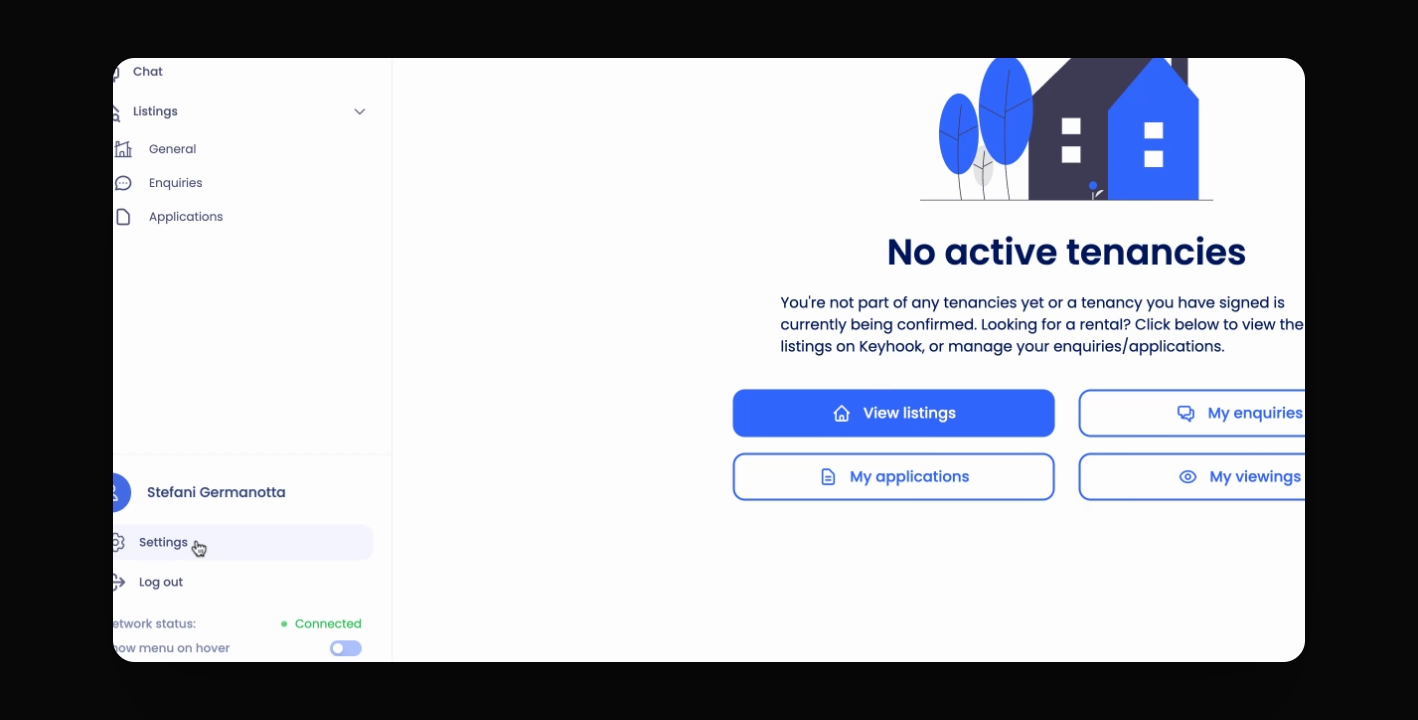
If the displayed name is incorrect, click on the name, then select Logout to log into your account.
4. Check Email Address
The next step is to check the email address associated with the account you are logged in with.
If you have received a document or invitation from your property manager, via email, ensure that the account you are logged into has the same email address as the one that received the invitation.
5. Verify Email Address
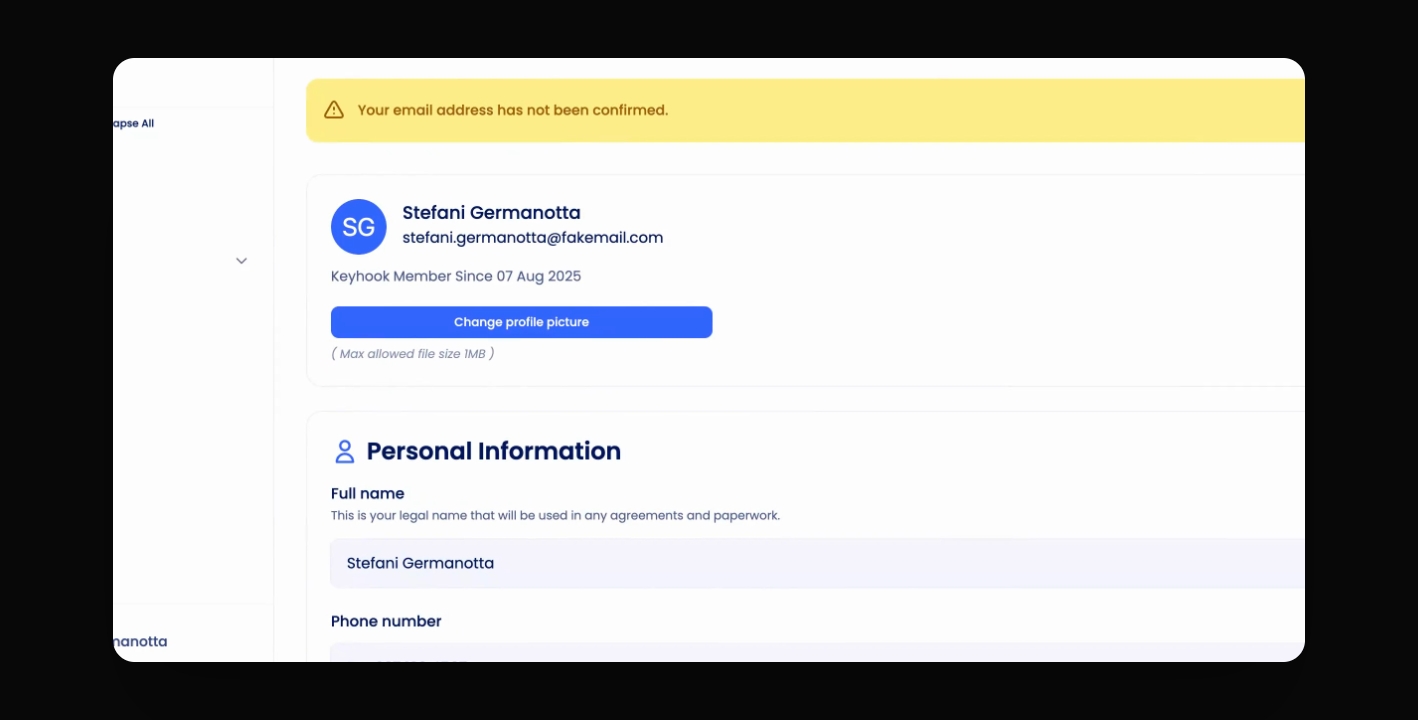
To check the email address of your account, click on your name in the bottom left-hand corner, then select Settings, followed by Account Information, where you can view your email address.
6. Final Steps
If you have gone through all these steps and still cannot find what you are looking for, further assistance may be needed.
Conclusion
By following these troubleshooting steps, you should be able to resolve issues with your tenant portal access. Ensure that you are logged into the correct account and that your email settings are accurate for a seamless experience.