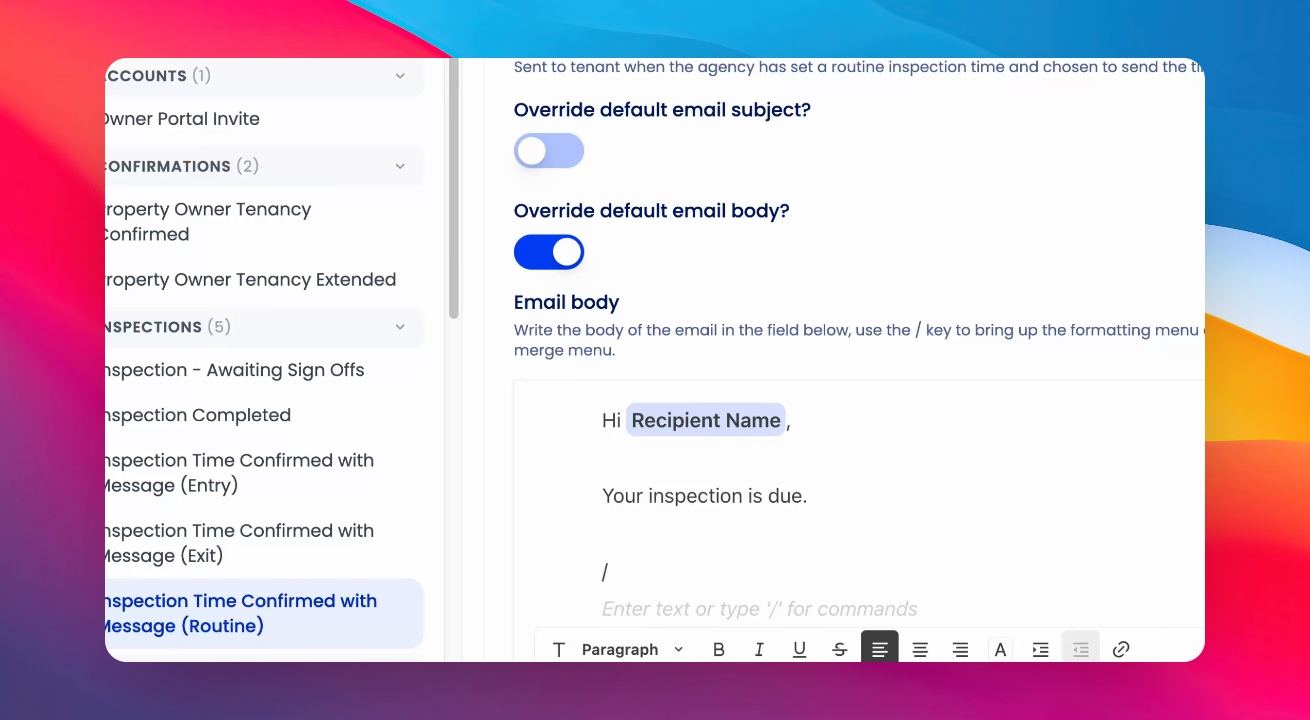

Keyhook allows you to view and edit automated email templates sent to owners, tenants, or suppliers. Let's look at the steps:
Step 1: Open Email Templates
Click on Emails and then click on Templates to access the list of automated emails.
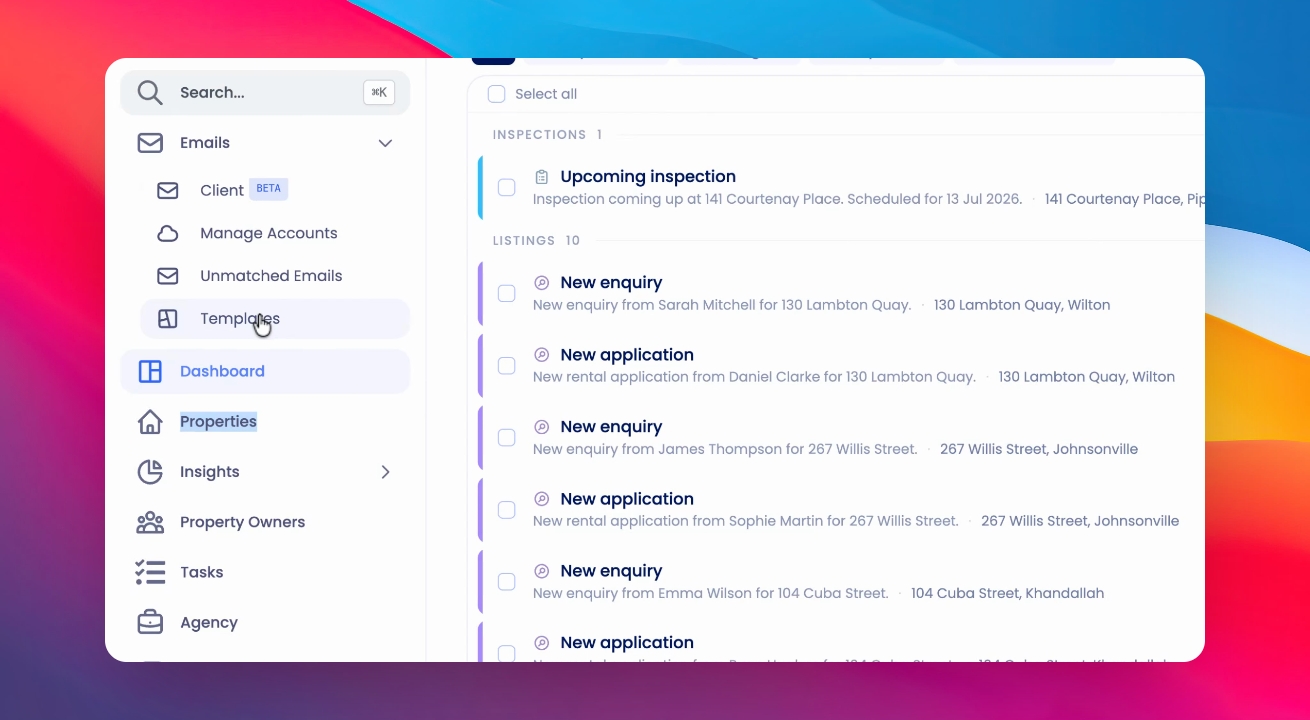
Step 2: Search for a Template
Use the search bar at the top to find a specific email template.
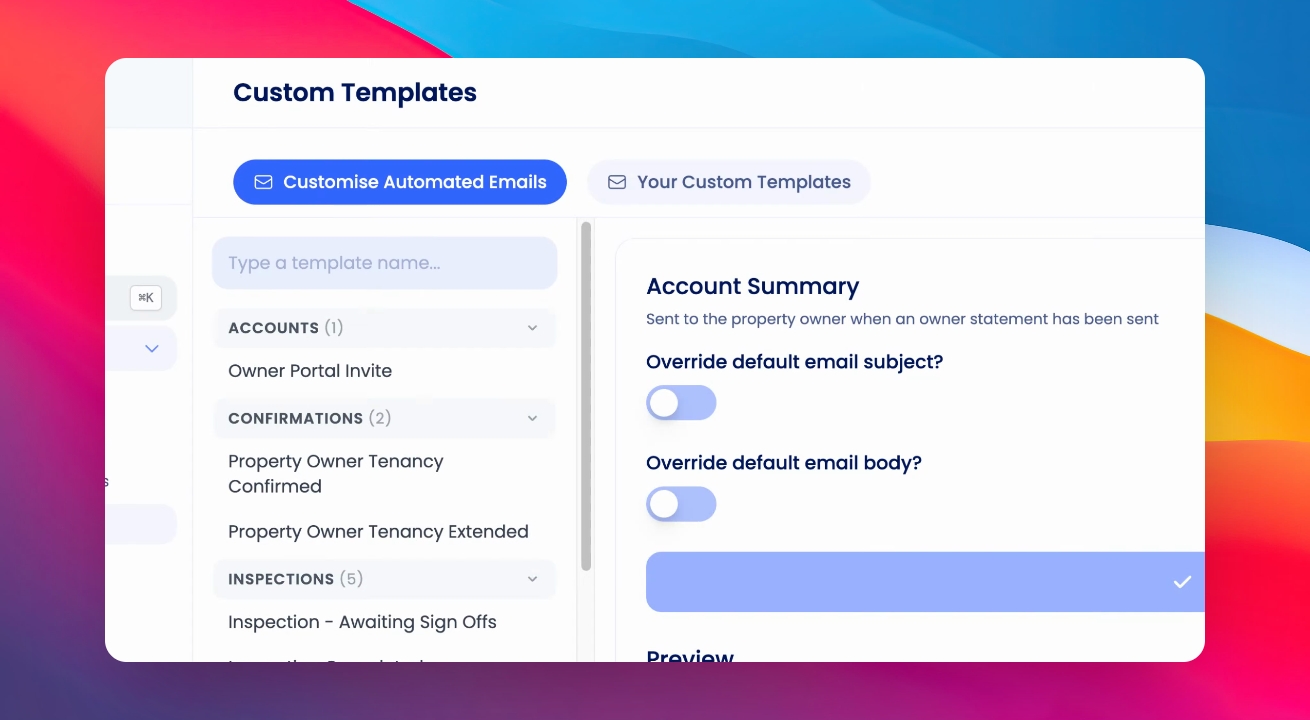
Step 3: Select and Edit a Template
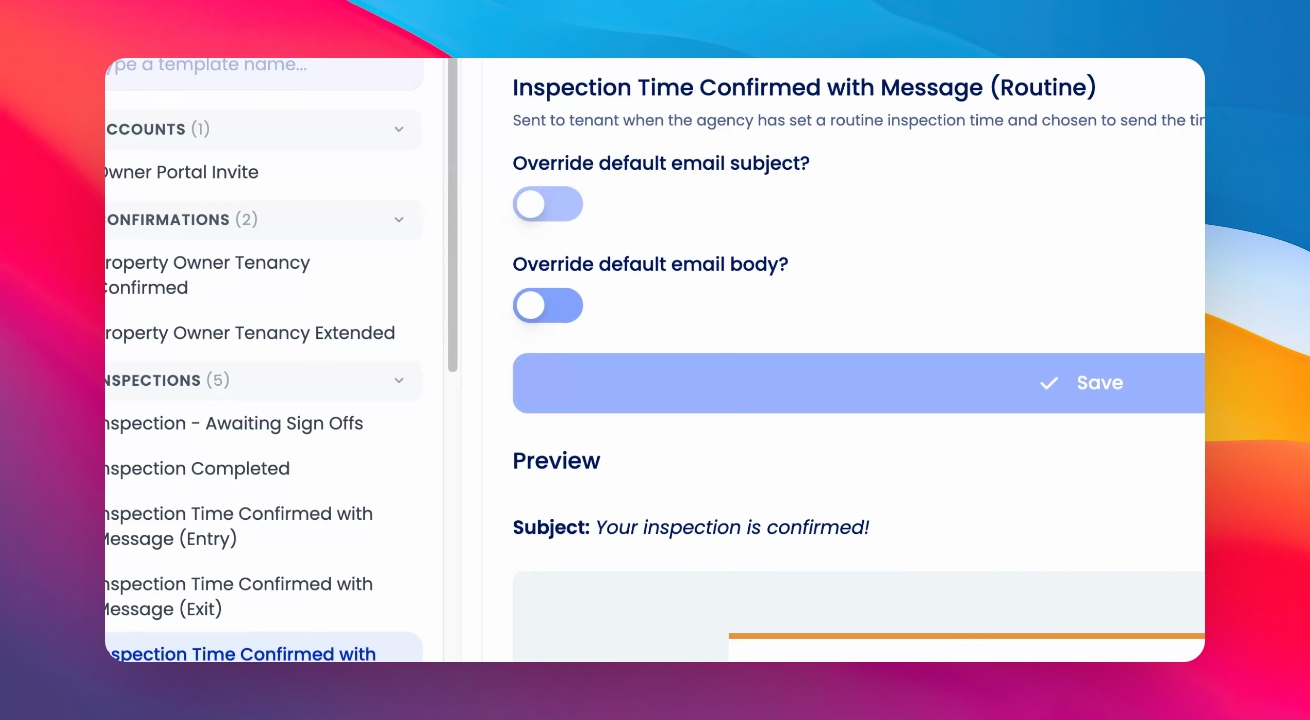
Select the relevant email from the list. Scroll down to view the current template.
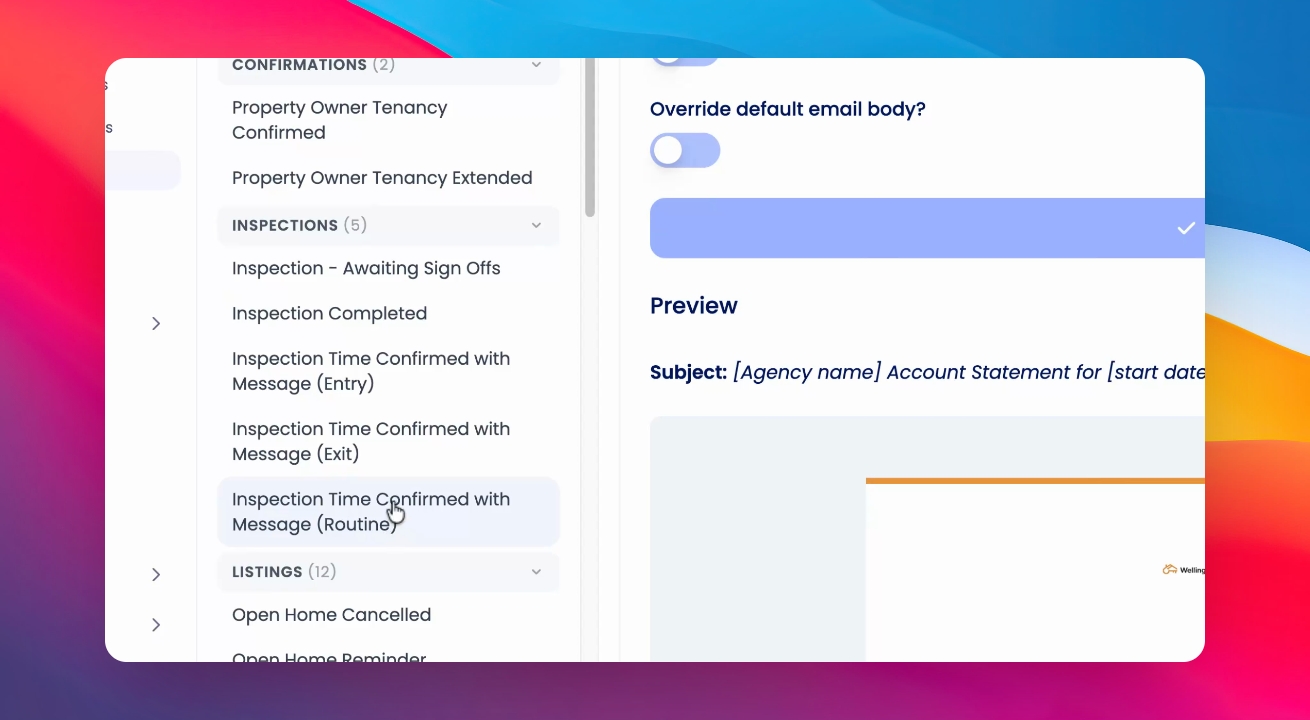
Step 4: Override and Edit Email Body
Toggle Override default email body and start typing your new email template.
Step 5: Insert Merge Fields
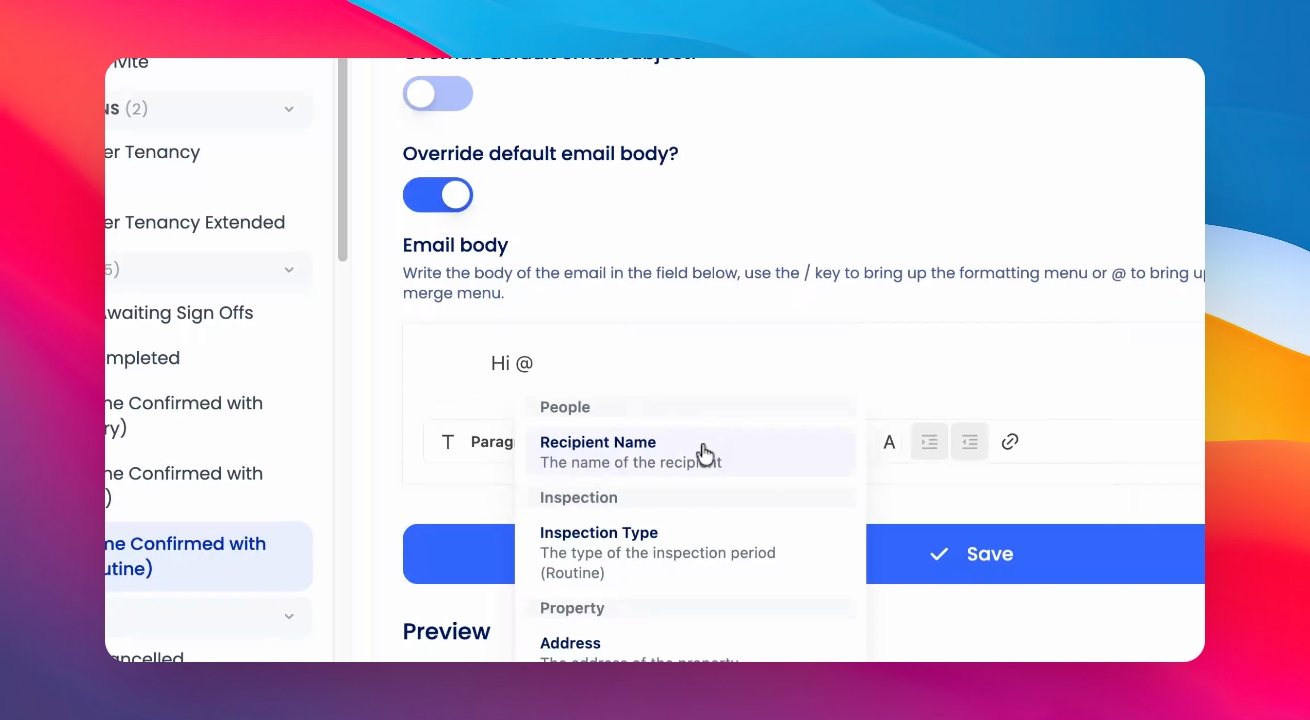
Type the merge field symbol and select the desired merge field to include dynamic content in your template.
Step 6: Format the Template
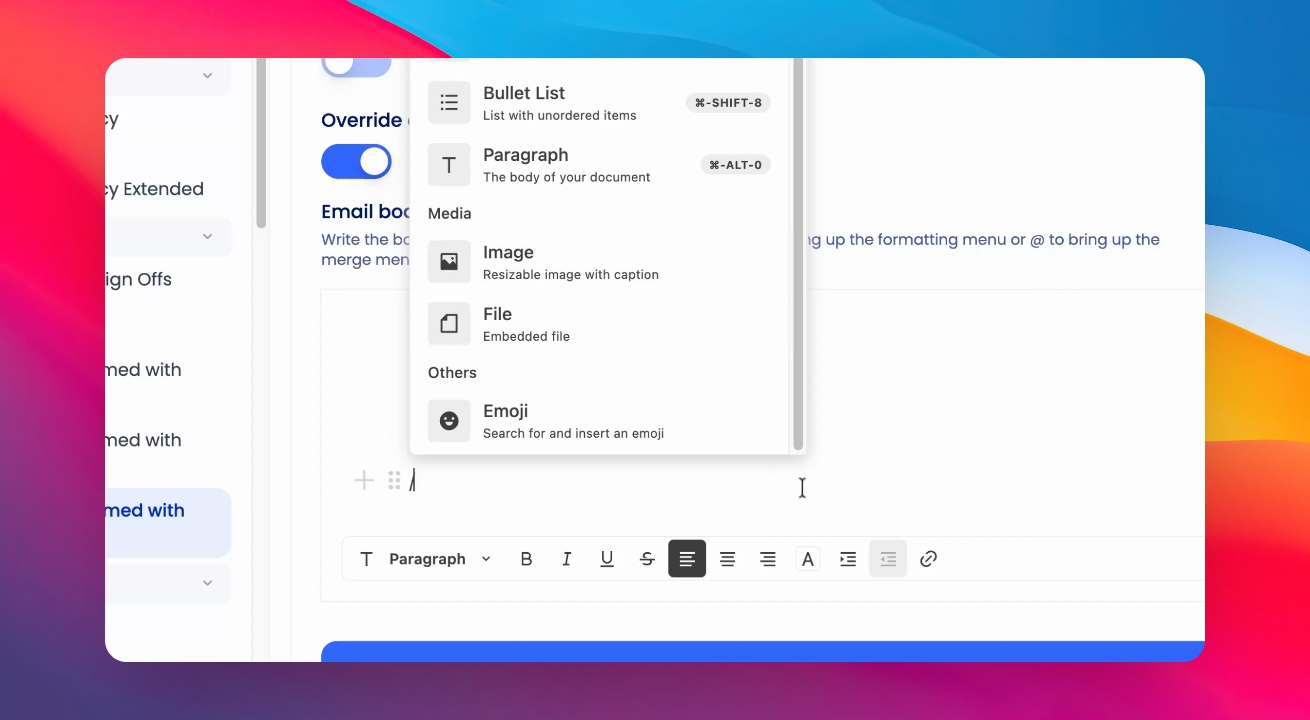
Type a forward slash (/) to bring up formatting options, including embedding images in your email template.
Step 7: Save Your Changes
When you're ready, click Save to apply your changes.
You can preview your template at any time by scrolling down. To revert to the default template, toggle off Override default email body.