

TL;DR
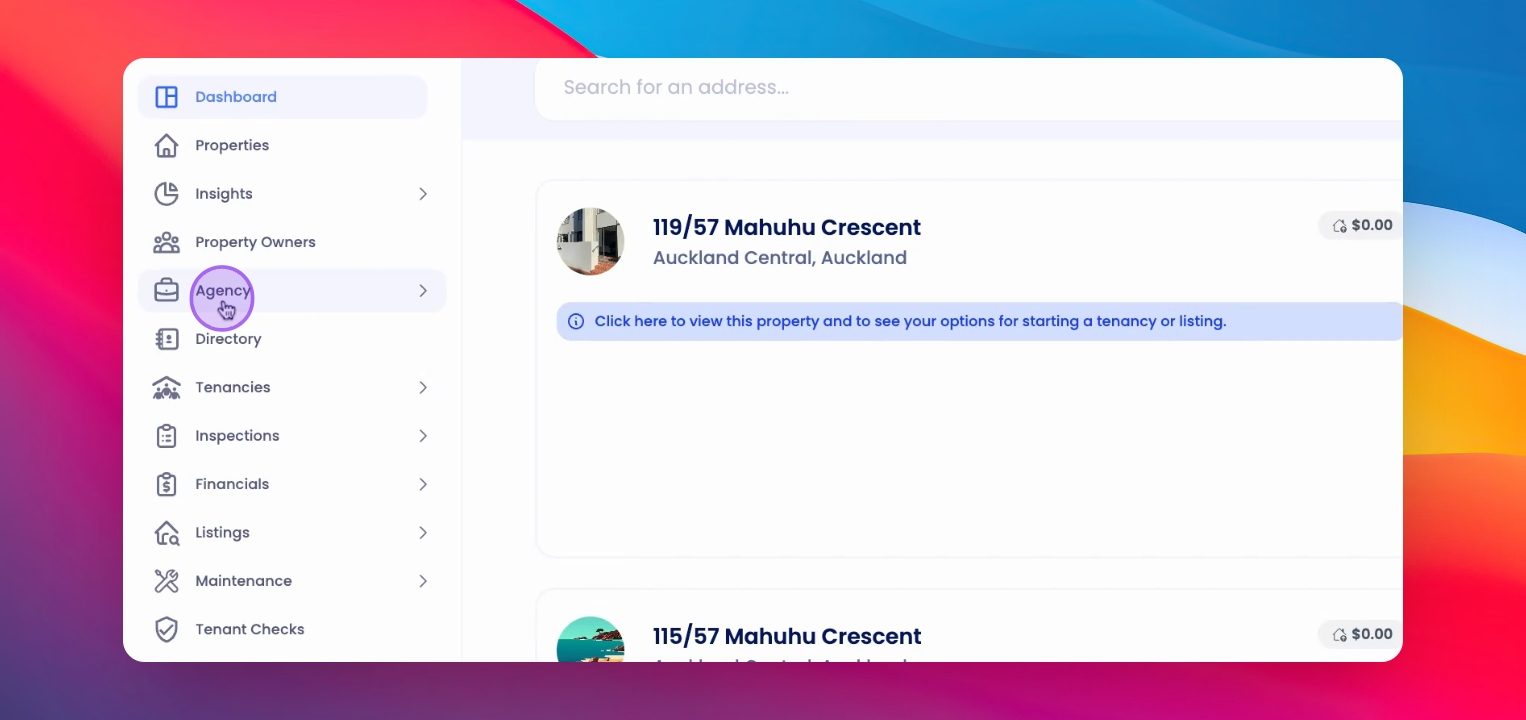
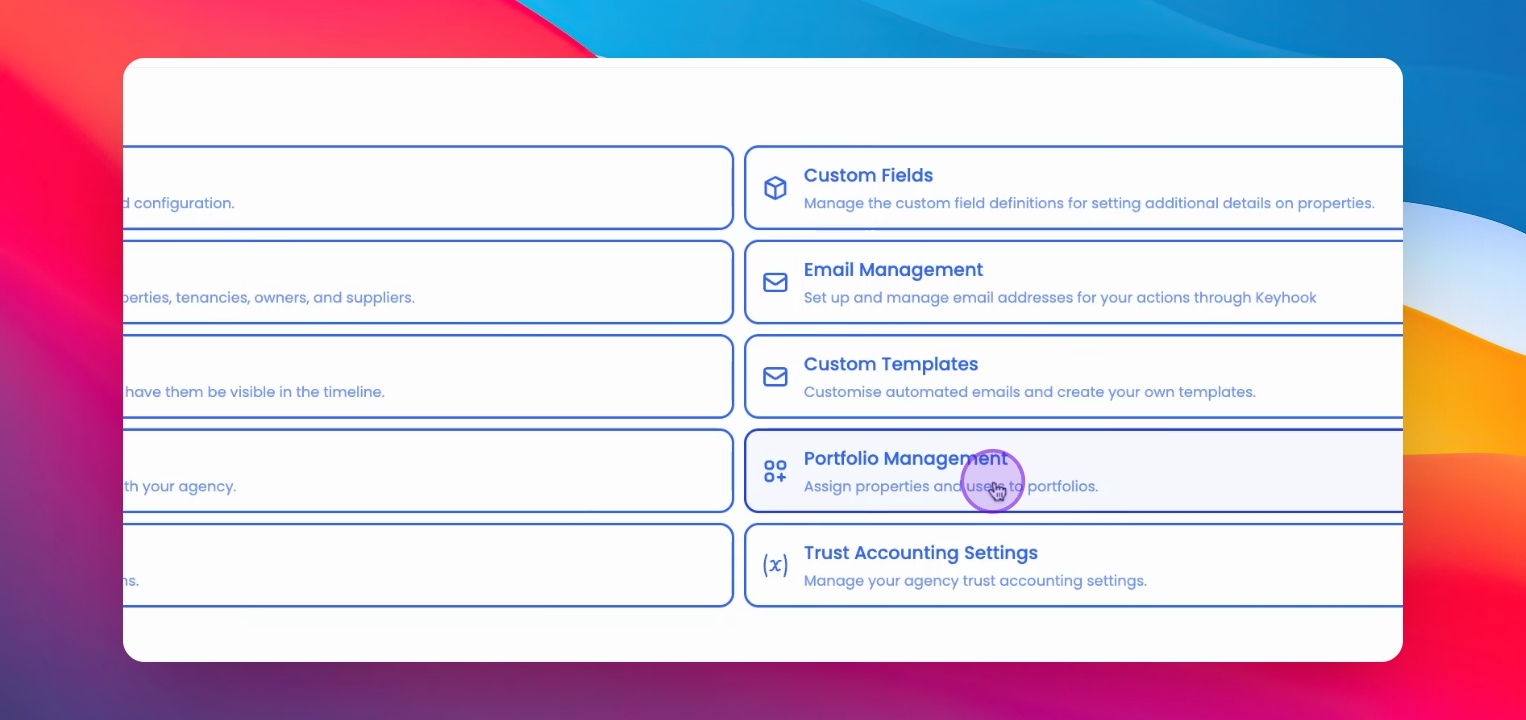
Go to Agency Configuration from the left-hand side menu, then open Portfolio Management under the My Agency page.
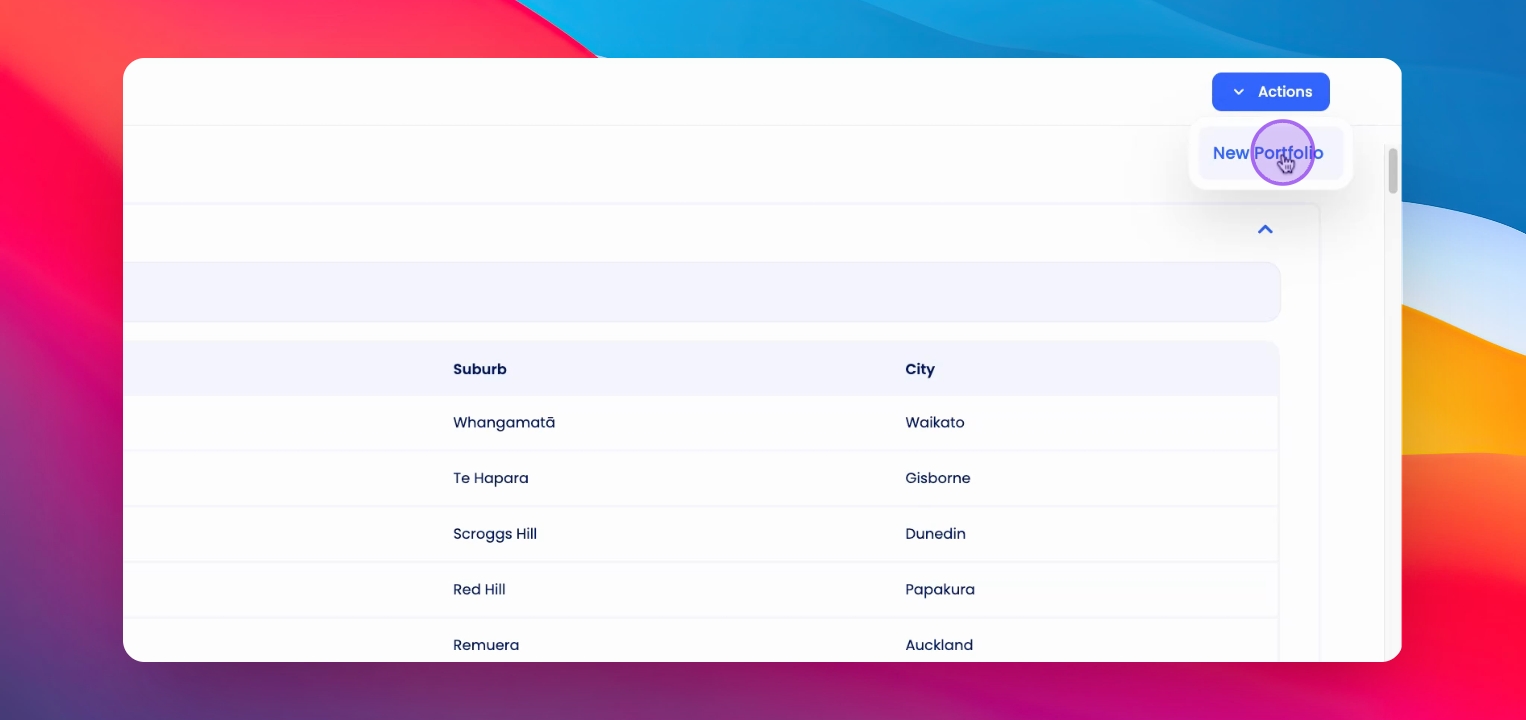
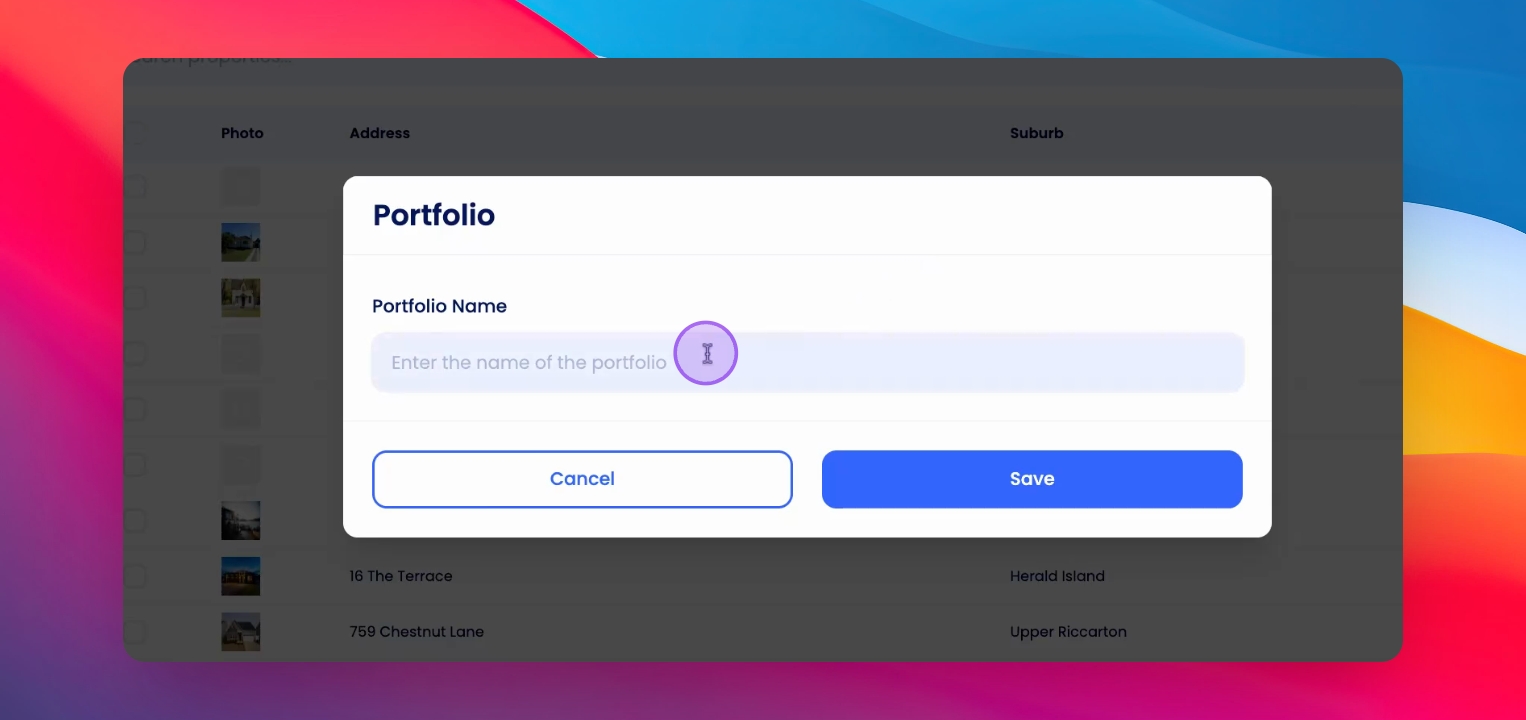
Click the Actions button, select New Portfolio, enter the portfolio name, and click Save.
Scroll down to locate the newly created portfolio and begin assigning properties to it.
Let's do it together!
Step 1: Open Menu
Navigate to the left-hand side menu to access portfolio settings.
Step 2: Access Agency Config
Select Agency Configuration on the menu to proceed to the agency settings.
Step 3: Go to Portfolio Management
Click on Portfolio Management to open the portfolio management options.
Step 4: Find Actions Button
Look for the Actions button at the top right of the Portfolio Management page.
Step 5: Create New Portfolio
Click on the Actions button, then select New Portfolio.
Step 6: Name Your Portfolio
Enter a name for your portfolio, then click Save to create it.
Step 7: Verify Creation
Scroll down the Portfolio Management page to locate your newly created portfolio.
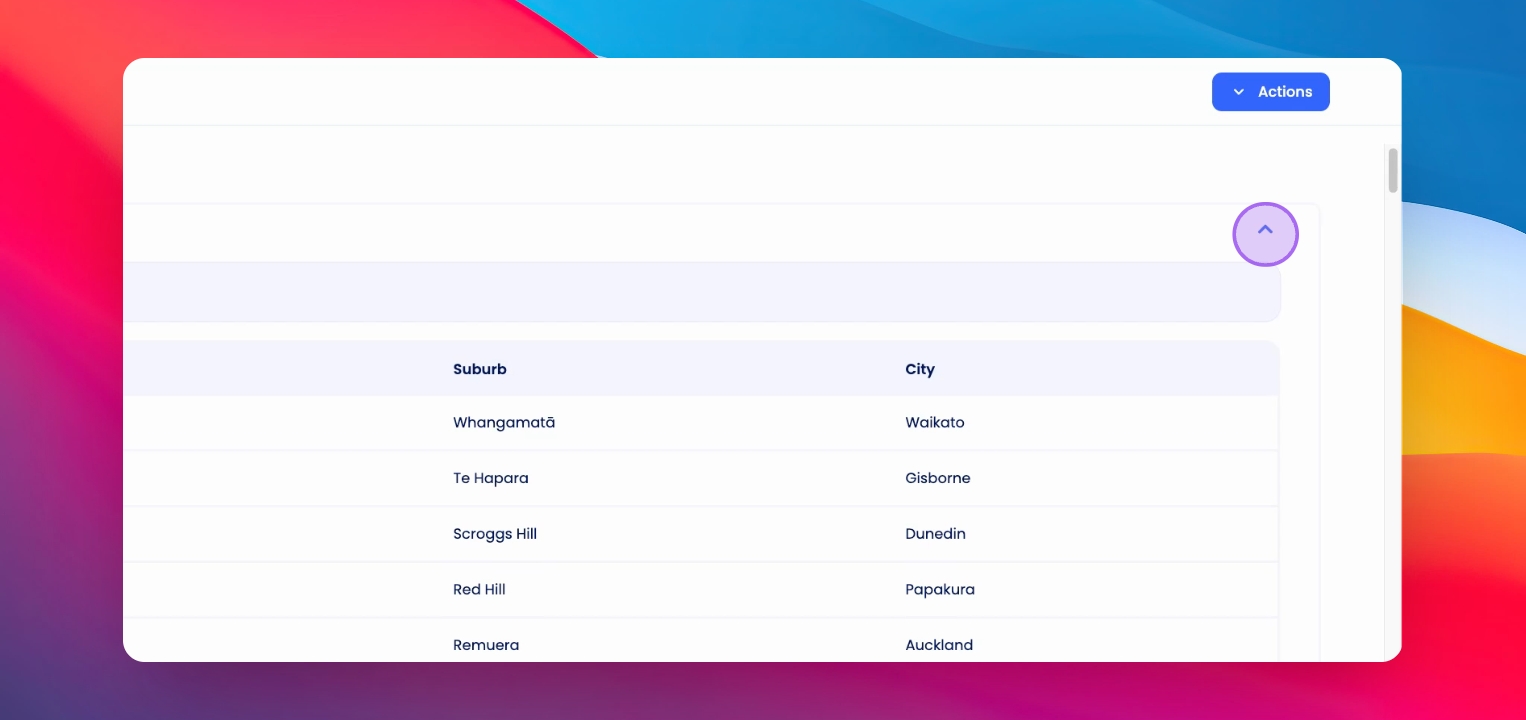
Step 8: Ready to Use
Your portfolio is now ready; you can assign and allocate properties to it for better management.
If you need more help or have any questions, just reach out to us at support@keyhook.com
— we're always here to help!
Click on this link to give a feedback: Support Article Feedback Form