

In this tutorial, you will learn how to create and save table templates within Keyhook. Let's look at the steps:
Step 1: Go to the Table
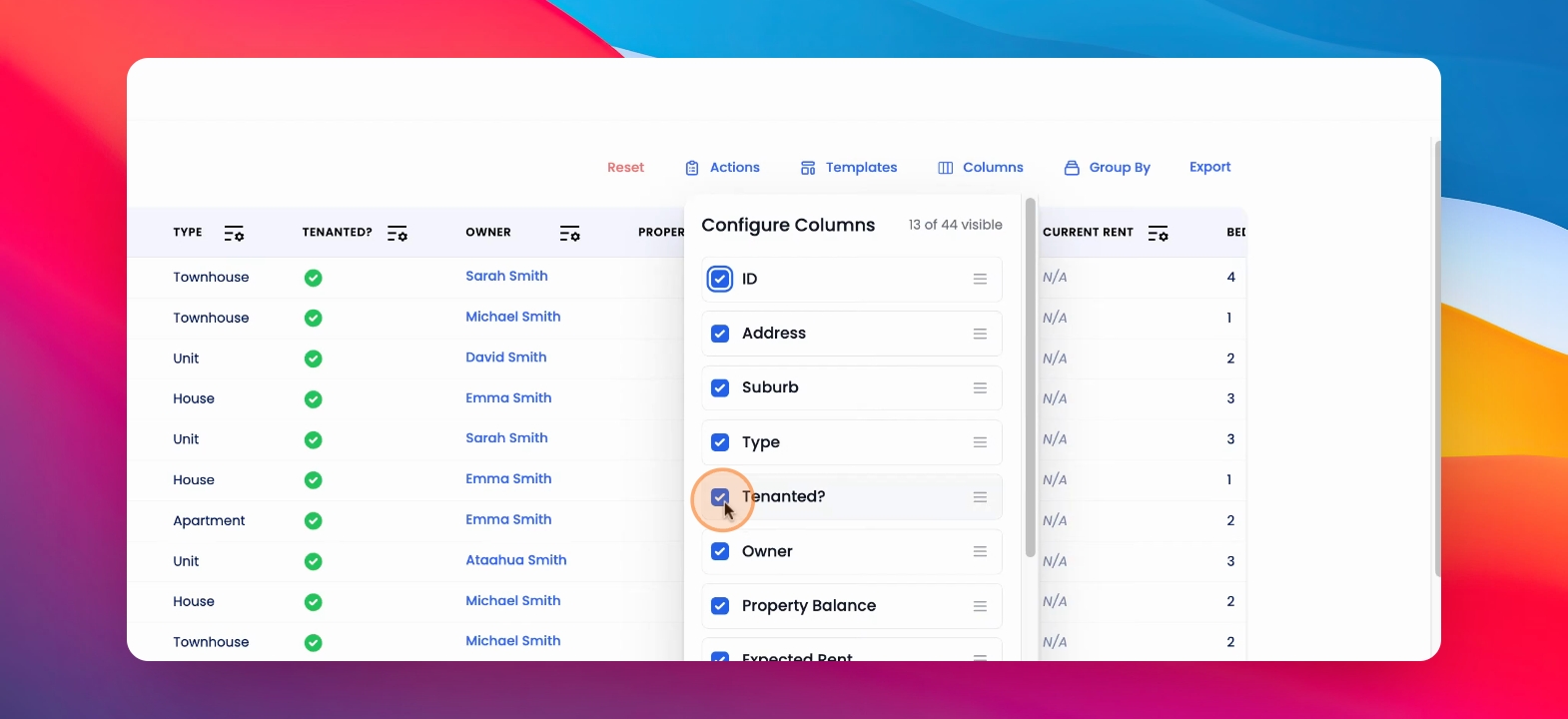
Go to a table, Click on Columns, change the columns so that the table appears how you would like.
Step 2: Save Template
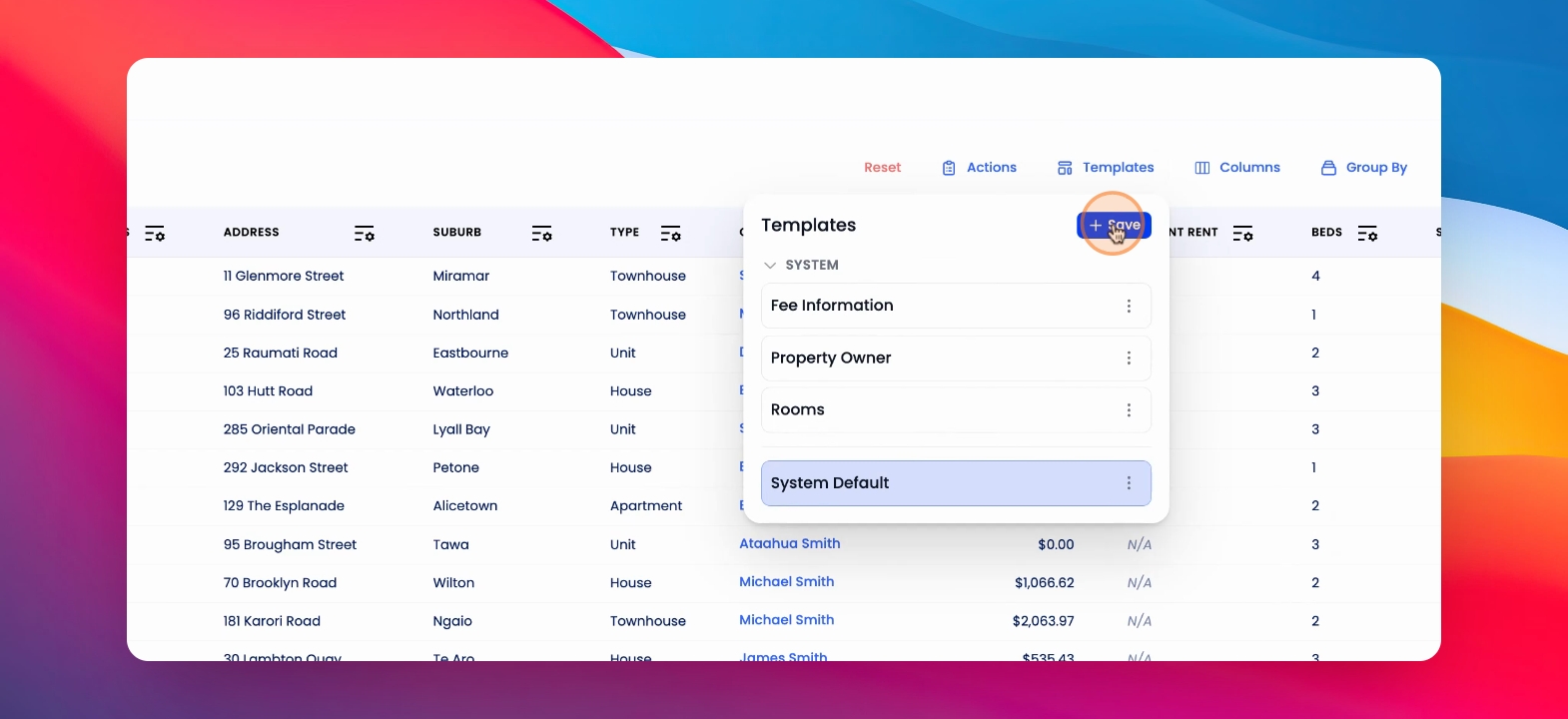
Click on Templates, and then click Save.
Step 3: Name Your Template
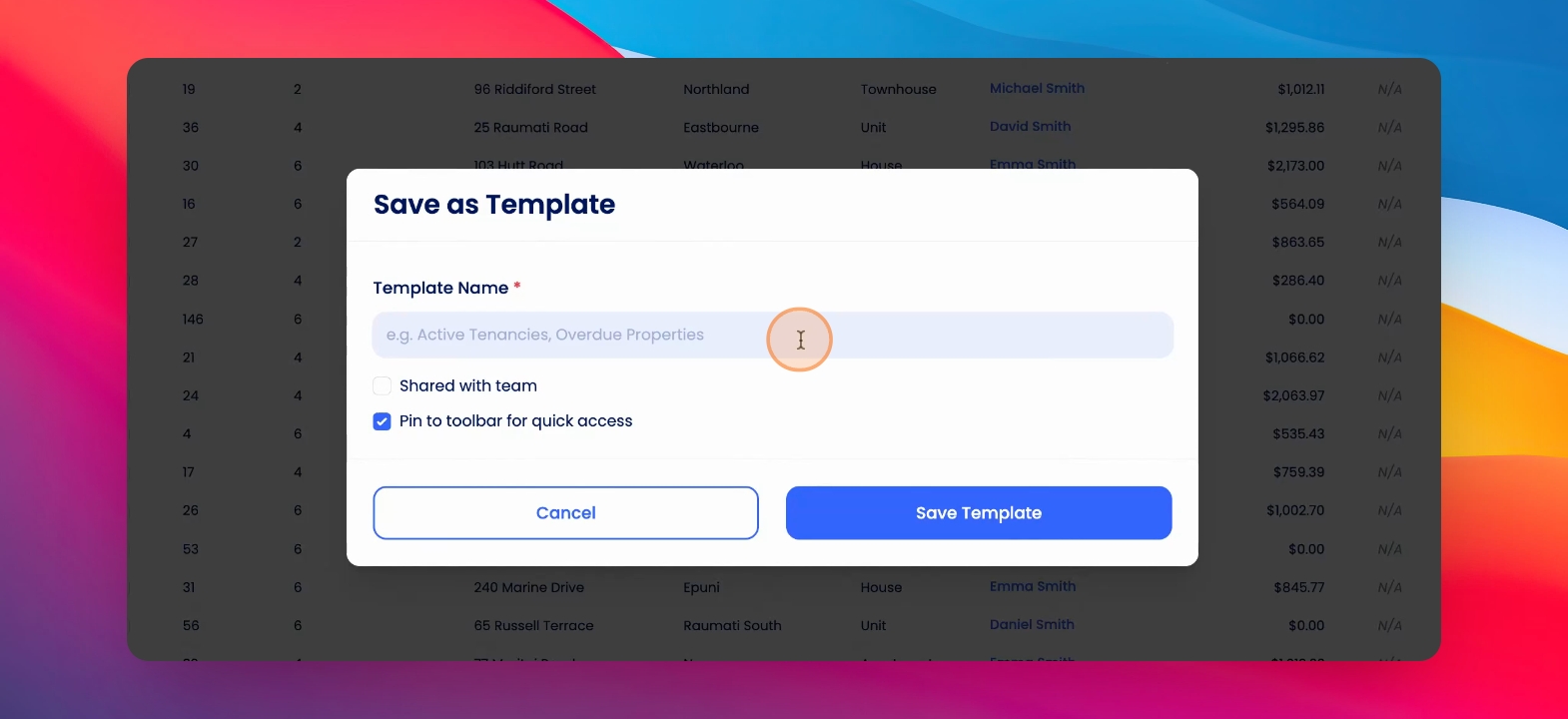
Name your template.
Step 4: Set Sharing Options
You have the option to share with your team, making this template public for your entire agency, or you can choose to keep it private.
Step 5: Pin Template
You have the option to pin this template to your toolbar for quick access.
Step 6: Finalise Template
Click Save Template.