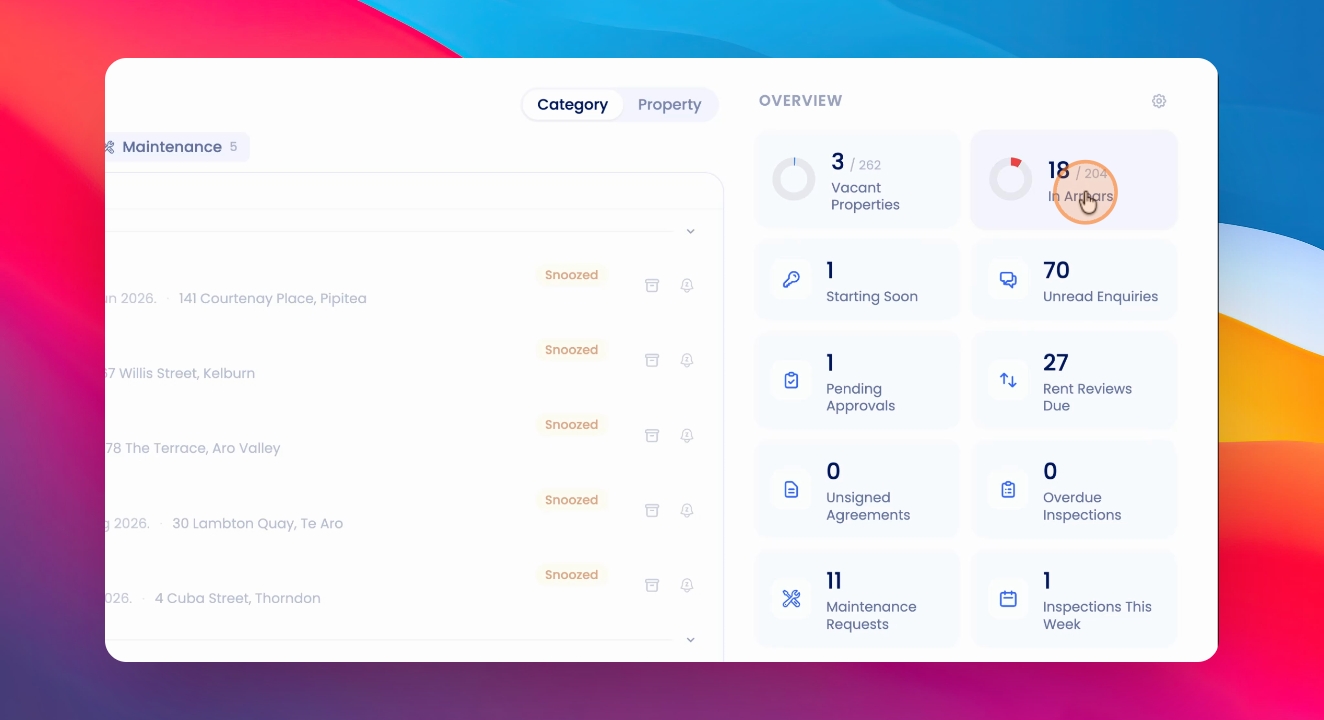
When you log into Keyhook, your dashboard is the first thing you'll see. On the left, you'll find your to do list, which is grouped by categories such as inspections, listings, and properties. Let's look at the steps:
Step 1: Toggle To Do Categories
At the top of your to do list, use the category toggles to switch between different groups, such as inspections, listings, and properties.
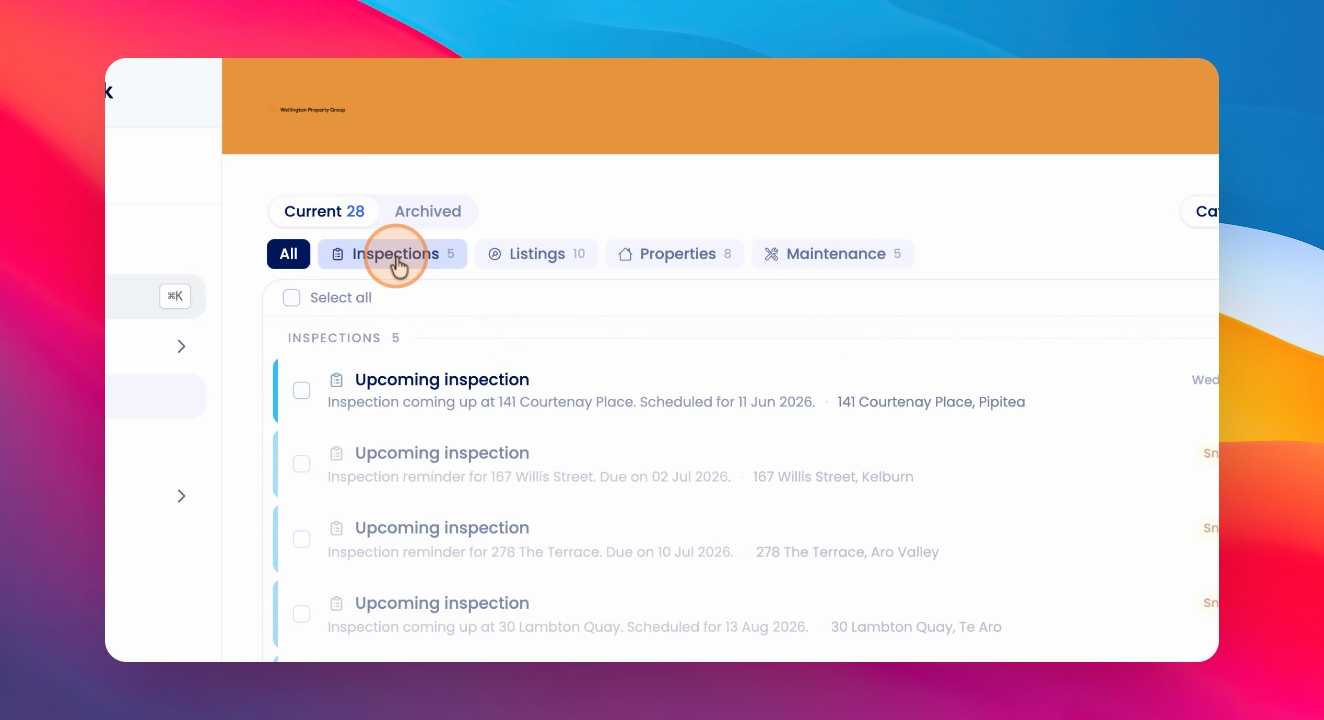
Step 2: Switch Between Current and Archived To Dos
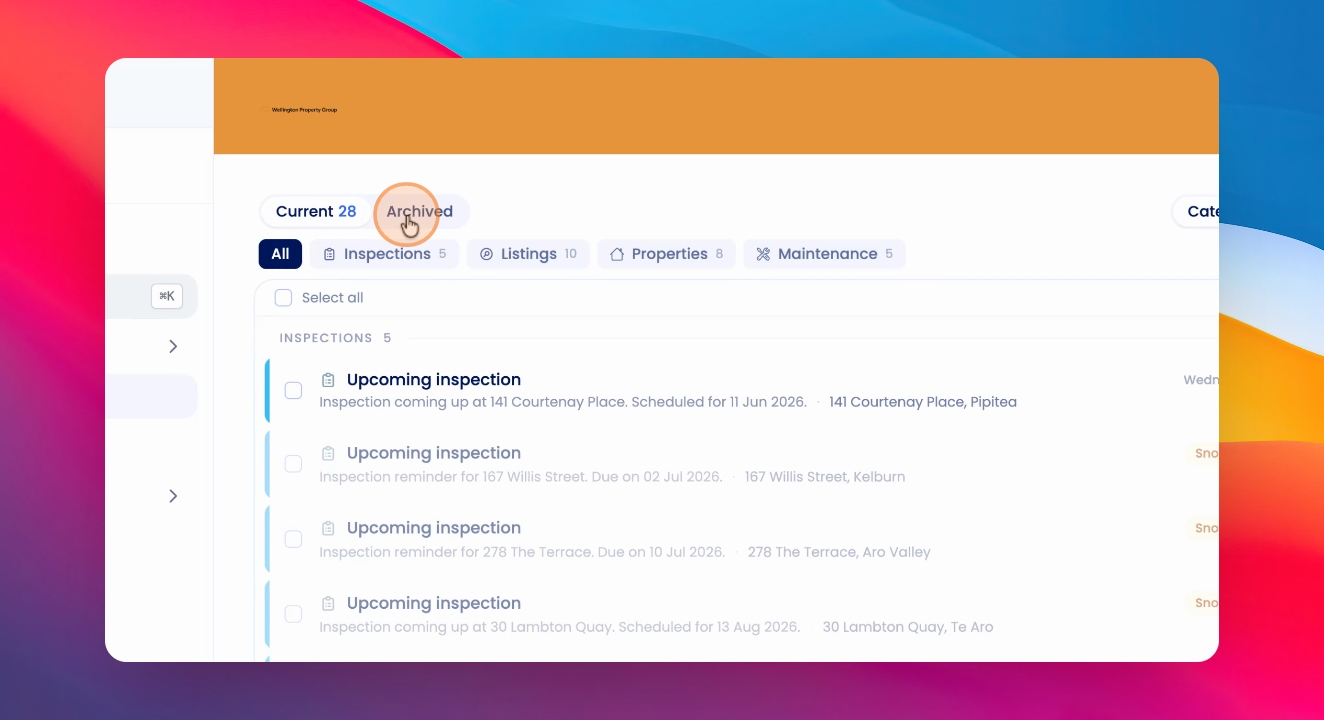
Above the categories, toggle between your current and archived to dos to manage ongoing and completed tasks.
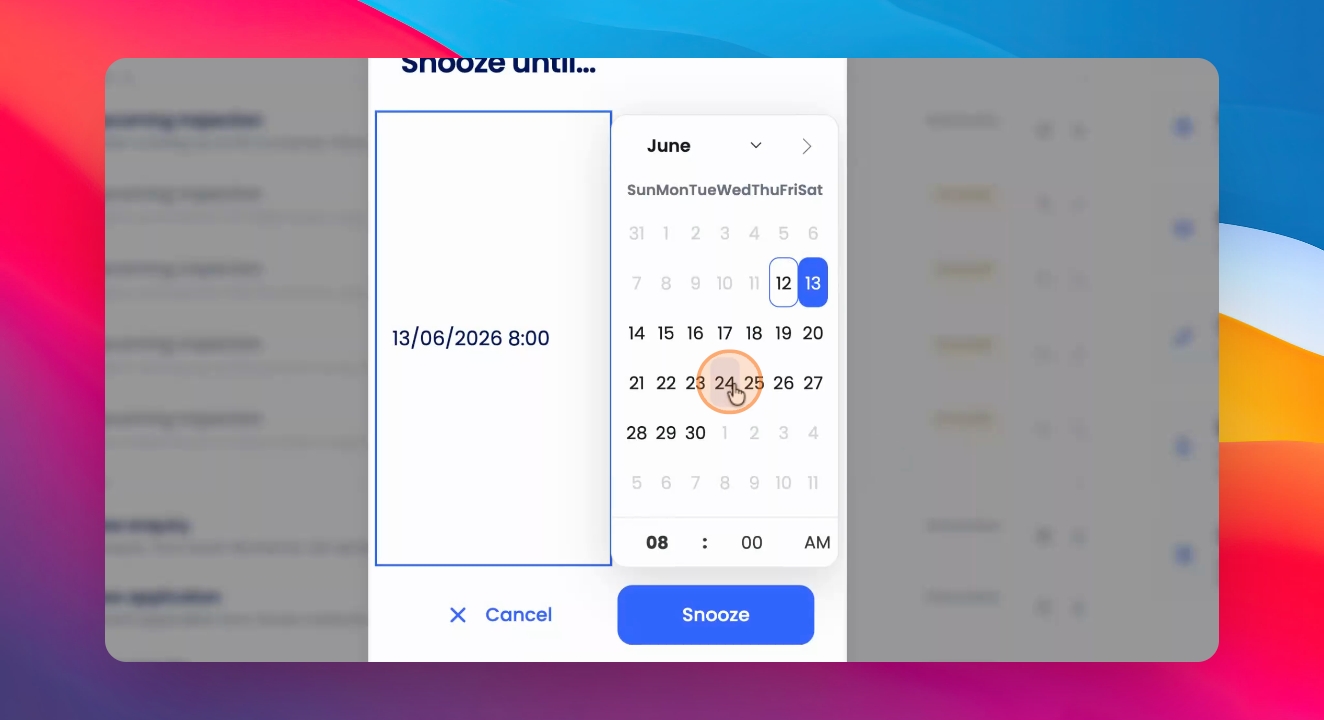
Step 3: Archive or Snooze To Dos
To take action on a to do item, click Archive or Snooze. When snoozing, select a desired time period for the task to reappear.
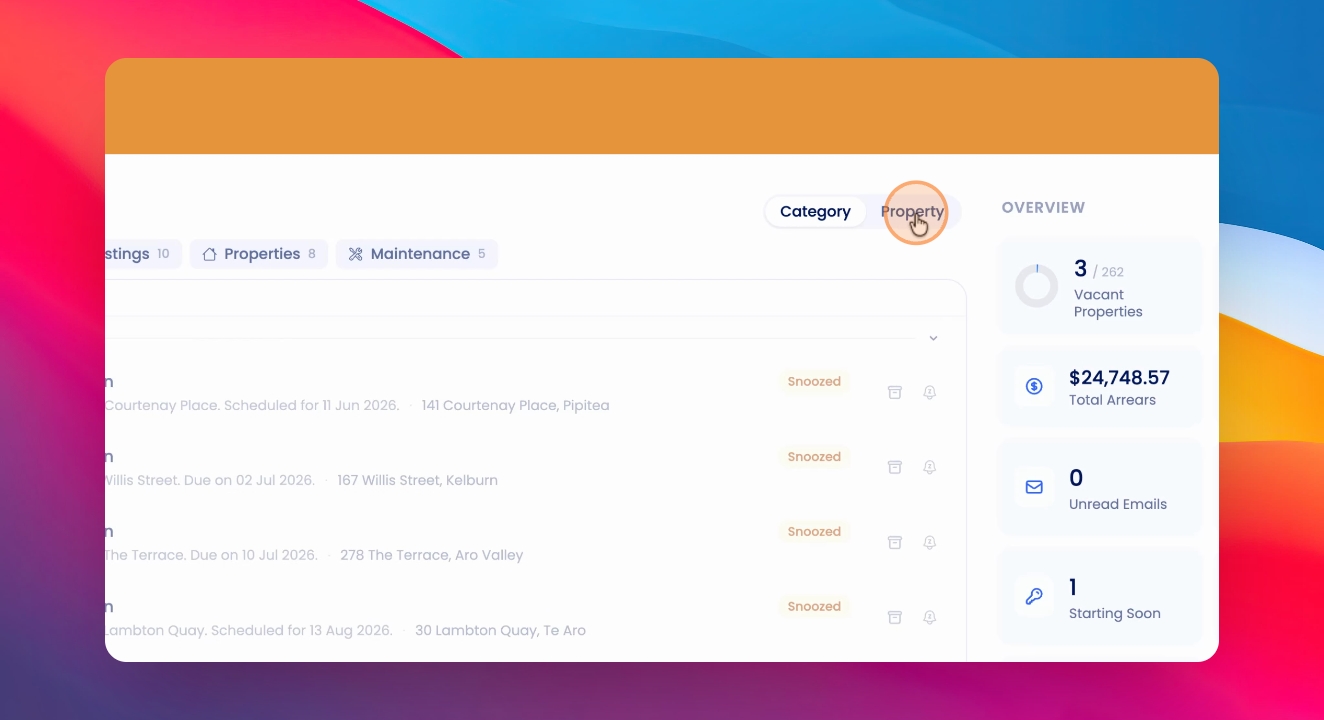
Step 4: View To Dos by Property
Toggle on the property view to see all your to do actions organised per property. You can expand or close properties for bulk actions.
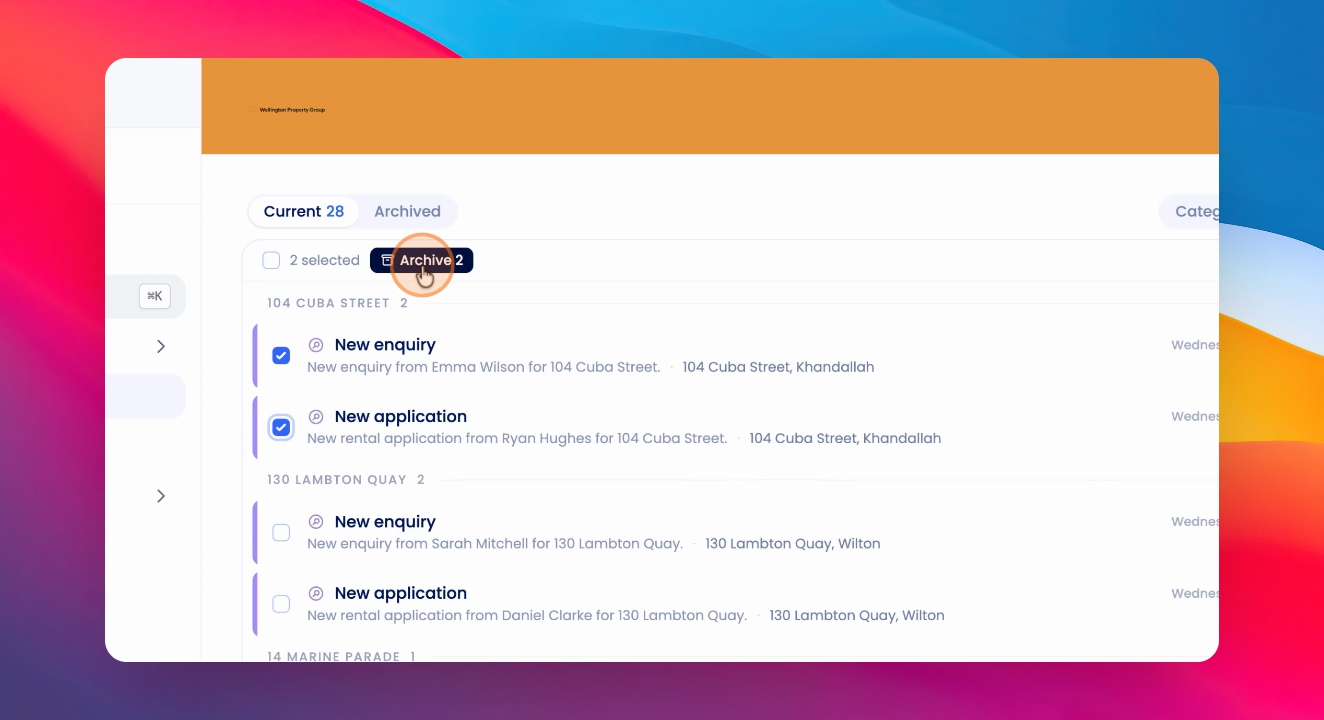
Step 5: Bulk Archive To Dos
Select multiple to do items, or select all, and click Archive to archive them in bulk.
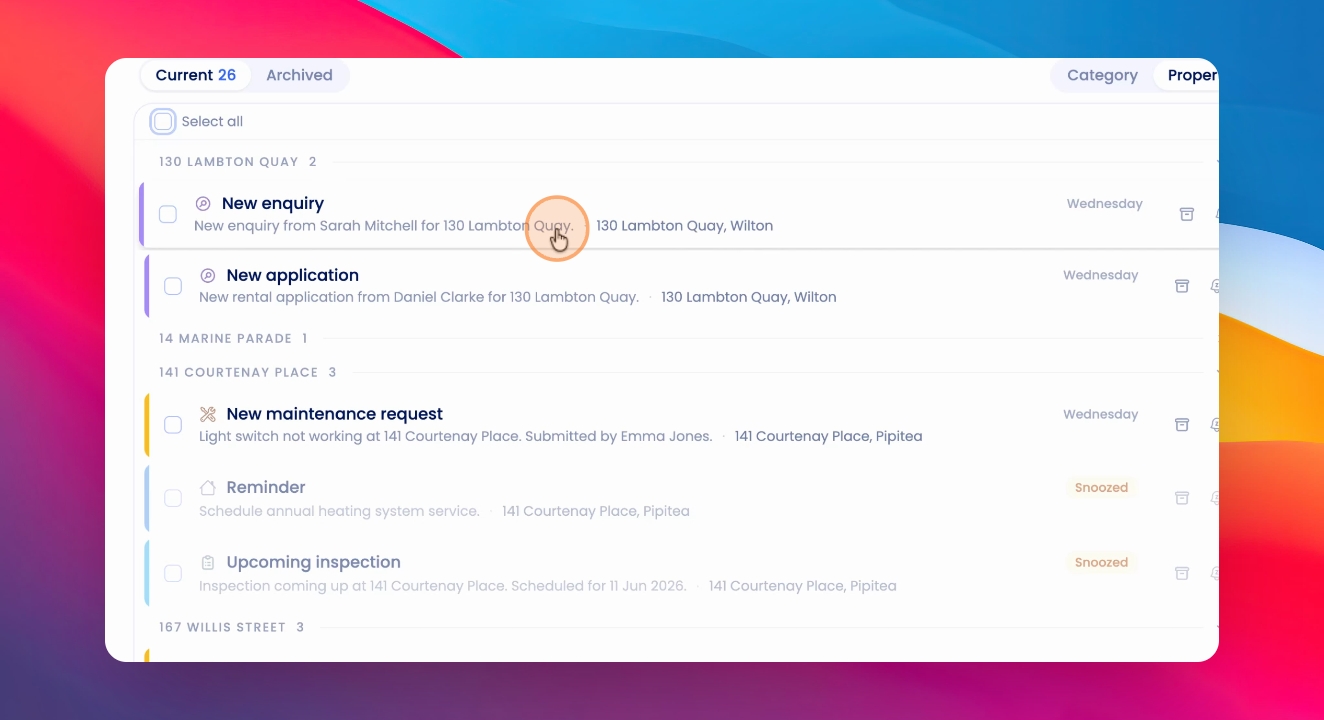
Step 6: Manage To Dos from Inquiries
Click into an inquiry to view its details. The to do list item remains visible on the right, so you can mark it as done after replying.
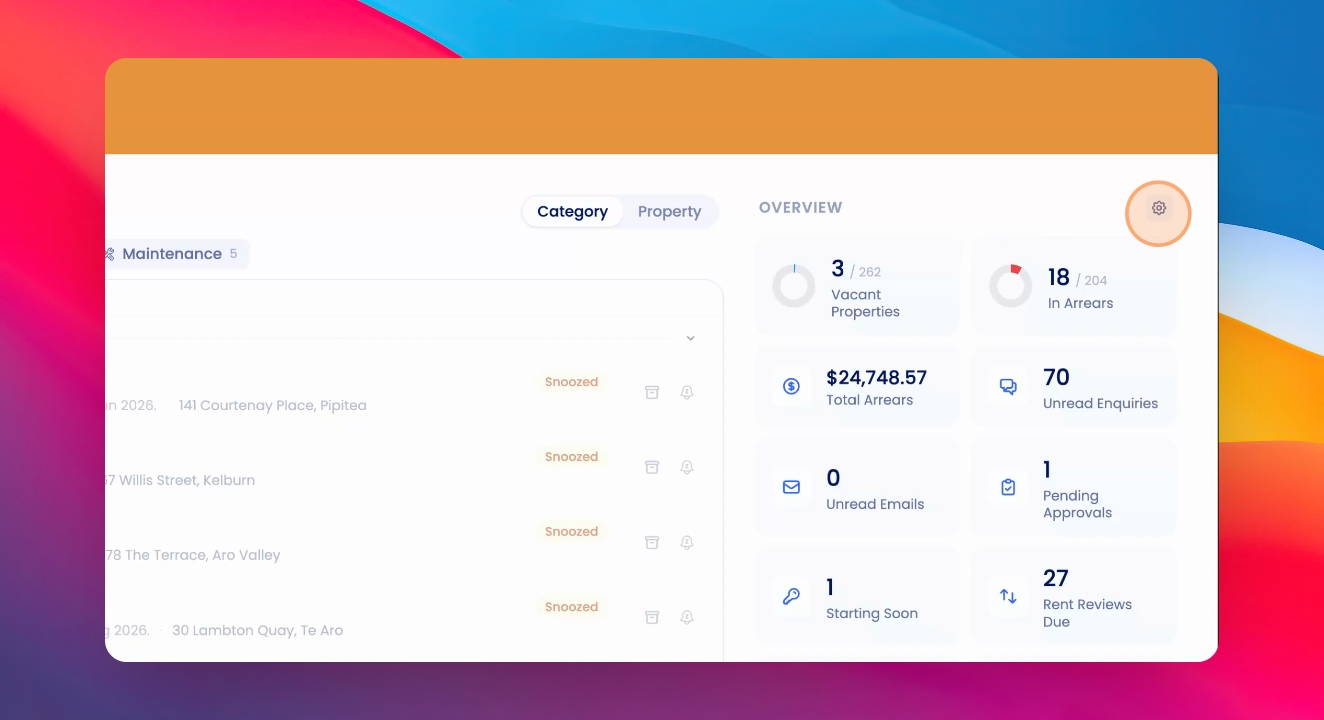
Step 7: Customise Stats Overview
On the right side of your dashboard, you'll see an overview of different stats. Click the Customise Stats toggle to manage which stats appear and their order. You can turn off any stats you don't want to see, then click Save to apply your changes.
Step 8: Access Stat Details
Click directly on any stat in the overview to go to its relevant page for more details.