

Kindly ensure you are logged in with a Principal-level access account before proceeding with the steps outlined below.
Let's do it together!
Step 1: Open Agency Config
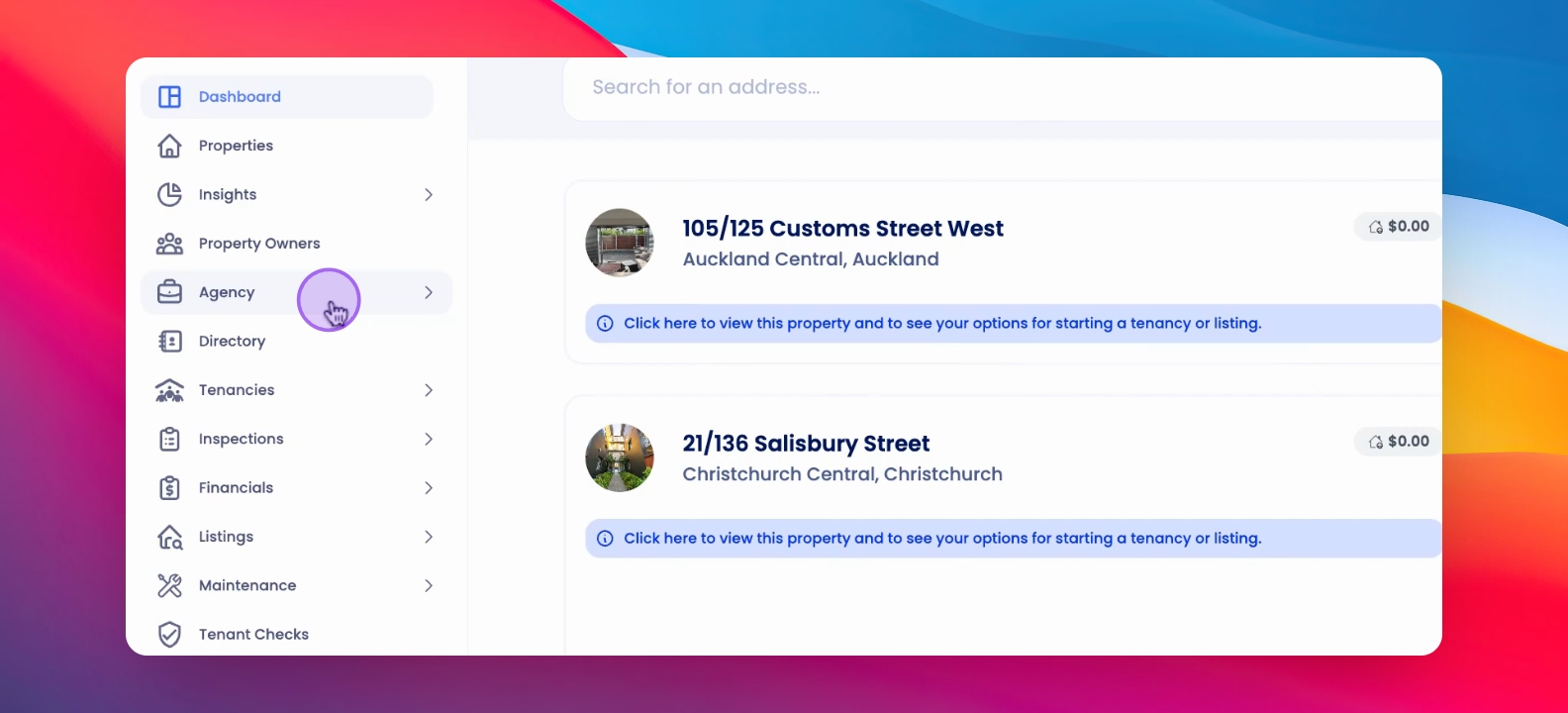
From the left-hand side menu, click on Agency and navigate to Agency Configuration.
Step 2: Access Portfolio Management
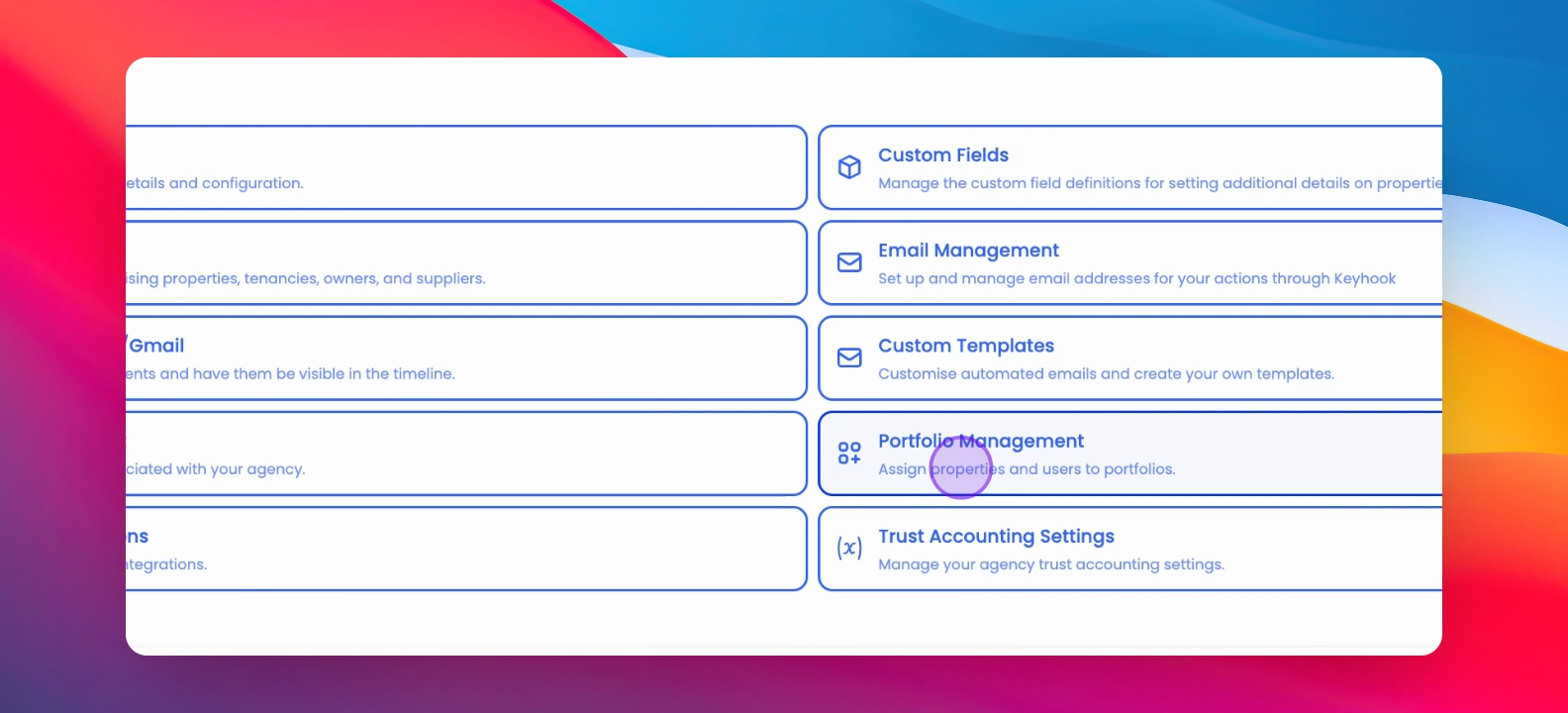
Scroll down and select Portfolio Management to view existing portfolios.
Step 3: Edit Portfolio
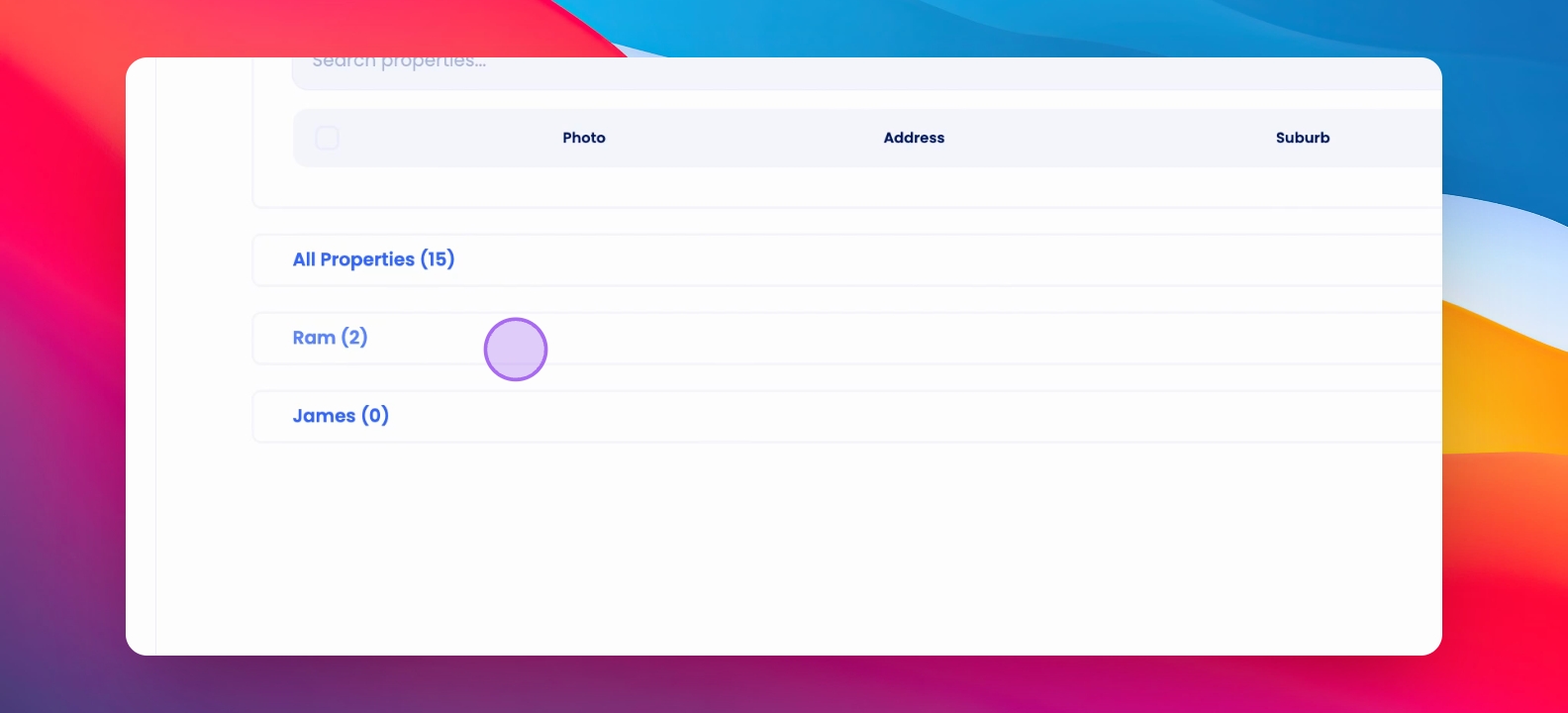
From the list of portfolios, click on the portfolio you want to edit and assign a Property Manager.
Step 4: Manage Users
Click on Manage Users to assign property managers to the selected portfolio.
Step 5: Select Property Manager
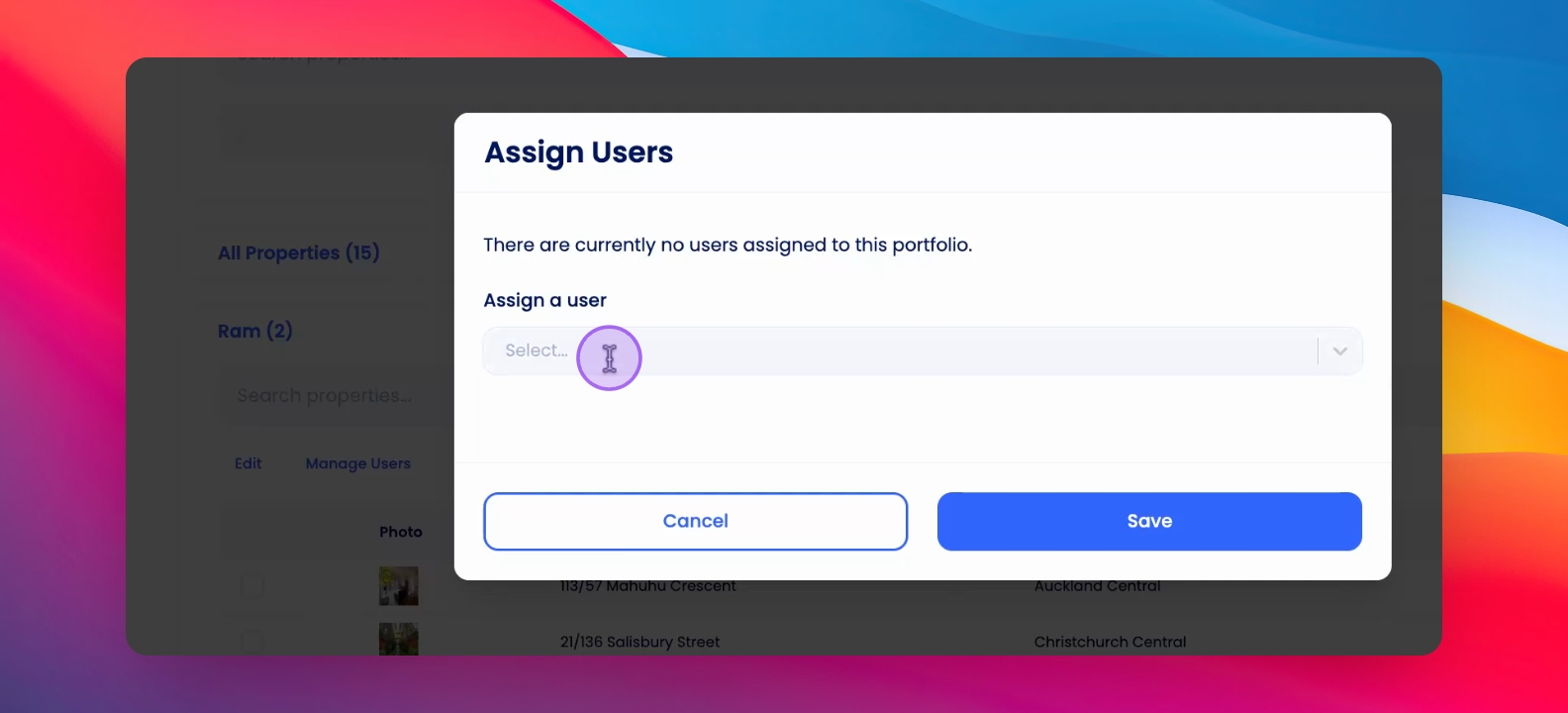
Click on the Select button to open the dropdown list and choose a property manager.
Step 6: Notification Preferences
Toggle the notifications on or off based on your preferences for the selected property manager.
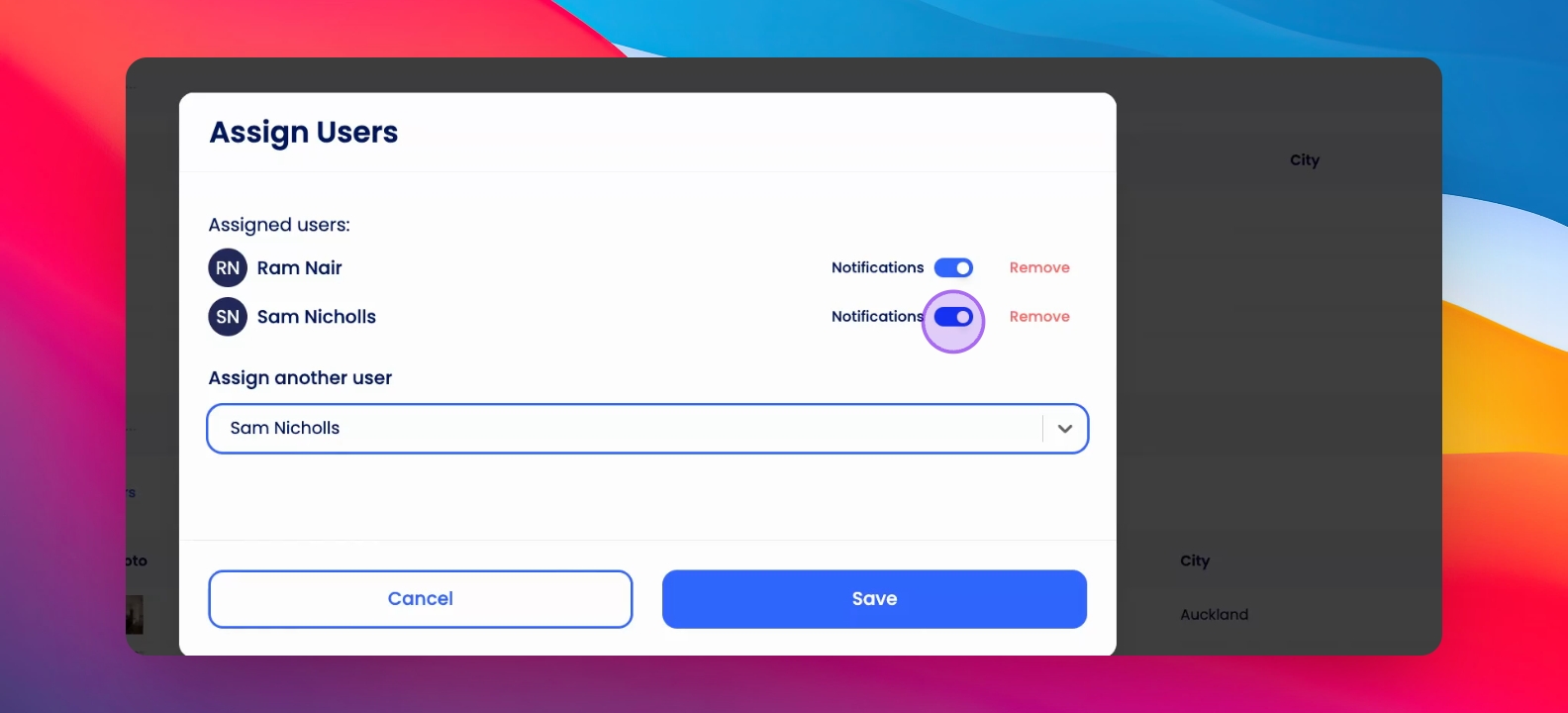
Step 7: Finalize Assignment
Click Save to finalize the property manager assignment and settings.
Step 8: Manage User Notifications
Navigate back to Agency Configuration and select User Management.
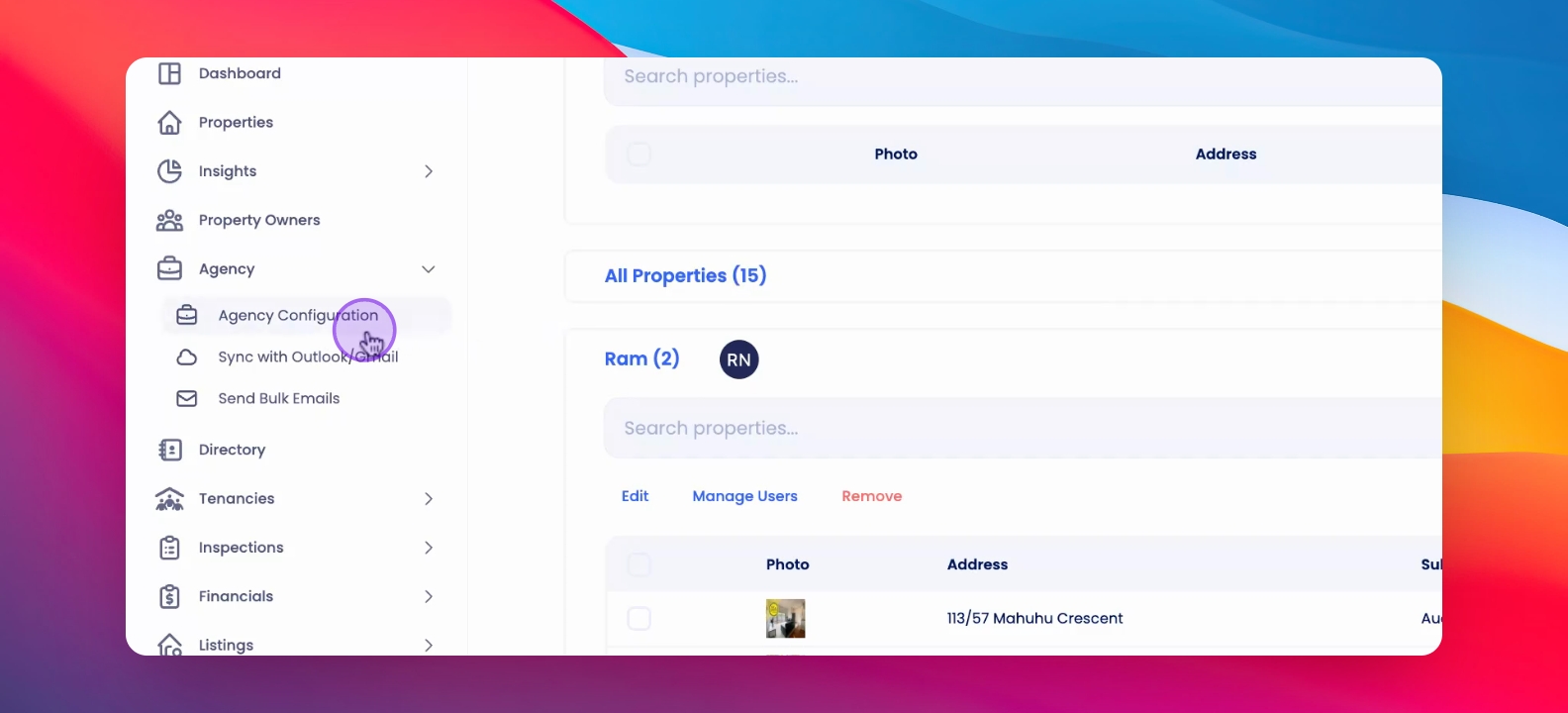
Step 9: Edit User Permissions
Locate the user and click on the Permissions icon next to their name to manage notifications.
Step 10: Configure Portfolio Notifications
Select the portfolio for which the user should receive notifications and toggle off any portfolios they do not want notifications for.
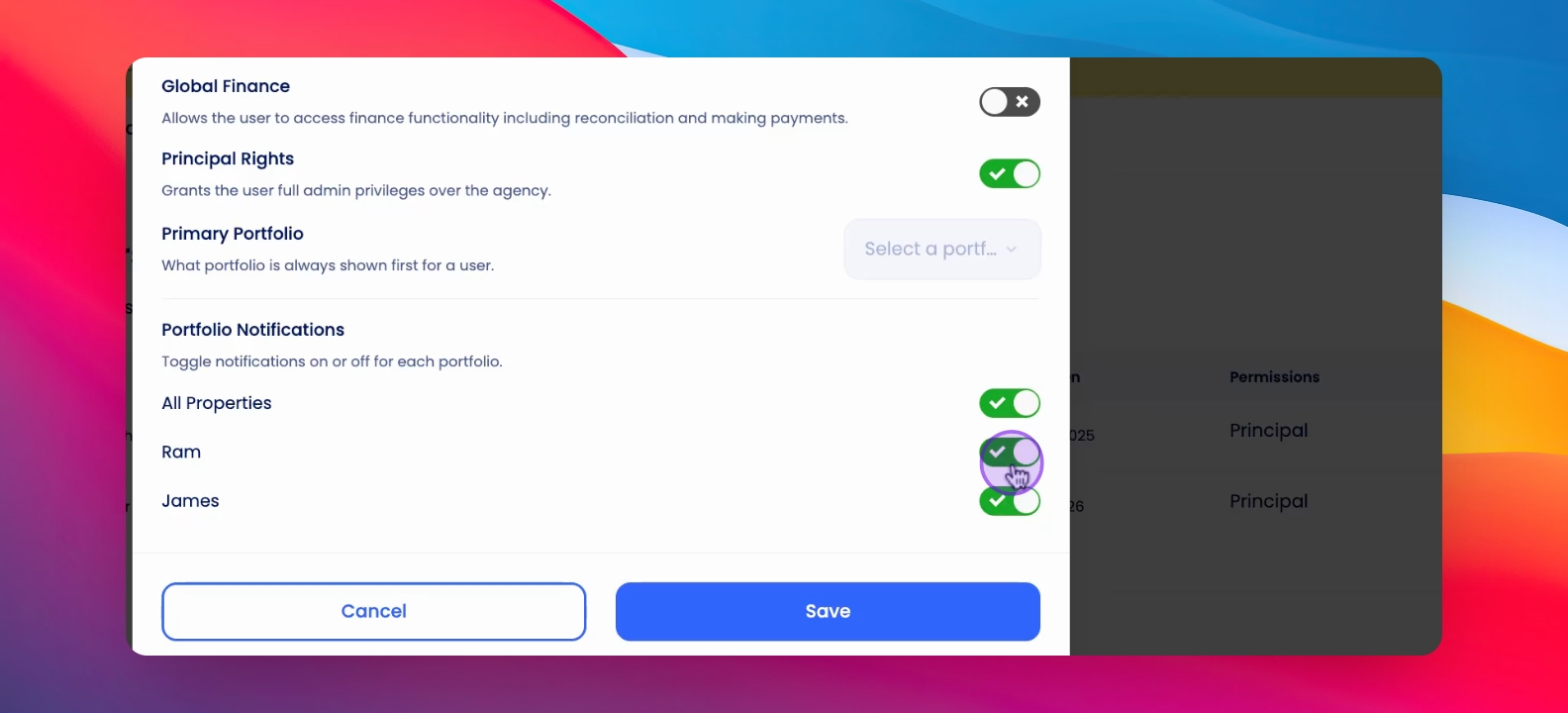
Step 11: Save Changes
Click Save to finalize the user notification settings.
If you need more help or have any questions, just reach out to us at support@keyhook.com — we're always here to help!
Help us improve this article. Your opinion means the world to us!
Click on this link to give a feedback: Support Article Feedback Form