

TL;DR
1
Get confirmation code
Retrieve your confirmation code from your email.
2
Visit Keyhook
Go to app.keyhook.com.
3
Open Settings
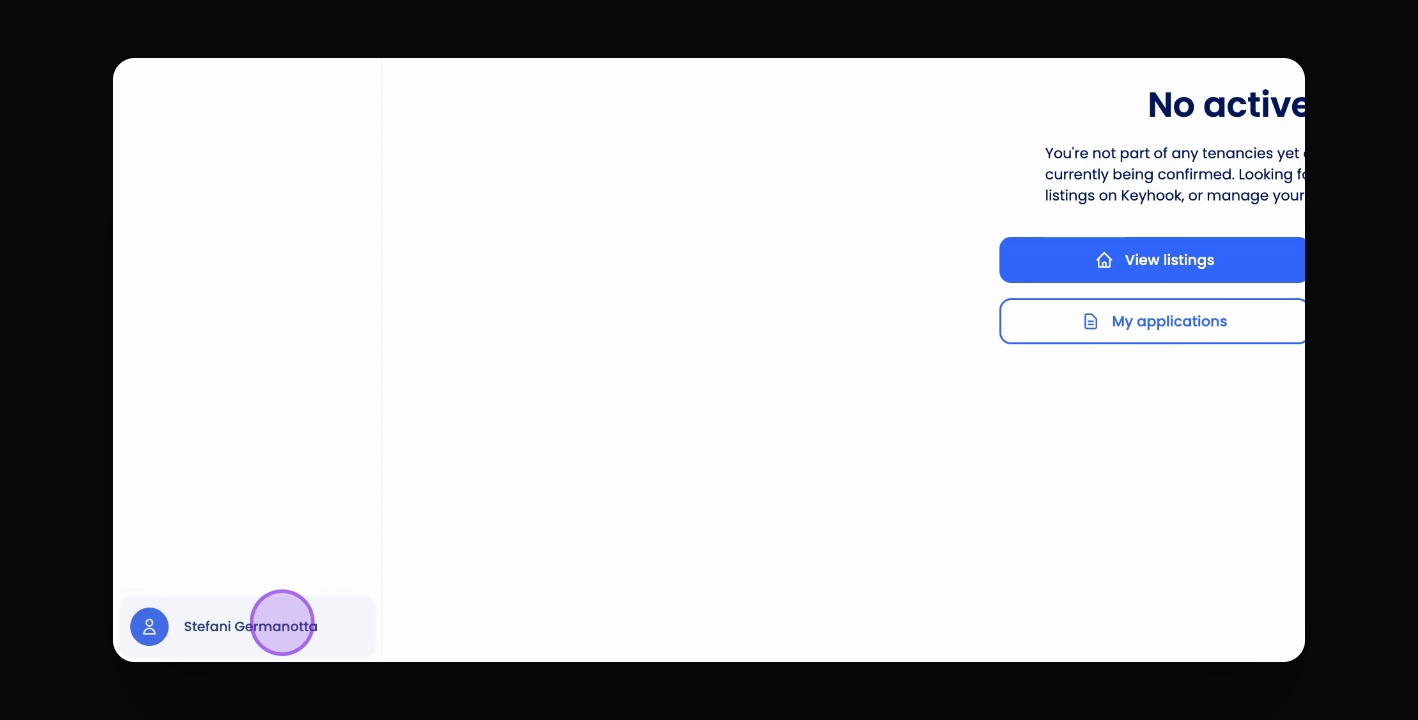
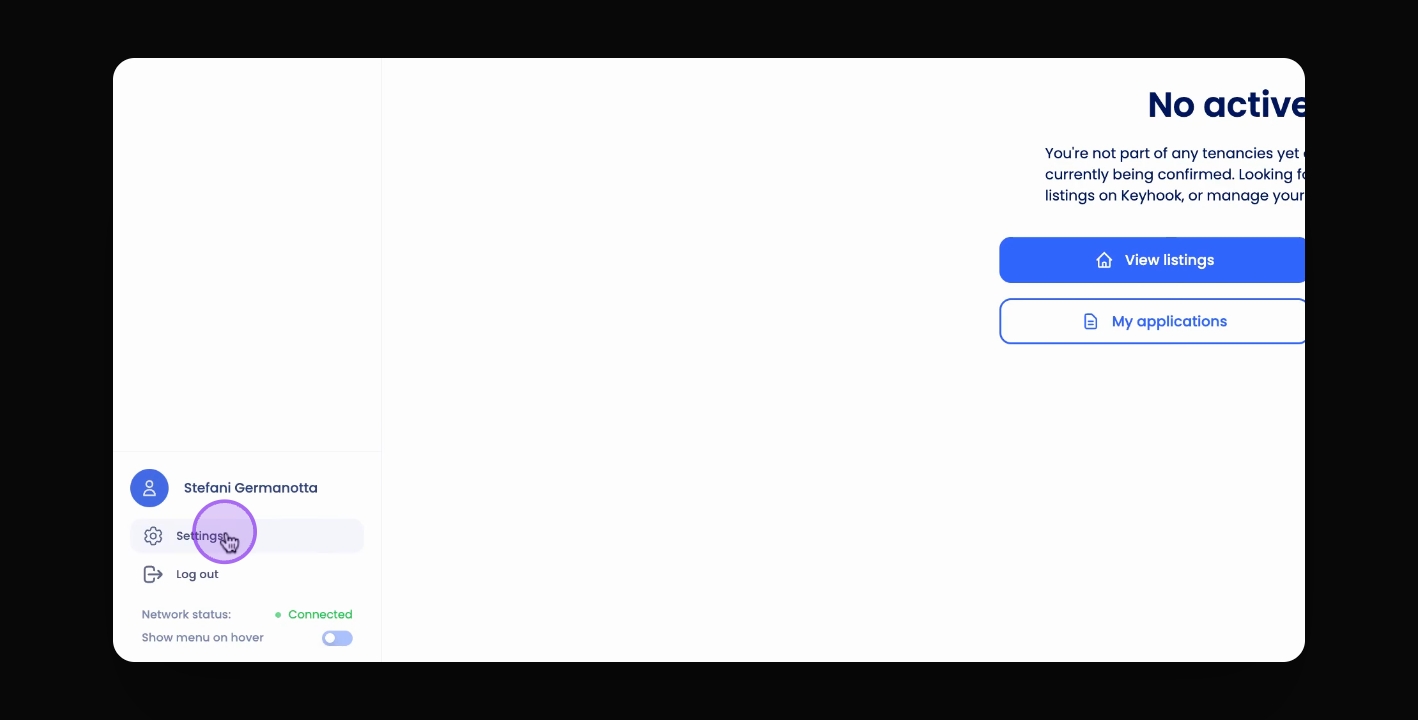
Click your name and then Settings.
4
Confirm email
Enter the confirmation code and confirm your email.
5
Receive confirmation
Get notified that your email is confirmed.
Let's Do It Together!
Step 1: Get Confirmation Code
Get the confirmation code from your email.
You have the necessary code.
Step 2: Visit Keyhook App
Visit app.keyhook.com.
You are on the Keyhook app page.
Step 3: Open Settings
Click on your name in the bottom left corner of the screen.
Step 4: Access Account Information
Click on Settings.
Step 5: Confirm Email Address
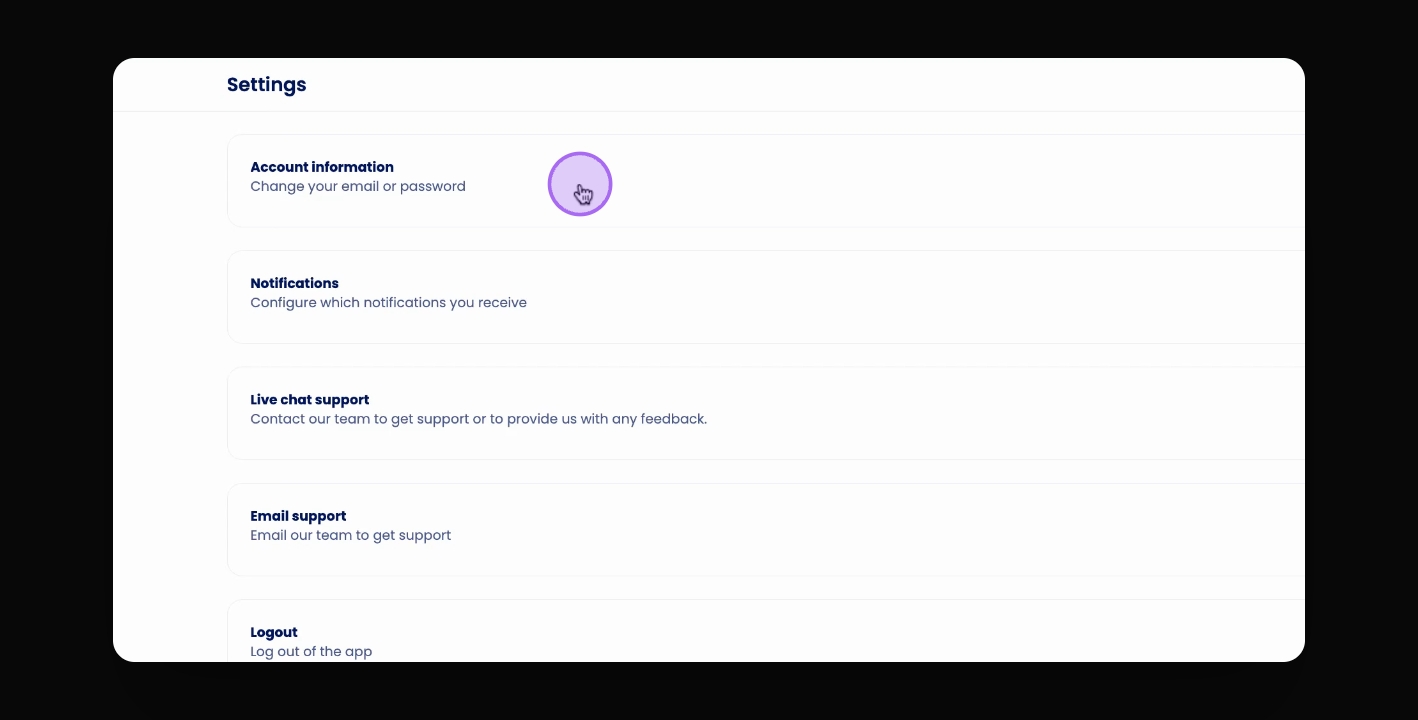
Click on Account Information.
Step 6: Enter Confirmation Code
Click on Confirm Email Address.
Step 7: Complete Confirmation
Enter the confirmation code from your email.
Your email is confirmed.
Step 8: Receive Confirmation
You will receive a confirmation that your email has been confirmed.