

TL;DR
1
Access Settings
Click your name and then Settings.
2
Update Email
In Account Information, type your correct email.
3
Save Changes
Enter your password and click Save.
4
Confirm Email
Click Confirm Email Address after checking your email.
Let's Do It Together!
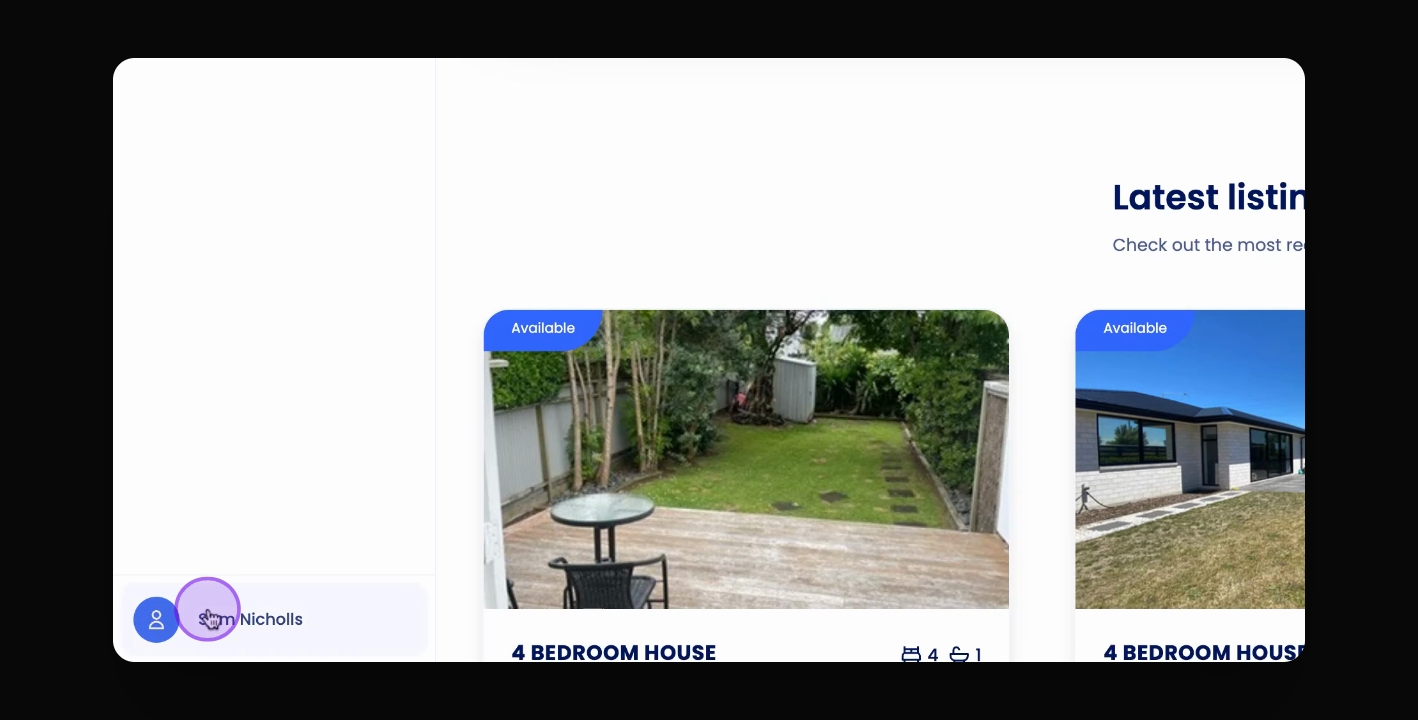
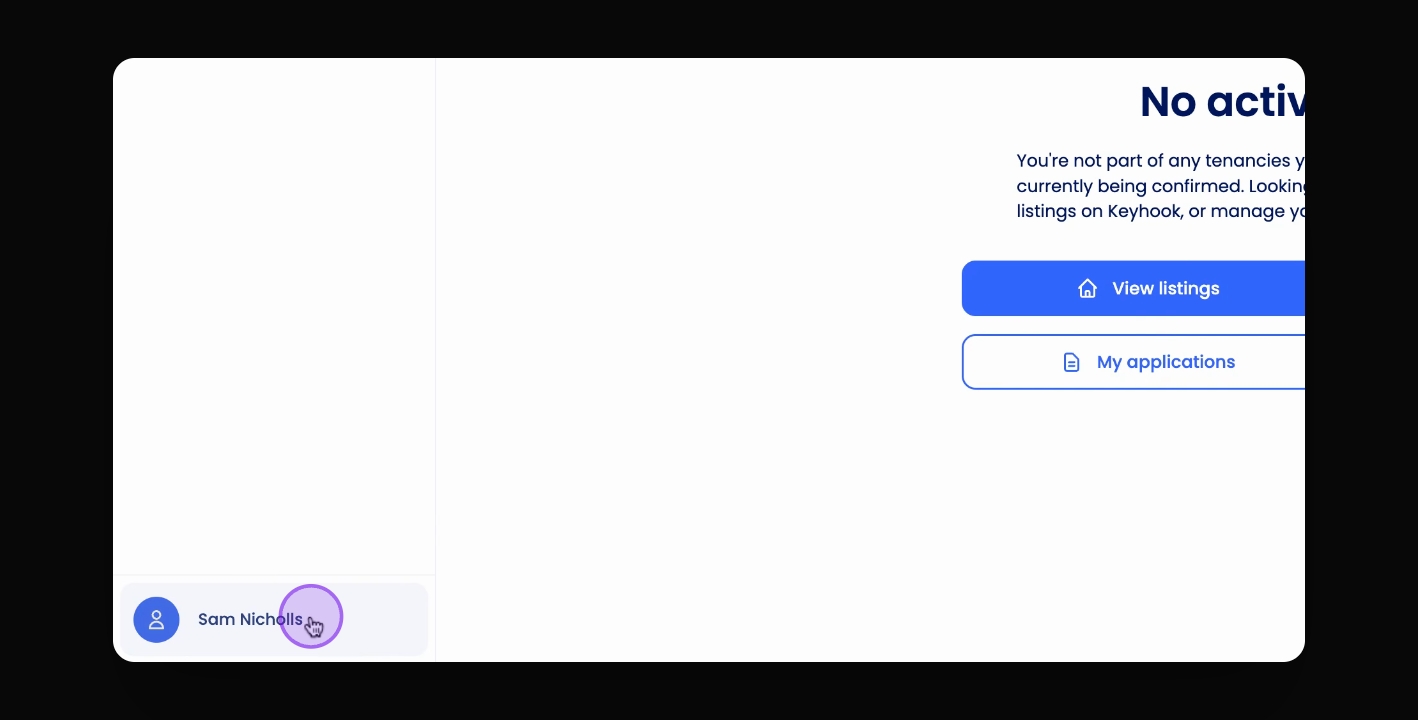
Step 1: Access Account Settings
Click your name in the bottom left corner of the screen.
The settings menu opens.
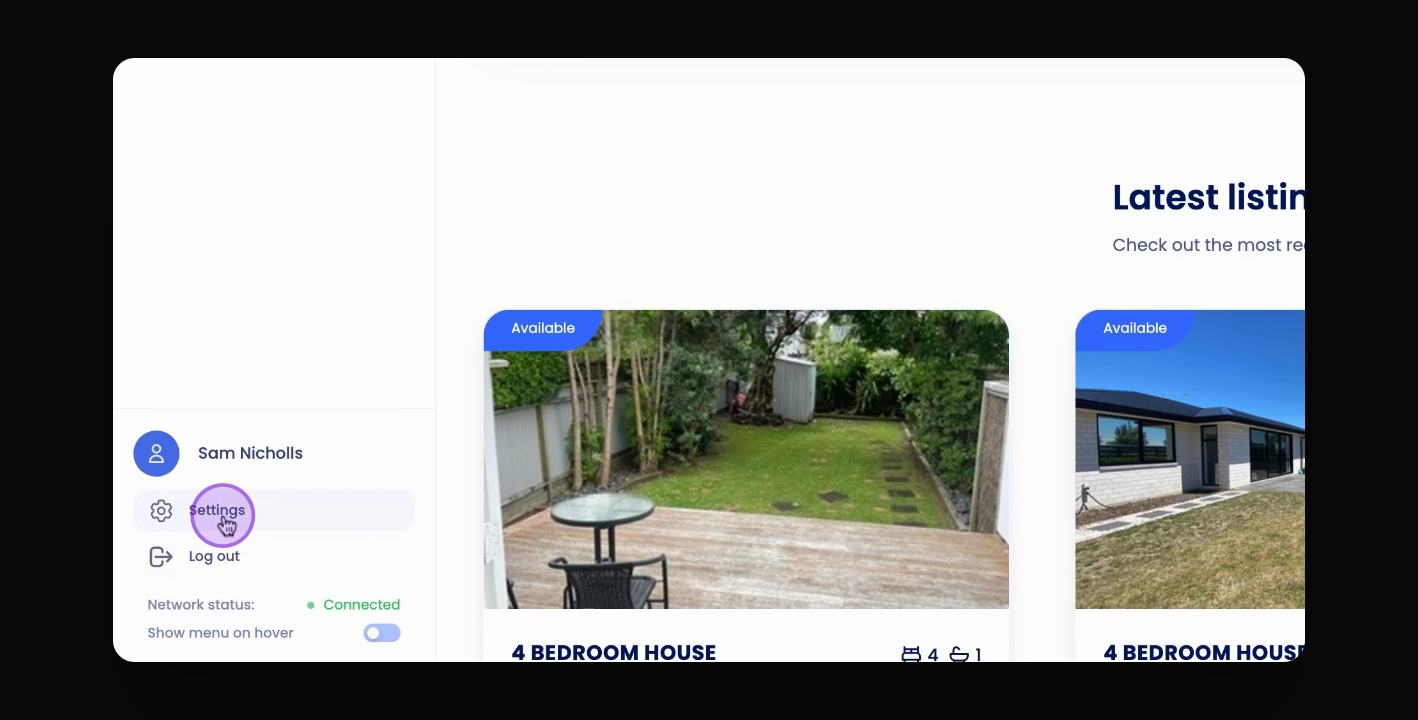
Step 2: Open Settings
Click Settings.
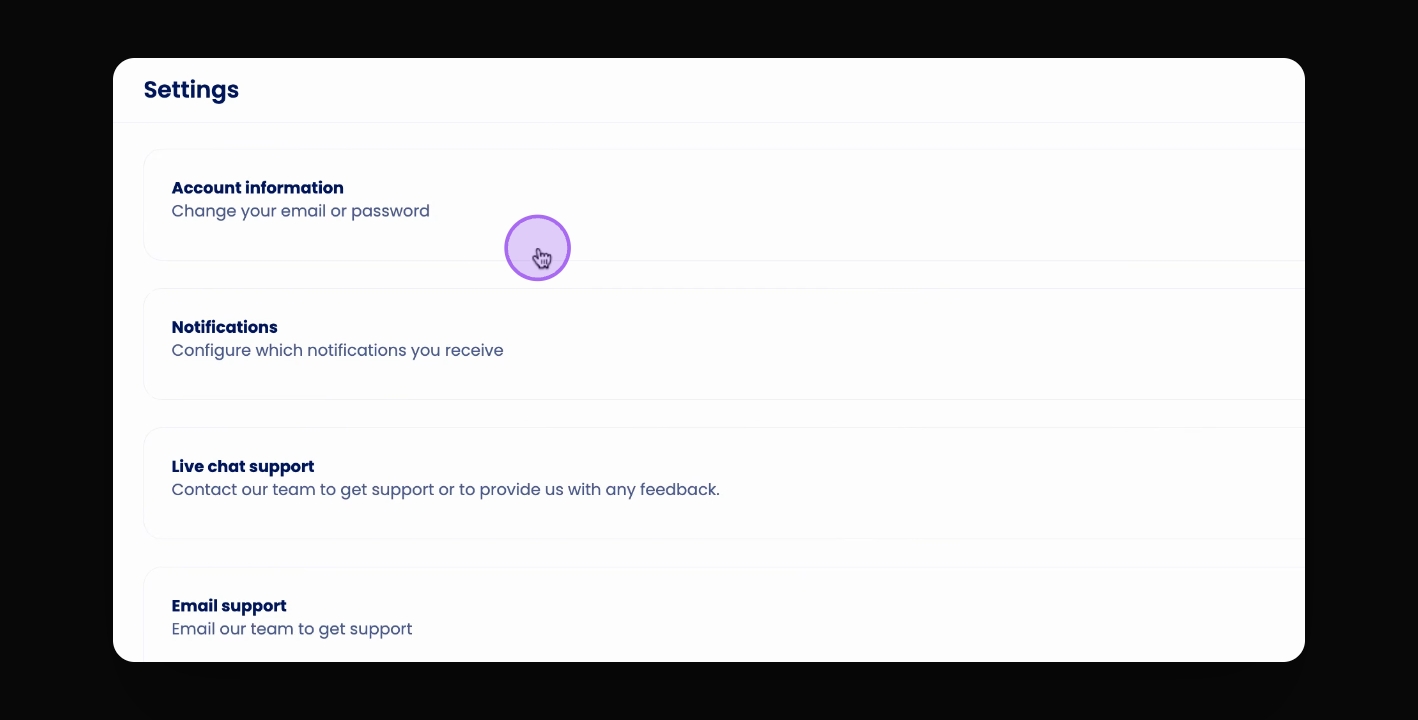
Step 3: Go to Account Information
Click Account Information.
Step 4: Find Login Details
Scroll down to the Login Details section.
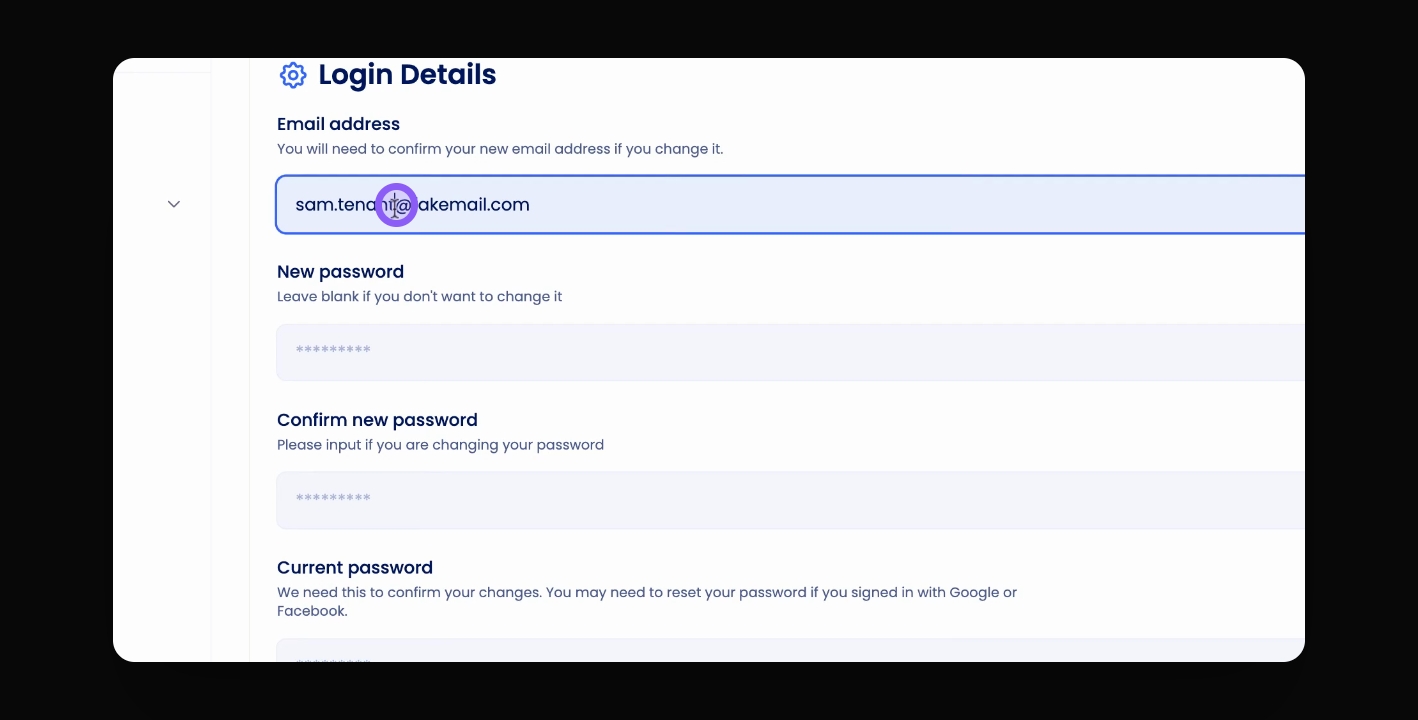
Step 5: Update Email Address
Type in your correct email.
Step 6: Enter Current Password
Enter your current password.
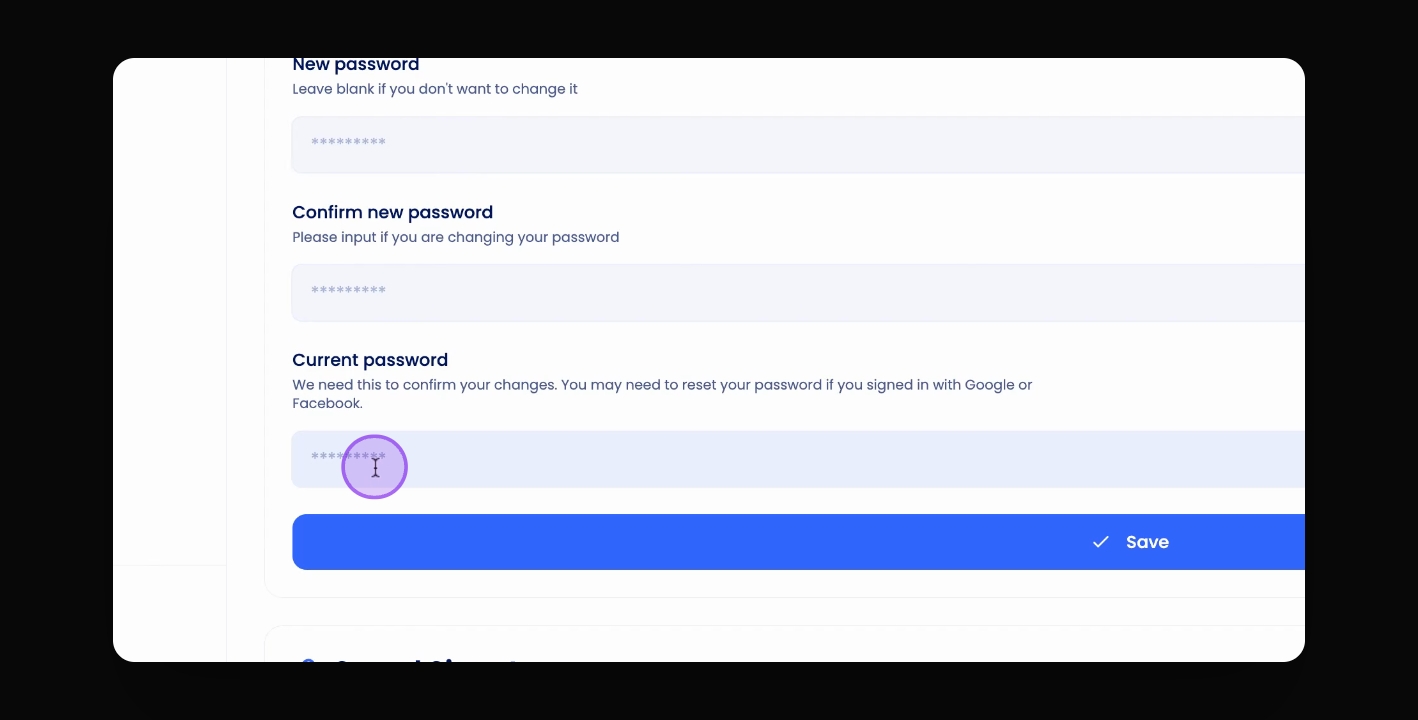
Step 7: Save Changes
Click Save.
Your email address is updated.
Step 8: Check Confirmation Email
You will receive a confirmation email at the new address.
Step 9: Enter Confirmation Code
Click your name, then Settings, then Account Information.
Step 10: Confirm Email Address
Click Confirm Email Address at the top of the screen.