

TL;DR
Find the specific Inspection you wish to be charged
This can be found in actions button within Inspection review page
This will generate an Owner Expense which can be verified from Invoices page
Let's do it together!
Step 1: Access Property Overview
Go to the Property Overview section of the platform.
Step 2: Locate Inspections
Scroll down to find the Inspections section.
Step 3: Select Inspection
Click on the inspection you wish to charge.
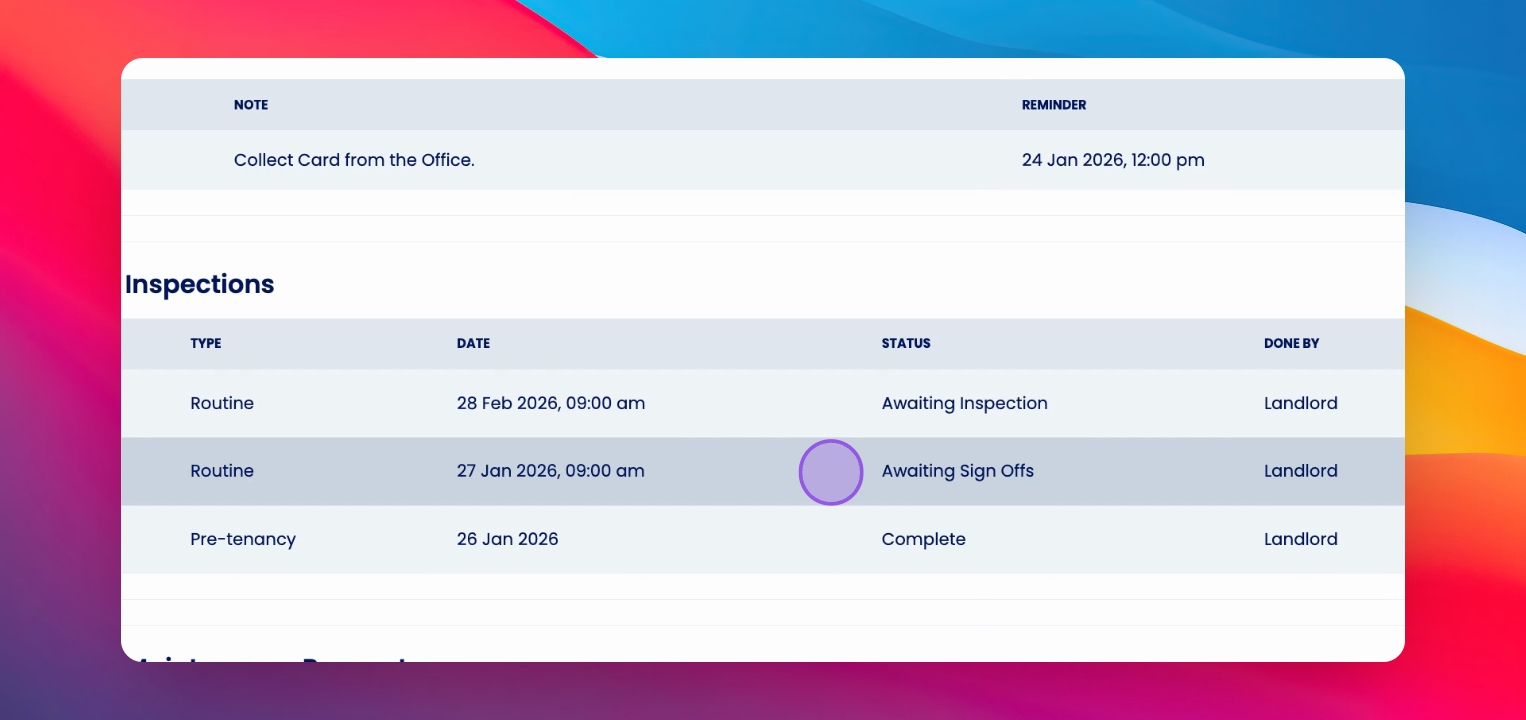
Step 4: Review Inspection
This will take you to the Inspection Review page.
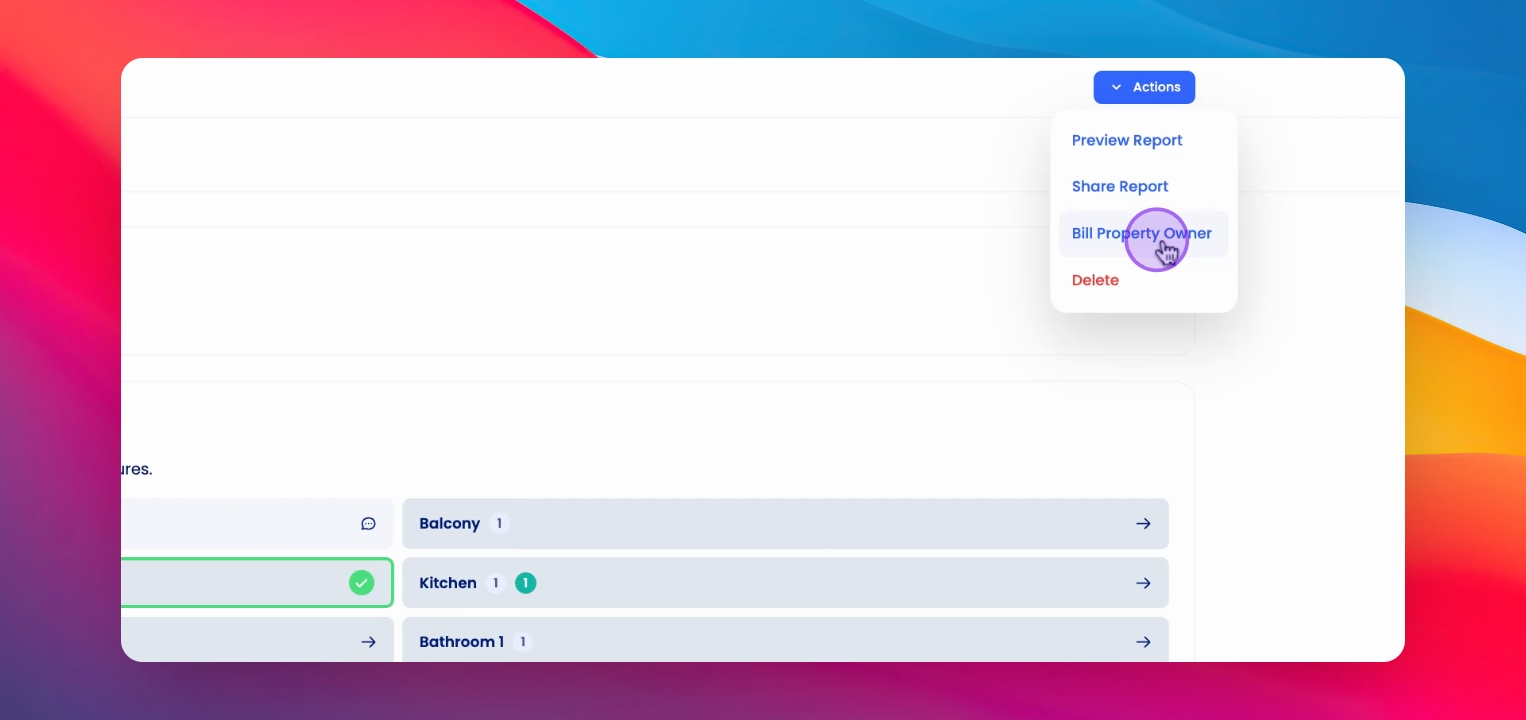
Step 5: Open Action Menu
On the right-hand corner, find and click the action buttons.
Step 6: Build Owner Expense
Select Build Property Owner from the options.
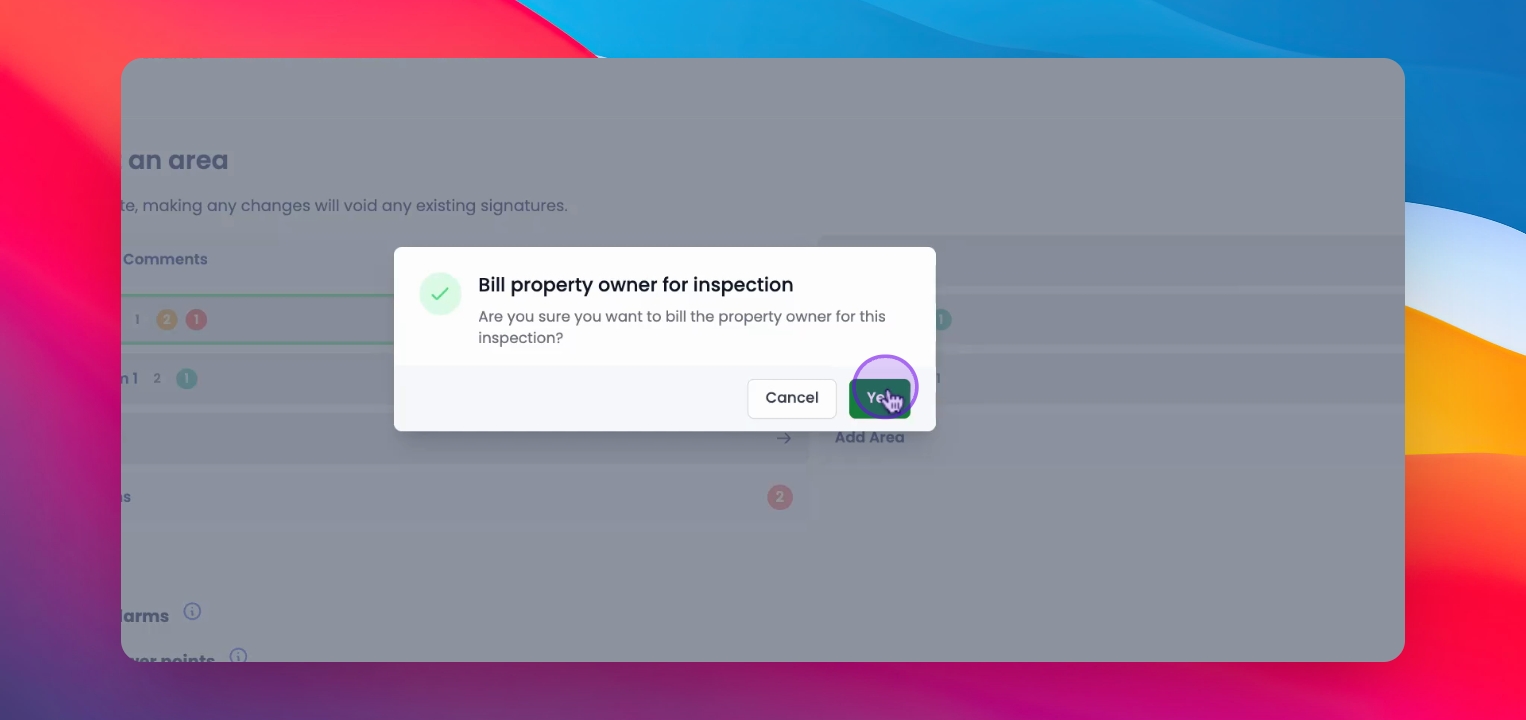
Step 7: Confirm Action
The system will prompt you to confirm. Click yes.
Step 8: Success Notification
You have successfully created an owner expense.
Step 9: Verify Expense
Go to the Invoices section from the Financial menu.
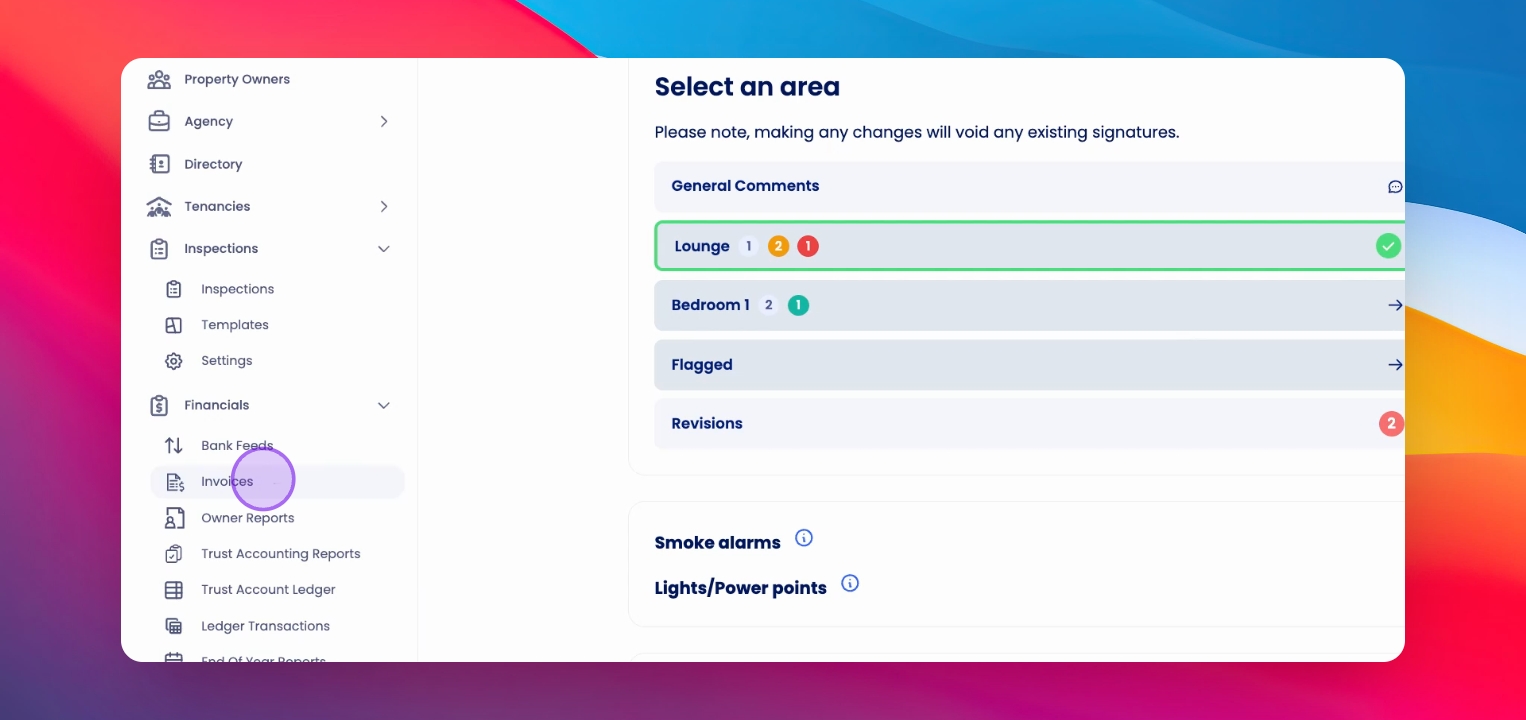
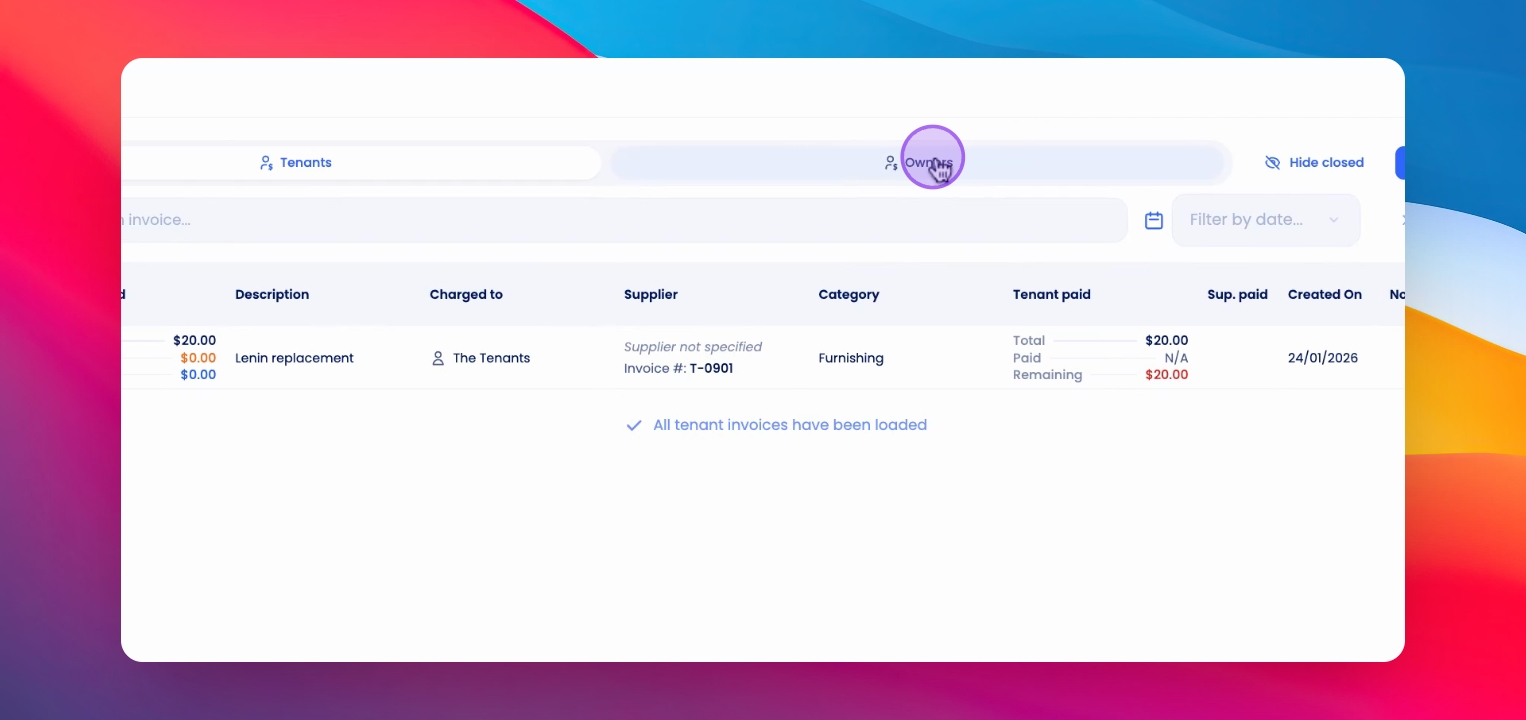
Step 10: Check Owners
Click on Owners to view the generated owner expense.
If you need more help or have any questions, just reach out to us at support@keyhook.com — we're always here to help!
Click on the this link to give a feedback: Support Article Feedback Form