

Let's do it together!
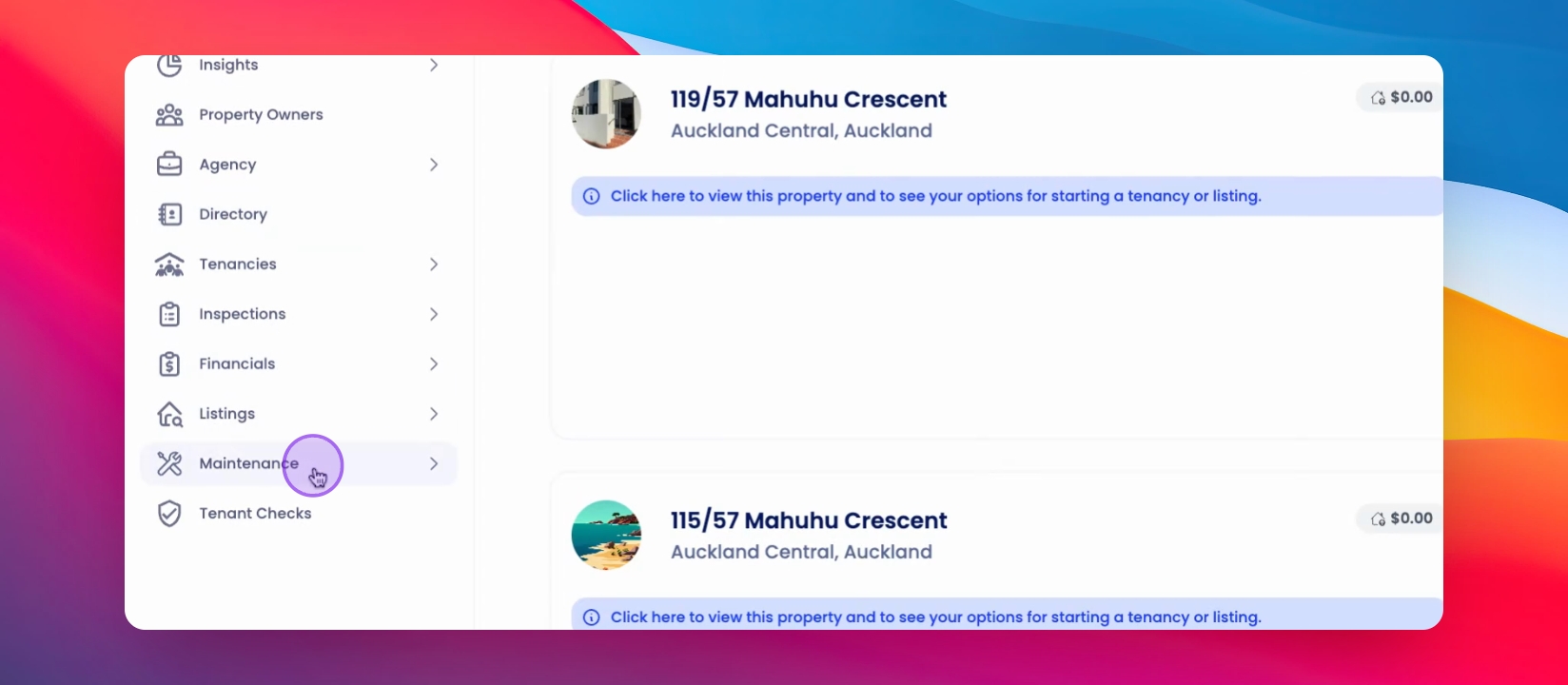
Step 1: Access Maintenance
From the left-hand side menu, go to the Maintenance section.
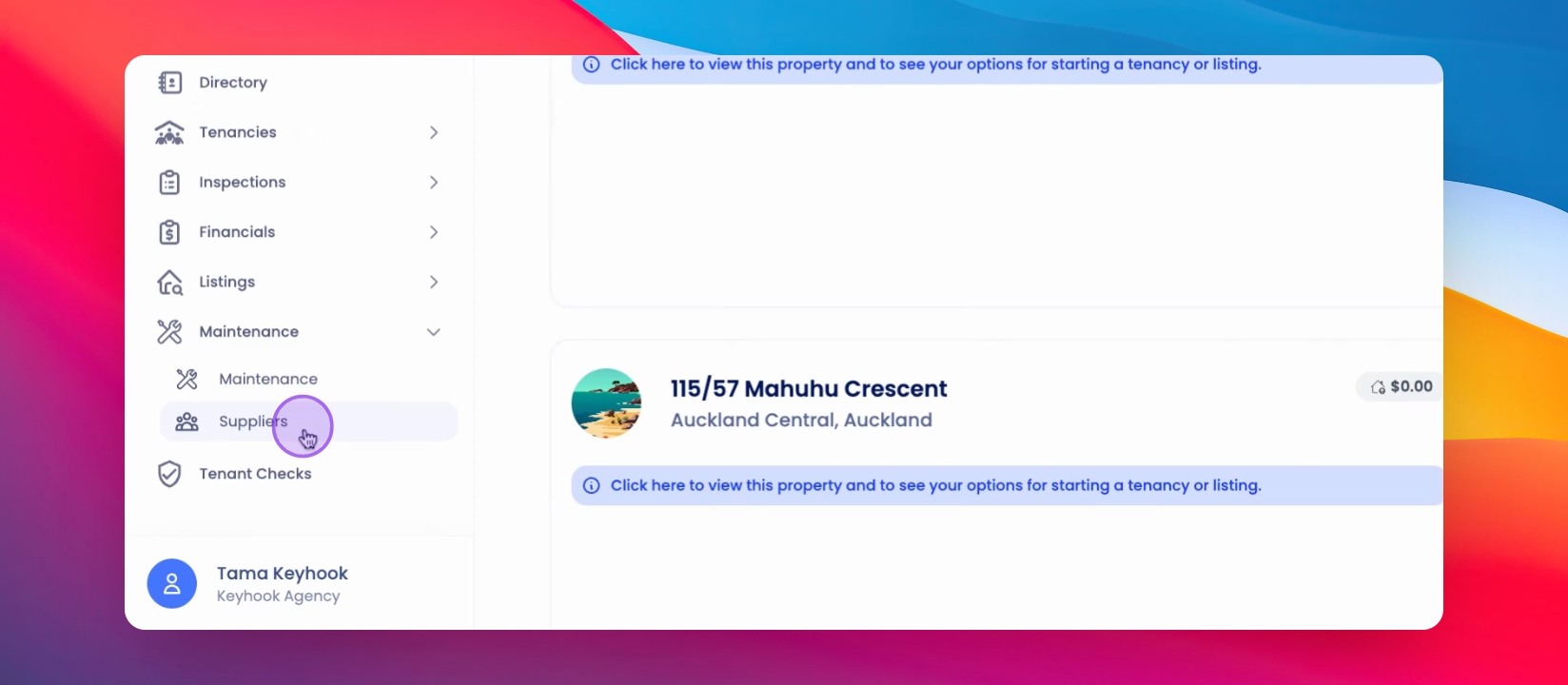
Step 2: Open Suppliers
Click on Suppliers to navigate to the suppliers page.
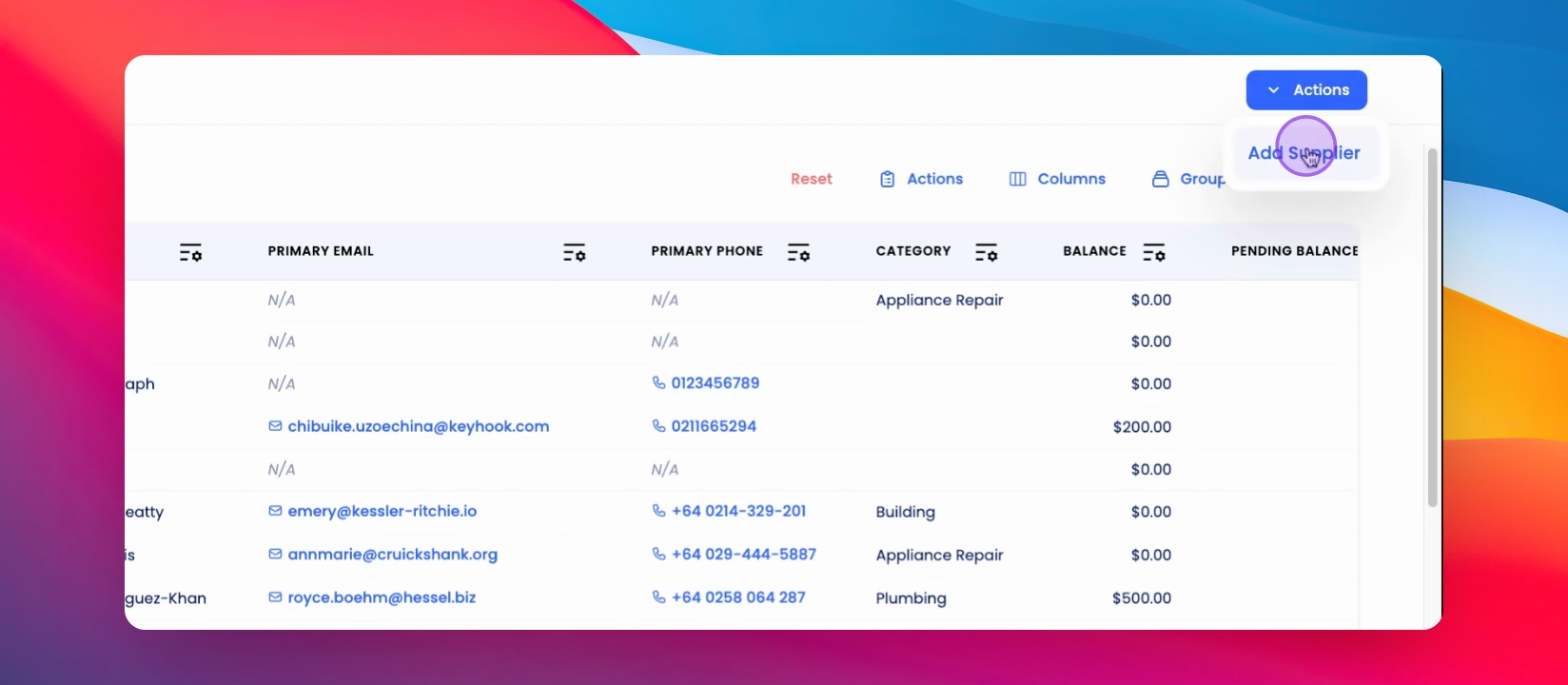
Step 3: Start Adding
Click on the Actions button at the top right corner, then select Add Supplier.
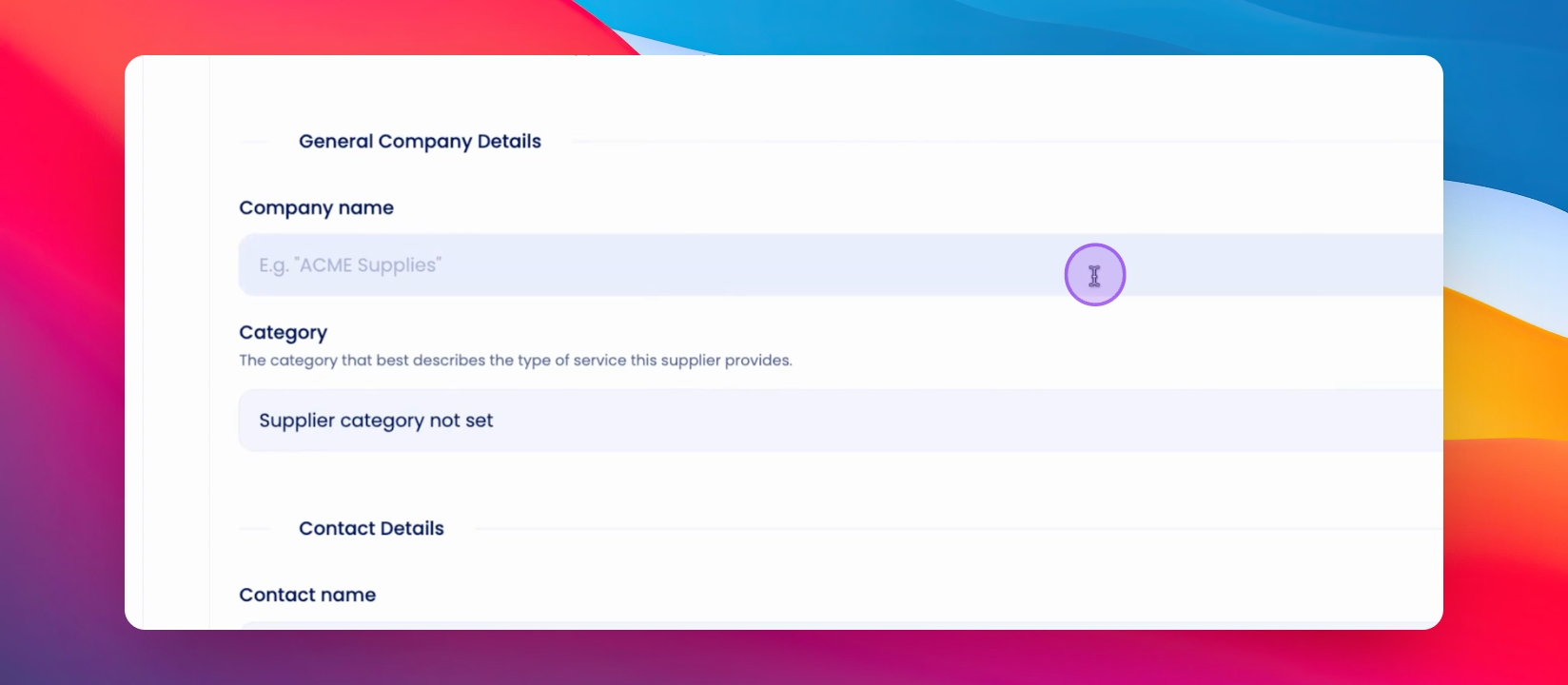
Step 4: Fill Supplier Info
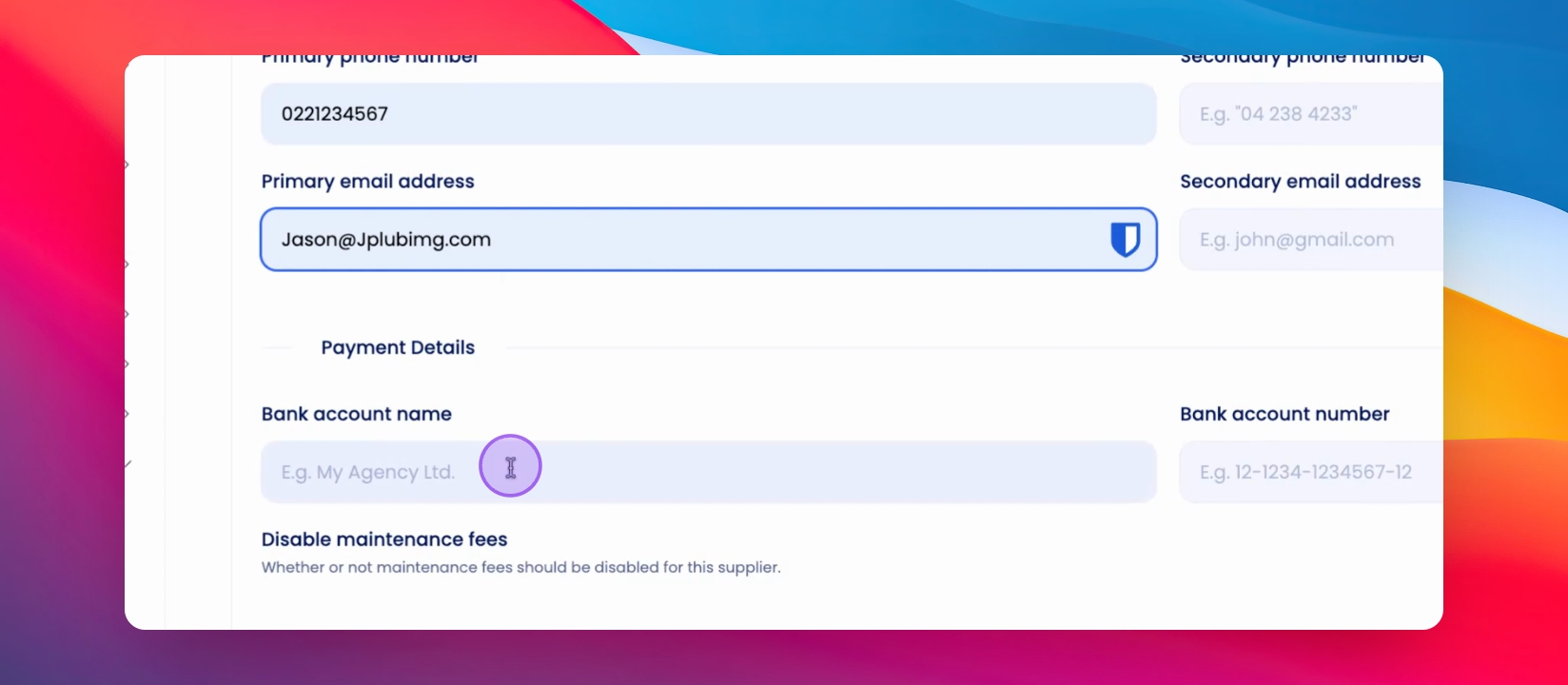
Fill in the relevant supplier information, including company name, category, contact name, contact number, and email address.
Step 5: Add Payment Details
Add the supplier payment details such as bank account name and bank account number.
Step 6: Toggle Maintenance Fees
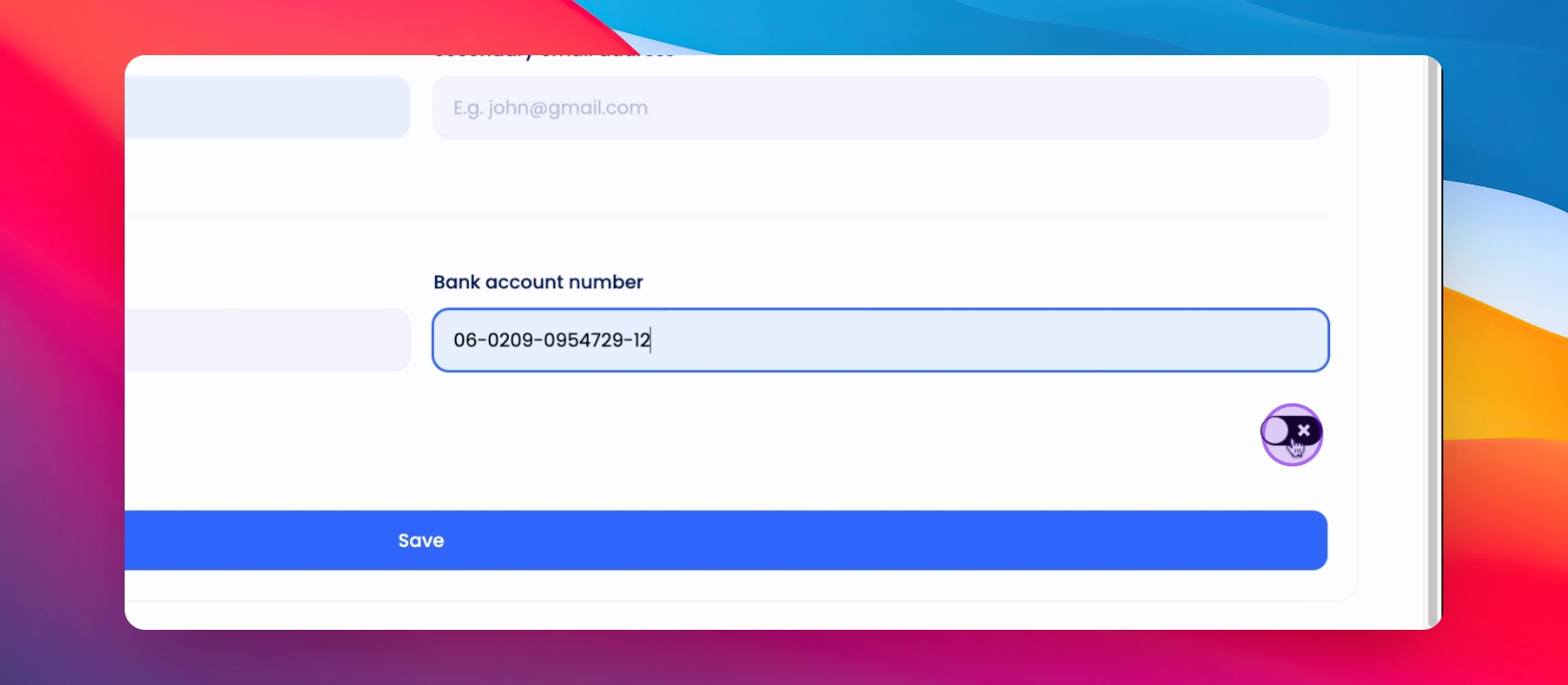
If necessary, you can disable maintenance fees for this supplier by toggling the option Provide.
Step 7: Save Supplier
Once all the required information is entered, click Save.
Step 8: Confirm Addition
After saving, you will be redirected to the Supplier profile page, confirming that the supplier has been successfully added.
If you cannot find what you are looking for or have any further questions, please feel free to contact us on support@keyhook.com — we're always here to help!