TL;DR
1
Access Work Order
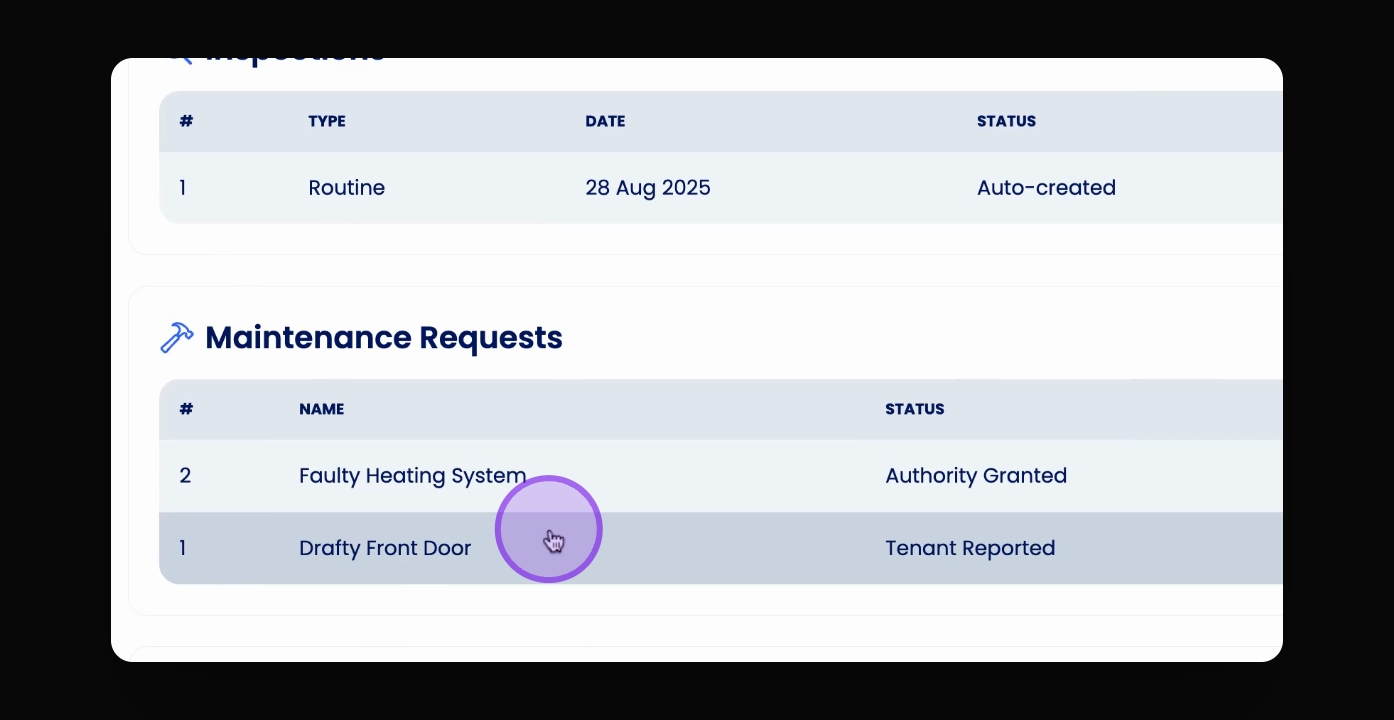
Use the navigation bar or property to access the work order.
2
Review Request
Add notes and preview by copying the URL.
3
Send Order
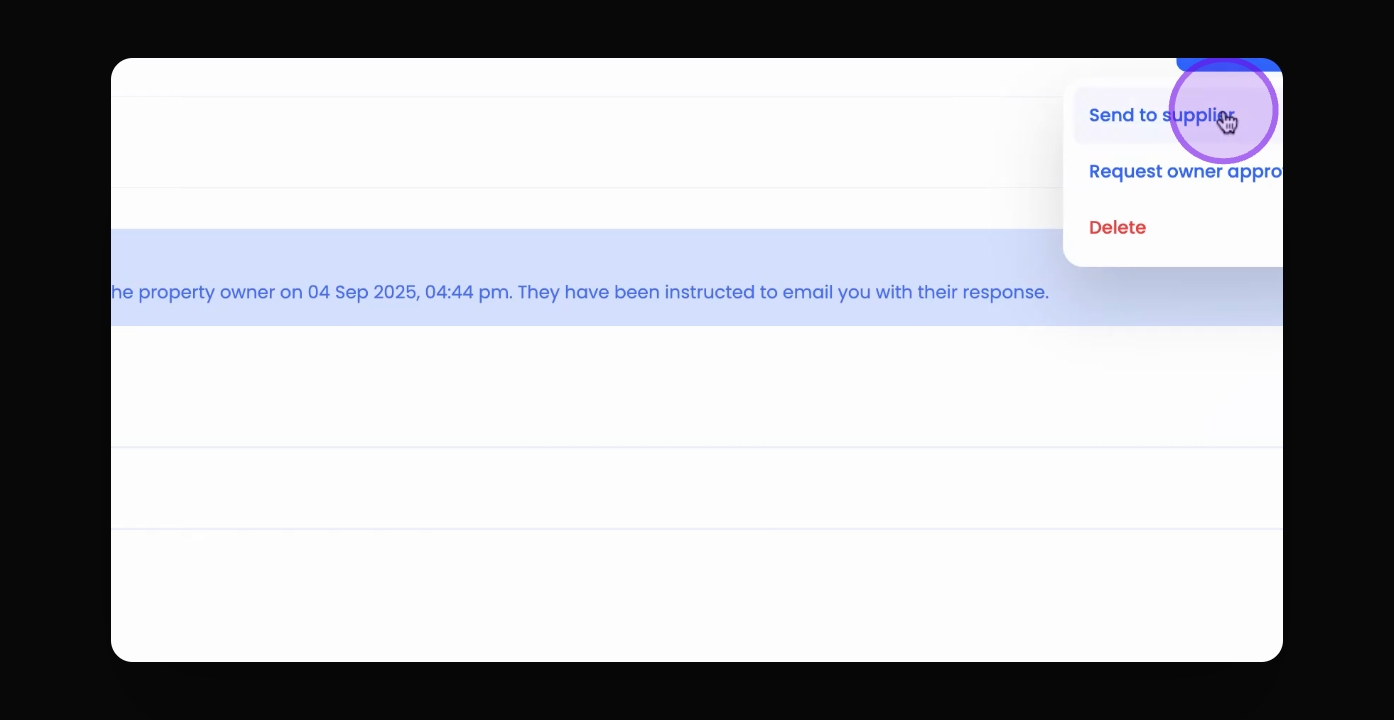
Click Actions, right click Send to Supplier, and confirm.
4
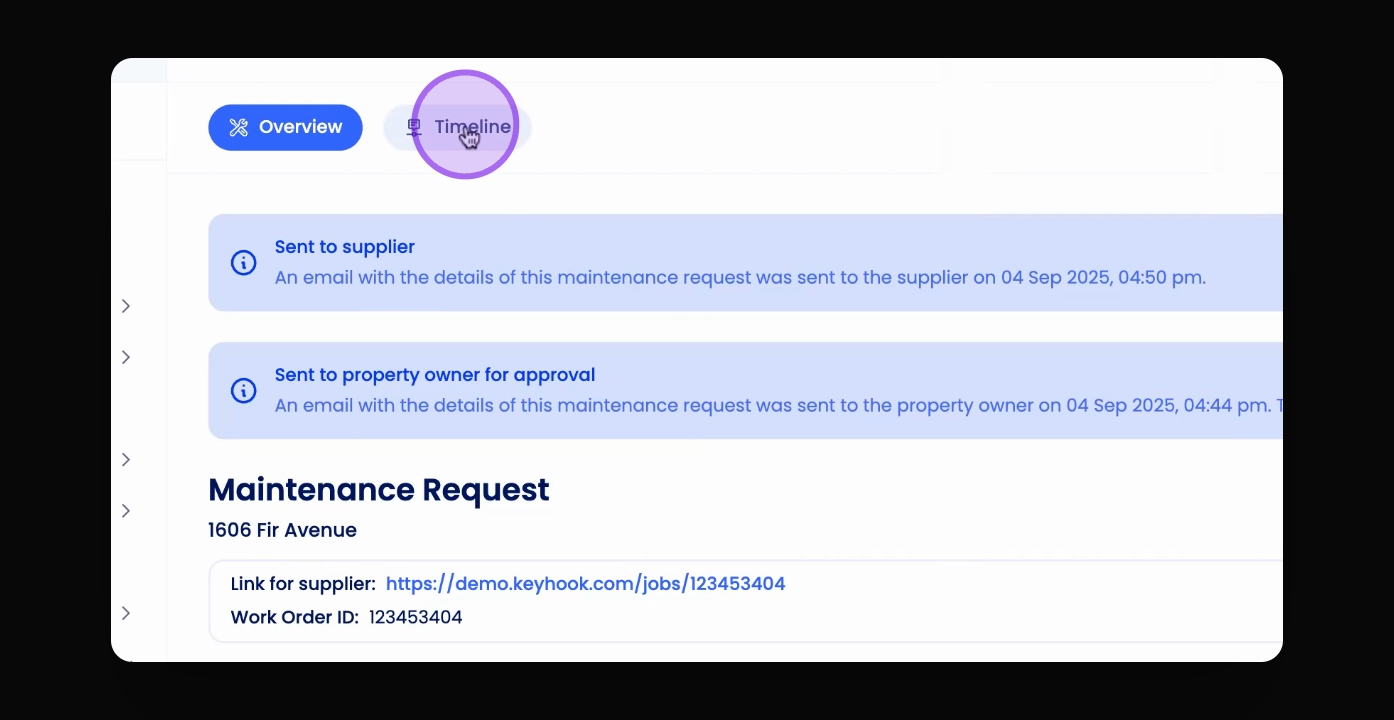
Check Email
Click Timeline to view the work order email.
Let's Do It Together!
Step 1: Access the Work Order
Access the work order through the maintenance table or directly through the property overview.
Select the relevant maintenance request.
Step 2: Review the Request
Review the maintenance request, adding any notes for the supplier.
To preview the work order, copy the URL link into your browser.
Step 3: Send the Work Order
Click Actions at the top to send the work order.
Right click Send to Supplier, then confirm.
You will be notified that you have sent the work order to the supplier at a specified date and time.
Step 4: View the Work Order Email
Click the Timeline to view the work order email.